> ## Documentation Index
> Fetch the complete documentation index at: https://help.hoopai.com/llms.txt
> Use this file to discover all available pages before exploring further.
# Opportunity details
> Everything inside an opportunity record — contact info, notes, tasks, products, followers, custom fields, audit logs, and how to update each section.
Opening an opportunity record gives you a comprehensive view of a deal — all the information, communication history, linked tasks, and activity in one place. This page explains every section of the opportunity detail panel and how to work with it.
## Opening an opportunity
* **Board view** — click any opportunity card to open the detail panel as a side drawer
* **List view** — click the opportunity name in any row to open it
The detail panel slides in from the right without leaving the board or list view, so you can make updates and return to your pipeline immediately.
 ***
## Core fields
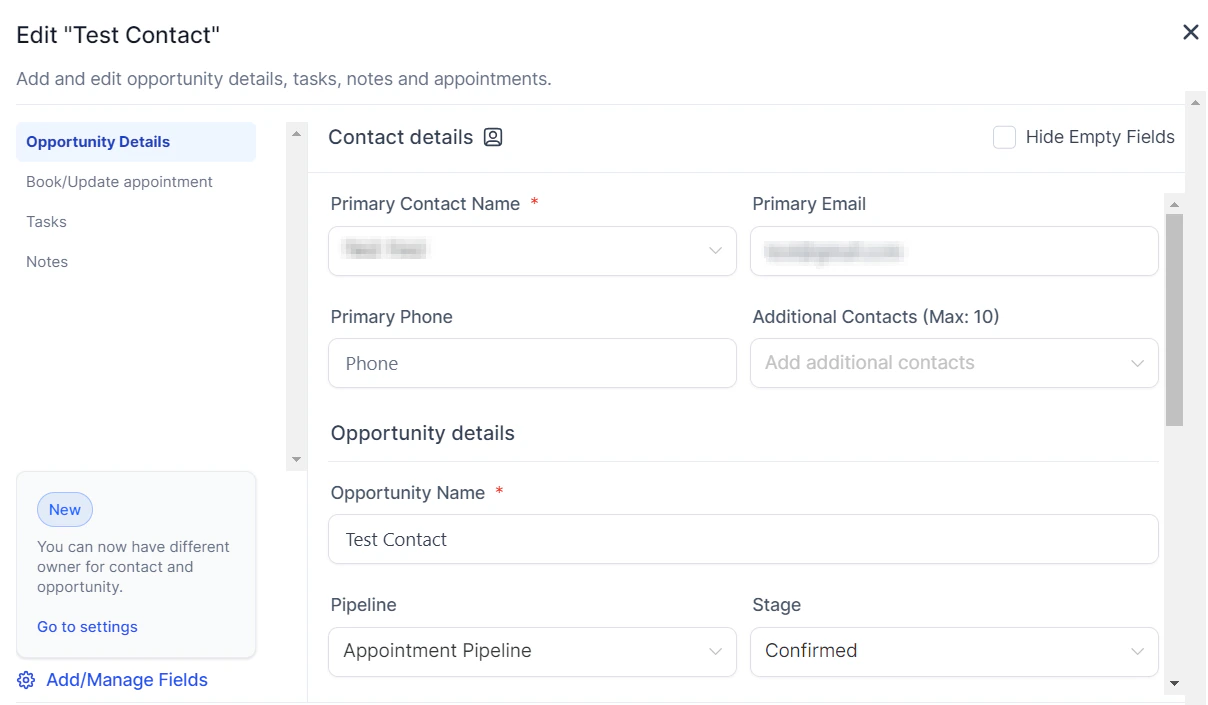
The top section of the detail panel contains the primary deal information. All fields can be edited by clicking them.
| Field | Description |
| ----------------------- | --------------------------------------------------------------------------------------------- |
| **Opportunity name** | The name displayed on the kanban card. Defaults to the contact name if not customized. |
| **Contact** | The primary contact linked to this deal. Click the contact name to open their contact record. |
| **Pipeline** | The pipeline this opportunity belongs to. |
| **Stage** | The current pipeline stage. Change via dropdown to advance or revert the deal. |
| **Status** | Open, Won, Lost, or Abandoned. Changing to Lost will prompt for a lost reason. |
| **Value** | The estimated monetary value of the deal. Rolls up into column and pipeline totals. |
| **Close date** | The expected date the deal will close. Used for filtering by urgency and forecasting. |
| **Assigned to (owner)** | The team member responsible for this deal. |
| **Followers** | Additional team members with visibility into this record. Up to 10 followers per opportunity. |
| **Source** | Where this lead originated (e.g., web form, referral, paid ad). |
| **Tags** | Labels for segmenting and filtering opportunities. |
***
## Additional contacts
A single opportunity can be linked to up to **10 additional contacts** beyond the primary contact. This is useful for deals with multiple stakeholders — for example, a B2B sale involving both a decision-maker and a procurement contact.
To add additional contacts:
1. Open the opportunity detail panel
2. Scroll to the **Additional Contacts** section
3. Click **+ Add Contact** and search for the contact record
Workflow automations associated with this opportunity operate on the primary contact's details only. Additional contacts provide visibility but do not currently trigger separate automation actions.
***
## Notes
The **Notes** section lets you record free-text context about the deal — conversation summaries, key objections, next steps, or any information your team needs.
* Click **+ Add Note** to create a new note
* Notes are timestamped and attributed to the user who wrote them
* Notes added on the opportunity also appear on the linked contact's record, and vice versa
* Notes support basic formatting (bold, bullet points, links)
Use notes consistently after every call or meeting. A well-maintained notes trail means any team member can pick up a deal and immediately understand the context.
***
## Tasks
The **Tasks** section lets you create and manage action items tied to this opportunity.
To add a task:
1. Click **+ Add Task** in the Tasks section
2. Set the task title, due date, and assigned team member
3. Optionally set a priority level
4. Click **Save**
Tasks created on an opportunity also appear in the assigned user's task list and on the linked contact's record. When a task is due, the assigned user receives a notification.
Mark tasks complete by clicking the checkbox next to them. Completed tasks remain visible in the history but are struck through.
***
## Appointments
You can view and create appointments linked to this opportunity directly from the detail panel.
1. Click **+ Add Appointment**
2. Select the calendar, date, and time
3. Assign the appointment to a team member if needed
4. Click **Save**
Booked appointments appear in the opportunity's activity timeline and are also reflected in the linked contact's record and your calendar.
***
## Products
If you are using HoopAI's Products feature, you can add one or more products to an opportunity to itemize what the deal includes. This is separate from the opportunity value field and lets you track specific line items.
To add a product:
1. Scroll to the **Products** section of the detail panel
2. Click **+ Add Product**
3. Search for or select a product from your product catalog
4. Confirm the quantity and price
The sum of product prices does not automatically update the opportunity value field — they are managed independently.
***
## Invoices and estimates
From the opportunity detail panel, you can generate and send invoices or estimates to the linked contact:
1. Click **Send Invoice** or **Send Estimate** in the detail panel actions
2. Complete the form — line items, amounts, and due date
3. Click **Send**
The invoice or estimate is then tracked under the contact's billing records and linked to this opportunity.
***
## Activity timeline
The activity timeline at the bottom of the detail panel shows a chronological log of everything that has happened on this opportunity:
* Stage changes (with timestamps and who moved the deal)
* Status changes
* Notes added
* Tasks created or completed
* Appointments booked
* Emails and SMS sent to the linked contact
* Workflow actions triggered by this opportunity
* Field edits
Use the activity timeline during deal reviews to understand the full history without needing to ask the deal owner.
***
## Audit logs
Every change made to an opportunity is recorded in the audit log. Unlike the activity timeline (which shows the full context), audit logs focus specifically on field-level edits — recording what changed, who changed it, and when.
To access audit logs:
1. Open the opportunity detail panel
2. Locate the **Opportunity ID** at the bottom left of the panel
3. Click the Opportunity ID — this opens the audit log for that specific record
Audit logs retain data for **60 days**.
***
## Core fields
The top section of the detail panel contains the primary deal information. All fields can be edited by clicking them.
| Field | Description |
| ----------------------- | --------------------------------------------------------------------------------------------- |
| **Opportunity name** | The name displayed on the kanban card. Defaults to the contact name if not customized. |
| **Contact** | The primary contact linked to this deal. Click the contact name to open their contact record. |
| **Pipeline** | The pipeline this opportunity belongs to. |
| **Stage** | The current pipeline stage. Change via dropdown to advance or revert the deal. |
| **Status** | Open, Won, Lost, or Abandoned. Changing to Lost will prompt for a lost reason. |
| **Value** | The estimated monetary value of the deal. Rolls up into column and pipeline totals. |
| **Close date** | The expected date the deal will close. Used for filtering by urgency and forecasting. |
| **Assigned to (owner)** | The team member responsible for this deal. |
| **Followers** | Additional team members with visibility into this record. Up to 10 followers per opportunity. |
| **Source** | Where this lead originated (e.g., web form, referral, paid ad). |
| **Tags** | Labels for segmenting and filtering opportunities. |
***
## Additional contacts
A single opportunity can be linked to up to **10 additional contacts** beyond the primary contact. This is useful for deals with multiple stakeholders — for example, a B2B sale involving both a decision-maker and a procurement contact.
To add additional contacts:
1. Open the opportunity detail panel
2. Scroll to the **Additional Contacts** section
3. Click **+ Add Contact** and search for the contact record
Workflow automations associated with this opportunity operate on the primary contact's details only. Additional contacts provide visibility but do not currently trigger separate automation actions.
***
## Notes
The **Notes** section lets you record free-text context about the deal — conversation summaries, key objections, next steps, or any information your team needs.
* Click **+ Add Note** to create a new note
* Notes are timestamped and attributed to the user who wrote them
* Notes added on the opportunity also appear on the linked contact's record, and vice versa
* Notes support basic formatting (bold, bullet points, links)
Use notes consistently after every call or meeting. A well-maintained notes trail means any team member can pick up a deal and immediately understand the context.
***
## Tasks
The **Tasks** section lets you create and manage action items tied to this opportunity.
To add a task:
1. Click **+ Add Task** in the Tasks section
2. Set the task title, due date, and assigned team member
3. Optionally set a priority level
4. Click **Save**
Tasks created on an opportunity also appear in the assigned user's task list and on the linked contact's record. When a task is due, the assigned user receives a notification.
Mark tasks complete by clicking the checkbox next to them. Completed tasks remain visible in the history but are struck through.
***
## Appointments
You can view and create appointments linked to this opportunity directly from the detail panel.
1. Click **+ Add Appointment**
2. Select the calendar, date, and time
3. Assign the appointment to a team member if needed
4. Click **Save**
Booked appointments appear in the opportunity's activity timeline and are also reflected in the linked contact's record and your calendar.
***
## Products
If you are using HoopAI's Products feature, you can add one or more products to an opportunity to itemize what the deal includes. This is separate from the opportunity value field and lets you track specific line items.
To add a product:
1. Scroll to the **Products** section of the detail panel
2. Click **+ Add Product**
3. Search for or select a product from your product catalog
4. Confirm the quantity and price
The sum of product prices does not automatically update the opportunity value field — they are managed independently.
***
## Invoices and estimates
From the opportunity detail panel, you can generate and send invoices or estimates to the linked contact:
1. Click **Send Invoice** or **Send Estimate** in the detail panel actions
2. Complete the form — line items, amounts, and due date
3. Click **Send**
The invoice or estimate is then tracked under the contact's billing records and linked to this opportunity.
***
## Activity timeline
The activity timeline at the bottom of the detail panel shows a chronological log of everything that has happened on this opportunity:
* Stage changes (with timestamps and who moved the deal)
* Status changes
* Notes added
* Tasks created or completed
* Appointments booked
* Emails and SMS sent to the linked contact
* Workflow actions triggered by this opportunity
* Field edits
Use the activity timeline during deal reviews to understand the full history without needing to ask the deal owner.
***
## Audit logs
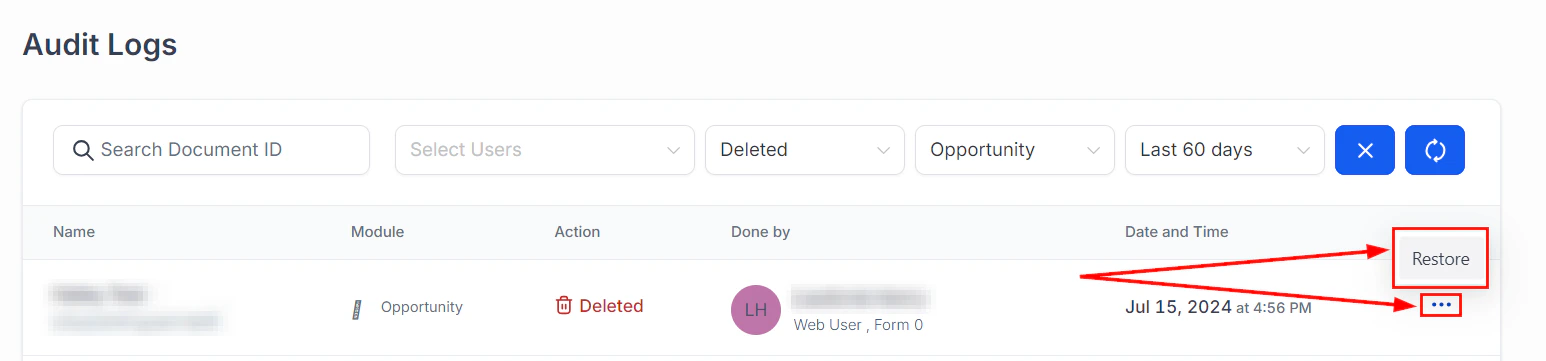
Every change made to an opportunity is recorded in the audit log. Unlike the activity timeline (which shows the full context), audit logs focus specifically on field-level edits — recording what changed, who changed it, and when.
To access audit logs:
1. Open the opportunity detail panel
2. Locate the **Opportunity ID** at the bottom left of the panel
3. Click the Opportunity ID — this opens the audit log for that specific record
Audit logs retain data for **60 days**.
 ***
## Opportunity ID
Every opportunity has a unique Opportunity ID automatically assigned when the record is created. This ID is used for:
* Referencing the opportunity in API calls
* Looking up a specific record in bulk import/export files
* Accessing the audit log directly
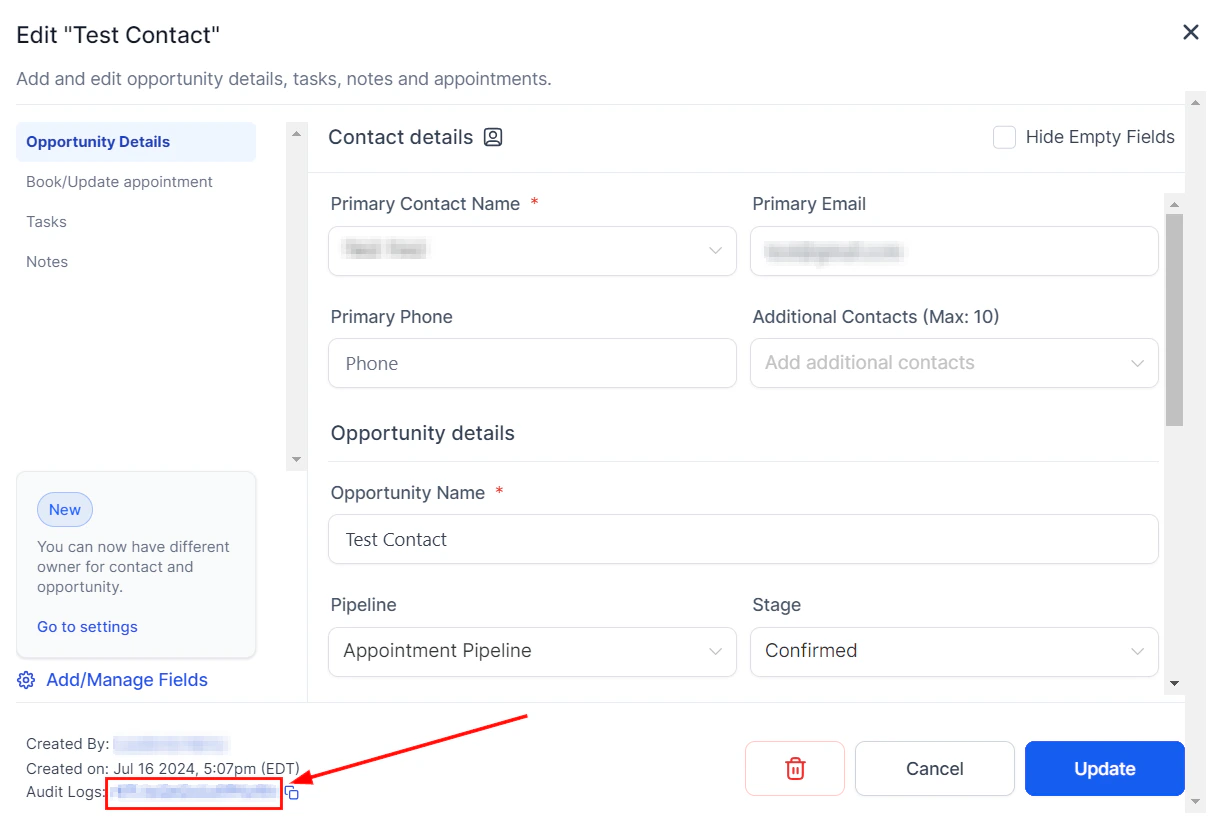
The Opportunity ID is displayed at the bottom left of the detail panel.
***
## Opportunity ID
Every opportunity has a unique Opportunity ID automatically assigned when the record is created. This ID is used for:
* Referencing the opportunity in API calls
* Looking up a specific record in bulk import/export files
* Accessing the audit log directly
The Opportunity ID is displayed at the bottom left of the detail panel.
 ***
## Custom fields
Custom fields you have configured for opportunities appear in their own section of the detail panel, organized into any groups you have set up. Click any field to edit it.
If the **Hide Empty Fields** option is enabled, custom field sections with no values will be hidden automatically to keep the panel clean. Toggle this setting in the detail panel or in Opportunity Settings.
***
## FAQs
Yes. An opportunity has one primary contact plus up to 10 additional contacts. Workflow automations act on the primary contact only.
Yes. Notes are shared between the opportunity record and the linked contact's record. Adding a note in either place makes it visible in both.
Yes. Open the opportunity detail panel, click the Contact field, and search for a different contact to reassign.
Audit logs are available for 60 days from the date of the change.
The activity timeline shows a full contextual history of all actions and interactions (notes, calls, stage changes, emails). The audit log records specific field-level edits — what value changed, who changed it, and when.
Yes, if the Products feature is enabled in your account. Add products from the Products section of the opportunity detail panel. Product line items are tracked separately from the opportunity value field.
***
## Custom fields
Custom fields you have configured for opportunities appear in their own section of the detail panel, organized into any groups you have set up. Click any field to edit it.
If the **Hide Empty Fields** option is enabled, custom field sections with no values will be hidden automatically to keep the panel clean. Toggle this setting in the detail panel or in Opportunity Settings.
***
## FAQs
Yes. An opportunity has one primary contact plus up to 10 additional contacts. Workflow automations act on the primary contact only.
Yes. Notes are shared between the opportunity record and the linked contact's record. Adding a note in either place makes it visible in both.
Yes. Open the opportunity detail panel, click the Contact field, and search for a different contact to reassign.
Audit logs are available for 60 days from the date of the change.
The activity timeline shows a full contextual history of all actions and interactions (notes, calls, stage changes, emails). The audit log records specific field-level edits — what value changed, who changed it, and when.
Yes, if the Products feature is enabled in your account. Add products from the Products section of the opportunity detail panel. Product line items are tracked separately from the opportunity value field.