> ## Documentation Index
> Fetch the complete documentation index at: https://help.hoopai.com/llms.txt
> Use this file to discover all available pages before exploring further.
# Kanban board
> Use the visual kanban board to manage opportunities by pipeline stage, drag cards to advance deals, and customize what you see at a glance.
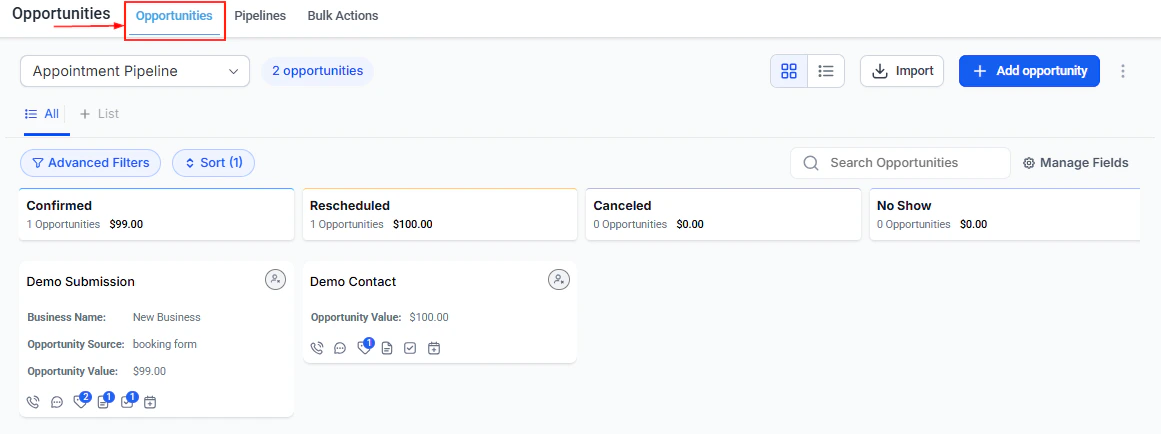
The kanban board is the default view for Opportunities. It displays your pipeline as a set of columns — one for each stage — with opportunity cards arranged inside them. This visual layout makes it easy to see where every deal stands, identify bottlenecks, and move opportunities forward by dragging cards between columns.
## Switching to board view
If you are currently in list view, switch back to the kanban board by clicking the **Board** view icon in the view toggle at the top right of the Opportunities section.
 ***
## Reading the board
Each column on the board represents a pipeline stage. At the top of each column, the platform displays:
* The **stage name**
* A **count** of opportunities currently in that stage
* The **total value** of all opportunities in that stage (sum of opportunity values)
This gives you an instant snapshot of pipeline health — how many deals are at each step and how much revenue is at stake.
### Opportunity cards
Each opportunity appears as a card within its stage column. Cards display the key details you choose to show (see [Customizing cards](#customizing-cards) below). By default, a card shows:
* Opportunity name
* Contact name
* Opportunity value
* Close date or days until close
* Assigned owner
* Quick-action counters (tasks, notes, calls, appointments)
### Smart tags
If smart tags are configured for your pipeline, they appear as colored labels on the cards they match. Tags help you instantly spot high-priority deals, at-risk opportunities, or specific deal types without opening the record.
***
## Switching between pipelines
Use the **pipeline dropdown** at the top left of the Opportunities section to switch between different pipelines. Only one pipeline is displayed at a time on the board. Changing the pipeline refreshes the board to show that pipeline's stages and opportunities.
***
## Dragging cards between stages
To advance — or revert — an opportunity through your pipeline, drag its card from one column and drop it into another.
Find the opportunity card in its current stage column. Cards are sorted by most recently updated by default.
Click and hold the card, then drag it horizontally to the target stage column.
Release the card in the new column. The opportunity's stage updates immediately and the column totals recalculate.
When you drag a card to the **Won** or **Lost** stage, the platform will prompt you to confirm the status change. For Lost, you will also be asked to select a lost reason before the move is completed.
If your pipeline is wide (many stages), scroll horizontally within the board to reveal all columns.
***
## Moving a card using the edit panel
If dragging is not practical — for example, when the target stage is far to the right — you can also change the stage from inside the opportunity record:
1. Click the card to open the opportunity detail panel
2. Click the **Stage** dropdown
3. Select the new stage and save
***
## Customizing cards
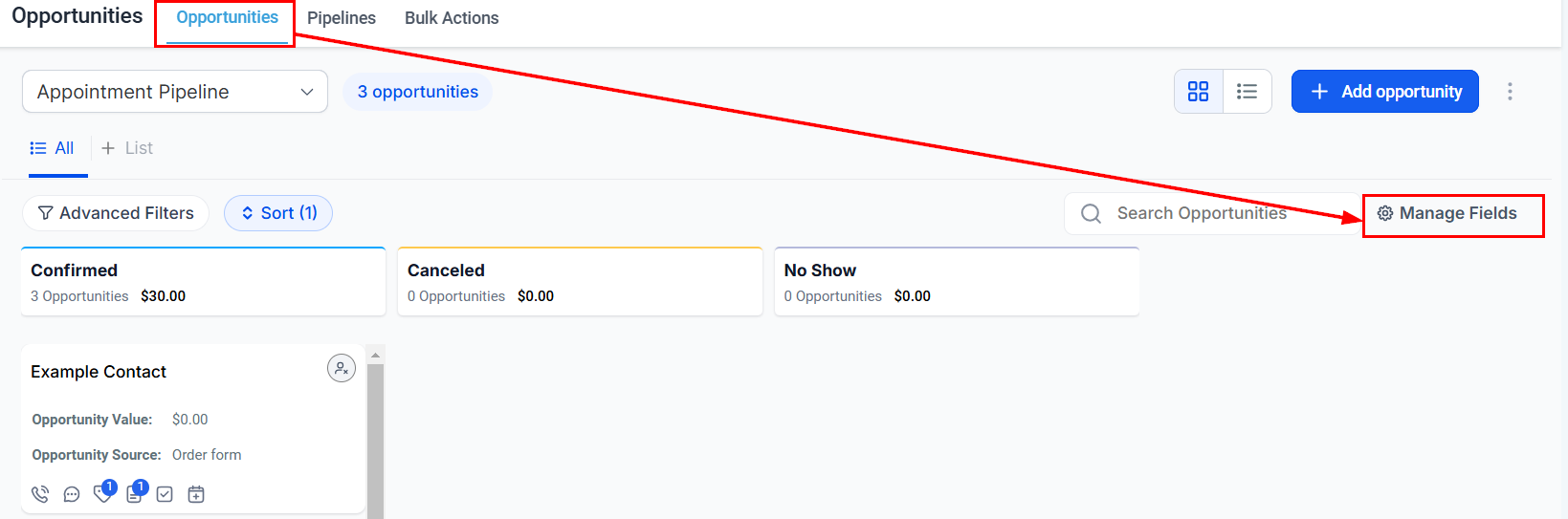
You can control which fields appear on every card in the board view. Customizations can be applied to the current pipeline or to all pipelines at once.
Click **Manage Fields** in the top-right area of the Opportunities board.
***
## Reading the board
Each column on the board represents a pipeline stage. At the top of each column, the platform displays:
* The **stage name**
* A **count** of opportunities currently in that stage
* The **total value** of all opportunities in that stage (sum of opportunity values)
This gives you an instant snapshot of pipeline health — how many deals are at each step and how much revenue is at stake.
### Opportunity cards
Each opportunity appears as a card within its stage column. Cards display the key details you choose to show (see [Customizing cards](#customizing-cards) below). By default, a card shows:
* Opportunity name
* Contact name
* Opportunity value
* Close date or days until close
* Assigned owner
* Quick-action counters (tasks, notes, calls, appointments)
### Smart tags
If smart tags are configured for your pipeline, they appear as colored labels on the cards they match. Tags help you instantly spot high-priority deals, at-risk opportunities, or specific deal types without opening the record.
***
## Switching between pipelines
Use the **pipeline dropdown** at the top left of the Opportunities section to switch between different pipelines. Only one pipeline is displayed at a time on the board. Changing the pipeline refreshes the board to show that pipeline's stages and opportunities.
***
## Dragging cards between stages
To advance — or revert — an opportunity through your pipeline, drag its card from one column and drop it into another.
Find the opportunity card in its current stage column. Cards are sorted by most recently updated by default.
Click and hold the card, then drag it horizontally to the target stage column.
Release the card in the new column. The opportunity's stage updates immediately and the column totals recalculate.
When you drag a card to the **Won** or **Lost** stage, the platform will prompt you to confirm the status change. For Lost, you will also be asked to select a lost reason before the move is completed.
If your pipeline is wide (many stages), scroll horizontally within the board to reveal all columns.
***
## Moving a card using the edit panel
If dragging is not practical — for example, when the target stage is far to the right — you can also change the stage from inside the opportunity record:
1. Click the card to open the opportunity detail panel
2. Click the **Stage** dropdown
3. Select the new stage and save
***
## Customizing cards
You can control which fields appear on every card in the board view. Customizations can be applied to the current pipeline or to all pipelines at once.
Click **Manage Fields** in the top-right area of the Opportunities board.
 Choose from three categories:
* **Standard opportunity fields** — name, status, lost reason, value, owner, source
* **Custom opportunity fields** — any custom fields you have created
* **Primary contact information** — contact name, phone, email, business name, engagement score, task due dates
* **Opportunity activity** — creation date, last updated date, days since status change, days since stage change
Select one of three display styles:
| Layout | Description |
| ------------- | ----------------------------------------- |
| **Default** | Shows field labels alongside values |
| **Compact** | Shows values only; labels appear on hover |
| **Unlabeled** | One line per field, values only |
Switch to the **Quick Actions** tab to enable or disable the icon counters shown at the bottom of each card — conversations, tasks, notes, tags, calls, and appointments.
Click **Apply** to save. Choose whether to apply to the current pipeline or all pipelines.
***
## Filtering the board
Use the filter toolbar to narrow down which opportunities appear on the board without changing your pipeline:
* **Assigned user** — show only deals owned by a specific team member
* **Date range** — filter by created date, close date, or last activity date
* **Opportunity value** — filter to a minimum, maximum, or range of values
* **Status** — show Open, Won, Lost, or Abandoned opportunities
* **Tags** — include or exclude specific tags (including smart tags)
* **Lead source** — filter by where the deal originated
Filters stack, so you can combine multiple criteria. Save a filter combination as a preset for quick reuse.
***
## Bulk actions on the board
You can select multiple cards directly on the kanban board and act on them without switching to list view.
Click the **Select** button or check the checkbox that appears when hovering over a card. The board enters selection mode — dragging and clicking to open cards is temporarily disabled.
Check additional cards you want to include. Use **Select All** to select every card visible on the current board.
With cards selected, choose an action from the bulk actions toolbar: edit fields, change stage, reassign owner, add tags, or delete.
Click **Cancel** or deselect all cards to return to normal board mode.
***
## Board performance tips
If your pipeline has hundreds of opportunities, apply a date range or assigned-user filter before working on the board. This improves load time and keeps the board focused on the deals most relevant to you right now.
* Use **smart tags** to surface the deals that need attention without manually reading every card
* Set a consistent field layout on cards so your whole team sees the same information at a glance
* Stage columns show a running total — use that number during team check-ins to review pipeline value at a glance
* Boards are per-pipeline; create separate pipelines for different products or regions rather than cramming everything into one long pipeline
***
## FAQs
Cards are ordered by last-updated date by default. There is no manual drag-to-reorder within a single column, but you can sort and filter to surface the most important cards.
Deals marked Won or Lost are removed from the open stage columns. The Won and Lost stage columns (if visible) will show those deals and their values separately. The total at the top of each column reflects only the deals currently in that stage.
Stage visibility is controlled in Pipeline Settings. You can hide a stage from the funnel chart and pie chart widgets, but all stages defined in your pipeline will appear as columns on the board.
Drag-and-drop is disabled while the board is in selection mode. Click Cancel or deselect all cards to exit selection mode and re-enable drag-and-drop.
Card field settings are per-user and per-pipeline by default. When you apply changes, you can choose to apply them to the current pipeline or all pipelines, but other team members manage their own card display preferences independently.
Choose from three categories:
* **Standard opportunity fields** — name, status, lost reason, value, owner, source
* **Custom opportunity fields** — any custom fields you have created
* **Primary contact information** — contact name, phone, email, business name, engagement score, task due dates
* **Opportunity activity** — creation date, last updated date, days since status change, days since stage change
Select one of three display styles:
| Layout | Description |
| ------------- | ----------------------------------------- |
| **Default** | Shows field labels alongside values |
| **Compact** | Shows values only; labels appear on hover |
| **Unlabeled** | One line per field, values only |
Switch to the **Quick Actions** tab to enable or disable the icon counters shown at the bottom of each card — conversations, tasks, notes, tags, calls, and appointments.
Click **Apply** to save. Choose whether to apply to the current pipeline or all pipelines.
***
## Filtering the board
Use the filter toolbar to narrow down which opportunities appear on the board without changing your pipeline:
* **Assigned user** — show only deals owned by a specific team member
* **Date range** — filter by created date, close date, or last activity date
* **Opportunity value** — filter to a minimum, maximum, or range of values
* **Status** — show Open, Won, Lost, or Abandoned opportunities
* **Tags** — include or exclude specific tags (including smart tags)
* **Lead source** — filter by where the deal originated
Filters stack, so you can combine multiple criteria. Save a filter combination as a preset for quick reuse.
***
## Bulk actions on the board
You can select multiple cards directly on the kanban board and act on them without switching to list view.
Click the **Select** button or check the checkbox that appears when hovering over a card. The board enters selection mode — dragging and clicking to open cards is temporarily disabled.
Check additional cards you want to include. Use **Select All** to select every card visible on the current board.
With cards selected, choose an action from the bulk actions toolbar: edit fields, change stage, reassign owner, add tags, or delete.
Click **Cancel** or deselect all cards to return to normal board mode.
***
## Board performance tips
If your pipeline has hundreds of opportunities, apply a date range or assigned-user filter before working on the board. This improves load time and keeps the board focused on the deals most relevant to you right now.
* Use **smart tags** to surface the deals that need attention without manually reading every card
* Set a consistent field layout on cards so your whole team sees the same information at a glance
* Stage columns show a running total — use that number during team check-ins to review pipeline value at a glance
* Boards are per-pipeline; create separate pipelines for different products or regions rather than cramming everything into one long pipeline
***
## FAQs
Cards are ordered by last-updated date by default. There is no manual drag-to-reorder within a single column, but you can sort and filter to surface the most important cards.
Deals marked Won or Lost are removed from the open stage columns. The Won and Lost stage columns (if visible) will show those deals and their values separately. The total at the top of each column reflects only the deals currently in that stage.
Stage visibility is controlled in Pipeline Settings. You can hide a stage from the funnel chart and pie chart widgets, but all stages defined in your pipeline will appear as columns on the board.
Drag-and-drop is disabled while the board is in selection mode. Click Cancel or deselect all cards to exit selection mode and re-enable drag-and-drop.
Card field settings are per-user and per-pipeline by default. When you apply changes, you can choose to apply them to the current pipeline or all pipelines, but other team members manage their own card display preferences independently.