> ## Documentation Index
> Fetch the complete documentation index at: https://help.hoopai.com/llms.txt
> Use this file to discover all available pages before exploring further.
# Followers
> Add team members as followers on opportunity records so they can view and collaborate on deals without being the assigned owner.
Followers are team members you add to an opportunity (or contact) record to give them visibility and access. Unlike the assigned owner — who is responsible for the deal — followers are stakeholders who need to stay informed and contribute without being the primary point of accountability.
This is especially useful for complex deals where multiple people are involved: a sales manager reviewing high-value opportunities, a product specialist consulted during technical evaluations, or a support lead preparing for onboarding once the deal closes.
***
## How followers work
When a user is added as a follower on an opportunity:
* They can **view and edit** the opportunity record, even if they normally have restricted data access under the "Only Assigned Data" permission setting
* They can see the opportunity's notes, tasks, activity timeline, and all associated information
* They cannot change the **owner** of the record — ownership management stays with the assigned user or an administrator
* They can add notes, create tasks, update fields, and take other actions on the record
Followers inherit the same level of access as the record owner for that specific record. No additional permission adjustments are needed.
The follower feature is particularly valuable in accounts where "Only Assigned Data" is enabled — followers give you a precise way to extend access to specific records without granting broader data permissions.
***
## Adding followers manually
You can add followers when creating an opportunity or at any time by editing an existing one.
**When creating an opportunity:**
1. Open the opportunity creation form (**+ Add Opportunity**)
2. Locate the **Followers** field — it is a multi-select dropdown
3. Search for and select the team members you want to follow this opportunity
4. Complete the remaining fields and click **Save**
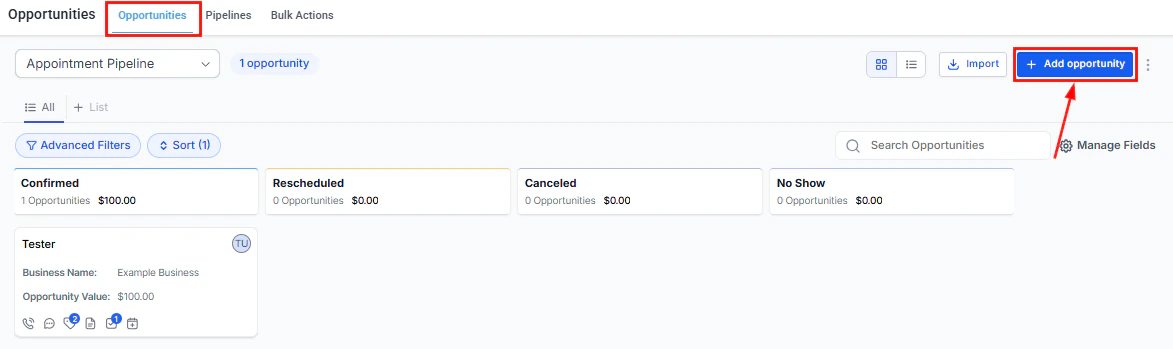 **On an existing opportunity:**
1. Open the opportunity detail panel (click the card on the board or the name in list view)
2. Find the **Followers** field in the core information section
3. Click the field and select one or more users from your account's user list
4. The selection saves automatically
Up to **10 followers** can be added per opportunity.
***
## Removing followers
To remove a follower from an opportunity:
1. Open the opportunity detail panel
2. Locate the **Followers** field
3. Click the X next to the user you want to remove
4. The change saves immediately
Removing a follower revokes their follower-based access to that record. They may still have access through other permissions (e.g., if they are an administrator or if "Only Assigned Data" is not enabled).
***
## Adding followers automatically with workflows
Manual follower management works well for individual deals, but workflows let you add followers automatically based on deal characteristics — saving time and ensuring the right people are always looped in.
### Workflow action: Add follower(s) to opportunity
Navigate to **Automations > Workflows** and open or create the relevant workflow.
Click **+ Add Action** and search for **Add Follower(s) to Opportunity**. Select it.
* Give the action a descriptive name
* Select one or more users to add as followers when this action runs
If you only want followers added for certain deals (e.g., value over \$10,000), add a condition step before this action using the relevant filter.
Save the workflow and activate it.
Combine the **Add Follower(s) to Opportunity** action with a value condition to automatically notify your sales manager whenever a high-value deal enters the pipeline. No manual checking required.
The action will not add a user who is already following the opportunity — duplicate followers are prevented automatically.
**On an existing opportunity:**
1. Open the opportunity detail panel (click the card on the board or the name in list view)
2. Find the **Followers** field in the core information section
3. Click the field and select one or more users from your account's user list
4. The selection saves automatically
Up to **10 followers** can be added per opportunity.
***
## Removing followers
To remove a follower from an opportunity:
1. Open the opportunity detail panel
2. Locate the **Followers** field
3. Click the X next to the user you want to remove
4. The change saves immediately
Removing a follower revokes their follower-based access to that record. They may still have access through other permissions (e.g., if they are an administrator or if "Only Assigned Data" is not enabled).
***
## Adding followers automatically with workflows
Manual follower management works well for individual deals, but workflows let you add followers automatically based on deal characteristics — saving time and ensuring the right people are always looped in.
### Workflow action: Add follower(s) to opportunity
Navigate to **Automations > Workflows** and open or create the relevant workflow.
Click **+ Add Action** and search for **Add Follower(s) to Opportunity**. Select it.
* Give the action a descriptive name
* Select one or more users to add as followers when this action runs
If you only want followers added for certain deals (e.g., value over \$10,000), add a condition step before this action using the relevant filter.
Save the workflow and activate it.
Combine the **Add Follower(s) to Opportunity** action with a value condition to automatically notify your sales manager whenever a high-value deal enters the pipeline. No manual checking required.
The action will not add a user who is already following the opportunity — duplicate followers are prevented automatically.
 ### Workflow action: Remove followers from opportunity
A corresponding **Remove Followers from Opportunity** action lets you remove followers automatically — for example, removing a product specialist as a follower once the deal leaves the technical evaluation stage.
***
## Follower limits and requirements
| Parameter | Limit |
| --------------------------------- | ------------------------------- |
| Maximum followers per opportunity | 10 |
| Minimum followers | 0 |
| Users selectable as followers | Any active user in your account |
The Add Follower(s) workflow action requires that the workflow is triggered by an opportunity-based event, or that a **Find Opportunity** step precedes it. If no opportunity context exists in the workflow, the action does nothing.
***
## Use cases
**High-value deal visibility**
Automatically add the sales manager and a senior account executive as followers on any opportunity created with a value over \$15,000. Both receive visibility into the deal's progress without needing to search for it.
**Multi-department coordination**
When a deal enters the "Contract Sent" stage, add the legal contact and onboarding manager as followers. They gain early visibility and can start preparing before the deal officially closes.
**Manager review**
Add a team lead as a follower on every deal where the assigned owner has been inactive for 14+ days, triggered by a stale opportunities workflow. The team lead can then step in without a formal reassignment.
**Temporary collaboration**
Add a technical specialist as a follower when a "Technical Evaluation" tag is applied, then remove them automatically when the tag is removed. This keeps their view clean without permanent access to every deal.
***
## Followers on contact records
The followers feature also works on contact records, not just opportunities. Adding a follower to a contact gives them access to that contact's profile, conversation history, and linked opportunities (subject to your account's permission settings).
This is useful for shared accounts, key clients, or contacts that multiple team members need to stay on top of.
***
## FAQs
Up to 10 followers per opportunity.
No. Followers can view and edit the opportunity record, but they cannot transfer ownership to a different user.
No additional permissions are needed beyond being added as a follower. Followers gain access to the specific record regardless of whether "Only Assigned Data" is enabled for their role.
No. The Add Follower(s) action checks whether the user is already a follower before adding them. Existing followers are not duplicated.
Yes. The Followers field in the opportunity detail panel lists all current followers by name.
Followers receive access to the record but notification behavior depends on your account's notification settings. Check your notification preferences in your user profile for details on which activity generates alerts.
### Workflow action: Remove followers from opportunity
A corresponding **Remove Followers from Opportunity** action lets you remove followers automatically — for example, removing a product specialist as a follower once the deal leaves the technical evaluation stage.
***
## Follower limits and requirements
| Parameter | Limit |
| --------------------------------- | ------------------------------- |
| Maximum followers per opportunity | 10 |
| Minimum followers | 0 |
| Users selectable as followers | Any active user in your account |
The Add Follower(s) workflow action requires that the workflow is triggered by an opportunity-based event, or that a **Find Opportunity** step precedes it. If no opportunity context exists in the workflow, the action does nothing.
***
## Use cases
**High-value deal visibility**
Automatically add the sales manager and a senior account executive as followers on any opportunity created with a value over \$15,000. Both receive visibility into the deal's progress without needing to search for it.
**Multi-department coordination**
When a deal enters the "Contract Sent" stage, add the legal contact and onboarding manager as followers. They gain early visibility and can start preparing before the deal officially closes.
**Manager review**
Add a team lead as a follower on every deal where the assigned owner has been inactive for 14+ days, triggered by a stale opportunities workflow. The team lead can then step in without a formal reassignment.
**Temporary collaboration**
Add a technical specialist as a follower when a "Technical Evaluation" tag is applied, then remove them automatically when the tag is removed. This keeps their view clean without permanent access to every deal.
***
## Followers on contact records
The followers feature also works on contact records, not just opportunities. Adding a follower to a contact gives them access to that contact's profile, conversation history, and linked opportunities (subject to your account's permission settings).
This is useful for shared accounts, key clients, or contacts that multiple team members need to stay on top of.
***
## FAQs
Up to 10 followers per opportunity.
No. Followers can view and edit the opportunity record, but they cannot transfer ownership to a different user.
No additional permissions are needed beyond being added as a follower. Followers gain access to the specific record regardless of whether "Only Assigned Data" is enabled for their role.
No. The Add Follower(s) action checks whether the user is already a follower before adding them. Existing followers are not duplicated.
Yes. The Followers field in the opportunity detail panel lists all current followers by name.
Followers receive access to the record but notification behavior depends on your account's notification settings. Check your notification preferences in your user profile for details on which activity generates alerts.