> ## Documentation Index
> Fetch the complete documentation index at: https://help.hoopai.com/llms.txt
> Use this file to discover all available pages before exploring further.
# Custom fields for HoopAI opportunity records
> Create custom fields on HoopAI opportunity records to capture deal-specific data like contract length, product type, and referral source.
Custom fields allow you to capture any business-specific data on opportunity records that goes beyond the standard fields. Use them to track deal-specific attributes like product type, contract length, referral source, or any other metric important to your sales process.
 ## Creating custom fields
Custom fields for opportunities are created in **Settings > Custom Fields** (or through **Opportunity Settings**).
Go to **Settings** and find the **Custom Fields** section. Select **Opportunities** as the object type.
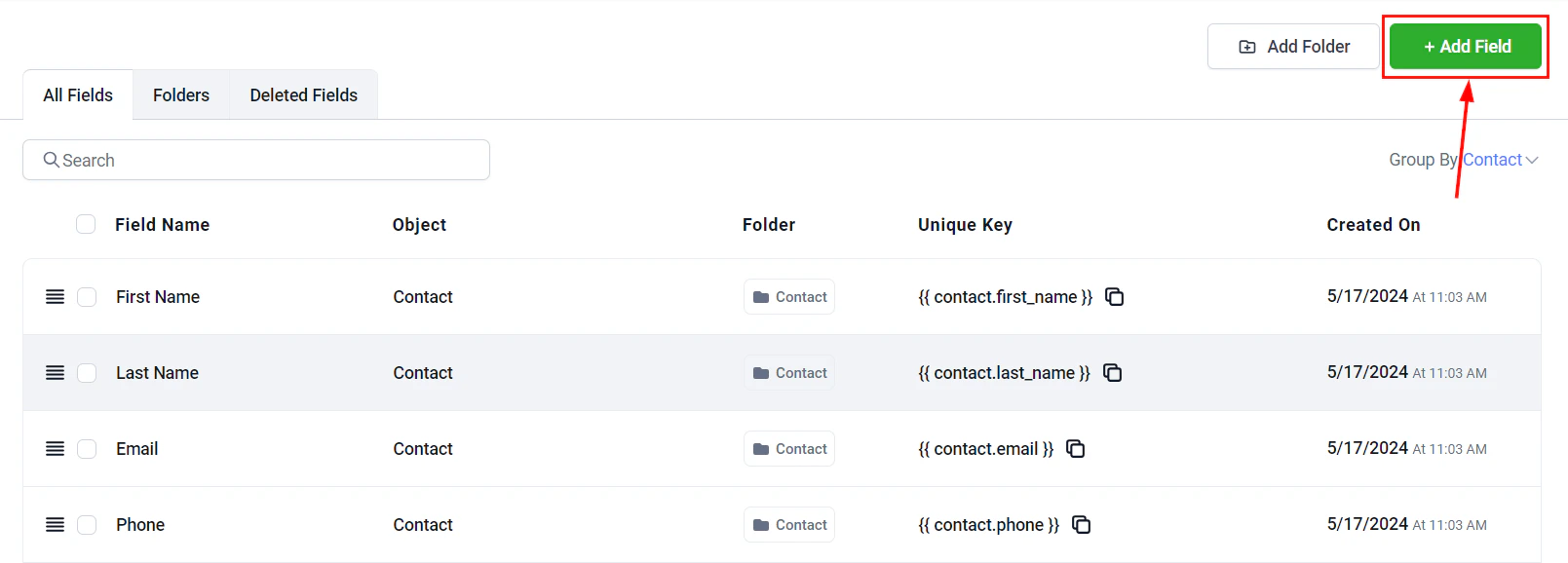
Click **"+ Add Field"** and configure:
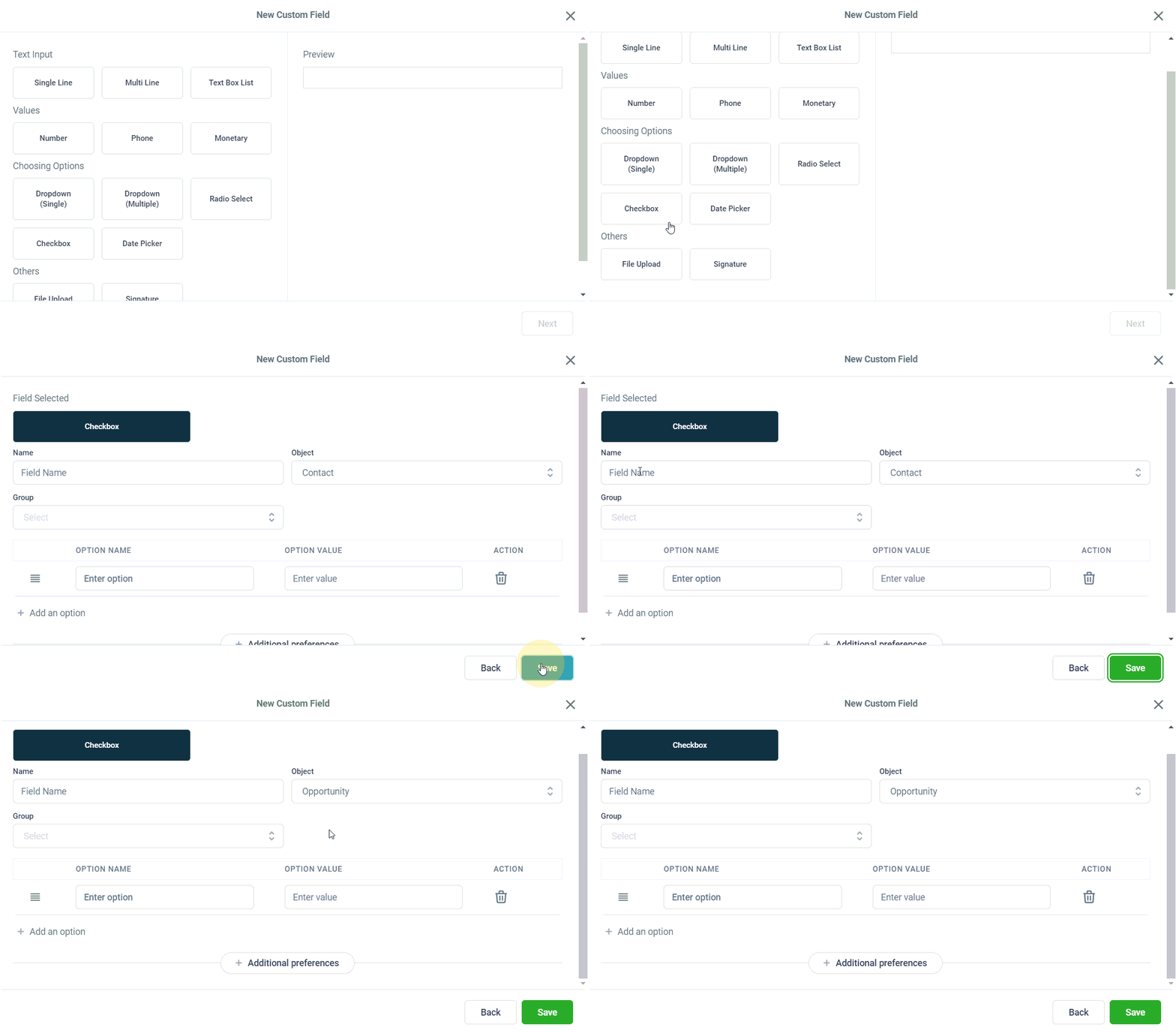
* **Field name** — a clear label for the field
* **Field type** — choose from text, number, date, dropdown, checkbox, multi-select, or file upload
* **Required** — optionally make the field required when creating an opportunity
Click **Save**. The field will now appear on all opportunity records and in the opportunity creation form.
## Creating custom fields
Custom fields for opportunities are created in **Settings > Custom Fields** (or through **Opportunity Settings**).
Go to **Settings** and find the **Custom Fields** section. Select **Opportunities** as the object type.
Click **"+ Add Field"** and configure:
* **Field name** — a clear label for the field
* **Field type** — choose from text, number, date, dropdown, checkbox, multi-select, or file upload
* **Required** — optionally make the field required when creating an opportunity
Click **Save**. The field will now appear on all opportunity records and in the opportunity creation form.
 ***
## Organizing fields into groups
You can organize custom fields into named groups to keep the opportunity record panel clean and logical.
***
## Organizing fields into groups
You can organize custom fields into named groups to keep the opportunity record panel clean and logical.
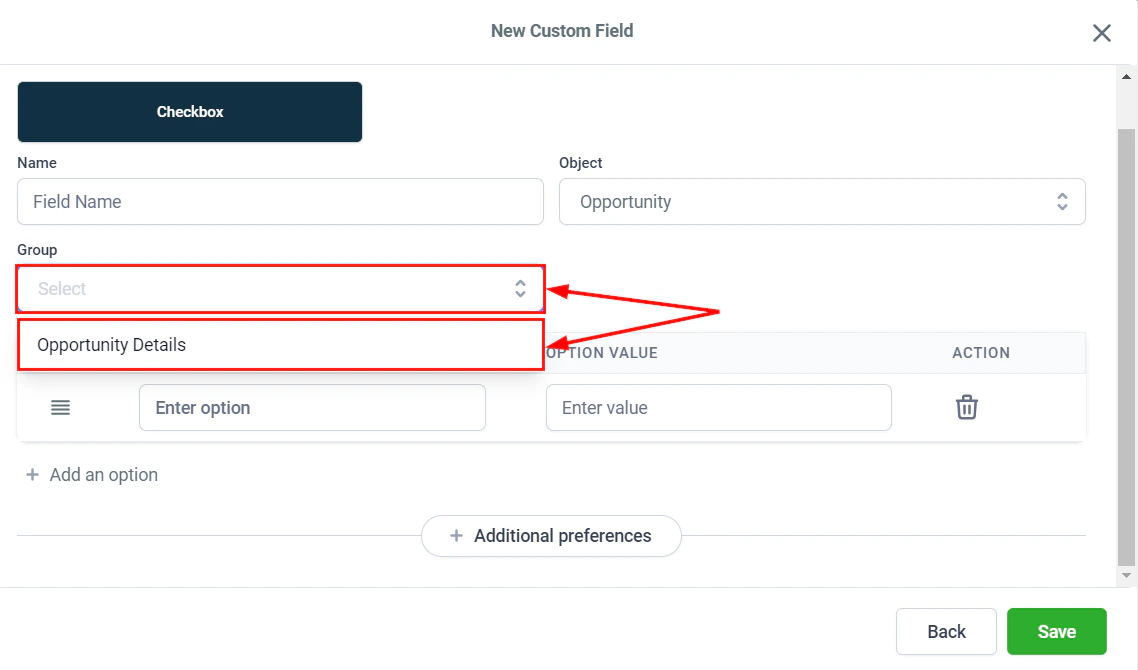 To create a group:
1. In **Settings > Custom Fields**, click **+ Add Group**
2. Name the group and assign fields to it
3. Save — the group will appear as a collapsible section on opportunity records
***
## Using custom fields on opportunity records
Custom fields appear on the opportunity record detail panel. You can:
To create a group:
1. In **Settings > Custom Fields**, click **+ Add Group**
2. Name the group and assign fields to it
3. Save — the group will appear as a collapsible section on opportunity records
***
## Using custom fields on opportunity records
Custom fields appear on the opportunity record detail panel. You can:
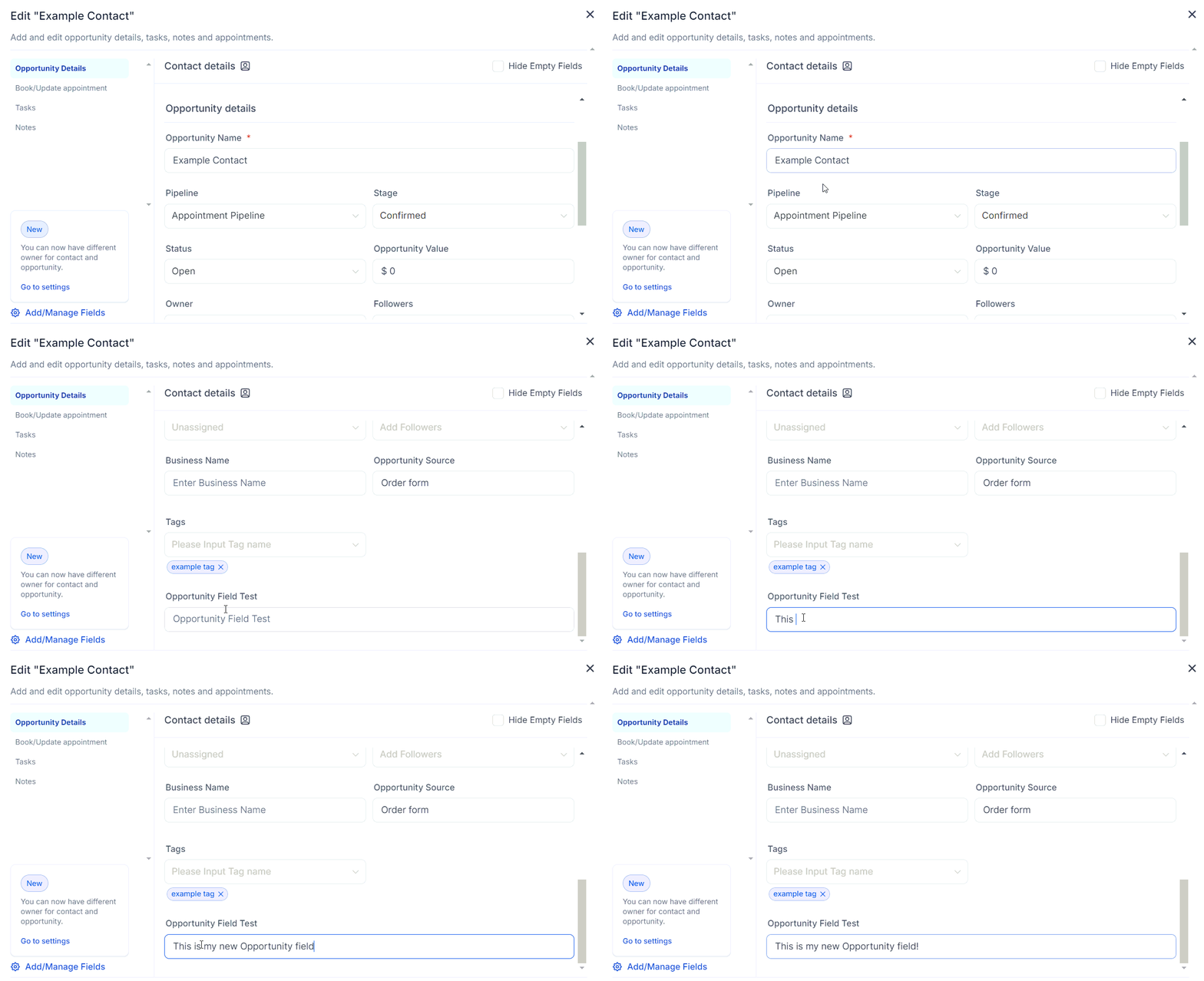 * **Filter by custom fields** — use custom field values as filter criteria in the Opportunities view
* **Sort by custom fields** — in list view, click a custom field column header to sort
* **Export custom fields** — custom field values are included in CSV exports
* **Use in automations** — reference custom field values as triggers or conditions in workflows
***
## Hiding empty fields
To reduce clutter, enable the **Hide Empty Fields** option to automatically collapse custom field sections that have no values entered.
* **Filter by custom fields** — use custom field values as filter criteria in the Opportunities view
* **Sort by custom fields** — in list view, click a custom field column header to sort
* **Export custom fields** — custom field values are included in CSV exports
* **Use in automations** — reference custom field values as triggers or conditions in workflows
***
## Hiding empty fields
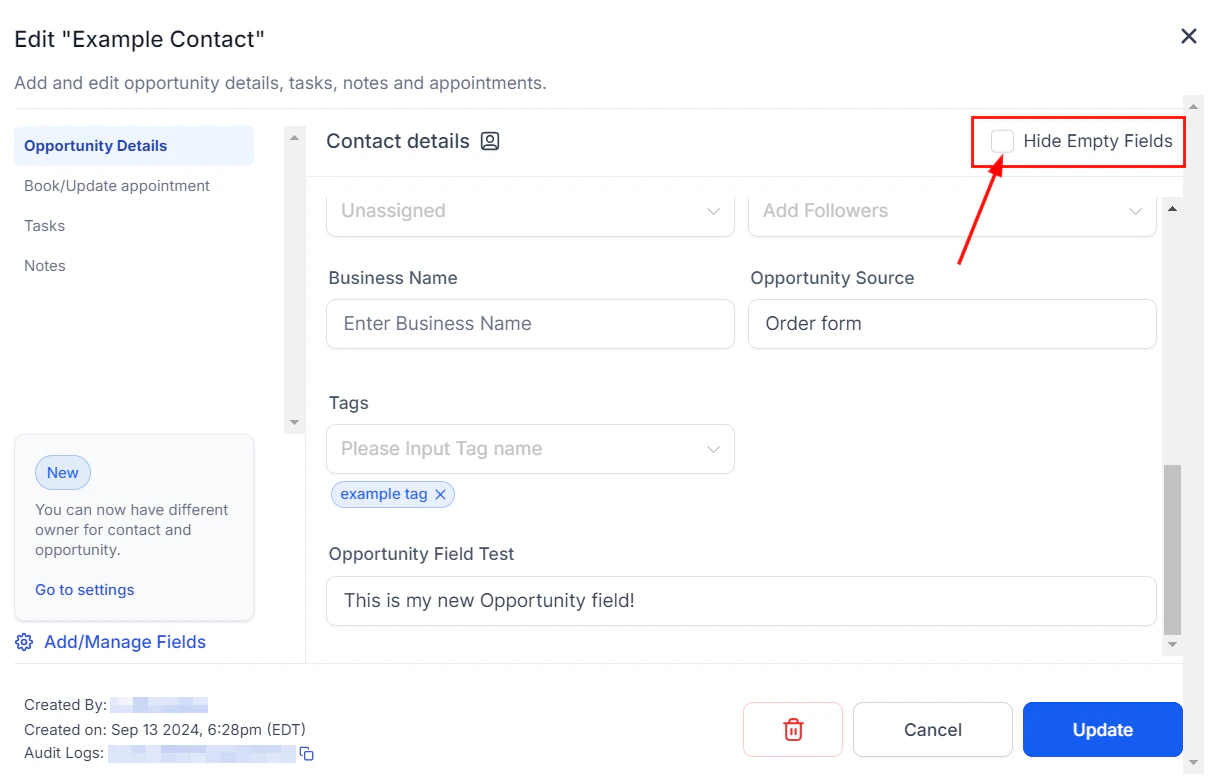
To reduce clutter, enable the **Hide Empty Fields** option to automatically collapse custom field sections that have no values entered.
 ***
## Custom fields in dashboard widgets
Custom field values from opportunities can be used as filters in dashboard widgets. For example, you can create an opportunity widget that only shows deals where a custom "Product Type" field equals "Enterprise". See the Dashboard documentation for setup details.
Use custom fields to track the data most important to your business — contract lengths, product lines, deal sources, or any other metric you need to report on. The more consistently fields are filled in, the more valuable your reporting becomes.
***
## FAQs
You can create custom fields with the following types: text, number, date, dropdown, checkbox, multi-select, and file upload.
Yes. When creating or editing a custom field, enable the **Required** toggle. The field will then be mandatory when creating or editing an opportunity.
Yes. Custom field values on opportunity records can be used as trigger conditions or action values in Workflows. Reference the field in any automation step that supports opportunity data.
Yes. In both board and list view, use the filter toolbar to filter by any custom field value. In list view, click a custom field column header to sort by that field.
Yes. When you export opportunities, all custom field values are included as additional columns in the CSV file.
***
## Custom fields in dashboard widgets
Custom field values from opportunities can be used as filters in dashboard widgets. For example, you can create an opportunity widget that only shows deals where a custom "Product Type" field equals "Enterprise". See the Dashboard documentation for setup details.
Use custom fields to track the data most important to your business — contract lengths, product lines, deal sources, or any other metric you need to report on. The more consistently fields are filled in, the more valuable your reporting becomes.
***
## FAQs
You can create custom fields with the following types: text, number, date, dropdown, checkbox, multi-select, and file upload.
Yes. When creating or editing a custom field, enable the **Required** toggle. The field will then be mandatory when creating or editing an opportunity.
Yes. Custom field values on opportunity records can be used as trigger conditions or action values in Workflows. Reference the field in any automation step that supports opportunity data.
Yes. In both board and list view, use the filter toolbar to filter by any custom field value. In list view, click a custom field column header to sort by that field.
Yes. When you export opportunities, all custom field values are included as additional columns in the CSV file.