> ## Documentation Index
> Fetch the complete documentation index at: https://help.hoopai.com/llms.txt
> Use this file to discover all available pages before exploring further.
# Import, export, and bulk edit opportunities in HoopAI
> Import, export, bulk edit, and delete multiple HoopAI opportunities at once to save time when managing large deal volumes.
Bulk actions let you operate on multiple opportunities simultaneously, saving time when managing large deal volumes.
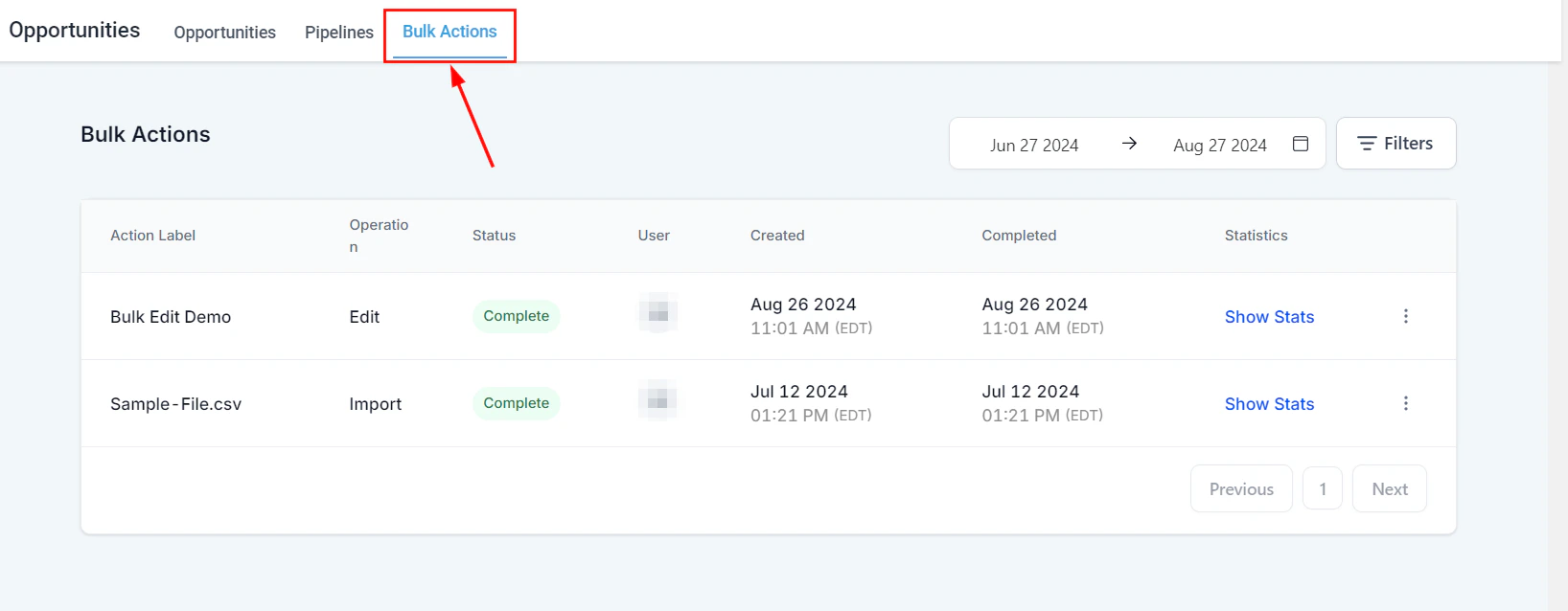 ## Available bulk actions
* **Import opportunities** — create opportunities in bulk from a CSV file
* **Export opportunities** — download a filtered set of opportunities as CSV
* **Bulk edit** — update fields (stage, assigned user, close date, value) across many opportunities at once
* **Bulk delete** — permanently remove multiple opportunities
* **Bulk restore** — recover recently deleted opportunities
***
## Importing opportunities
Your file must:
* Be in CSV format
* Contain only one sheet
* Be under 30 MB
* Have a header row with columns matching opportunity fields (e.g., Contact Name, Pipeline, Stage, Value, Close Date)
In the Opportunities section, click the **Import** button.
Upload your CSV and map each column to the appropriate Hoop opportunity field.
Review the preview and click **Confirm** to import.
Opportunity imports cannot be reversed. Verify your field mapping carefully before confirming.
***
## Importing contacts and opportunities together
You can import contacts and their associated opportunities in a single CSV file. Structure your CSV to include both contact fields and opportunity fields in each row. Hoop will create the contact record and the linked opportunity simultaneously.
***
## Filtering before bulk actions
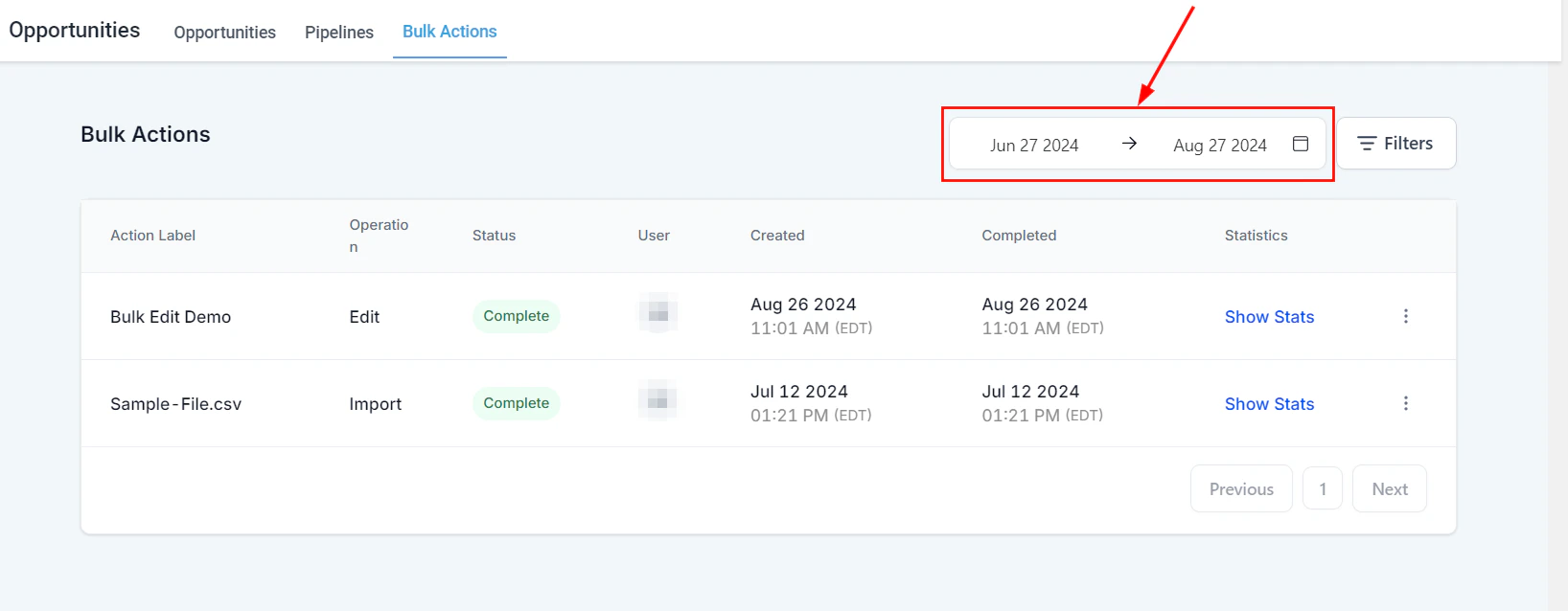
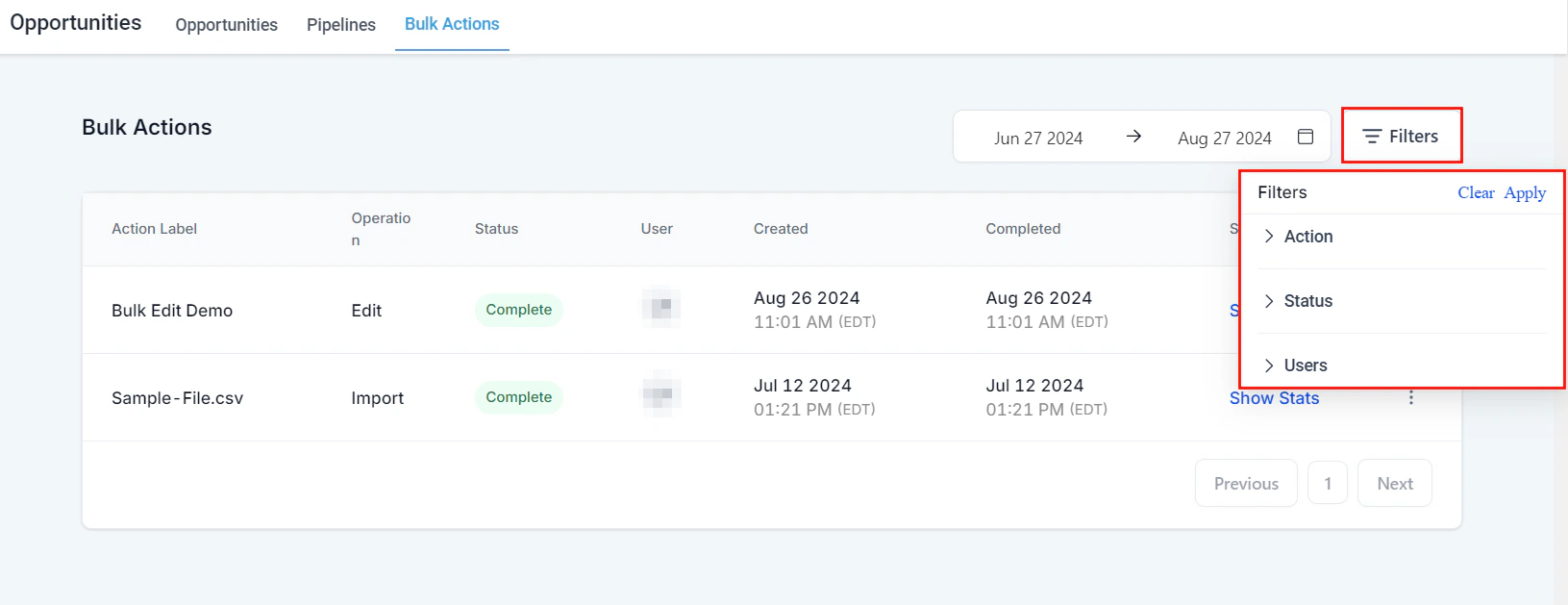
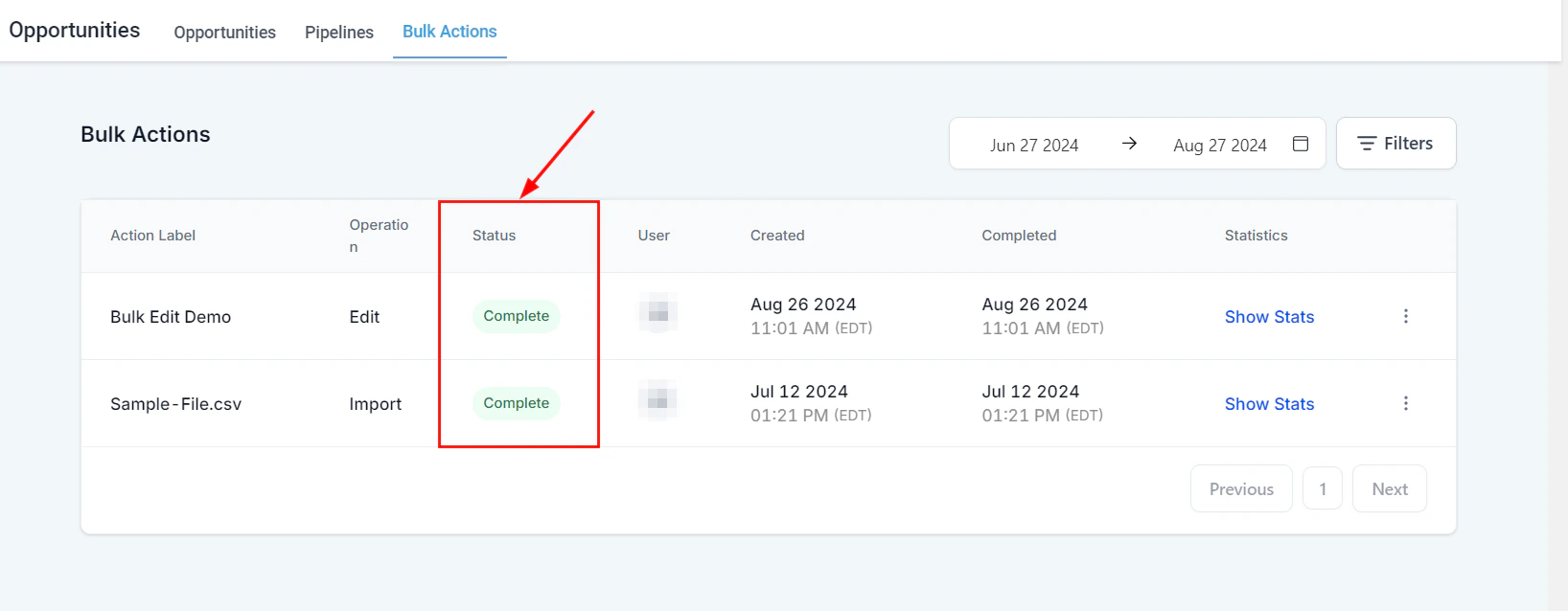
Use the filter controls to narrow down the opportunities you want to act on before selecting them.
## Available bulk actions
* **Import opportunities** — create opportunities in bulk from a CSV file
* **Export opportunities** — download a filtered set of opportunities as CSV
* **Bulk edit** — update fields (stage, assigned user, close date, value) across many opportunities at once
* **Bulk delete** — permanently remove multiple opportunities
* **Bulk restore** — recover recently deleted opportunities
***
## Importing opportunities
Your file must:
* Be in CSV format
* Contain only one sheet
* Be under 30 MB
* Have a header row with columns matching opportunity fields (e.g., Contact Name, Pipeline, Stage, Value, Close Date)
In the Opportunities section, click the **Import** button.
Upload your CSV and map each column to the appropriate Hoop opportunity field.
Review the preview and click **Confirm** to import.
Opportunity imports cannot be reversed. Verify your field mapping carefully before confirming.
***
## Importing contacts and opportunities together
You can import contacts and their associated opportunities in a single CSV file. Structure your CSV to include both contact fields and opportunity fields in each row. Hoop will create the contact record and the linked opportunity simultaneously.
***
## Filtering before bulk actions
Use the filter controls to narrow down the opportunities you want to act on before selecting them.
 ***
## Bulk editing opportunities
In list view, check the checkboxes next to the opportunities you want to edit. Use the **select all** option to select all visible opportunities.
Click the **Bulk Edit** button that appears in the toolbar.
Select which fields to update — such as pipeline stage, assigned user, close date, or tags. Enter the new values.
***
## Bulk editing opportunities
In list view, check the checkboxes next to the opportunities you want to edit. Use the **select all** option to select all visible opportunities.
Click the **Bulk Edit** button that appears in the toolbar.
Select which fields to update — such as pipeline stage, assigned user, close date, or tags. Enter the new values.
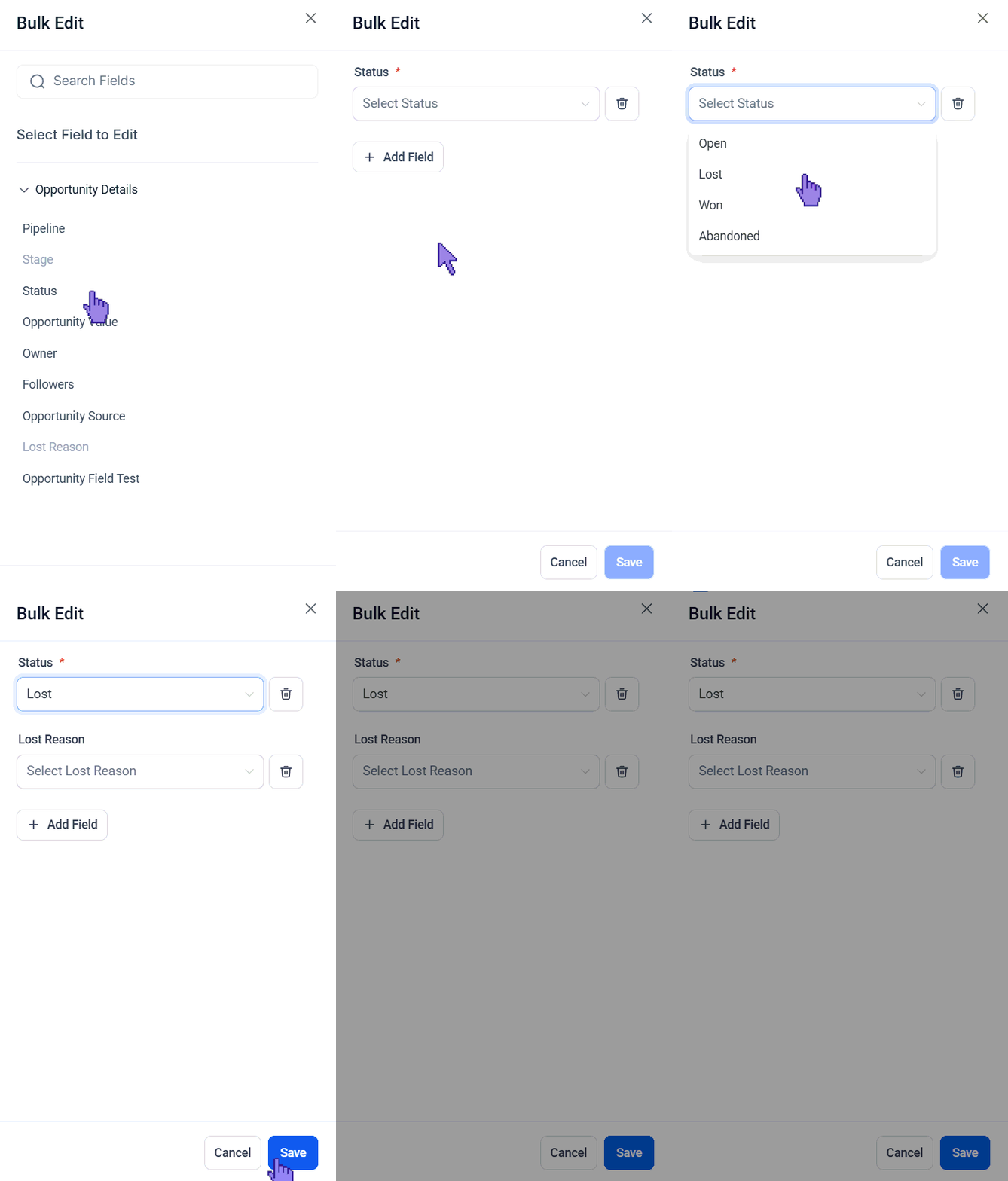 Click **Apply** to update all selected opportunities.
***
## Bulk deleting and restoring opportunities
Check the opportunities you want to delete.
Click **Delete** from the bulk actions menu. Confirm the deletion in the dialog that appears.
To restore deleted opportunities, open **Opportunity Settings > Deleted Opportunities** and select the records you want to recover. Click **Restore**.
Deleted opportunities are retained for recovery for a limited period. After that period, they are permanently removed.
***
## FAQs
Your file must be in CSV format, contain only one sheet, be under 30 MB, and include a header row with columns matching opportunity fields (for example: Contact Name, Pipeline, Stage, Value, Close Date).
The required fields are Contact ID, Opportunity Name, and Pipeline ID. Fields like Stage ID, Opportunity Value, and Opportunity Status have default values if not provided.
Export your existing opportunities to get Opportunity ID, Pipeline ID, and Stage ID. Export your contacts to get Contact ID.
Yes. Select the **Create and Update Opportunities** option during import to add new records and update existing ones in a single operation.
No. Opportunity imports cannot be reversed. Always review your field mapping carefully in the preview step before confirming.
Click **Apply** to update all selected opportunities.
***
## Bulk deleting and restoring opportunities
Check the opportunities you want to delete.
Click **Delete** from the bulk actions menu. Confirm the deletion in the dialog that appears.
To restore deleted opportunities, open **Opportunity Settings > Deleted Opportunities** and select the records you want to recover. Click **Restore**.
Deleted opportunities are retained for recovery for a limited period. After that period, they are permanently removed.
***
## FAQs
Your file must be in CSV format, contain only one sheet, be under 30 MB, and include a header row with columns matching opportunity fields (for example: Contact Name, Pipeline, Stage, Value, Close Date).
The required fields are Contact ID, Opportunity Name, and Pipeline ID. Fields like Stage ID, Opportunity Value, and Opportunity Status have default values if not provided.
Export your existing opportunities to get Opportunity ID, Pipeline ID, and Stage ID. Export your contacts to get Contact ID.
Yes. Select the **Create and Update Opportunities** option during import to add new records and update existing ones in a single operation.
No. Opportunity imports cannot be reversed. Always review your field mapping carefully in the preview step before confirming.