> ## Documentation Index
> Fetch the complete documentation index at: https://help.hoopai.com/llms.txt
> Use this file to discover all available pages before exploring further.
# Social planner on the HoopAI mobile app
> Schedule and publish social media posts across platforms from the HoopAI mobile app. Supports iOS, Android, and the mobile dashboard.
The Social Planner on mobile is a robust tool for managing and publishing posts directly from your device. With easy integration across multiple social media platforms, you can create consistent, well-planned content without ever sitting at your desk.
Access to the Social Planner may depend on your user permissions. Contact your account administrator if this feature is not visible.
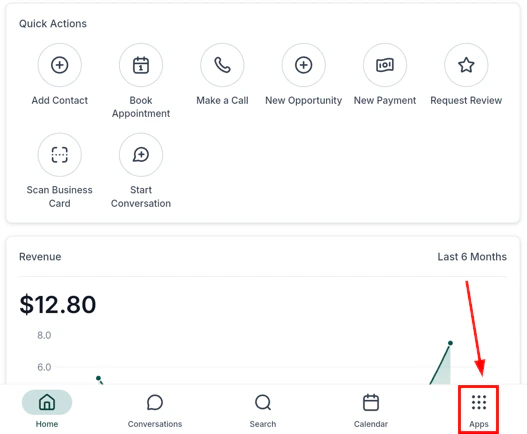
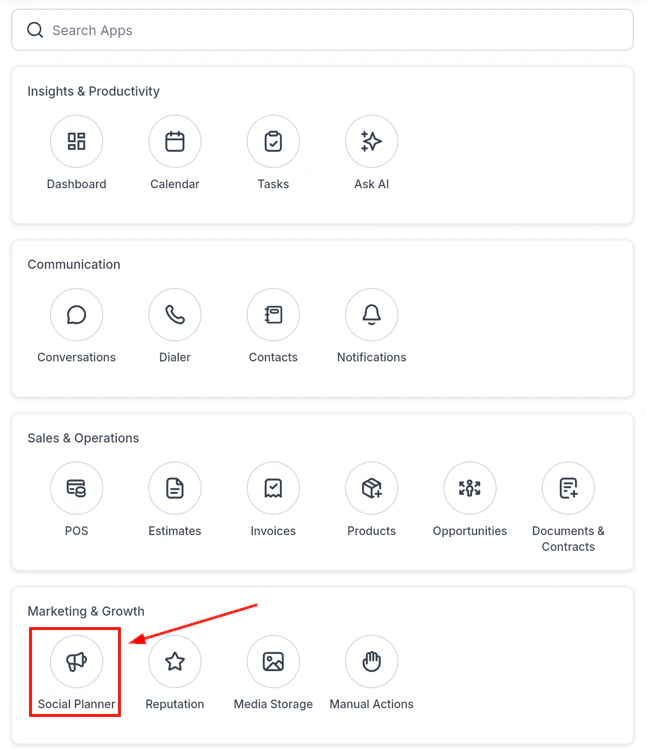
From the navigation, tap the apps section, then select **Social Planner**.
 ## Calendar views
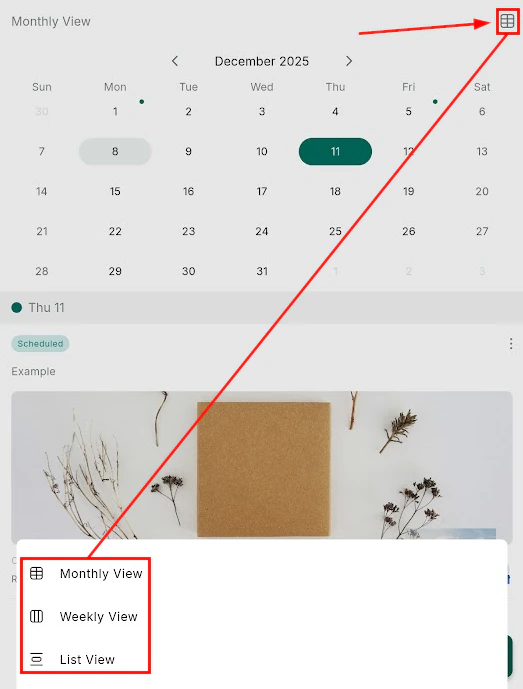
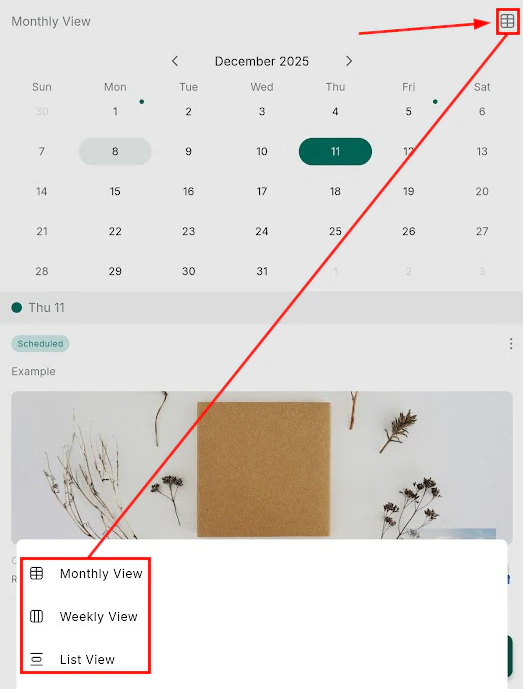
The Social Planner offers three views to help you plan and review content:
## Calendar views
The Social Planner offers three views to help you plan and review content:
 | View | Description |
| ----------- | --------------------------------------------------------------- |
| **Monthly** | High-level overview of posts scheduled across the entire month |
| **Weekly** | Week-at-a-glance for more detailed post planning |
| **List** | Chronological list of all scheduled, published, and draft posts |
Each post card shows the caption, media preview, post status, post type, scheduled date, and which social platforms it will publish to.
***
## Managing connected accounts
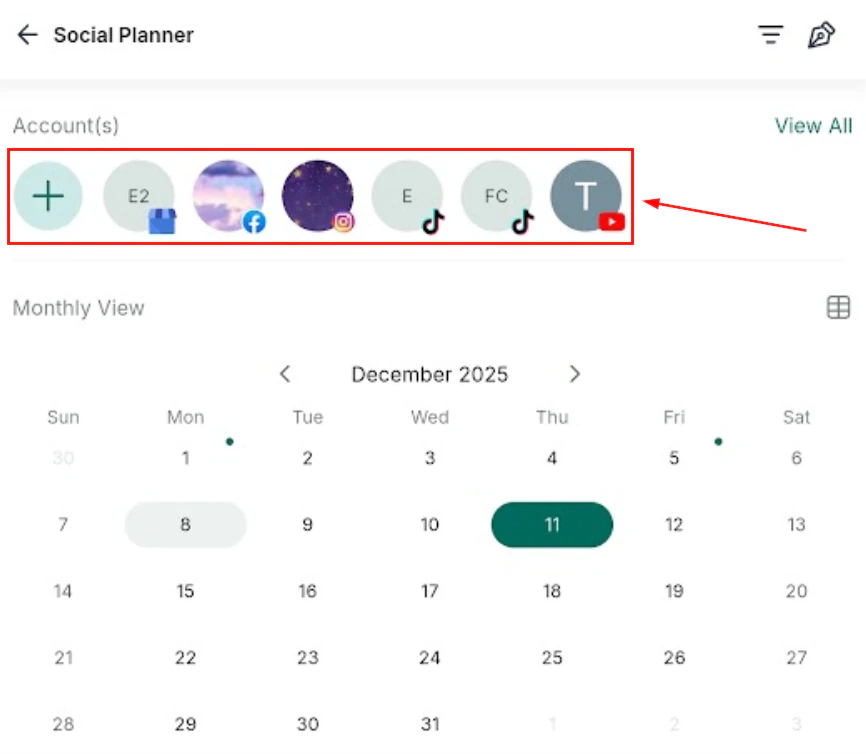
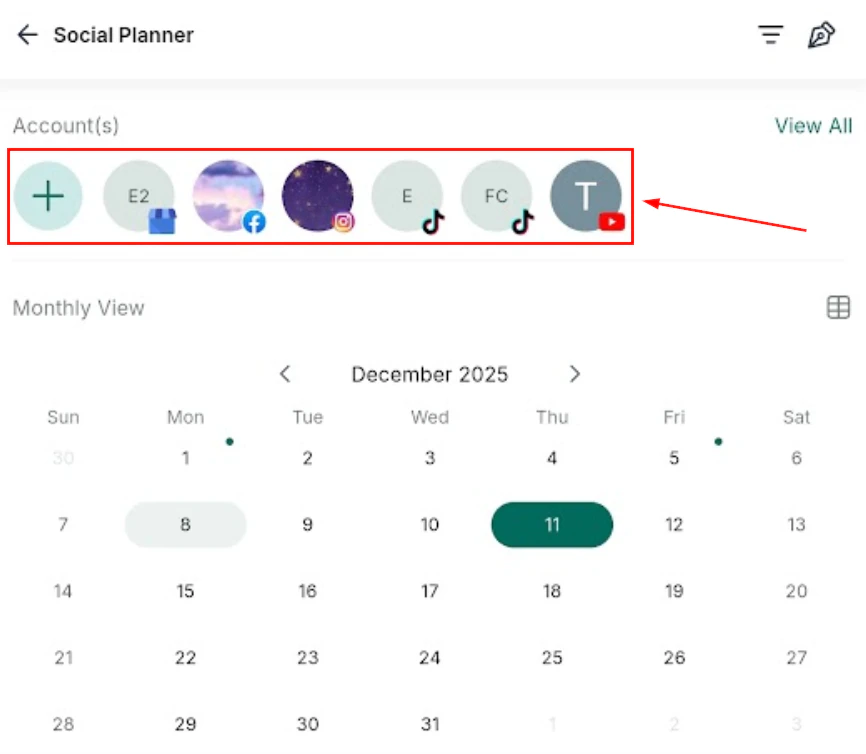
From the Social Planner, view your connected social accounts or link new ones. Tap **Manage Accounts** to add or disconnect platforms including:
* Facebook pages and groups
* Instagram (business accounts)
* LinkedIn (personal and business)
* Twitter / X
* Google Business Profile
* TikTok
***
## Creating a new post
Tap the floating **+** button at the bottom-right of the Social Planner screen.
Choose which connected social accounts the post should publish to, then tap **Create**.
Write your post content in the blank canvas.
| View | Description |
| ----------- | --------------------------------------------------------------- |
| **Monthly** | High-level overview of posts scheduled across the entire month |
| **Weekly** | Week-at-a-glance for more detailed post planning |
| **List** | Chronological list of all scheduled, published, and draft posts |
Each post card shows the caption, media preview, post status, post type, scheduled date, and which social platforms it will publish to.
***
## Managing connected accounts
From the Social Planner, view your connected social accounts or link new ones. Tap **Manage Accounts** to add or disconnect platforms including:
* Facebook pages and groups
* Instagram (business accounts)
* LinkedIn (personal and business)
* Twitter / X
* Google Business Profile
* TikTok
***
## Creating a new post
Tap the floating **+** button at the bottom-right of the Social Planner screen.
Choose which connected social accounts the post should publish to, then tap **Create**.
Write your post content in the blank canvas.
 Write your post content. Use the new post canvas to create platform-optimized text.
 Toggle **Customize Post** to create platform-specific variations — for example, choosing between a feed post and a Reel for Instagram, or adjusting the copy for LinkedIn.
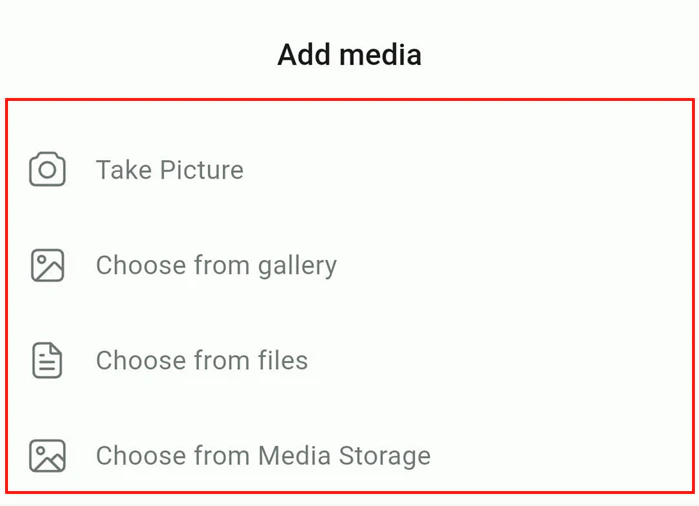
Tap the **Media option** to add files from your device camera, photo library, files app, or your Media Library.
Toggle **Customize Post** to create platform-specific variations — for example, choosing between a feed post and a Reel for Instagram, or adjusting the copy for LinkedIn.
Tap the **Media option** to add files from your device camera, photo library, files app, or your Media Library.
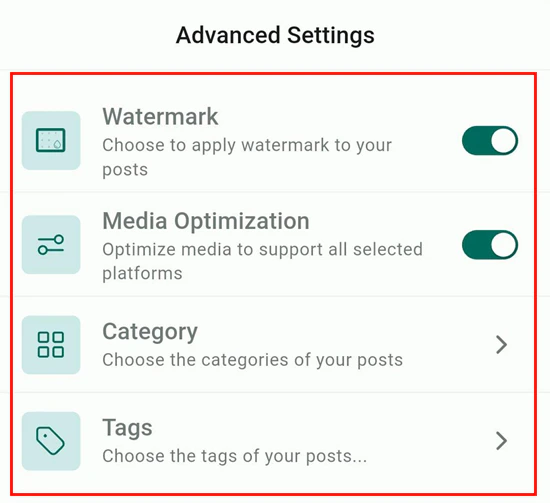
 Tap **Advanced Settings** to apply your watermark, optimize media dimensions for each platform, and assign categories and tags for organization.
 Tap **Post** and choose your publishing option.
 ***
## Publishing options
| Option | Description |
| ---------------------------- | -------------------------------------------------------------------- |
| **Post now** | Publish immediately to all selected accounts |
| **Save for later** | Save as a draft to edit and publish later |
| **Schedule post** | Set a specific date and time for future publishing |
| **Schedule recurring posts** | Set the post to repeat at defined intervals (daily, weekly, monthly) |
***
## Viewing published posts
Once a post is published, tap the **redirect icon** on the post card to open and view the live post on its respective social platform.
***
## Key features
Publish to Facebook, Instagram, LinkedIn, Twitter/X, Google, and TikTok from one screen
Schedule posts for optimal times or set up recurring post series
Pull images and videos from your HoopAI media library without leaving the app
Write different captions for each platform using the customize post toggle
Apply your brand watermark to images via Advanced Settings
Save work-in-progress posts as drafts to finalize later
***
## Related articles
* [Marketing overview](/marketing/overview)
* [Media library on mobile](/mobile-app/media-and-files)
* [Getting started on mobile](/mobile-app/getting-started)
***
## Publishing options
| Option | Description |
| ---------------------------- | -------------------------------------------------------------------- |
| **Post now** | Publish immediately to all selected accounts |
| **Save for later** | Save as a draft to edit and publish later |
| **Schedule post** | Set a specific date and time for future publishing |
| **Schedule recurring posts** | Set the post to repeat at defined intervals (daily, weekly, monthly) |
***
## Viewing published posts
Once a post is published, tap the **redirect icon** on the post card to open and view the live post on its respective social platform.
***
## Key features
Publish to Facebook, Instagram, LinkedIn, Twitter/X, Google, and TikTok from one screen
Schedule posts for optimal times or set up recurring post series
Pull images and videos from your HoopAI media library without leaving the app
Write different captions for each platform using the customize post toggle
Apply your brand watermark to images via Advanced Settings
Save work-in-progress posts as drafts to finalize later
***
## Related articles
* [Marketing overview](/marketing/overview)
* [Media library on mobile](/mobile-app/media-and-files)
* [Getting started on mobile](/mobile-app/getting-started)