> ## Documentation Index
> Fetch the complete documentation index at: https://help.hoopai.com/llms.txt
> Use this file to discover all available pages before exploring further.
# Reviews and reputation management on the HoopAI mobile app
> View, respond to, and manage Google and Facebook reviews from the HoopAI mobile app. Send review requests and monitor reputation on iOS and Android.
The HoopAI mobile app gives you full access to your reputation management tools, so you can monitor and respond to Google and Facebook reviews from anywhere. Push notifications alert you the moment a new review is posted, letting you respond quickly — a key factor in building consumer trust.
## Accessing reviews on mobile
1. Open the HoopAI mobile app and tap the **App Drawer** (swipe up or tap All Apps).
2. Select **Reviews** under the Insights and Productivity category.
3. The Reviews screen loads your connected Google Business Profile and Facebook page reviews in a unified feed.
You can also navigate to Reviews by tapping any **New review** push notification — the notification deep-links directly to the review that needs a response.
 ## Review feed
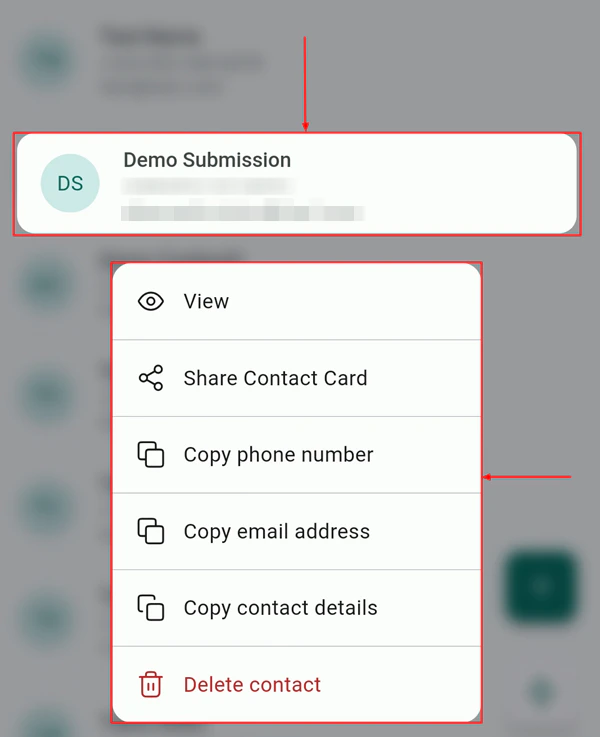
The review feed displays all incoming reviews in reverse chronological order. Each review card shows:
* **Star rating** (1–5 stars)
* **Platform** — Google or Facebook icon
* **Reviewer name and date**
* **Review text** (if the reviewer left a comment)
* **Response status** — whether you have already replied
Tap any review card to open the full detail view and compose your response.
## Responding to reviews
Tap a review card in the feed to open it. You will see the full review text and, if applicable, any previous response from your business.
Tap the **Reply** button beneath the review text to open the response composer.
Type your response in the text field. Keep responses professional, thank the reviewer by name when appropriate, and address any specific feedback they mentioned.
Tap **Send**. Your response is posted directly to Google or Facebook and appears publicly under the review.
## Review feed
The review feed displays all incoming reviews in reverse chronological order. Each review card shows:
* **Star rating** (1–5 stars)
* **Platform** — Google or Facebook icon
* **Reviewer name and date**
* **Review text** (if the reviewer left a comment)
* **Response status** — whether you have already replied
Tap any review card to open the full detail view and compose your response.
## Responding to reviews
Tap a review card in the feed to open it. You will see the full review text and, if applicable, any previous response from your business.
Tap the **Reply** button beneath the review text to open the response composer.
Type your response in the text field. Keep responses professional, thank the reviewer by name when appropriate, and address any specific feedback they mentioned.
Tap **Send**. Your response is posted directly to Google or Facebook and appears publicly under the review.
 Responding to reviews — both positive and negative — signals to potential customers that you are attentive and care about feedback. Studies show that businesses that reply to all reviews earn significantly more consumer trust than those that ignore them.
## AI-assisted responses
The HoopAI platform includes a Reviews AI feature that can suggest responses or operate in Auto-Pilot mode. In the mobile app, when you open a review, you can tap **Suggest reply** to have the AI generate a contextually appropriate draft based on the review content and your business tone. Edit the draft as needed before sending.
Reviews AI pricing is usage-based and managed from your account billing settings on the desktop platform.
## Sending a review request from mobile
You can send a review request to a contact directly from the mobile app without navigating to the desktop:
1. Open **Contacts** and find the contact.
2. Tap the **lightning bolt** quick actions icon.
3. Select **Send review request**.
4. Choose the contact and confirm the send.
Review requests are delivered to the contact by SMS or email (depending on your configured review request settings) and include a direct link to your Google or Facebook review page.
## Filtering reviews
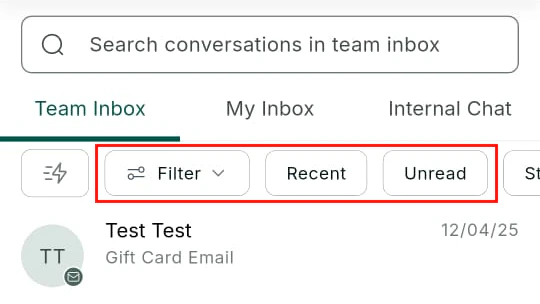
Use the filter controls at the top of the Reviews screen to view:
* **All reviews** — every review across connected platforms
* **Google only** — reviews from your Google Business Profile
* **Facebook only** — reviews from your Facebook page
* **Unanswered** — reviews that have not yet received a response
* **By star rating** — filter to show only 1-star, 2-star, or 5-star reviews
Responding to reviews — both positive and negative — signals to potential customers that you are attentive and care about feedback. Studies show that businesses that reply to all reviews earn significantly more consumer trust than those that ignore them.
## AI-assisted responses
The HoopAI platform includes a Reviews AI feature that can suggest responses or operate in Auto-Pilot mode. In the mobile app, when you open a review, you can tap **Suggest reply** to have the AI generate a contextually appropriate draft based on the review content and your business tone. Edit the draft as needed before sending.
Reviews AI pricing is usage-based and managed from your account billing settings on the desktop platform.
## Sending a review request from mobile
You can send a review request to a contact directly from the mobile app without navigating to the desktop:
1. Open **Contacts** and find the contact.
2. Tap the **lightning bolt** quick actions icon.
3. Select **Send review request**.
4. Choose the contact and confirm the send.
Review requests are delivered to the contact by SMS or email (depending on your configured review request settings) and include a direct link to your Google or Facebook review page.
## Filtering reviews
Use the filter controls at the top of the Reviews screen to view:
* **All reviews** — every review across connected platforms
* **Google only** — reviews from your Google Business Profile
* **Facebook only** — reviews from your Facebook page
* **Unanswered** — reviews that have not yet received a response
* **By star rating** — filter to show only 1-star, 2-star, or 5-star reviews
 ## Disputing inaccurate reviews
For Google reviews that violate Google's content policies, you can initiate a dispute from the mobile app:
1. Open the review in question.
2. Tap the **three-dot menu** in the top-right corner.
3. Select **Flag / Report review**.
This flags the review to Google for evaluation. Note that flagging does not guarantee removal — Google reviews the flag and makes its own determination.
## Enabling review notifications
To receive push notifications for new reviews:
1. Navigate to the desktop platform or mobile app settings.
2. Go to **My Profile > Notifications**.
3. Enable **New Google review** and **New Facebook review** under the Mobile App delivery channel.
With notifications enabled, you will receive an immediate push alert whenever a new review is posted.
## Related articles
* [Reputation management overview](/reputation/overview)
* [Notifications on mobile](/mobile-app/notifications)
* [Conversations on mobile](/mobile-app/conversations)
## Disputing inaccurate reviews
For Google reviews that violate Google's content policies, you can initiate a dispute from the mobile app:
1. Open the review in question.
2. Tap the **three-dot menu** in the top-right corner.
3. Select **Flag / Report review**.
This flags the review to Google for evaluation. Note that flagging does not guarantee removal — Google reviews the flag and makes its own determination.
## Enabling review notifications
To receive push notifications for new reviews:
1. Navigate to the desktop platform or mobile app settings.
2. Go to **My Profile > Notifications**.
3. Enable **New Google review** and **New Facebook review** under the Mobile App delivery channel.
With notifications enabled, you will receive an immediate push alert whenever a new review is posted.
## Related articles
* [Reputation management overview](/reputation/overview)
* [Notifications on mobile](/mobile-app/notifications)
* [Conversations on mobile](/mobile-app/conversations)