> ## Documentation Index
> Fetch the complete documentation index at: https://help.hoopai.com/llms.txt
> Use this file to discover all available pages before exploring further.
# Phone and dialer on the HoopAI mobile app
> Make and receive calls with the HoopAI mobile app. Includes call scripts, local presence dialing, and voicemail for iOS and Android.
The Phone module in the HoopAI mobile app keeps you connected with contacts wherever you are. Place and receive calls, use guided call scripts, enable local presence dialing to improve answer rates, log call dispositions, transfer inbound calls to teammates, and manage voicemail — all without leaving the app.
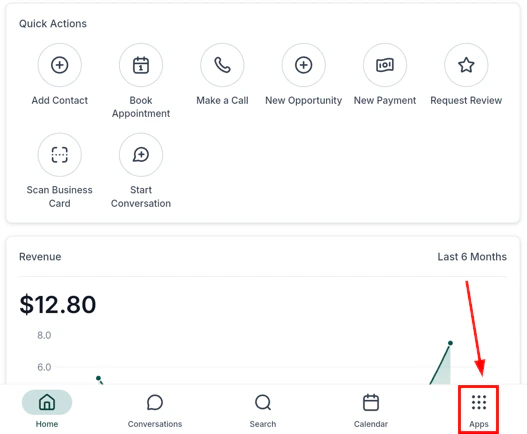
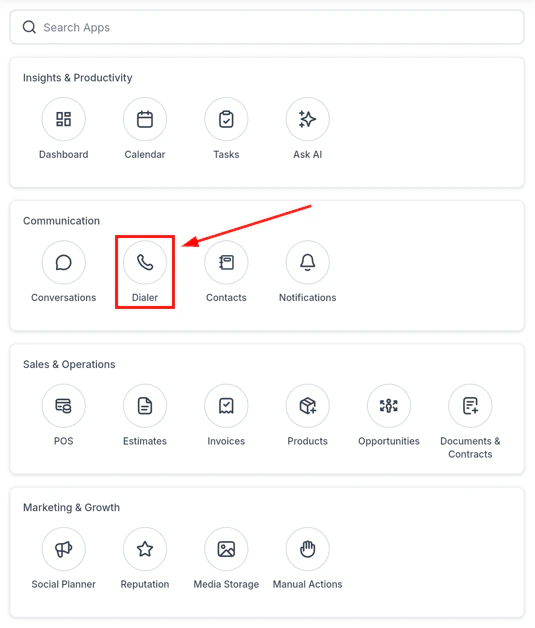
From the navigation, tap the **Phone icon** to open the dialer.
 ## The dialer
The dialer has three tabs:
## The dialer
The dialer has three tabs:
 ### Dial pad
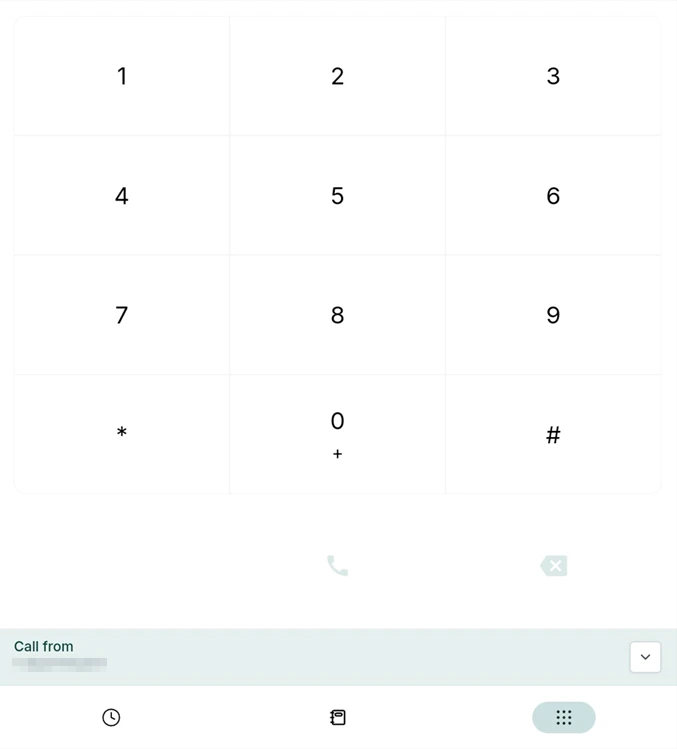
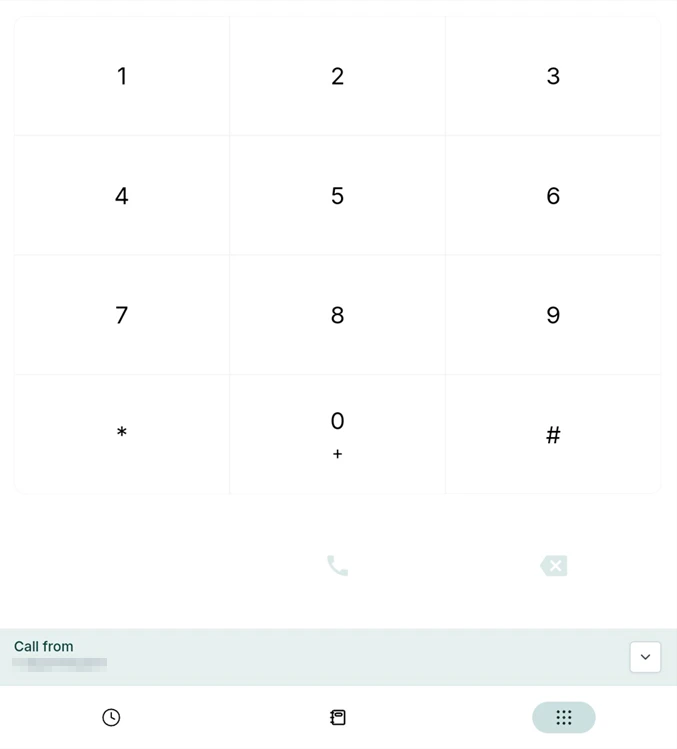
Enter a phone number manually using the keypad and tap the call button to dial. Use the dropdown to choose which of your account's phone numbers will be used as the caller ID for outbound calls.
### Contacts tab
Tap the **Book tab** to search for contacts by name, phone number, or email. Contacts without a phone number appear greyed out and cannot be dialed.
### Recents tab
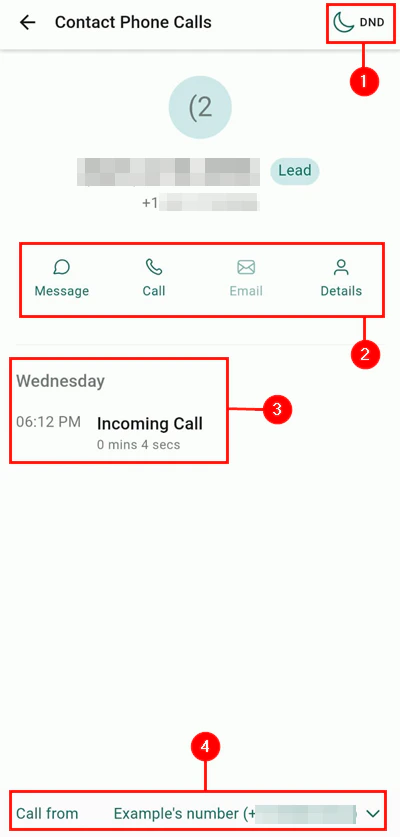
Tap the **Recents tab** to see a list of recent incoming and outgoing calls. Tap the **information icon** next to any contact to set DND, send a message, or call back.
### Dial pad
Enter a phone number manually using the keypad and tap the call button to dial. Use the dropdown to choose which of your account's phone numbers will be used as the caller ID for outbound calls.
### Contacts tab
Tap the **Book tab** to search for contacts by name, phone number, or email. Contacts without a phone number appear greyed out and cannot be dialed.
### Recents tab
Tap the **Recents tab** to see a list of recent incoming and outgoing calls. Tap the **information icon** next to any contact to set DND, send a message, or call back.
 ***
## Local presence dialing
Local Presence Dialing automatically displays a phone number that matches — or closely aligns with — the recipient's area code. This significantly increases answer rates and strengthens first impressions.
***
## Local presence dialing
Local Presence Dialing automatically displays a phone number that matches — or closely aligns with — the recipient's area code. This significantly increases answer rates and strengthens first impressions.
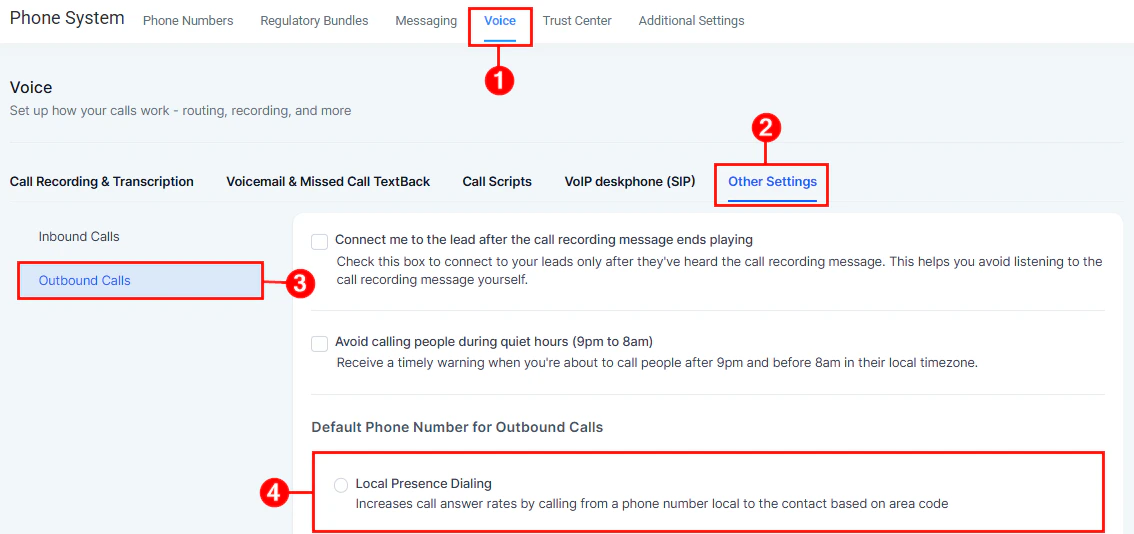
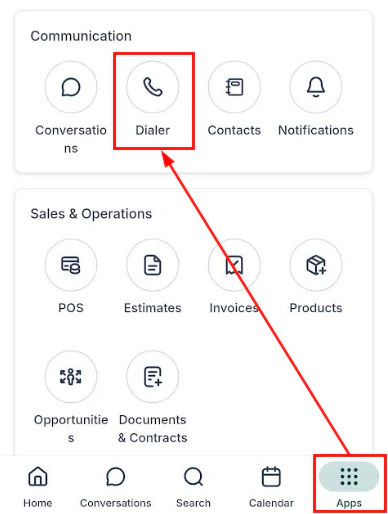
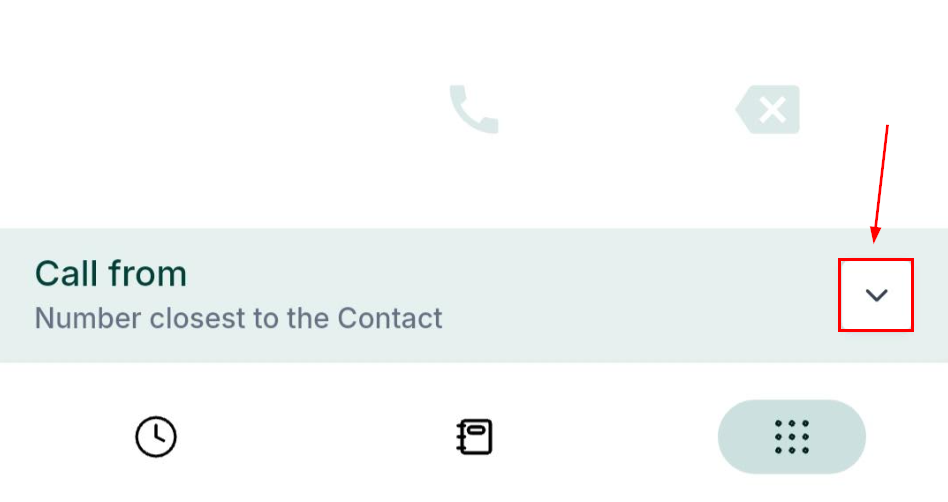 Local presence dialing must be enabled in your account settings and requires sufficient numbers across area codes.
***
## Call scripts
Call scripts display guided talking points during an active call — helping agents stay on message, handle objections, and follow a proven structure.
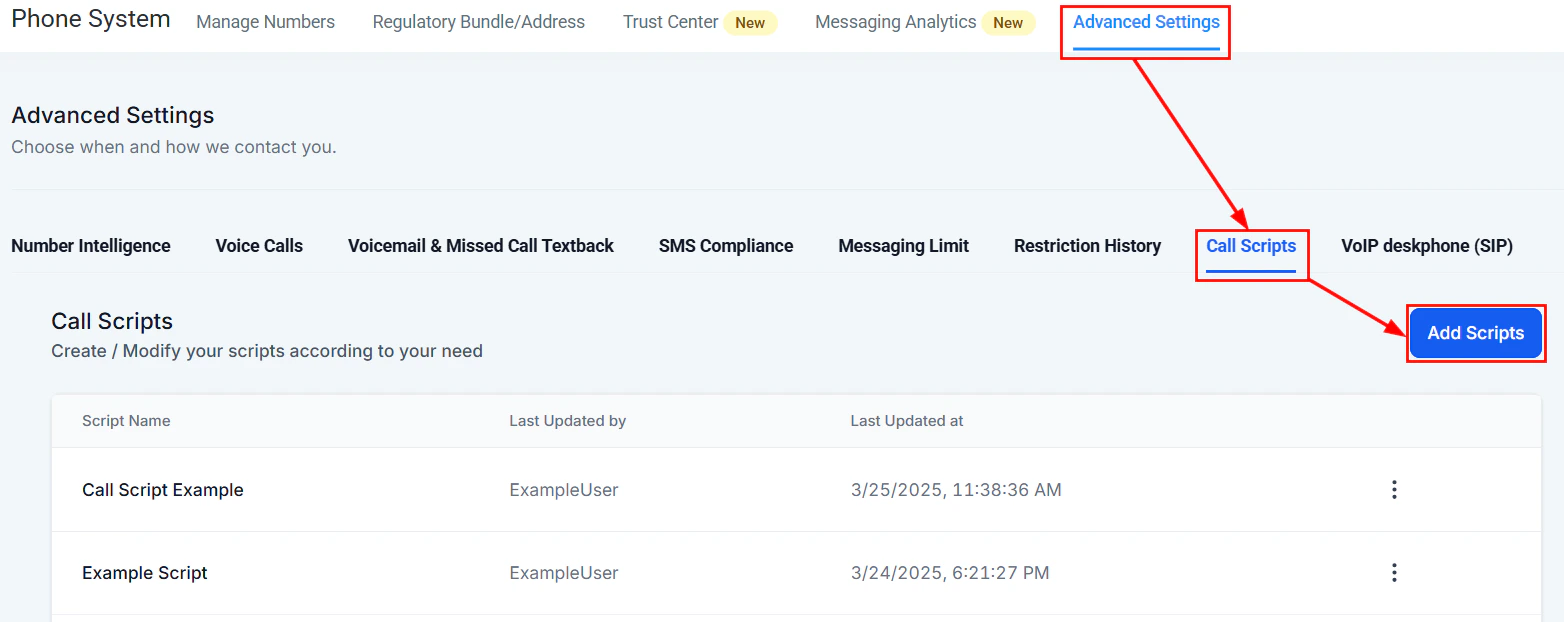
**Setup:** Create call scripts first in **Settings > Phone System > Call Scripts** on the desktop platform.
Local presence dialing must be enabled in your account settings and requires sufficient numbers across area codes.
***
## Call scripts
Call scripts display guided talking points during an active call — helping agents stay on message, handle objections, and follow a proven structure.
**Setup:** Create call scripts first in **Settings > Phone System > Call Scripts** on the desktop platform.
 **Using a script during a call:**
1. Start a call with a contact
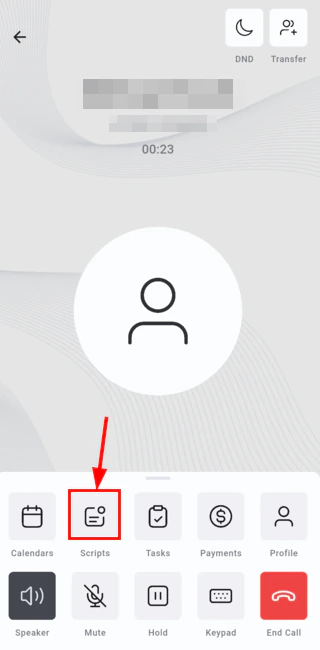
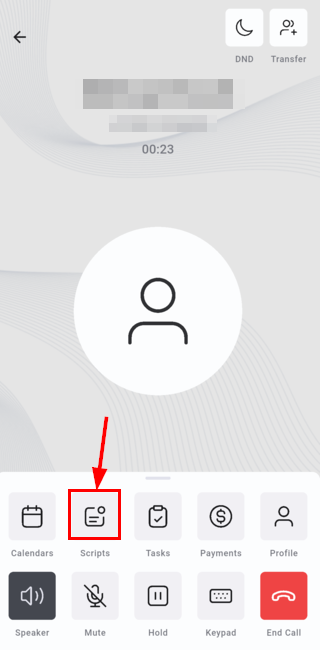
2. Tap the **Scripts icon** in the call toolbar
3. If multiple scripts exist, use the script switcher to select the correct one
4. Follow along step by step
5. Minimize the script when done to return to the full toolbar
Call scripts require HoopAI mobile app version 3.103.4 or above.
***
## During a call
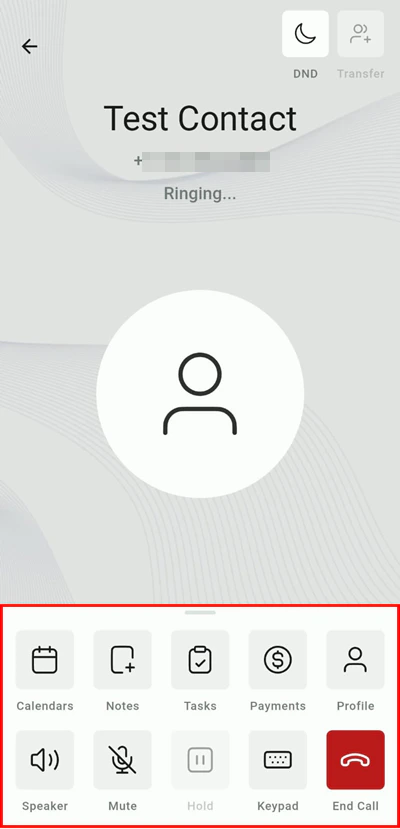
While on an active call, the toolbar gives you quick access to:
**Using a script during a call:**
1. Start a call with a contact
2. Tap the **Scripts icon** in the call toolbar
3. If multiple scripts exist, use the script switcher to select the correct one
4. Follow along step by step
5. Minimize the script when done to return to the full toolbar
Call scripts require HoopAI mobile app version 3.103.4 or above.
***
## During a call
While on an active call, the toolbar gives you quick access to:
 | Tool | Purpose |
| ------------- | -------------------------------------------- |
| **Notes** | Take real-time notes without ending the call |
| **Calendars** | Schedule a follow-up appointment instantly |
| **Tasks** | Create a task to action after the call |
| **Tags** | Apply or remove tags on the contact |
| **Profile** | View the full contact profile |
| **DND** | Toggle Do Not Disturb for the contact |
| **Transfer** | Transfer the call to another agent |
### Call details
| Tool | Purpose |
| ------------- | -------------------------------------------- |
| **Notes** | Take real-time notes without ending the call |
| **Calendars** | Schedule a follow-up appointment instantly |
| **Tasks** | Create a task to action after the call |
| **Tags** | Apply or remove tags on the contact |
| **Profile** | View the full contact profile |
| **DND** | Toggle Do Not Disturb for the contact |
| **Transfer** | Transfer the call to another agent |
### Call details
 ***
## After a call
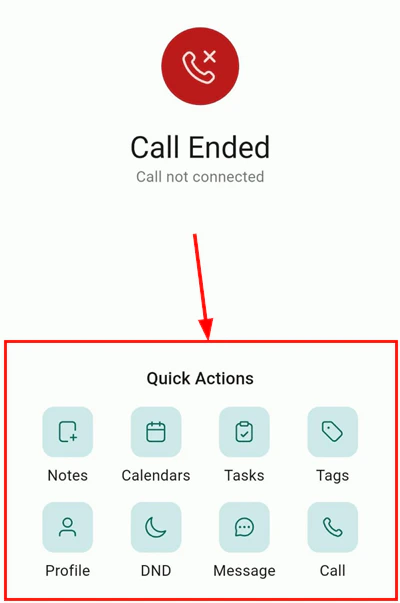
The **Call End screen** provides one-tap access to:
* Notes and follow-up tasks
* Calendar scheduling
* Tags and contact profile
* DND and messaging
* Callback initiation
***
## After a call
The **Call End screen** provides one-tap access to:
* Notes and follow-up tasks
* Calendar scheduling
* Tags and contact profile
* DND and messaging
* Callback initiation
 ***
## Custom call dispositions
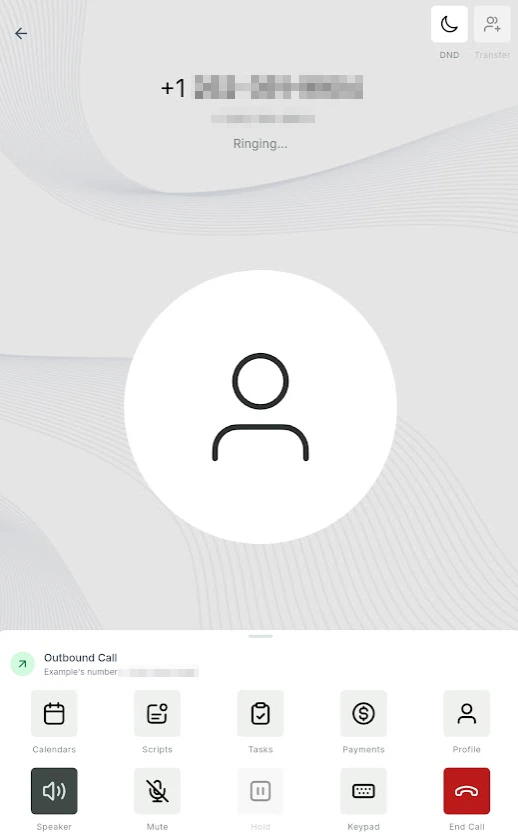
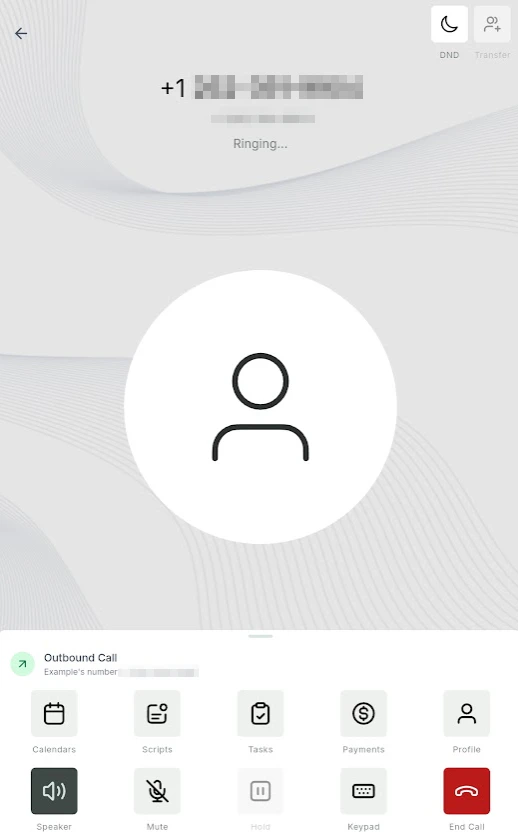
After ending a call, you may be prompted to select a **call disposition** — a label describing the outcome (e.g., "Left voicemail", "Connected", "Not interested"). Dispositions help trigger automations and maintain consistent call documentation across your team.
***
## Custom call dispositions
After ending a call, you may be prompted to select a **call disposition** — a label describing the outcome (e.g., "Left voicemail", "Connected", "Not interested"). Dispositions help trigger automations and maintain consistent call documentation across your team.
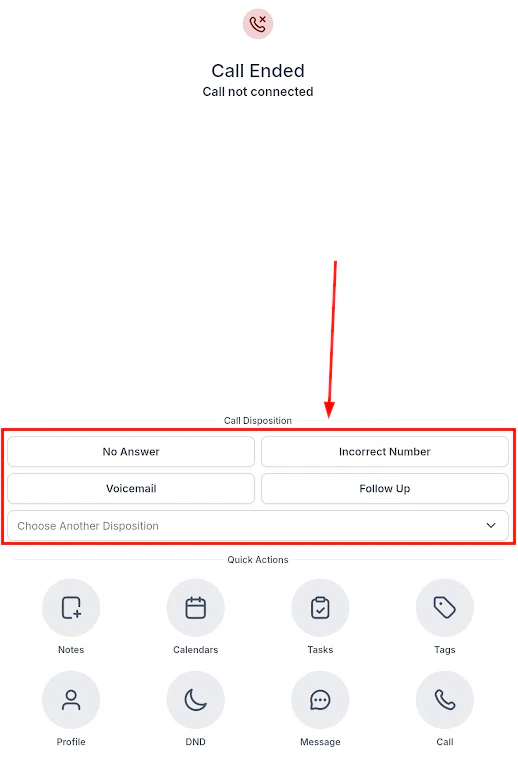
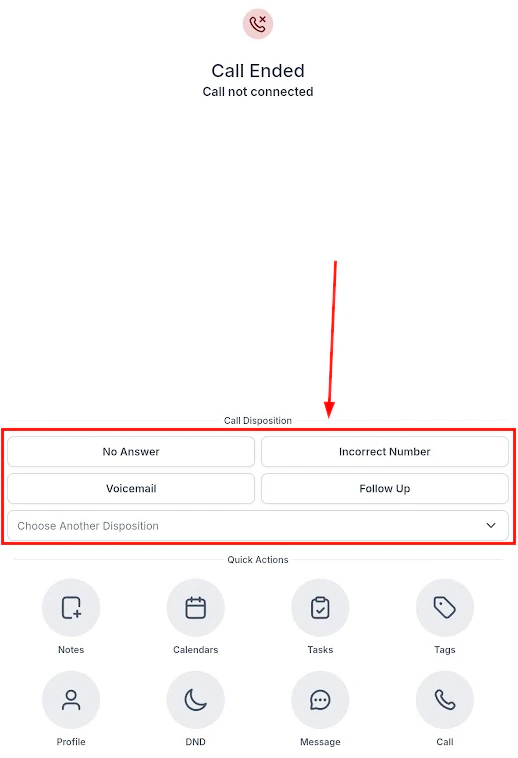
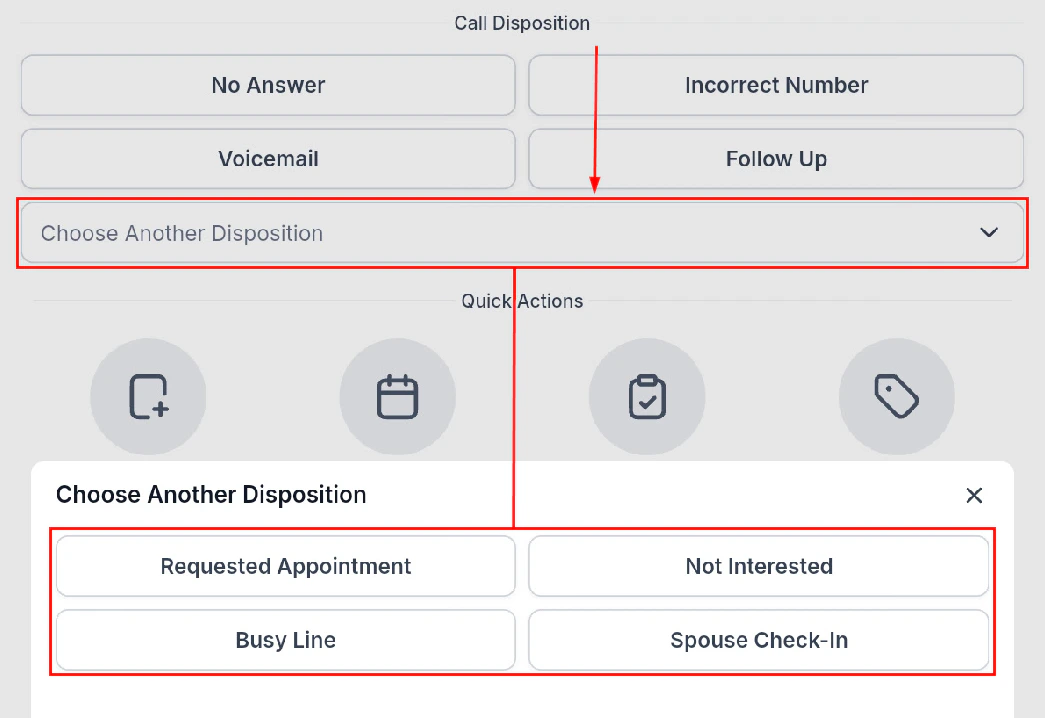 Custom call dispositions require HoopAI mobile app version 3.103.4 or above. Configure dispositions in Settings > Phone System on the desktop.
***
## Inbound call transfers
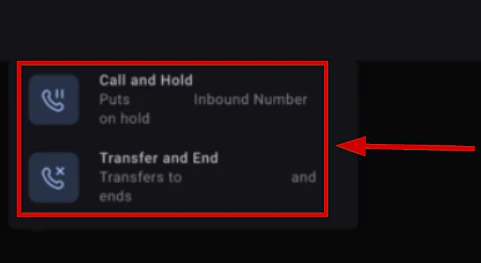
When you receive an inbound call, you can transfer it to another team member mid-call.
Receive and answer an incoming call in the mobile app.
While on the call, tap the **Transfer** button in the top-right of the call toolbar.
Custom call dispositions require HoopAI mobile app version 3.103.4 or above. Configure dispositions in Settings > Phone System on the desktop.
***
## Inbound call transfers
When you receive an inbound call, you can transfer it to another team member mid-call.
Receive and answer an incoming call in the mobile app.
While on the call, tap the **Transfer** button in the top-right of the call toolbar.
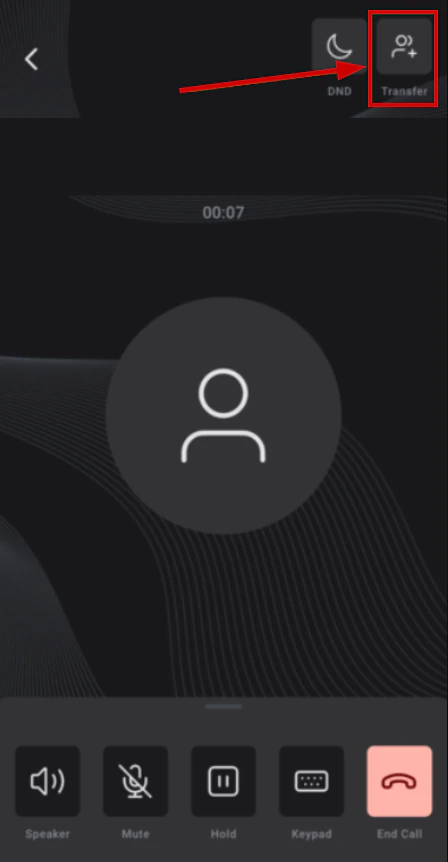 Search for the team member you want to transfer the call to.
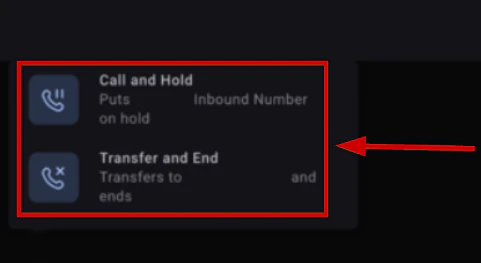 Confirm the transfer. The call connects to the recipient immediately.
 ***
## Multi-location incoming calls
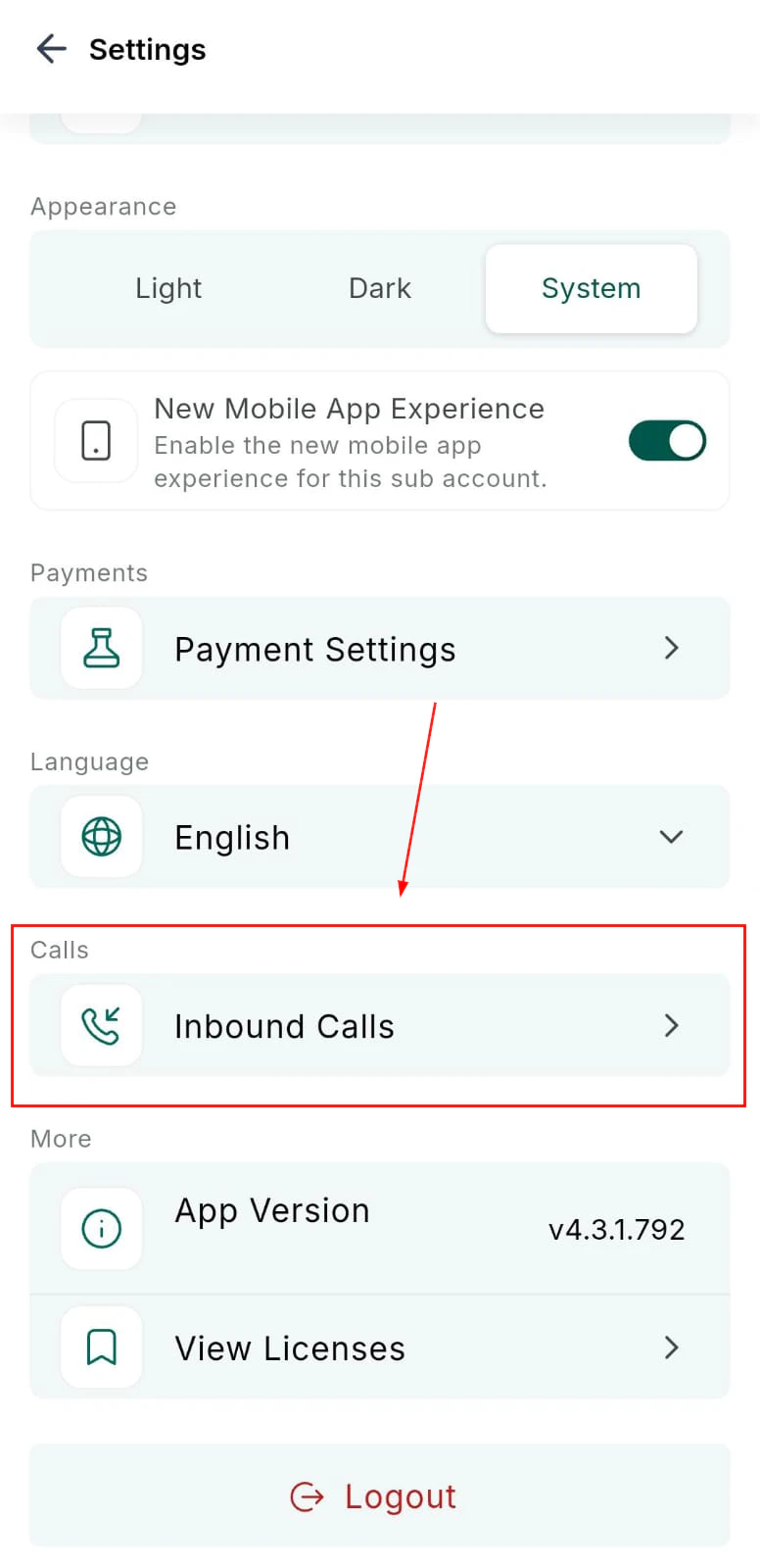
If your account spans multiple locations, the Multi-Location Incoming Calls feature ensures calls are received across all your accounts — so your team never misses a lead regardless of which account they are currently working in.
***
## Multi-location incoming calls
If your account spans multiple locations, the Multi-Location Incoming Calls feature ensures calls are received across all your accounts — so your team never misses a lead regardless of which account they are currently working in.
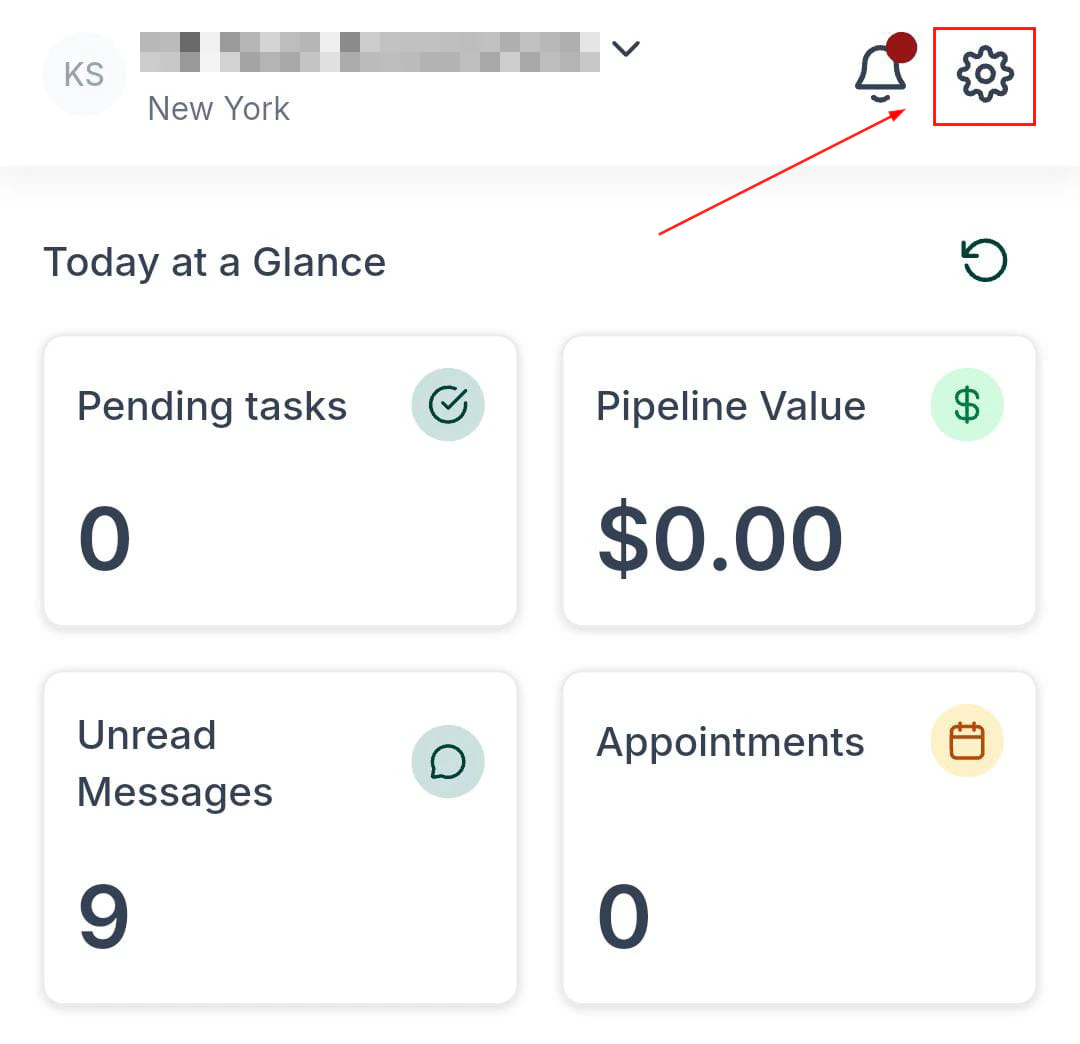 Configure in the mobile app's settings under **Inbound Calls**.
 ***
## Voicemail
Missed calls with voicemails appear as a notification and in the Conversations inbox. Tap a voicemail message to play it directly in the app.
***
## SIM-based calling from the mobile app
In addition to VoIP calling through the app, you can place calls using your device's native SIM card:
* **SIM calling** routes the call through your phone's cellular network instead of the internet, which can improve call quality in areas with poor Wi-Fi or data connectivity
* When SIM calling is enabled, tapping the call button on a contact dials the number using your phone's native dialer
* Call logging still occurs in the platform — the call is recorded on the contact's activity timeline (note: call recording is not available for SIM-based calls)
To enable SIM-based calling:
1. Open the HoopAI mobile app
2. Go to **Settings** (gear icon)
3. Under **Phone Settings**, toggle **Use SIM for Outbound Calls** on
4. When you place a call, the app will use your SIM card instead of VoIP
SIM-based calls use your phone plan's minutes and are subject to your carrier's rates. Carrier charges apply for international calls. Call recording and call scripts are not available when using SIM calling.
***
## Related articles
* [Phone system settings](/settings/phone-system)
* [Call reporting](/reporting/call-reporting)
* [Conversations on mobile](/mobile-app/conversations)
***
## Voicemail
Missed calls with voicemails appear as a notification and in the Conversations inbox. Tap a voicemail message to play it directly in the app.
***
## SIM-based calling from the mobile app
In addition to VoIP calling through the app, you can place calls using your device's native SIM card:
* **SIM calling** routes the call through your phone's cellular network instead of the internet, which can improve call quality in areas with poor Wi-Fi or data connectivity
* When SIM calling is enabled, tapping the call button on a contact dials the number using your phone's native dialer
* Call logging still occurs in the platform — the call is recorded on the contact's activity timeline (note: call recording is not available for SIM-based calls)
To enable SIM-based calling:
1. Open the HoopAI mobile app
2. Go to **Settings** (gear icon)
3. Under **Phone Settings**, toggle **Use SIM for Outbound Calls** on
4. When you place a call, the app will use your SIM card instead of VoIP
SIM-based calls use your phone plan's minutes and are subject to your carrier's rates. Carrier charges apply for international calls. Call recording and call scripts are not available when using SIM calling.
***
## Related articles
* [Phone system settings](/settings/phone-system)
* [Call reporting](/reporting/call-reporting)
* [Conversations on mobile](/mobile-app/conversations)