> ## Documentation Index
> Fetch the complete documentation index at: https://help.hoopai.com/llms.txt
> Use this file to discover all available pages before exploring further.
# Payments and POS on the HoopAI mobile app
> Accept Tap to Pay, manage invoices, and run your POS on the HoopAI mobile app. Full payments suite for iOS and Android.
The HoopAI mobile app includes a complete payments suite — from a full point-of-sale (POS) system to invoice management, estimates, documents, and contracts. Accept payments anywhere with Tap to Pay, card readers, or manual entry — no additional hardware required.
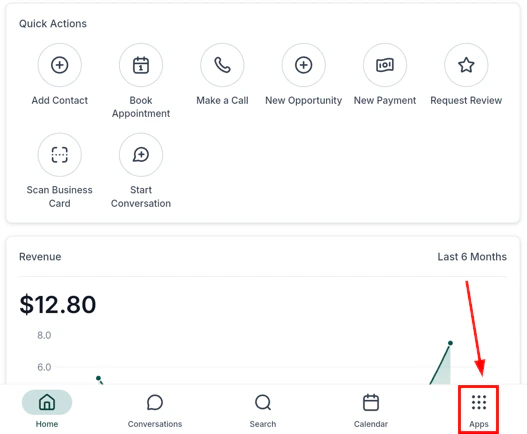
From the navigation, tap the **Payments icon (\$)** to open the POS.
 ## Point of sale (POS)
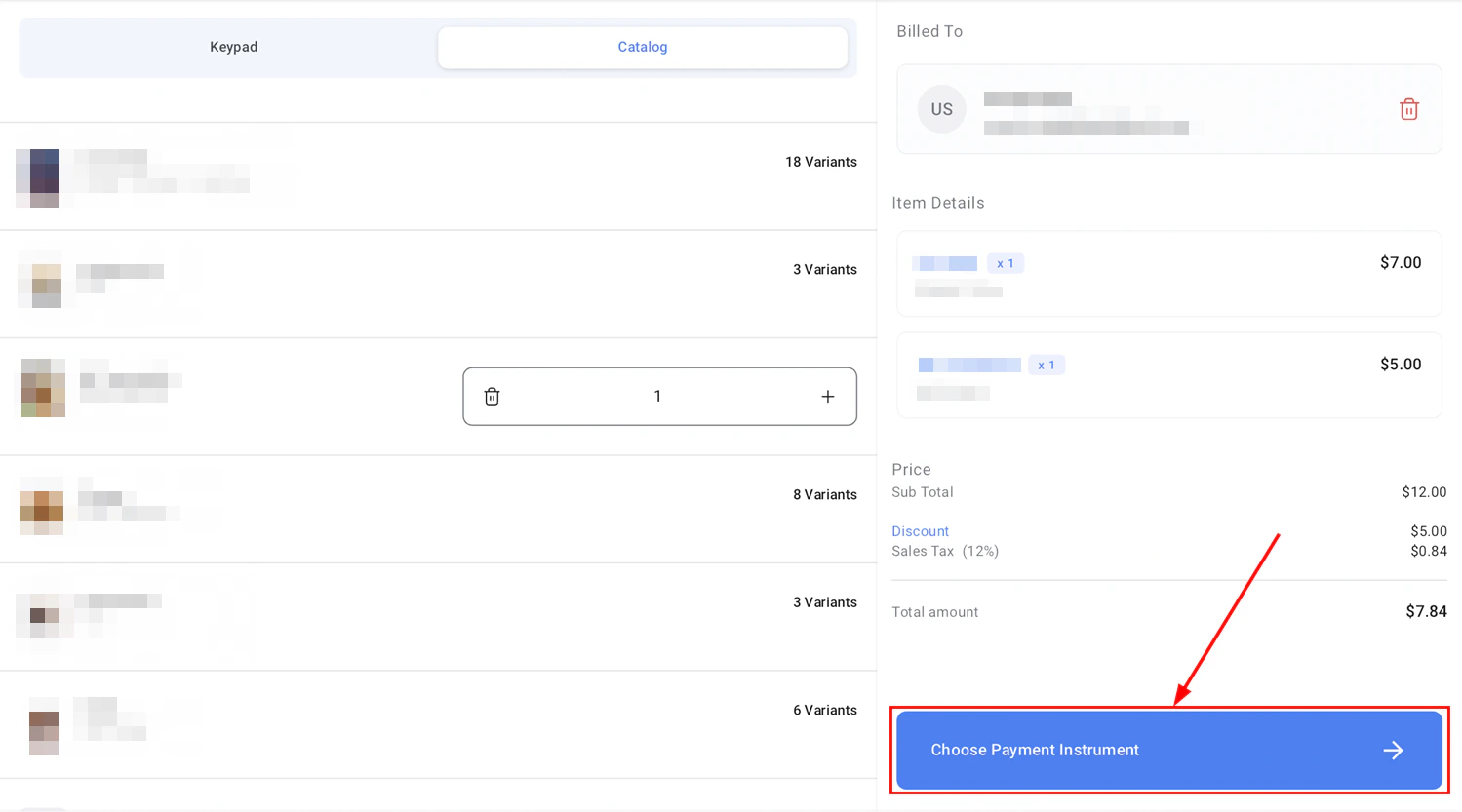
The POS is designed for fast in-person sales — enter a custom amount or select products from your catalog, add a customer, apply discounts or taxes, and collect payment in seconds.
## Point of sale (POS)
The POS is designed for fast in-person sales — enter a custom amount or select products from your catalog, add a customer, apply discounts or taxes, and collect payment in seconds.
 ### Adding items to a sale
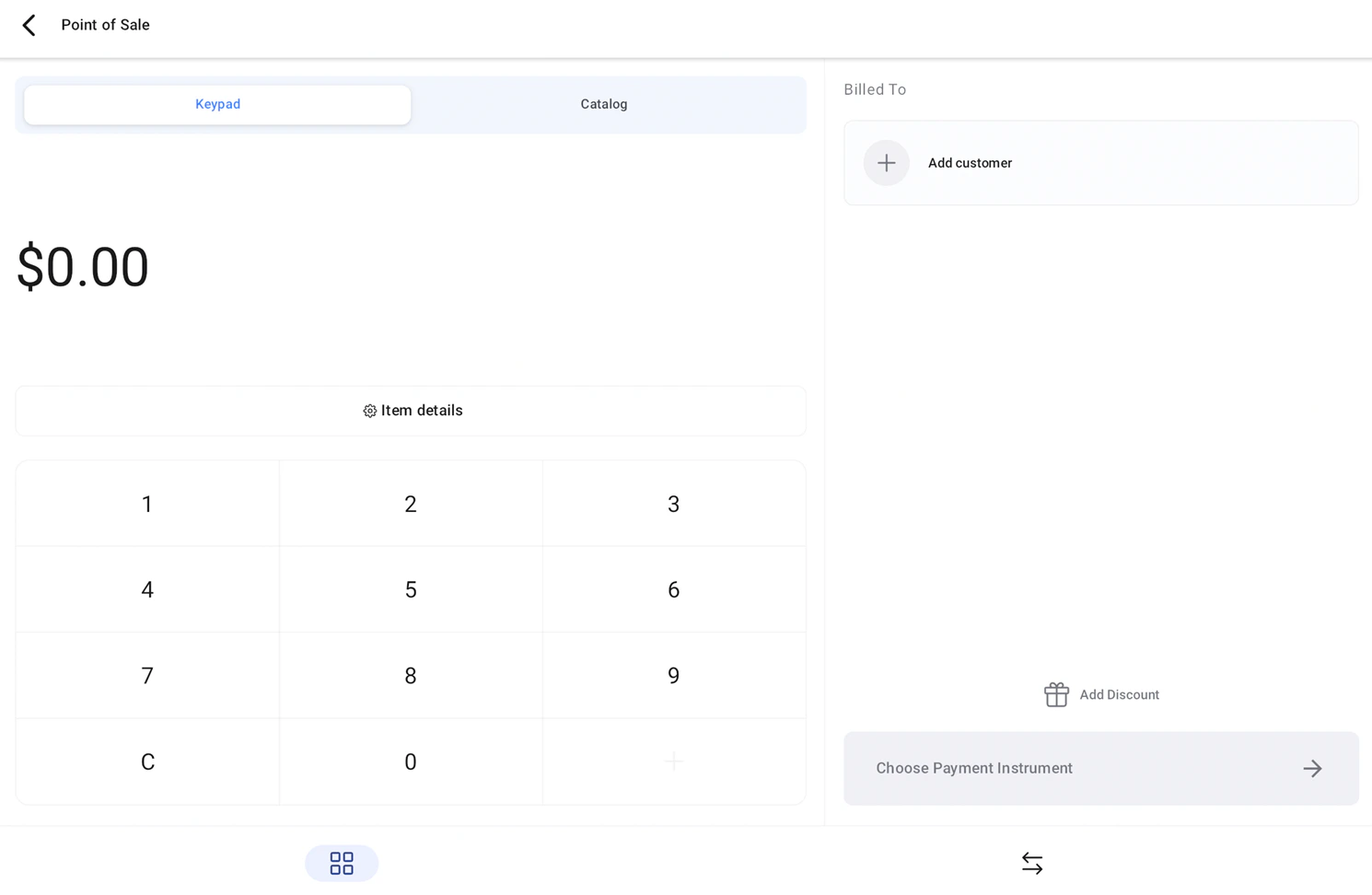
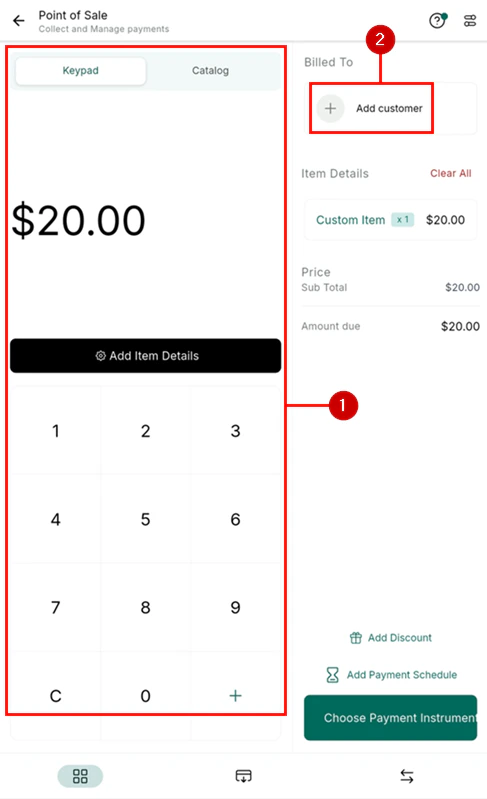
The POS screen has two panels:
* **Keypad** — enter a custom dollar amount directly
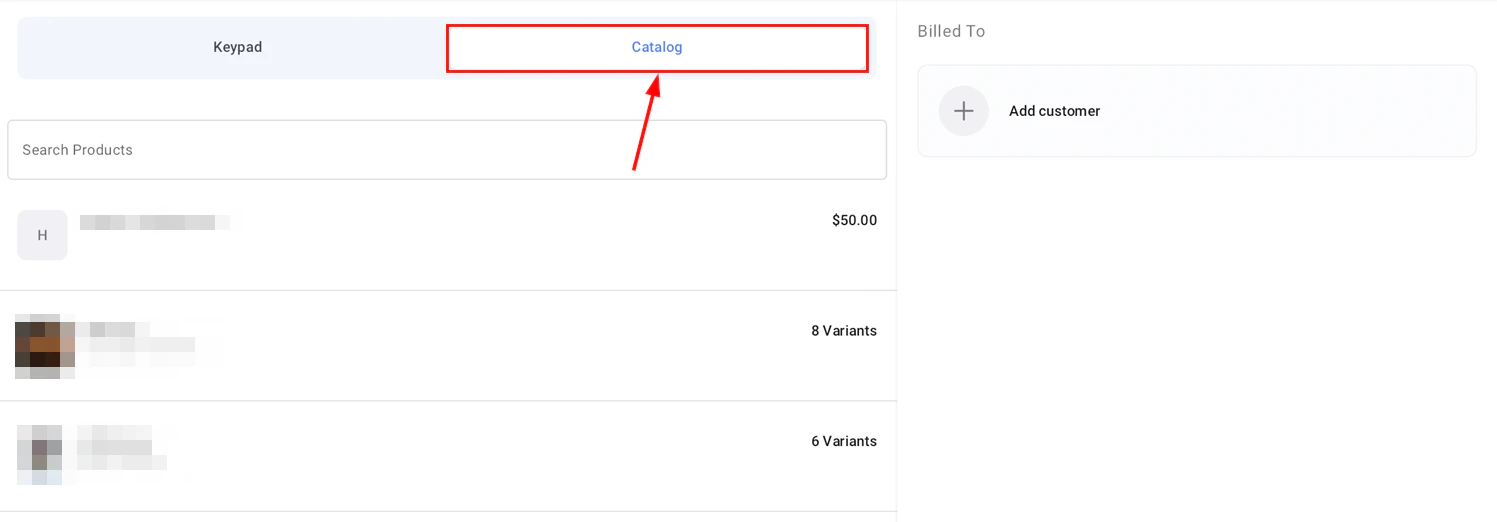
* **Catalog tab** — select from your saved products and services inventory
### Adding items to a sale
The POS screen has two panels:
* **Keypad** — enter a custom dollar amount directly
* **Catalog tab** — select from your saved products and services inventory
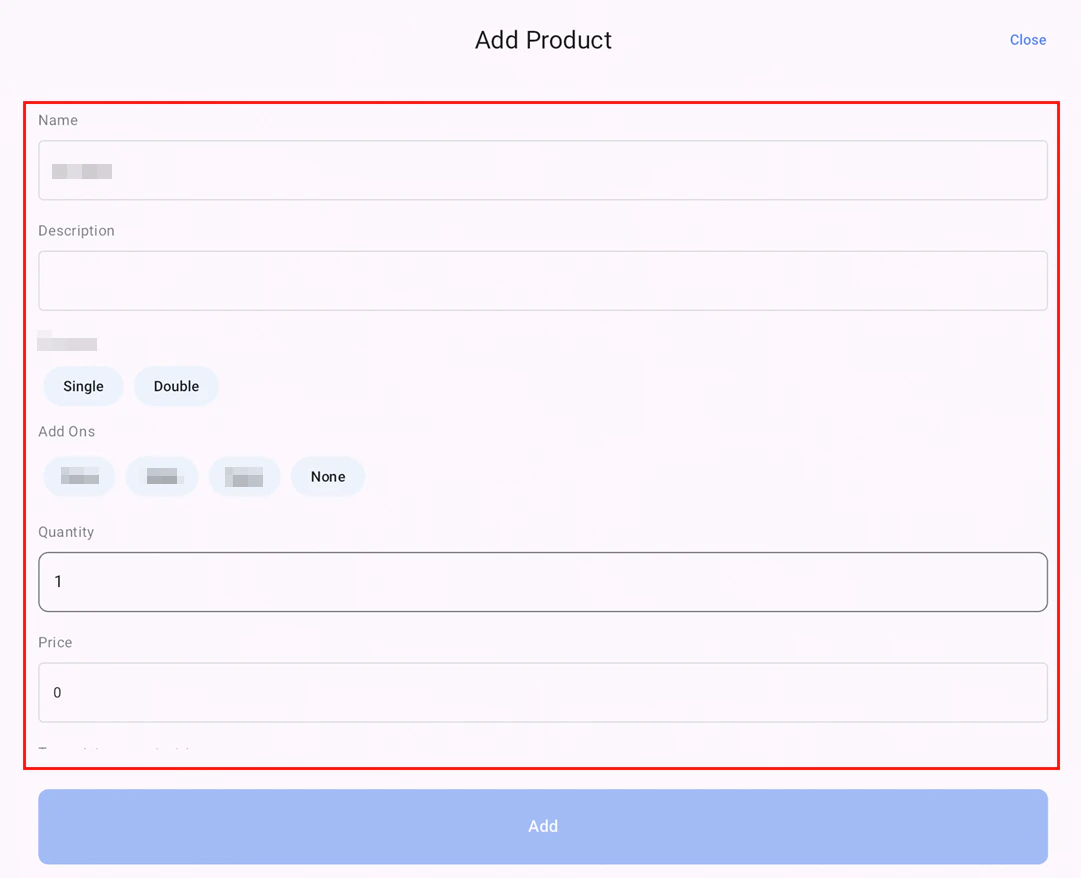 After adding all items, tap **Discount** to apply a percentage or fixed-amount discount before checkout.
### Adding a customer
Linking a customer to the sale allows you to track the transaction on their contact record.
After adding all items, tap **Discount** to apply a percentage or fixed-amount discount before checkout.
### Adding a customer
Linking a customer to the sale allows you to track the transaction on their contact record.
 ### Payment methods
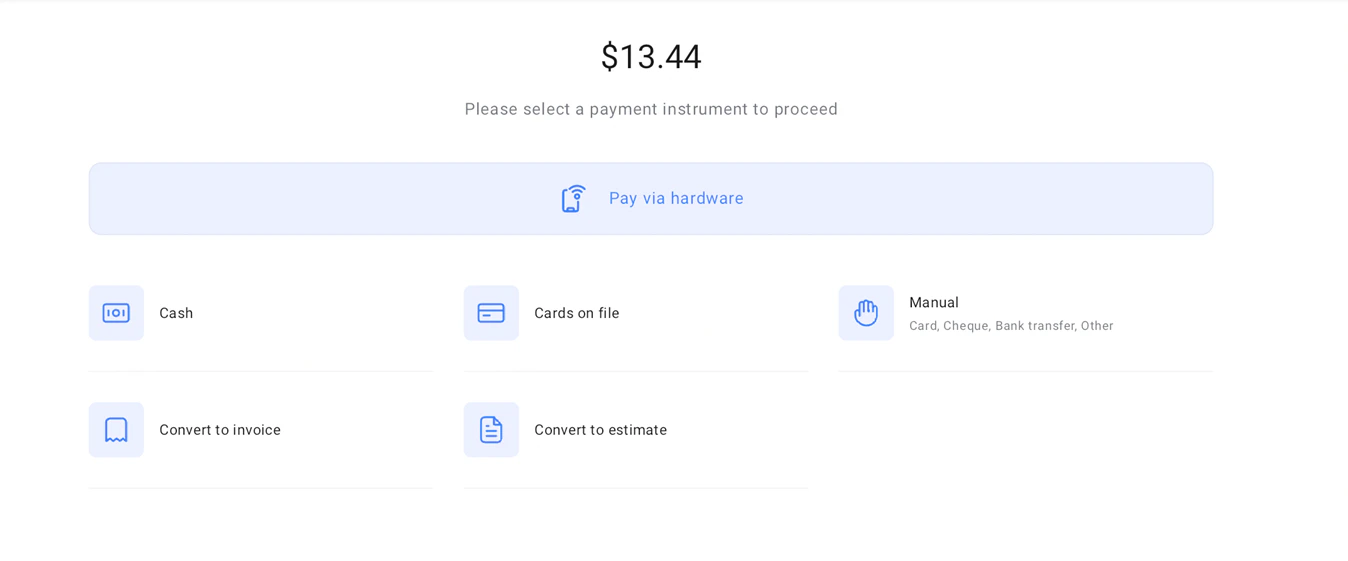
Tap **Choose Payment Instruments** to select how to collect payment:
### Payment methods
Tap **Choose Payment Instruments** to select how to collect payment:
 | Method | Description |
| --------------------- | ------------------------------------------------- |
| **Tap to Pay** | Contactless NFC payment — no card reader required |
| **Cards on file** | Charge a saved card via your connected processor |
| **Manual card entry** | Enter card details directly on screen |
| **Pay via hardware** | Use a connected card reader device |
| **Cash / check** | Record an offline payment for bookkeeping |
| **Invoice** | Convert the sale to a formal invoice |
### Viewing POS transaction history
Tap **Transaction History** inside the POS to see a record of all completed transactions. Tap any transaction to view a breakdown or issue a refund.
| Method | Description |
| --------------------- | ------------------------------------------------- |
| **Tap to Pay** | Contactless NFC payment — no card reader required |
| **Cards on file** | Charge a saved card via your connected processor |
| **Manual card entry** | Enter card details directly on screen |
| **Pay via hardware** | Use a connected card reader device |
| **Cash / check** | Record an offline payment for bookkeeping |
| **Invoice** | Convert the sale to a formal invoice |
### Viewing POS transaction history
Tap **Transaction History** inside the POS to see a record of all completed transactions. Tap any transaction to view a breakdown or issue a refund.
 ***
## POS on iPads and tablets
The POS is optimized for larger devices with a split-screen layout — left panel for the keypad or catalog, right panel for live checkout details. Supports both landscape and portrait orientations, making it compatible with tablet docks and external payment hardware.
iPad and tablet POS support requires HoopAI mobile app version 3.84.x or above.
***
## Tap to Pay
Tap to Pay uses NFC technology built into your iPhone or Android device to accept contactless card payments — no card reader required.
***
## POS on iPads and tablets
The POS is optimized for larger devices with a split-screen layout — left panel for the keypad or catalog, right panel for live checkout details. Supports both landscape and portrait orientations, making it compatible with tablet docks and external payment hardware.
iPad and tablet POS support requires HoopAI mobile app version 3.84.x or above.
***
## Tap to Pay
Tap to Pay uses NFC technology built into your iPhone or Android device to accept contactless card payments — no card reader required.
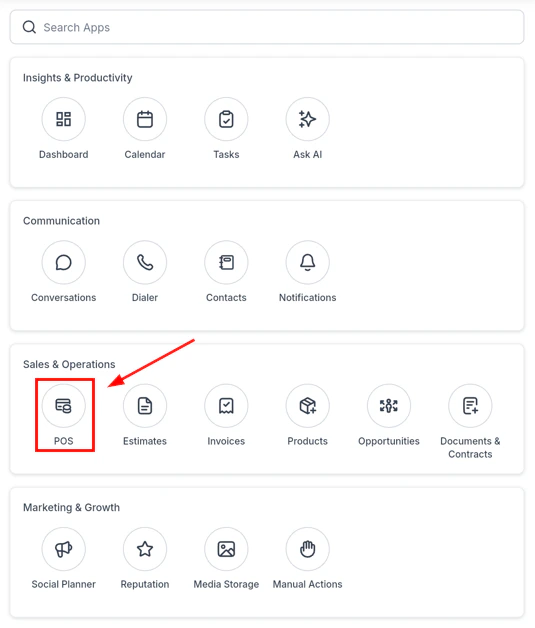
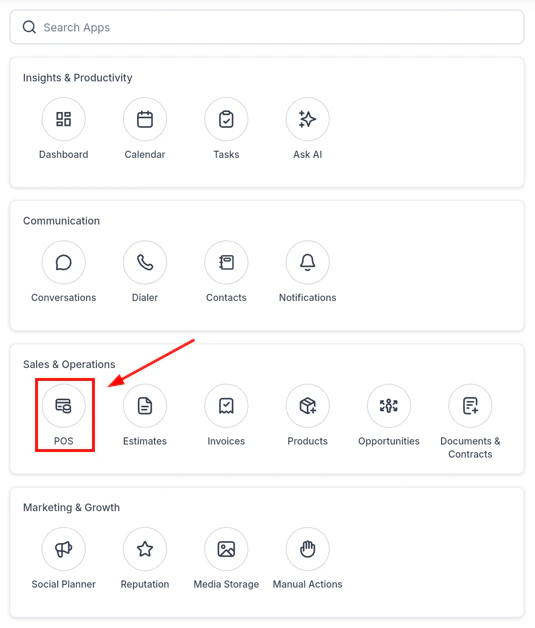
 Tap the card icon (\$) from the apps menu.
Enter your total or add products from the catalog. Link a contact if applicable.
Tap **Choose Payment Instruments** and select your **Tap to Pay** option.
Hold your customer's contactless card or device to the back of your phone. The transaction completes instantly.
***
## Automatic taxes
Automatic Taxes in Mobile Payments calculates tax rates instantly based on customer details and product tax codes — across multiple countries and jurisdictions, for invoices, POS transactions, and estimates.
Tap the card icon (\$) from the apps menu.
Enter your total or add products from the catalog. Link a contact if applicable.
Tap **Choose Payment Instruments** and select your **Tap to Pay** option.
Hold your customer's contactless card or device to the back of your phone. The transaction completes instantly.
***
## Automatic taxes
Automatic Taxes in Mobile Payments calculates tax rates instantly based on customer details and product tax codes — across multiple countries and jurisdictions, for invoices, POS transactions, and estimates.
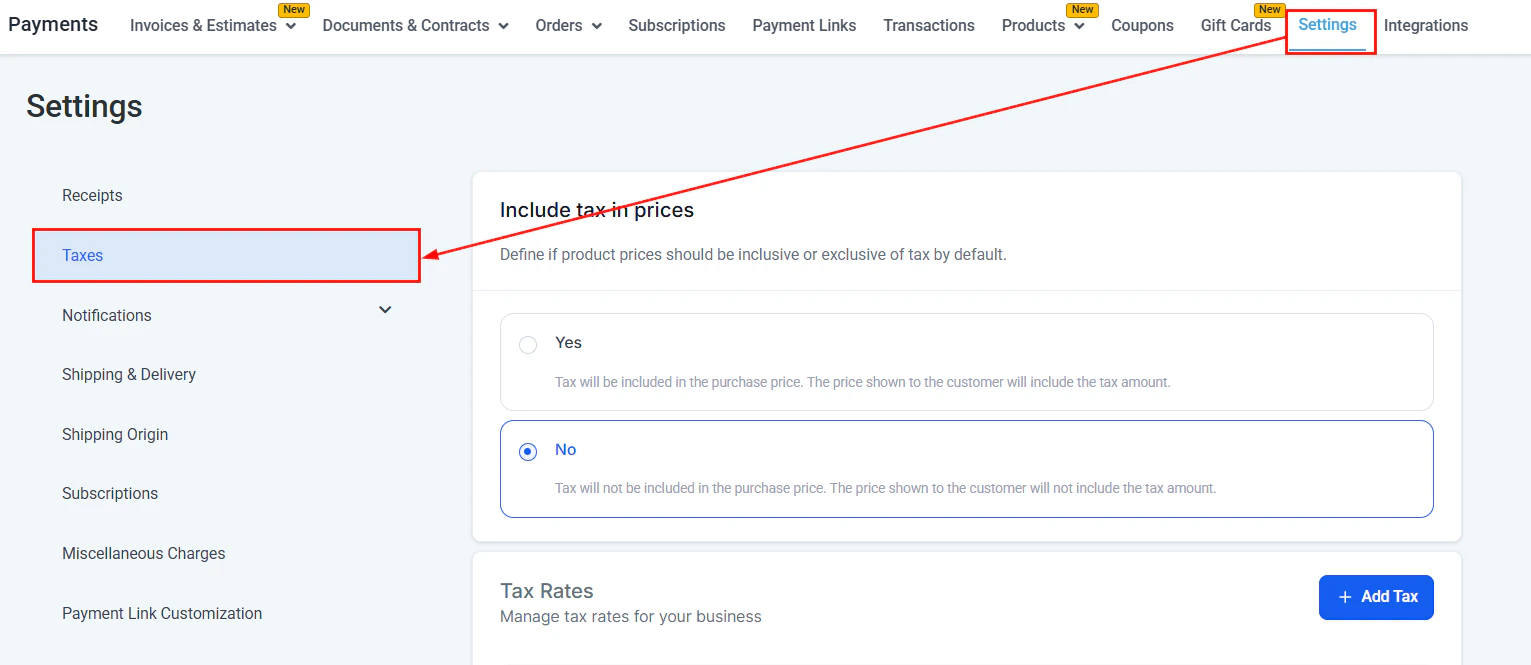 To enable: open the mobile app settings, navigate to the payments section, and enable **Automatic Taxes**.
***
## Taxes and discounts
When creating a sale or invoice on mobile, you can:
* **Add discounts** — apply a percentage or fixed-amount discount
* **Apply taxes** — select applicable tax rates configured in your account settings
* **Automatic taxes** — if configured, taxes are calculated automatically based on product and location
***
## Invoices
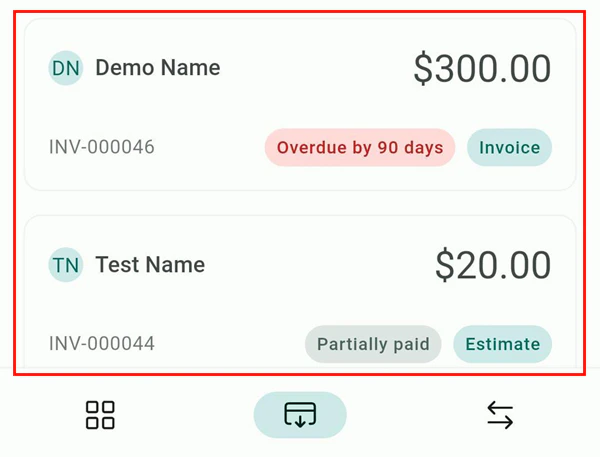
The Invoices section provides full invoice management on your mobile device — create, send, track, and collect payment on invoices wherever you are.
To enable: open the mobile app settings, navigate to the payments section, and enable **Automatic Taxes**.
***
## Taxes and discounts
When creating a sale or invoice on mobile, you can:
* **Add discounts** — apply a percentage or fixed-amount discount
* **Apply taxes** — select applicable tax rates configured in your account settings
* **Automatic taxes** — if configured, taxes are calculated automatically based on product and location
***
## Invoices
The Invoices section provides full invoice management on your mobile device — create, send, track, and collect payment on invoices wherever you are.
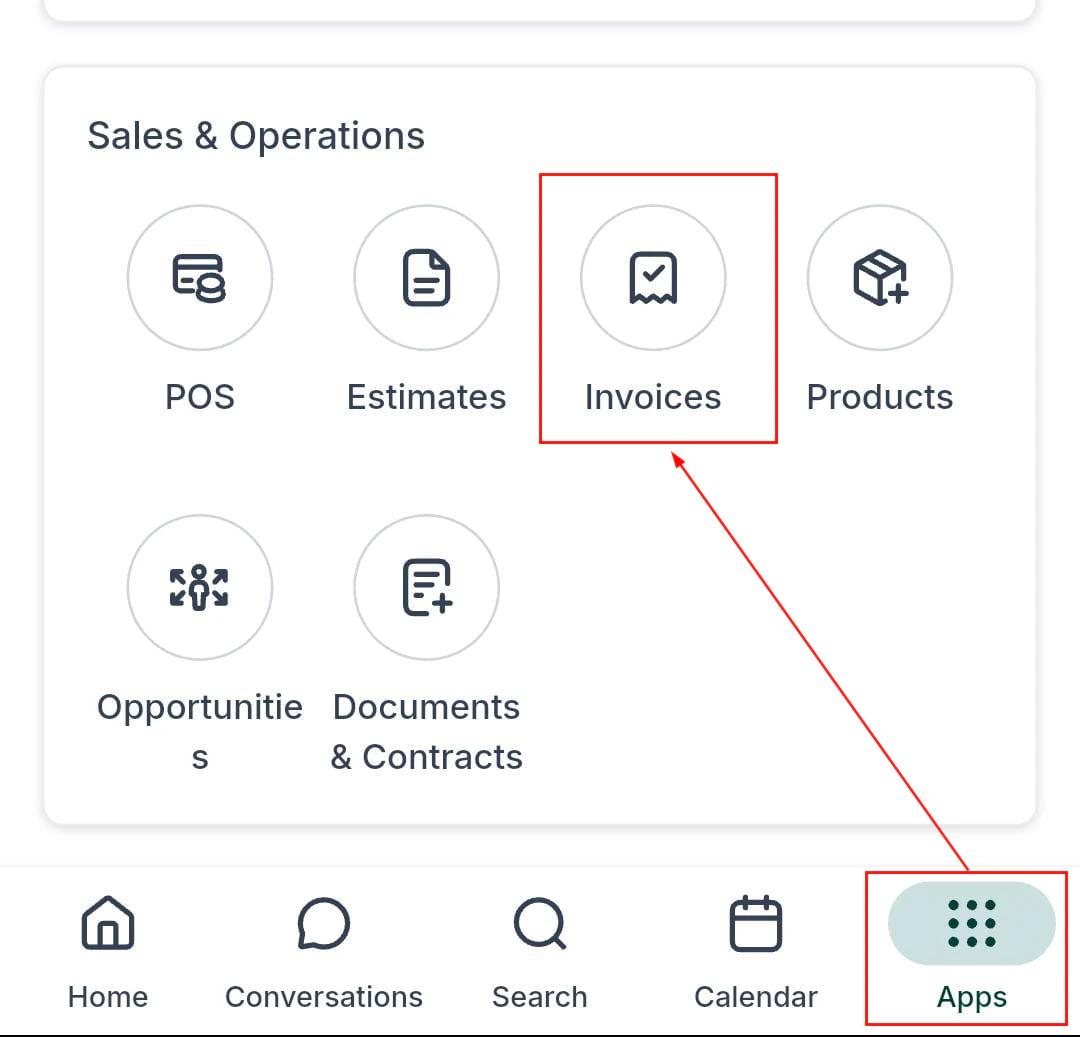
 ### Searching invoices
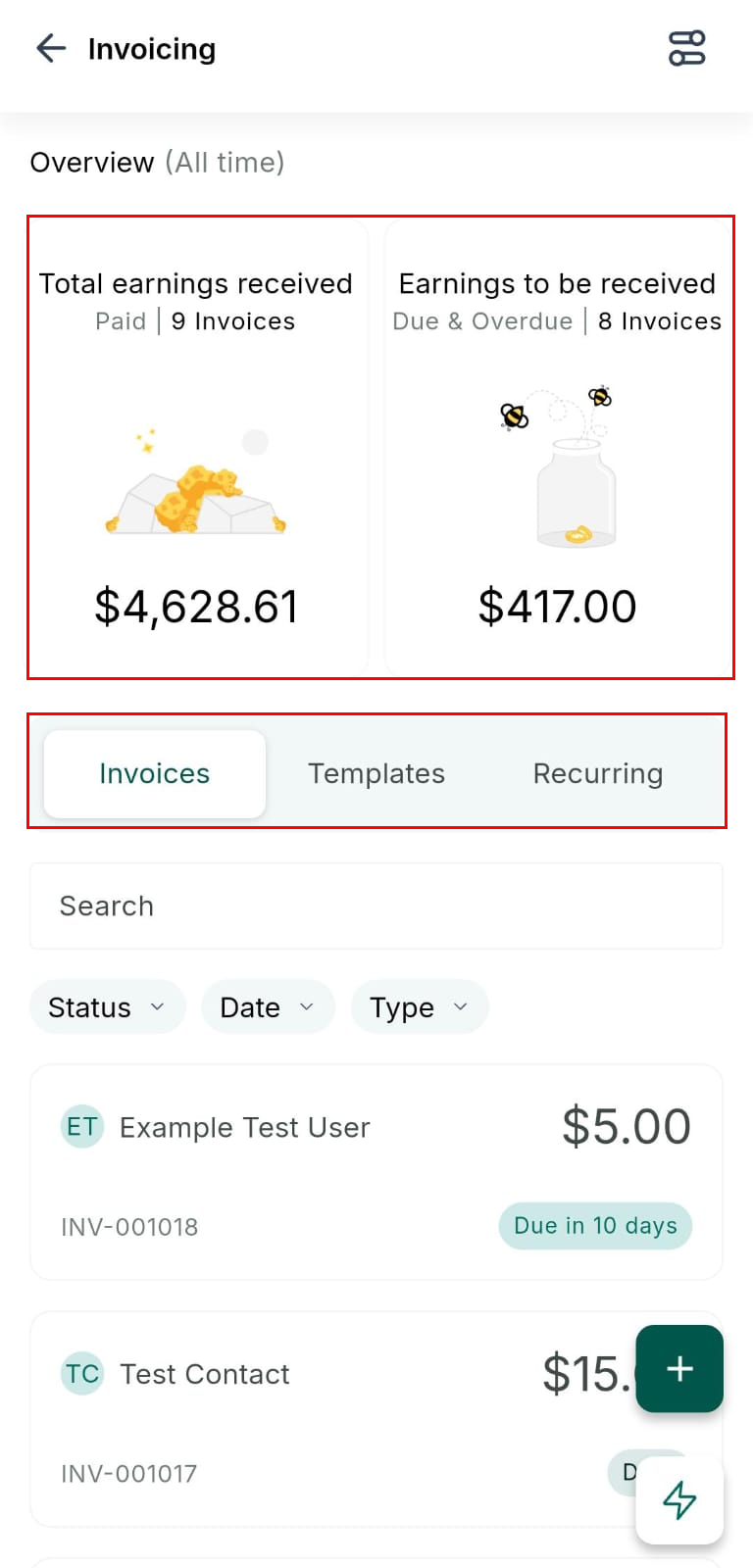
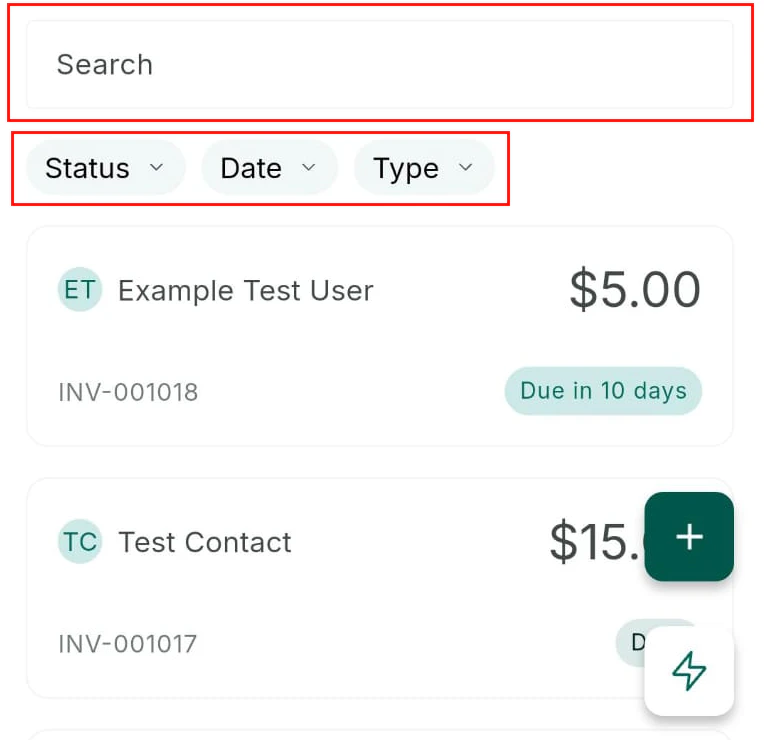
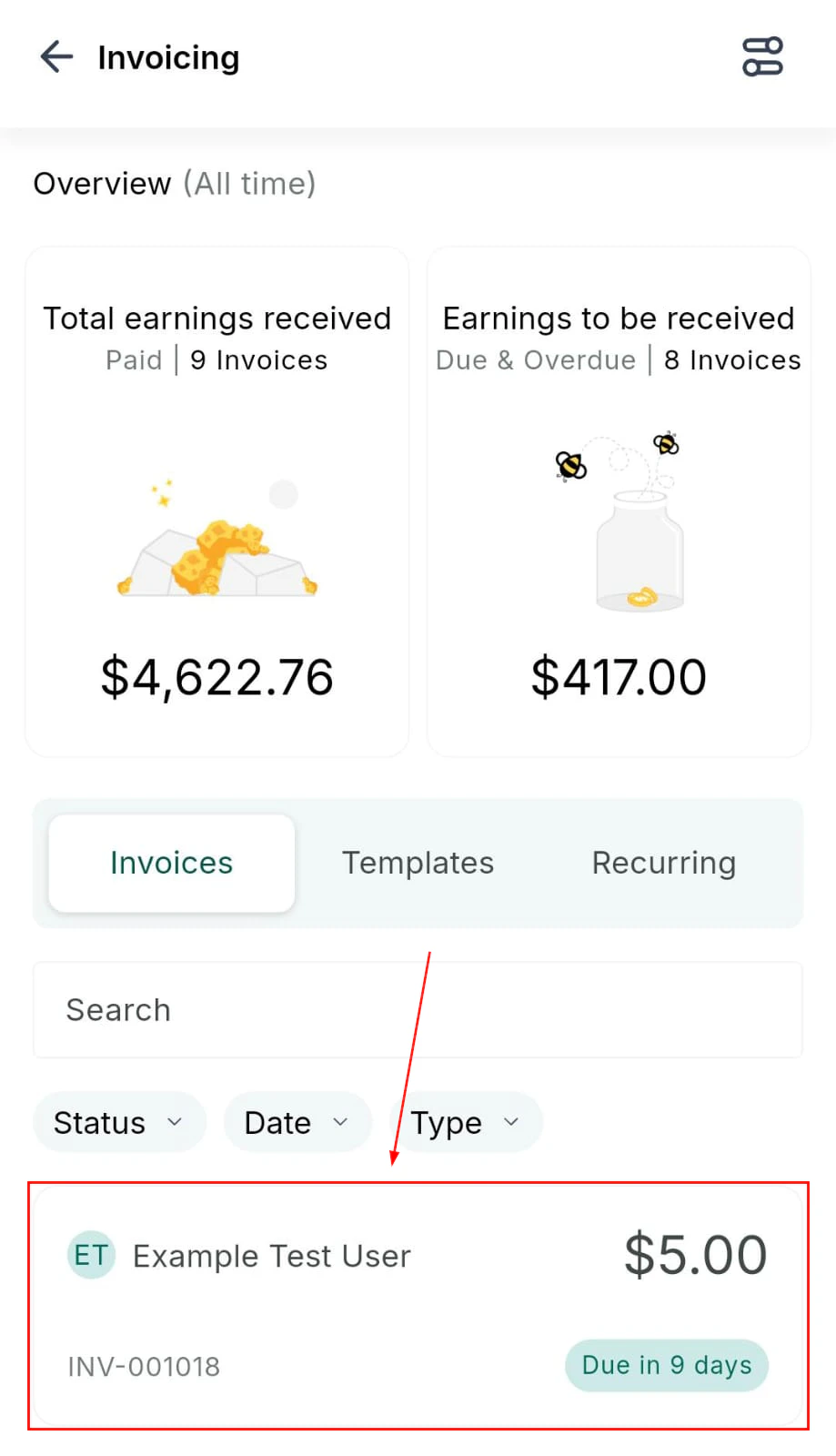
Filter by **Invoices**, **Templates**, or **Recurring** using the tabs at the top.
### Searching invoices
Filter by **Invoices**, **Templates**, or **Recurring** using the tabs at the top.
 ### Creating and sending an invoice
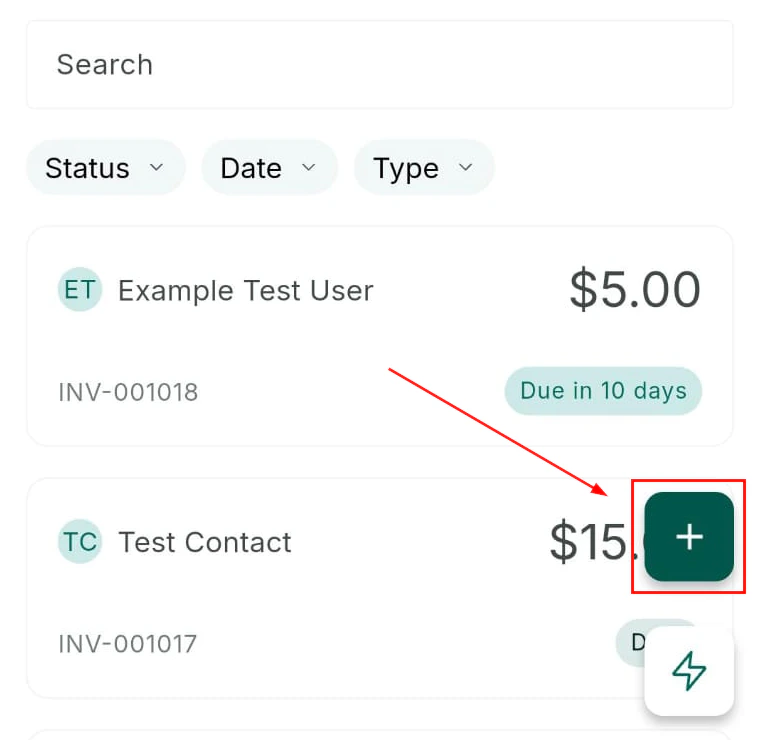
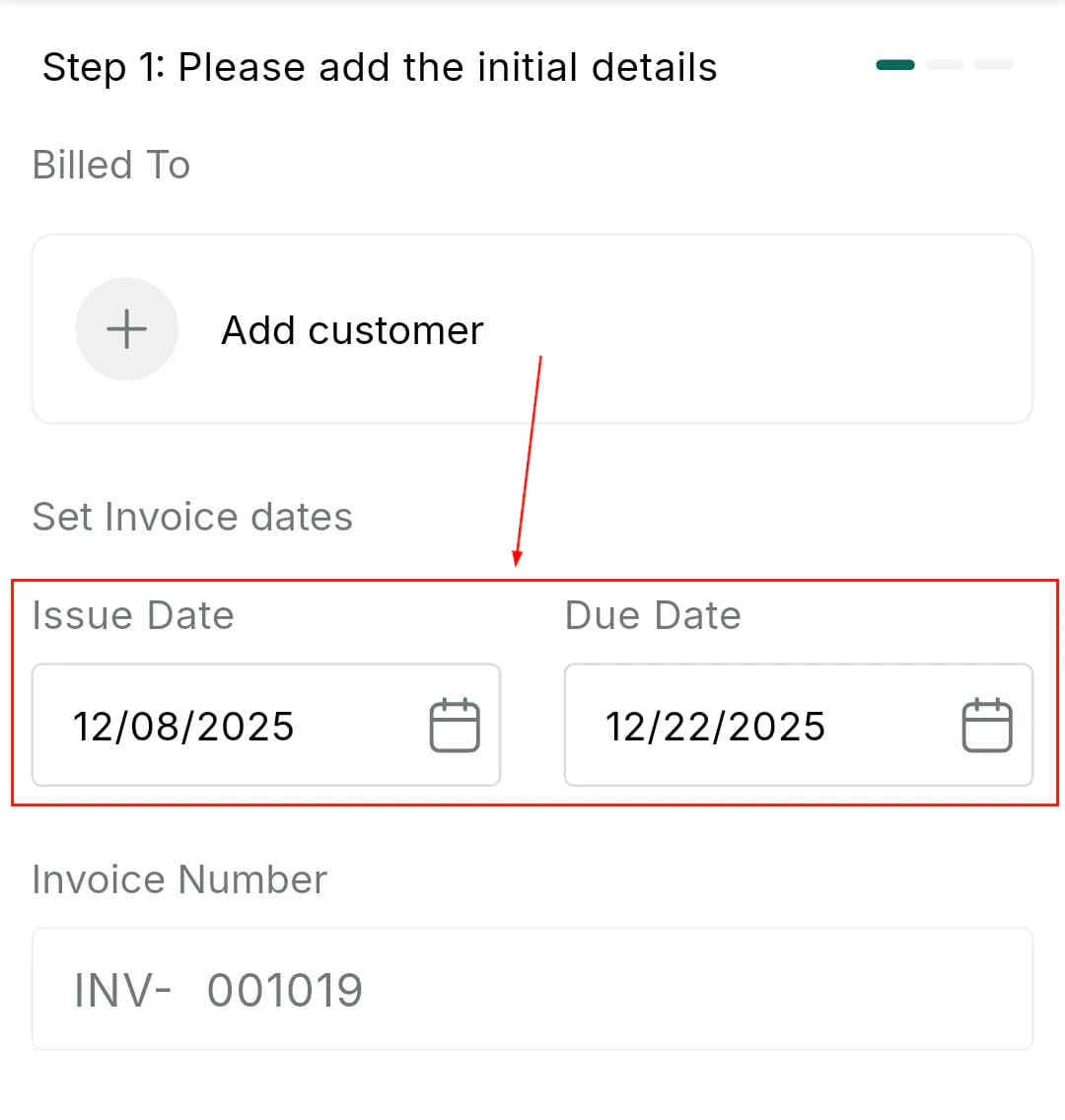
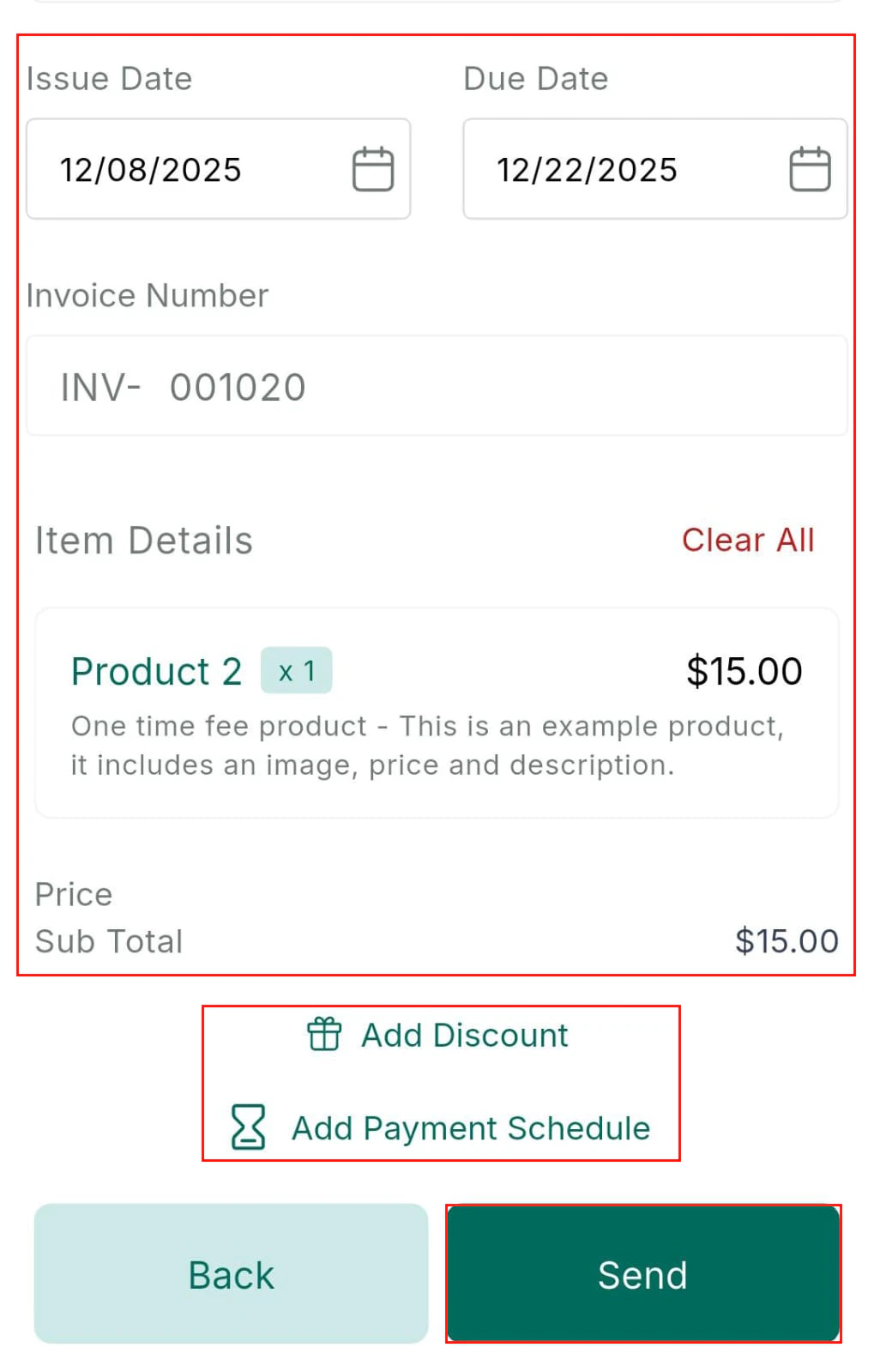
Tap the **+** button to create a new invoice. Add line items, link a contact, set an issue date and due date, add terms and notes, then send via email or SMS.
### Creating and sending an invoice
Tap the **+** button to create a new invoice. Add line items, link a contact, set an issue date and due date, add terms and notes, then send via email or SMS.
 ### Recording payments
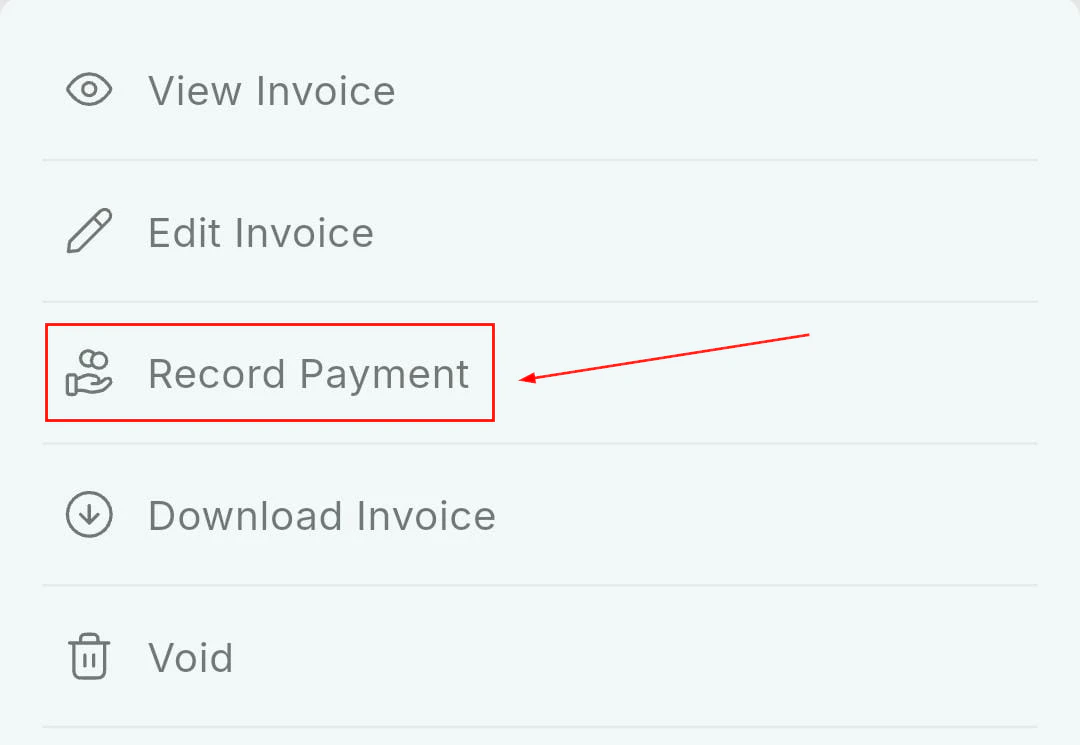
Open an invoice and tap **Record Payment** to manually record a payment received outside the platform (e.g., cash, bank transfer, or check).
### Recording payments
Open an invoice and tap **Record Payment** to manually record a payment received outside the platform (e.g., cash, bank transfer, or check).
 ### Refunds
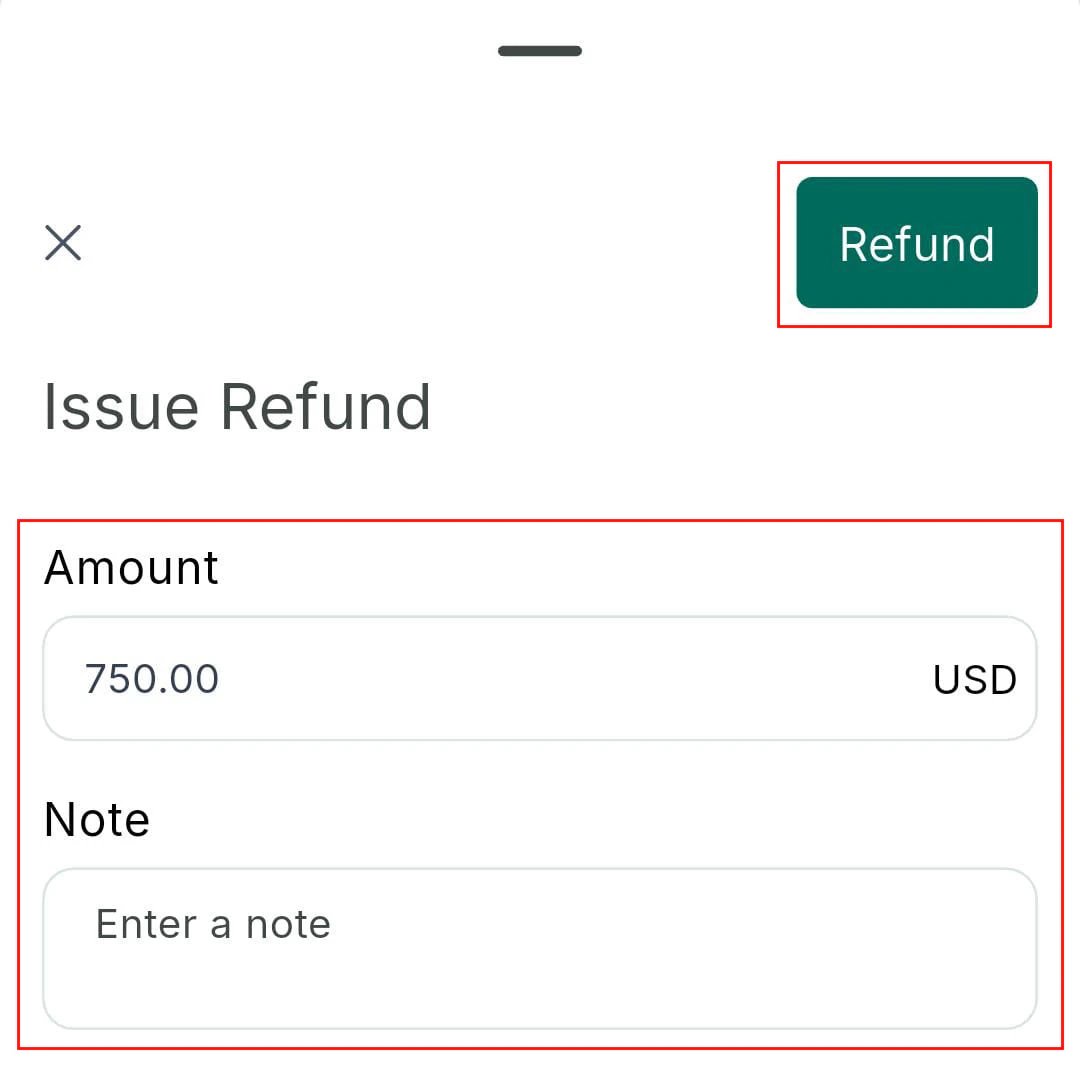
From Transaction History, tap any completed transaction to view the itemized breakdown or issue a full or partial refund.
### Refunds
From Transaction History, tap any completed transaction to view the itemized breakdown or issue a full or partial refund.
 ***
## Estimates
Create and send price estimates before issuing a formal invoice. From the apps menu, tap **Estimates** to browse, search, and manage your estimates.
***
## Estimates
Create and send price estimates before issuing a formal invoice. From the apps menu, tap **Estimates** to browse, search, and manage your estimates.
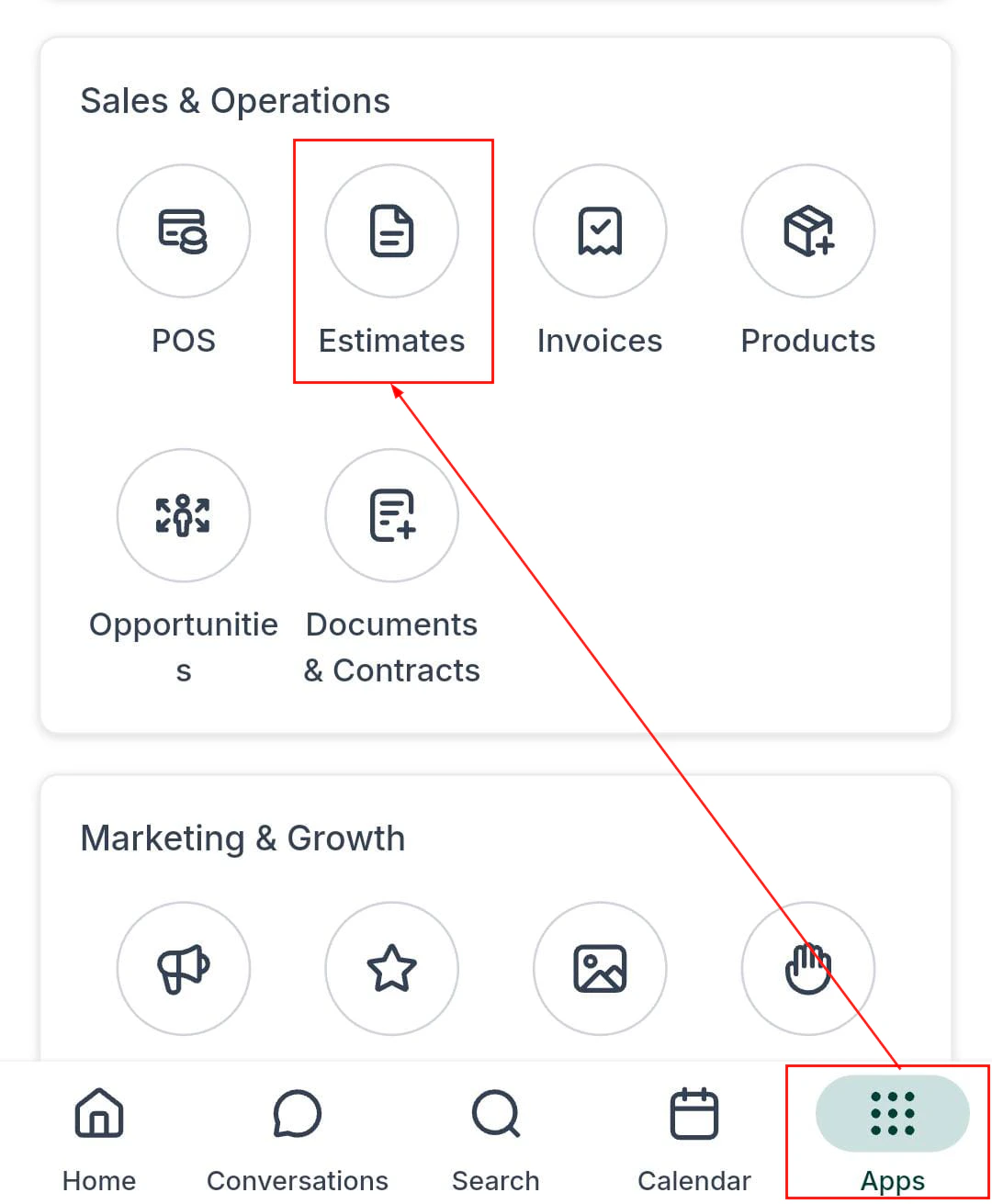 ### Creating and sending an estimate
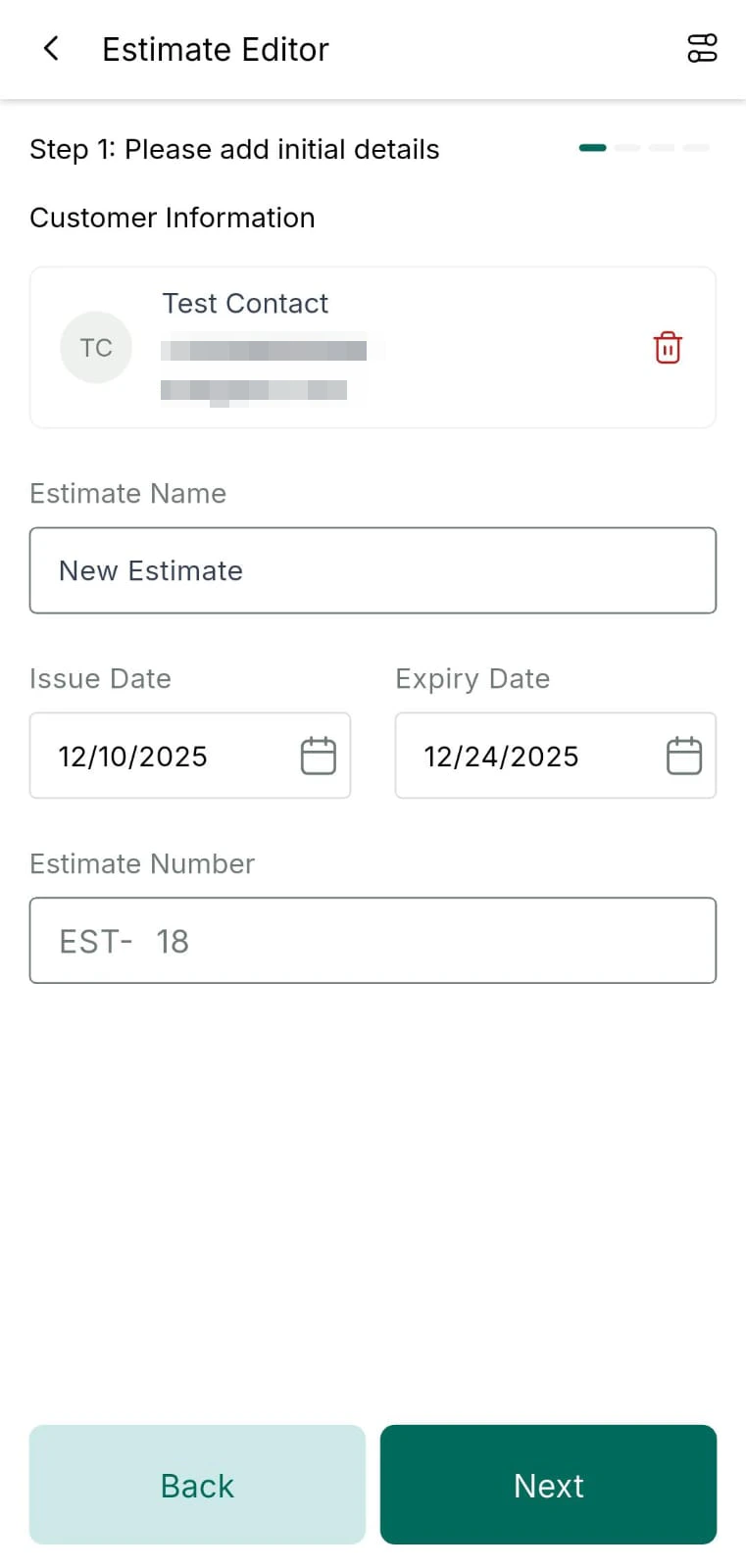
 Open the Estimates section and tap **+** to create a new estimate.
Add descriptions, quantities, and prices for each item.
Select the contact this estimate is for.
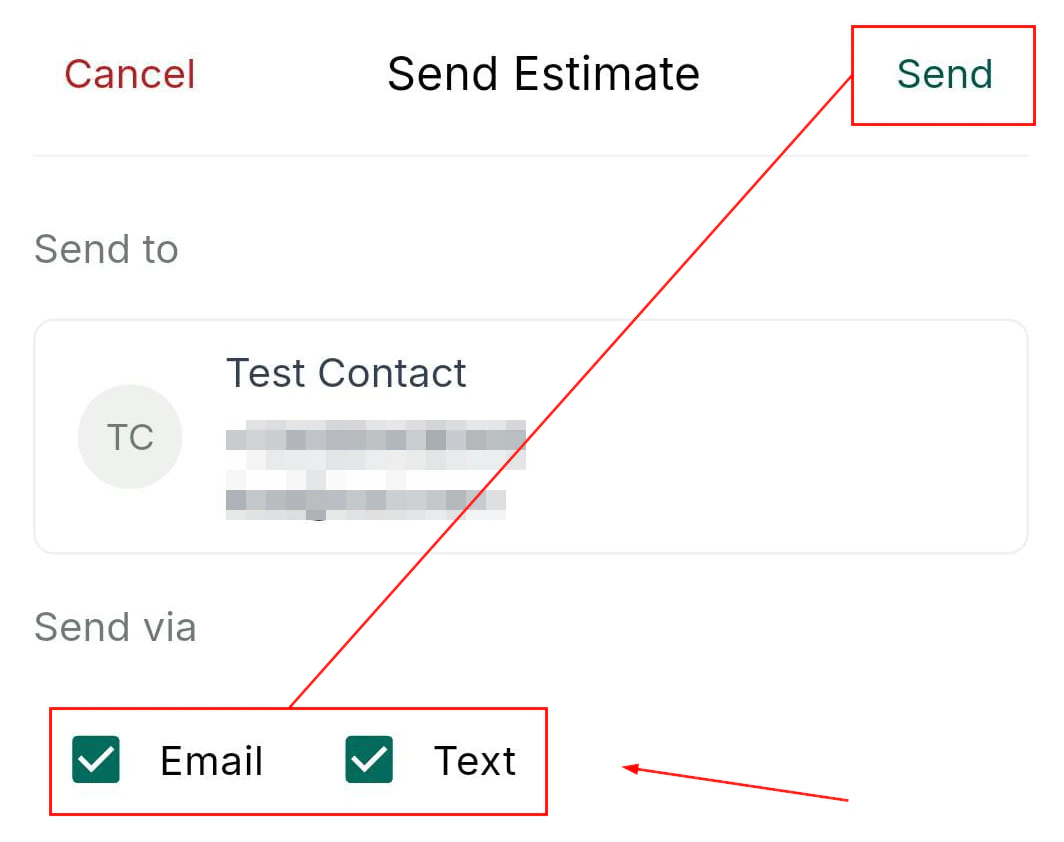
Preview the estimate and send it via email or SMS.
### Estimate direct payments
Let customers pay the estimate amount directly without converting to a formal invoice first. When creating an estimate, add a **Direct Payment** option and send.
### Downloading estimates
Tap the three-dot menu on any estimate and select **Download** to save the estimate as a PDF to your device.
### Converting estimates to invoices
Tap the **Convert** button on any accepted estimate to generate a formal invoice from it automatically.
***
## Documents and contracts
Create and send documents or contracts from your mobile app using predefined templates, then collect in-person or remote signatures.
Open the Estimates section and tap **+** to create a new estimate.
Add descriptions, quantities, and prices for each item.
Select the contact this estimate is for.
Preview the estimate and send it via email or SMS.
### Estimate direct payments
Let customers pay the estimate amount directly without converting to a formal invoice first. When creating an estimate, add a **Direct Payment** option and send.
### Downloading estimates
Tap the three-dot menu on any estimate and select **Download** to save the estimate as a PDF to your device.
### Converting estimates to invoices
Tap the **Convert** button on any accepted estimate to generate a formal invoice from it automatically.
***
## Documents and contracts
Create and send documents or contracts from your mobile app using predefined templates, then collect in-person or remote signatures.
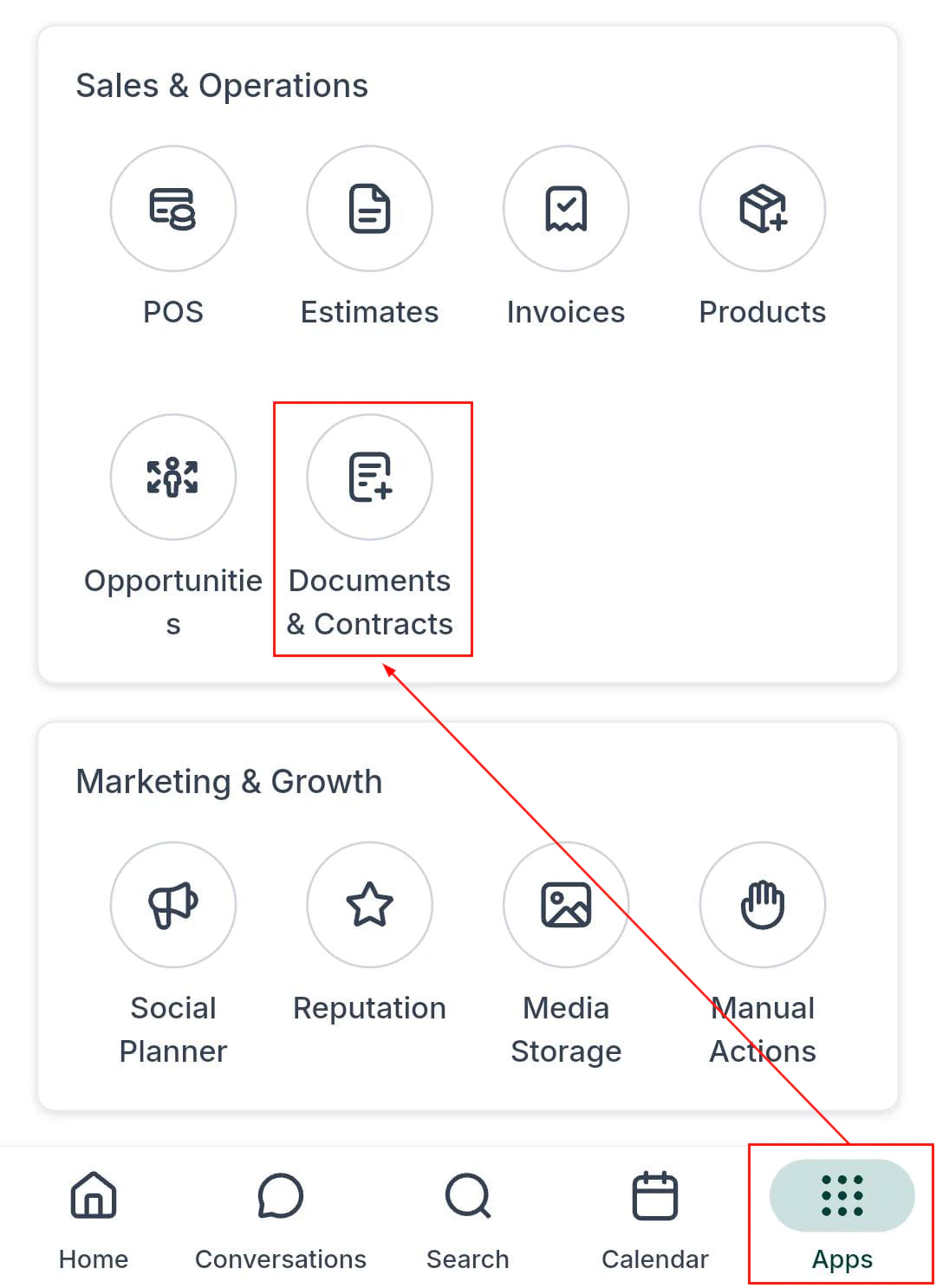
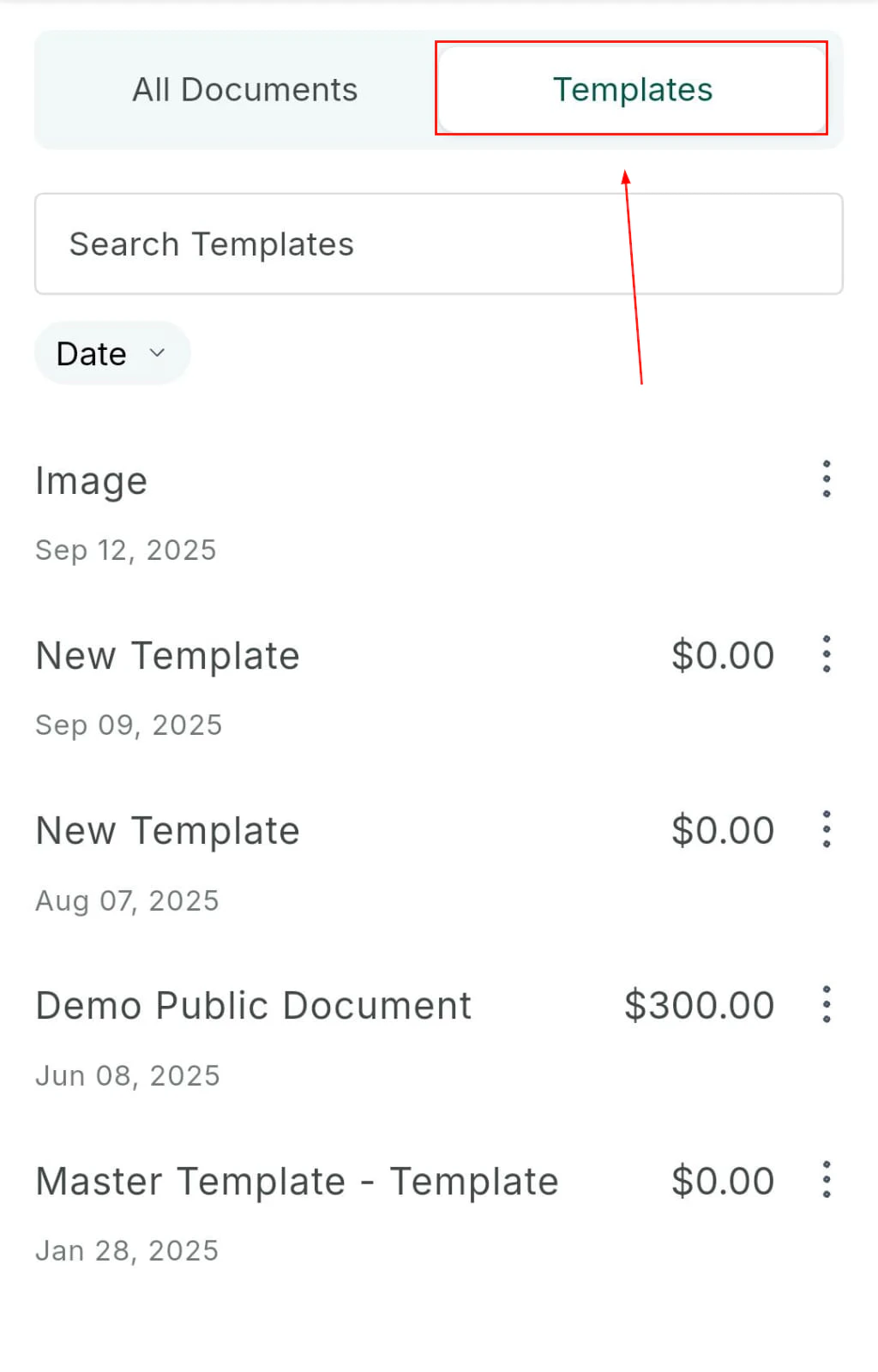
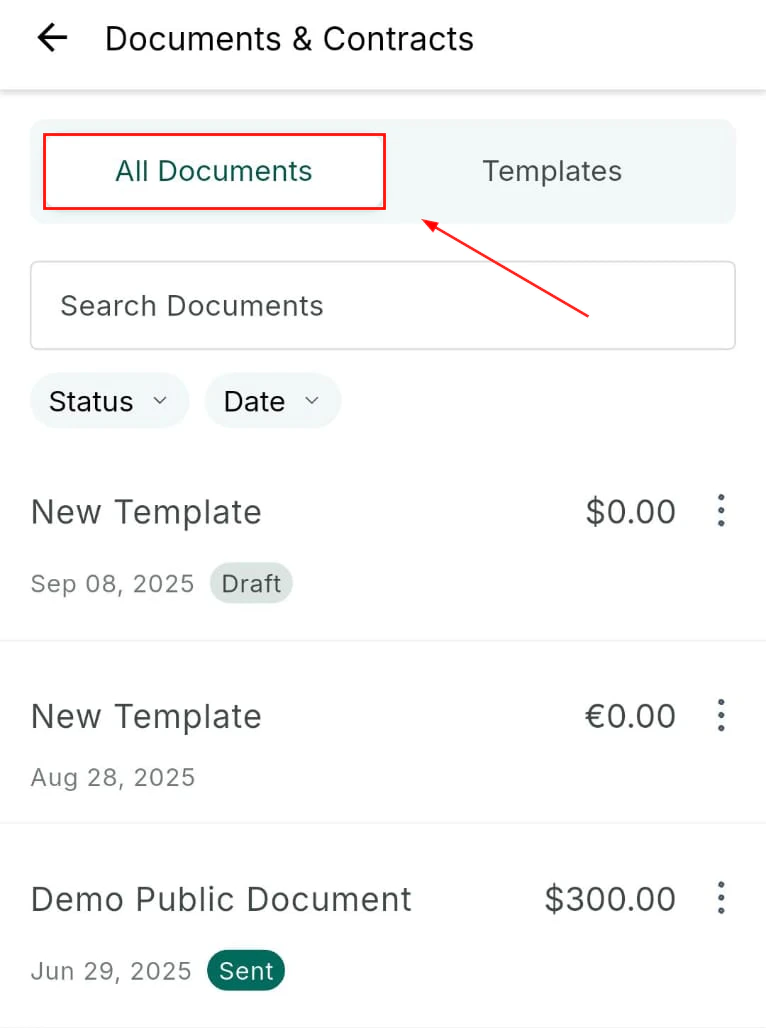 Document templates must be saved on the desktop platform before they are available in the mobile app.
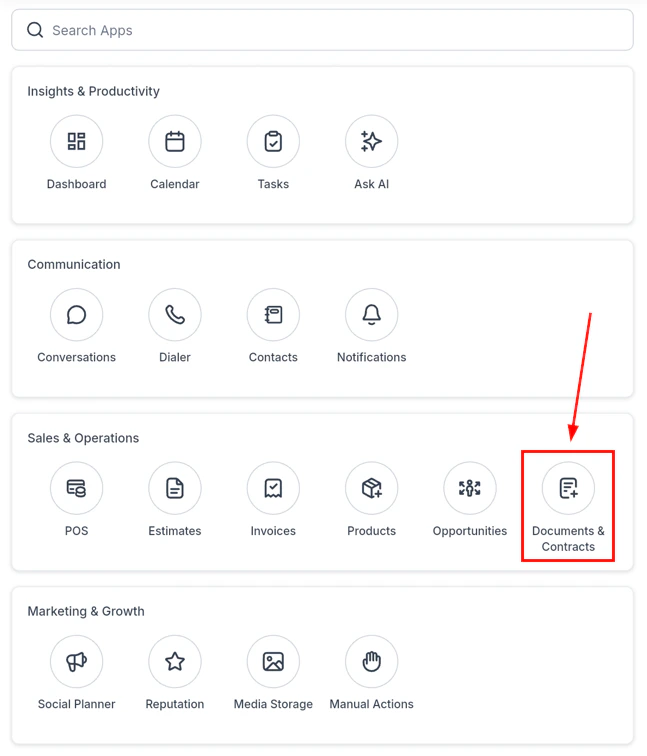
From the apps section, tap the **Documents** option.
Tap **Add New** to start a new document.
Document templates must be saved on the desktop platform before they are available in the mobile app.
From the apps section, tap the **Documents** option.
Tap **Add New** to start a new document.
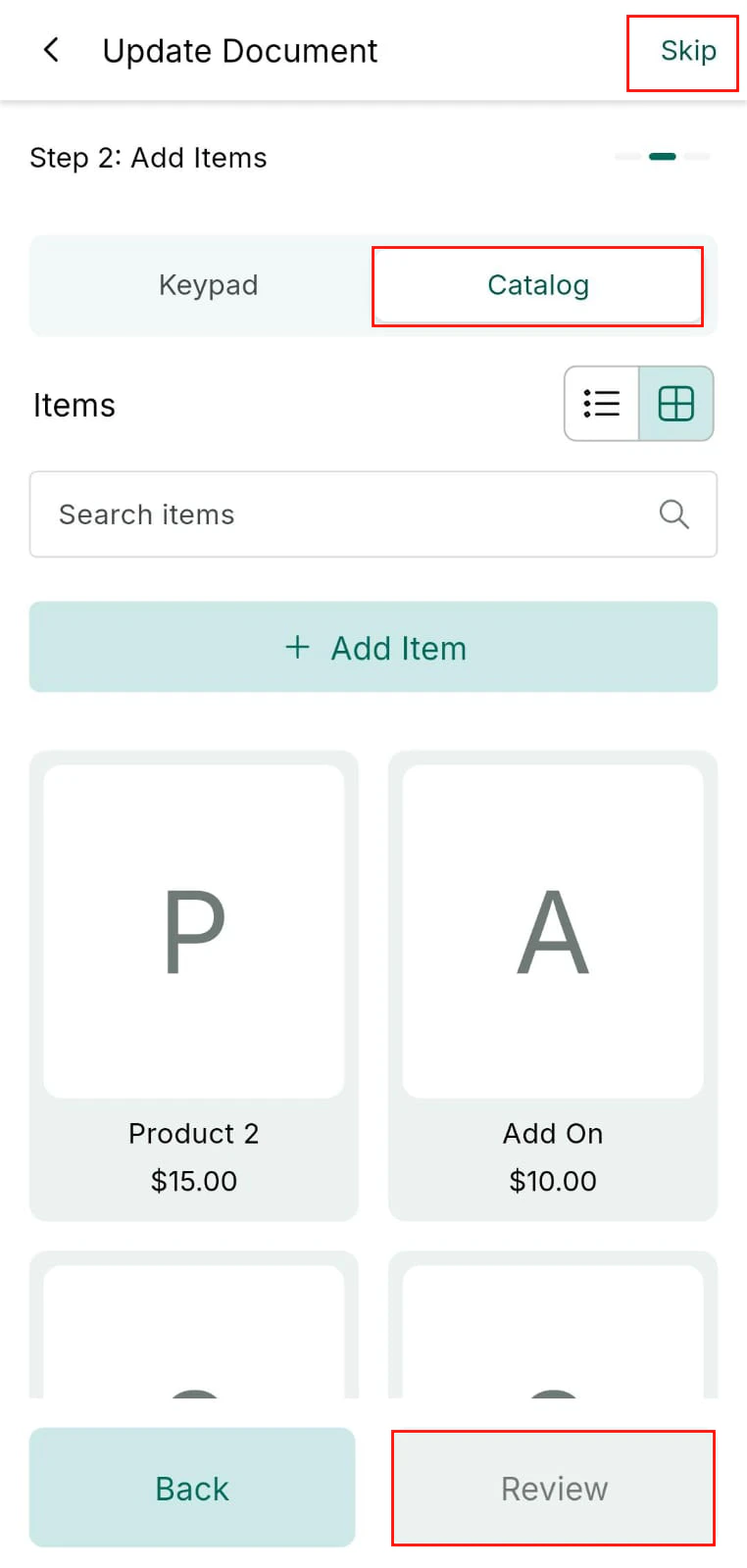
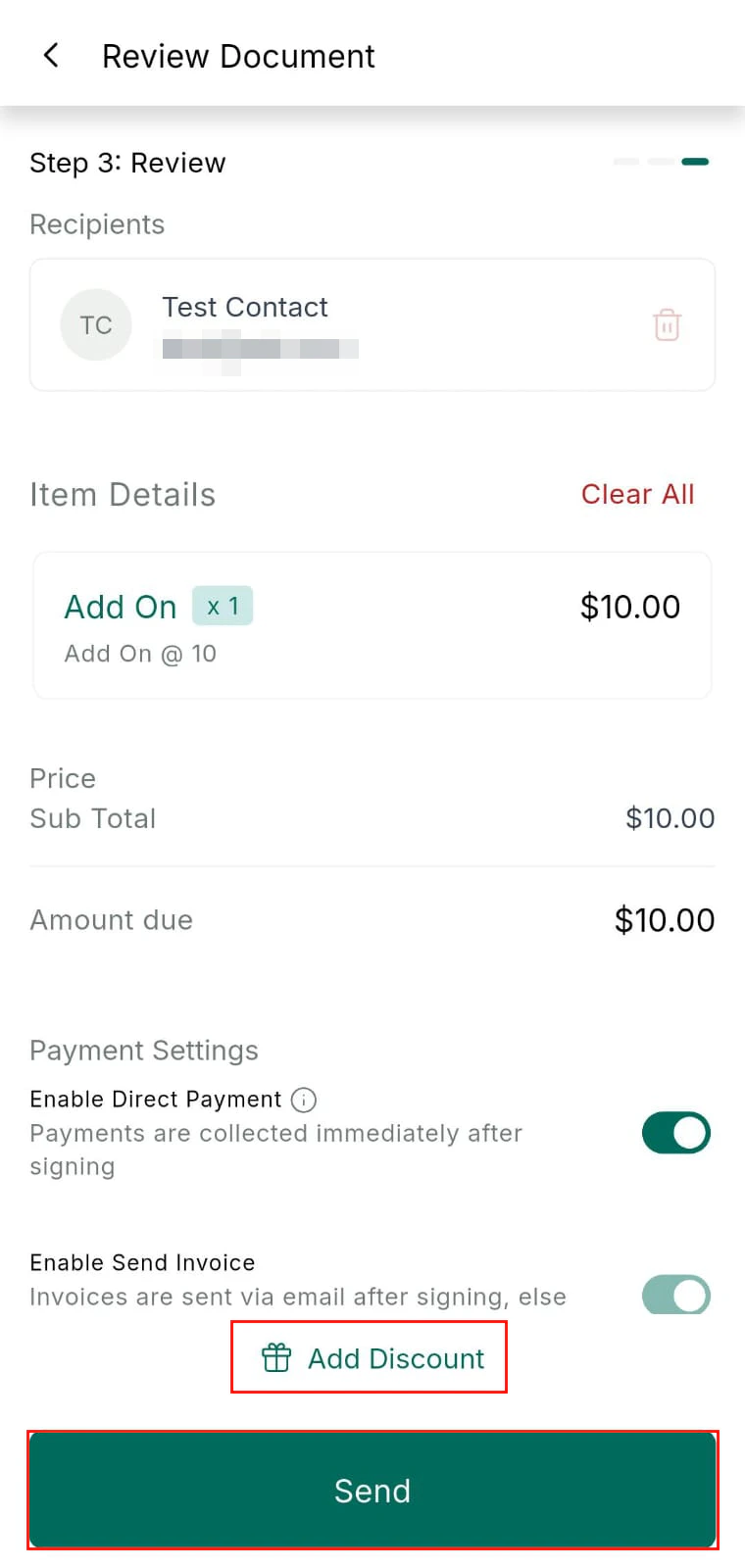
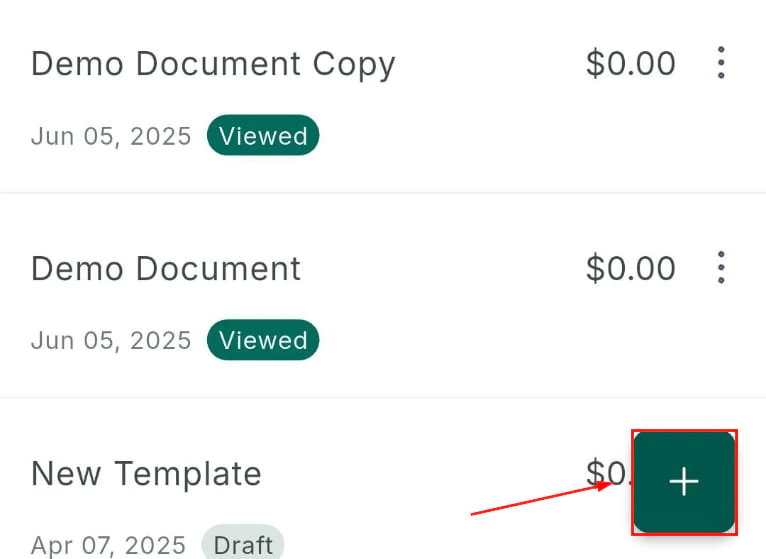 Search for and select a template.
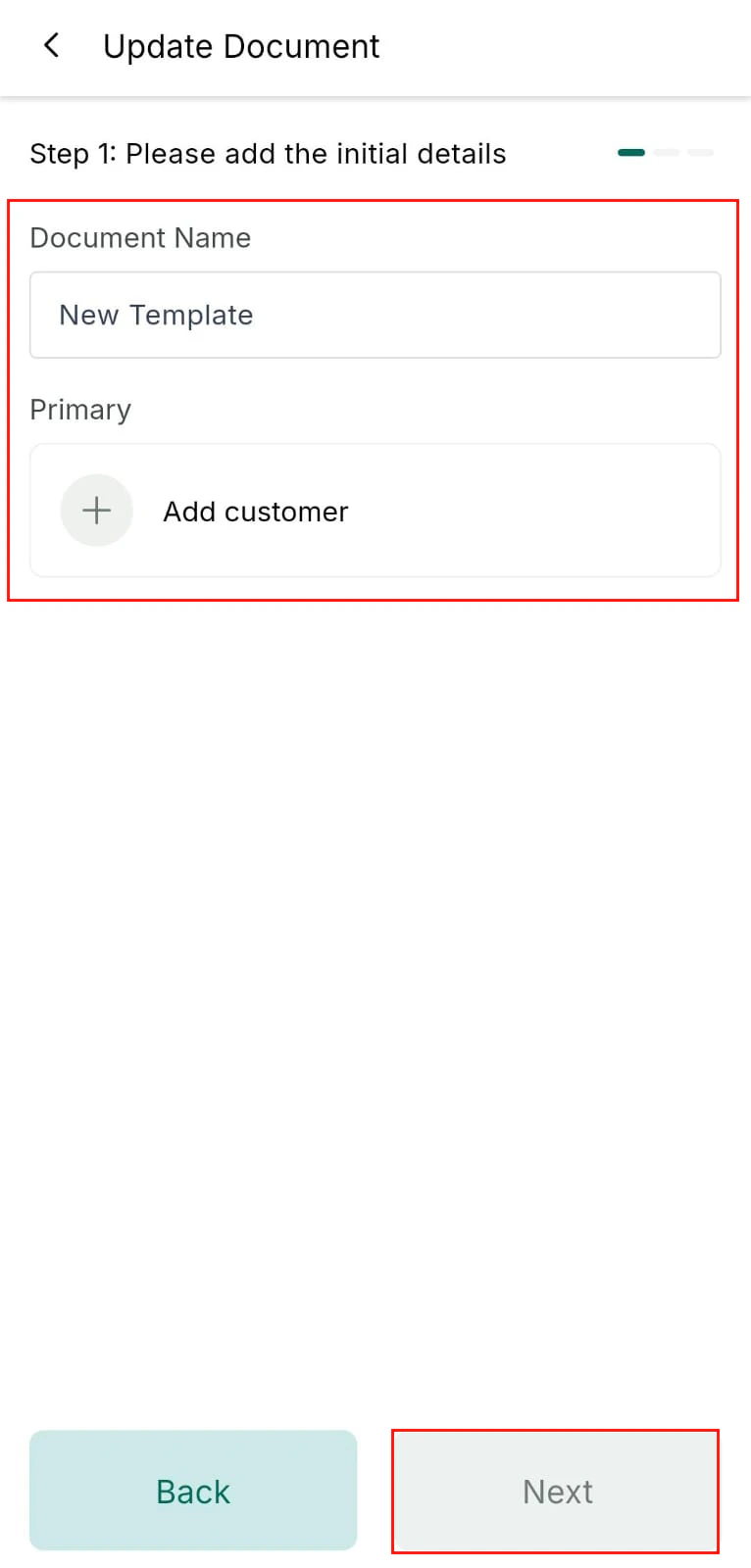
 Enter a descriptive name for this specific document instance.
 Review the document contents, then send it to the contact via email.
 ### Collecting in-person signatures
To collect a signature on your mobile device:
### Collecting in-person signatures
To collect a signature on your mobile device:
 1. Open the document from a contact record
2. Present your device to the customer
3. The customer draws their signature directly on the screen
4. The signed document is saved automatically to the contact record
***
## Products
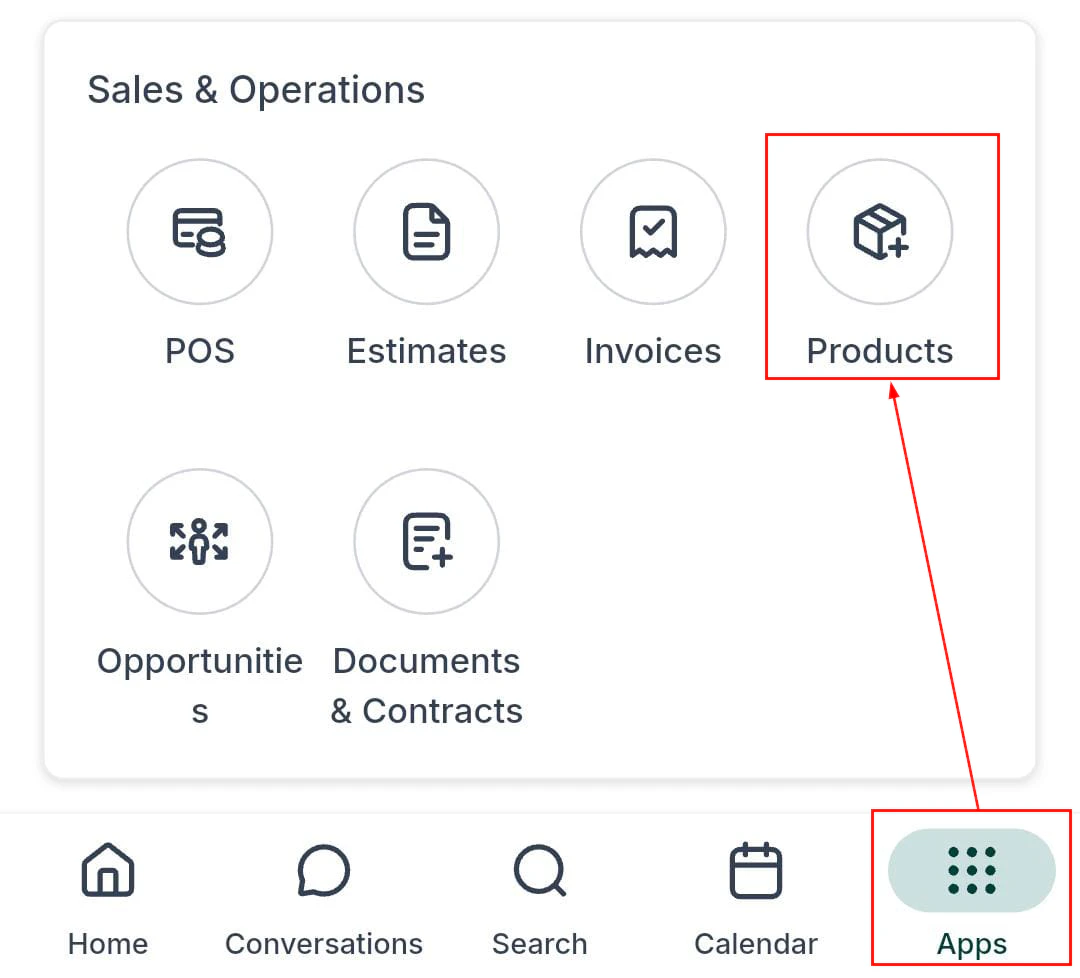
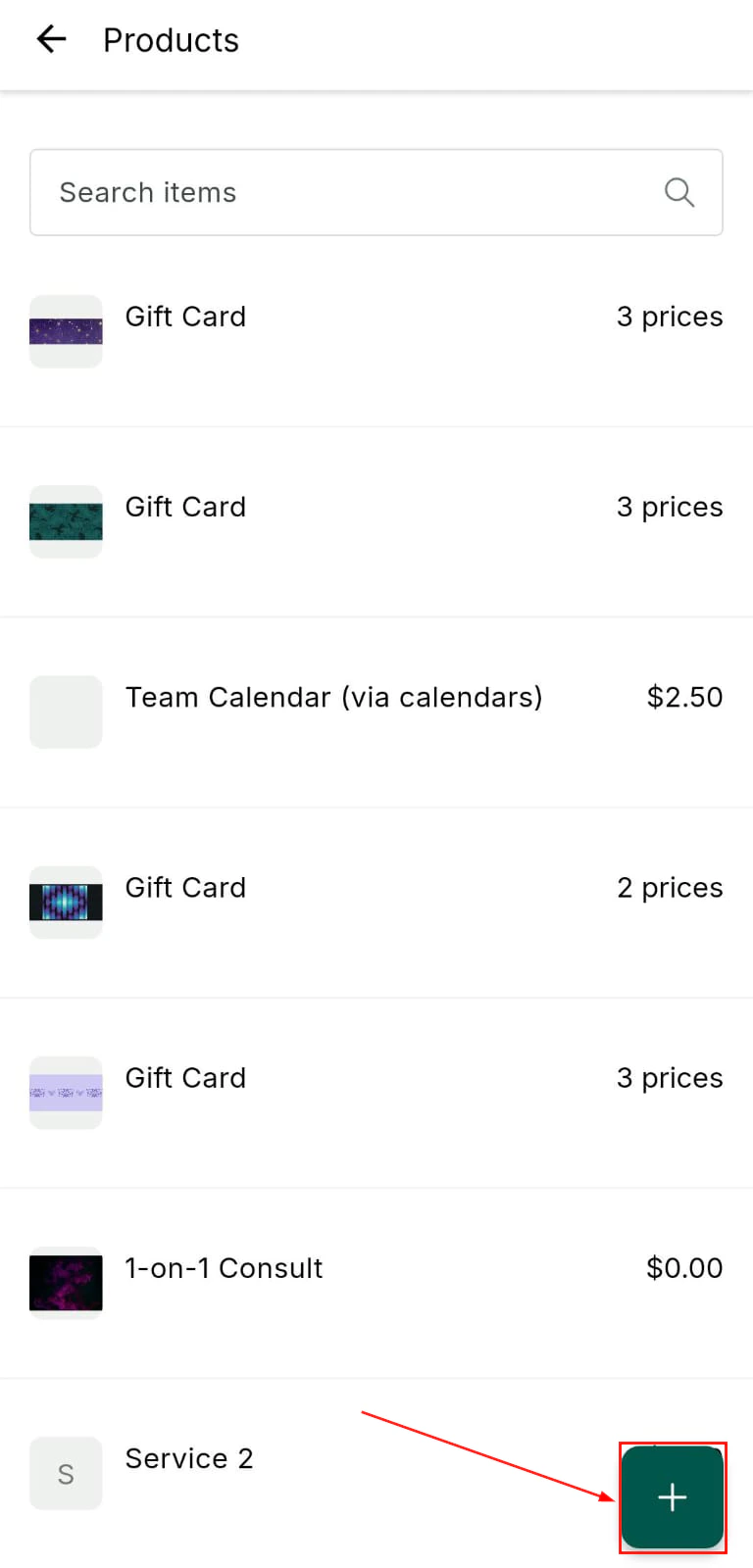
Create and manage products in the mobile app. Products sync instantly with the desktop platform and appear in the POS catalog.
1. Open the document from a contact record
2. Present your device to the customer
3. The customer draws their signature directly on the screen
4. The signed document is saved automatically to the contact record
***
## Products
Create and manage products in the mobile app. Products sync instantly with the desktop platform and appear in the POS catalog.
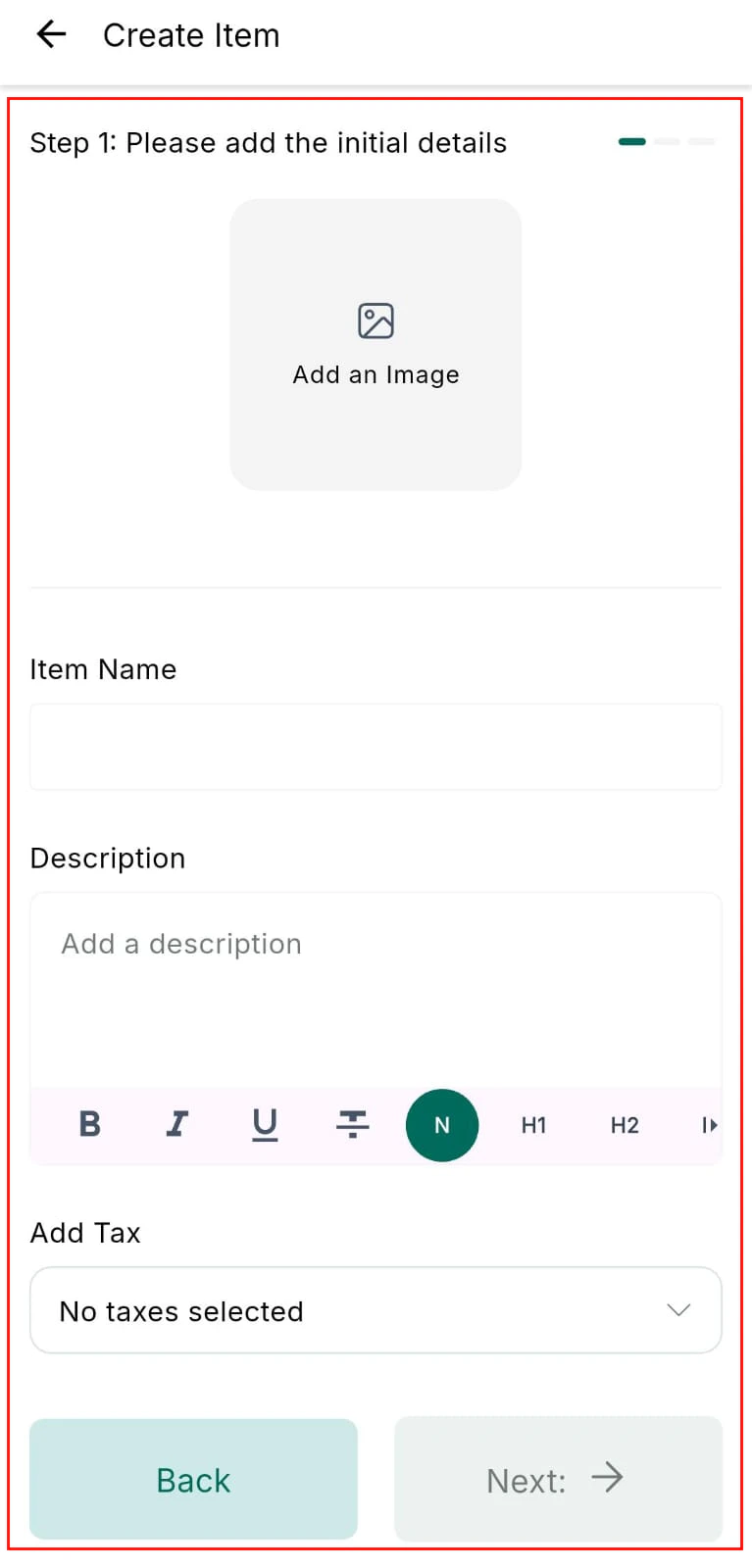
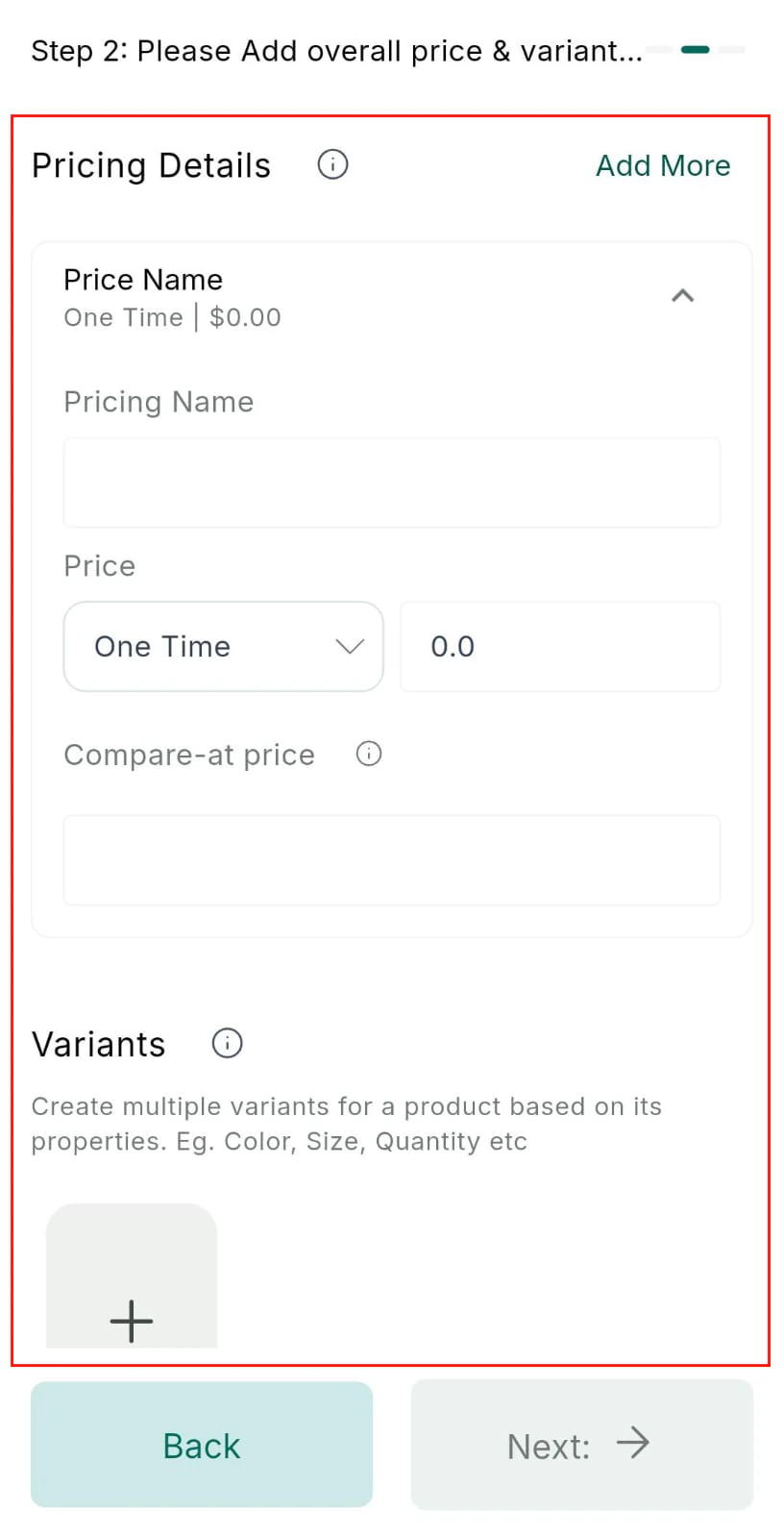 When creating a product, you can:
* Upload a product image for display in the POS catalog
* Define pricing models (standard, discounted, clearance)
* Create variants based on properties like size or color
***
## Related articles
* [Payments overview](/payments/overview)
* [Getting started on mobile](/mobile-app/getting-started)
* [Contacts on mobile](/mobile-app/contacts)
* [Phone system](/settings/phone-system)
When creating a product, you can:
* Upload a product image for display in the POS catalog
* Define pricing models (standard, discounted, clearance)
* Create variants based on properties like size or color
***
## Related articles
* [Payments overview](/payments/overview)
* [Getting started on mobile](/mobile-app/getting-started)
* [Contacts on mobile](/mobile-app/contacts)
* [Phone system](/settings/phone-system)