> ## Documentation Index
> Fetch the complete documentation index at: https://help.hoopai.com/llms.txt
> Use this file to discover all available pages before exploring further.
# Mobile app
> iOS and Android app for conversations, contacts, calendars, opportunities, phone dialer, payments, social planner, reports, workflows, and offline mode.
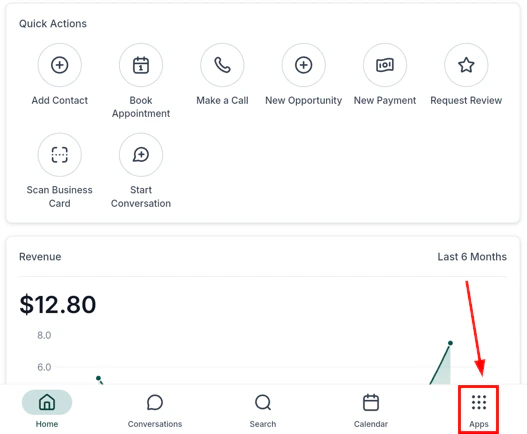
The HoopAI mobile app gives you full access to your business platform from anywhere. Manage contacts, conversations, appointments, opportunities, and payments — all synced live with the desktop platform.
 Download the app, log in, enable 2FA, and set up biometric authentication
Unified inbox for SMS, email, WhatsApp, and Facebook Messenger
Browse and manage contact records, scan business cards, and place calls
View your schedule, book appointments, and share booking links
Track leads through your sales pipeline and update stages on the go
Make and receive calls with call scripts, local presence dialing, and voicemail
Run your point-of-sale, accept Tap to Pay, and manage invoices and estimates
Create, schedule, and publish social media posts across all connected platforms
Access the media library, upload files, and manage contact documents
Configure push notifications, biometric login, permissions, and in-app settings
Configure push notification preferences for messages, calls, tasks, and appointments
Live snapshot of open conversations, appointments, pipeline value, and activity
View and respond to customer reviews from your mobile device
Access key performance reports and metrics on the go
View and trigger workflows from the mobile app
Scan business cards and QR codes using your device camera
Access contacts and key data without an internet connection
Platform-specific guides and minimum version requirements
Use the app in full-screen layout on iPad
## Getting started
Search for **Lead Connector** in the App Store (iOS) or Google Play Store (Android) — that's the name the HoopAI app is listed under. Log in with your HoopAI account credentials. Always keep the app updated to access the latest features.
When prompted, allow push notifications. Go to **App Settings > Notifications** to configure which events send alerts — new messages, inbound calls, missed calls, tasks, and appointments.
Go to **App Settings** to enable two-factor authentication (2FA) and biometric login (Face ID or fingerprint). These protect your account if your device is lost.
If you manage multiple accounts, tap your account name in the app sidebar to switch between them. The app reloads with the selected account's data.
Open **Conversations** for your unified inbox, **Contacts** to manage your CRM, **Calendars** for appointments, and **Opportunities** for your pipeline. All data syncs live with the desktop platform.
## Frequently asked questions
The app is listed as **Lead Connector** on both the Apple App Store and Google Play Store. Search for that name to find and download it.
Yes. The mobile app mirrors your desktop platform in real time. Any contact, conversation, or deal updated on mobile is instantly reflected on desktop, and vice versa.
Yes. The Phone and Dialer feature lets you make outbound calls and receive inbound calls directly in the app. Features include call scripts, local presence dialing, voicemail management, and post-call notes.
Yes. The Payments and POS feature supports Tap to Pay (contactless card payments directly on your phone), a full point-of-sale catalog, invoices, estimates, and document signing.
Yes. The app includes offline mode so you can access contacts and key data without an internet connection. Changes sync automatically when connectivity is restored. See the Offline Mode page for details on what is available offline.
Yes. The app supports iPad with a full-screen layout optimized for the larger display. See the iPad Support page for setup guidance and feature availability.
Download the app, log in, enable 2FA, and set up biometric authentication
Unified inbox for SMS, email, WhatsApp, and Facebook Messenger
Browse and manage contact records, scan business cards, and place calls
View your schedule, book appointments, and share booking links
Track leads through your sales pipeline and update stages on the go
Make and receive calls with call scripts, local presence dialing, and voicemail
Run your point-of-sale, accept Tap to Pay, and manage invoices and estimates
Create, schedule, and publish social media posts across all connected platforms
Access the media library, upload files, and manage contact documents
Configure push notifications, biometric login, permissions, and in-app settings
Configure push notification preferences for messages, calls, tasks, and appointments
Live snapshot of open conversations, appointments, pipeline value, and activity
View and respond to customer reviews from your mobile device
Access key performance reports and metrics on the go
View and trigger workflows from the mobile app
Scan business cards and QR codes using your device camera
Access contacts and key data without an internet connection
Platform-specific guides and minimum version requirements
Use the app in full-screen layout on iPad
## Getting started
Search for **Lead Connector** in the App Store (iOS) or Google Play Store (Android) — that's the name the HoopAI app is listed under. Log in with your HoopAI account credentials. Always keep the app updated to access the latest features.
When prompted, allow push notifications. Go to **App Settings > Notifications** to configure which events send alerts — new messages, inbound calls, missed calls, tasks, and appointments.
Go to **App Settings** to enable two-factor authentication (2FA) and biometric login (Face ID or fingerprint). These protect your account if your device is lost.
If you manage multiple accounts, tap your account name in the app sidebar to switch between them. The app reloads with the selected account's data.
Open **Conversations** for your unified inbox, **Contacts** to manage your CRM, **Calendars** for appointments, and **Opportunities** for your pipeline. All data syncs live with the desktop platform.
## Frequently asked questions
The app is listed as **Lead Connector** on both the Apple App Store and Google Play Store. Search for that name to find and download it.
Yes. The mobile app mirrors your desktop platform in real time. Any contact, conversation, or deal updated on mobile is instantly reflected on desktop, and vice versa.
Yes. The Phone and Dialer feature lets you make outbound calls and receive inbound calls directly in the app. Features include call scripts, local presence dialing, voicemail management, and post-call notes.
Yes. The Payments and POS feature supports Tap to Pay (contactless card payments directly on your phone), a full point-of-sale catalog, invoices, estimates, and document signing.
Yes. The app includes offline mode so you can access contacts and key data without an internet connection. Changes sync automatically when connectivity is restored. See the Offline Mode page for details on what is available offline.
Yes. The app supports iPad with a full-screen layout optimized for the larger display. See the iPad Support page for setup guidance and feature availability.