> ## Documentation Index
> Fetch the complete documentation index at: https://help.hoopai.com/llms.txt
> Use this file to discover all available pages before exploring further.
# Manage opportunities on the HoopAI mobile app
> Track leads and update your sales pipeline on the HoopAI mobile CRM. Full pipeline management for iOS and Android on the go.
Accessing your Opportunities on the go gives you a real-time view of your entire sales pipeline — handle upcoming leads, interested customers, and active projects from anywhere. The mobile experience mirrors the desktop pipeline closely, with quick actions for stage updates, messaging, and opportunity creation.
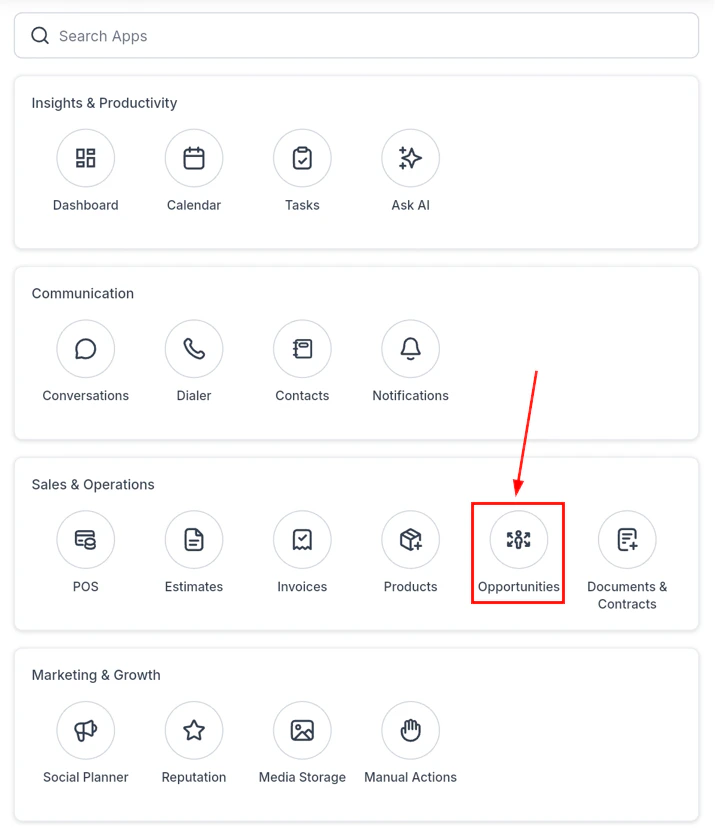
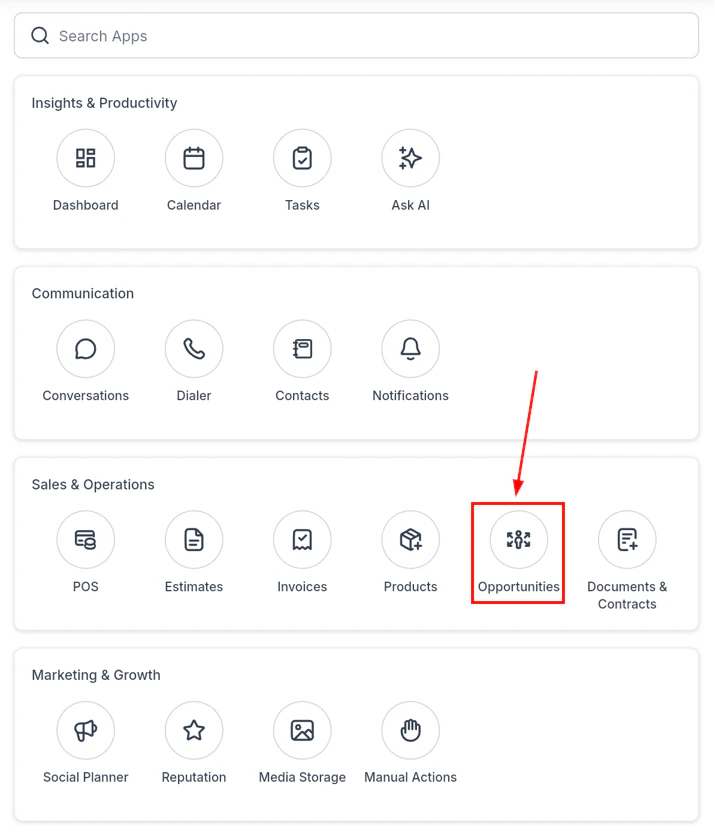
Open the mobile app and tap the **Opportunities icon** in the navigation.
 ## Viewing your pipeline
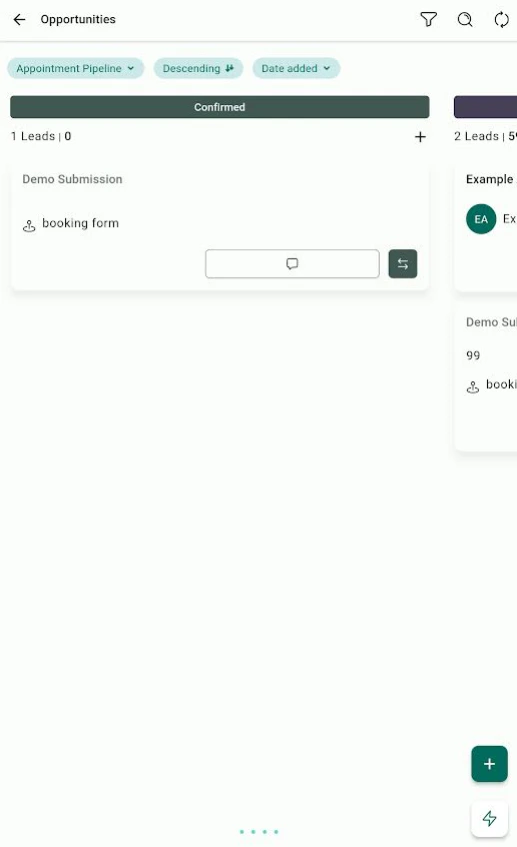
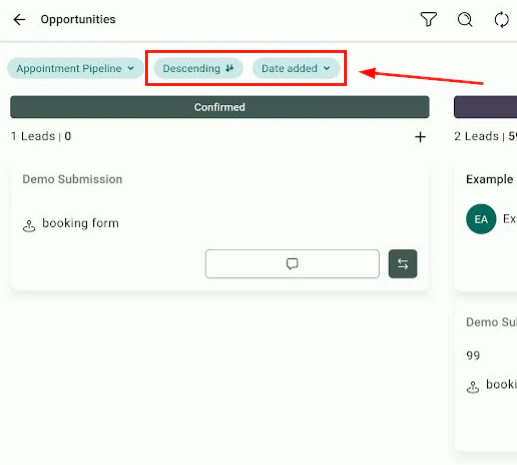
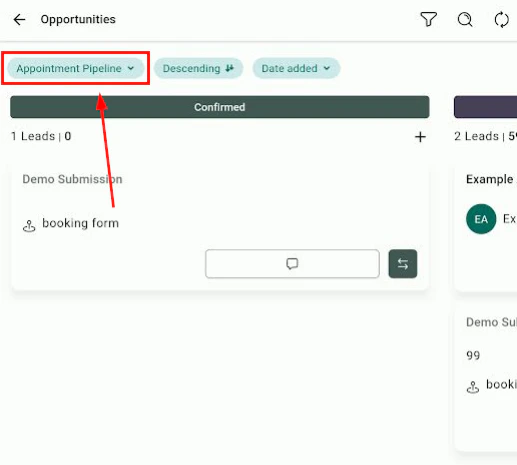
The pipeline view shows all available pipelines with their opportunities. You can:
* **Switch pipelines** — use the dropdown menu at the top to change which pipeline you are viewing
* **Sort** — tap the sort options to rearrange results by name, value, date created, or stage
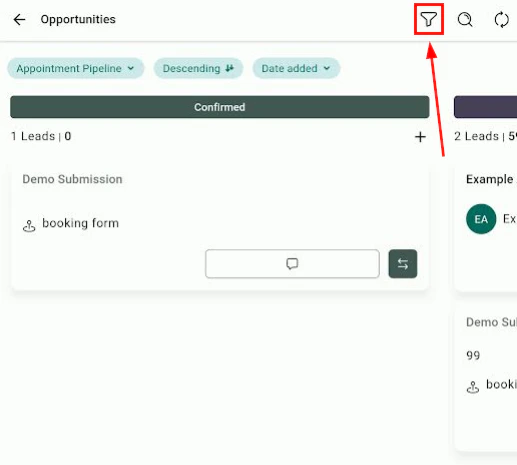
* **Filter** — tap the funnel icon to filter opportunities by assignee, status, date range, tags, or custom field values
## Viewing your pipeline
The pipeline view shows all available pipelines with their opportunities. You can:
* **Switch pipelines** — use the dropdown menu at the top to change which pipeline you are viewing
* **Sort** — tap the sort options to rearrange results by name, value, date created, or stage
* **Filter** — tap the funnel icon to filter opportunities by assignee, status, date range, tags, or custom field values
 ***
## Opportunity cards
Each opportunity card in the pipeline shows the contact name, deal value, and current stage at a glance.
***
## Opportunity cards
Each opportunity card in the pipeline shows the contact name, deal value, and current stage at a glance.
 ***
## Searching for an opportunity
Tap the **magnifying glass icon** to open the search module. Type a contact name, company, or opportunity title to find specific records, or browse recently viewed opportunities.
***
## Updating an opportunity's stage
Tap the **two-arrow icon** on an opportunity card to quickly move it to a different pipeline stage. Select the target stage from the list.
***
## Searching for an opportunity
Tap the **magnifying glass icon** to open the search module. Type a contact name, company, or opportunity title to find specific records, or browse recently viewed opportunities.
***
## Updating an opportunity's stage
Tap the **two-arrow icon** on an opportunity card to quickly move it to a different pipeline stage. Select the target stage from the list.
 ***
## Opening and editing an opportunity
Tap the opportunity's name to open its full detail view.
***
## Opening and editing an opportunity
Tap the opportunity's name to open its full detail view.
 From the detail view you can:
* Edit the opportunity title, value, and pipeline stage
* Update the expected close date and assigned owner
* Add notes and view the activity timeline
* View the associated contact and initiate contact actions
***
## Contacting a lead from the pipeline
Tap the **message icon** on an opportunity card to jump directly to that contact's conversation thread — useful for quick follow-ups without leaving the pipeline view.
***
## Creating a new opportunity
Open a contact, tap **Quick Actions** (lightning bolt), and select **Opportunities** to create a new deal linked to that contact.
Open any conversation, tap **Actions**, and select **Create Opportunity** to start a deal from within the conversation.
***
## Key features at a glance
Quickly switch between multiple pipelines from a single dropdown
Drag or tap to update a lead's stage without opening the full record
Message a lead directly from their opportunity card
Find any opportunity by name, value, date, or tag
***
## Related articles
* [Contacts on mobile](/mobile-app/contacts)
* [Conversations on mobile](/mobile-app/conversations)
* [Calendars and appointments on mobile](/mobile-app/calendars-and-appointments)
* [Opportunities overview](/opportunities/overview)
From the detail view you can:
* Edit the opportunity title, value, and pipeline stage
* Update the expected close date and assigned owner
* Add notes and view the activity timeline
* View the associated contact and initiate contact actions
***
## Contacting a lead from the pipeline
Tap the **message icon** on an opportunity card to jump directly to that contact's conversation thread — useful for quick follow-ups without leaving the pipeline view.
***
## Creating a new opportunity
Open a contact, tap **Quick Actions** (lightning bolt), and select **Opportunities** to create a new deal linked to that contact.
Open any conversation, tap **Actions**, and select **Create Opportunity** to start a deal from within the conversation.
***
## Key features at a glance
Quickly switch between multiple pipelines from a single dropdown
Drag or tap to update a lead's stage without opening the full record
Message a lead directly from their opportunity card
Find any opportunity by name, value, date, or tag
***
## Related articles
* [Contacts on mobile](/mobile-app/contacts)
* [Conversations on mobile](/mobile-app/conversations)
* [Calendars and appointments on mobile](/mobile-app/calendars-and-appointments)
* [Opportunities overview](/opportunities/overview)