> ## Documentation Index
> Fetch the complete documentation index at: https://help.hoopai.com/llms.txt
> Use this file to discover all available pages before exploring further.
# Push notifications on the HoopAI mobile app
> Configure and manage push notifications on the HoopAI mobile app. Get real-time alerts for messages, calls, appointments, and reviews on iOS and Android.
Push notifications keep you informed the moment anything important happens in your HoopAI account — a new inbound message, a missed call, a booked appointment, or a new Google review — without needing to have the app open. Notifications are delivered in real time to your iOS or Android device and can be customized per alert type.
## Enabling push notifications
The first time you open the HoopAI mobile app, your device will prompt you to allow notifications. Tap **Allow** to enable push notifications. If you tapped **Don't Allow** by mistake, you can enable notifications manually:
* **iOS**: Go to **Settings > Notifications > Lead Connector** and toggle **Allow Notifications** on. The app is listed as Lead Connector in your device settings.
* **Android**: Go to **Settings > Apps > Lead Connector > Notifications** and enable all notification categories.
If you are not receiving push notifications, confirm that your device is not in Do Not Disturb mode and that battery optimization is not restricting the app in the background.
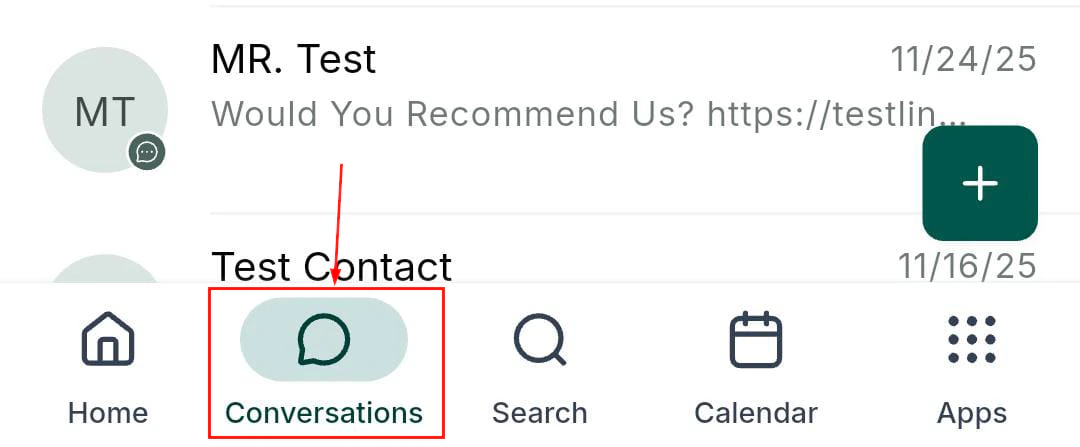 ## Notification preferences in the app
You can control which types of notifications you receive directly from within the HoopAI platform. Navigate to **My Profile > Notifications** on the desktop platform (or in the app settings) to configure your preferences.
Available notification delivery channels include:
* **Mobile app (push)** — real-time push notifications to your phone
* **Web app** — in-browser badge and alert
* **Desktop** — native OS notification on macOS or Windows
* **Email** — email digest or immediate email alert
* **SMS** — text message alert to your number
For each event type, you can independently enable or disable each delivery channel. For example, you might want push notifications for new conversations but email-only for task reminders.
## Notification types
### Conversations
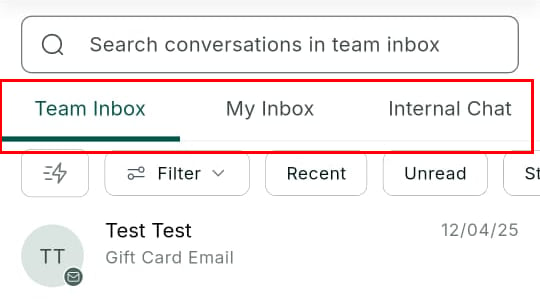
* **New inbound message** — fires when a contact sends you an SMS, email, Facebook message, WhatsApp, or live chat message
* **New internal message** — fires when a team member sends you an internal note or mentions you in a conversation
* **Unread conversation** — reminder when a conversation remains unread after a set period
## Notification preferences in the app
You can control which types of notifications you receive directly from within the HoopAI platform. Navigate to **My Profile > Notifications** on the desktop platform (or in the app settings) to configure your preferences.
Available notification delivery channels include:
* **Mobile app (push)** — real-time push notifications to your phone
* **Web app** — in-browser badge and alert
* **Desktop** — native OS notification on macOS or Windows
* **Email** — email digest or immediate email alert
* **SMS** — text message alert to your number
For each event type, you can independently enable or disable each delivery channel. For example, you might want push notifications for new conversations but email-only for task reminders.
## Notification types
### Conversations
* **New inbound message** — fires when a contact sends you an SMS, email, Facebook message, WhatsApp, or live chat message
* **New internal message** — fires when a team member sends you an internal note or mentions you in a conversation
* **Unread conversation** — reminder when a conversation remains unread after a set period
 ### Calls
* **Missed call** — fires immediately when an inbound call is not answered
* **New voicemail** — fires when a contact leaves a voicemail on your connected number
* **Inbound call** — fires the moment a call arrives, prompting you to answer from the mobile app
### Appointments
* **Appointment booked** — fires when a new appointment is scheduled on any of your calendars
* **Appointment cancelled** — fires when a contact cancels an existing booking
* **Appointment reminder** — sent at a configurable interval before the appointment starts
### Opportunities
* **Opportunity assigned** — fires when an opportunity is assigned or reassigned to you
* **Stage change** — fires when a deal you own moves to a new pipeline stage
### Reviews
* **New Google review** — fires when a new review is posted to your connected Google Business Profile
* **New Facebook review** — fires when a new review is posted to your connected Facebook page
### Tasks
* **Task assigned** — fires when a new task is assigned to you
* **Task due soon** — reminder fired at a configurable interval before a task's due date
## Managing notification sounds and badges
On iOS, you can configure alert style (banner, persistent, or none), badge counts, and sounds per notification type from **Settings > Notifications > Lead Connector**. On Android, you can create separate notification channels with different sounds and importance levels.
The app badge on your home screen displays the count of unread conversations and unread notifications, helping you prioritize at a glance.
### Calls
* **Missed call** — fires immediately when an inbound call is not answered
* **New voicemail** — fires when a contact leaves a voicemail on your connected number
* **Inbound call** — fires the moment a call arrives, prompting you to answer from the mobile app
### Appointments
* **Appointment booked** — fires when a new appointment is scheduled on any of your calendars
* **Appointment cancelled** — fires when a contact cancels an existing booking
* **Appointment reminder** — sent at a configurable interval before the appointment starts
### Opportunities
* **Opportunity assigned** — fires when an opportunity is assigned or reassigned to you
* **Stage change** — fires when a deal you own moves to a new pipeline stage
### Reviews
* **New Google review** — fires when a new review is posted to your connected Google Business Profile
* **New Facebook review** — fires when a new review is posted to your connected Facebook page
### Tasks
* **Task assigned** — fires when a new task is assigned to you
* **Task due soon** — reminder fired at a configurable interval before a task's due date
## Managing notification sounds and badges
On iOS, you can configure alert style (banner, persistent, or none), badge counts, and sounds per notification type from **Settings > Notifications > Lead Connector**. On Android, you can create separate notification channels with different sounds and importance levels.
The app badge on your home screen displays the count of unread conversations and unread notifications, helping you prioritize at a glance.
 ## WhatsApp notifications
WhatsApp-specific alerts follow the same push notification pipeline. If your account uses WhatsApp for customer communication, enable WhatsApp notifications under your notification preferences to receive push alerts for incoming WhatsApp messages alongside regular conversations.
## Troubleshooting
| Issue | Resolution |
| --------------------------------------------------- | --------------------------------------------------------------------------------------------------- |
| No push notifications arriving | Confirm app permissions in device settings and ensure background app refresh is on |
| Duplicate notifications | Disable web app notifications if you also have push enabled to avoid double alerts |
| Notification tapping does not open the right screen | Update the app to the latest version — deep linking requires v3.74 or later |
| Notifications stop after a few days | Re-enable background app refresh; some Android manufacturers aggressively kill background processes |
## Related articles
* [App settings](/mobile-app/app-settings)
* [Getting started with the mobile app](/mobile-app/getting-started)
* [Conversations on mobile](/mobile-app/conversations)
## WhatsApp notifications
WhatsApp-specific alerts follow the same push notification pipeline. If your account uses WhatsApp for customer communication, enable WhatsApp notifications under your notification preferences to receive push alerts for incoming WhatsApp messages alongside regular conversations.
## Troubleshooting
| Issue | Resolution |
| --------------------------------------------------- | --------------------------------------------------------------------------------------------------- |
| No push notifications arriving | Confirm app permissions in device settings and ensure background app refresh is on |
| Duplicate notifications | Disable web app notifications if you also have push enabled to avoid double alerts |
| Notification tapping does not open the right screen | Update the app to the latest version — deep linking requires v3.74 or later |
| Notifications stop after a few days | Re-enable background app refresh; some Android manufacturers aggressively kill background processes |
## Related articles
* [App settings](/mobile-app/app-settings)
* [Getting started with the mobile app](/mobile-app/getting-started)
* [Conversations on mobile](/mobile-app/conversations)