> ## Documentation Index
> Fetch the complete documentation index at: https://help.hoopai.com/llms.txt
> Use this file to discover all available pages before exploring further.
# Media library and files on the HoopAI mobile app
> Upload and manage media files, contact documents, and WhatsApp voice notes from the HoopAI mobile dashboard on iOS and Android.
The HoopAI mobile app provides full access to your media library and contact-level files — view, upload, and share assets without being at your desk. This section also covers the Conversation AI assistant on mobile and WhatsApp voice notes.
## Media library
The Media Library is a centralized hub for all your media files — images, videos, and documents used across the platform in emails, funnels, social posts, and more.
### Accessing the media library
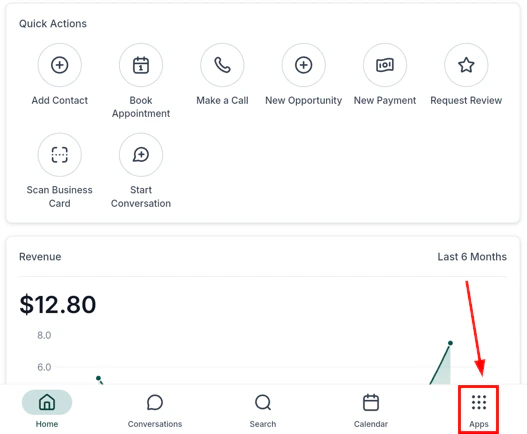
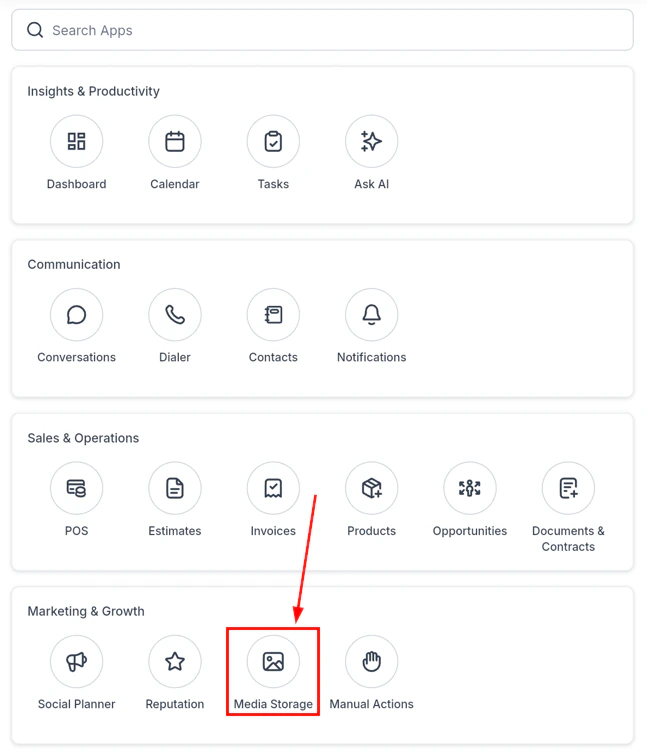
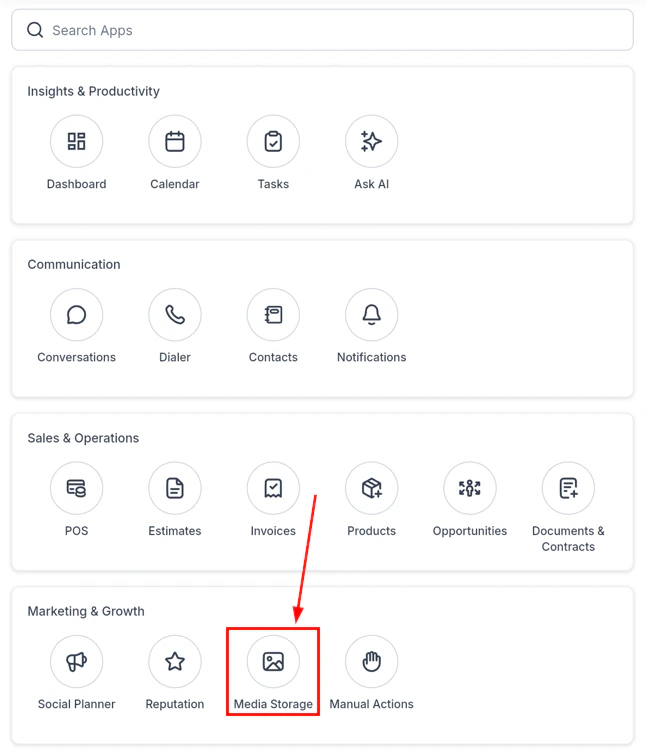
From the navigation, tap the apps section, then select **Media Library**.
 ### Uploading files
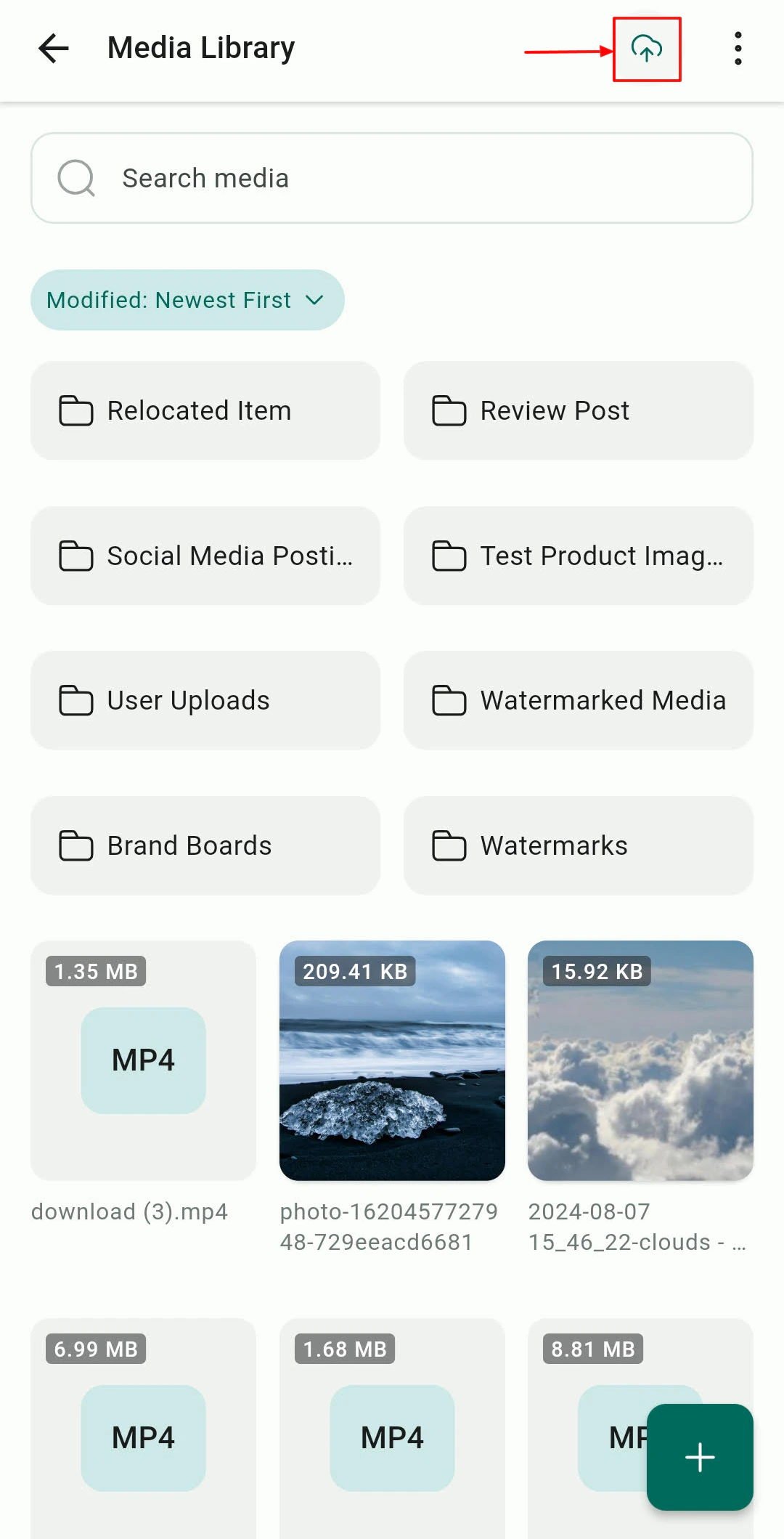
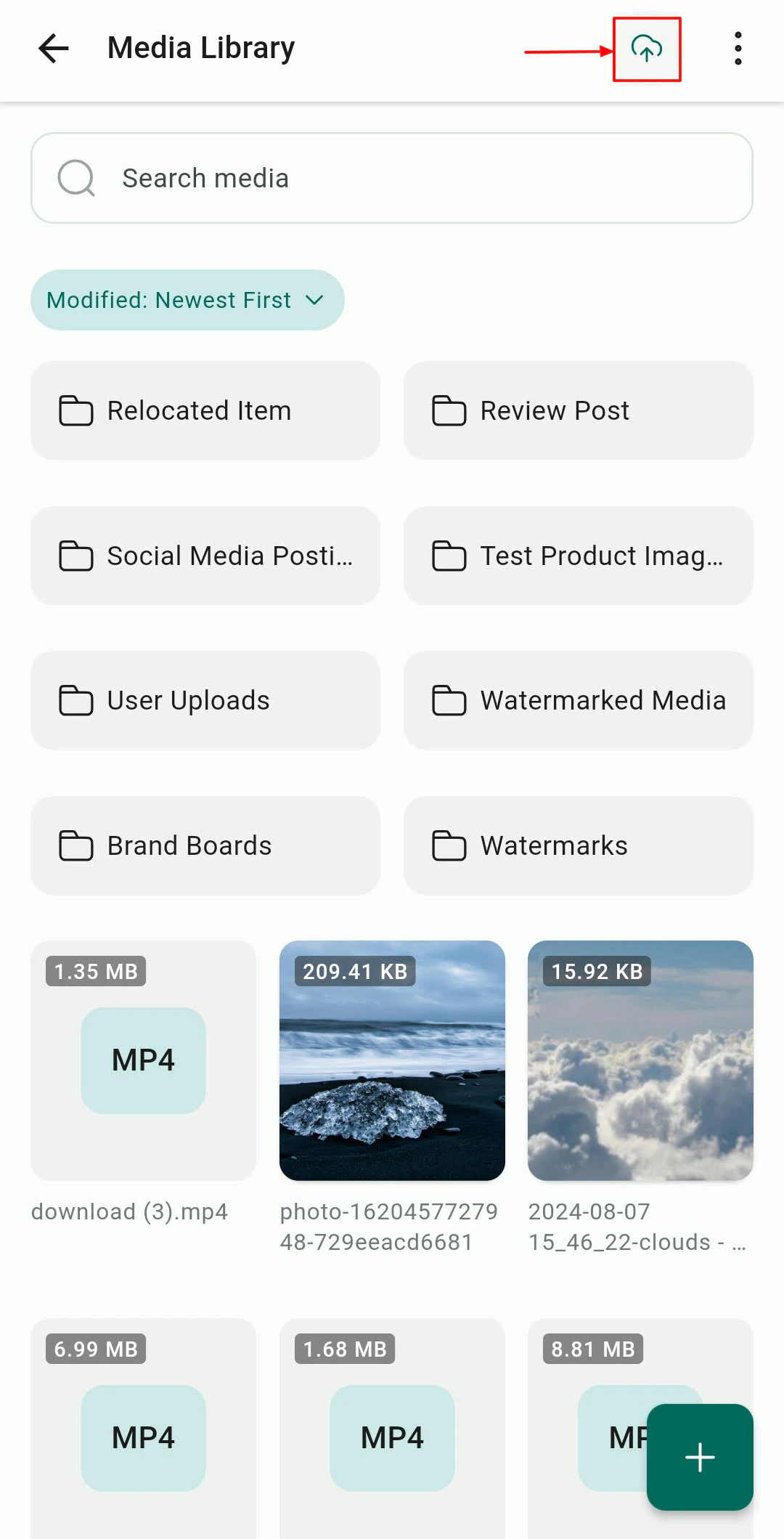
Tap the **+** or upload icon to add new files from:
* Your device camera (capture a new photo or video)
* Photo library or gallery
* Files app (cloud storage, downloads)
### Uploading files
Tap the **+** or upload icon to add new files from:
* Your device camera (capture a new photo or video)
* Photo library or gallery
* Files app (cloud storage, downloads)
 ### Browsing and organizing files
What you can do in the media library:
### Browsing and organizing files
What you can do in the media library:
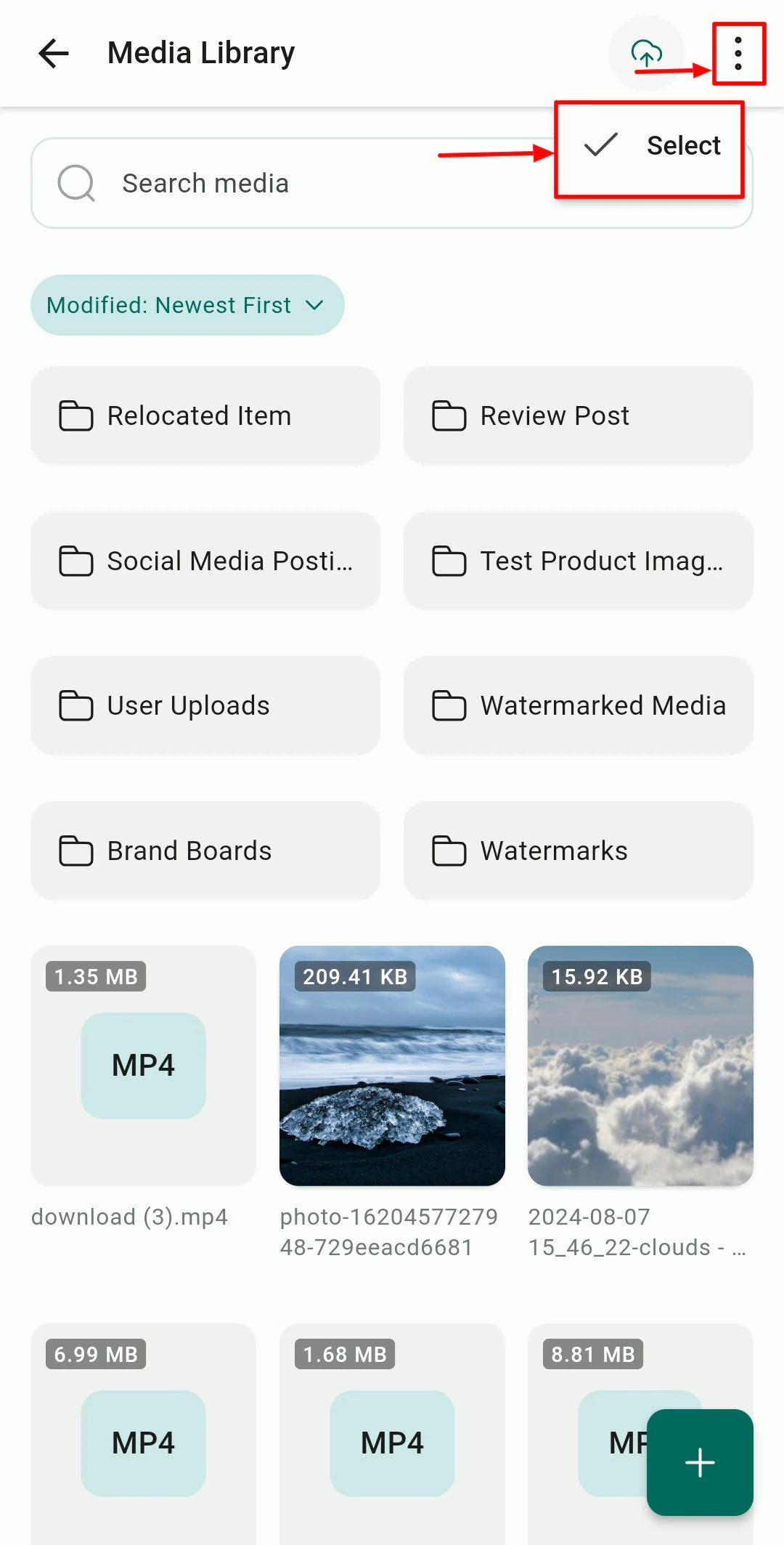
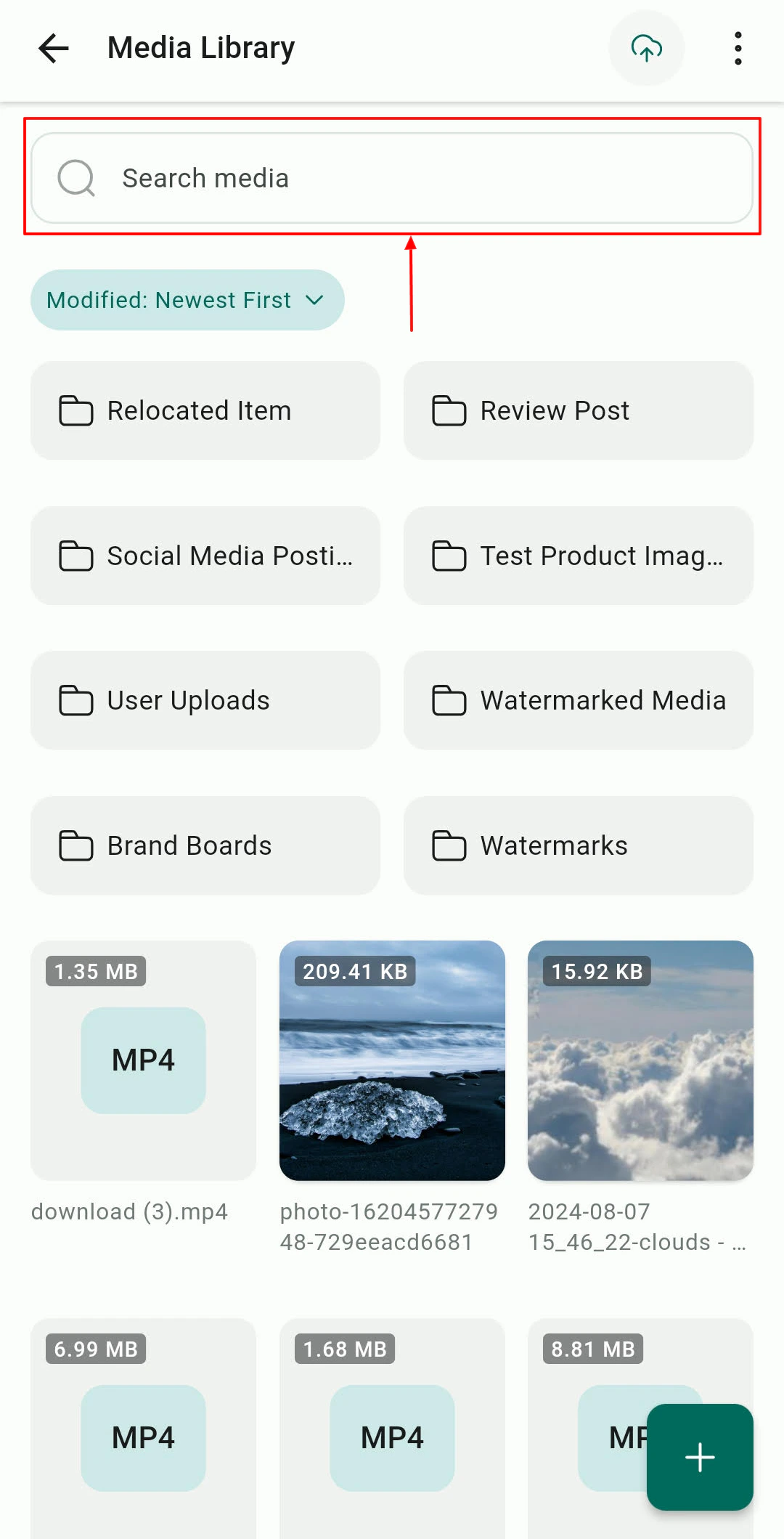 View all uploaded media organized by folder
Quickly find a specific file by name
Copy a direct link to any file for use in messages or campaigns
Select media directly from the library when composing Social Planner posts
### Using media in social posts
When creating a social post in the Social Planner, tap the **Media** option to select images or videos directly from the Media Library without switching apps.
***
## Documents and files on contacts
Each contact record can have documents and files attached directly. Open, preview, and manage these from the mobile app without downloading to your device.
### Accessing contact documents
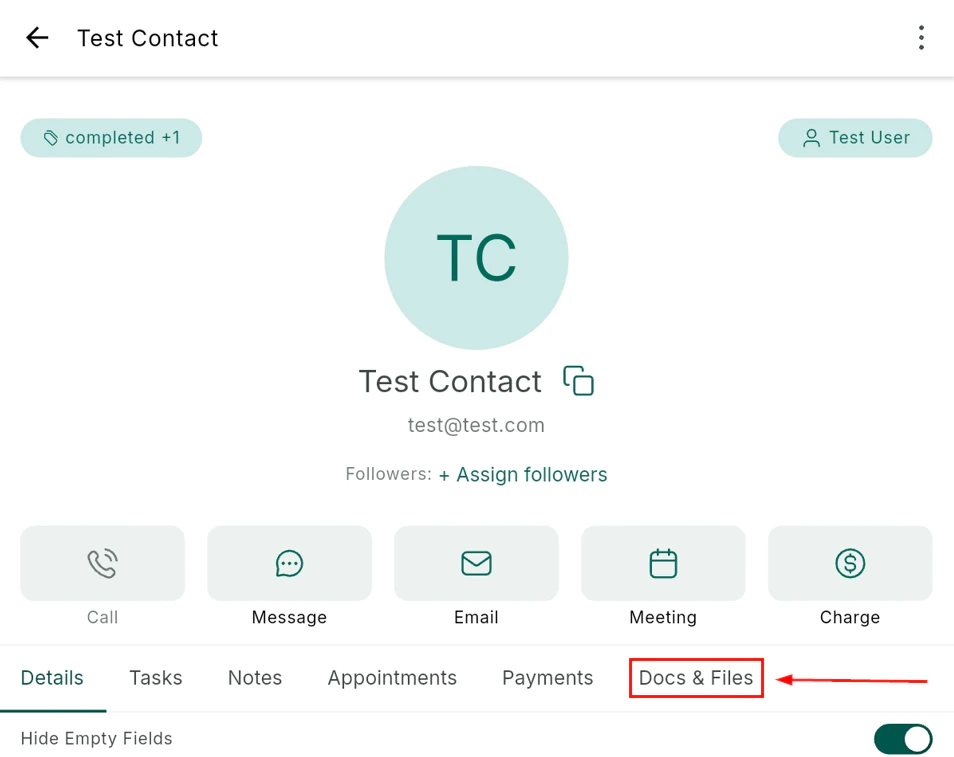
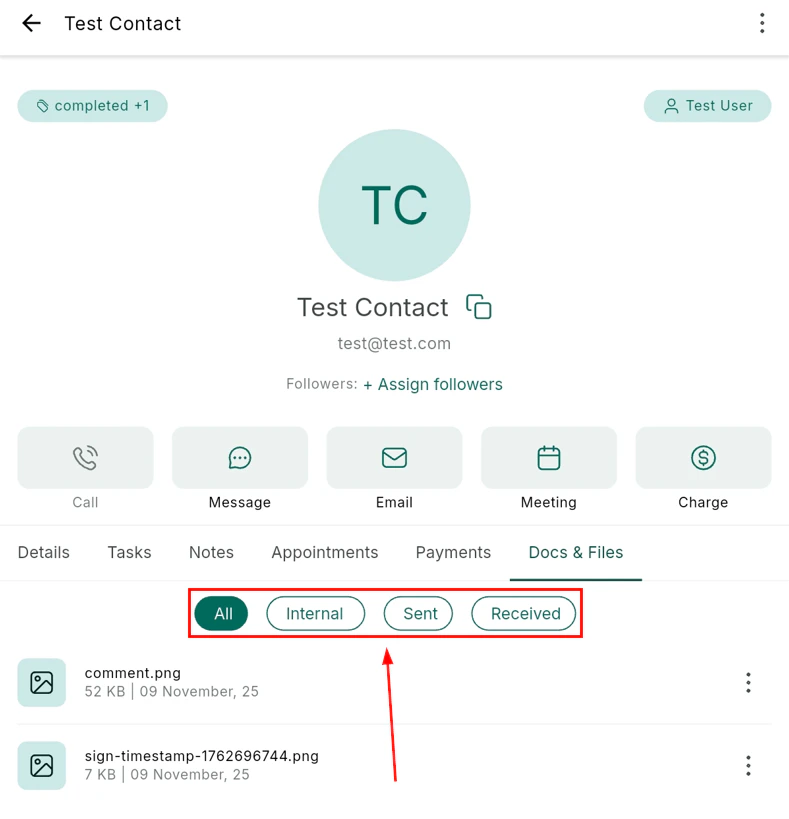
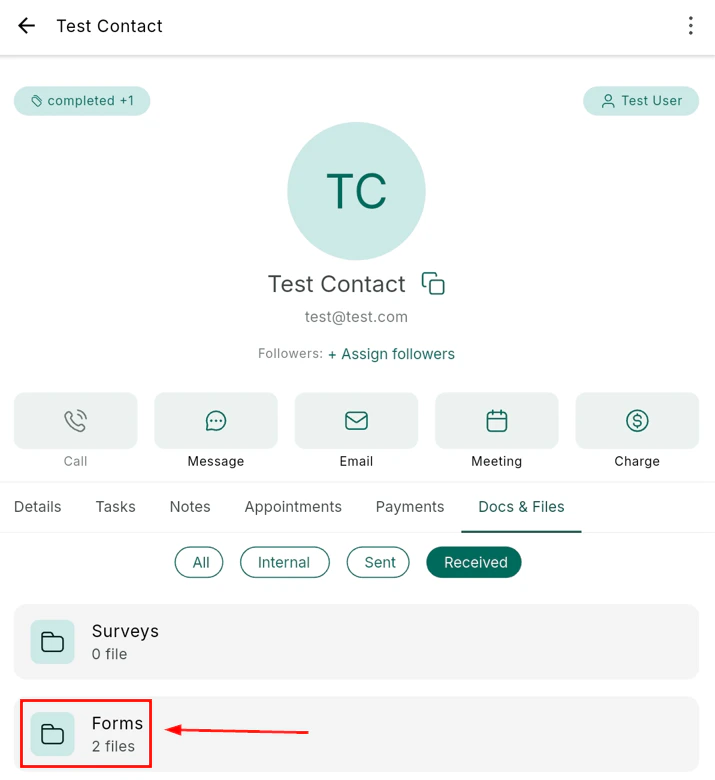
Open a contact's profile and navigate to the **Documents & Files** section. Tap any document to open and preview it inline.
View all uploaded media organized by folder
Quickly find a specific file by name
Copy a direct link to any file for use in messages or campaigns
Select media directly from the library when composing Social Planner posts
### Using media in social posts
When creating a social post in the Social Planner, tap the **Media** option to select images or videos directly from the Media Library without switching apps.
***
## Documents and files on contacts
Each contact record can have documents and files attached directly. Open, preview, and manage these from the mobile app without downloading to your device.
### Accessing contact documents
Open a contact's profile and navigate to the **Documents & Files** section. Tap any document to open and preview it inline.
 ### Uploading files to a contact
From a contact's Documents & Files section, tap the **upload icon** to add files from your device storage, camera, or cloud storage.
### Uploading files to a contact
From a contact's Documents & Files section, tap the **upload icon** to add files from your device storage, camera, or cloud storage.
 ***
## Documents and contracts
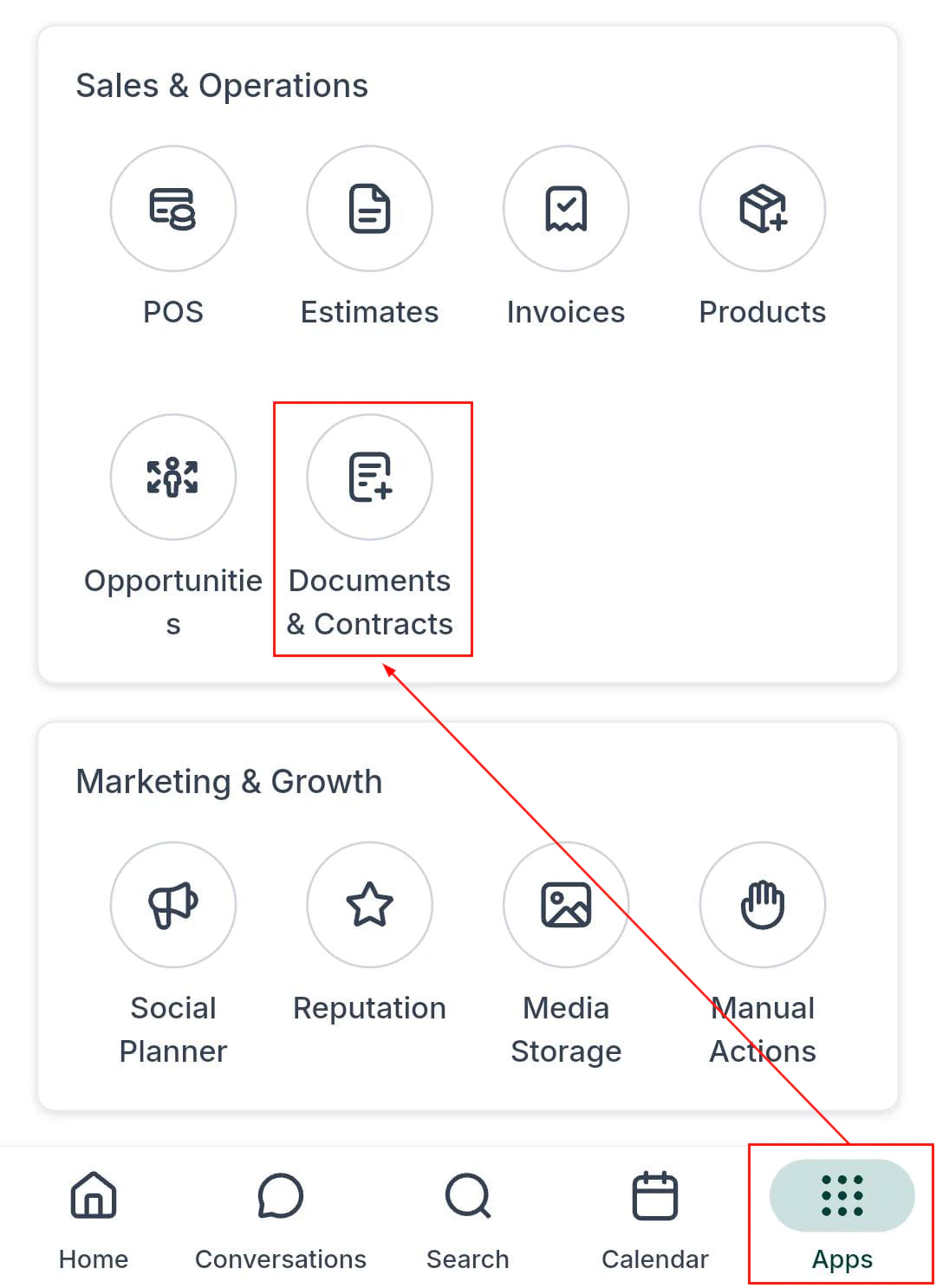
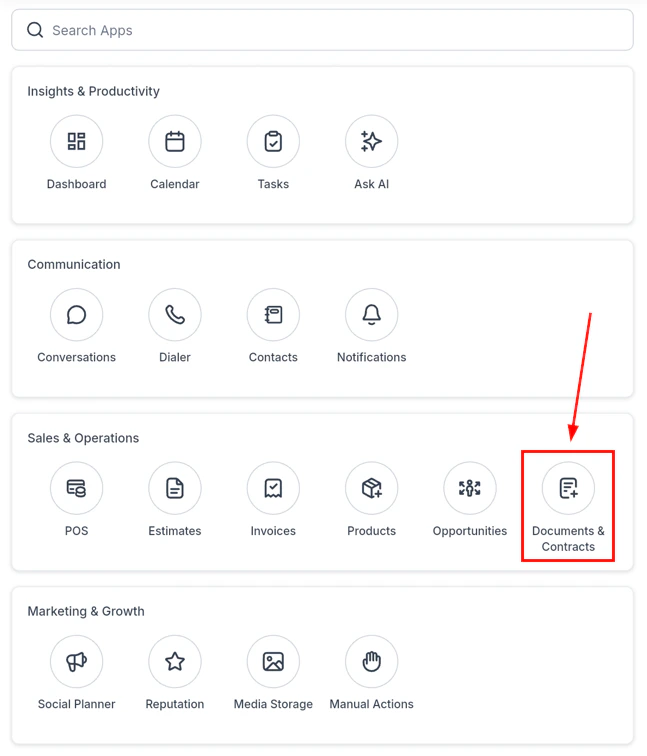
For formal documents and contracts requiring signatures, navigate to the Documents section from within a contact profile or from the app's main navigation.
***
## Documents and contracts
For formal documents and contracts requiring signatures, navigate to the Documents section from within a contact profile or from the app's main navigation.
 ### Creating a document from a template
Navigate to the Documents section and tap **Add New**.
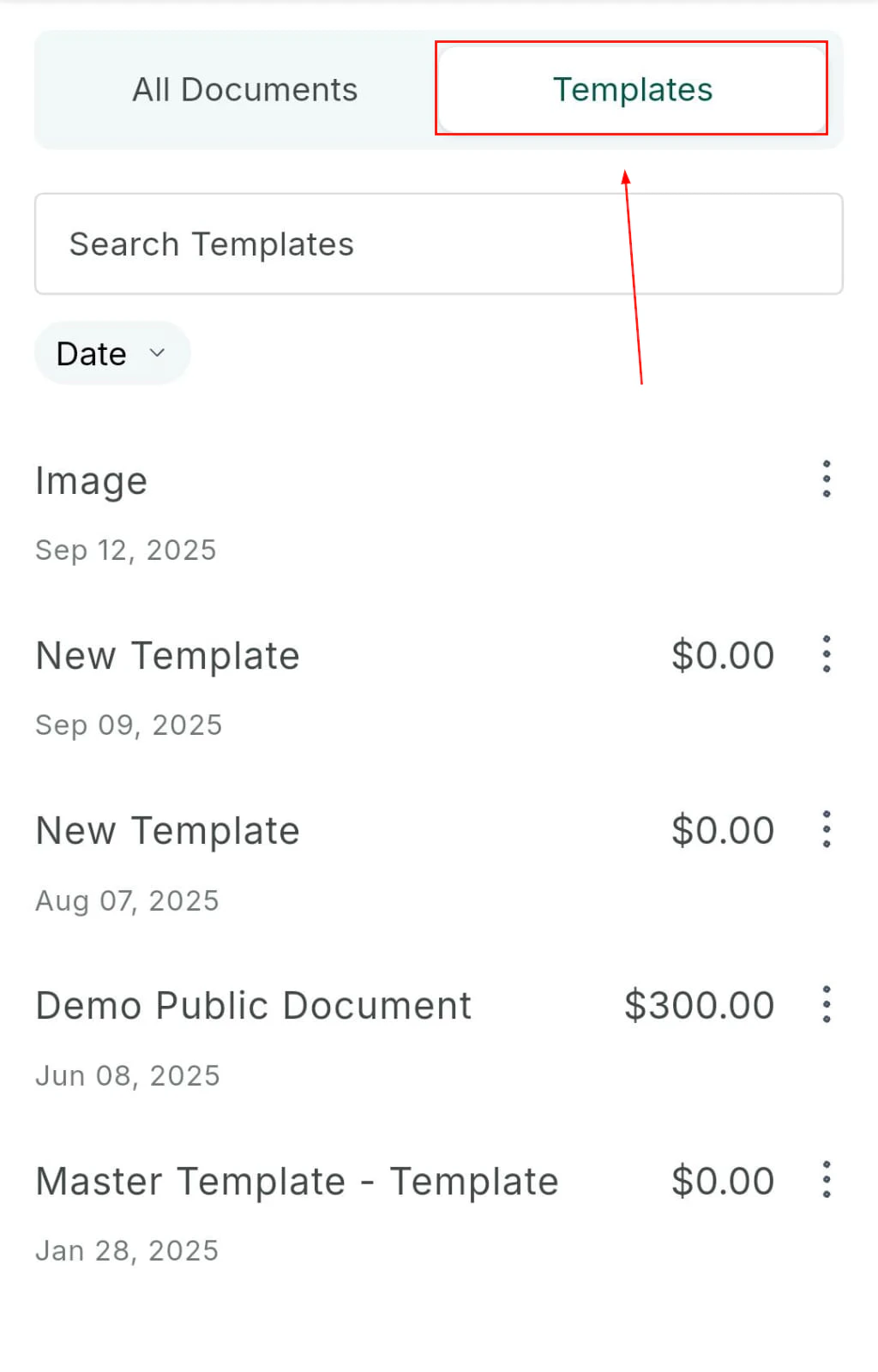
Search for and select a saved template.
### Creating a document from a template
Navigate to the Documents section and tap **Add New**.
Search for and select a saved template.
 Enter a name for the document and review the contents.
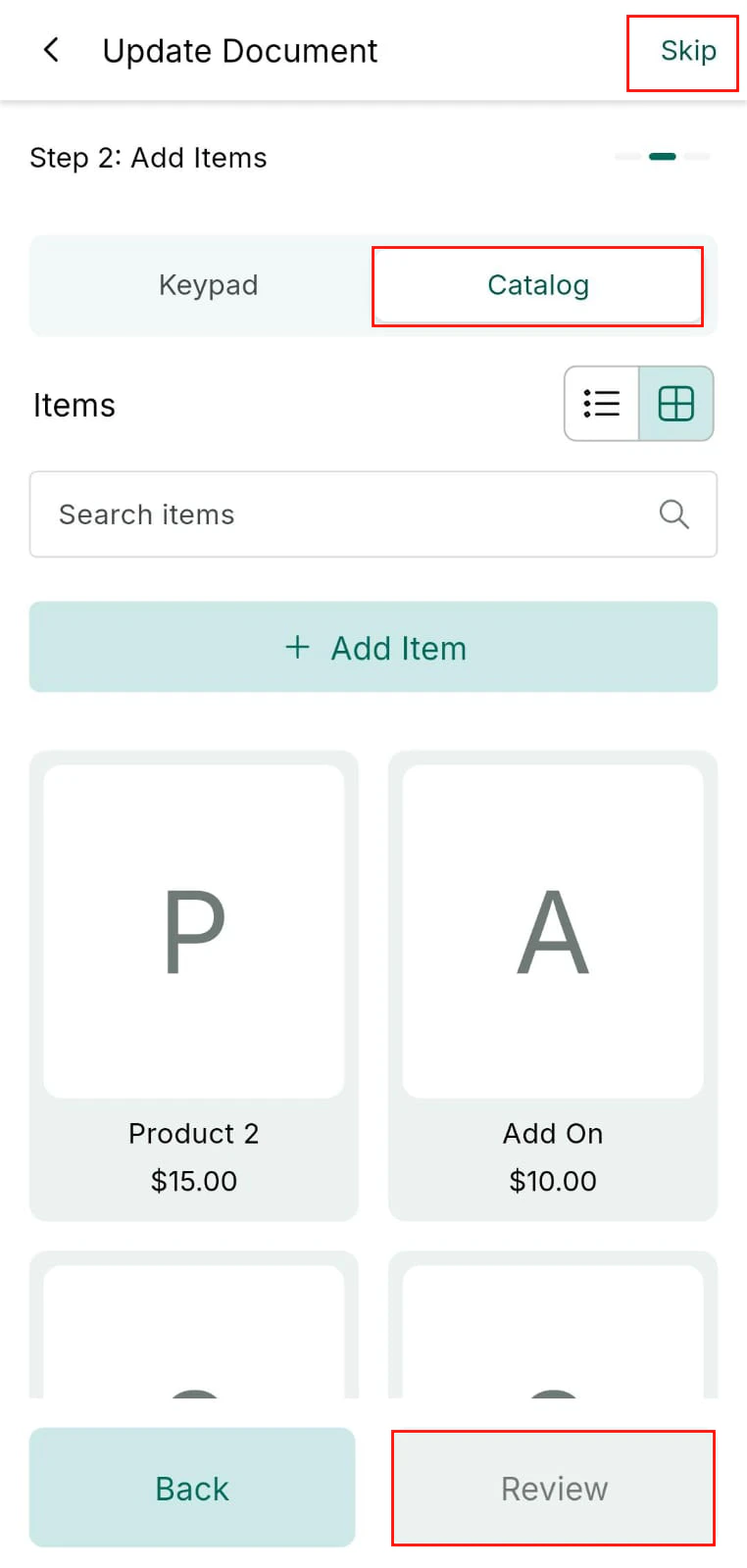 Send via email to the contact for review or signature.
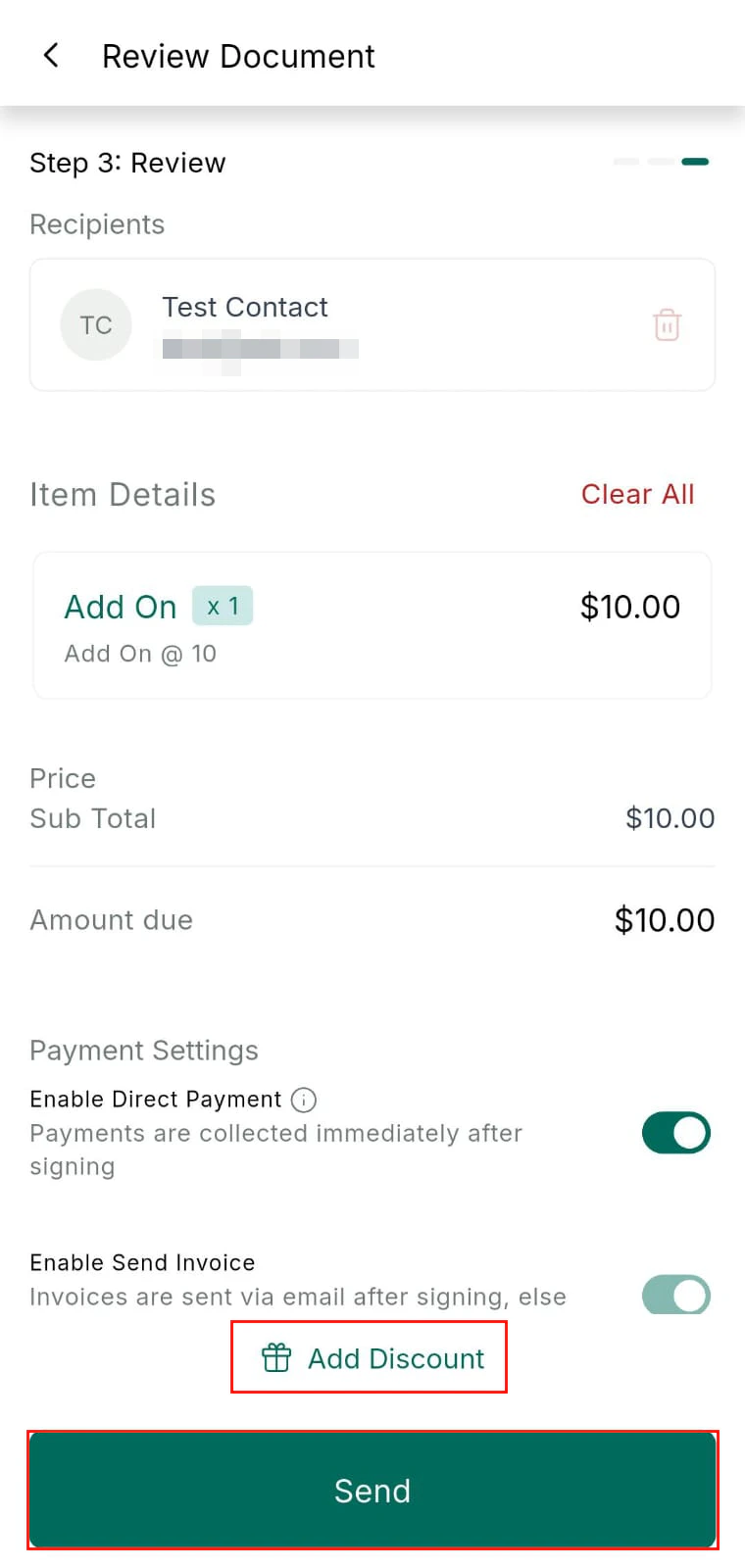 Document templates must be created on the desktop platform before they are available in the mobile app.
### Collecting in-person signatures
Document templates must be created on the desktop platform before they are available in the mobile app.
### Collecting in-person signatures
 1. Open the document or contract from a contact record
2. Present your device to the signer
3. The signer draws their signature directly on the screen
4. The signed document is automatically saved and timestamped to the contact record
See [Payments and POS on mobile](/mobile-app/payments-and-pos) for more on document signing in the context of estimates and invoices.
***
## Conversation AI on mobile
The Conversation AI assistant can be enabled, paused, or monitored for individual contacts directly from the mobile app — giving you control without disabling AI globally.
1. Open the document or contract from a contact record
2. Present your device to the signer
3. The signer draws their signature directly on the screen
4. The signed document is automatically saved and timestamped to the contact record
See [Payments and POS on mobile](/mobile-app/payments-and-pos) for more on document signing in the context of estimates and invoices.
***
## Conversation AI on mobile
The Conversation AI assistant can be enabled, paused, or monitored for individual contacts directly from the mobile app — giving you control without disabling AI globally.
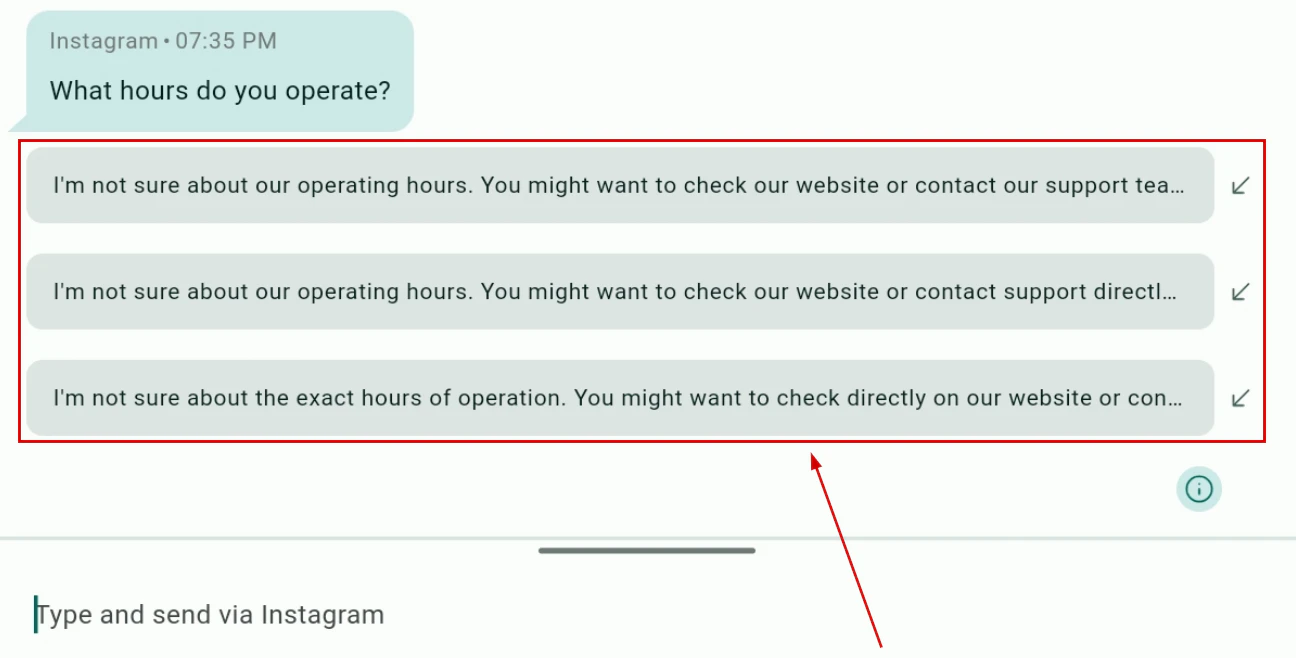
 ### Managing Conversation AI for a contact
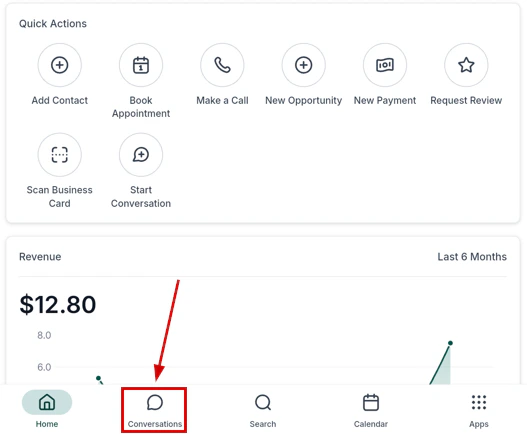
Navigate to the Conversations tab and open a conversation with a contact.
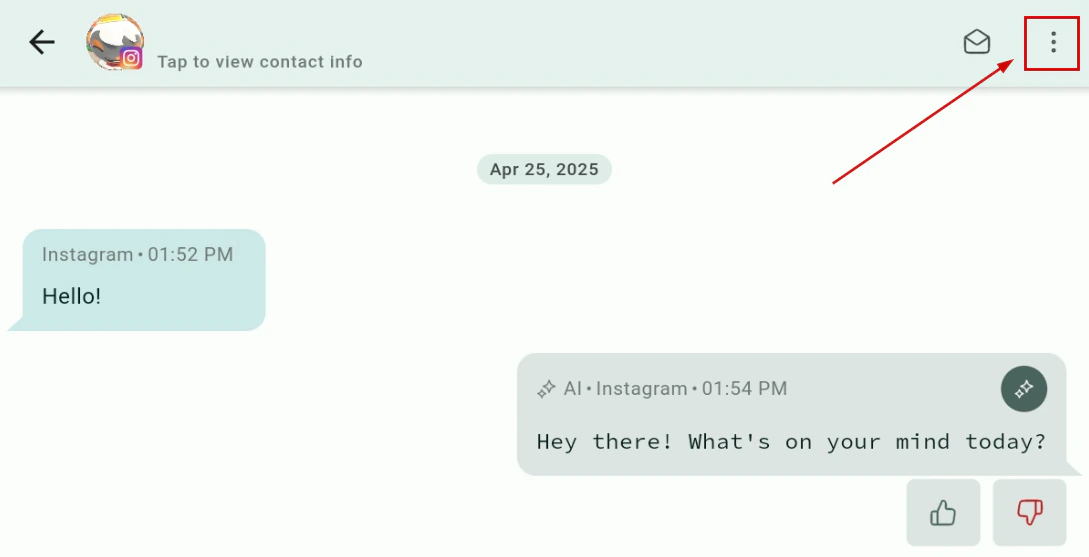
Tap the **AI icon** or the **bot status indicator** in the conversation toolbar.
### Managing Conversation AI for a contact
Navigate to the Conversations tab and open a conversation with a contact.
Tap the **AI icon** or the **bot status indicator** in the conversation toolbar.
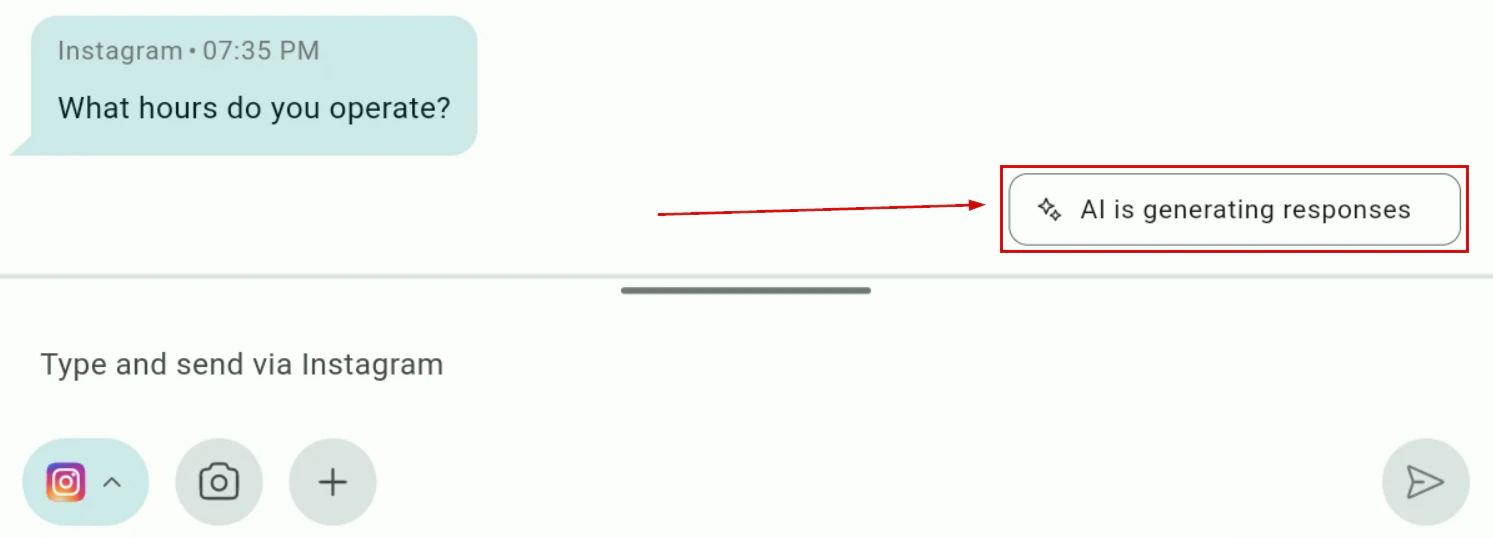 Toggle the AI on or off for this specific conversation. This allows manual control when needed without affecting other contacts or the global AI setting.
***
## WhatsApp voice notes
In WhatsApp conversations, record and send voice notes directly from the mobile app.
Toggle the AI on or off for this specific conversation. This allows manual control when needed without affecting other contacts or the global AI setting.
***
## WhatsApp voice notes
In WhatsApp conversations, record and send voice notes directly from the mobile app.
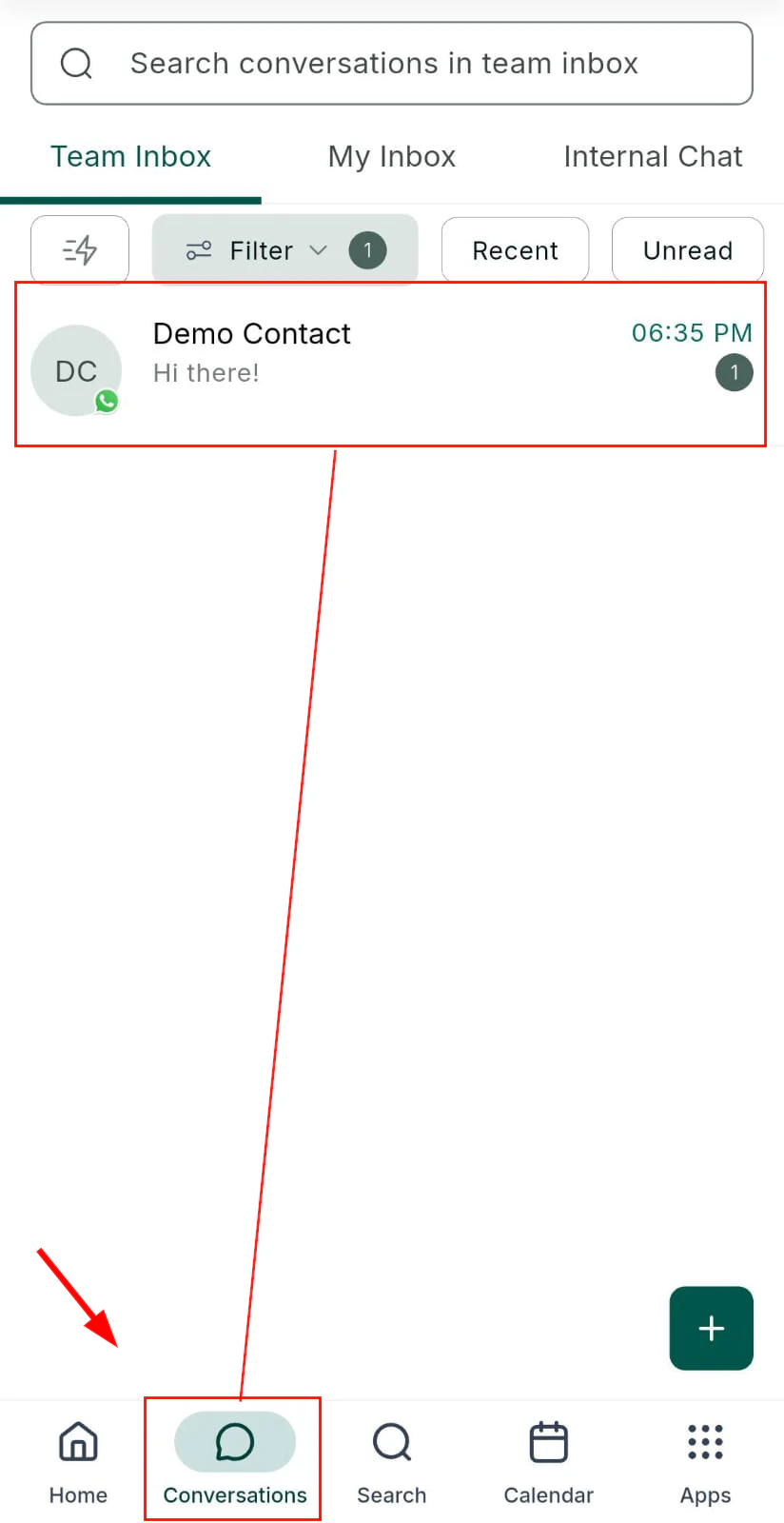 Navigate to a WhatsApp conversation in the Conversations tab.
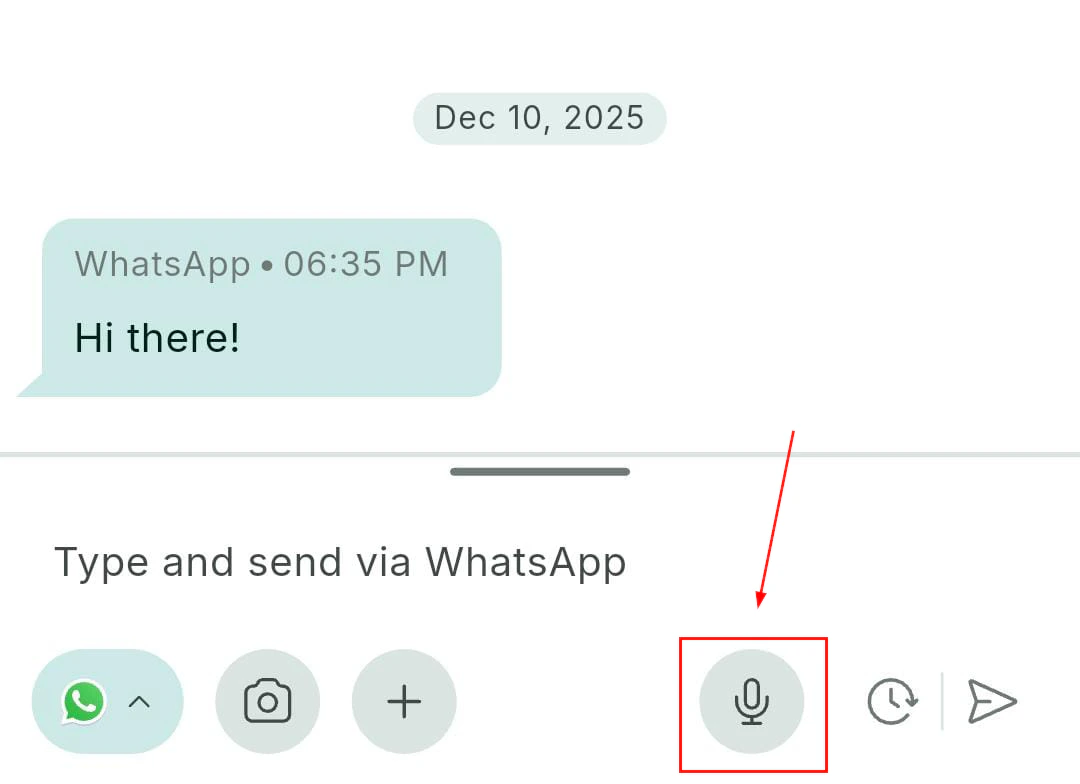
Tap and hold the **microphone icon** to begin recording your voice note.
Navigate to a WhatsApp conversation in the Conversations tab.
Tap and hold the **microphone icon** to begin recording your voice note.
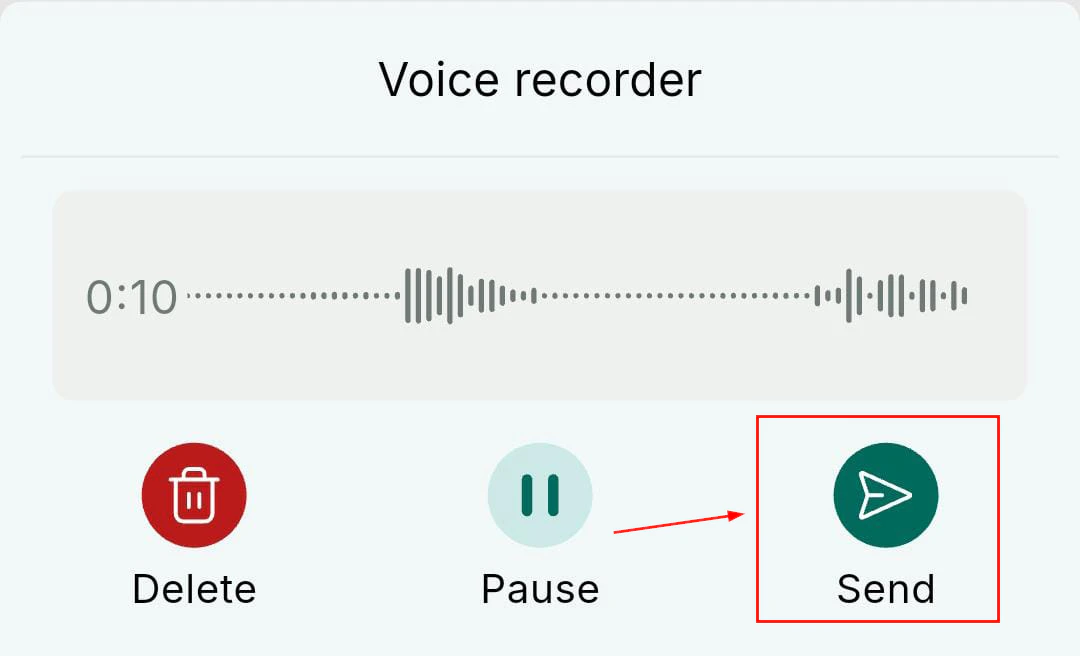
 Release to stop recording. Review the audio, then tap **Send** to deliver the voice note to the contact.
 ***
## Related articles
* [Social planner on mobile](/mobile-app/social-planner)
* [Contacts on mobile](/mobile-app/contacts)
* [Payments and POS on mobile](/mobile-app/payments-and-pos)
* [Conversations on mobile](/mobile-app/conversations)
***
## Related articles
* [Social planner on mobile](/mobile-app/social-planner)
* [Contacts on mobile](/mobile-app/contacts)
* [Payments and POS on mobile](/mobile-app/payments-and-pos)
* [Conversations on mobile](/mobile-app/conversations)