> ## Documentation Index
> Fetch the complete documentation index at: https://help.hoopai.com/llms.txt
> Use this file to discover all available pages before exploring further.
# iOS and Android: HoopAI mobile app differences and download links
> Compare the HoopAI mobile app on iOS and Android. Download links, feature differences, version requirements, and platform-specific notes.
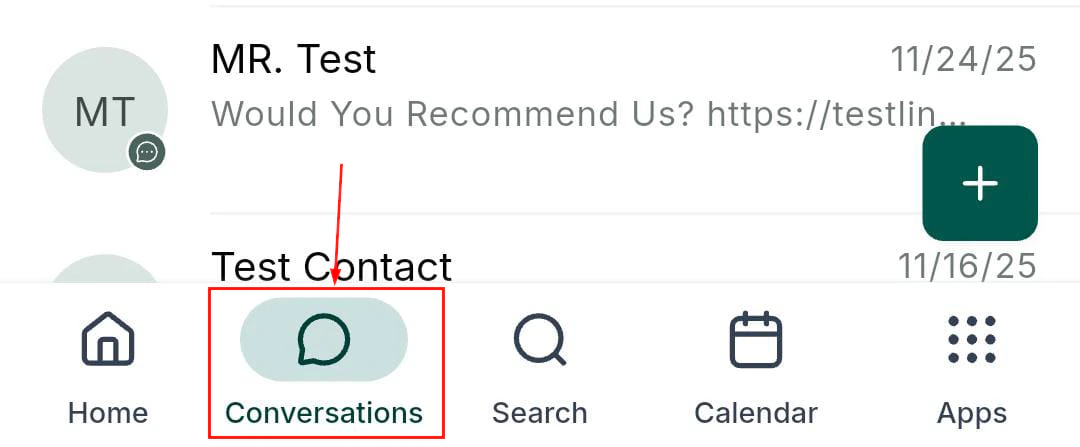
The HoopAI mobile app is available on both iOS (iPhone and iPad) and Android phones and tablets. Both versions deliver the same core CRM features — conversations, contacts, calendars, opportunities, payments, and more — but there are some platform-specific differences worth knowing before you set up your device.
## Downloading the app
The app is listed as **Lead Connector** in app stores on both platforms. Search for "Lead Connector" in your app store and install the free app. Log in with your HoopAI account credentials to access your data.
| Platform | Store | Minimum OS |
| ---------------------- | ----------------- | ------------------- |
| iPhone / iPad | Apple App Store | iOS 15 or later |
| Android phone / tablet | Google Play Store | Android 10 or later |
 After installing, keep auto-updates enabled so you always have the latest features and security patches. Many feature releases specify a minimum app version — being on an outdated version can prevent access to new capabilities.
## Core features on both platforms
The following features work identically on iOS and Android:
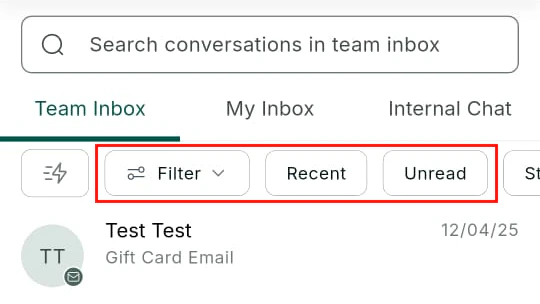
* Conversations inbox (SMS, email, WhatsApp, Facebook Messenger)
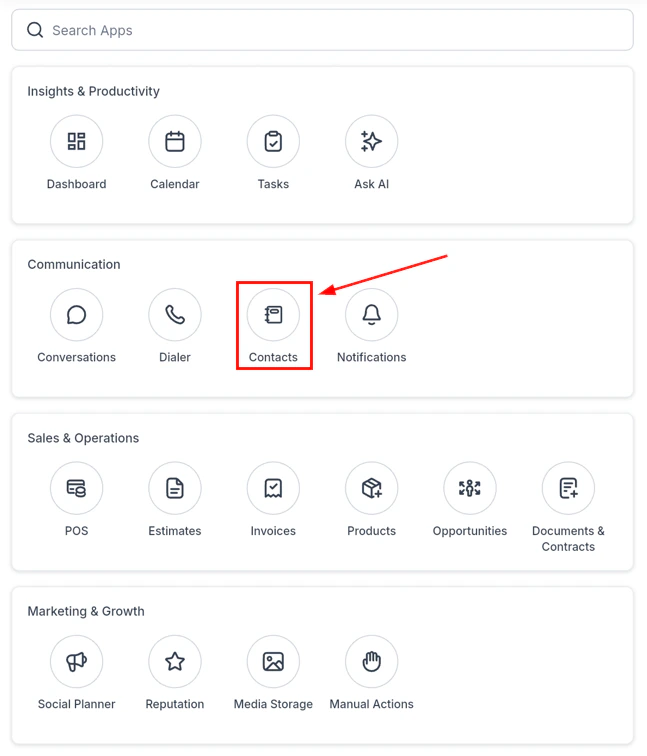
* Contact management and business card scanner
* Calendar and appointment management
* Opportunity pipeline view and stage management
* Phone and dialer (inbound and outbound calls, voicemail, call scripts)
* Point of Sale, invoices, estimates, and Tap to Pay
* Social planner post creation and scheduling
* Media library and file management
* Push notifications for messages, calls, appointments, and reviews
* Dark mode and biometric login (Face ID / Face Unlock / fingerprint)
After installing, keep auto-updates enabled so you always have the latest features and security patches. Many feature releases specify a minimum app version — being on an outdated version can prevent access to new capabilities.
## Core features on both platforms
The following features work identically on iOS and Android:
* Conversations inbox (SMS, email, WhatsApp, Facebook Messenger)
* Contact management and business card scanner
* Calendar and appointment management
* Opportunity pipeline view and stage management
* Phone and dialer (inbound and outbound calls, voicemail, call scripts)
* Point of Sale, invoices, estimates, and Tap to Pay
* Social planner post creation and scheduling
* Media library and file management
* Push notifications for messages, calls, appointments, and reviews
* Dark mode and biometric login (Face ID / Face Unlock / fingerprint)
 ## Platform-specific differences
### Call display: From and To numbers
On iOS, the call detail view includes a **Details** panel showing the From and To numbers — meaning you can see which phone number the incoming caller dialed and which number the call connected through. This is especially useful in multi-location or multi-number setups where different numbers are in use for different campaigns.
On Android, the From/To numbers are not currently displayed in the call detail view. If you need to identify which number a call came through, check the conversation thread associated with the contact or review call logs on the desktop platform.
### Push notification reliability
iOS delivers push notifications via Apple Push Notification Service (APNs), which is tightly controlled and consistently reliable as long as notifications are permitted in device settings.
On Android, notification reliability varies by device manufacturer. Some manufacturers — Samsung, Xiaomi, Huawei, OnePlus, and others — run aggressive battery optimization that can delay or suppress push notifications. To ensure reliable push notifications on Android:
1. Open **Settings > Battery > App optimization** (the exact label varies by manufacturer).
2. Find **Lead Connector** (the name the HoopAI app is listed under) and set it to **Unrestricted** or **No restrictions**.
3. Also disable battery optimization for the HoopAI app in **Settings > Apps > Lead Connector > Battery**.
### Background sync
iOS limits background app refresh to preserve battery, but the process is well-managed by the OS and typically reliable. Go to **Settings > General > Background App Refresh** and ensure the HoopAI app is toggled on. It appears as Lead Connector in your device settings.
On Android, background sync behavior depends heavily on the device manufacturer's OS customizations. Follow the same unrestricted battery setting steps mentioned above to allow the app to sync contacts, conversations, and notifications in the background.
## Platform-specific differences
### Call display: From and To numbers
On iOS, the call detail view includes a **Details** panel showing the From and To numbers — meaning you can see which phone number the incoming caller dialed and which number the call connected through. This is especially useful in multi-location or multi-number setups where different numbers are in use for different campaigns.
On Android, the From/To numbers are not currently displayed in the call detail view. If you need to identify which number a call came through, check the conversation thread associated with the contact or review call logs on the desktop platform.
### Push notification reliability
iOS delivers push notifications via Apple Push Notification Service (APNs), which is tightly controlled and consistently reliable as long as notifications are permitted in device settings.
On Android, notification reliability varies by device manufacturer. Some manufacturers — Samsung, Xiaomi, Huawei, OnePlus, and others — run aggressive battery optimization that can delay or suppress push notifications. To ensure reliable push notifications on Android:
1. Open **Settings > Battery > App optimization** (the exact label varies by manufacturer).
2. Find **Lead Connector** (the name the HoopAI app is listed under) and set it to **Unrestricted** or **No restrictions**.
3. Also disable battery optimization for the HoopAI app in **Settings > Apps > Lead Connector > Battery**.
### Background sync
iOS limits background app refresh to preserve battery, but the process is well-managed by the OS and typically reliable. Go to **Settings > General > Background App Refresh** and ensure the HoopAI app is toggled on. It appears as Lead Connector in your device settings.
On Android, background sync behavior depends heavily on the device manufacturer's OS customizations. Follow the same unrestricted battery setting steps mentioned above to allow the app to sync contacts, conversations, and notifications in the background.
 ### Tap to Pay
**Tap to Pay** (contactless payments using the device's NFC chip) is available on:
* **iPhone** (iPhone XS or later) — uses Apple's Tap to Pay on iPhone feature
* **Android** — available on NFC-capable Android devices running Android 10 or later
Both platforms support the same catalog of payment methods through Tap to Pay: contactless credit and debit cards, Apple Pay, Google Pay, and compatible digital wallets.
### Dark mode
Both iOS and Android follow the system dark mode setting. On iOS, you can set dark mode in **Settings > Display and Brightness**. On Android, the setting is typically in **Settings > Display > Dark theme**. The app also supports a manual override in **App Settings > Appearance** if you want the app in dark mode regardless of your system preference.
## Keeping the app updated
| Platform | How to update |
| -------- | ---------------------------------------------------------- |
| iOS | App Store > your profile > check for updates |
| Android | Google Play Store > your profile > Manage apps and devices |
Enable automatic updates in your app store settings to stay current without manual intervention. The HoopAI platform releases mobile updates frequently, and many new features have a minimum version requirement.
## Troubleshooting version mismatches
If a feature described in this documentation is not appearing in your app, check your installed version:
* **iOS**: App Store > search Lead Connector > version number shown under the app name
* **Android**: Google Play Store > search Lead Connector > About this app > version
If you are on an older version, update the app and relaunch. If you are on the latest version and still do not see a feature, the feature may be limited to certain plan tiers — check your account plan in **Settings > Billing** on the desktop platform.
## Related articles
* [Mobile app overview](/mobile-app/overview)
* [Getting started with the mobile app](/mobile-app/getting-started)
* [iPad and tablet support](/mobile-app/ipad-support)
* [Offline mode and data sync](/mobile-app/offline-mode)
### Tap to Pay
**Tap to Pay** (contactless payments using the device's NFC chip) is available on:
* **iPhone** (iPhone XS or later) — uses Apple's Tap to Pay on iPhone feature
* **Android** — available on NFC-capable Android devices running Android 10 or later
Both platforms support the same catalog of payment methods through Tap to Pay: contactless credit and debit cards, Apple Pay, Google Pay, and compatible digital wallets.
### Dark mode
Both iOS and Android follow the system dark mode setting. On iOS, you can set dark mode in **Settings > Display and Brightness**. On Android, the setting is typically in **Settings > Display > Dark theme**. The app also supports a manual override in **App Settings > Appearance** if you want the app in dark mode regardless of your system preference.
## Keeping the app updated
| Platform | How to update |
| -------- | ---------------------------------------------------------- |
| iOS | App Store > your profile > check for updates |
| Android | Google Play Store > your profile > Manage apps and devices |
Enable automatic updates in your app store settings to stay current without manual intervention. The HoopAI platform releases mobile updates frequently, and many new features have a minimum version requirement.
## Troubleshooting version mismatches
If a feature described in this documentation is not appearing in your app, check your installed version:
* **iOS**: App Store > search Lead Connector > version number shown under the app name
* **Android**: Google Play Store > search Lead Connector > About this app > version
If you are on an older version, update the app and relaunch. If you are on the latest version and still do not see a feature, the feature may be limited to certain plan tiers — check your account plan in **Settings > Billing** on the desktop platform.
## Related articles
* [Mobile app overview](/mobile-app/overview)
* [Getting started with the mobile app](/mobile-app/getting-started)
* [iPad and tablet support](/mobile-app/ipad-support)
* [Offline mode and data sync](/mobile-app/offline-mode)