> ## Documentation Index
> Fetch the complete documentation index at: https://help.hoopai.com/llms.txt
> Use this file to discover all available pages before exploring further.
# Conversations on the HoopAI mobile app
> Manage SMS, email, and WhatsApp conversations on mobile. HoopAI mobile CRM unified inbox for iOS and Android with push notifications.
The Conversations section in the HoopAI mobile app is your unified inbox for all contact communications — SMS, email, WhatsApp, Facebook Messenger, and more. With filtering, archiving, starring, bulk actions, and AI management built in, you can handle every message without touching your desktop.
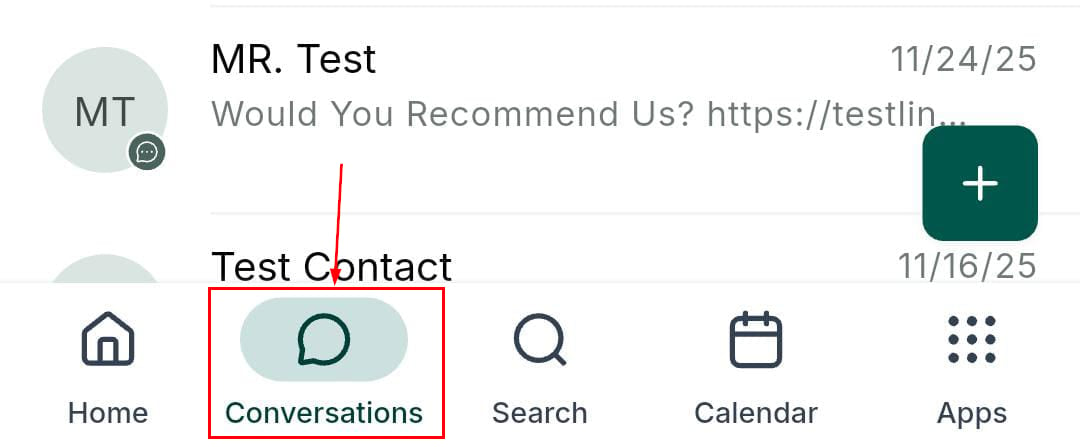
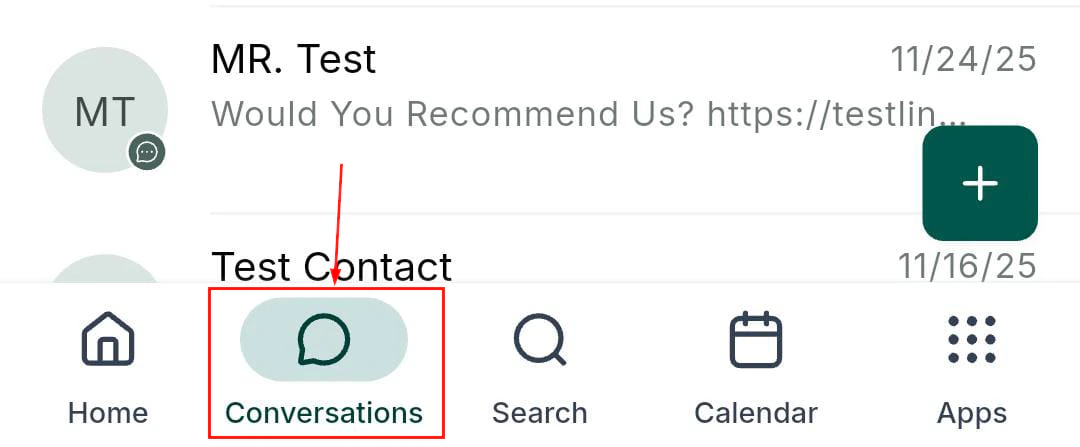
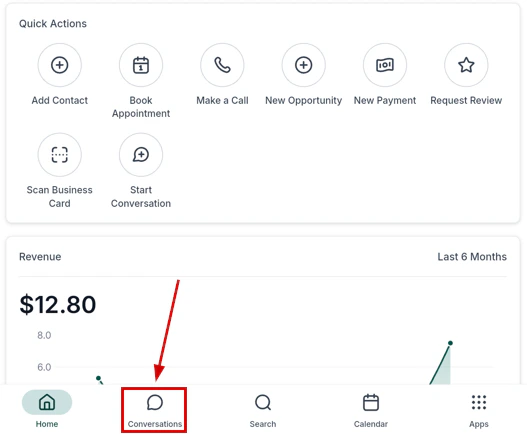
Open the mobile app and tap the **Conversations** icon in the bottom navigation bar.
 ## Searching conversations
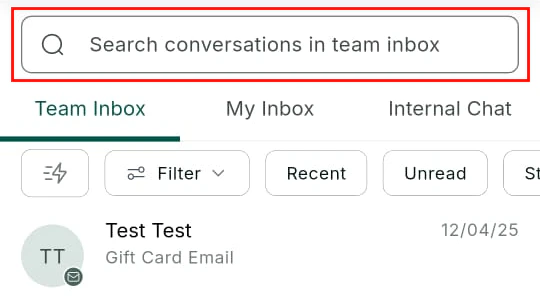
Tap the **search icon** at the top of the Conversations screen to search by contact name, phone number, or email address.
## Searching conversations
Tap the **search icon** at the top of the Conversations screen to search by contact name, phone number, or email address.
 ***
## Inbox selection
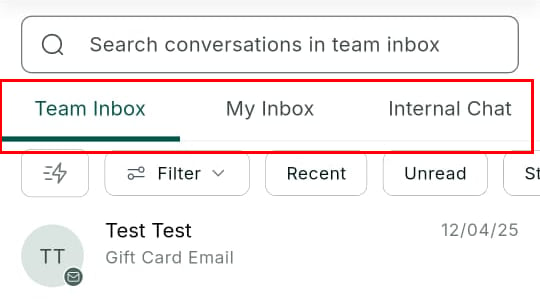
Tap the inbox selector to switch between:
* **Team inbox** — all conversations shared across your team
* **My inbox** — conversations assigned to you personally
* **Internal** — messages between team members
***
## Inbox selection
Tap the inbox selector to switch between:
* **Team inbox** — all conversations shared across your team
* **My inbox** — conversations assigned to you personally
* **Internal** — messages between team members
 ***
## Filtering conversations
Tap the filter icon to refine conversations by read status, channel type, assigned user, and tags.
***
## Filtering conversations
Tap the filter icon to refine conversations by read status, channel type, assigned user, and tags.
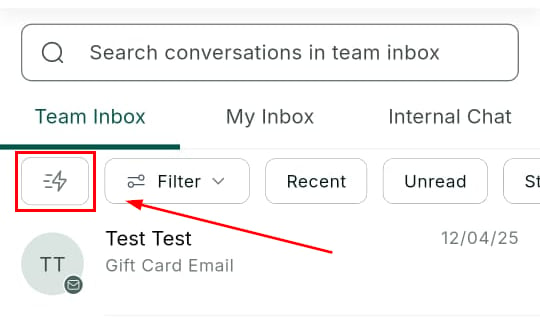
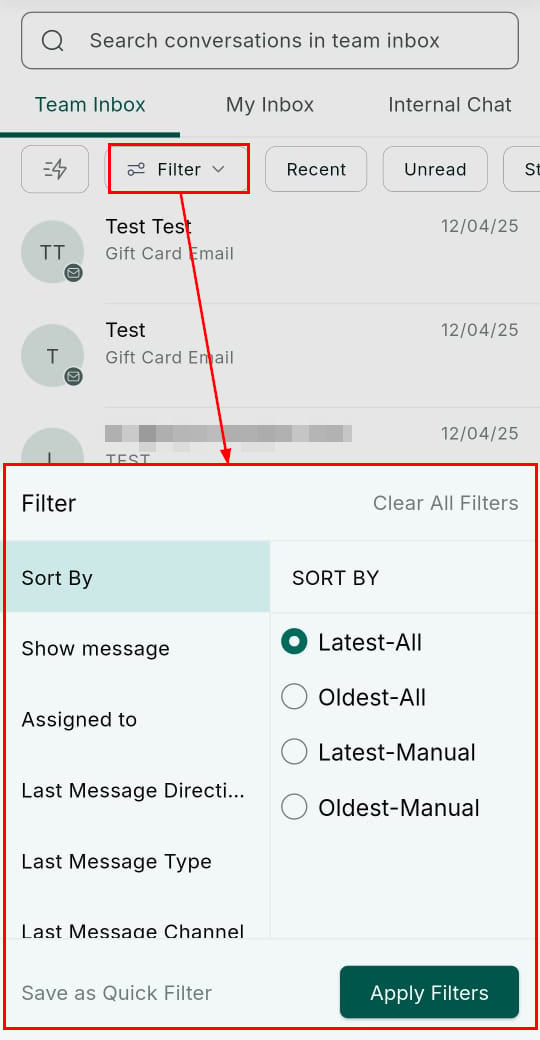 Frequently used filters can be saved as **quick filters** for one-tap access at the top of the screen.
 ***
## Starting a new conversation
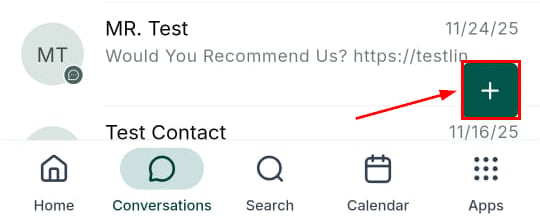
Tap the **+** icon to start a new outbound conversation.
***
## Starting a new conversation
Tap the **+** icon to start a new outbound conversation.
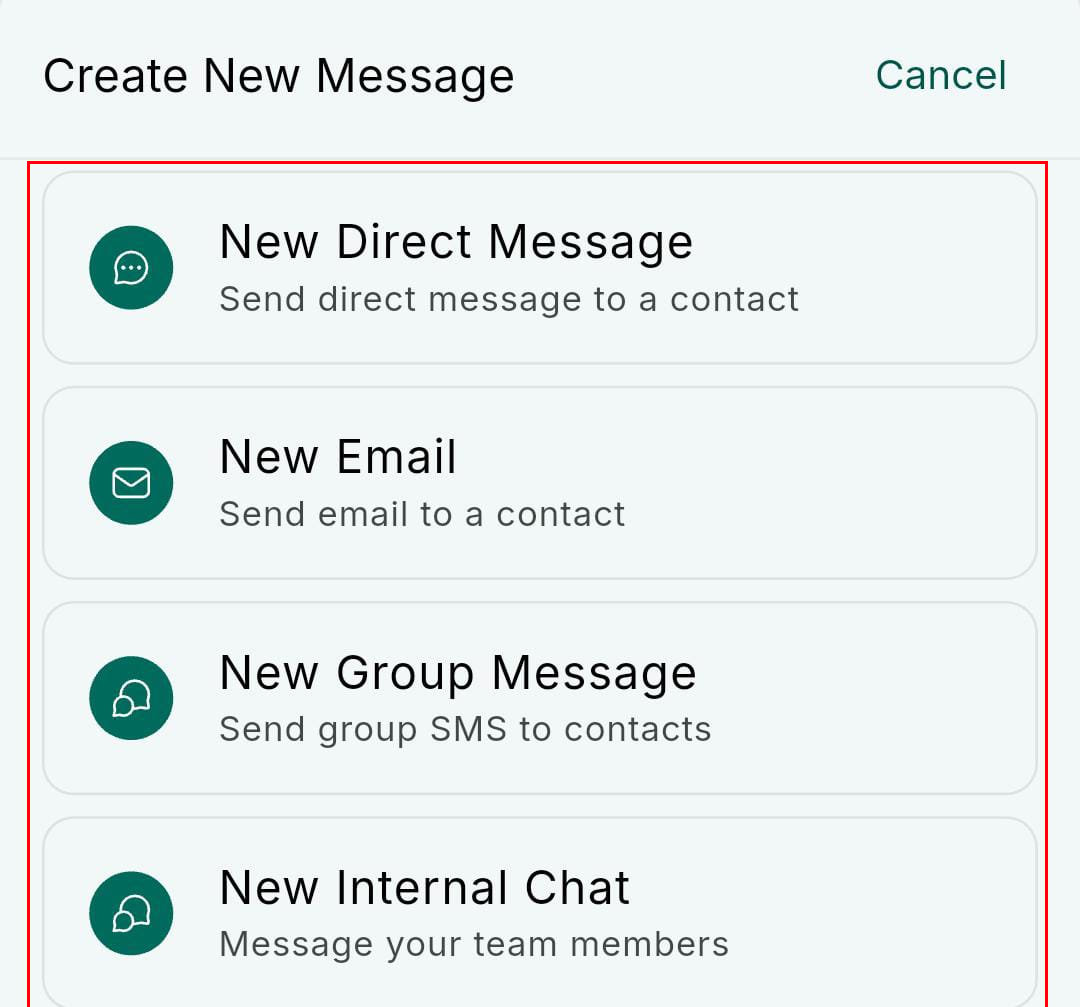 Choose from:
* **SMS** — send a text message
* **Email** — compose an email
* **Group chat** — create a group SMS thread
* **Internal notification** — send an internal message to a team member
***
## Conversation actions
### Actions menu
From an open conversation, tap **Actions** to access:
Choose from:
* **SMS** — send a text message
* **Email** — compose an email
* **Group chat** — create a group SMS thread
* **Internal notification** — send an internal message to a team member
***
## Conversation actions
### Actions menu
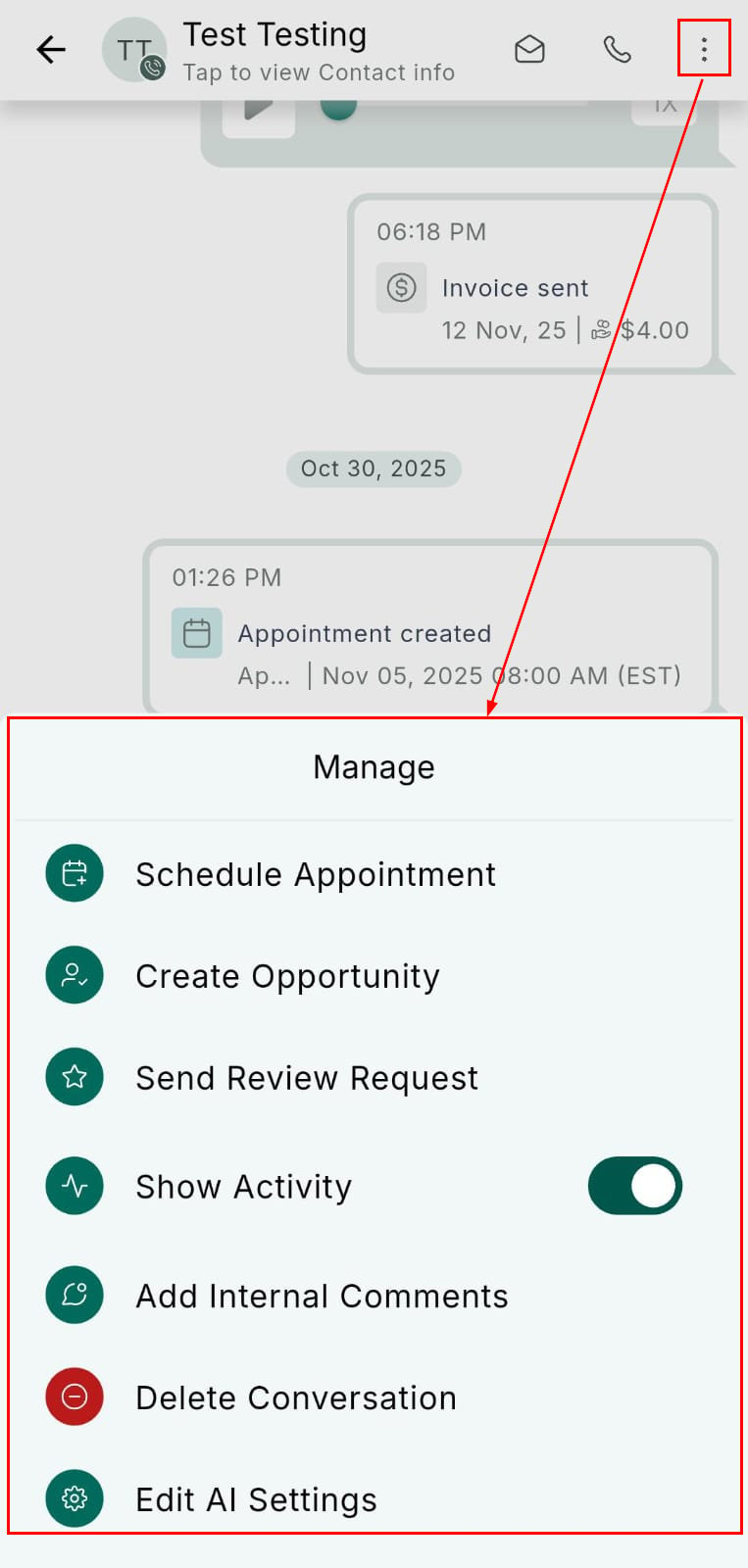
From an open conversation, tap **Actions** to access:
 * Schedule an appointment
* Create an opportunity
* Send a review request
* View contact activity
* Add an internal comment
* Delete the conversation
### More options
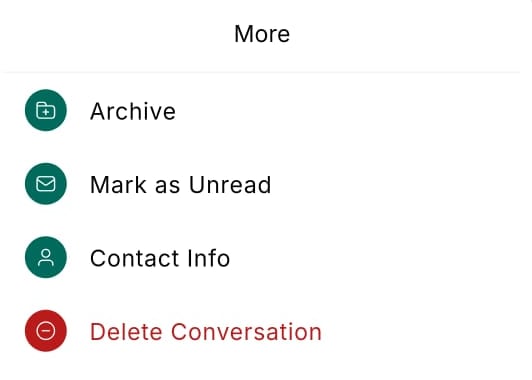
Tap the **three-dot** or **More** button in a conversation for additional management options:
* Schedule an appointment
* Create an opportunity
* Send a review request
* View contact activity
* Add an internal comment
* Delete the conversation
### More options
Tap the **three-dot** or **More** button in a conversation for additional management options:
 ### Bulk actions
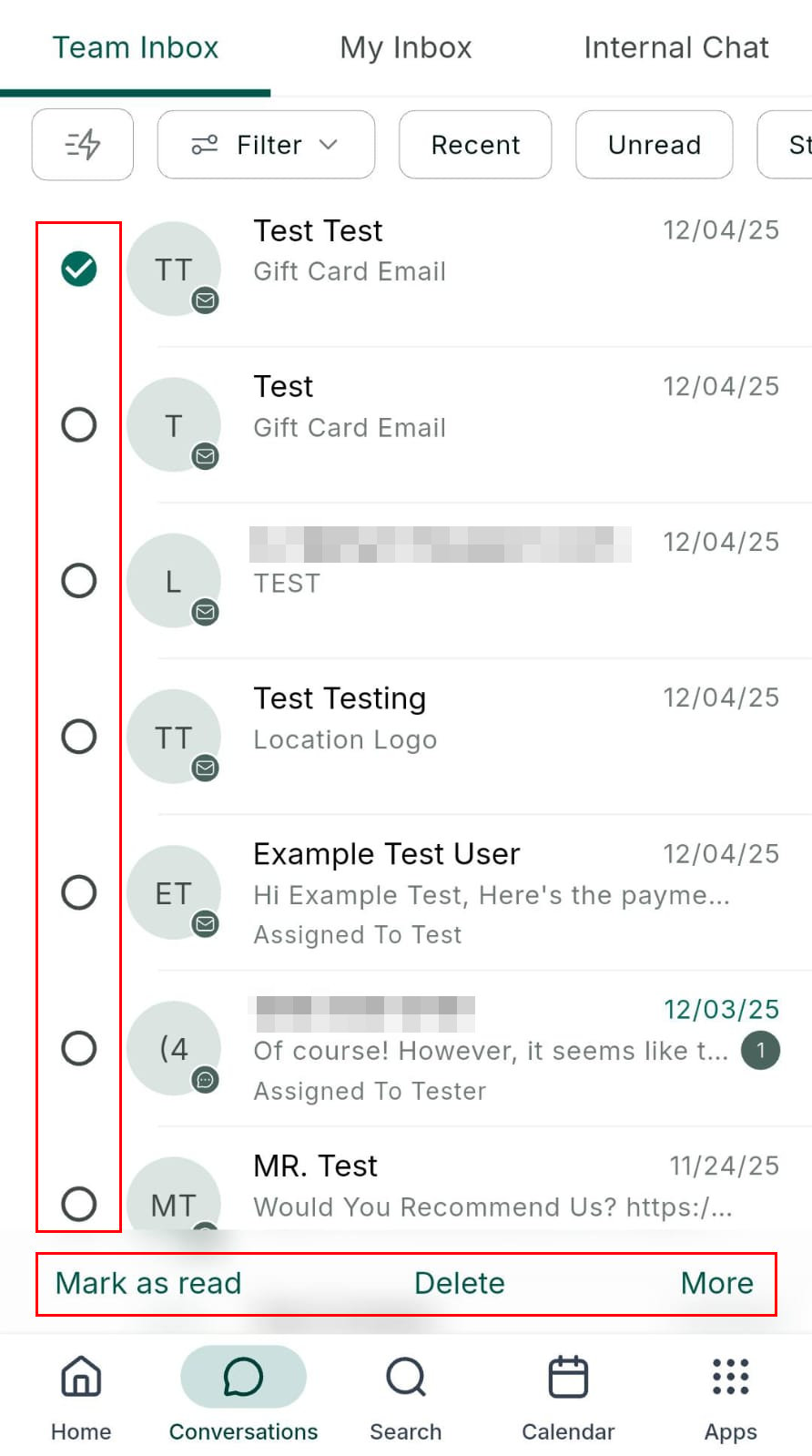
Press and hold a conversation card to enter multi-select mode. Select additional conversations and use the action bar to bulk archive, mark as read/unread, assign, or delete.
### Bulk actions
Press and hold a conversation card to enter multi-select mode. Select additional conversations and use the action bar to bulk archive, mark as read/unread, assign, or delete.
 ***
## Manage and star conversations
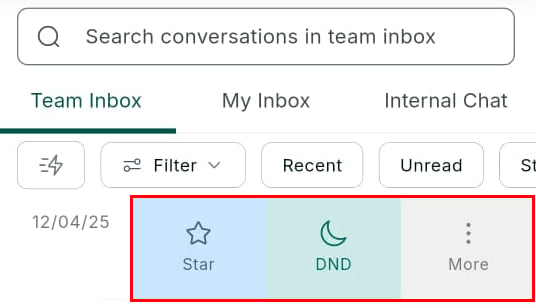
Use the manage option to star conversations for priority follow-up, enable Do Not Disturb (DND), or archive conversations you've resolved.
***
## Manage and star conversations
Use the manage option to star conversations for priority follow-up, enable Do Not Disturb (DND), or archive conversations you've resolved.
 ***
## Sending messages
Tap the text box to open the message composer.
***
## Sending messages
Tap the text box to open the message composer.
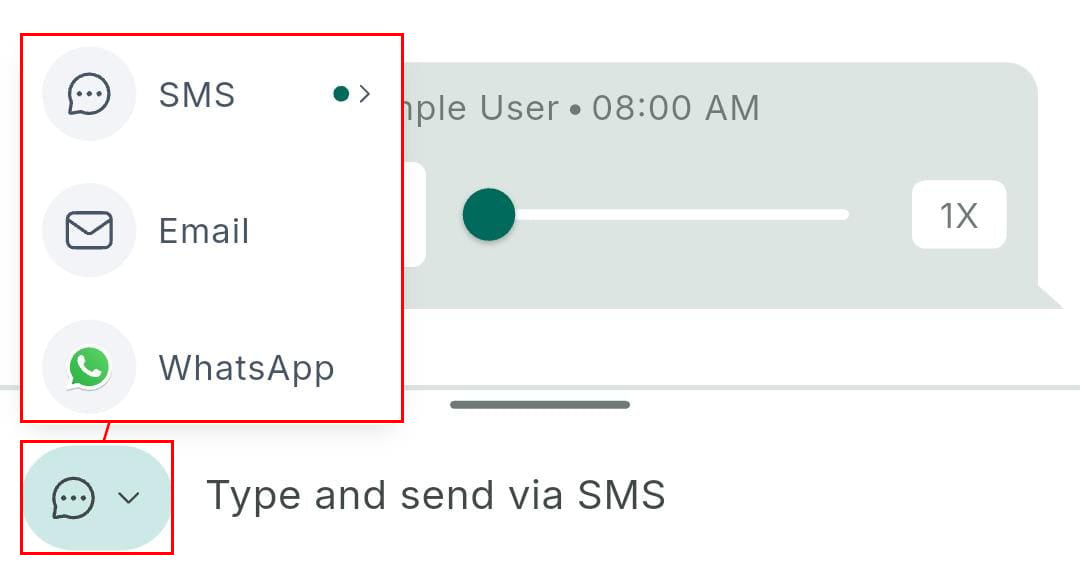 From the composer, you can:
* **Attach media** — tap the **+** icon to select files, take a photo, request payment, or insert custom values
* **Schedule** — tap the send options to schedule your message for a future time
* **Send instantly** — tap the send button to deliver immediately
* **WhatsApp templates** — in WhatsApp conversations, select a pre-approved interactive template
***
## WhatsApp voice notes
In WhatsApp conversations, you can record and send voice notes directly from the mobile app.
From the composer, you can:
* **Attach media** — tap the **+** icon to select files, take a photo, request payment, or insert custom values
* **Schedule** — tap the send options to schedule your message for a future time
* **Send instantly** — tap the send button to deliver immediately
* **WhatsApp templates** — in WhatsApp conversations, select a pre-approved interactive template
***
## WhatsApp voice notes
In WhatsApp conversations, you can record and send voice notes directly from the mobile app.
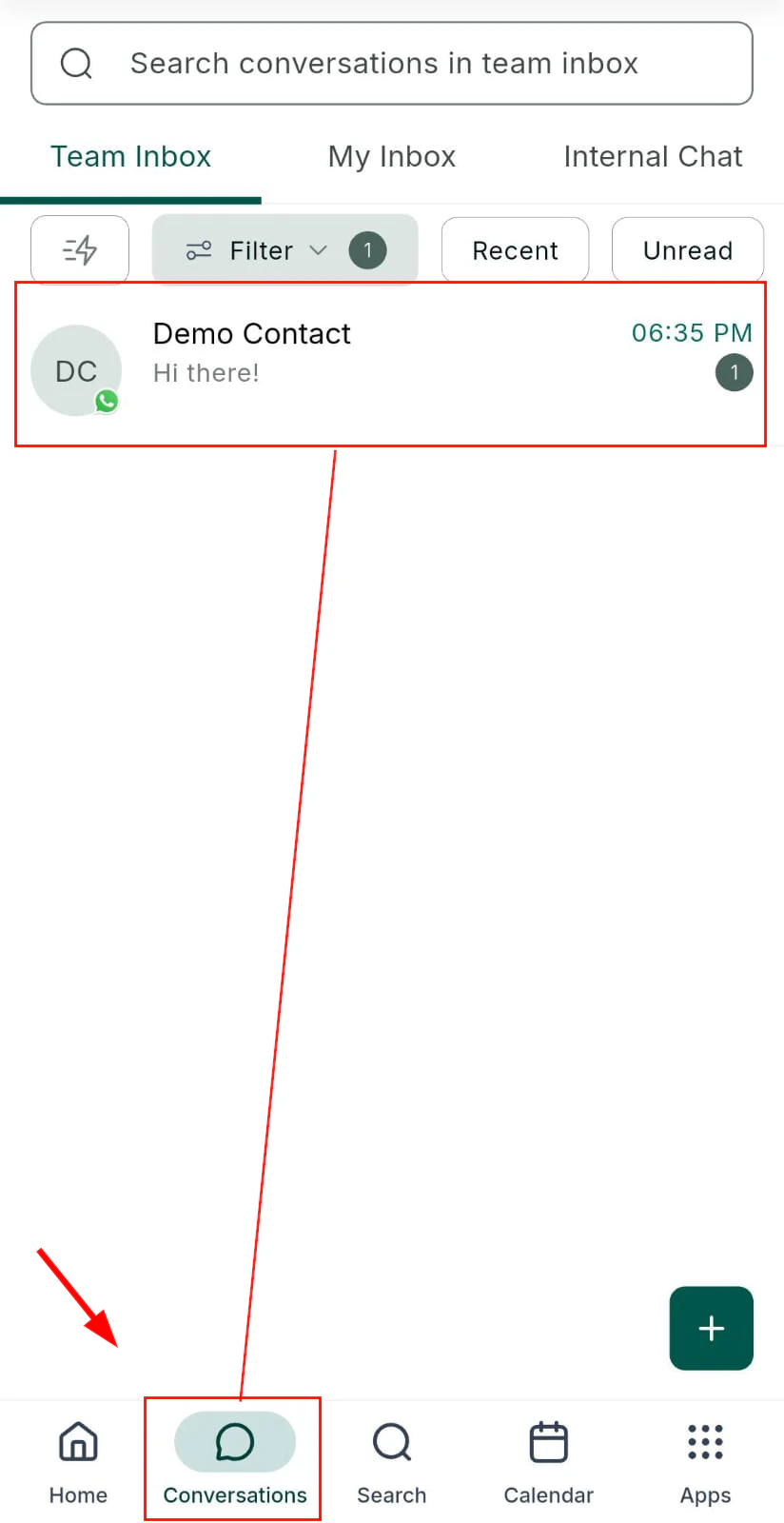 Navigate to a WhatsApp conversation in the Conversations tab.
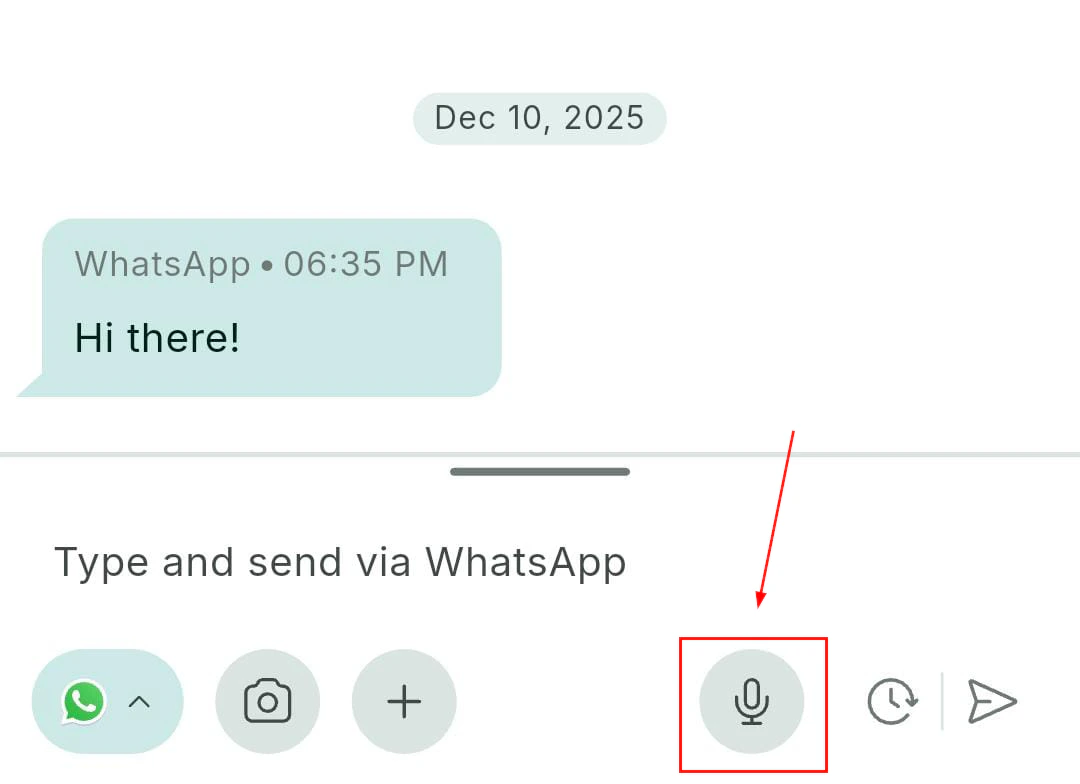
Tap and hold the **microphone icon** to begin recording your voice note.
Navigate to a WhatsApp conversation in the Conversations tab.
Tap and hold the **microphone icon** to begin recording your voice note.
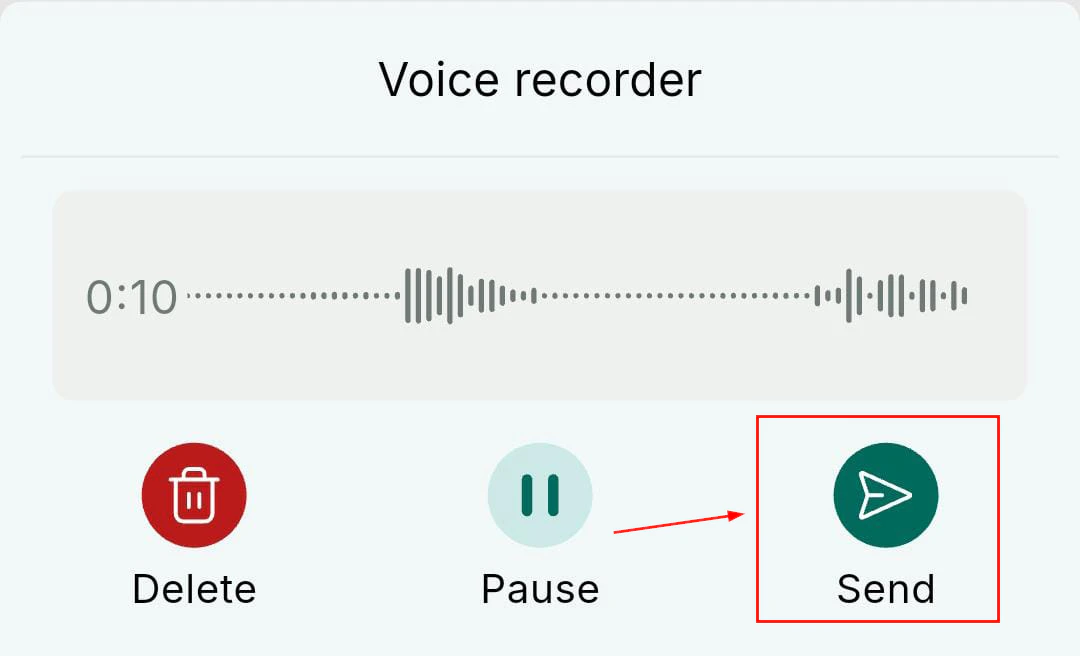
 Release to stop recording, then tap **Send** to deliver.
 ***
## Email snippets
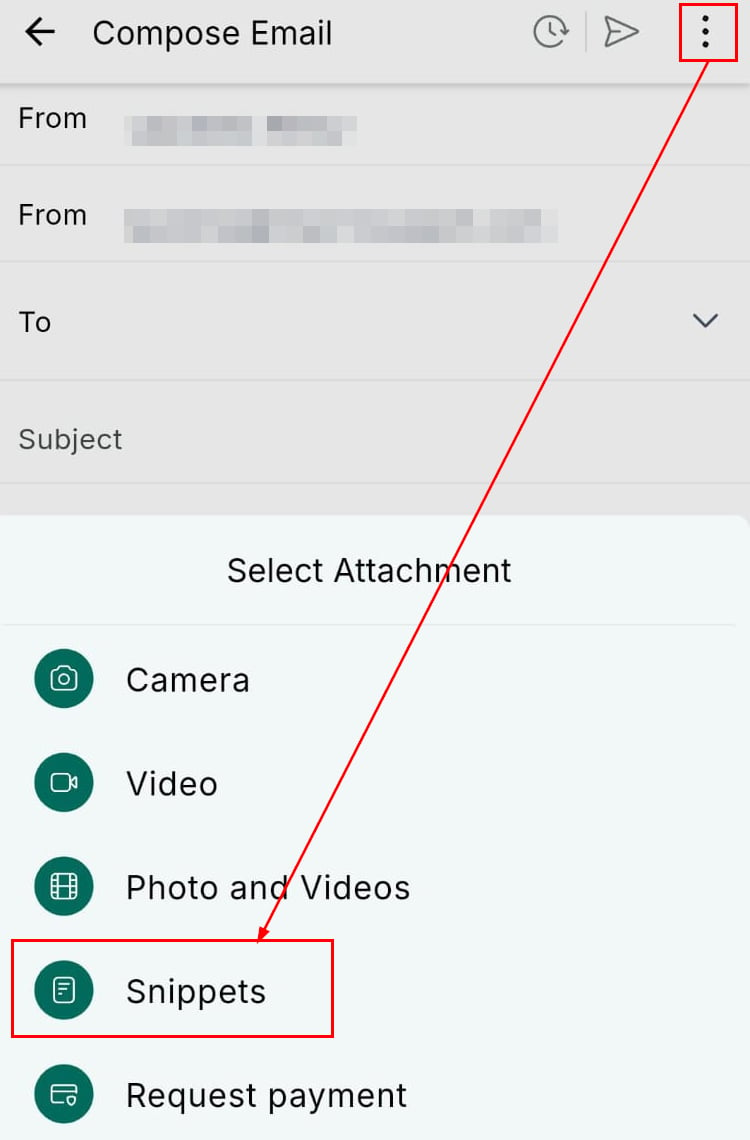
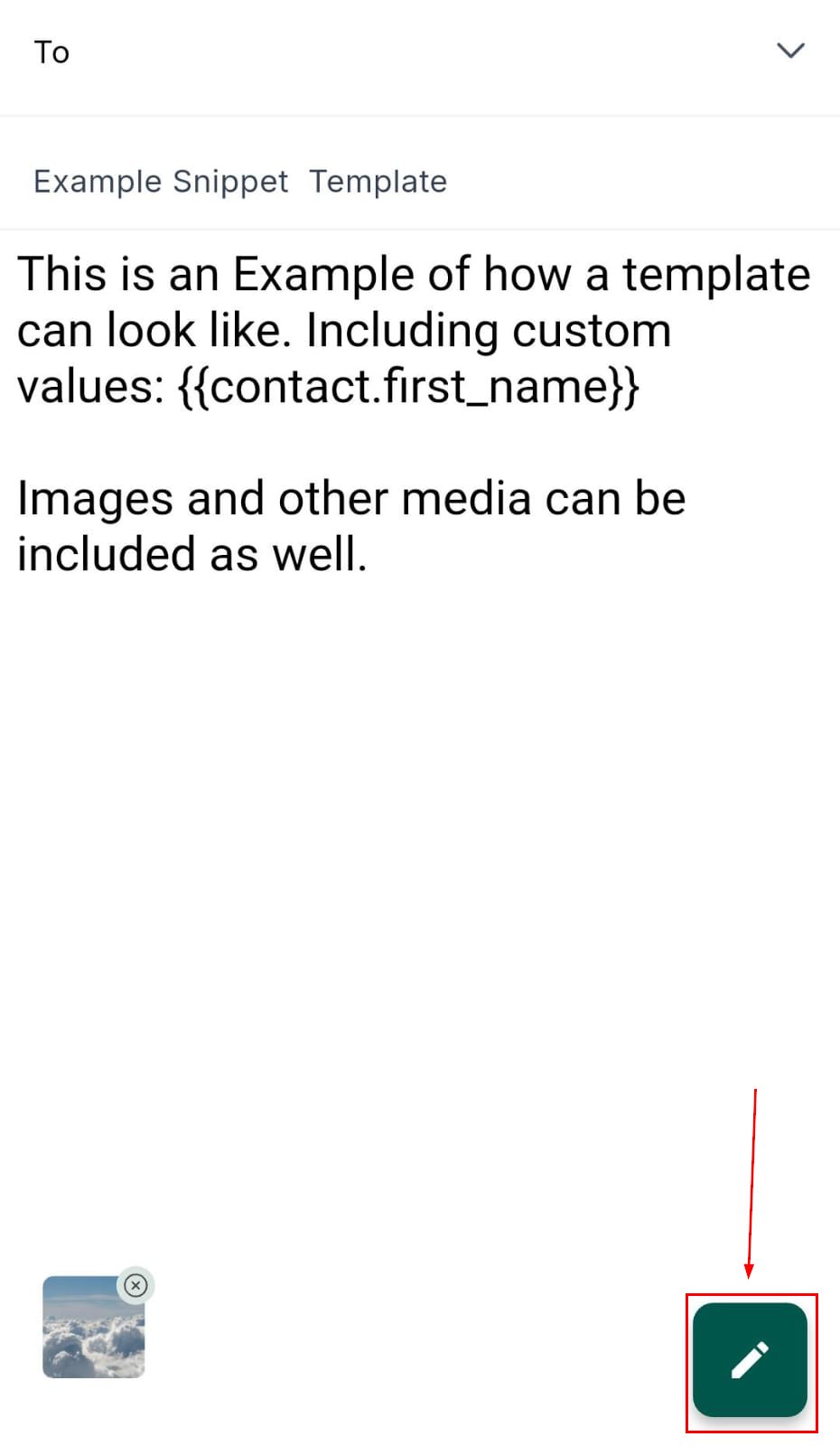
Access saved email snippets from the composition toolbar when writing an email. Select a snippet, edit it using the rich text editor (bold, italic, bullet lists, links), and send.
***
## Email snippets
Access saved email snippets from the composition toolbar when writing an email. Select a snippet, edit it using the rich text editor (bold, italic, bullet lists, links), and send.
 ***
## Conversation AI
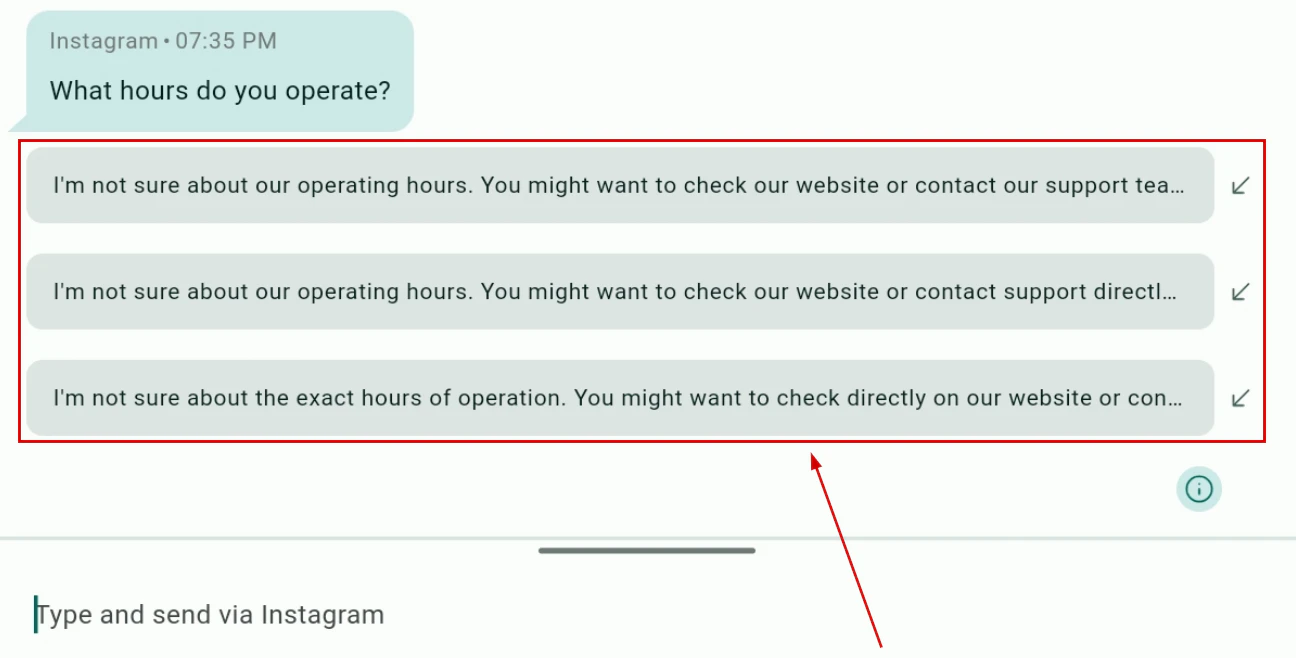
Manage your Conversation AI agent directly from the mobile app. Toggle the AI on or off per conversation and monitor AI responses in real time.
***
## Conversation AI
Manage your Conversation AI agent directly from the mobile app. Toggle the AI on or off per conversation and monitor AI responses in real time.
 ***
## Related articles
* [Conversations overview](/conversations/overview)
* [Contacts on mobile](/mobile-app/contacts)
* [Phone and dialer on mobile](/mobile-app/phone-and-dialer)
* [WhatsApp](/settings/whatsapp)
***
## Related articles
* [Conversations overview](/conversations/overview)
* [Contacts on mobile](/mobile-app/contacts)
* [Phone and dialer on mobile](/mobile-app/phone-and-dialer)
* [WhatsApp](/settings/whatsapp)