> ## Documentation Index
> Fetch the complete documentation index at: https://help.hoopai.com/llms.txt
> Use this file to discover all available pages before exploring further.
# Manage contacts on the HoopAI mobile app
> Browse, create, and manage contacts with custom fields, tags, and notes in the HoopAI mobile CRM for iOS and Android.
The Contacts module on the mobile app centralizes all your essential contact information and actions in one place — faster, simpler, and more organized management of your contacts, so you stay productive and connected wherever you are.
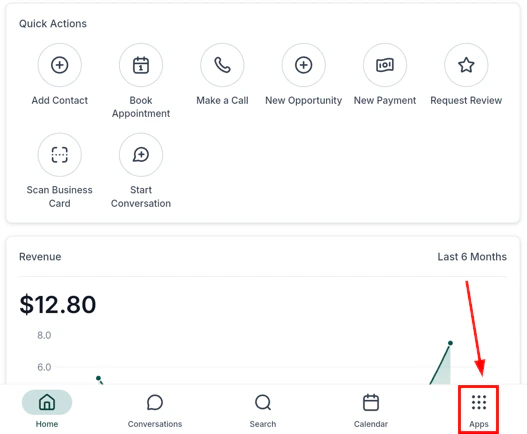
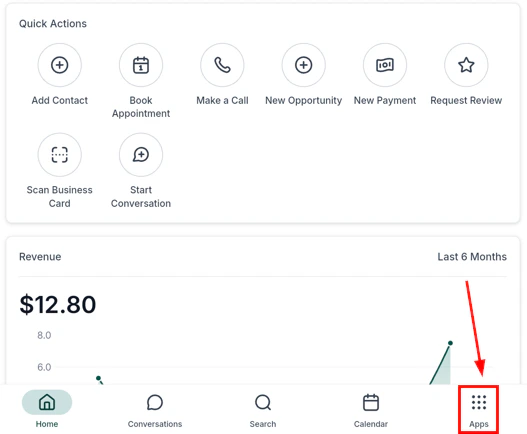
Open the mobile app and tap the **Contacts icon** (book icon) in the navigation.
 ## Browsing contacts
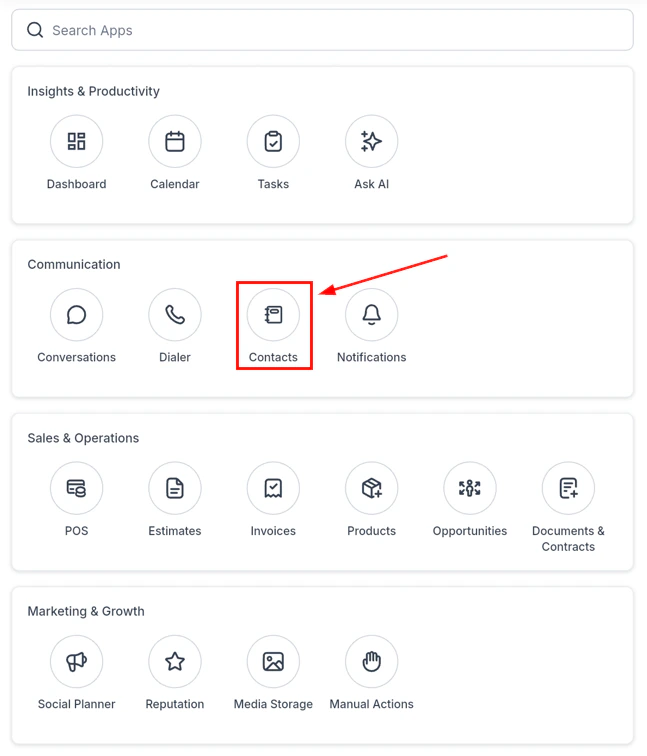
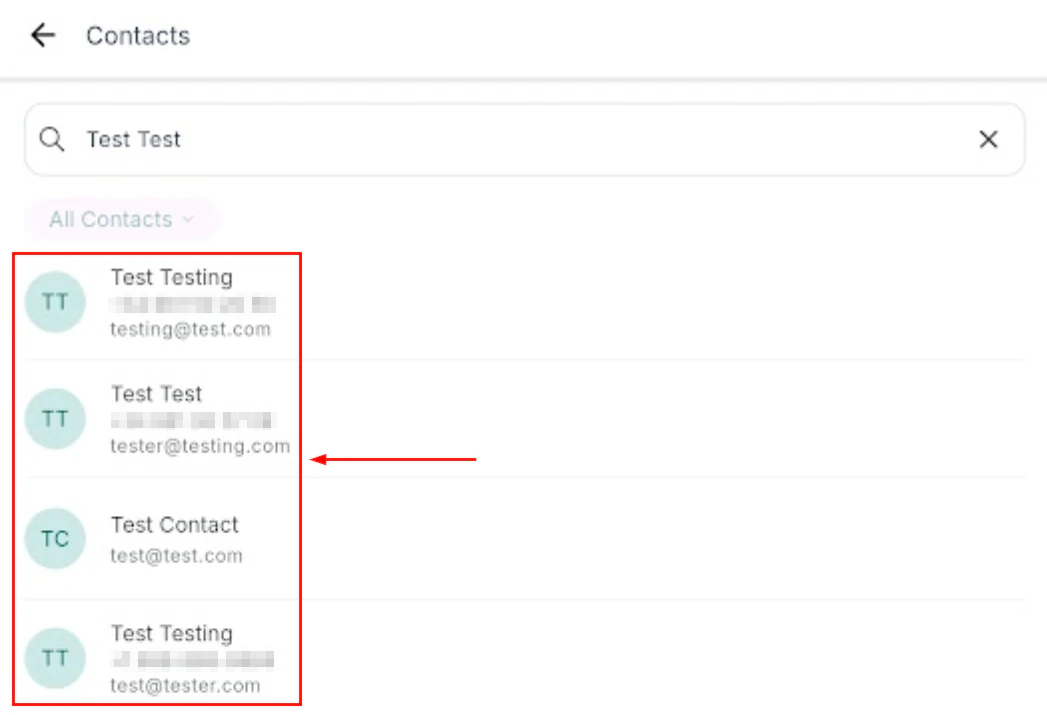
The contacts list displays each contact's name, phone number, and email at a glance.
## Browsing contacts
The contacts list displays each contact's name, phone number, and email at a glance.
 * Tap a contact to open their full profile
* Long-press a contact tile to quickly copy or share contact details without opening the full record
***
## Contact profile
The contact profile consolidates all key information on a single screen.
* Tap a contact to open their full profile
* Long-press a contact tile to quickly copy or share contact details without opening the full record
***
## Contact profile
The contact profile consolidates all key information on a single screen.
 * **Details** — name, phone, email, address, and all standard and custom fields
* **Activity** — a timeline of all interactions (calls, messages, emails, appointments)
* **Notes** — supports HTML content and hyperlinks for rich documentation
* **Tasks** — view and create tasks linked to the contact
* **Opportunities** — see all deals associated with the contact
* **Payments** — view invoices and payment history
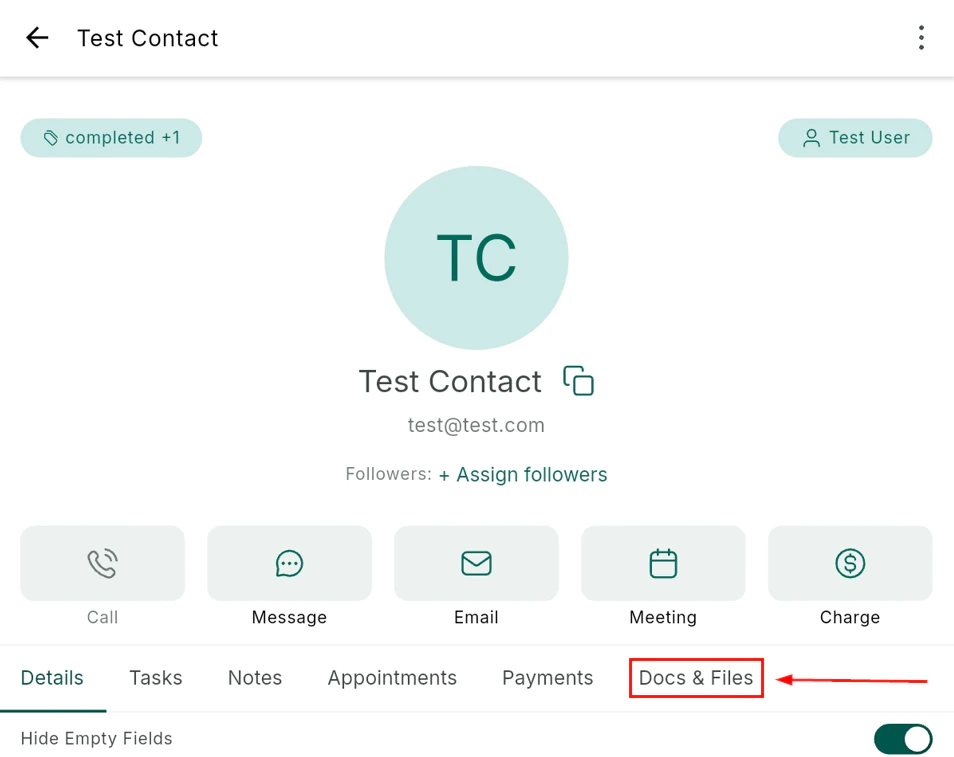
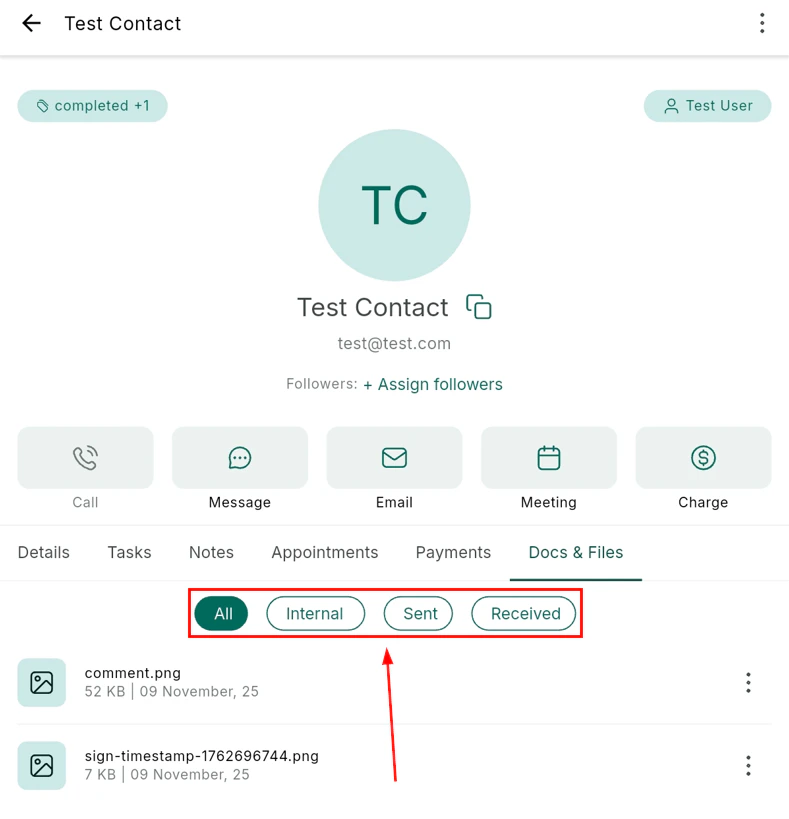
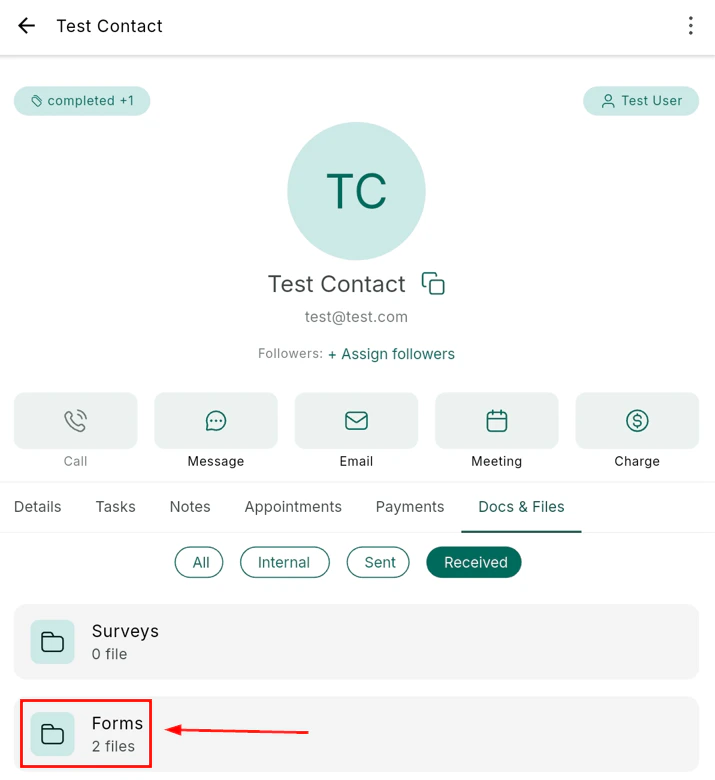
* **Documents & files** — access and open attached documents without downloading
***
## Contact actions
Tap the **Actions** button on a contact profile to access quick communication options:
* **Details** — name, phone, email, address, and all standard and custom fields
* **Activity** — a timeline of all interactions (calls, messages, emails, appointments)
* **Notes** — supports HTML content and hyperlinks for rich documentation
* **Tasks** — view and create tasks linked to the contact
* **Opportunities** — see all deals associated with the contact
* **Payments** — view invoices and payment history
* **Documents & files** — access and open attached documents without downloading
***
## Contact actions
Tap the **Actions** button on a contact profile to access quick communication options:
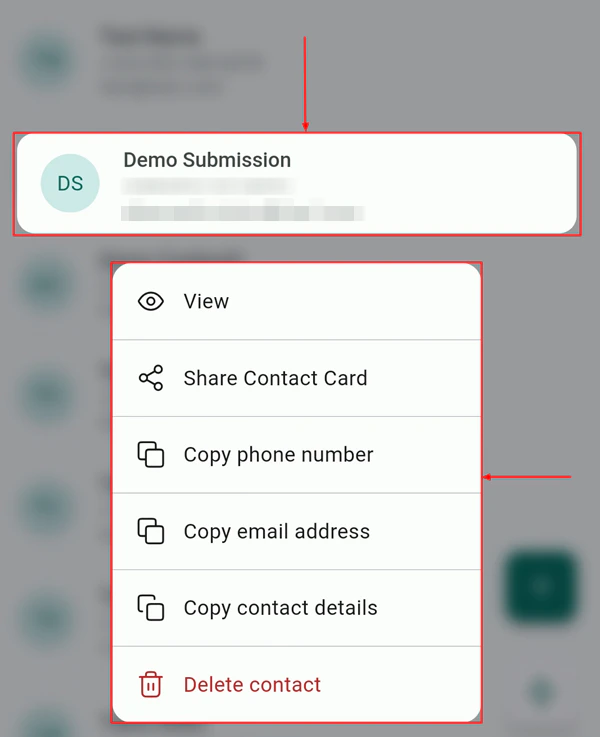 * **Call** — open the dialer and call the contact
* **SMS** — open a text message conversation
* **Email** — compose an email
* **Book a meeting** — open the appointment scheduler
* **Charge** — initiate a payment transaction
### Charge a contact directly
Tap **Charge** from the contact actions to immediately open the POS or payment flow with that contact pre-loaded.
* **Call** — open the dialer and call the contact
* **SMS** — open a text message conversation
* **Email** — compose an email
* **Book a meeting** — open the appointment scheduler
* **Charge** — initiate a payment transaction
### Charge a contact directly
Tap **Charge** from the contact actions to immediately open the POS or payment flow with that contact pre-loaded.
 ### View and manage tasks
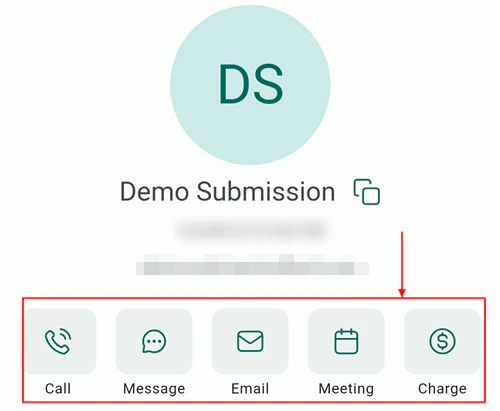
Tap **Tasks** from the contact profile to view all tasks linked to the contact, and create new ones.
### View and manage tasks
Tap **Tasks** from the contact profile to view all tasks linked to the contact, and create new ones.
 ***
## Three-dot menu
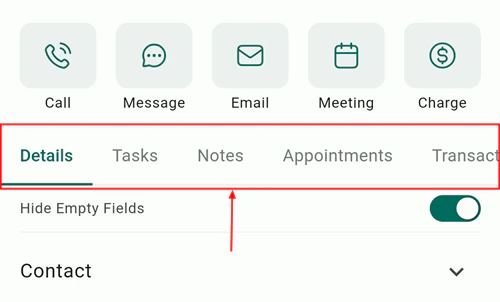
Tap the three-dot menu in the top-right corner of the contact profile for additional options:
***
## Three-dot menu
Tap the three-dot menu in the top-right corner of the contact profile for additional options:
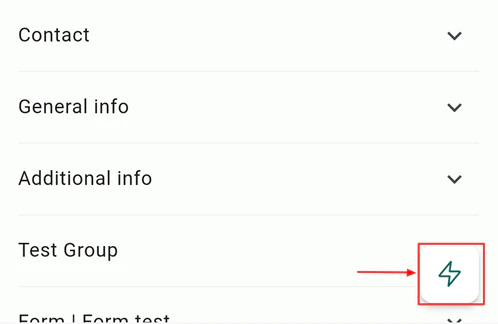 * **Edit** — update contact details
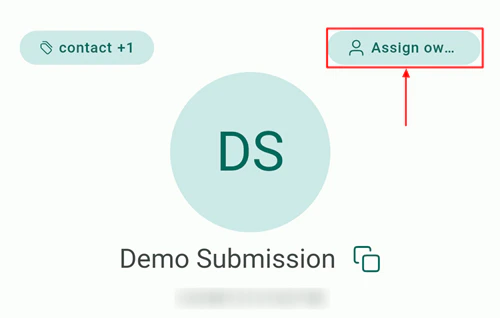
* **Assign owner** — assign the contact to a specific team member
* **Hide empty fields** — toggle to show only fields that have data entered
* **Share contact** — share the contact record via another app
* **Delete** — remove the contact
### Assigning an owner
Tap **Assign owner** and select the team member responsible for this contact. The owner assignment syncs instantly with the desktop platform.
* **Edit** — update contact details
* **Assign owner** — assign the contact to a specific team member
* **Hide empty fields** — toggle to show only fields that have data entered
* **Share contact** — share the contact record via another app
* **Delete** — remove the contact
### Assigning an owner
Tap **Assign owner** and select the team member responsible for this contact. The owner assignment syncs instantly with the desktop platform.
 ***
## Tags management
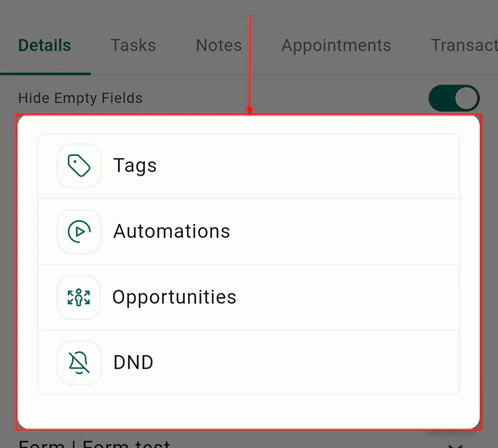
Add or remove tags directly from the contact profile. Tags help with segmentation, automation triggers, and smart lists.
***
## Tags management
Add or remove tags directly from the contact profile. Tags help with segmentation, automation triggers, and smart lists.
 ***
## Business card scanner
Create new contacts by scanning a business card with your device camera. The scanner automatically extracts name, phone, email, and other fields — no manual typing required.
***
## Business card scanner
Create new contacts by scanning a business card with your device camera. The scanner automatically extracts name, phone, email, and other fields — no manual typing required.
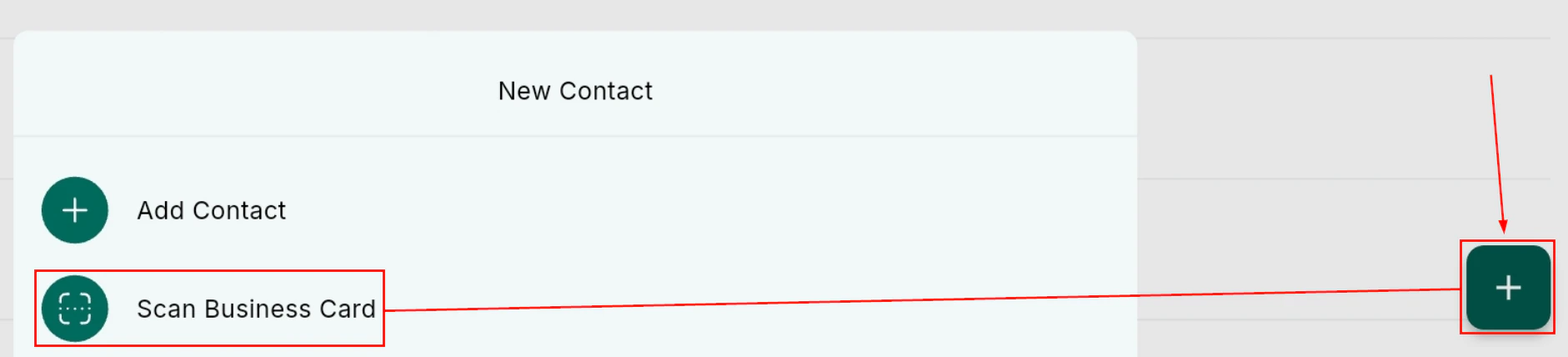
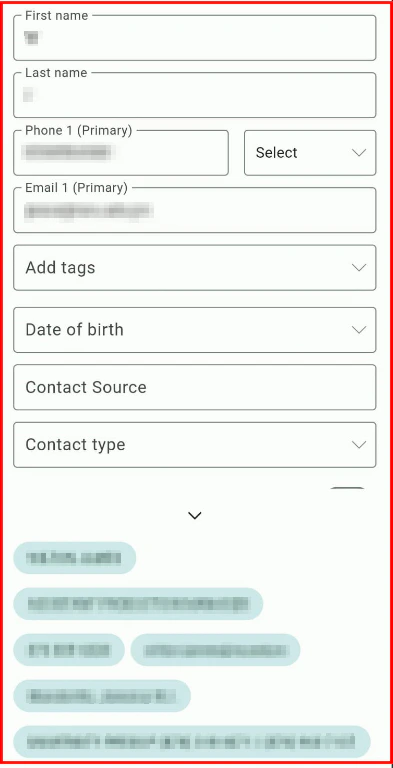 See [Getting started](/mobile-app/getting-started) for the full step-by-step business card scanning guide.
***
## Documents and files
Access documents and files attached to a contact directly from the contact profile. You can open, preview, and upload files without leaving the mobile app.
See [Getting started](/mobile-app/getting-started) for the full step-by-step business card scanning guide.
***
## Documents and files
Access documents and files attached to a contact directly from the contact profile. You can open, preview, and upload files without leaving the mobile app.
 ***
## Frequently asked questions
Yes — tapping an address field opens Google Maps or Apple Maps for navigation.
Yes — documents attached to a contact can be opened and previewed directly from the contact screen.
Yes — all custom fields created in Settings are visible and editable on contact profiles in the mobile app.
***
## Related articles
* [Getting started with the mobile app](/mobile-app/getting-started)
* [Conversations on mobile](/mobile-app/conversations)
* [Custom fields](/settings/custom-fields)
* [Tags](/settings/tags)
***
## Frequently asked questions
Yes — tapping an address field opens Google Maps or Apple Maps for navigation.
Yes — documents attached to a contact can be opened and previewed directly from the contact screen.
Yes — all custom fields created in Settings are visible and editable on contact profiles in the mobile app.
***
## Related articles
* [Getting started with the mobile app](/mobile-app/getting-started)
* [Conversations on mobile](/mobile-app/conversations)
* [Custom fields](/settings/custom-fields)
* [Tags](/settings/tags)