> ## Documentation Index
> Fetch the complete documentation index at: https://help.hoopai.com/llms.txt
> Use this file to discover all available pages before exploring further.
# HoopAI mobile app: calendars and appointments
> Book, manage, and share appointments on the HoopAI mobile app. Supports recurring series, service calendars, and iOS and Android.
The Calendars section in the mobile app gives you full access to your scheduling tools on the go. View upcoming appointments, book new ones, manage recurring series, accept service appointment payments, and share your booking link — all from your phone.
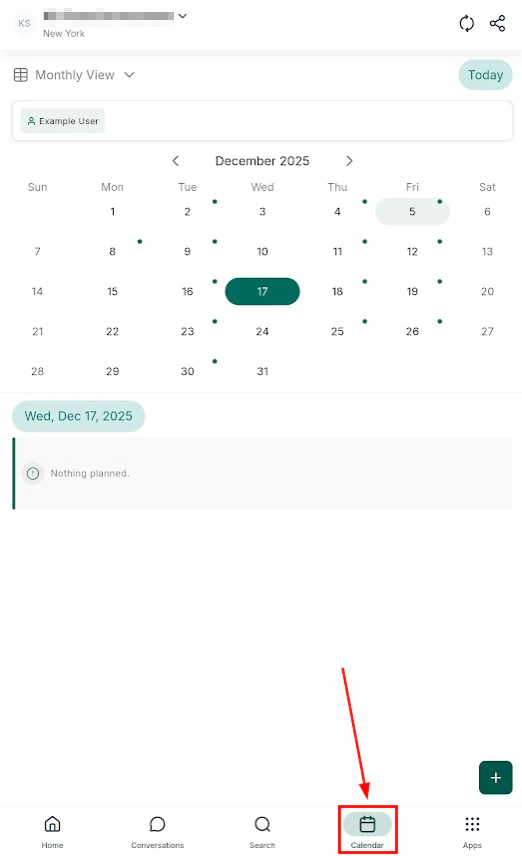
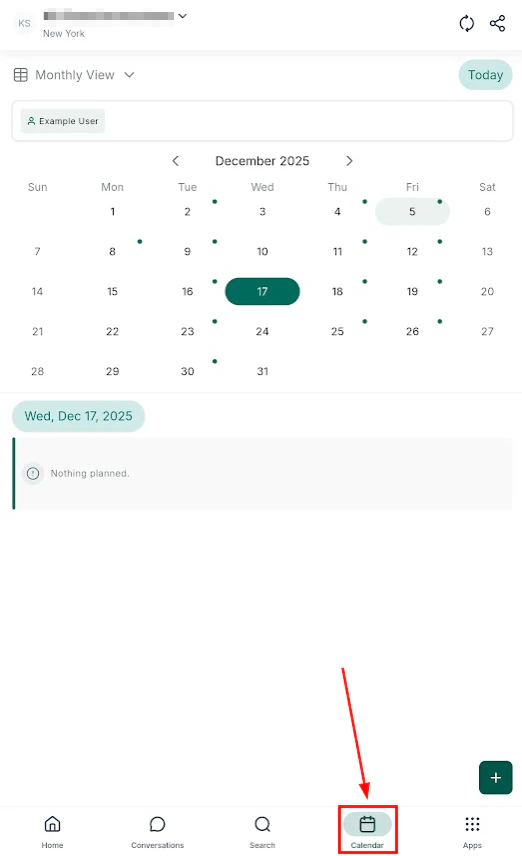
Open the mobile app and tap the **Calendar icon** (planner) in the navigation.
 ## Calendar views
Switch between views to see your schedule the way you prefer:
## Calendar views
Switch between views to see your schedule the way you prefer:
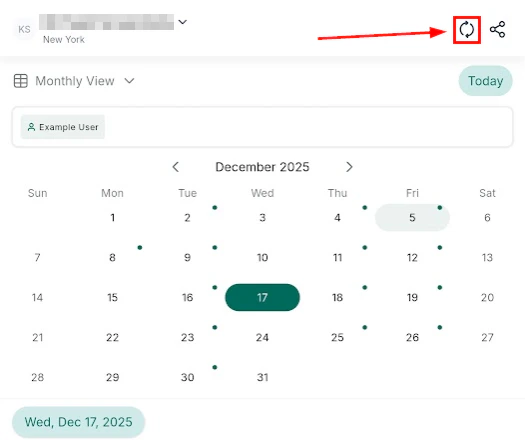
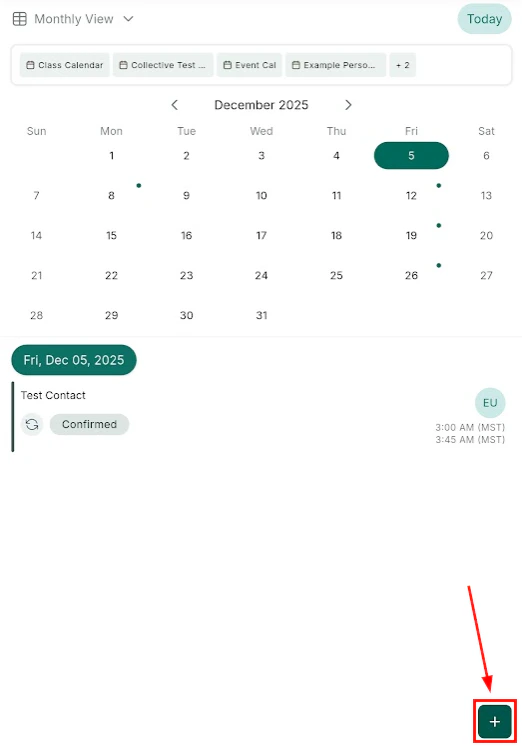 Tap the grid icon to toggle between monthly and list view. Tap a contact's name on the calendar to open the full appointment details.
 ### Selecting calendars and users
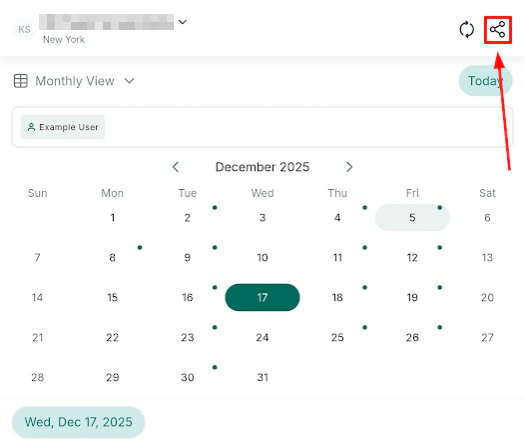
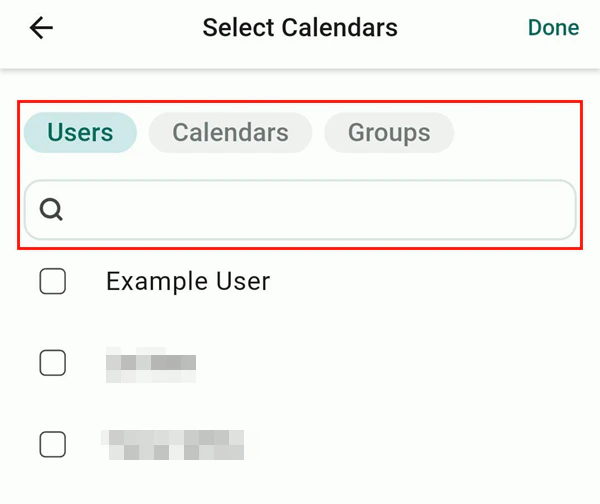
Tap **Select Calendars** to filter which calendars are displayed. Filter by **Users** to show appointments for specific team members.
### Selecting calendars and users
Tap **Select Calendars** to filter which calendars are displayed. Filter by **Users** to show appointments for specific team members.
 ***
## Booking a new appointment
Navigate to the Calendars tab in the mobile app.
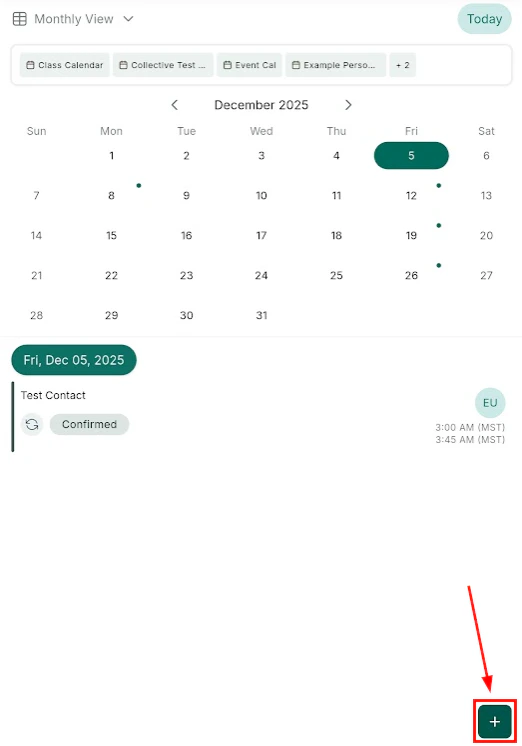
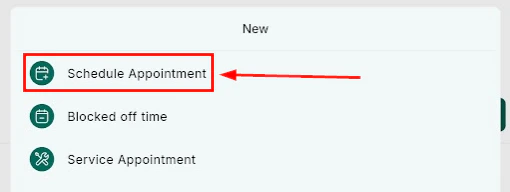
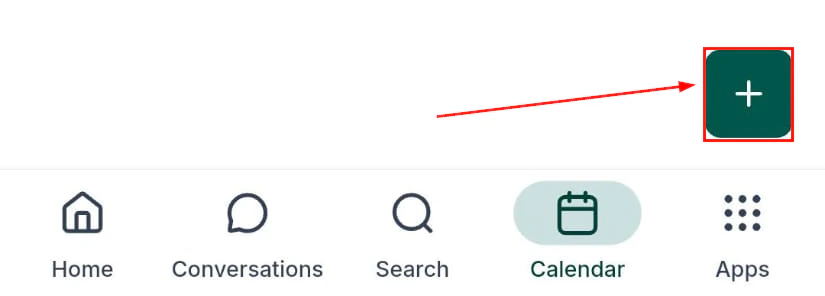
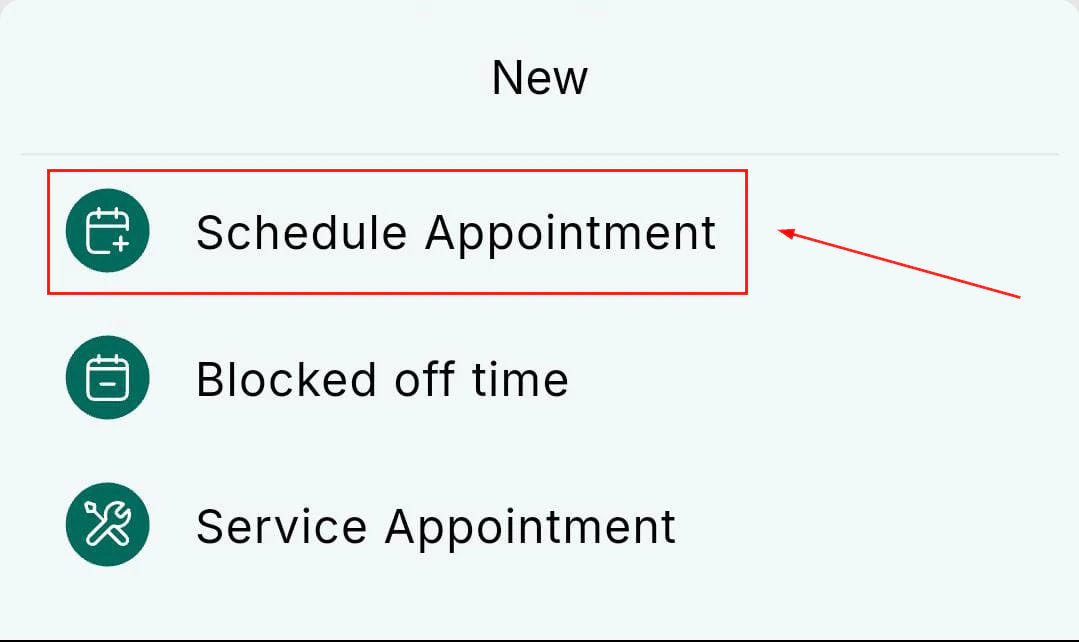
Tap the **+** button and select **Schedule Appointment**.
***
## Booking a new appointment
Navigate to the Calendars tab in the mobile app.
Tap the **+** button and select **Schedule Appointment**.
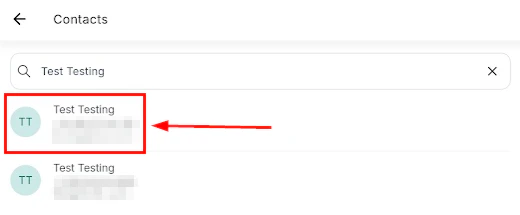
 Choose the contact who will attend the appointment.
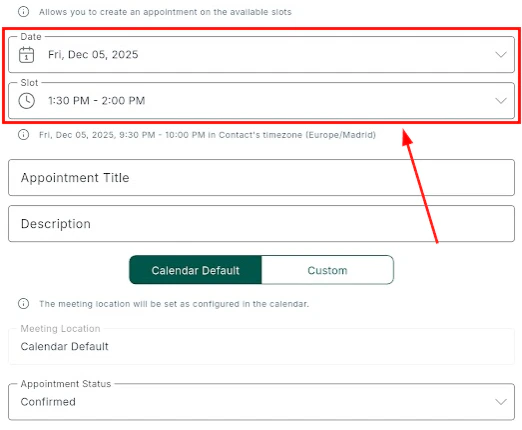
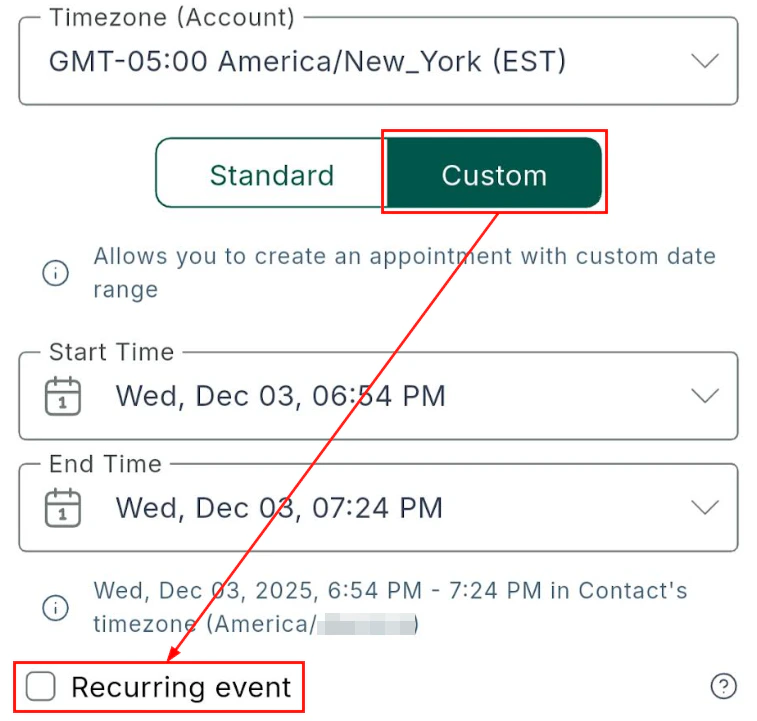
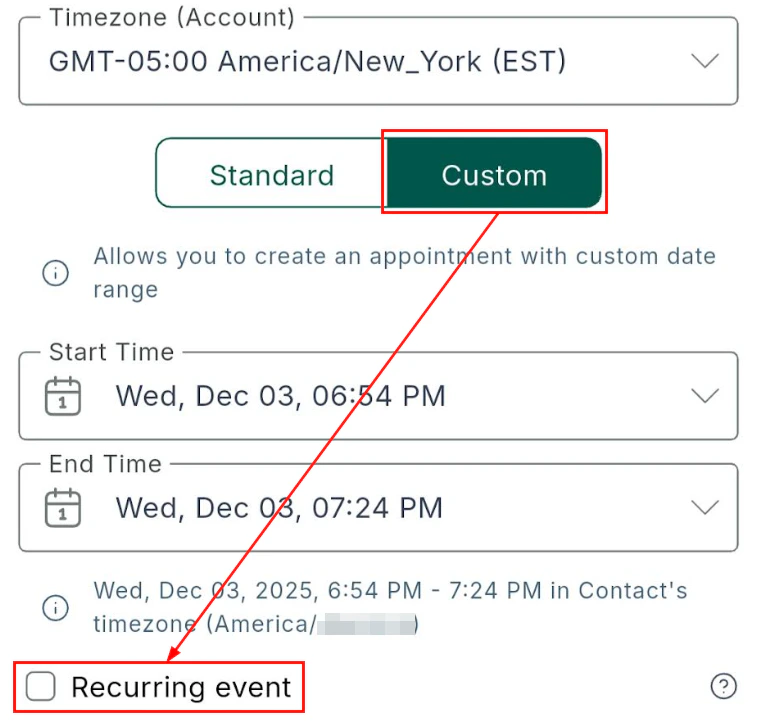
 Select the timezone, date, and time. Choose **Custom** to enter a specific time manually.
 Enter an appointment title and optional description. The location defaults to the calendar's configured location but can be changed.
Review the appointment details and tap **Save**.
Enter an appointment title and optional description. The location defaults to the calendar's configured location but can be changed.
Review the appointment details and tap **Save**.
 ***
## Recurring appointments
When booking an appointment, enable the recurring option to set up a repeating schedule.
***
## Recurring appointments
When booking an appointment, enable the recurring option to set up a repeating schedule.
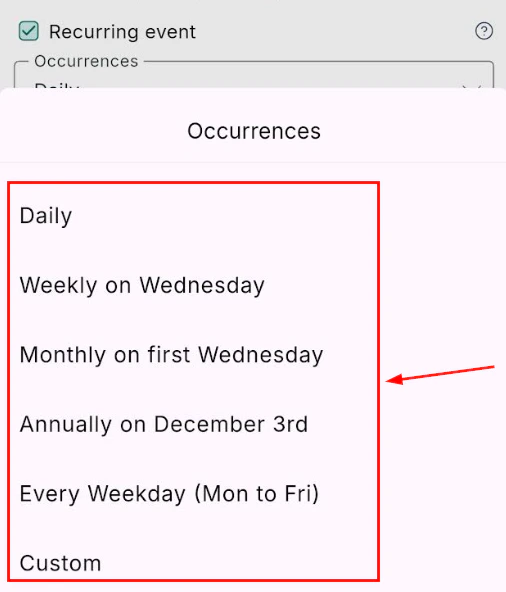
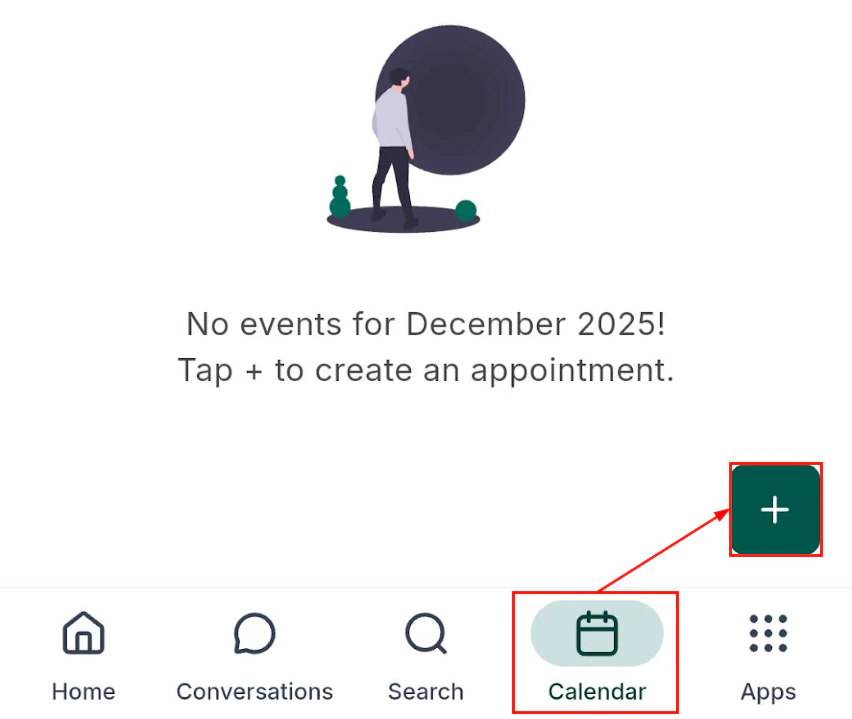 The app supports these recurrence patterns:
* **Daily** — repeat every day
* **Weekly** — repeat each week on the same day
* **Bi-weekly** — repeat every two weeks
* **Monthly** — repeat on the same date each month
The app supports these recurrence patterns:
* **Daily** — repeat every day
* **Weekly** — repeat each week on the same day
* **Bi-weekly** — repeat every two weeks
* **Monthly** — repeat on the same date each month
 When editing or cancelling a recurring appointment, you will be asked whether to apply the change to:
* This occurrence only
* This and all following occurrences
* All occurrences in the series
***
## Service calendars
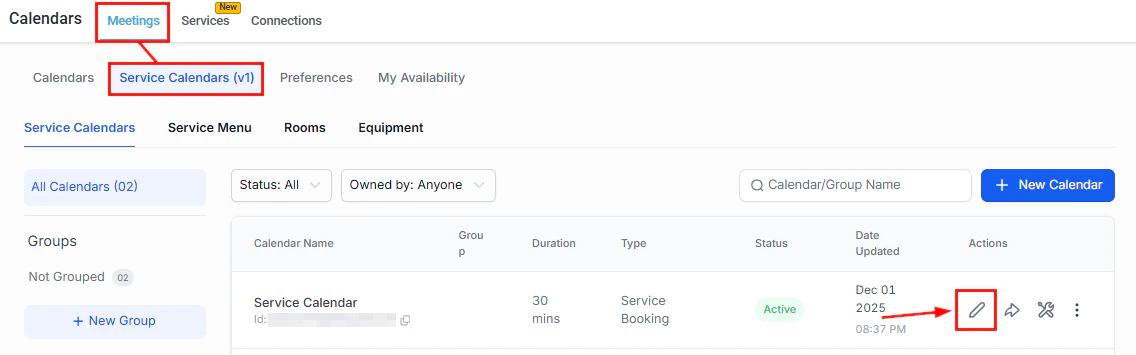
Service calendars with multiple service types, durations, and pricing are fully supported on mobile.
When editing or cancelling a recurring appointment, you will be asked whether to apply the change to:
* This occurrence only
* This and all following occurrences
* All occurrences in the series
***
## Service calendars
Service calendars with multiple service types, durations, and pricing are fully supported on mobile.
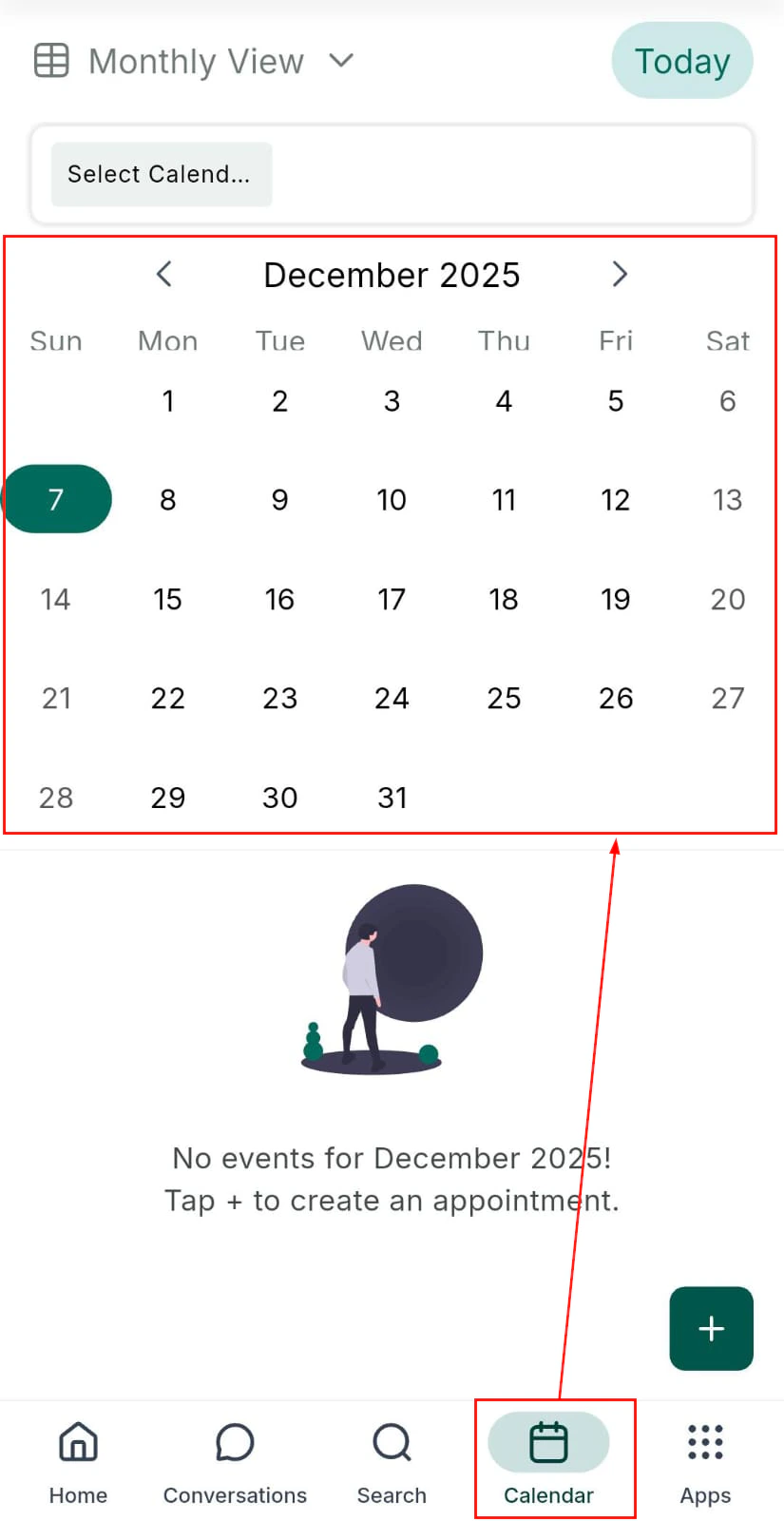 Navigate to the Calendars tab and tap **+**, then select **Schedule Appointment**.
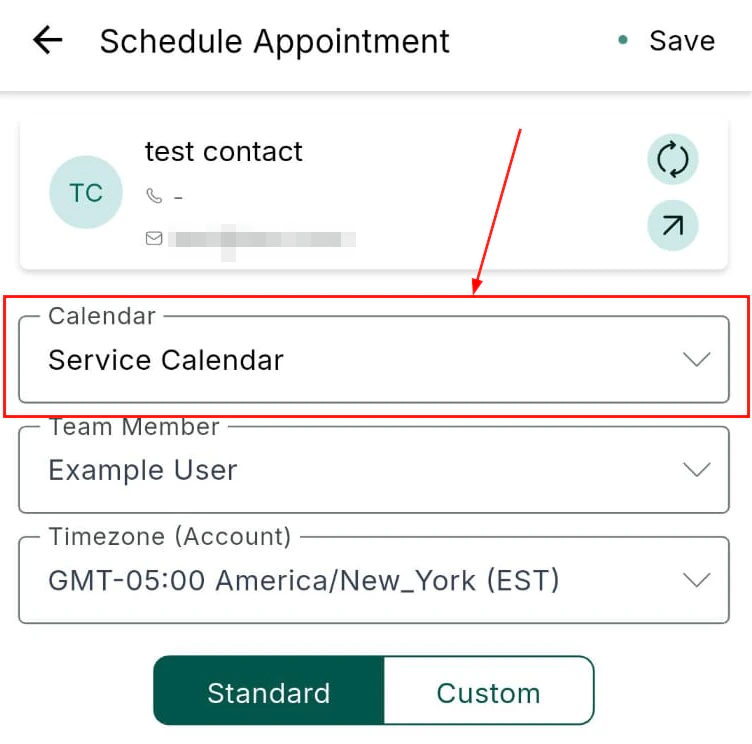
 Choose from your available service calendars.
 Select the date, time, and service duration.
 Review and save the service appointment. The client receives a confirmation automatically if configured.
***
## Accepting payments for service appointments
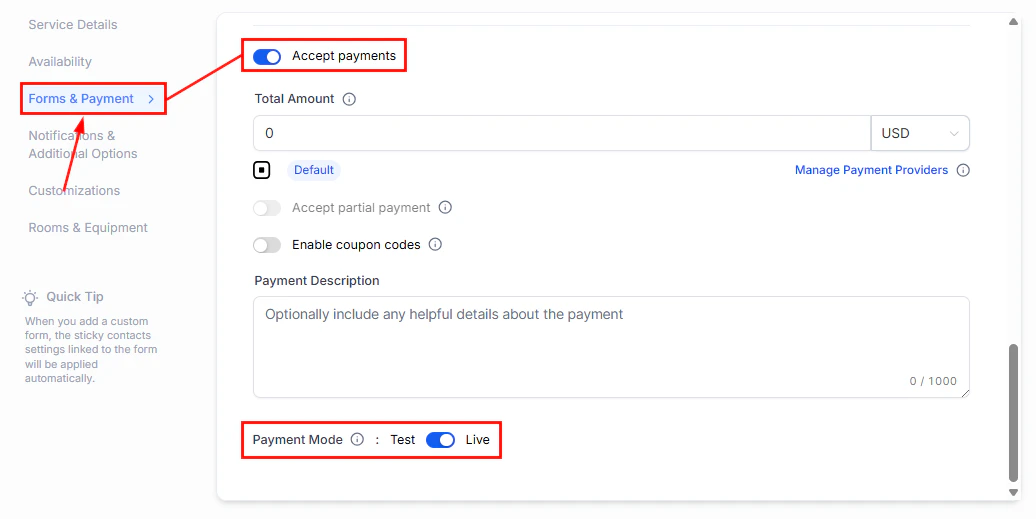
Collect payment for a service appointment directly within the mobile app — including Tap to Pay and saved cards.
Review and save the service appointment. The client receives a confirmation automatically if configured.
***
## Accepting payments for service appointments
Collect payment for a service appointment directly within the mobile app — including Tap to Pay and saved cards.
 ***
## Blocking time
To prevent bookings during unavailable periods:
1. Tap the **+** icon in the Calendar tab
2. Select **Block Time**
3. Set the date, time, and duration
4. Save to prevent appointments from being scheduled during that window
***
## Sharing your booking link
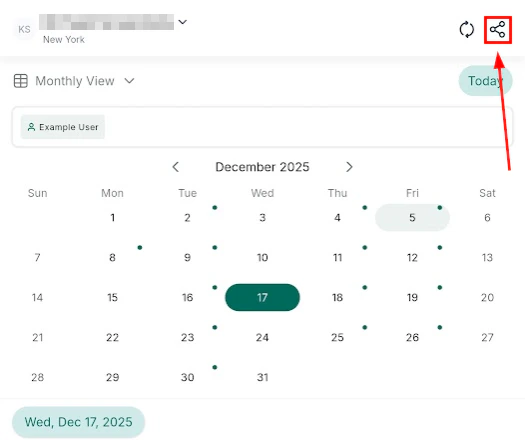
Tap the **three-dot menu** in the upper-right corner to open your scheduling link. Choose between:
* **One-time use link** — expires after a single booking
* **Reusable scheduling link** — allows ongoing access for repeated bookings
***
## Related articles
* [Contacts on mobile](/mobile-app/contacts)
* [Appointment report](/reporting/appointment-report)
* [Calendars overview](/calendars/overview)
***
## Blocking time
To prevent bookings during unavailable periods:
1. Tap the **+** icon in the Calendar tab
2. Select **Block Time**
3. Set the date, time, and duration
4. Save to prevent appointments from being scheduled during that window
***
## Sharing your booking link
Tap the **three-dot menu** in the upper-right corner to open your scheduling link. Choose between:
* **One-time use link** — expires after a single booking
* **Reusable scheduling link** — allows ongoing access for repeated bookings
***
## Related articles
* [Contacts on mobile](/mobile-app/contacts)
* [Appointment report](/reporting/appointment-report)
* [Calendars overview](/calendars/overview)