> ## Documentation Index
> Fetch the complete documentation index at: https://help.hoopai.com/llms.txt
> Use this file to discover all available pages before exploring further.
# Student Progress Tracking
> Monitor member progress, quiz results, and course completion across all courses in the Hoop platform.
The Hoop platform tracks each member's progress through every course they are enrolled in. As an admin, you can see completion rates, quiz scores, last activity dates, and revenue data — all from the Courses analytics dashboard and individual member records.
## What is tracked
| Data point | Where to find it |
| -------------------------- | ----------------------- |
| Lessons completed vs total | Members tab in Courses |
| Completion percentage | Members tab in Courses |
| Last active date | Members tab in Courses |
| Quiz scores | Analytics > Assessments |
| Revenue generated | Analytics > Revenue |
| Member activity data | Analytics > Member Data |
***
## Viewing progress in the Courses dashboard
The Courses dashboard gives you a centralized view of performance across all your courses.
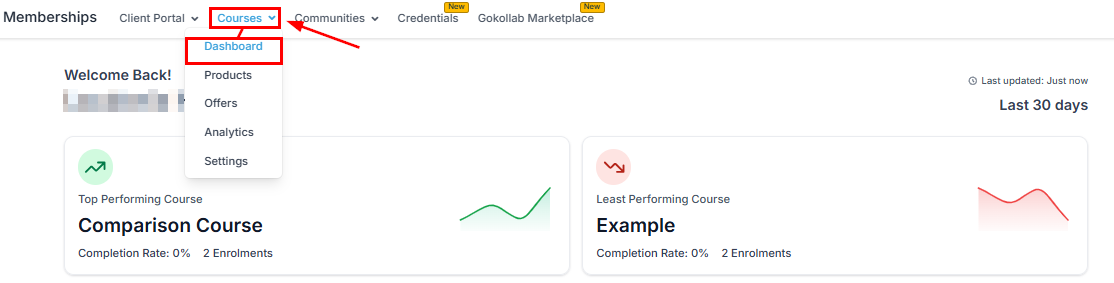
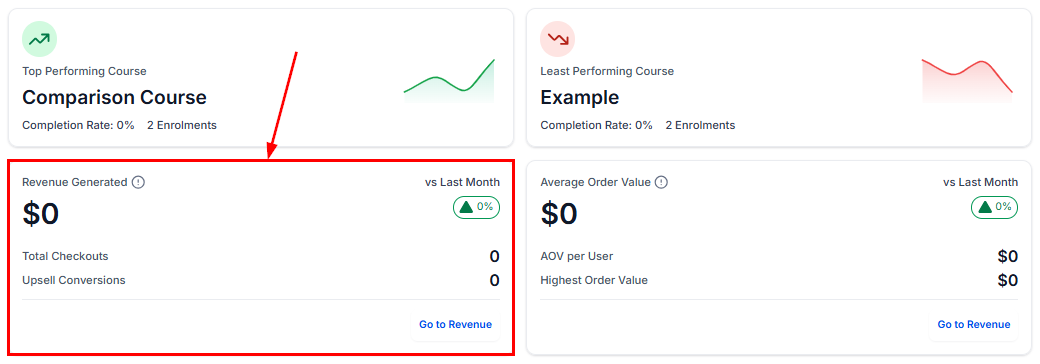
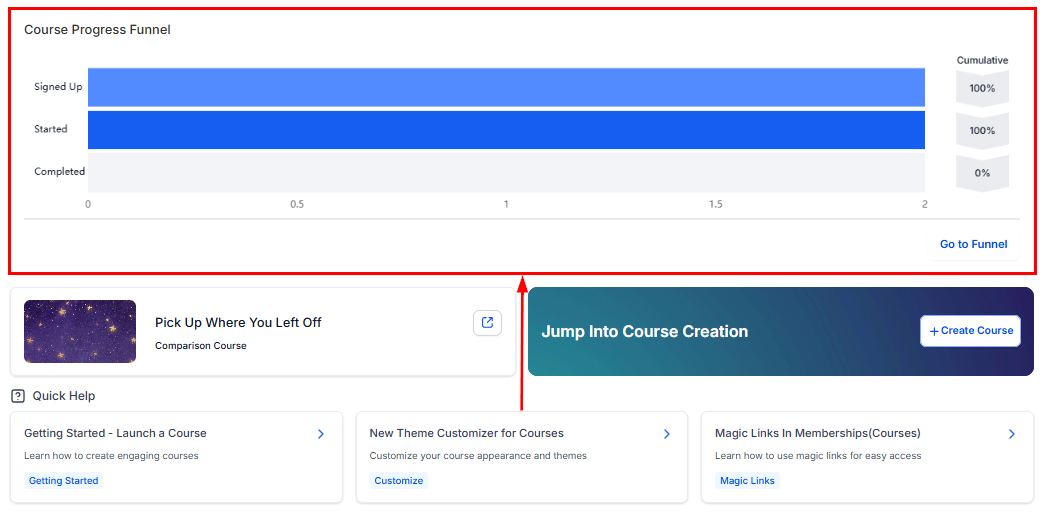 Navigate to **Memberships and Communities > Courses** and click the **Dashboard** tab to access these metrics.
***
## Viewing individual member progress
To see a specific member's progress:
Navigate to **Memberships and Communities > Courses** and click the **Members** tab.
Use the search bar to find the member by name or email address.
The member row shows all courses they are enrolled in, the number of lessons completed, their completion percentage, and their last active date.
Click the member's name to open their detail view and see a lesson-by-lesson breakdown of what they have completed, skipped, or not yet started.
***
## Viewing progress in membership analytics
The Analytics section provides deeper reporting across all members and courses.
Navigate to **Memberships and Communities > Courses** and click the **Dashboard** tab to access these metrics.
***
## Viewing individual member progress
To see a specific member's progress:
Navigate to **Memberships and Communities > Courses** and click the **Members** tab.
Use the search bar to find the member by name or email address.
The member row shows all courses they are enrolled in, the number of lessons completed, their completion percentage, and their last active date.
Click the member's name to open their detail view and see a lesson-by-lesson breakdown of what they have completed, skipped, or not yet started.
***
## Viewing progress in membership analytics
The Analytics section provides deeper reporting across all members and courses.
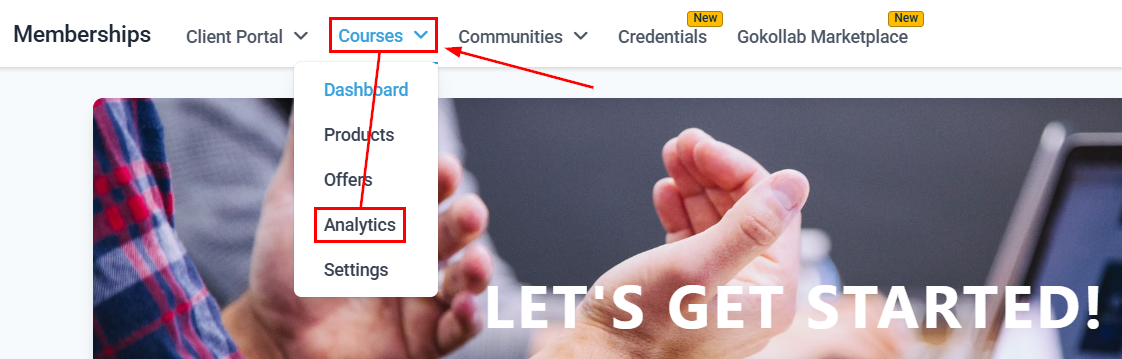
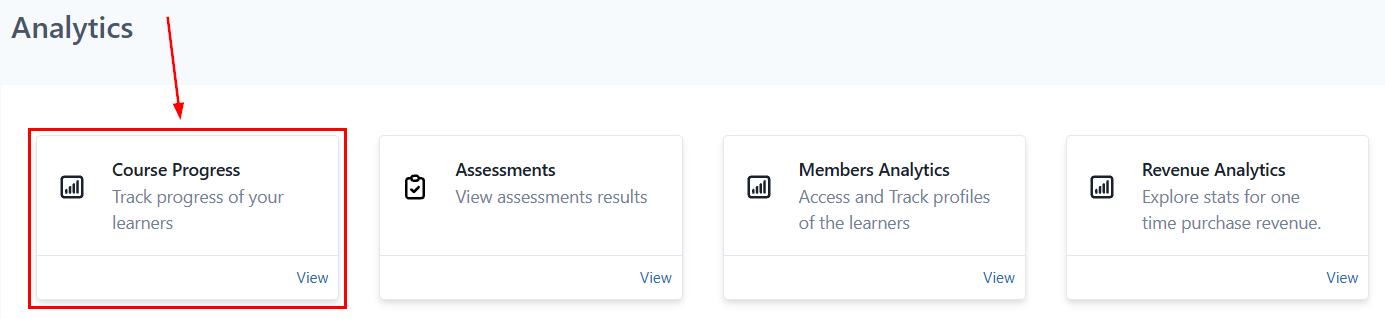
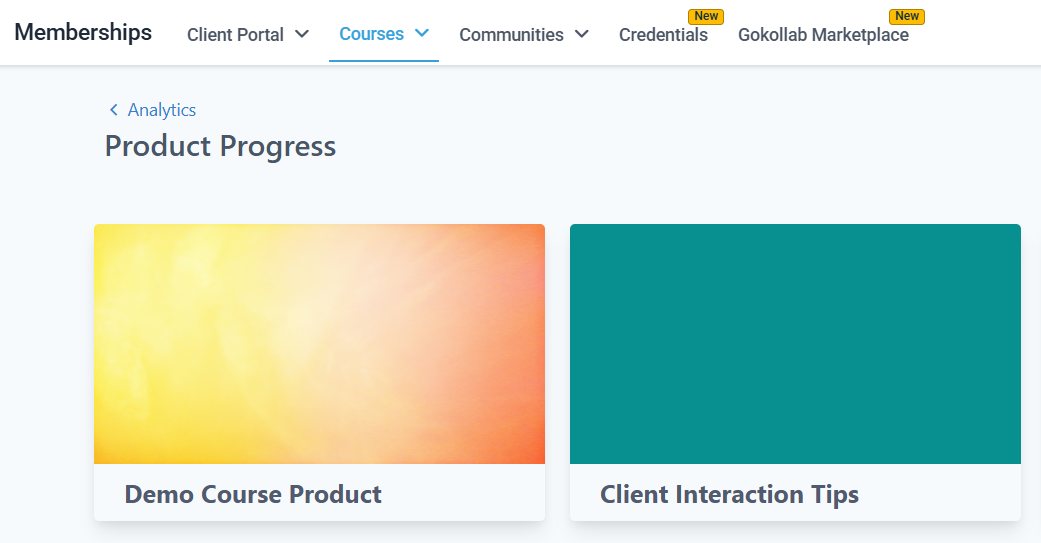
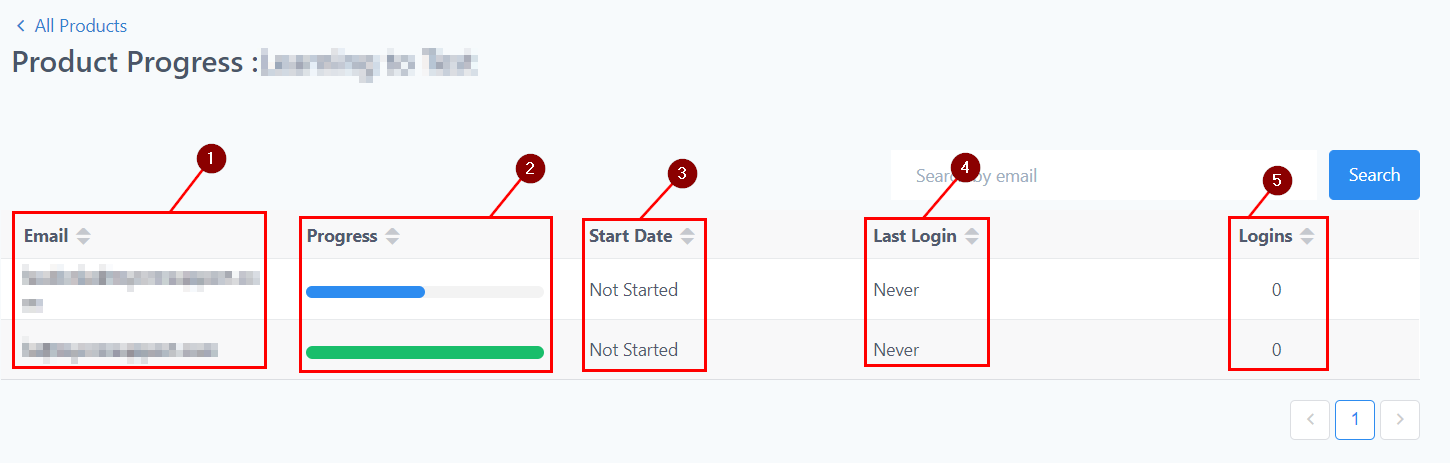 Navigate to **Memberships and Communities > Courses > Analytics** to access:
* **Progress** — completion rates per course and per member
* **Assessments** — quiz scores and pass/fail rates across all members
* **Revenue** — revenue generated, broken down by offer and time period
* **Member Data** — individual activity records including enrollment date, last login, and lessons completed
***
## Using progress data in automations
Member progress data can trigger automations:
| Trigger | Use case |
| ----------------- | --------------------------------------------------------------------------------- |
| Course Completed | Issue a certificate, send a congratulations email, grant access to a bonus course |
| Lesson Completed | Send a follow-up resource or prompt to complete the next lesson |
| Assessment Passed | Unlock the next module or notify the member of their result |
| Assessment Failed | Send encouragement and a link to review the material before retrying |
Navigate to **Automation** and click **+ New Workflow**.
Select one of the course-related triggers: **Course Completed**, **Lesson Completed**, **Assessment Passed**, or **Assessment Failed**.
Choose the specific course the trigger applies to (and the specific lesson or assessment if relevant).
Add actions such as **Send Email**, **Grant Certificate**, **Add Tag**, or **Grant Membership Access** to respond to the progress event.
Toggle the workflow to **Active**.
***
## Re-enrolling or resetting a member's progress
To reset a member's progress and allow them to restart a course:
1. Go to the member's contact record in **Contacts**.
2. Click the **Actions** tab and select **Client Portal**.
3. Find the course and select the option to reset or re-enroll the member.
Resetting progress removes all completed lesson marks and quiz scores for that member in the selected course. This action cannot be undone.
***
## Exporting member progress data
To export progress data as a CSV:
1. Navigate to **Memberships and Communities > Courses > Analytics > Member Data**.
2. Apply any filters (date range, specific course, completion status).
3. Click **Export** to download the data.
The CSV includes enrollment date, last active date, lessons completed, completion percentage, quiz scores, and revenue attributed to each member.
***
## Frequently asked questions
Yes. Click the member's name in the Members tab to open their detail view. This shows a lesson-by-lesson breakdown including which lessons are completed, in progress, or not yet started, along with the date each lesson was marked complete.
Yes. Members see a progress bar on every course card in their portal showing how many lessons they have completed. Individual lesson thumbnails display a checkmark when completed. Members can also view their quiz scores and certificate status from their portal.
A course is considered complete when all lessons have been marked as complete — either by the member clicking **Mark as Complete** (manual), by watching the required percentage of a video, or by passing a quiz (depending on how each lesson's completion criteria is configured).
Yes. The Courses dashboard shows aggregate completion data across all courses. Navigate to the Dashboard tab to see best and worst performing courses, average completion rates, and revenue data for the last 30 days.
Yes. All quiz scores are stored and visible in the Assessments tab of the Analytics section. You can see scores per member, per quiz, and filter by course or date range.
Navigate to **Memberships and Communities > Courses > Analytics** to access:
* **Progress** — completion rates per course and per member
* **Assessments** — quiz scores and pass/fail rates across all members
* **Revenue** — revenue generated, broken down by offer and time period
* **Member Data** — individual activity records including enrollment date, last login, and lessons completed
***
## Using progress data in automations
Member progress data can trigger automations:
| Trigger | Use case |
| ----------------- | --------------------------------------------------------------------------------- |
| Course Completed | Issue a certificate, send a congratulations email, grant access to a bonus course |
| Lesson Completed | Send a follow-up resource or prompt to complete the next lesson |
| Assessment Passed | Unlock the next module or notify the member of their result |
| Assessment Failed | Send encouragement and a link to review the material before retrying |
Navigate to **Automation** and click **+ New Workflow**.
Select one of the course-related triggers: **Course Completed**, **Lesson Completed**, **Assessment Passed**, or **Assessment Failed**.
Choose the specific course the trigger applies to (and the specific lesson or assessment if relevant).
Add actions such as **Send Email**, **Grant Certificate**, **Add Tag**, or **Grant Membership Access** to respond to the progress event.
Toggle the workflow to **Active**.
***
## Re-enrolling or resetting a member's progress
To reset a member's progress and allow them to restart a course:
1. Go to the member's contact record in **Contacts**.
2. Click the **Actions** tab and select **Client Portal**.
3. Find the course and select the option to reset or re-enroll the member.
Resetting progress removes all completed lesson marks and quiz scores for that member in the selected course. This action cannot be undone.
***
## Exporting member progress data
To export progress data as a CSV:
1. Navigate to **Memberships and Communities > Courses > Analytics > Member Data**.
2. Apply any filters (date range, specific course, completion status).
3. Click **Export** to download the data.
The CSV includes enrollment date, last active date, lessons completed, completion percentage, quiz scores, and revenue attributed to each member.
***
## Frequently asked questions
Yes. Click the member's name in the Members tab to open their detail view. This shows a lesson-by-lesson breakdown including which lessons are completed, in progress, or not yet started, along with the date each lesson was marked complete.
Yes. Members see a progress bar on every course card in their portal showing how many lessons they have completed. Individual lesson thumbnails display a checkmark when completed. Members can also view their quiz scores and certificate status from their portal.
A course is considered complete when all lessons have been marked as complete — either by the member clicking **Mark as Complete** (manual), by watching the required percentage of a video, or by passing a quiz (depending on how each lesson's completion criteria is configured).
Yes. The Courses dashboard shows aggregate completion data across all courses. Navigate to the Dashboard tab to see best and worst performing courses, average completion rates, and revenue data for the last 30 days.
Yes. All quiz scores are stored and visible in the Assessments tab of the Analytics section. You can see scores per member, per quiz, and filter by course or date range.