> ## Documentation Index
> Fetch the complete documentation index at: https://help.hoopai.com/llms.txt
> Use this file to discover all available pages before exploring further.
# Live Events
> Schedule and host live Q&A sessions, workshops, and community events with RSVP and calendar integration in the HoopAI platform.
Live events bring real-time interaction to your community. Whether you run weekly office hours, monthly workshops, milestone celebrations, or cohort kickoffs, the Events channel type in the HoopAI platform lets you schedule events, manage RSVPs, send reminders, and keep a calendar of upcoming sessions — all without leaving the community interface.
## What are community events?
A community event is a scheduled session tied to a specific date and time. Members can view upcoming events in a calendar view, RSVP to attend, and receive automated reminders before the session begins. Events can be linked to external video call platforms (Zoom, Google Meet, or any URL-based meeting room) or embedded directly using an embed code.
***
 ## Creating an event
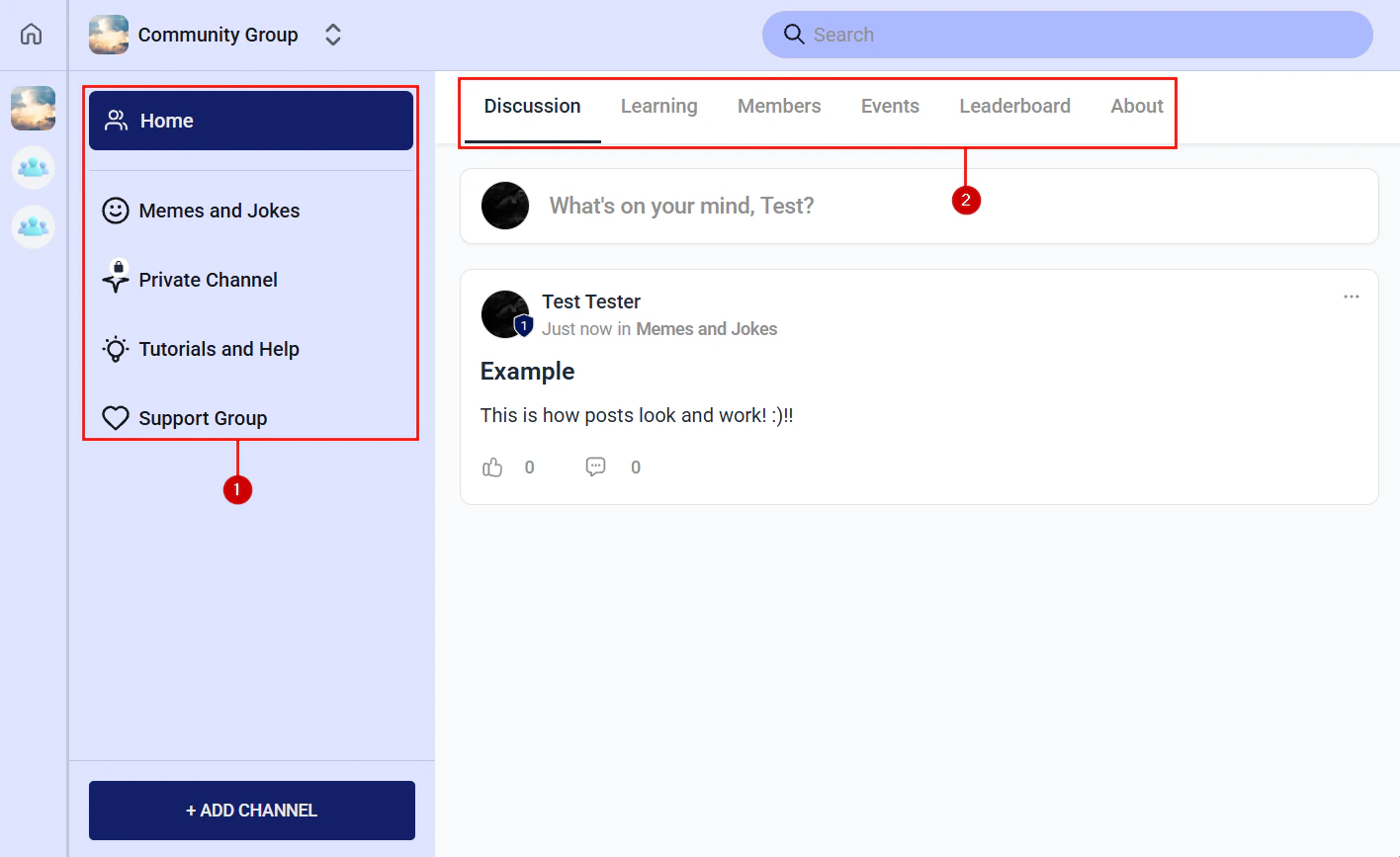
Navigate to **Memberships and Communities > Communities**, open your community, and select a group that has an **Events** channel. Click the **Events** tab.
If no Events channel exists, open the group settings, click **+ Add Channel**, and select **Events** as the channel type.
Click **+ New Event** or **Create Event** at the top of the Events channel.
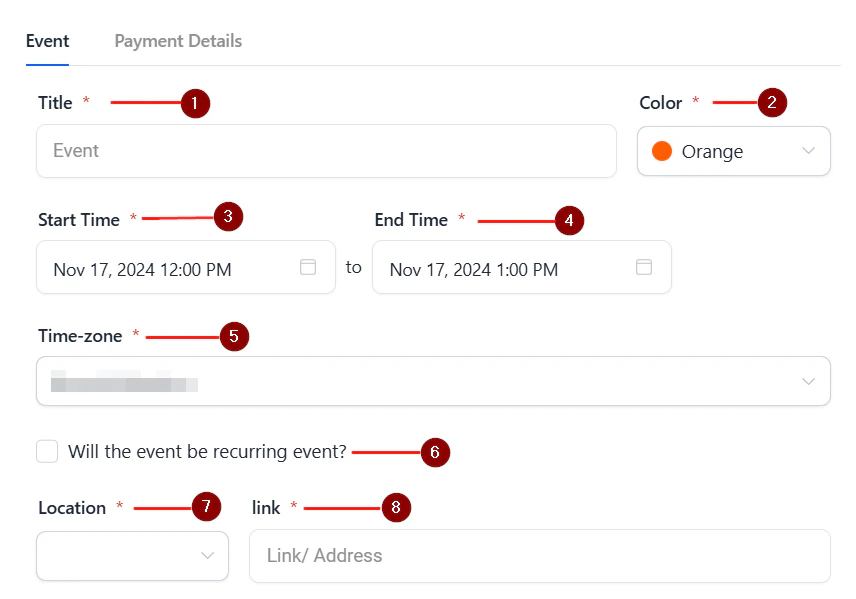
Fill in the event information:
* **Event title** — a clear, engaging name (e.g. "Live Q\&A: Your Top Marketing Questions Answered")
* **Description** — what members can expect, who it is for, and what they need to bring or prepare
* **Date and time** — set the start time and duration; the platform displays times in each member's local time zone
* **Location / link** — paste the Zoom, Google Meet, or other meeting URL; this is what members click to join
* **Cover image** — an optional event image displayed in the calendar and event card
Enable **RSVP** to allow members to indicate whether they plan to attend. You can cap attendance by setting a maximum RSVP limit (useful for intimate workshops where you want a controlled group size).
Click **Publish**. The event appears in the group's Events channel calendar and in the community activity feed. Members who have notifications enabled receive an alert about the new event.
***
## RSVP management
When RSVP is enabled for an event:
* Members see an **RSVP** button on the event card
* RSVP responses appear in the event's attendee list, visible to admins and moderators
* Members who RSVP receive reminder notifications before the event
* If you set a capacity limit, the RSVP button is disabled once the maximum is reached and shows a "Full" status
To view the RSVP list, open the event from the Events channel and click **Attendees**. You can see who has confirmed, who declined, and who has not yet responded.
***
## Creating an event
Navigate to **Memberships and Communities > Communities**, open your community, and select a group that has an **Events** channel. Click the **Events** tab.
If no Events channel exists, open the group settings, click **+ Add Channel**, and select **Events** as the channel type.
Click **+ New Event** or **Create Event** at the top of the Events channel.
Fill in the event information:
* **Event title** — a clear, engaging name (e.g. "Live Q\&A: Your Top Marketing Questions Answered")
* **Description** — what members can expect, who it is for, and what they need to bring or prepare
* **Date and time** — set the start time and duration; the platform displays times in each member's local time zone
* **Location / link** — paste the Zoom, Google Meet, or other meeting URL; this is what members click to join
* **Cover image** — an optional event image displayed in the calendar and event card
Enable **RSVP** to allow members to indicate whether they plan to attend. You can cap attendance by setting a maximum RSVP limit (useful for intimate workshops where you want a controlled group size).
Click **Publish**. The event appears in the group's Events channel calendar and in the community activity feed. Members who have notifications enabled receive an alert about the new event.
***
## RSVP management
When RSVP is enabled for an event:
* Members see an **RSVP** button on the event card
* RSVP responses appear in the event's attendee list, visible to admins and moderators
* Members who RSVP receive reminder notifications before the event
* If you set a capacity limit, the RSVP button is disabled once the maximum is reached and shows a "Full" status
To view the RSVP list, open the event from the Events channel and click **Attendees**. You can see who has confirmed, who declined, and who has not yet responded.
***
 ## Event reminders
The HoopAI platform sends automatic reminder notifications to members who have RSVP'd. You can supplement these with custom automations:
Navigate to **Automation** and click **+ New Workflow**.
Use a **Date & Time** trigger set to X hours or days before the event start time, or use the **Community Event RSVP** trigger to start the sequence from the moment a member RSVPs.
Add a **Send Email** action with event details and the join link, or a **Send SMS** action for a last-minute reminder. You can chain multiple reminders (e.g. 24 hours before and 1 hour before).
Toggle the workflow to **Active**.
Send a "What to expect today" email 1 hour before your live event. Include the join link prominently, a one-sentence summary of what you will cover, and what members should have ready. Attendance rates improve significantly with timely, specific reminders.
***
## Hosting the live session
The HoopAI platform provides the scheduling, RSVP, and reminder infrastructure for events, but the live video call itself runs on your chosen external platform (Zoom, Google Meet, Riverside, StreamYard, etc.). Best practices:
* **Post the replay** — after the session, upload the recording as a Video lesson in a course or as a post in the community feed so members who could not attend can catch up
* **Use the community chat channel** — have a Chat channel open during the event for members to ask questions, share reactions, and connect with each other in real time alongside the video call
* **Create a post-event summary** — publish a written recap with key takeaways and any links or resources mentioned during the session
***
## Recurring events
For events that repeat on a schedule (e.g. weekly office hours every Tuesday at 12pm), create a new event entry each week or set up a recurring event pattern:
1. When creating the event, look for the **Repeat** or **Recurring** option.
2. Set the frequency: daily, weekly, bi-weekly, or monthly.
3. Set the end date or total number of occurrences.
Recurring events appear as separate calendar entries, each with their own RSVP tracking.
***
## Linking events to course content
Events work well alongside courses — for example, a live Q\&A at the end of each course module where members can ask questions about what they have just learned:
* Create a group for each course module with both a Learning channel (containing the course content) and an Events channel (for the live session)
* Schedule the live event to coincide with the week members are expected to complete that module (based on your drip schedule)
* Reference the event in the drip notification email members receive when the module unlocks
This cohort-style structure significantly increases both course completion rates and community participation.
***
## Calendar view
The Events channel displays all scheduled events in a calendar view by default, with a list view also available. Members see:
* Upcoming events color-coded by group
* Their RSVP status on each event card
* A countdown timer on events happening within 24 hours
Admins see an additional management layer on each event card (edit, cancel, view RSVPs).
***
## Frequently asked questions
Yes. In the event settings, you can paste an embed code from supported streaming platforms instead of a join URL. The embedded stream plays inline inside the Events channel, so members do not need to leave the community to watch. Check your streaming platform's embed support for the specific code format required.
Community events are only visible to members who have access to the group containing the Events channel. If you want to promote an upcoming event to non-members (prospects), share the event description as a post on social media or send an email campaign with a link to your community signup page.
Yes. Each event card includes an **Add to Calendar** button that generates an ICS file or links to Google Calendar. Members click this to save the event to their preferred calendar app with the join link and event details pre-filled.
When the RSVP limit is reached, members can join a waitlist. If a confirmed attendee cancels, the first person on the waitlist receives a notification that a spot has opened and their RSVP is automatically confirmed (depending on your configuration).
Event-specific payments are not handled natively within the Events channel. For paid events, create a separate offer in your Courses/Memberships section, sell access through a checkout link, and then grant access to the relevant community group (which contains the event) via an automation after purchase.
## Event reminders
The HoopAI platform sends automatic reminder notifications to members who have RSVP'd. You can supplement these with custom automations:
Navigate to **Automation** and click **+ New Workflow**.
Use a **Date & Time** trigger set to X hours or days before the event start time, or use the **Community Event RSVP** trigger to start the sequence from the moment a member RSVPs.
Add a **Send Email** action with event details and the join link, or a **Send SMS** action for a last-minute reminder. You can chain multiple reminders (e.g. 24 hours before and 1 hour before).
Toggle the workflow to **Active**.
Send a "What to expect today" email 1 hour before your live event. Include the join link prominently, a one-sentence summary of what you will cover, and what members should have ready. Attendance rates improve significantly with timely, specific reminders.
***
## Hosting the live session
The HoopAI platform provides the scheduling, RSVP, and reminder infrastructure for events, but the live video call itself runs on your chosen external platform (Zoom, Google Meet, Riverside, StreamYard, etc.). Best practices:
* **Post the replay** — after the session, upload the recording as a Video lesson in a course or as a post in the community feed so members who could not attend can catch up
* **Use the community chat channel** — have a Chat channel open during the event for members to ask questions, share reactions, and connect with each other in real time alongside the video call
* **Create a post-event summary** — publish a written recap with key takeaways and any links or resources mentioned during the session
***
## Recurring events
For events that repeat on a schedule (e.g. weekly office hours every Tuesday at 12pm), create a new event entry each week or set up a recurring event pattern:
1. When creating the event, look for the **Repeat** or **Recurring** option.
2. Set the frequency: daily, weekly, bi-weekly, or monthly.
3. Set the end date or total number of occurrences.
Recurring events appear as separate calendar entries, each with their own RSVP tracking.
***
## Linking events to course content
Events work well alongside courses — for example, a live Q\&A at the end of each course module where members can ask questions about what they have just learned:
* Create a group for each course module with both a Learning channel (containing the course content) and an Events channel (for the live session)
* Schedule the live event to coincide with the week members are expected to complete that module (based on your drip schedule)
* Reference the event in the drip notification email members receive when the module unlocks
This cohort-style structure significantly increases both course completion rates and community participation.
***
## Calendar view
The Events channel displays all scheduled events in a calendar view by default, with a list view also available. Members see:
* Upcoming events color-coded by group
* Their RSVP status on each event card
* A countdown timer on events happening within 24 hours
Admins see an additional management layer on each event card (edit, cancel, view RSVPs).
***
## Frequently asked questions
Yes. In the event settings, you can paste an embed code from supported streaming platforms instead of a join URL. The embedded stream plays inline inside the Events channel, so members do not need to leave the community to watch. Check your streaming platform's embed support for the specific code format required.
Community events are only visible to members who have access to the group containing the Events channel. If you want to promote an upcoming event to non-members (prospects), share the event description as a post on social media or send an email campaign with a link to your community signup page.
Yes. Each event card includes an **Add to Calendar** button that generates an ICS file or links to Google Calendar. Members click this to save the event to their preferred calendar app with the join link and event details pre-filled.
When the RSVP limit is reached, members can join a waitlist. If a confirmed attendee cancels, the first person on the waitlist receives a notification that a spot has opened and their RSVP is automatically confirmed (depending on your configuration).
Event-specific payments are not handled natively within the Events channel. For paid events, create a separate offer in your Courses/Memberships section, sell access through a checkout link, and then grant access to the relevant community group (which contains the event) via an automation after purchase.