> ## Documentation Index
> Fetch the complete documentation index at: https://help.hoopai.com/llms.txt
> Use this file to discover all available pages before exploring further.
# Importing Courses
> Import course content from Kajabi and other platforms into the HoopAI platform, and manage media imports from storage.
If you have existing course content on another platform, you do not need to rebuild everything from scratch. The HoopAI platform supports direct course imports from **Kajabi** and provides a **media storage import** option for migrating video and file assets. This page covers how each import method works and what to expect during the migration process.
## Import methods at a glance
| Method | Platforms supported | What transfers |
| -------------------- | ---------------------------------- | -------------------------------------------------------------------------- |
| Kajabi import | Kajabi | Course structure (modules and lessons), text content, embedded video links |
| Media storage import | Any platform (manual asset upload) | Video files and other media already uploaded to HoopAI media storage |
| Manual rebuild | Any platform | Full control; content recreated lesson by lesson in the course builder |
***
 ## Importing from Kajabi
The Kajabi import tool migrates your course structure and content directly into the HoopAI course builder.
### Before you begin
* Confirm you have active admin access to your Kajabi account
* Ensure the courses you want to import are published (or at minimum not archived) in Kajabi
* Note that member enrollment records and student progress data do not transfer — the import brings the content structure, not the learner history
### Import steps
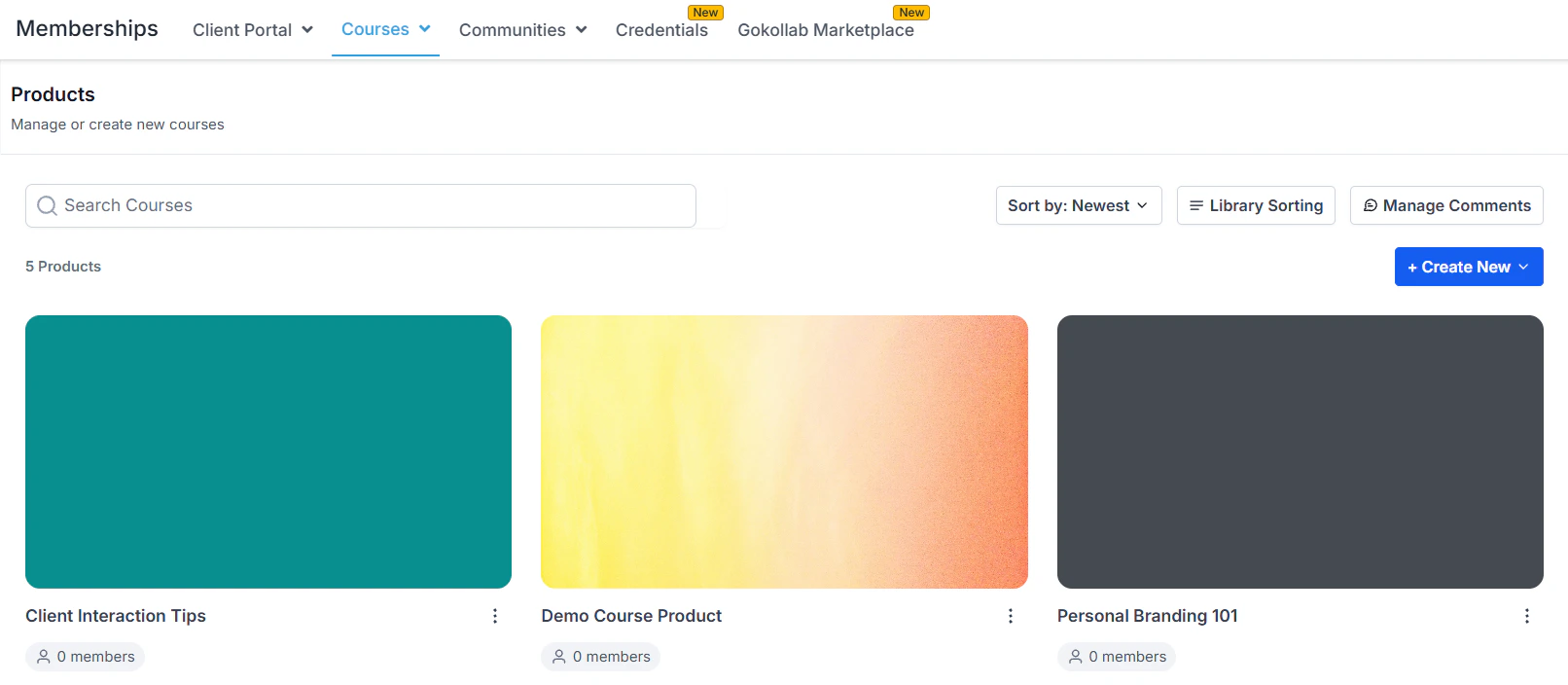
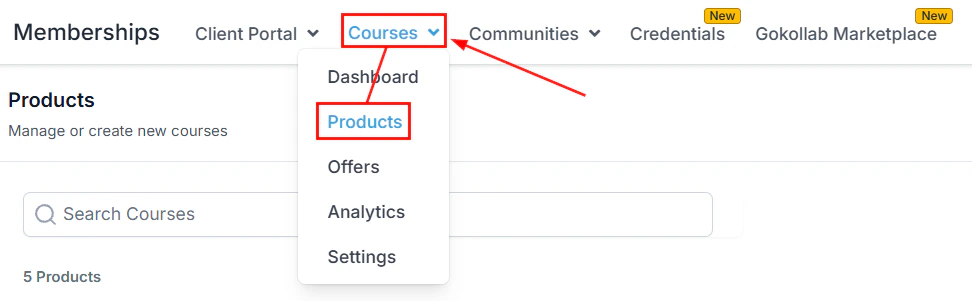
Go to **Memberships and Communities > Courses** and click the **Products** tab.
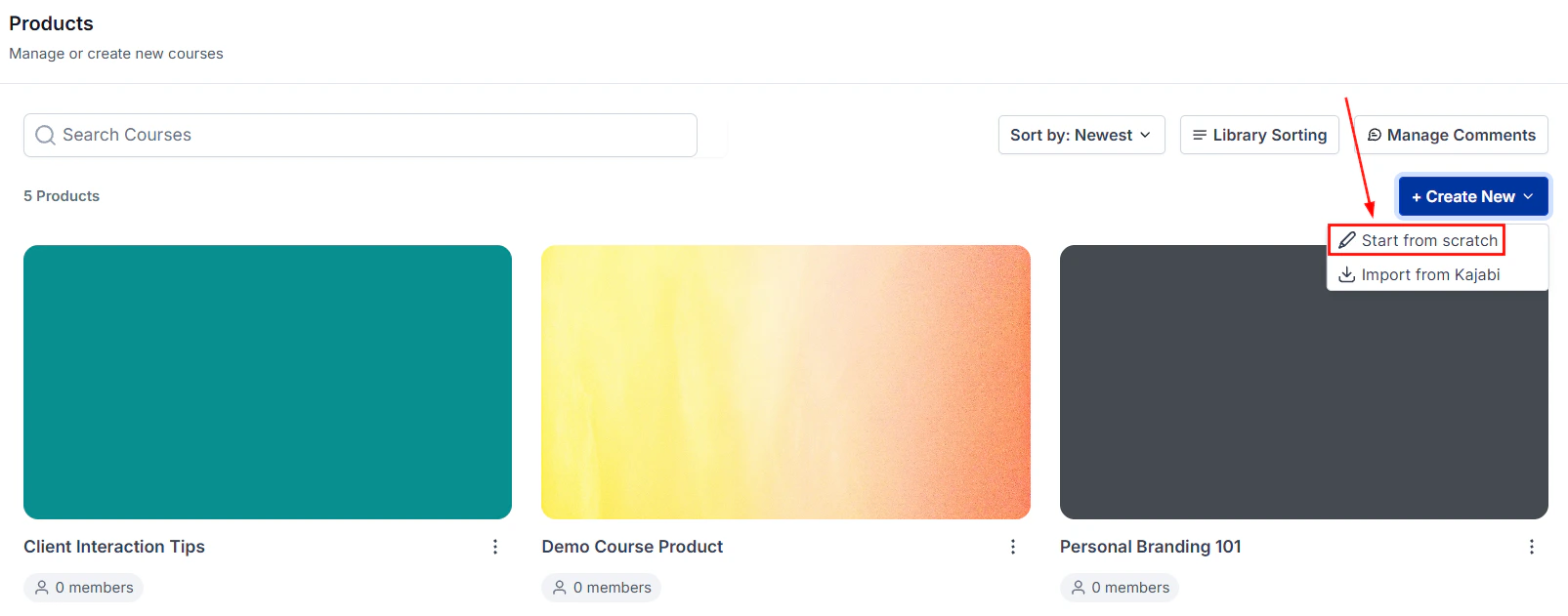
Click **+ Create Product** or **+ New Course**. A dialog appears offering two options: **Build a Course** and **Import from Kajabi**.
Click **Import from Kajabi**. You are prompted to connect your Kajabi account.
Enter your Kajabi credentials or authorize the connection using the Kajabi API key. You can find your Kajabi API key in your Kajabi account under **Settings > Integrations > API**.
Once connected, you see a list of courses from your Kajabi account. Select the course or courses you want to import and click **Import**.
The import creates a new course in the HoopAI course builder with all modules and lessons mapped. Open the course builder to review:
* Module titles and order
* Lesson titles and content
* Embedded video links (these link to their original sources)
* Text content blocks
Some content types may require attention after import:
* **Hosted videos** — videos hosted on Kajabi's servers cannot be transferred directly. Download them from Kajabi and re-upload them to the HoopAI lesson editor, or re-embed from YouTube or Vimeo.
* **Downloadable files** — re-upload PDFs, worksheets, and other file attachments to the HoopAI file storage and attach them to the relevant lessons.
* **Quiz questions** — quiz content may require manual recreation in the HoopAI quiz editor.
Once you have reviewed and completed the course content, publish the course and attach it to an offer to make it available to members.
Do a test import with one course first before migrating your entire library. This lets you verify the import fidelity, identify which content types need manual cleanup, and estimate the total migration time before committing to the full process.
***
## Importing from Kajabi
The Kajabi import tool migrates your course structure and content directly into the HoopAI course builder.
### Before you begin
* Confirm you have active admin access to your Kajabi account
* Ensure the courses you want to import are published (or at minimum not archived) in Kajabi
* Note that member enrollment records and student progress data do not transfer — the import brings the content structure, not the learner history
### Import steps
Go to **Memberships and Communities > Courses** and click the **Products** tab.
Click **+ Create Product** or **+ New Course**. A dialog appears offering two options: **Build a Course** and **Import from Kajabi**.
Click **Import from Kajabi**. You are prompted to connect your Kajabi account.
Enter your Kajabi credentials or authorize the connection using the Kajabi API key. You can find your Kajabi API key in your Kajabi account under **Settings > Integrations > API**.
Once connected, you see a list of courses from your Kajabi account. Select the course or courses you want to import and click **Import**.
The import creates a new course in the HoopAI course builder with all modules and lessons mapped. Open the course builder to review:
* Module titles and order
* Lesson titles and content
* Embedded video links (these link to their original sources)
* Text content blocks
Some content types may require attention after import:
* **Hosted videos** — videos hosted on Kajabi's servers cannot be transferred directly. Download them from Kajabi and re-upload them to the HoopAI lesson editor, or re-embed from YouTube or Vimeo.
* **Downloadable files** — re-upload PDFs, worksheets, and other file attachments to the HoopAI file storage and attach them to the relevant lessons.
* **Quiz questions** — quiz content may require manual recreation in the HoopAI quiz editor.
Once you have reviewed and completed the course content, publish the course and attach it to an offer to make it available to members.
Do a test import with one course first before migrating your entire library. This lets you verify the import fidelity, identify which content types need manual cleanup, and estimate the total migration time before committing to the full process.
***
 ## Importing from media storage
If you have already uploaded video files to the HoopAI media storage (via **Media > Files** or directly through the course builder file upload), you can pull those assets into course lessons without re-uploading them.
### Steps
Navigate to the course and open the lesson where you want to add the media.
Click **+ Add Content** and select **Video** or **File** depending on the asset type.
Instead of uploading a new file, click **Import from Media Storage** (or **Choose from library**). A file browser opens showing all assets already stored in your HoopAI account.
Browse or search for the file and click it to attach it to the lesson. The file is linked from your existing storage — no additional upload is needed.
Click **Save**. The media is now part of the lesson and will stream or be downloadable for enrolled members.
***
## Importing from media storage
If you have already uploaded video files to the HoopAI media storage (via **Media > Files** or directly through the course builder file upload), you can pull those assets into course lessons without re-uploading them.
### Steps
Navigate to the course and open the lesson where you want to add the media.
Click **+ Add Content** and select **Video** or **File** depending on the asset type.
Instead of uploading a new file, click **Import from Media Storage** (or **Choose from library**). A file browser opens showing all assets already stored in your HoopAI account.
Browse or search for the file and click it to attach it to the lesson. The file is linked from your existing storage — no additional upload is needed.
Click **Save**. The media is now part of the lesson and will stream or be downloadable for enrolled members.
***
 ## Migrating from other platforms (manual)
For platforms that do not have a direct import connector (Teachable, Thinkific, Podia, etc.), migration requires a manual rebuild using the course builder. A structured approach reduces the time and effort involved:
### Recommended migration workflow
1. **Export your content inventory** — in your existing platform, export a list of all courses, modules, and lessons. This becomes your checklist.
2. **Download all video files** — download your hosted video files from the existing platform and store them locally or in cloud storage temporarily.
3. **Create the course structure** — in the HoopAI course builder, create all modules with the correct titles in order. At this stage do not add lesson content yet — just the skeleton.
4. **Upload videos in bulk** — navigate to **Media > Files** in your HoopAI account and upload all video files. This happens in the background while you continue building.
5. **Add lessons using media storage import** — for each lesson, add a Video block and pull the already-uploaded file from media storage, rather than re-uploading it during the lesson edit step.
6. **Add text, PDFs, and quizzes** — recreate text content, re-upload worksheets and PDFs, and rebuild quiz questions using the lesson editor.
7. **Test the full course** — enroll a test member account and go through every lesson to verify content loads, videos play, and quizzes work correctly.
8. **Invite existing members** — send existing students a migration email with their new login credentials and a link to your new portal.
***
## Migrating from other platforms (manual)
For platforms that do not have a direct import connector (Teachable, Thinkific, Podia, etc.), migration requires a manual rebuild using the course builder. A structured approach reduces the time and effort involved:
### Recommended migration workflow
1. **Export your content inventory** — in your existing platform, export a list of all courses, modules, and lessons. This becomes your checklist.
2. **Download all video files** — download your hosted video files from the existing platform and store them locally or in cloud storage temporarily.
3. **Create the course structure** — in the HoopAI course builder, create all modules with the correct titles in order. At this stage do not add lesson content yet — just the skeleton.
4. **Upload videos in bulk** — navigate to **Media > Files** in your HoopAI account and upload all video files. This happens in the background while you continue building.
5. **Add lessons using media storage import** — for each lesson, add a Video block and pull the already-uploaded file from media storage, rather than re-uploading it during the lesson edit step.
6. **Add text, PDFs, and quizzes** — recreate text content, re-upload worksheets and PDFs, and rebuild quiz questions using the lesson editor.
7. **Test the full course** — enroll a test member account and go through every lesson to verify content loads, videos play, and quizzes work correctly.
8. **Invite existing members** — send existing students a migration email with their new login credentials and a link to your new portal.
***
 ## Migrating existing member enrollments
Member enrollment records (who has access to what) do not transfer automatically from any platform. After migration:
1. Export your enrollment list from the old platform as a CSV.
2. Import the contacts into your HoopAI CRM (under **Contacts > Import**).
3. Use an automation or bulk action to **Grant Membership Access** for the relevant offer to all migrated contacts.
4. Send a welcome email with login instructions and encourage members to set their portal password.
Student progress (completed lessons, quiz scores) from the old platform cannot be imported. Migrated members will start with 0% completion in the new portal. Communicate this clearly in your migration announcement so members are not confused when they log in.
***
## Frequently asked questions
No. The Kajabi import transfers course structure and content only. Member accounts, enrollment records, and progress history remain in Kajabi. You need to re-enroll your members by granting them offer access in the HoopAI platform after migration.
Direct import connectors are currently available for Kajabi only. For other platforms, use the manual migration workflow: rebuild the course structure in the HoopAI builder and upload your media files via the media storage import feature.
Videos hosted on Kajabi's own CDN cannot be transferred to the HoopAI platform automatically — this is a restriction imposed by Kajabi's hosting, not the import tool. You need to download these videos from Kajabi and re-upload them to the HoopAI lesson editor. Videos that are embedded from YouTube, Vimeo, or Wistia will import correctly because the import only copies the embed URL.
Import time depends on the size of the course and the number of lessons. A course with 10 modules and 50 lessons typically imports within a few minutes. Larger courses with many text-heavy lessons may take longer. Media files are not transferred during the import, so the import time is not affected by video file sizes.
Yes. Running both platforms in parallel during migration is a common and recommended practice. It gives you time to complete the migration, test the new platform, and communicate the change to members without a hard cutover deadline. Once you are satisfied with the new setup, discontinue the old platform subscription.
There is no published limit on the number of courses you can import. You can run multiple Kajabi imports sequentially. For very large libraries (hundreds of courses), contact HoopAI support to discuss the best migration approach.
## Migrating existing member enrollments
Member enrollment records (who has access to what) do not transfer automatically from any platform. After migration:
1. Export your enrollment list from the old platform as a CSV.
2. Import the contacts into your HoopAI CRM (under **Contacts > Import**).
3. Use an automation or bulk action to **Grant Membership Access** for the relevant offer to all migrated contacts.
4. Send a welcome email with login instructions and encourage members to set their portal password.
Student progress (completed lessons, quiz scores) from the old platform cannot be imported. Migrated members will start with 0% completion in the new portal. Communicate this clearly in your migration announcement so members are not confused when they log in.
***
## Frequently asked questions
No. The Kajabi import transfers course structure and content only. Member accounts, enrollment records, and progress history remain in Kajabi. You need to re-enroll your members by granting them offer access in the HoopAI platform after migration.
Direct import connectors are currently available for Kajabi only. For other platforms, use the manual migration workflow: rebuild the course structure in the HoopAI builder and upload your media files via the media storage import feature.
Videos hosted on Kajabi's own CDN cannot be transferred to the HoopAI platform automatically — this is a restriction imposed by Kajabi's hosting, not the import tool. You need to download these videos from Kajabi and re-upload them to the HoopAI lesson editor. Videos that are embedded from YouTube, Vimeo, or Wistia will import correctly because the import only copies the embed URL.
Import time depends on the size of the course and the number of lessons. A course with 10 modules and 50 lessons typically imports within a few minutes. Larger courses with many text-heavy lessons may take longer. Media files are not transferred during the import, so the import time is not affected by video file sizes.
Yes. Running both platforms in parallel during migration is a common and recommended practice. It gives you time to complete the migration, test the new platform, and communicate the change to members without a hard cutover deadline. Once you are satisfied with the new setup, discontinue the old platform subscription.
There is no published limit on the number of courses you can import. You can run multiple Kajabi imports sequentially. For very large libraries (hundreds of courses), contact HoopAI support to discuss the best migration approach.