> ## Documentation Index
> Fetch the complete documentation index at: https://help.hoopai.com/llms.txt
> Use this file to discover all available pages before exploring further.
# Drip Content
> Schedule when course modules and lessons become available to members using drip content in the Hoop platform.
Drip content lets you control when individual modules or lessons unlock for a member after they enroll in a course. Instead of giving members access to everything at once, you pace the release of content to maintain engagement, guide the learning journey, and protect the perceived value of your course.
## Why use drip content?
* **Prevent overwhelm** — new members are not flooded with hundreds of lessons on day one
* **Maintain engagement** — members return to the portal repeatedly as new content unlocks
* **Mirror live cohort programs** — simulate a weekly class schedule even though the course is self-paced
* **Reduce refunds** — members who are partway through a course are less likely to request a refund
***
## How drip scheduling works
Drip scheduling is configured per module or per lesson inside the course builder. You choose a trigger and a delay:
| Trigger type | Description |
| --------------------- | ------------------------------------------------------------------------------- |
| Days after enrollment | Content unlocks X days after the member first gains access to the course |
| Specific date | Content unlocks on a fixed calendar date regardless of when the member enrolled |
| On enrollment | Content is available immediately when the member joins (default behavior) |
If no drip schedule is set, all content is available immediately upon enrollment.
***
## Setting up drip content
Navigate to **Memberships and Communities > Courses**, select the course you want to configure, and open the course builder.
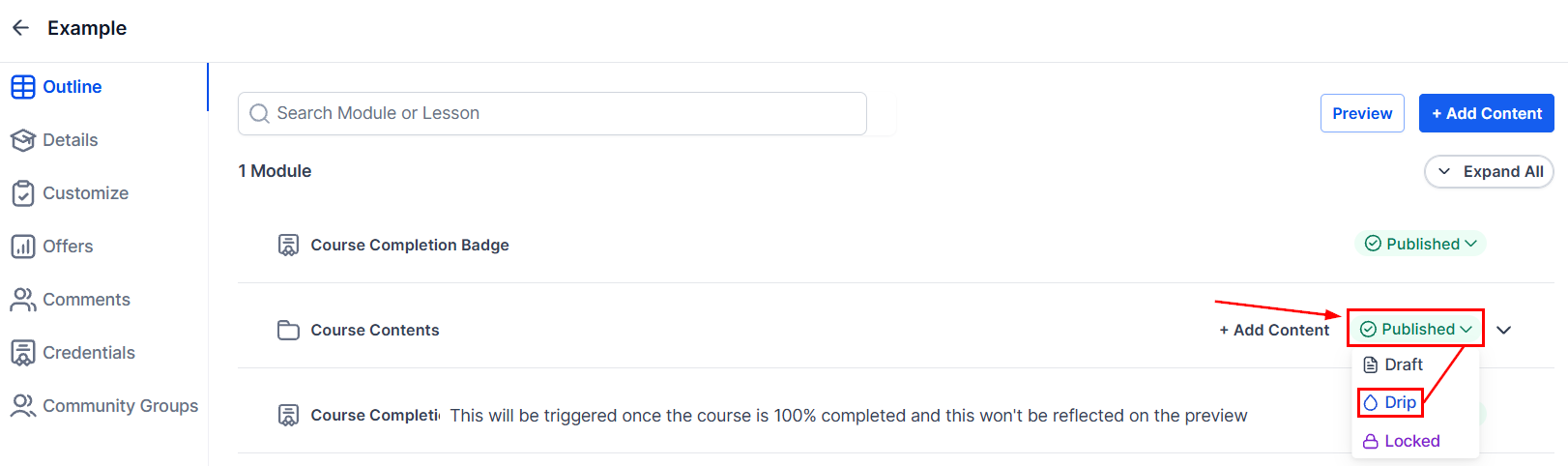
Click the module or lesson you want to drip. Open its settings panel on the right.
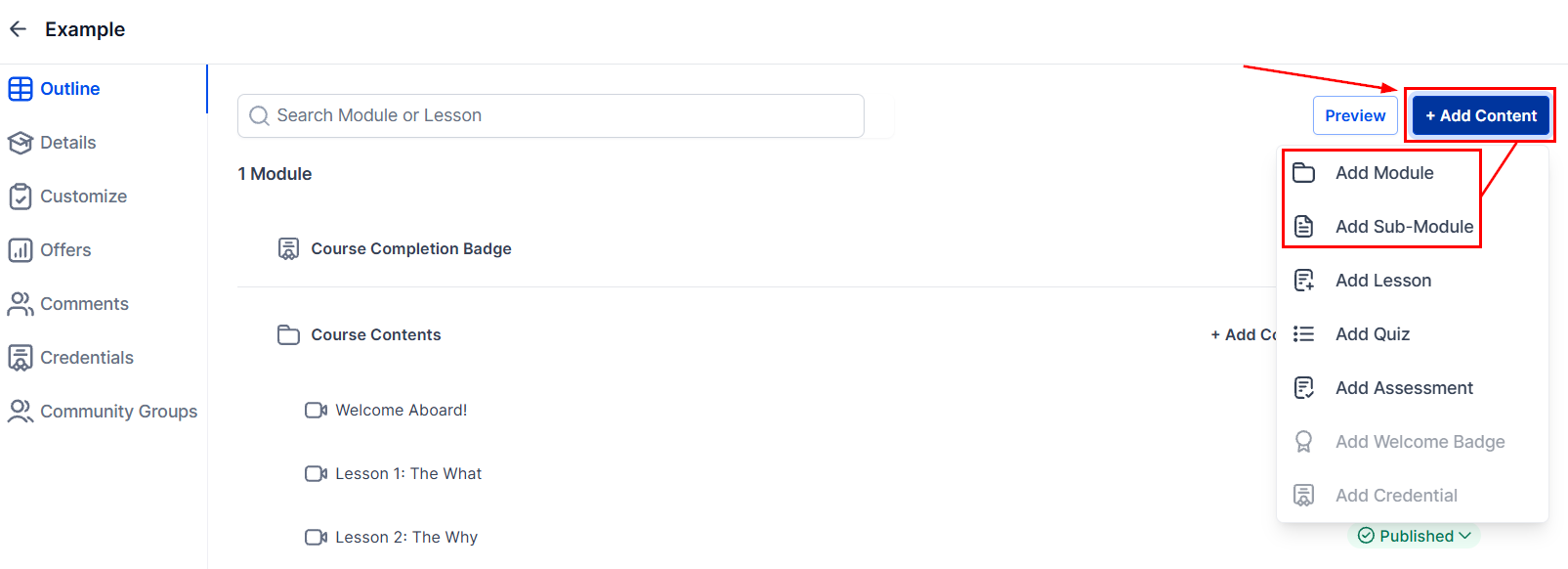 Toggle on **Drip Content** (or **Schedule**) for the selected module or lesson.
Select either **Days after enrollment** or **Specific date**.
Toggle on **Drip Content** (or **Schedule**) for the selected module or lesson.
Select either **Days after enrollment** or **Specific date**.
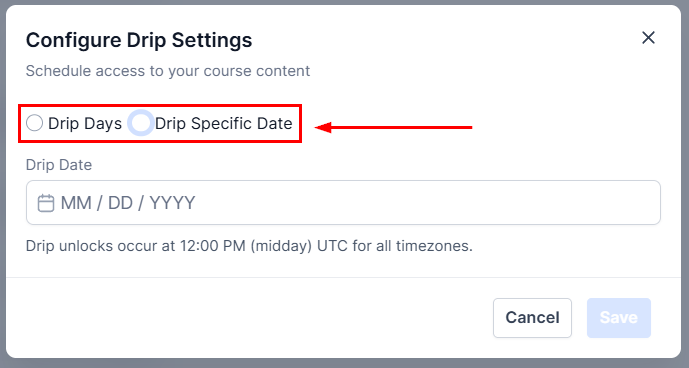 * For **Days after enrollment**: enter the number of days (e.g. `7` to unlock one week after joining)
* For **Specific date**: use the date picker to choose the exact unlock date and time
Apply drip settings to each module and lesson in sequence. You can drip at the module level (all lessons inside unlock together) or at the lesson level (each lesson unlocks independently).
Click **Save**. Drip settings take effect immediately for all existing and future enrollees.
***
## Example drip schedule
| Day after enrollment | Content unlocked |
| -------------------- | ---------------------------------------- |
| Day 0 | Welcome lesson, Module 1 (all lessons) |
| Day 7 | Module 2 unlocks |
| Day 14 | Module 3 unlocks |
| Day 21 | Module 4 unlocks, bonus resource library |
| Day 30 | Module 5 — final project and assessment |
***
## Drip content and notifications
When new content unlocks for a member, you can send an automated notification:
1. Navigate to **Memberships and Communities > Memberships > Settings > Email Settings**.
2. Enable **New Course Materials Unlocked** — this sends a system email when drip content becomes available.
3. For a custom notification, build an Automation with the **Drip Content Unlocked** trigger and a **Send Email** action using your branded template.
In your unlock notification email, include a direct link to the newly available module using the custom value **Course Login URL**. This removes friction and increases the chance the member immediately engages with the new content.
***
## Changing drip settings for existing members
Drip schedules are calculated from the individual member's enrollment date. If you change the drip schedule after members are already enrolled:
* Existing members will have their schedule recalculated based on their original enrollment date
* New members will follow the updated schedule from the moment they enroll
* Content that has already unlocked for a member **remains accessible** — drip changes cannot remove access to already-unlocked content
***
## Frequently asked questions
Yes. You can apply drip settings to individual lessons independently of their parent module. This lets you release one lesson per day within the same module, or stagger content at any granularity you choose.
Locked modules and lessons are visible in the course outline but appear greyed out with a lock icon and the scheduled unlock date displayed. Members know exactly what is coming and when, which encourages them to return.
Drip schedules apply at the course level and cannot be overridden per individual member from within the course builder. To give a specific member early access, you can manually grant them access to the relevant content or adjust the course-wide schedule.
Yes. Drip content is independent of payment status — it is calculated from the enrollment date. If a member is on a payment plan, they still receive drip content on schedule regardless of whether future payments have been made.
Yes. The **Specific date** trigger is designed for this. Set all modules to unlock on their scheduled cohort dates. Every enrolled member, regardless of when they joined, will receive access on the same calendar date.
* For **Days after enrollment**: enter the number of days (e.g. `7` to unlock one week after joining)
* For **Specific date**: use the date picker to choose the exact unlock date and time
Apply drip settings to each module and lesson in sequence. You can drip at the module level (all lessons inside unlock together) or at the lesson level (each lesson unlocks independently).
Click **Save**. Drip settings take effect immediately for all existing and future enrollees.
***
## Example drip schedule
| Day after enrollment | Content unlocked |
| -------------------- | ---------------------------------------- |
| Day 0 | Welcome lesson, Module 1 (all lessons) |
| Day 7 | Module 2 unlocks |
| Day 14 | Module 3 unlocks |
| Day 21 | Module 4 unlocks, bonus resource library |
| Day 30 | Module 5 — final project and assessment |
***
## Drip content and notifications
When new content unlocks for a member, you can send an automated notification:
1. Navigate to **Memberships and Communities > Memberships > Settings > Email Settings**.
2. Enable **New Course Materials Unlocked** — this sends a system email when drip content becomes available.
3. For a custom notification, build an Automation with the **Drip Content Unlocked** trigger and a **Send Email** action using your branded template.
In your unlock notification email, include a direct link to the newly available module using the custom value **Course Login URL**. This removes friction and increases the chance the member immediately engages with the new content.
***
## Changing drip settings for existing members
Drip schedules are calculated from the individual member's enrollment date. If you change the drip schedule after members are already enrolled:
* Existing members will have their schedule recalculated based on their original enrollment date
* New members will follow the updated schedule from the moment they enroll
* Content that has already unlocked for a member **remains accessible** — drip changes cannot remove access to already-unlocked content
***
## Frequently asked questions
Yes. You can apply drip settings to individual lessons independently of their parent module. This lets you release one lesson per day within the same module, or stagger content at any granularity you choose.
Locked modules and lessons are visible in the course outline but appear greyed out with a lock icon and the scheduled unlock date displayed. Members know exactly what is coming and when, which encourages them to return.
Drip schedules apply at the course level and cannot be overridden per individual member from within the course builder. To give a specific member early access, you can manually grant them access to the relevant content or adjust the course-wide schedule.
Yes. Drip content is independent of payment status — it is calculated from the enrollment date. If a member is on a payment plan, they still receive drip content on schedule regardless of whether future payments have been made.
Yes. The **Specific date** trigger is designed for this. Set all modules to unlock on their scheduled cohort dates. Every enrolled member, regardless of when they joined, will receive access on the same calendar date.