> ## Documentation Index
> Fetch the complete documentation index at: https://help.hoopai.com/llms.txt
> Use this file to discover all available pages before exploring further.
# Courses
> Deliver structured online courses with modules, lessons, quizzes, and progress tracking in the HoopAI Platform.
Courses let you organize your membership content into a structured learning path with modules and lessons. Members track their progress, complete quizzes, and receive certificates when they finish — all inside your branded member portal.
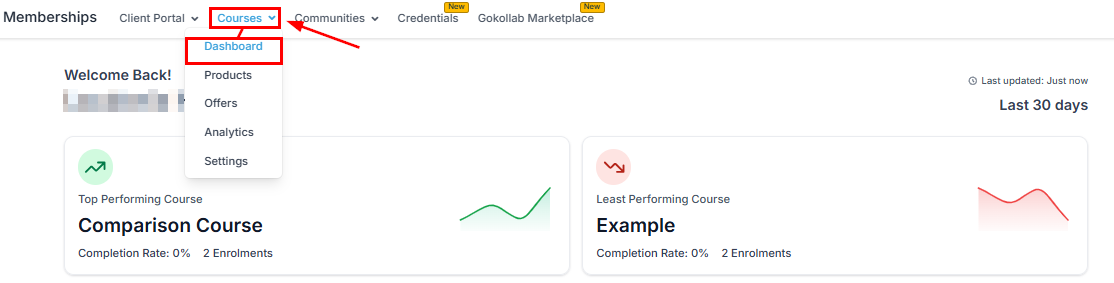 ## Course structure
A course follows a three-level hierarchy:
```
Course
└── Module
└── Lesson
```
* **Course** — the top-level container (e.g. "Email Marketing Mastery")
* **Module** — a themed section within the course (e.g. "Module 1: List Building Foundations")
* **Lesson** — an individual piece of content (e.g. "Lesson 1: Choosing the right email platform")
***
## Creating a course
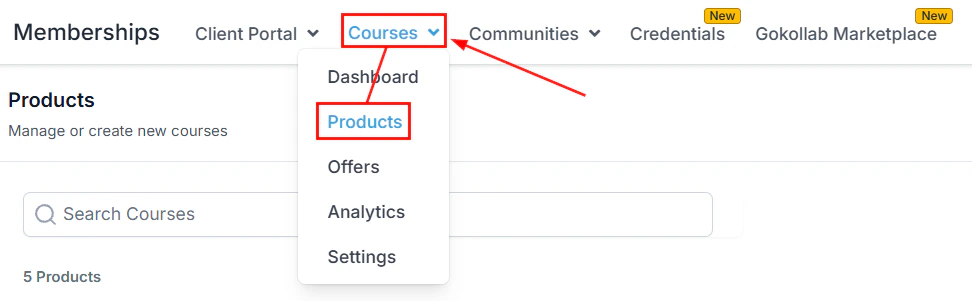
Click **Memberships and Communities** in the left sidebar, then select **Courses**. Click **+ New Course**.
## Course structure
A course follows a three-level hierarchy:
```
Course
└── Module
└── Lesson
```
* **Course** — the top-level container (e.g. "Email Marketing Mastery")
* **Module** — a themed section within the course (e.g. "Module 1: List Building Foundations")
* **Lesson** — an individual piece of content (e.g. "Lesson 1: Choosing the right email platform")
***
## Creating a course
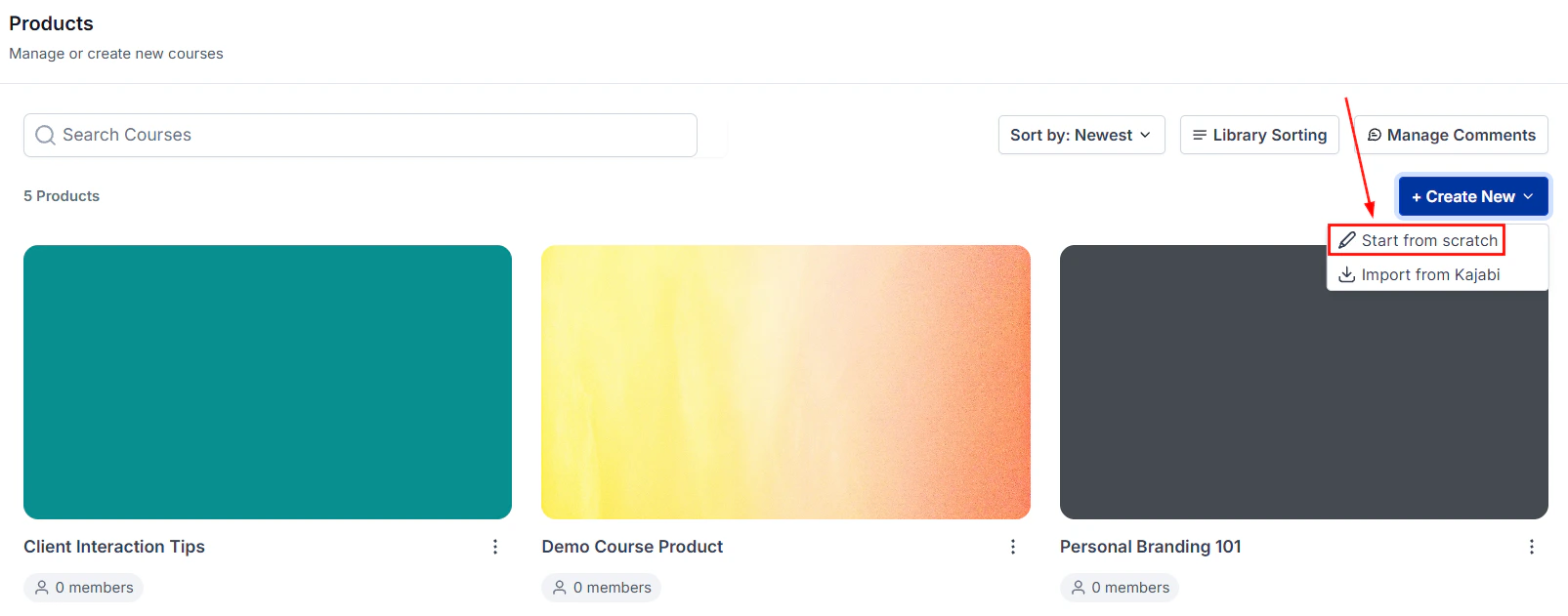
Click **Memberships and Communities** in the left sidebar, then select **Courses**. Click **+ New Course**.
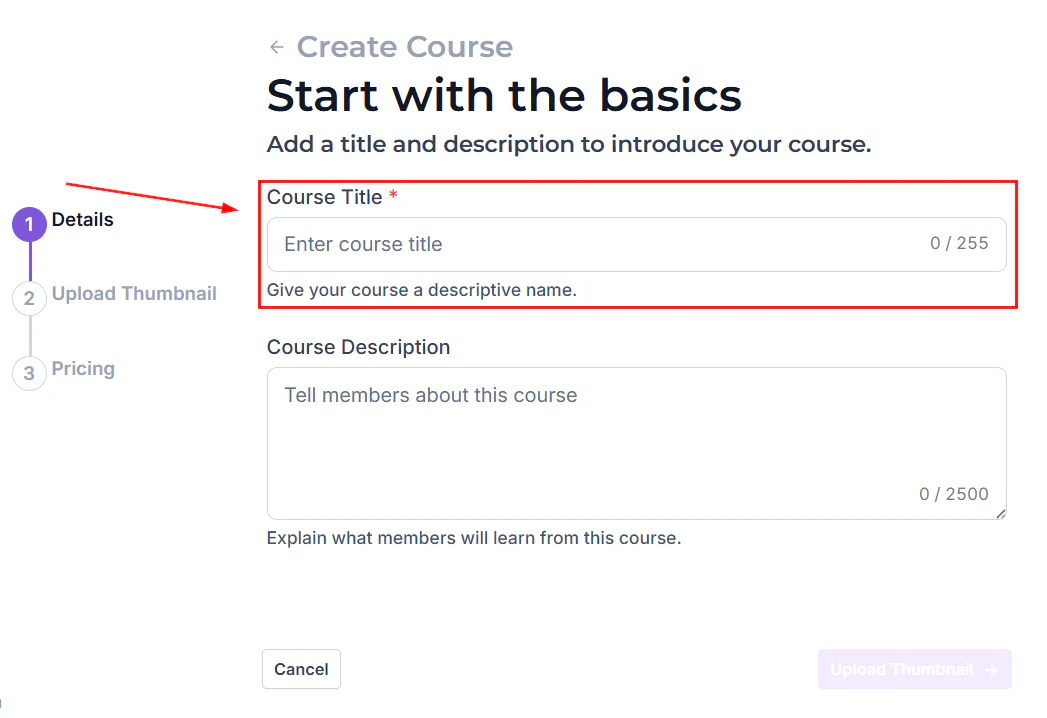
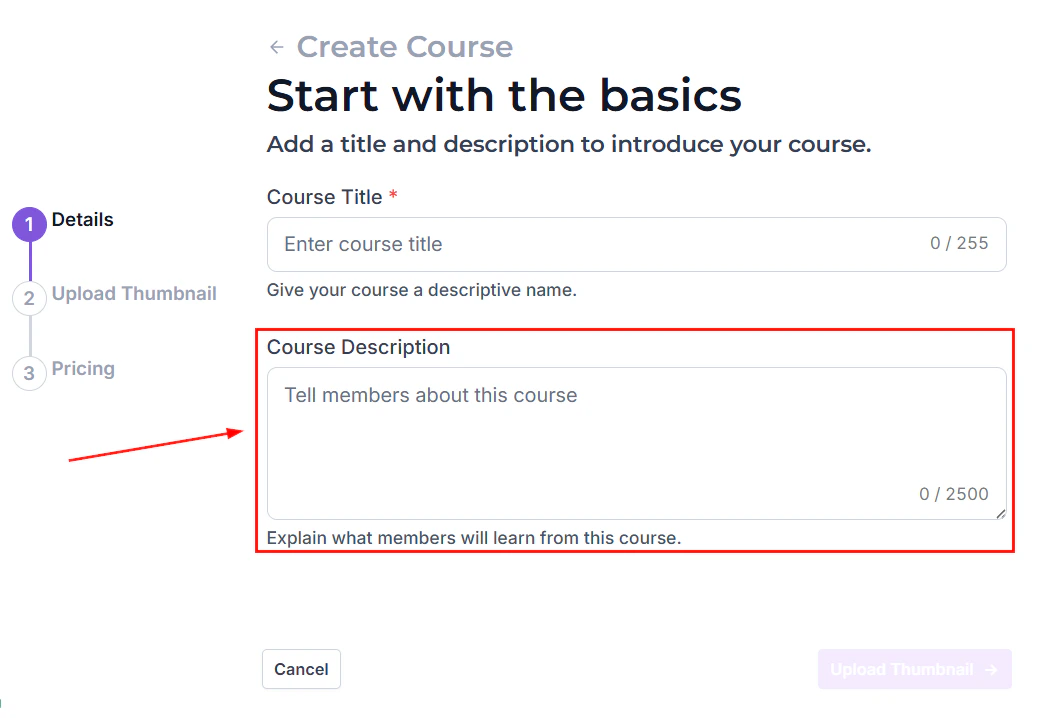
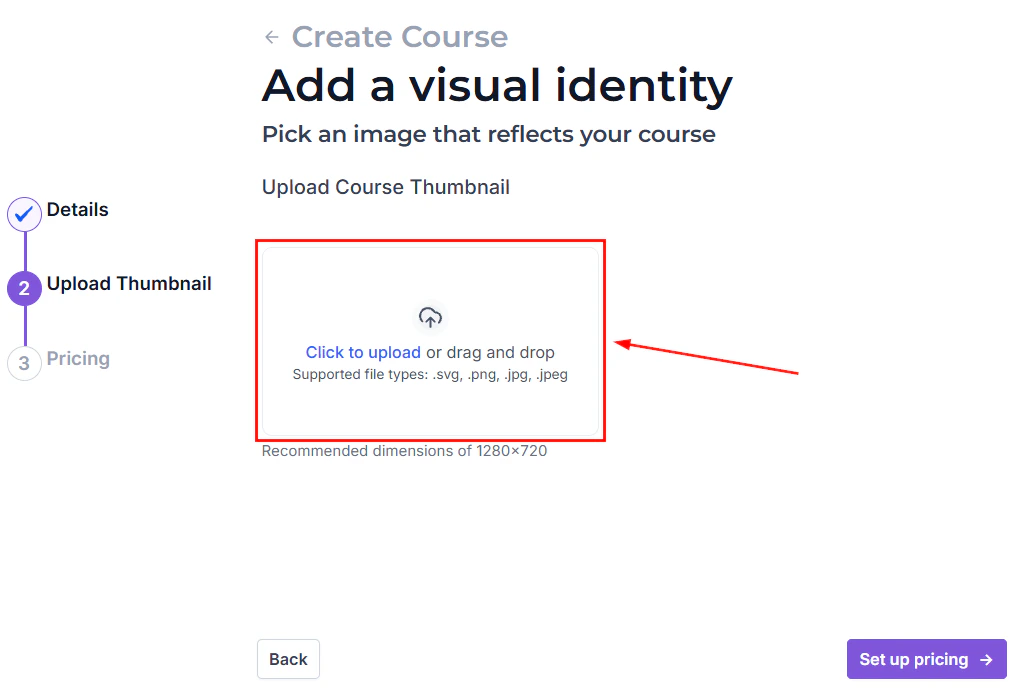
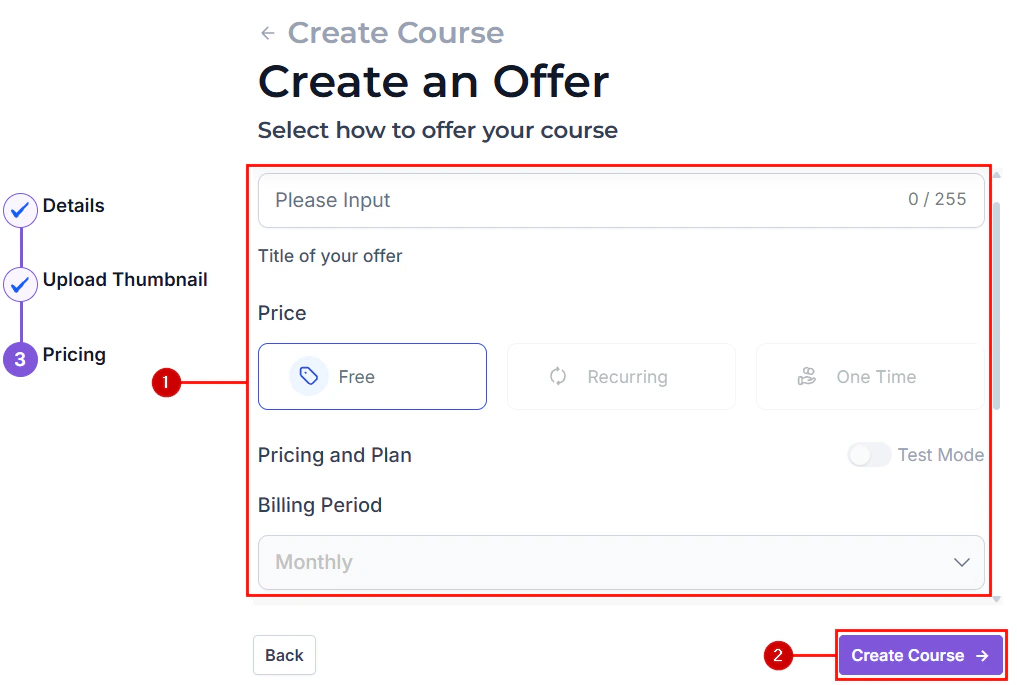
 Enter the course title and description. Upload a course thumbnail image. This appears in the member portal when a member views their available courses.
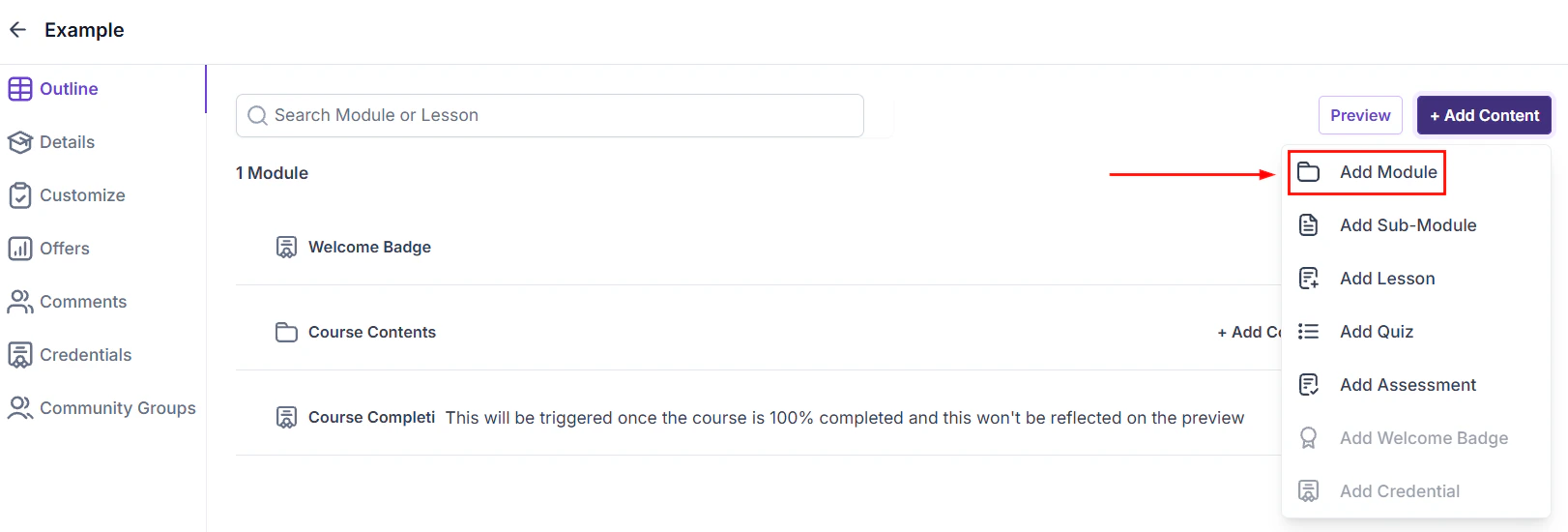
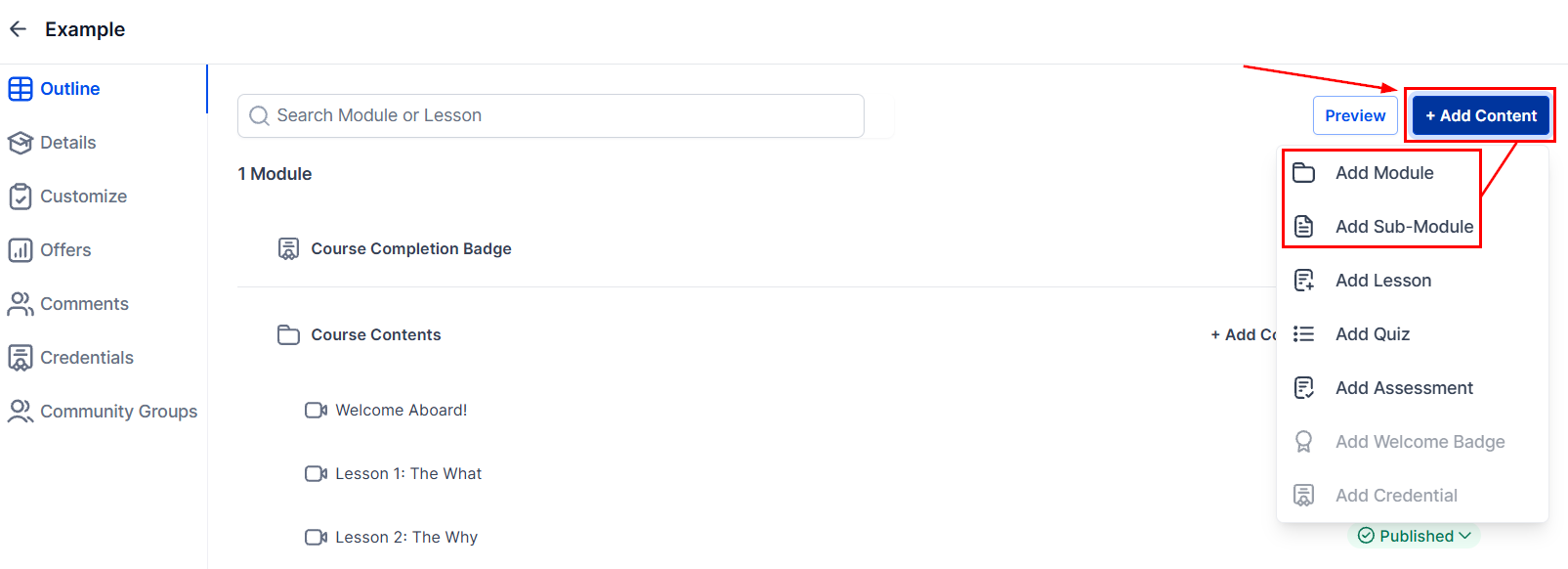
 Click **+ Add Module** to create the first section of your course. Give it a clear, descriptive title. Add as many modules as your course needs.
 Inside each module, click **+ Add Lesson**. Give the lesson a title and choose the content type:
* **Video** — upload a video file or embed from YouTube, Vimeo, or Wistia
* **Text** — rich-text content with formatting, images, and embedded media
* **Audio** — upload an MP3 or other audio file
* **PDF / File** — attach a downloadable PDF, worksheet, or resource
* **Quiz** — add a comprehension check at the end of a module
Inside each module, click **+ Add Lesson**. Give the lesson a title and choose the content type:
* **Video** — upload a video file or embed from YouTube, Vimeo, or Wistia
* **Text** — rich-text content with formatting, images, and embedded media
* **Audio** — upload an MP3 or other audio file
* **PDF / File** — attach a downloadable PDF, worksheet, or resource
* **Quiz** — add a comprehension check at the end of a module
 Choose how a lesson is marked complete:
* **Manual** — the member clicks a "Mark as Complete" button
* **Video watch** — the lesson is marked complete after the member watches a certain percentage of the video
* **Quiz passed** — the lesson requires passing a quiz to be marked complete
Choose how a lesson is marked complete:
* **Manual** — the member clicks a "Mark as Complete" button
* **Video watch** — the lesson is marked complete after the member watches a certain percentage of the video
* **Quiz passed** — the lesson requires passing a quiz to be marked complete
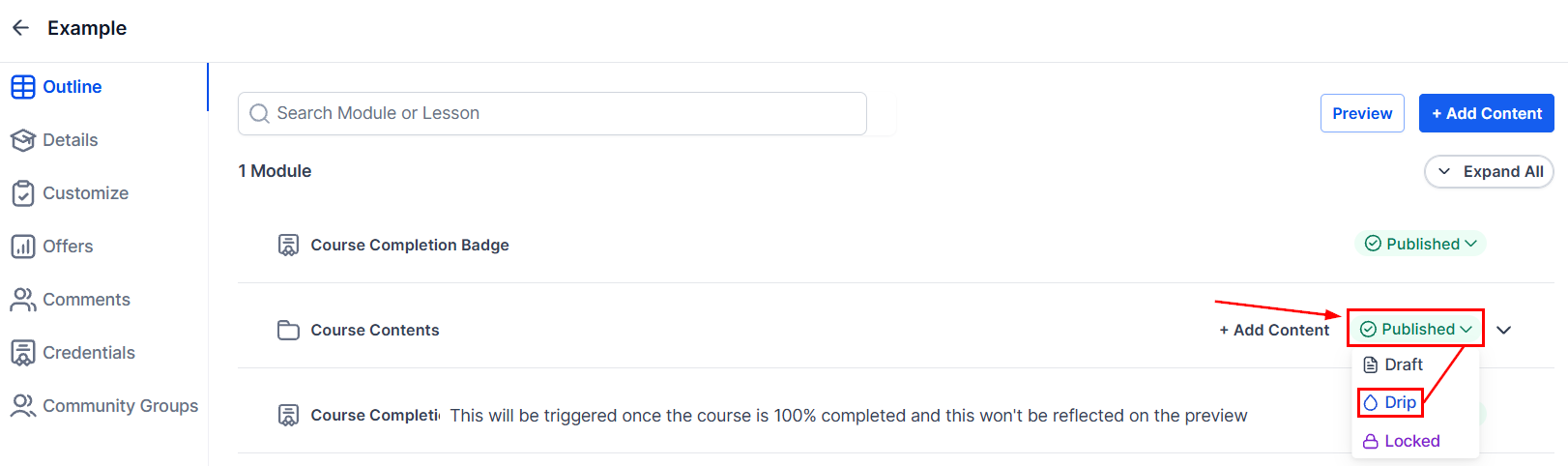
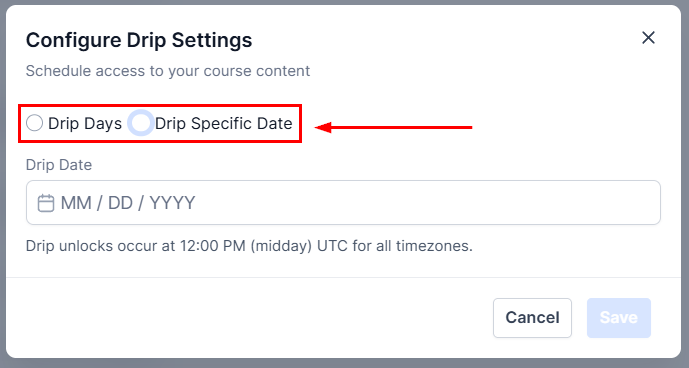
 Set each module or lesson to unlock on a specific day after the member joins. This paces content delivery and maintains engagement over time.
Click **Publish** to make the course available to members. You can also save as draft to continue editing later.
Set each module or lesson to unlock on a specific day after the member joins. This paces content delivery and maintains engagement over time.
Click **Publish** to make the course available to members. You can also save as draft to continue editing later.
 ***
## Progress tracking
Members see a progress bar on the course page showing how many lessons they have completed. Individual lesson thumbnails show a checkmark when completed. Admins can view progress for all members from the **Members** tab:
* Lessons completed vs total lessons
* Last active date
* Quiz scores
* Completion percentage
***
## Quizzes in courses
Add a quiz lesson at the end of each module to reinforce learning:
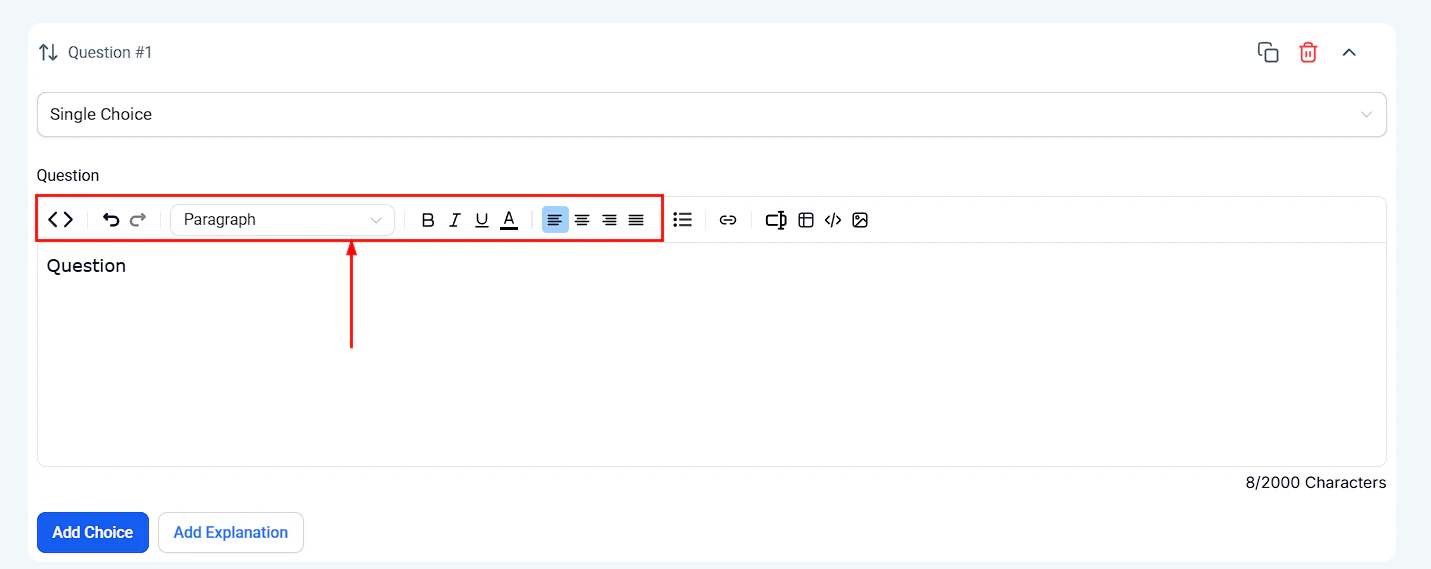
1. In the lesson editor, select **Quiz** as the content type.
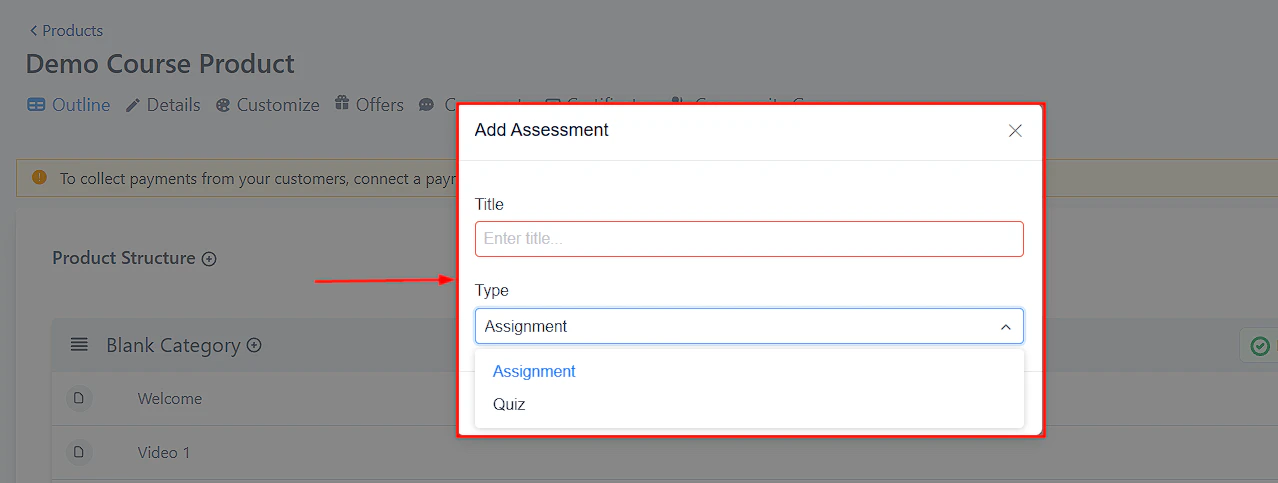
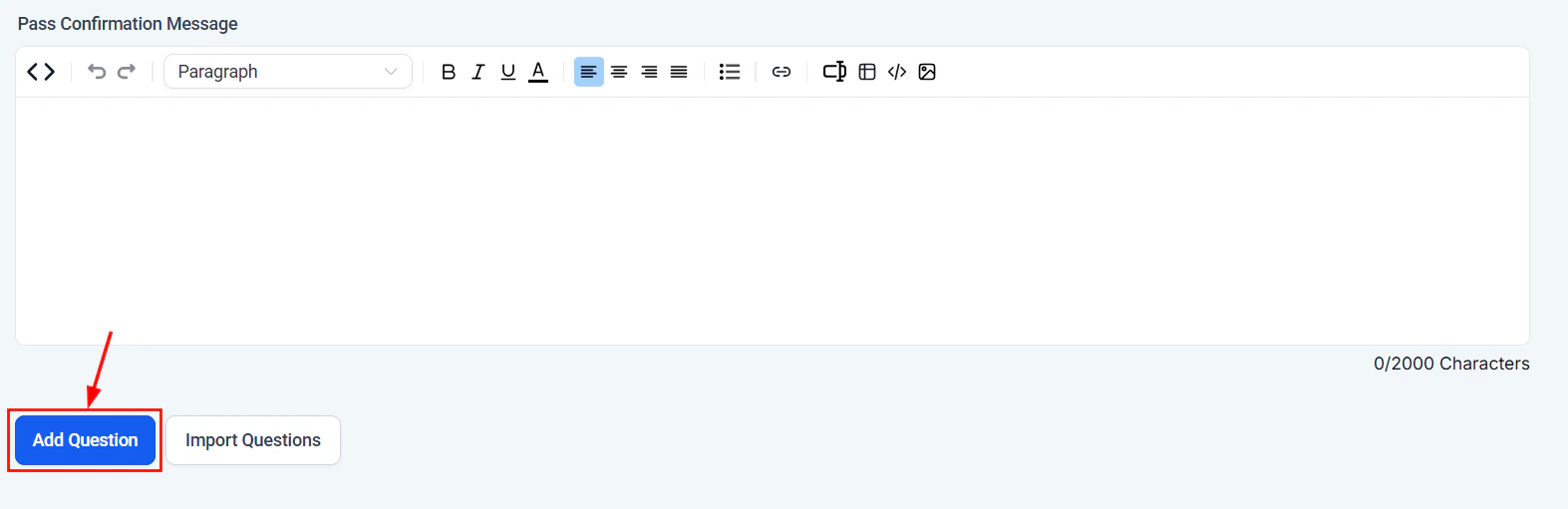
2. Add questions with multiple-choice, true/false, or short-answer formats.
3. Set the passing score (e.g. 70%).
4. Configure what happens if the member fails — allow retakes, or lock subsequent lessons until they pass.
***
## Progress tracking
Members see a progress bar on the course page showing how many lessons they have completed. Individual lesson thumbnails show a checkmark when completed. Admins can view progress for all members from the **Members** tab:
* Lessons completed vs total lessons
* Last active date
* Quiz scores
* Completion percentage
***
## Quizzes in courses
Add a quiz lesson at the end of each module to reinforce learning:
1. In the lesson editor, select **Quiz** as the content type.
2. Add questions with multiple-choice, true/false, or short-answer formats.
3. Set the passing score (e.g. 70%).
4. Configure what happens if the member fails — allow retakes, or lock subsequent lessons until they pass.
 ***
## Drip content example
***
## Drip content example
 | Day after joining | Content unlocked |
| ----------------- | -------------------------------------- |
| Day 0 | Welcome lesson, Module 1 (all lessons) |
| Day 7 | Module 2 unlocks |
| Day 14 | Module 3 unlocks |
| Day 21 | Module 4 unlocks, bonus resources |
***
## Completion certificates
When a member completes all lessons in a course:
1. An automation trigger fires: **Course Completed**.
2. The automation runs a **Grant Certificate** action to issue a personalized certificate.
3. The certificate appears in the member's portal and can be downloaded as a PDF.
***
## Courses dashboard
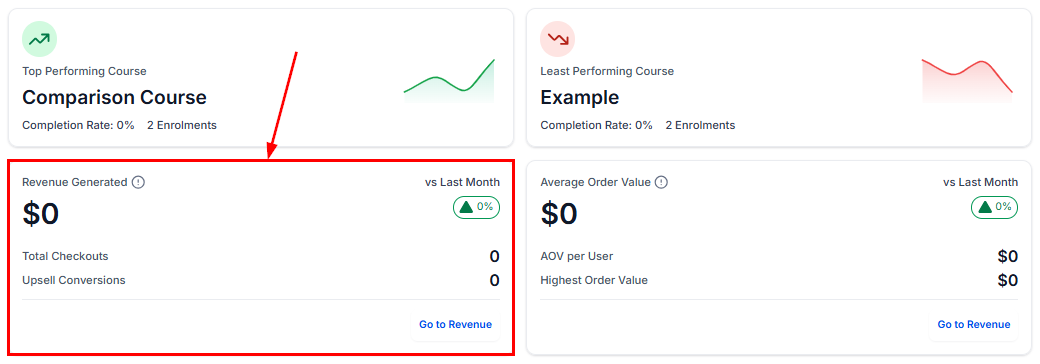
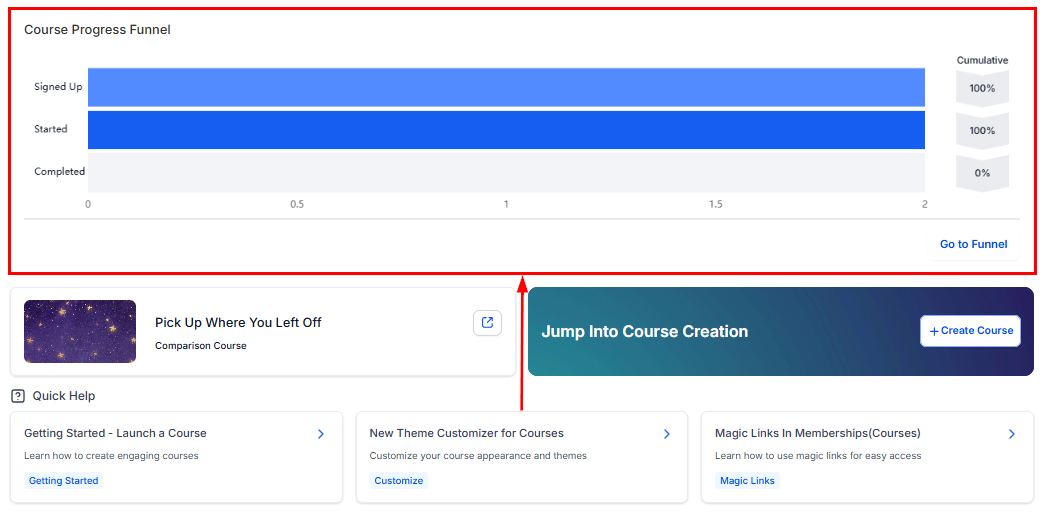
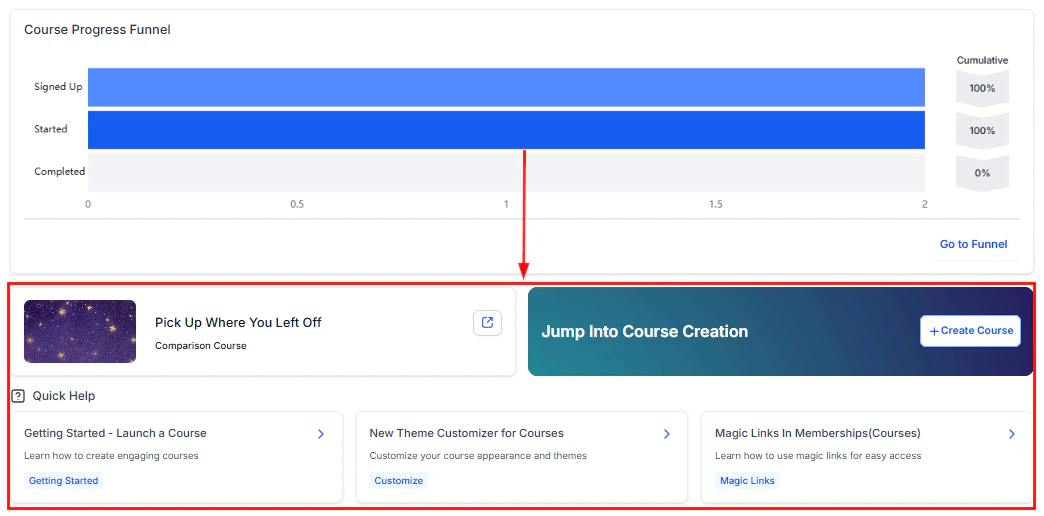
The Courses Dashboard gives you a centralized view of all your course performance metrics.
| Day after joining | Content unlocked |
| ----------------- | -------------------------------------- |
| Day 0 | Welcome lesson, Module 1 (all lessons) |
| Day 7 | Module 2 unlocks |
| Day 14 | Module 3 unlocks |
| Day 21 | Module 4 unlocks, bonus resources |
***
## Completion certificates
When a member completes all lessons in a course:
1. An automation trigger fires: **Course Completed**.
2. The automation runs a **Grant Certificate** action to issue a personalized certificate.
3. The certificate appears in the member's portal and can be downloaded as a PDF.
***
## Courses dashboard
The Courses Dashboard gives you a centralized view of all your course performance metrics.
 ***
## Managing course comments
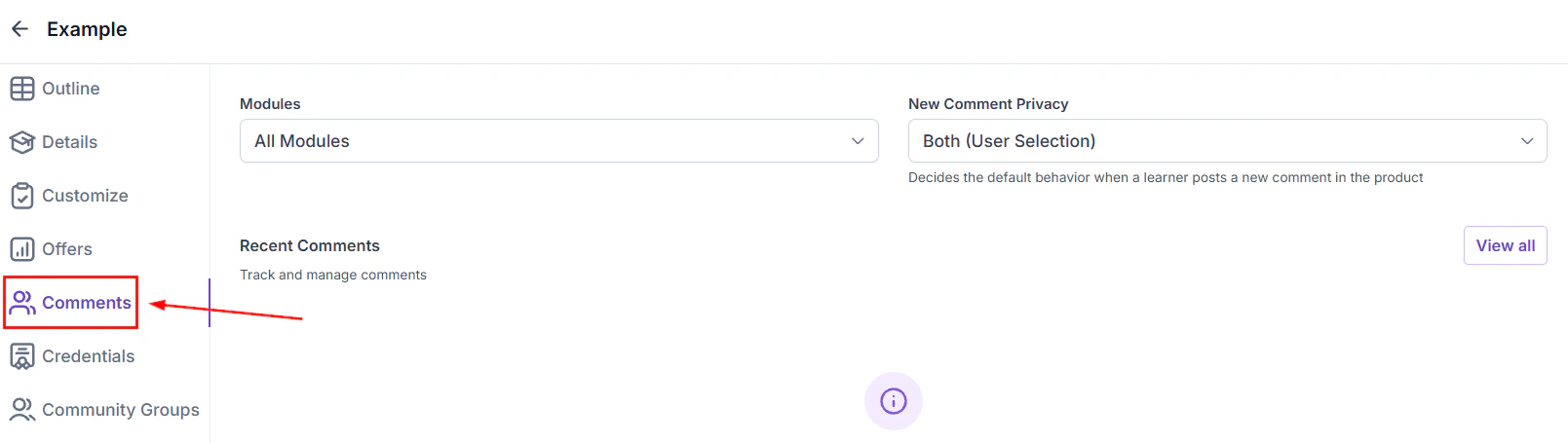
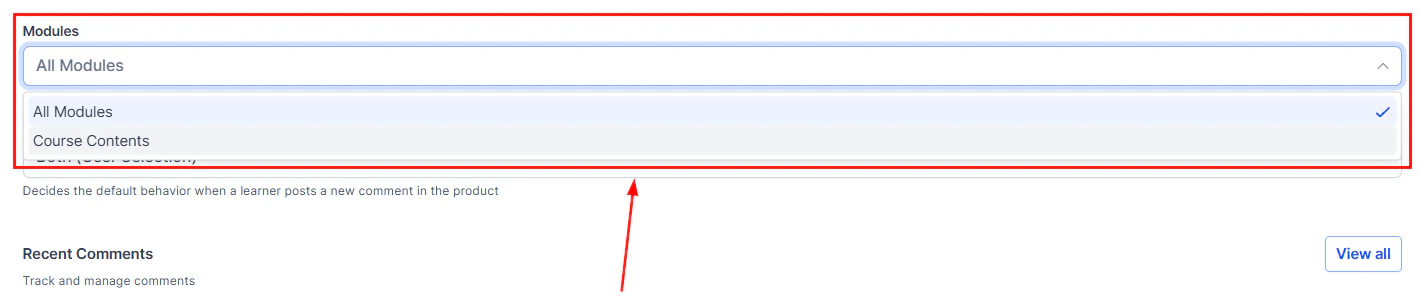
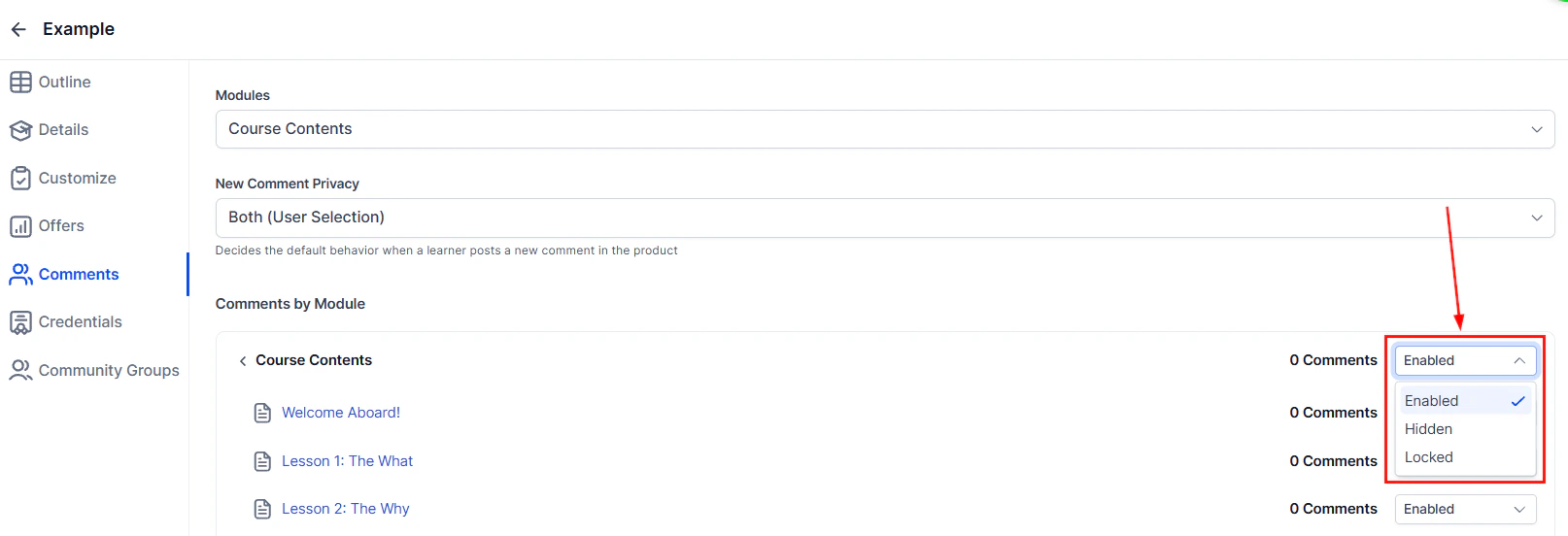
Members can leave comments on lessons to ask questions and share feedback. Admins can manage all comments from the **Comments** tab.
***
## Managing course comments
Members can leave comments on lessons to ask questions and share feedback. Admins can manage all comments from the **Comments** tab.
 Course content is delivered through the same member portal as memberships. A single member login gives access to all courses and communities included in their membership.
Keep individual lessons short (5–15 minutes for video content). Shorter lessons increase completion rates and make it easier for members to fit learning into their schedule.
***
## Frequently asked questions
You can upload video files directly to the Hoop platform, or embed videos from YouTube, Vimeo, or Wistia. Hosted videos are streamed securely through the member portal. If you want to allow members to download the original file, enable the **Download** option in Builder Settings inside Membership Settings.
Drip content lets you schedule when individual modules or lessons become available to a member after they enroll. For example, Module 2 can unlock on Day 7 and Module 3 on Day 14. Set drip timing per module or lesson inside the course builder. You can use a relative delay (days after enrollment) or a fixed calendar date.
Each member's progress is tracked per lesson. The member portal displays a progress bar on every course card. Admins can view progress for all members from the **Members** tab in Courses — including lessons completed, last active date, quiz scores, and overall completion percentage.
Yes. Configure lesson completion criteria (manual, video watch percentage, or quiz passed) and set quizzes to lock subsequent lessons until the member passes. This enforces sequential progress through the course material.
Quizzes support three question types: **multiple choice**, **true/false**, and **short answer**. You set the passing score as a percentage and can choose whether to allow retakes or lock the next lesson if the member fails.
Yes. Members can leave comments on any lesson, and admins can manage, approve, reply to, or delete comments from the **Comments** tab in the Courses section.
Create a certificate template in the Certificates section, then build an Automation with the **Course Completed** trigger and a **Grant Certificate** action. The certificate is issued automatically when a member finishes all lessons. See the [Certificates](/memberships-and-communities/certificates) page for full details.
***
## Course assessments and quizzes
Assessments go beyond simple quizzes by providing more detailed evaluation of member knowledge. The platform supports several assessment features:
### Question types
| Type | Description |
| ------------------- | ------------------------------------------------------------ |
| **Multiple choice** | Select one correct answer from several options |
| **True / false** | Binary correct/incorrect statement |
| **Short answer** | Free-text response evaluated manually or by keyword matching |
| **Multiple select** | Select all correct answers from a list |
### Assessment settings
* **Passing score** — set the minimum percentage required to pass (e.g., 70%)
* **Retake policy** — allow unlimited retakes, a fixed number of attempts, or no retakes
* **Time limit** — optionally set a maximum time to complete the assessment
* **Show correct answers** — choose whether to reveal the correct answers after submission
* **Lock next lesson** — require passing the assessment before the next lesson unlocks
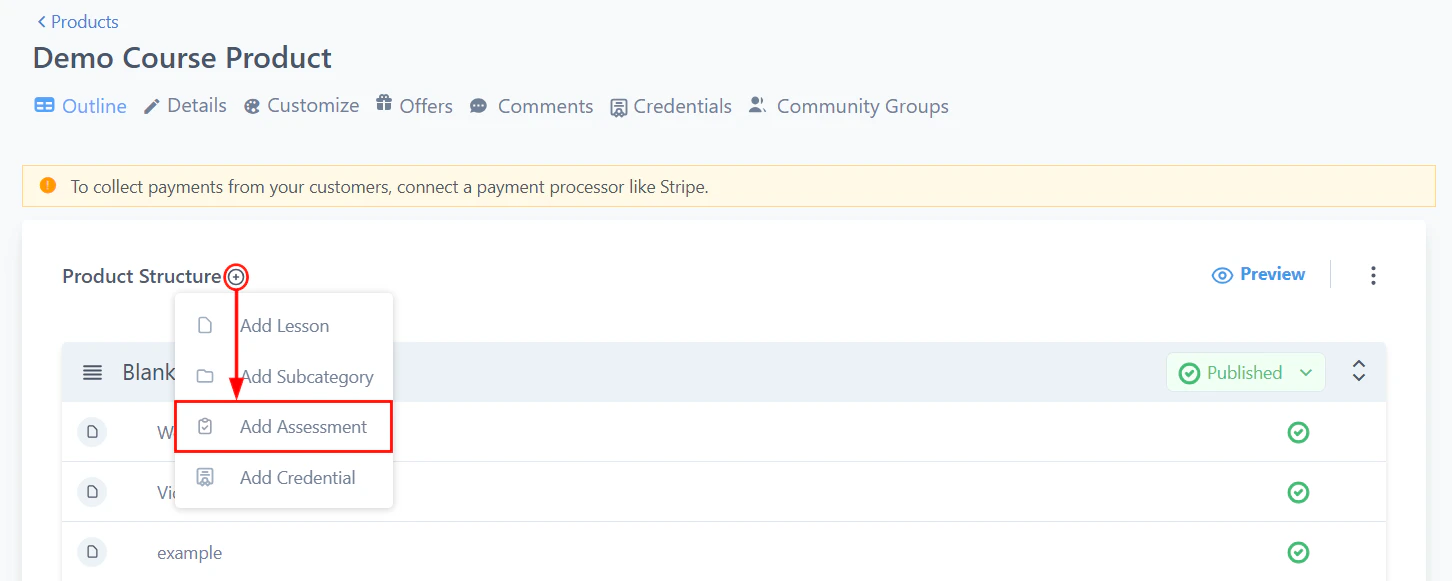
Assessments are added as a lesson type within a module. Place them at the end of each module to reinforce learning before the member progresses.
***
## Audio files in lessons
In addition to video and text, you can upload audio files as lesson content:
1. In the lesson editor, select **Audio** as the content type.
2. Upload an MP3, M4A, or WAV file.
3. The audio player appears in the lesson with play/pause, progress bar, and speed controls.
4. Members can listen directly in the portal without downloading.
Audio lessons are ideal for podcast-style content, guided meditations, language learning, and supplementary material that members can consume on the go.
Combine audio lessons with a downloadable PDF worksheet or transcript. This gives members both an audio experience and a written reference they can review later.
***
## Custom values for courses
Use custom values (merge fields) within your course content to personalize the member experience:
* **Member name** — greet members by name in lesson text
* **Course name** — dynamically reference the current course
* **Enrollment date** — show when the member joined
* **Progress percentage** — display their current completion status
Custom values are inserted using the `{{ }}` syntax in the rich text editor. They are replaced with the member's actual data when the lesson is viewed.
```
Welcome back, {{contact.first_name}}! You have completed {{course.progress}}% of {{course.name}}.
```
Custom values make course content feel personalized and increase member engagement by acknowledging their individual progress.
Course content is delivered through the same member portal as memberships. A single member login gives access to all courses and communities included in their membership.
Keep individual lessons short (5–15 minutes for video content). Shorter lessons increase completion rates and make it easier for members to fit learning into their schedule.
***
## Frequently asked questions
You can upload video files directly to the Hoop platform, or embed videos from YouTube, Vimeo, or Wistia. Hosted videos are streamed securely through the member portal. If you want to allow members to download the original file, enable the **Download** option in Builder Settings inside Membership Settings.
Drip content lets you schedule when individual modules or lessons become available to a member after they enroll. For example, Module 2 can unlock on Day 7 and Module 3 on Day 14. Set drip timing per module or lesson inside the course builder. You can use a relative delay (days after enrollment) or a fixed calendar date.
Each member's progress is tracked per lesson. The member portal displays a progress bar on every course card. Admins can view progress for all members from the **Members** tab in Courses — including lessons completed, last active date, quiz scores, and overall completion percentage.
Yes. Configure lesson completion criteria (manual, video watch percentage, or quiz passed) and set quizzes to lock subsequent lessons until the member passes. This enforces sequential progress through the course material.
Quizzes support three question types: **multiple choice**, **true/false**, and **short answer**. You set the passing score as a percentage and can choose whether to allow retakes or lock the next lesson if the member fails.
Yes. Members can leave comments on any lesson, and admins can manage, approve, reply to, or delete comments from the **Comments** tab in the Courses section.
Create a certificate template in the Certificates section, then build an Automation with the **Course Completed** trigger and a **Grant Certificate** action. The certificate is issued automatically when a member finishes all lessons. See the [Certificates](/memberships-and-communities/certificates) page for full details.
***
## Course assessments and quizzes
Assessments go beyond simple quizzes by providing more detailed evaluation of member knowledge. The platform supports several assessment features:
### Question types
| Type | Description |
| ------------------- | ------------------------------------------------------------ |
| **Multiple choice** | Select one correct answer from several options |
| **True / false** | Binary correct/incorrect statement |
| **Short answer** | Free-text response evaluated manually or by keyword matching |
| **Multiple select** | Select all correct answers from a list |
### Assessment settings
* **Passing score** — set the minimum percentage required to pass (e.g., 70%)
* **Retake policy** — allow unlimited retakes, a fixed number of attempts, or no retakes
* **Time limit** — optionally set a maximum time to complete the assessment
* **Show correct answers** — choose whether to reveal the correct answers after submission
* **Lock next lesson** — require passing the assessment before the next lesson unlocks
Assessments are added as a lesson type within a module. Place them at the end of each module to reinforce learning before the member progresses.
***
## Audio files in lessons
In addition to video and text, you can upload audio files as lesson content:
1. In the lesson editor, select **Audio** as the content type.
2. Upload an MP3, M4A, or WAV file.
3. The audio player appears in the lesson with play/pause, progress bar, and speed controls.
4. Members can listen directly in the portal without downloading.
Audio lessons are ideal for podcast-style content, guided meditations, language learning, and supplementary material that members can consume on the go.
Combine audio lessons with a downloadable PDF worksheet or transcript. This gives members both an audio experience and a written reference they can review later.
***
## Custom values for courses
Use custom values (merge fields) within your course content to personalize the member experience:
* **Member name** — greet members by name in lesson text
* **Course name** — dynamically reference the current course
* **Enrollment date** — show when the member joined
* **Progress percentage** — display their current completion status
Custom values are inserted using the `{{ }}` syntax in the rich text editor. They are replaced with the member's actual data when the lesson is viewed.
```
Welcome back, {{contact.first_name}}! You have completed {{course.progress}}% of {{course.name}}.
```
Custom values make course content feel personalized and increase member engagement by acknowledging their individual progress.