> ## Documentation Index
> Fetch the complete documentation index at: https://help.hoopai.com/llms.txt
> Use this file to discover all available pages before exploring further.
# Community Posts
> Create posts, react to content, leave comments, and moderate discussions in community feed and chat channels in the HoopAI platform.
Posts are the primary way members communicate inside a community. Whether sharing a win, asking a question, or responding to a challenge prompt, posts drive the day-to-day activity that keeps your community alive. The HoopAI platform supports rich post formats, threaded comments, emoji reactions, and robust moderation tools to help you maintain a high-quality space.
## Creating a post
Members and admins create posts from inside any Feed channel:
1. Click inside the **Write something...** text box at the top of the feed.
2. Type the post content.
3. Use the toolbar to add formatting, media, or extras:
* **Bold, italic, and underline** — basic text formatting
* **Images** — upload one or more photos to the post
* **Video** — upload or embed a video clip
* **GIFs** — search and insert animated GIFs from the built-in GIF library
* **File attachments** — share a downloadable PDF, spreadsheet, or other file
* **Poll** — create a multiple-choice poll for members to vote on
* **Tags** — tag specific members using `@username` to notify them
4. Click **Post** to publish.
Pin a welcome post at the top of your main group feed that explains the community rules, how to get the most from the space, and what to post in each group. New members see this first and it sets the tone for the community culture.
***
 ## Post types
| Post type | How to create | Best used for |
| ----------- | -------------------------------- | -------------------------------------------- |
| Text post | Type in the post box and publish | General updates, questions, advice |
| Image post | Attach one or more images | Before/afters, screenshots, inspiration |
| Video post | Upload or embed a video | Tutorials, introductions, Q\&A recordings |
| GIF post | Use the GIF search | Celebrations, reactions, light engagement |
| Poll | Click the poll icon | Gathering opinions, choosing between options |
| Pinned post | Admin pins an existing post | Announcements, rules, recurring resources |
***
## Reactions
Members react to posts and comments with emoji reactions. The reaction counts appear beside each post and provide social proof that content is valued. Common reactions include like, love, celebrate, and insightful — available from the reaction picker beneath each post.
Admins can see reaction totals in the content moderation panel when reviewing community activity.
***
## Comments and threads
Each post has a comment section. Members click **Comment** beneath a post to open the reply field. Comments support:
* **Plain text** — type a response and press Enter to publish
* **@mentions** — tag another member to send them a notification
* **Emoji reactions** — react to individual comments in addition to the parent post
* **Nested replies** — reply directly to a specific comment to keep conversations threaded
Admins and moderators can delete individual comments or entire comment threads without deleting the parent post.
***
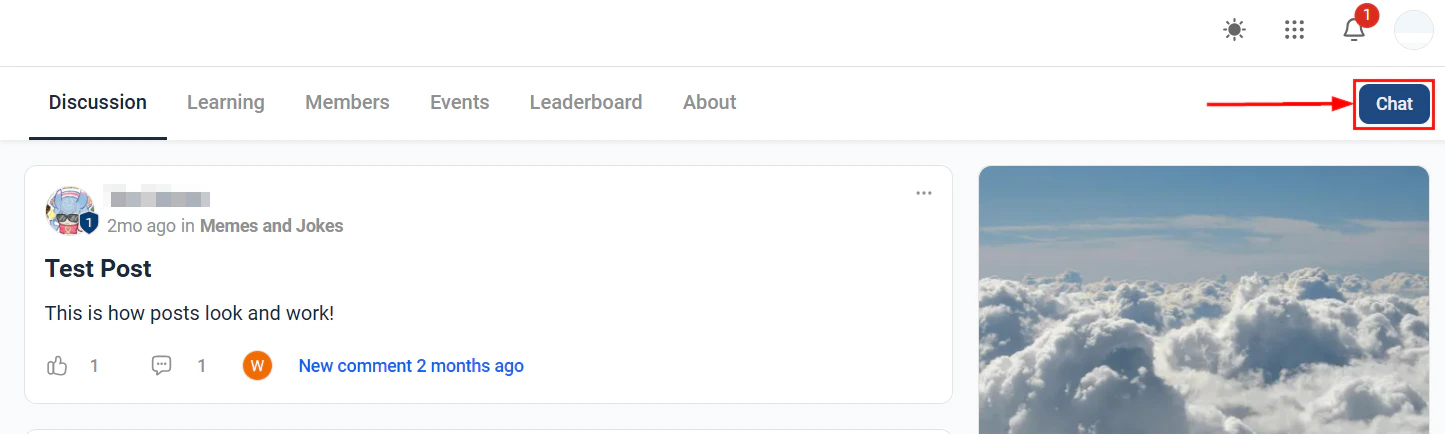
## Chat channels
Chat channels offer a more conversational, real-time experience compared to feed channels. In a chat channel:
* Messages are shorter and appear in a continuous thread without the full-post card format
* Members see a running chronological log of messages
* Threads can be started off a single message for side conversations
* Members are shown as online or offline when active
* New messages appear live without needing to refresh the page
Chat channels work well for office hours, live event side-conversations, and rapid-fire questions during a live call.
***
## Post types
| Post type | How to create | Best used for |
| ----------- | -------------------------------- | -------------------------------------------- |
| Text post | Type in the post box and publish | General updates, questions, advice |
| Image post | Attach one or more images | Before/afters, screenshots, inspiration |
| Video post | Upload or embed a video | Tutorials, introductions, Q\&A recordings |
| GIF post | Use the GIF search | Celebrations, reactions, light engagement |
| Poll | Click the poll icon | Gathering opinions, choosing between options |
| Pinned post | Admin pins an existing post | Announcements, rules, recurring resources |
***
## Reactions
Members react to posts and comments with emoji reactions. The reaction counts appear beside each post and provide social proof that content is valued. Common reactions include like, love, celebrate, and insightful — available from the reaction picker beneath each post.
Admins can see reaction totals in the content moderation panel when reviewing community activity.
***
## Comments and threads
Each post has a comment section. Members click **Comment** beneath a post to open the reply field. Comments support:
* **Plain text** — type a response and press Enter to publish
* **@mentions** — tag another member to send them a notification
* **Emoji reactions** — react to individual comments in addition to the parent post
* **Nested replies** — reply directly to a specific comment to keep conversations threaded
Admins and moderators can delete individual comments or entire comment threads without deleting the parent post.
***
## Chat channels
Chat channels offer a more conversational, real-time experience compared to feed channels. In a chat channel:
* Messages are shorter and appear in a continuous thread without the full-post card format
* Members see a running chronological log of messages
* Threads can be started off a single message for side conversations
* Members are shown as online or offline when active
* New messages appear live without needing to refresh the page
Chat channels work well for office hours, live event side-conversations, and rapid-fire questions during a live call.
***
 ## Post visibility and moderation
### Post approval queue
Enable the **Post Approval** moderation setting on a group to hold all new member posts in a queue for review before they are visible to others:
1. Open the group settings.
2. Enable **Require Post Approval**.
3. Any new post from a member lands in the **Pending Posts** queue in your admin panel.
4. Approve or decline each post. Approved posts go live immediately; declined posts are removed and the member can be notified with a reason.
This is useful for new communities, high-profile launches, or any group where maintaining content quality is critical.
### Pinning posts
Pin important posts to keep them at the top of the feed:
1. Click the **...** (more options) menu on any post.
2. Select **Pin Post**.
3. The post moves to the top of the feed and stays there until unpinned.
Only admins and moderators can pin posts. Pinned posts are ideal for community rules, weekly challenge prompts, important announcements, and resource hubs.
### Deleting posts and comments
To remove a post or comment:
1. Click the **...** menu on the post or comment.
2. Select **Delete**.
3. Confirm the deletion.
Deleted content is permanently removed and cannot be recovered. Admins can delete any member's content; regular members can only delete their own.
### Muting and banning members
If a member is violating community guidelines:
* **Mute** — prevents the member from posting or commenting for a set period without removing them from the group
* **Ban** — permanently removes the member from the group and prevents them from rejoining
* **Report** — flag the post or member for admin review (members can also report content using the report function on any post)
Access these options from the **...** menu on the member's post or from the **Members** tab in the group settings.
***
## Tagging and mentions
Use the **@** symbol followed by a member's username to tag them in a post or comment. Tagged members receive an in-app notification and an optional email notification (depending on their preferences) directing them to the post. Tagging is a powerful way to:
* Draw a specific member's attention to a relevant discussion
* Welcome new members publicly
* Credit someone for their contribution
The **Community Tagging** feature also allows you to create topic tags (e.g. `#marketing-tips`, `#accountability`) so members can filter and discover posts by subject.
***
## Embedding media from third-party platforms
In post and comment editors, you can embed content from external platforms by pasting the URL directly into the post body. Supported embed sources include YouTube, Vimeo, Spotify, and other standard oEmbed-compatible platforms. The embedded player appears inline — members can watch or listen without leaving the community feed.
***
## Frequently asked questions
At this time, post scheduling is available to admins and moderators, not standard members. Admins can queue up announcements, weekly prompts, or challenge posts in advance so they publish automatically at the right time without manual intervention.
Yes. Set a group to **Read-only** to prevent standard members from posting — only admins and moderators can create content in that group. This is useful for announcement-only channels where you do not want member replies cluttering the feed.
Reactions members receive on their posts and comments contribute to their community points total, which feeds into the gamification leaderboard. Encouraging high-quality posts by reacting to them helps surface active members and rewards valuable contributions. See [Gamification](/memberships-and-communities/gamification) for full details.
Yes. Use the search icon in the community interface to search post content, comments, and member names across all groups you have access to. Admins can search across all groups; members only see results from groups they belong to.
Community post and engagement data (post counts, reaction totals, active members) is available in the community analytics panel. Full post content export (a dump of all posts and comments) is not available through the standard interface. Contact support if you need a data export for compliance or migration purposes.
## Post visibility and moderation
### Post approval queue
Enable the **Post Approval** moderation setting on a group to hold all new member posts in a queue for review before they are visible to others:
1. Open the group settings.
2. Enable **Require Post Approval**.
3. Any new post from a member lands in the **Pending Posts** queue in your admin panel.
4. Approve or decline each post. Approved posts go live immediately; declined posts are removed and the member can be notified with a reason.
This is useful for new communities, high-profile launches, or any group where maintaining content quality is critical.
### Pinning posts
Pin important posts to keep them at the top of the feed:
1. Click the **...** (more options) menu on any post.
2. Select **Pin Post**.
3. The post moves to the top of the feed and stays there until unpinned.
Only admins and moderators can pin posts. Pinned posts are ideal for community rules, weekly challenge prompts, important announcements, and resource hubs.
### Deleting posts and comments
To remove a post or comment:
1. Click the **...** menu on the post or comment.
2. Select **Delete**.
3. Confirm the deletion.
Deleted content is permanently removed and cannot be recovered. Admins can delete any member's content; regular members can only delete their own.
### Muting and banning members
If a member is violating community guidelines:
* **Mute** — prevents the member from posting or commenting for a set period without removing them from the group
* **Ban** — permanently removes the member from the group and prevents them from rejoining
* **Report** — flag the post or member for admin review (members can also report content using the report function on any post)
Access these options from the **...** menu on the member's post or from the **Members** tab in the group settings.
***
## Tagging and mentions
Use the **@** symbol followed by a member's username to tag them in a post or comment. Tagged members receive an in-app notification and an optional email notification (depending on their preferences) directing them to the post. Tagging is a powerful way to:
* Draw a specific member's attention to a relevant discussion
* Welcome new members publicly
* Credit someone for their contribution
The **Community Tagging** feature also allows you to create topic tags (e.g. `#marketing-tips`, `#accountability`) so members can filter and discover posts by subject.
***
## Embedding media from third-party platforms
In post and comment editors, you can embed content from external platforms by pasting the URL directly into the post body. Supported embed sources include YouTube, Vimeo, Spotify, and other standard oEmbed-compatible platforms. The embedded player appears inline — members can watch or listen without leaving the community feed.
***
## Frequently asked questions
At this time, post scheduling is available to admins and moderators, not standard members. Admins can queue up announcements, weekly prompts, or challenge posts in advance so they publish automatically at the right time without manual intervention.
Yes. Set a group to **Read-only** to prevent standard members from posting — only admins and moderators can create content in that group. This is useful for announcement-only channels where you do not want member replies cluttering the feed.
Reactions members receive on their posts and comments contribute to their community points total, which feeds into the gamification leaderboard. Encouraging high-quality posts by reacting to them helps surface active members and rewards valuable contributions. See [Gamification](/memberships-and-communities/gamification) for full details.
Yes. Use the search icon in the community interface to search post content, comments, and member names across all groups you have access to. Admins can search across all groups; members only see results from groups they belong to.
Community post and engagement data (post counts, reaction totals, active members) is available in the community analytics panel. Full post content export (a dump of all posts and comments) is not available through the standard interface. Contact support if you need a data export for compliance or migration purposes.