> ## Documentation Index
> Fetch the complete documentation index at: https://help.hoopai.com/llms.txt
> Use this file to discover all available pages before exploring further.
# Communities
> Build and manage an interactive community space for your members inside the HoopAI Platform.
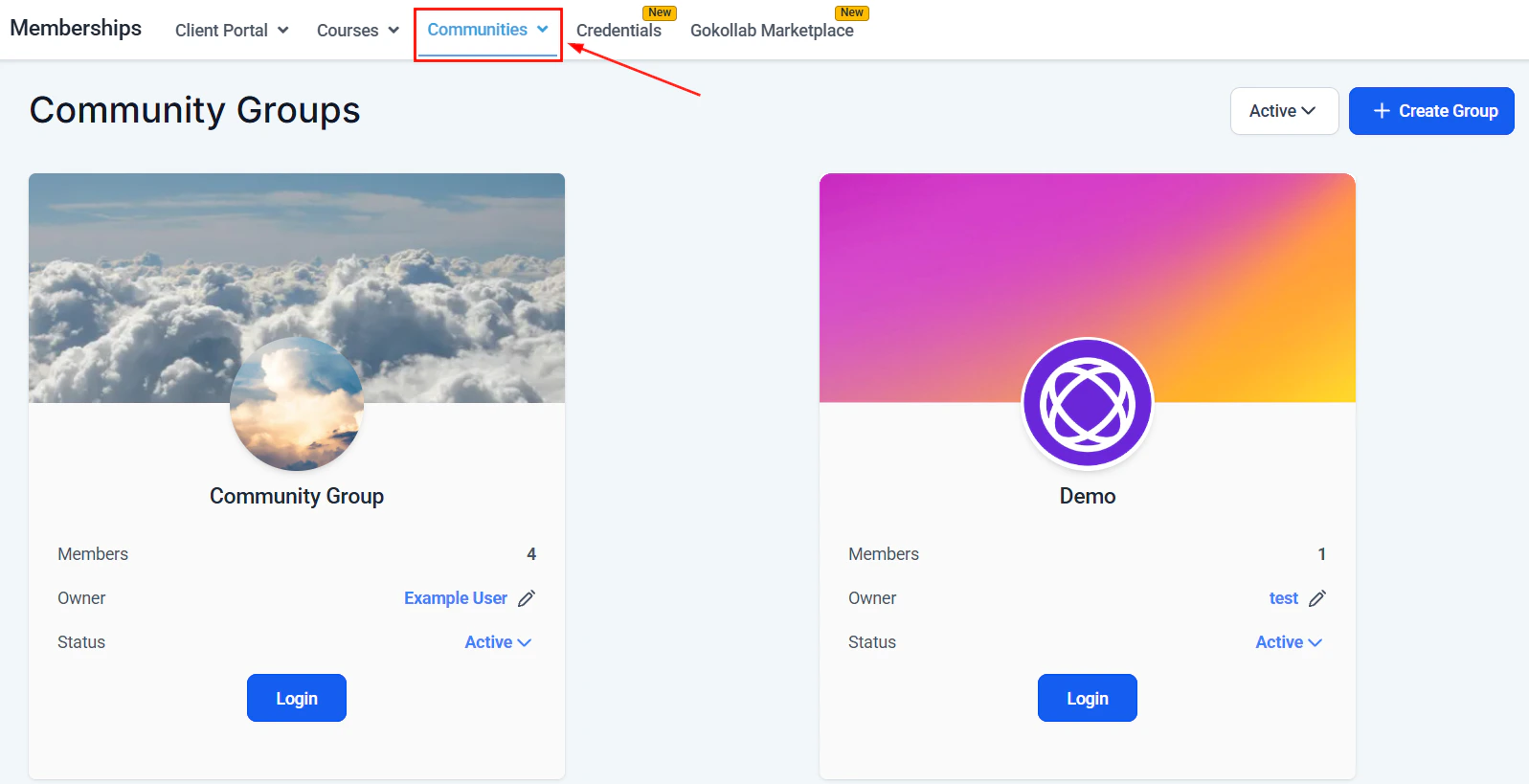
Communities give your members a dedicated space to connect, discuss, share wins, ask questions, and build relationships with each other — all within your branded member portal, alongside your courses and membership content.
 ## What is a community?
A community is a social feed-style space attached to your member portal. Members can:
* Post text updates, images, and videos
* Comment on and react to other members' posts
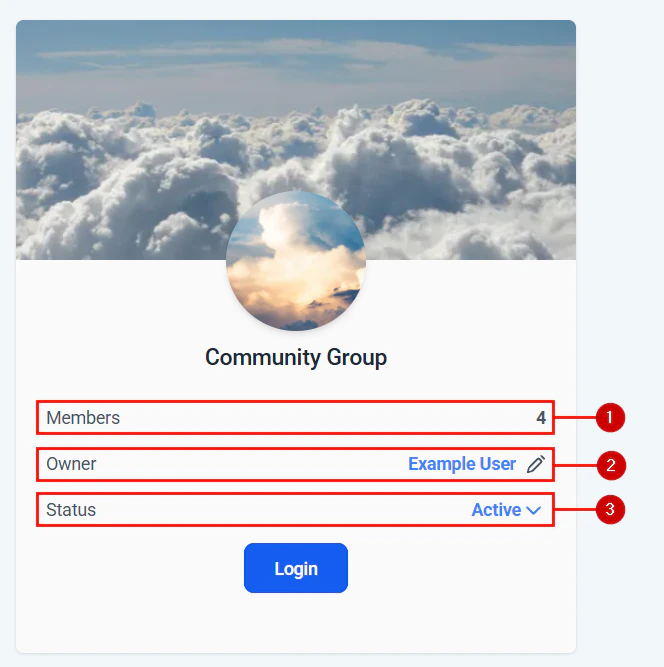
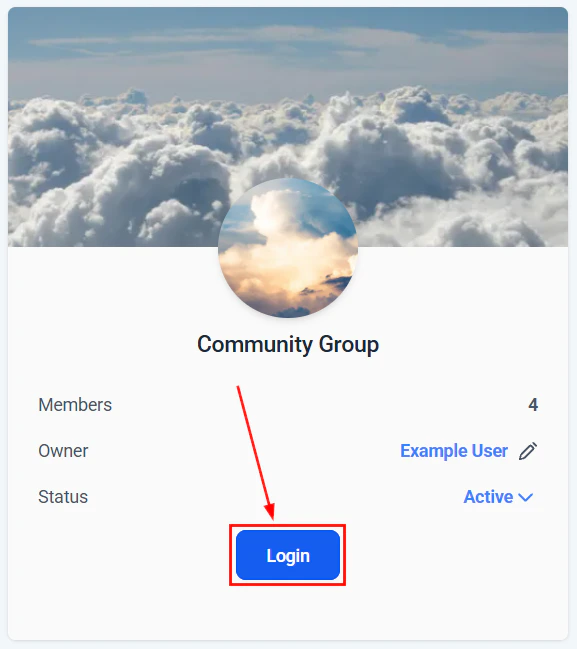
* Create and join topic-based **Groups** within the community
* Direct message other members (if enabled)
* Receive notifications for new posts, comments, and mentions
As an admin, you can moderate posts, pin important announcements, create groups, and manage member roles.
***
## Creating a community
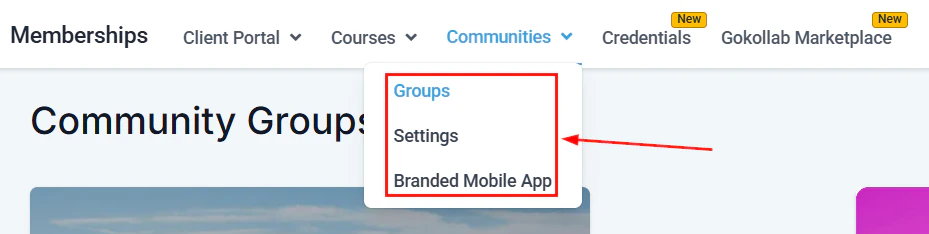
Click **Memberships and Communities** in the left sidebar, then select **Communities**. Click **+ New Community**.
## What is a community?
A community is a social feed-style space attached to your member portal. Members can:
* Post text updates, images, and videos
* Comment on and react to other members' posts
* Create and join topic-based **Groups** within the community
* Direct message other members (if enabled)
* Receive notifications for new posts, comments, and mentions
As an admin, you can moderate posts, pin important announcements, create groups, and manage member roles.
***
## Creating a community
Click **Memberships and Communities** in the left sidebar, then select **Communities**. Click **+ New Community**.
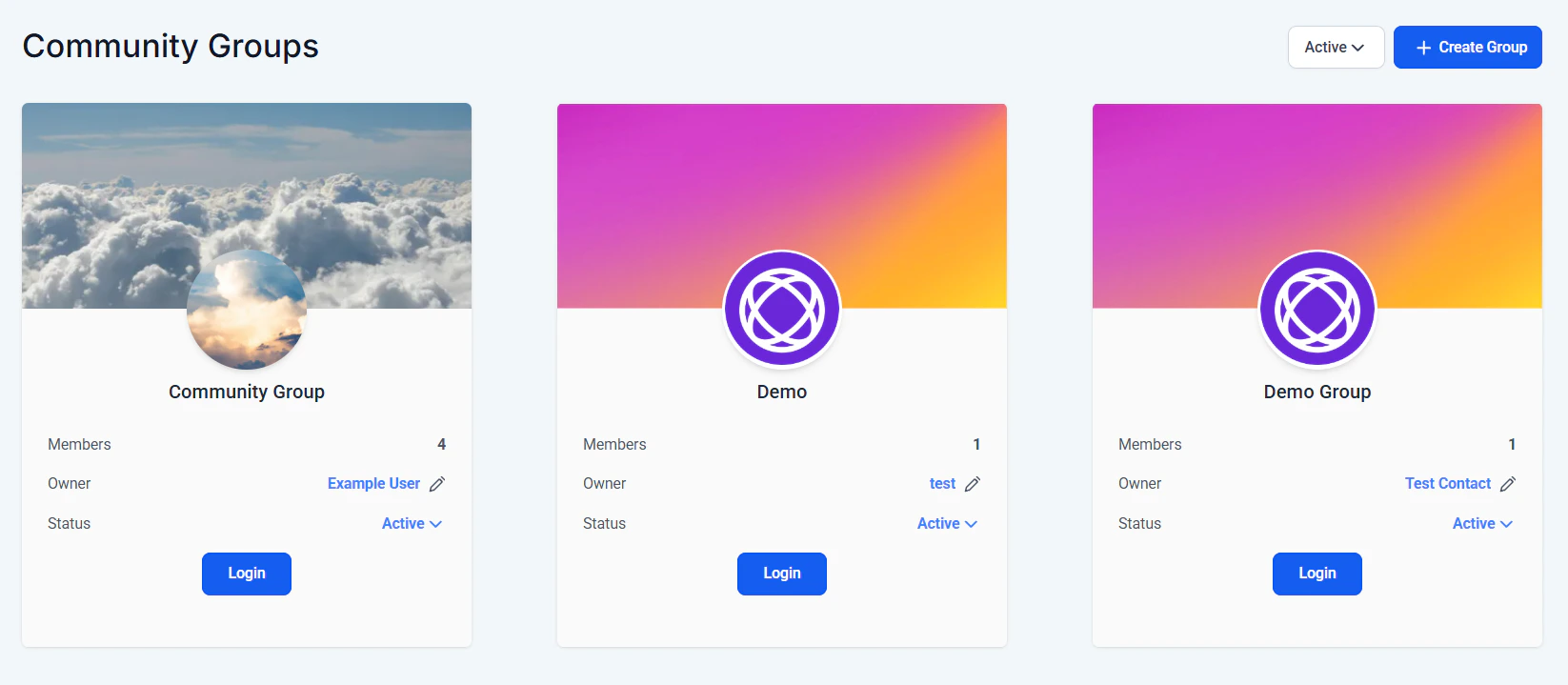
 Enter a community name, description, and upload a cover image and logo. These appear in the member portal and on the community landing page.
 Choose who can join the community:
* **Open** — any member who logs into the portal can join
* **Restricted** — only members with a specific membership or tag can access the community
Choose who can join the community:
* **Open** — any member who logs into the portal can join
* **Restricted** — only members with a specific membership or tag can access the community
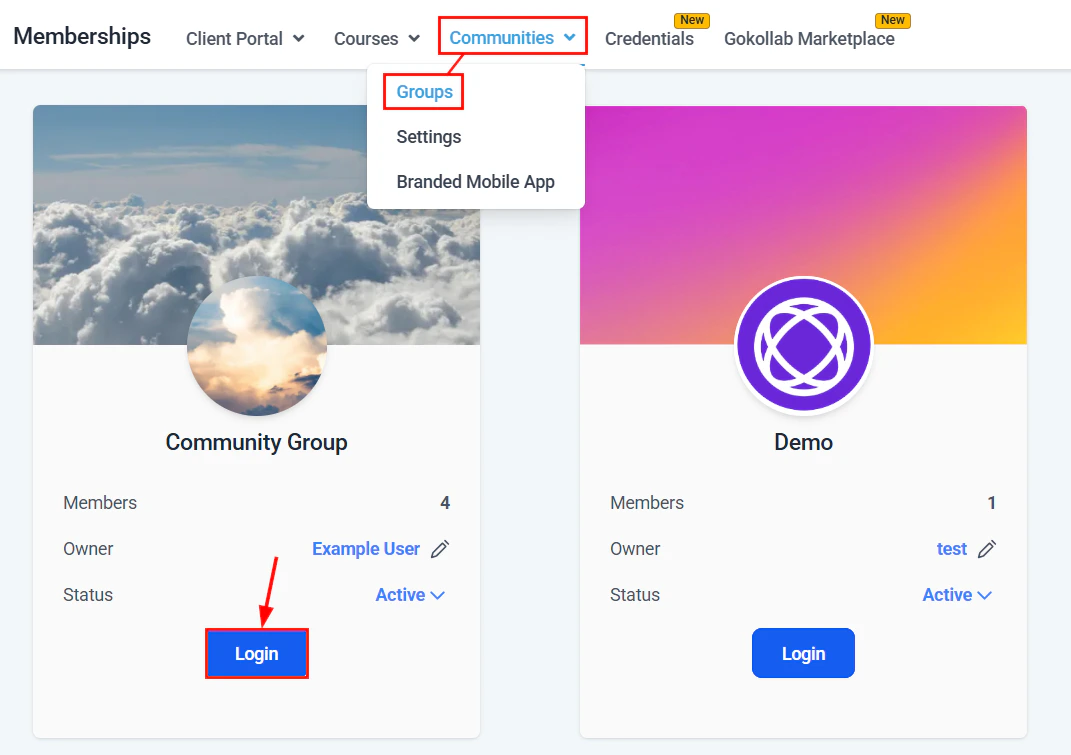
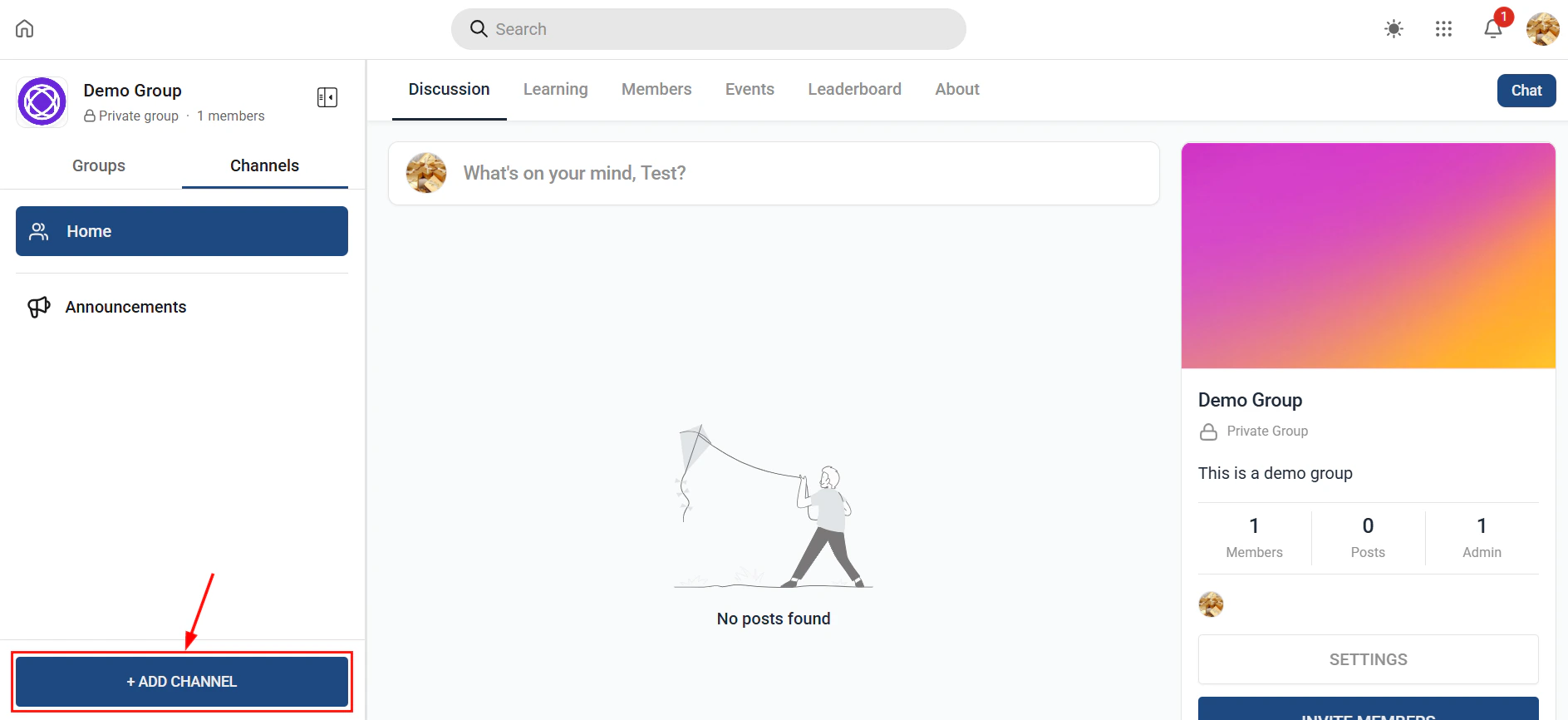
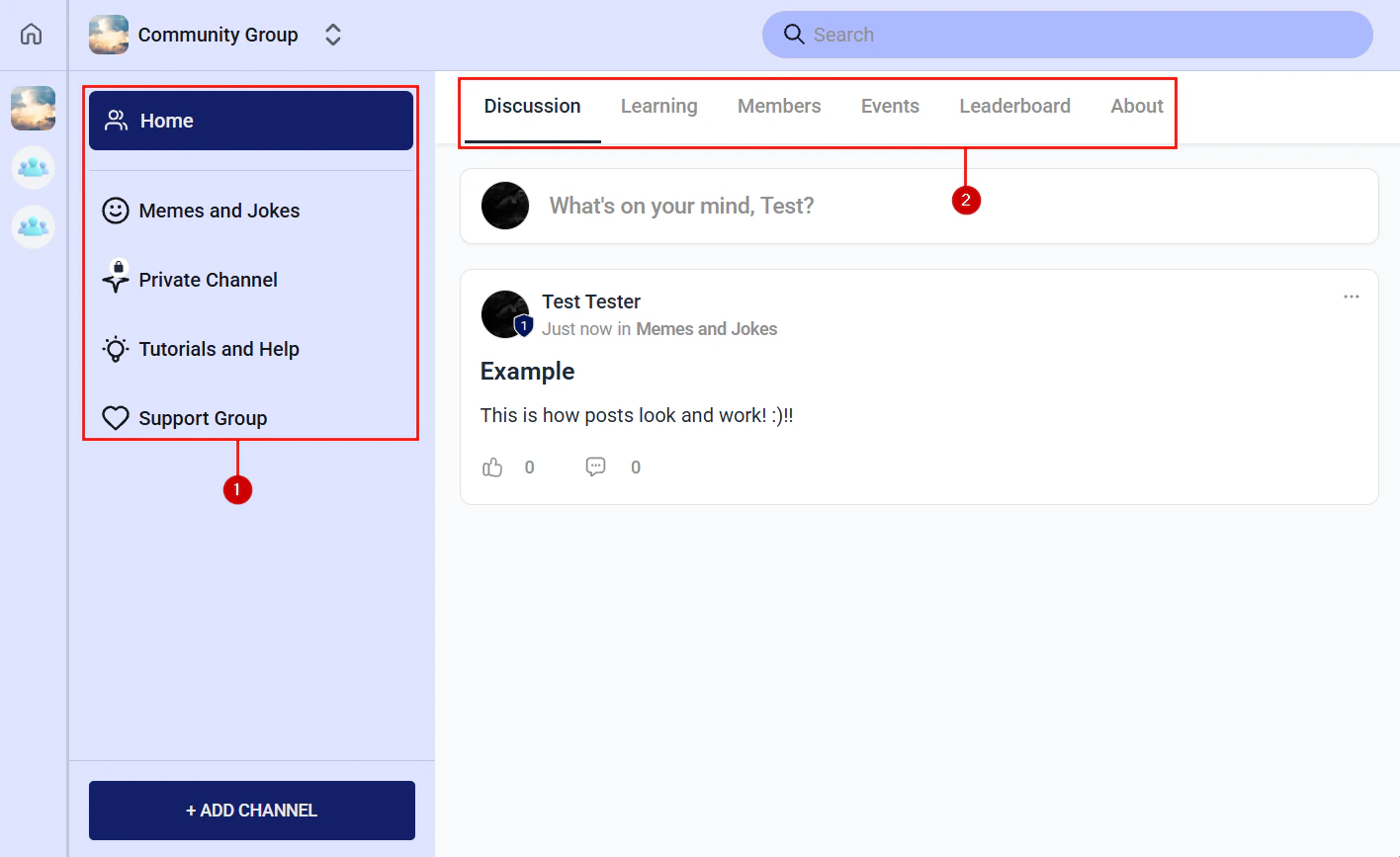
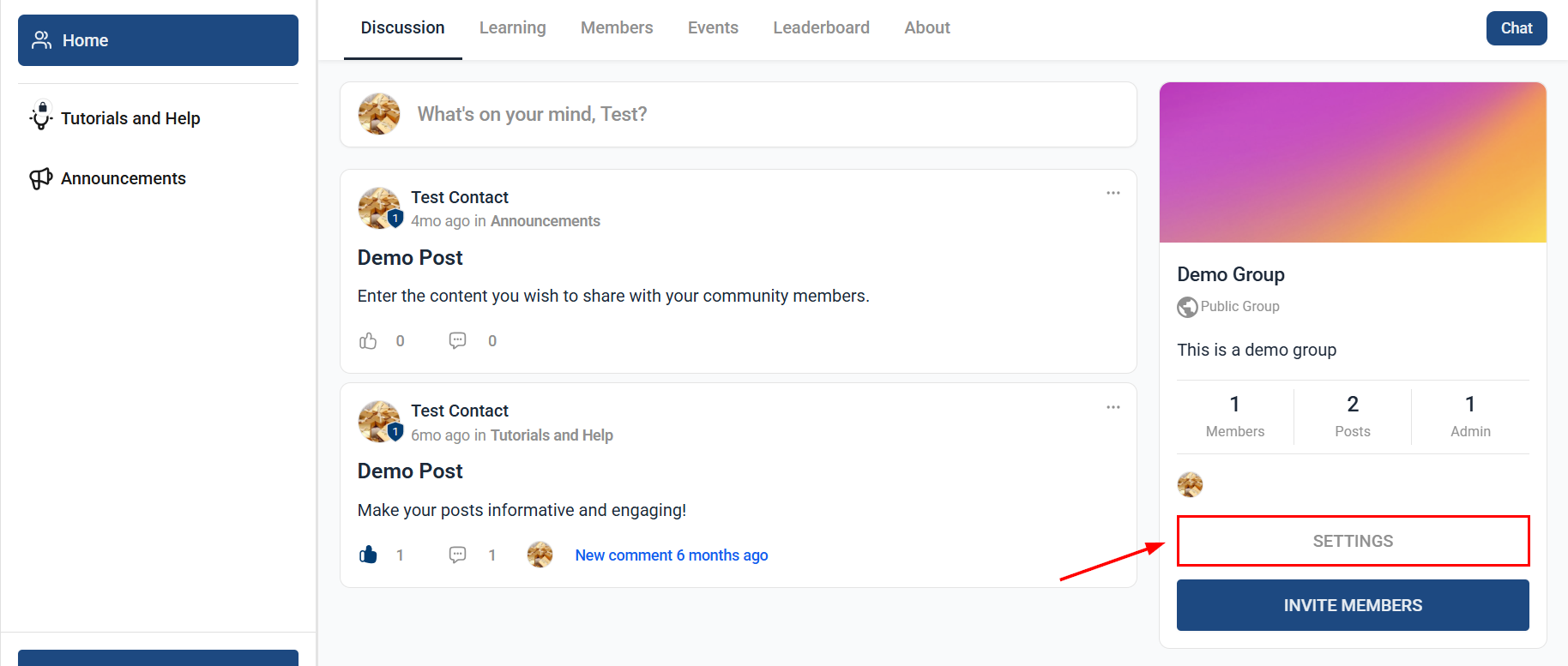 Groups are topic or interest-based sub-spaces within the community. Click **+ Add Group** to create groups such as "Introductions", "Questions & Answers", "Wins & Celebrations", or "Resources".
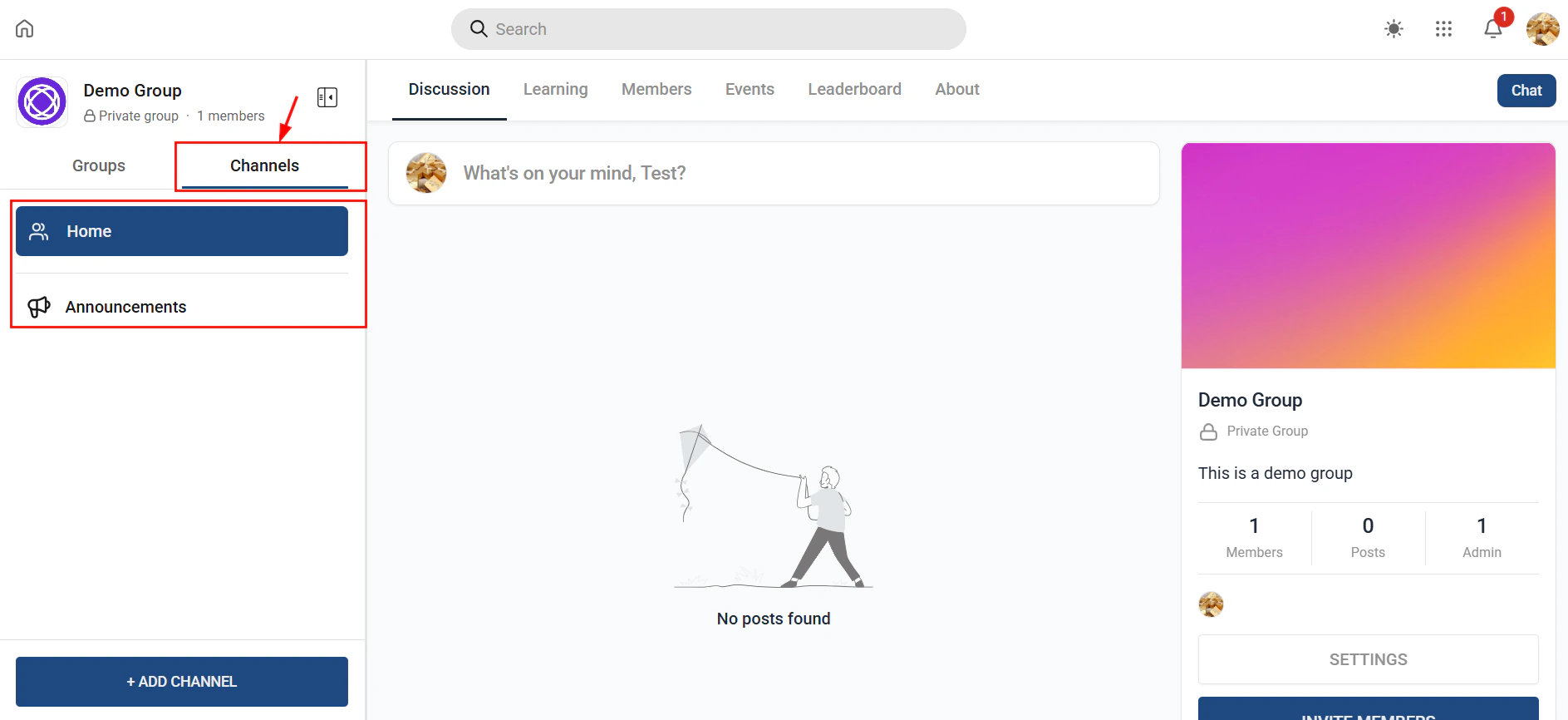
 Set up email digest notifications to keep members engaged. Options include:
* Immediate notifications for new posts or comments
* Daily or weekly digest emails summarizing activity
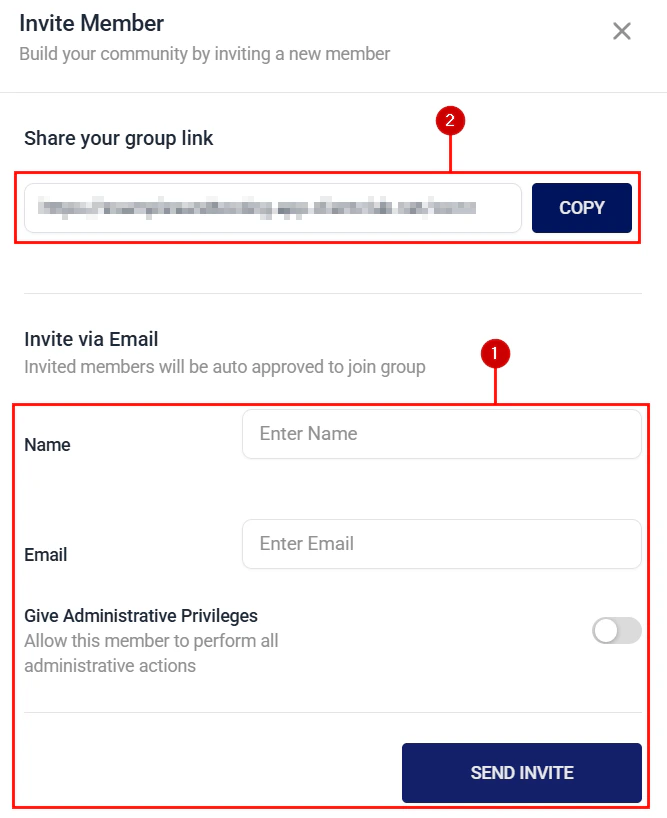
Publish the community and send invitations to your existing members via email automation. New members who purchase access can be automatically added via an automation action.
***
## Community channel types
When you create groups inside a community, you choose a channel type for each group. Different channel types support different interaction styles:
| Channel type | Description | Best used for |
| ------------ | --------------------------------------------------------------------- | ------------------------------------------------------------- |
| Feed | Social-style post wall where members create posts, comment, and react | General discussion, announcements, wins and celebrations |
| Chat | Real-time threaded messaging, similar to a group chat | Quick questions, live event chats, team coordination |
| Events | Scheduled community events with RSVP and calendar integration | Workshops, Q\&A sessions, live calls |
| Learning | Displays courses linked to the community inside the group | Cohort-based course discussion, module-by-module study groups |
### Feed channels
Feed channels are the default channel type. Members create posts (text, images, videos), and other members comment and react. Admins can pin posts, approve content before it appears, and create polls. Feed channels work best as the main social hub of your community.
### Chat channels
Chat channels support real-time threaded messaging. Unlike the feed, chat messages are shorter and conversational. Use chat channels alongside live events or office hours to give members a space to ask quick questions without cluttering the main feed.
### Events channels
Events channels let you schedule and promote community events. Members RSVP, receive reminders, and can view upcoming events in a calendar view. Link events to specific modules or course milestones to drive attendance at relevant sessions.
### Learning channels
Learning channels embed courses directly inside a community group. Members can switch between the social feed and their course content without leaving the community interface. This is ideal for cohort programs where course consumption and peer discussion happen side by side.
***
## Community moderation
As an admin or moderator you can:
* **Pin posts** — keep important announcements at the top of the feed
* **Delete posts or comments** — remove inappropriate content
* **Mute or ban members** — restrict posting rights for specific members
* **Approve posts** — enable a moderation queue so posts require approval before appearing publicly
* **Create polls** — post a multiple-choice poll to gather member opinions
Set up email digest notifications to keep members engaged. Options include:
* Immediate notifications for new posts or comments
* Daily or weekly digest emails summarizing activity
Publish the community and send invitations to your existing members via email automation. New members who purchase access can be automatically added via an automation action.
***
## Community channel types
When you create groups inside a community, you choose a channel type for each group. Different channel types support different interaction styles:
| Channel type | Description | Best used for |
| ------------ | --------------------------------------------------------------------- | ------------------------------------------------------------- |
| Feed | Social-style post wall where members create posts, comment, and react | General discussion, announcements, wins and celebrations |
| Chat | Real-time threaded messaging, similar to a group chat | Quick questions, live event chats, team coordination |
| Events | Scheduled community events with RSVP and calendar integration | Workshops, Q\&A sessions, live calls |
| Learning | Displays courses linked to the community inside the group | Cohort-based course discussion, module-by-module study groups |
### Feed channels
Feed channels are the default channel type. Members create posts (text, images, videos), and other members comment and react. Admins can pin posts, approve content before it appears, and create polls. Feed channels work best as the main social hub of your community.
### Chat channels
Chat channels support real-time threaded messaging. Unlike the feed, chat messages are shorter and conversational. Use chat channels alongside live events or office hours to give members a space to ask quick questions without cluttering the main feed.
### Events channels
Events channels let you schedule and promote community events. Members RSVP, receive reminders, and can view upcoming events in a calendar view. Link events to specific modules or course milestones to drive attendance at relevant sessions.
### Learning channels
Learning channels embed courses directly inside a community group. Members can switch between the social feed and their course content without leaving the community interface. This is ideal for cohort programs where course consumption and peer discussion happen side by side.
***
## Community moderation
As an admin or moderator you can:
* **Pin posts** — keep important announcements at the top of the feed
* **Delete posts or comments** — remove inappropriate content
* **Mute or ban members** — restrict posting rights for specific members
* **Approve posts** — enable a moderation queue so posts require approval before appearing publicly
* **Create polls** — post a multiple-choice poll to gather member opinions
 ***
## Member roles
| Role | Capabilities |
| --------- | ------------------------------------------------------------------------ |
| Admin | Full access — manage settings, groups, members, and moderate all content |
| Moderator | Moderate posts and comments, pin content, manage members |
| Member | Post, comment, react, and direct message |
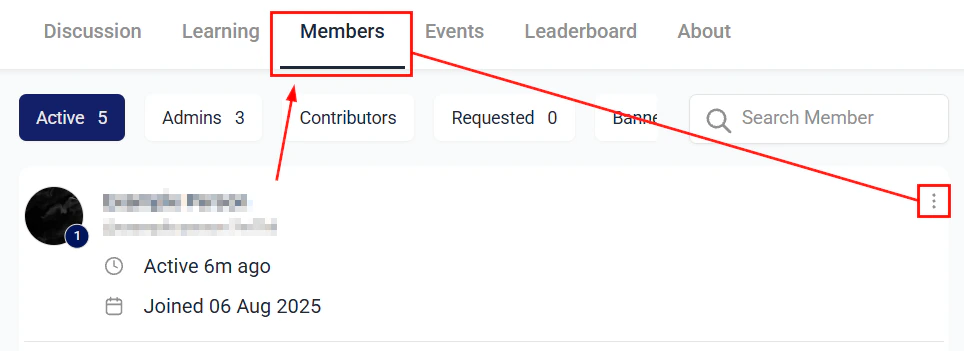
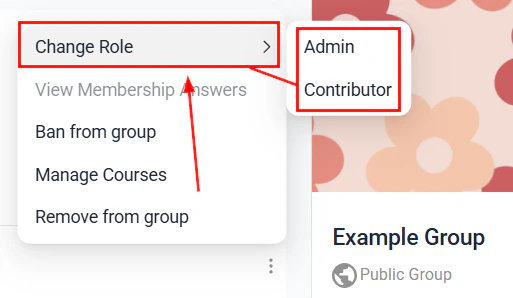
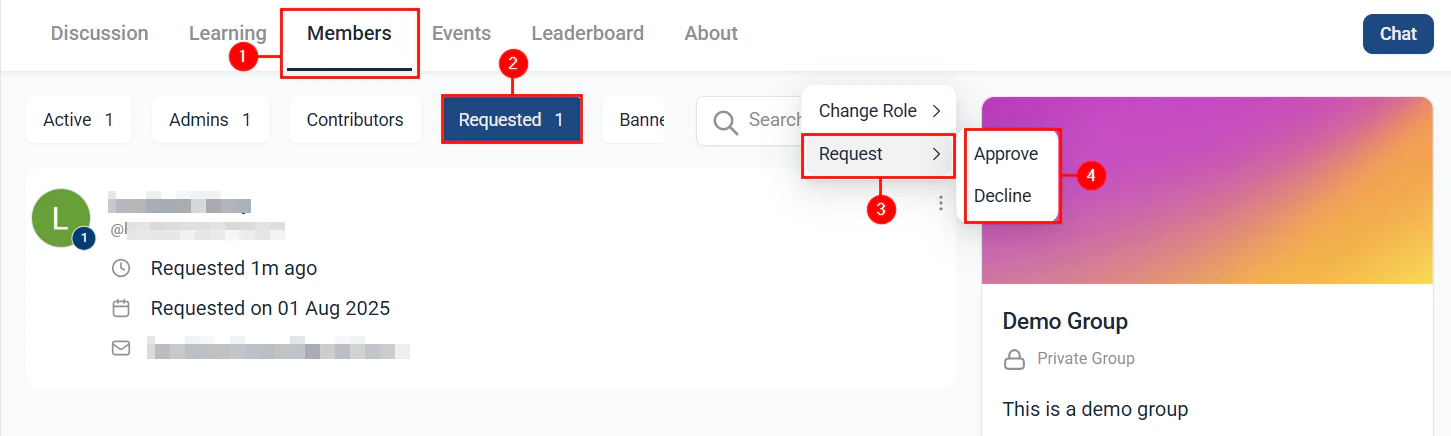
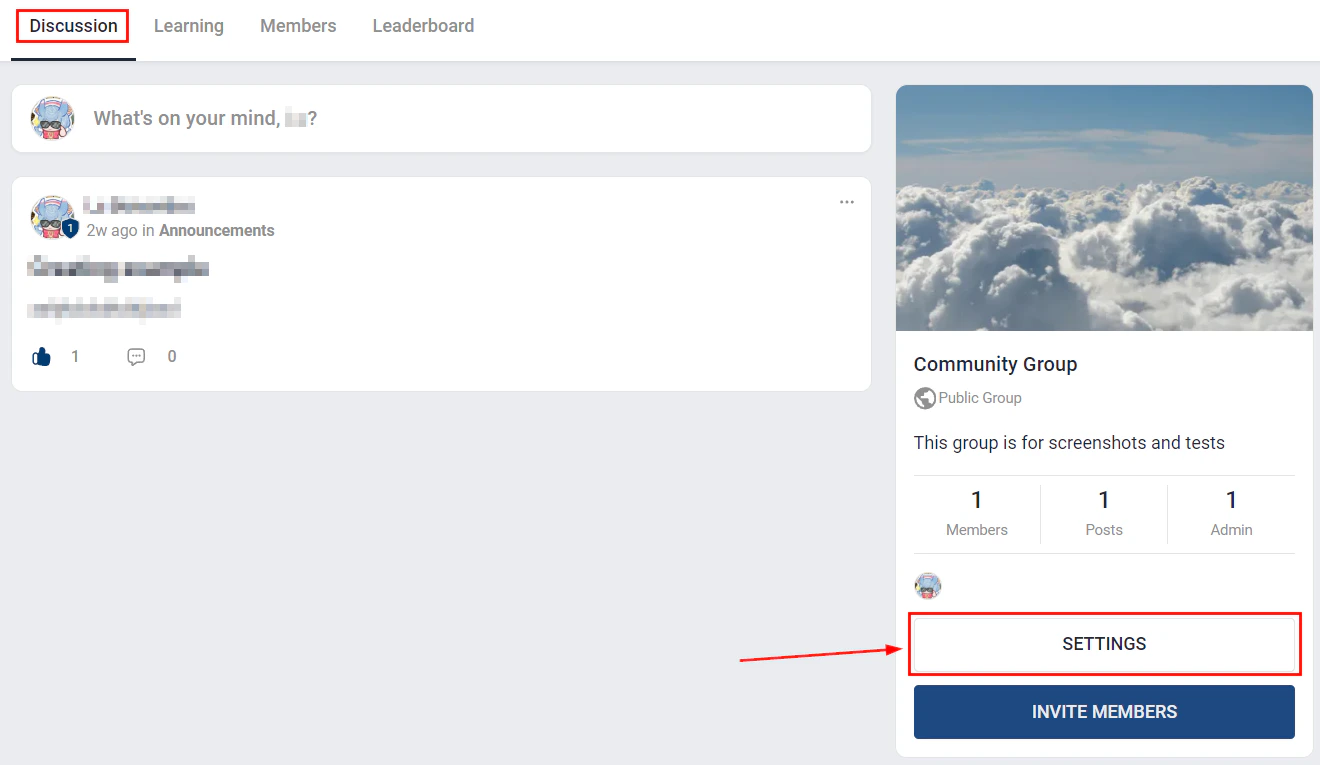
Assign roles from the **Members** tab inside the community settings.
***
## Member roles
| Role | Capabilities |
| --------- | ------------------------------------------------------------------------ |
| Admin | Full access — manage settings, groups, members, and moderate all content |
| Moderator | Moderate posts and comments, pin content, manage members |
| Member | Post, comment, react, and direct message |
Assign roles from the **Members** tab inside the community settings.
 ***
## Paid communities
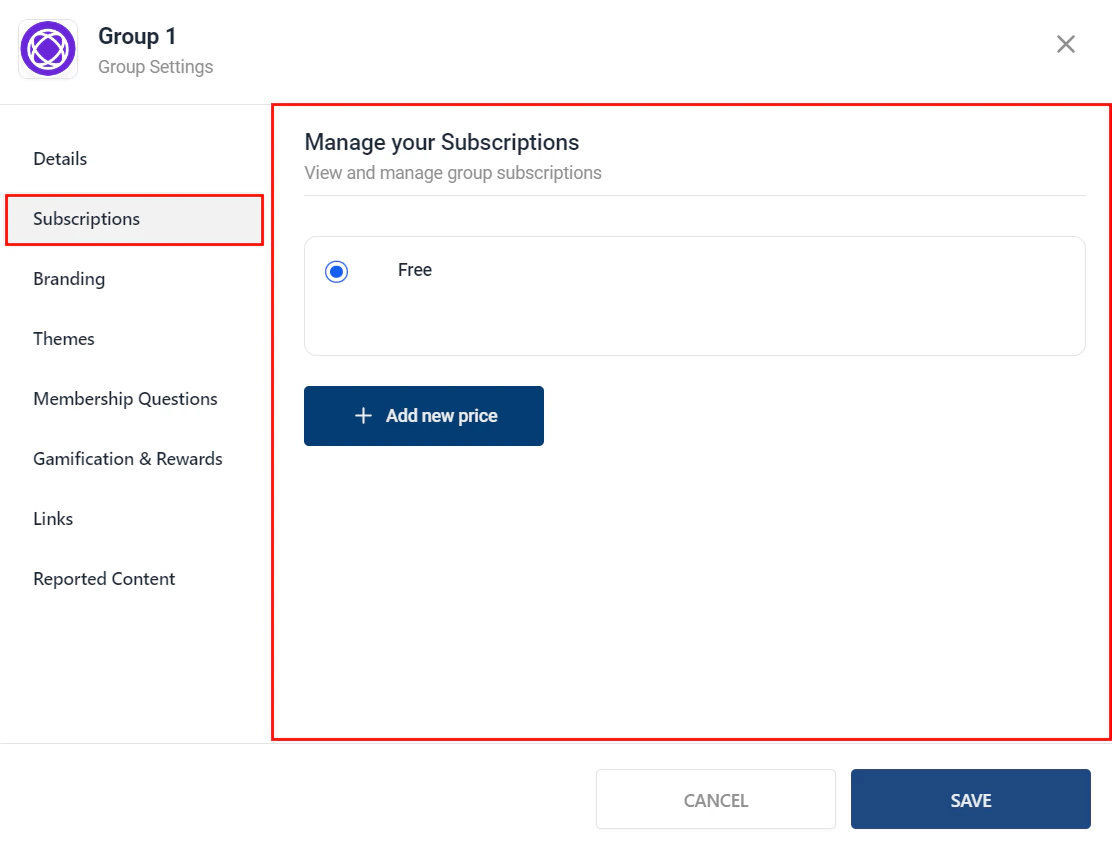
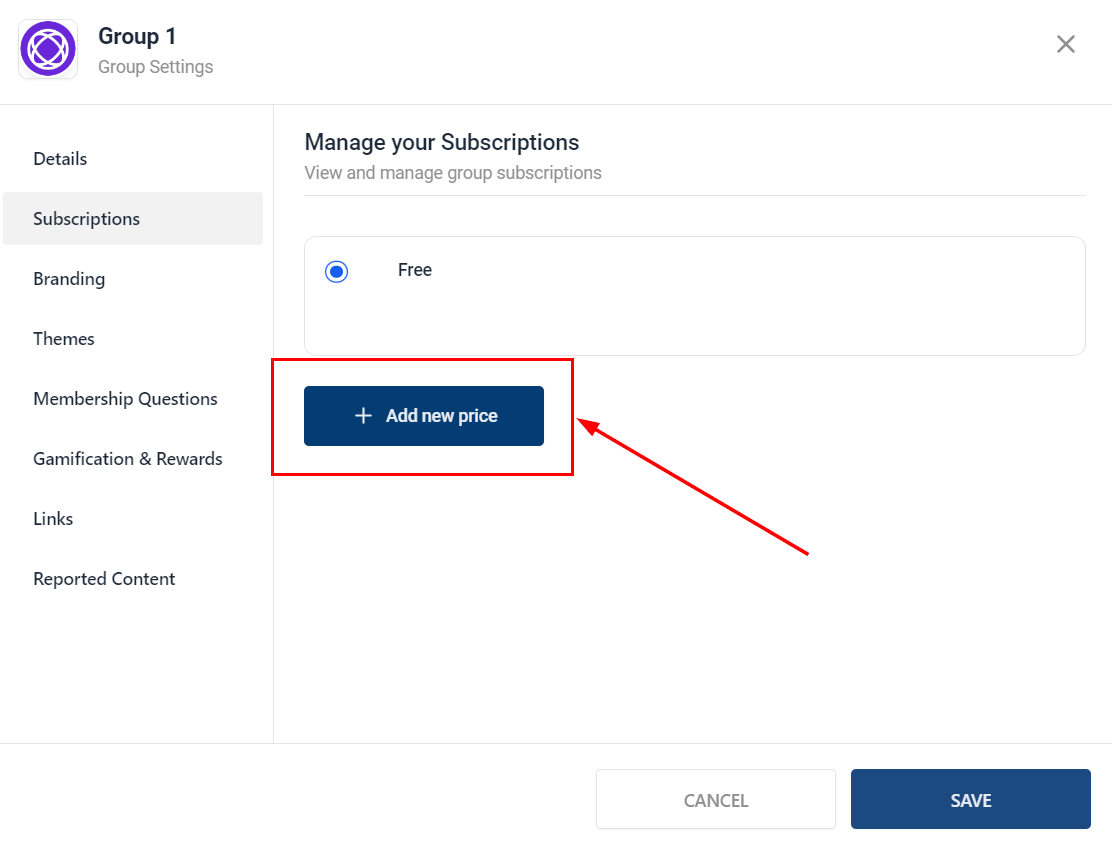
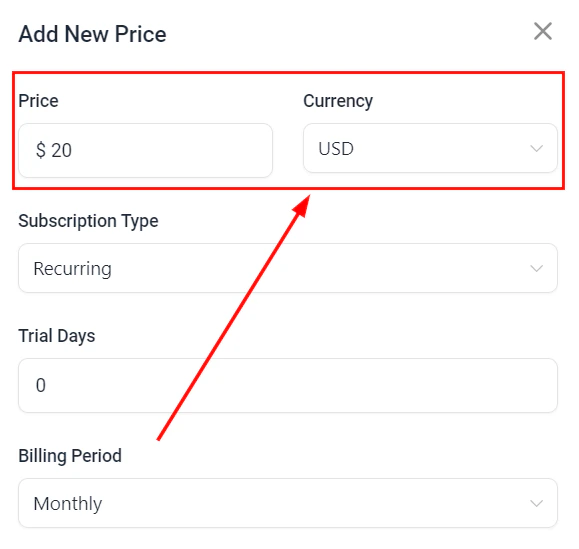
You can require a paid subscription to join a community group.
***
## Paid communities
You can require a paid subscription to join a community group.
 ***
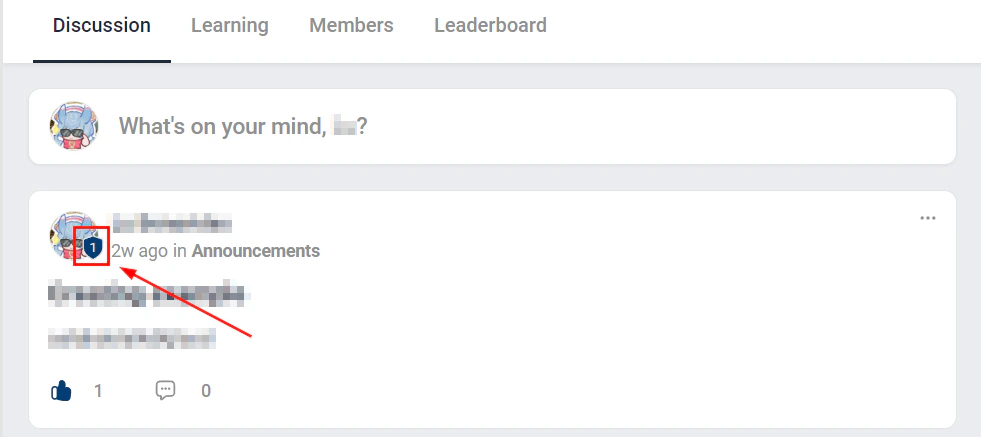
## Community badges
Badges reward members for participation and achievement within the community.
***
## Community badges
Badges reward members for participation and achievement within the community.
 ***
## Community and courses
Pairing a community with a course creates a cohort experience:
* Members work through the course and discuss lessons in the community
* Create a group for each course module as a dedicated discussion space
* Post weekly challenge prompts to drive engagement and accountability
***
## Community and courses
Pairing a community with a course creates a cohort experience:
* Members work through the course and discuss lessons in the community
* Create a group for each course module as a dedicated discussion space
* Post weekly challenge prompts to drive engagement and accountability
 ***
## Automations for communities
Use the **Community Member Joined** trigger in Automations to:
* Send a welcome email with community guidelines and tips to get started
* Add a tag to the contact record for community members
* Notify a team member or moderator
Post a welcome prompt ("Introduce yourself — where are you from and what are you working on?") as a pinned post on day one. This single action dramatically increases new member participation rates.
***
## Frequently asked questions
Communities support several channel types you can add within any group: **Feed** (social-style post wall), **Chat** (real-time threaded messaging), **Events** (scheduled community events with RSVP), and **Learning** (linked courses displayed inside the community). Choose the channel type that best fits each group's purpose.
Yes. When setting access rules for a community group, choose **Restricted** to limit access to members who have a specific membership offer, tag, or custom field value. Members without the required access see the community listed but cannot join or view content.
In the community group settings, enable **Paid** access and configure the subscription type, billing frequency, and price. Members are prompted to pay before joining the group. Ensure your Stripe account is connected in your Hoop payment settings to accept payments.
There are three roles: **Admin** (full access — manage settings, groups, members, and moderate all content), **Moderator** (moderate posts and comments, pin content, manage members), and **Member** (post, comment, react, and direct message). Assign roles from the **Members** tab inside the community settings.
Yes. Enable the moderation queue in the community group settings. When activated, all new posts from members are held for admin or moderator review before appearing publicly in the feed.
Badges are visual credentials you can create and award to members based on participation or achievement criteria. You design the badge (icon, name, description) and then either issue it manually from a contact record or link it to an automation trigger. Earned badges appear on the member's profile inside the community.
Use the **Community Member Joined** trigger in Automations. Add a **Send Email** action to deliver your welcome message, include community guidelines, and provide tips on getting started. You can also add a tag or notify a team member via the same workflow.
***
## Paid groups
You can require payment to join a specific community group, creating a monetized community experience:
1. In the group settings, enable **Paid** access.
2. Choose the payment type: **one-time**, **subscription** (monthly/annual), or **payment plan**.
3. Set the price.
4. Connect your payment gateway (Stripe is required for paid groups).
5. Members are prompted to pay before gaining access to the group.
Paid groups are ideal for premium content channels, mastermind groups, VIP access tiers, and exclusive coaching communities.
***
## Paid courses inside communities
Embed paid courses directly within community groups to create a cohort learning experience:
1. Add a **Learning** channel to the group.
2. Select the course to embed.
3. Link the course to a paid offer (configured in **Memberships and Communities > Courses > Offers**).
4. Members who purchase the offer gain access to both the course content and the community group.
This combines the social engagement of a community with structured course delivery — members discuss lessons, share wins, and ask questions alongside the curriculum.
***
## Member approval questions
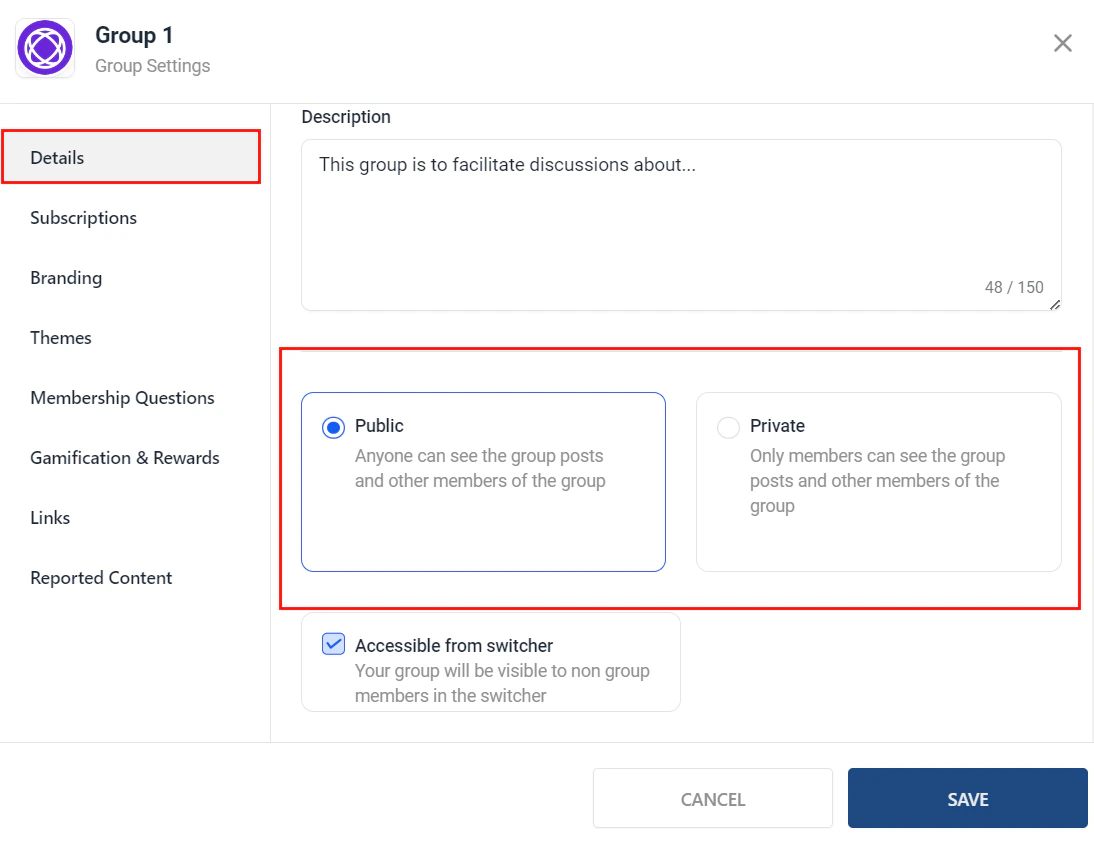
When a group is set to **Private**, you can add custom approval questions that members must answer before their join request is submitted:
1. In the group settings, navigate to **Approval Questions**.
2. Click **+ Add Question** and enter your question (e.g., "What is your main goal for joining this group?").
3. Add as many questions as needed.
4. When a member requests to join, their answers appear alongside the join request for admin review.
Approval questions help you screen members, gather insights about your audience, and ensure the group maintains quality.
***
## Ban members and report content
Admins and moderators have tools to maintain community safety:
### Banning members
1. Navigate to the **Members** tab in the community or group.
2. Find the member and click the three-dot menu.
3. Select **Ban**. The member is immediately removed from the community and cannot rejoin.
4. Banned members can be unbanned later from the **Banned Members** list in community settings.
### Reporting content
Members can report posts and comments that violate community guidelines:
1. The member clicks the three-dot menu on a post or comment.
2. They select **Report** and choose a reason (spam, harassment, inappropriate content, etc.).
3. The report appears in the admin's **Moderation Queue** for review.
4. Admins can delete the content, warn the member, or ban the member based on the report.
Publish clear community guidelines as a pinned post in your main group. This sets expectations for behavior and gives moderators a reference point when handling reports and enforcing rules.
***
## Automations for communities
Use the **Community Member Joined** trigger in Automations to:
* Send a welcome email with community guidelines and tips to get started
* Add a tag to the contact record for community members
* Notify a team member or moderator
Post a welcome prompt ("Introduce yourself — where are you from and what are you working on?") as a pinned post on day one. This single action dramatically increases new member participation rates.
***
## Frequently asked questions
Communities support several channel types you can add within any group: **Feed** (social-style post wall), **Chat** (real-time threaded messaging), **Events** (scheduled community events with RSVP), and **Learning** (linked courses displayed inside the community). Choose the channel type that best fits each group's purpose.
Yes. When setting access rules for a community group, choose **Restricted** to limit access to members who have a specific membership offer, tag, or custom field value. Members without the required access see the community listed but cannot join or view content.
In the community group settings, enable **Paid** access and configure the subscription type, billing frequency, and price. Members are prompted to pay before joining the group. Ensure your Stripe account is connected in your Hoop payment settings to accept payments.
There are three roles: **Admin** (full access — manage settings, groups, members, and moderate all content), **Moderator** (moderate posts and comments, pin content, manage members), and **Member** (post, comment, react, and direct message). Assign roles from the **Members** tab inside the community settings.
Yes. Enable the moderation queue in the community group settings. When activated, all new posts from members are held for admin or moderator review before appearing publicly in the feed.
Badges are visual credentials you can create and award to members based on participation or achievement criteria. You design the badge (icon, name, description) and then either issue it manually from a contact record or link it to an automation trigger. Earned badges appear on the member's profile inside the community.
Use the **Community Member Joined** trigger in Automations. Add a **Send Email** action to deliver your welcome message, include community guidelines, and provide tips on getting started. You can also add a tag or notify a team member via the same workflow.
***
## Paid groups
You can require payment to join a specific community group, creating a monetized community experience:
1. In the group settings, enable **Paid** access.
2. Choose the payment type: **one-time**, **subscription** (monthly/annual), or **payment plan**.
3. Set the price.
4. Connect your payment gateway (Stripe is required for paid groups).
5. Members are prompted to pay before gaining access to the group.
Paid groups are ideal for premium content channels, mastermind groups, VIP access tiers, and exclusive coaching communities.
***
## Paid courses inside communities
Embed paid courses directly within community groups to create a cohort learning experience:
1. Add a **Learning** channel to the group.
2. Select the course to embed.
3. Link the course to a paid offer (configured in **Memberships and Communities > Courses > Offers**).
4. Members who purchase the offer gain access to both the course content and the community group.
This combines the social engagement of a community with structured course delivery — members discuss lessons, share wins, and ask questions alongside the curriculum.
***
## Member approval questions
When a group is set to **Private**, you can add custom approval questions that members must answer before their join request is submitted:
1. In the group settings, navigate to **Approval Questions**.
2. Click **+ Add Question** and enter your question (e.g., "What is your main goal for joining this group?").
3. Add as many questions as needed.
4. When a member requests to join, their answers appear alongside the join request for admin review.
Approval questions help you screen members, gather insights about your audience, and ensure the group maintains quality.
***
## Ban members and report content
Admins and moderators have tools to maintain community safety:
### Banning members
1. Navigate to the **Members** tab in the community or group.
2. Find the member and click the three-dot menu.
3. Select **Ban**. The member is immediately removed from the community and cannot rejoin.
4. Banned members can be unbanned later from the **Banned Members** list in community settings.
### Reporting content
Members can report posts and comments that violate community guidelines:
1. The member clicks the three-dot menu on a post or comment.
2. They select **Report** and choose a reason (spam, harassment, inappropriate content, etc.).
3. The report appears in the admin's **Moderation Queue** for review.
4. Admins can delete the content, warn the member, or ban the member based on the report.
Publish clear community guidelines as a pinned post in your main group. This sets expectations for behavior and gives moderators a reference point when handling reports and enforcing rules.