> ## Documentation Index
> Fetch the complete documentation index at: https://help.hoopai.com/llms.txt
> Use this file to discover all available pages before exploring further.
# Video hosting and streaming
> Upload, host, and stream videos directly on the HoopAI platform for use in funnels, websites, and courses without third-party video platforms.
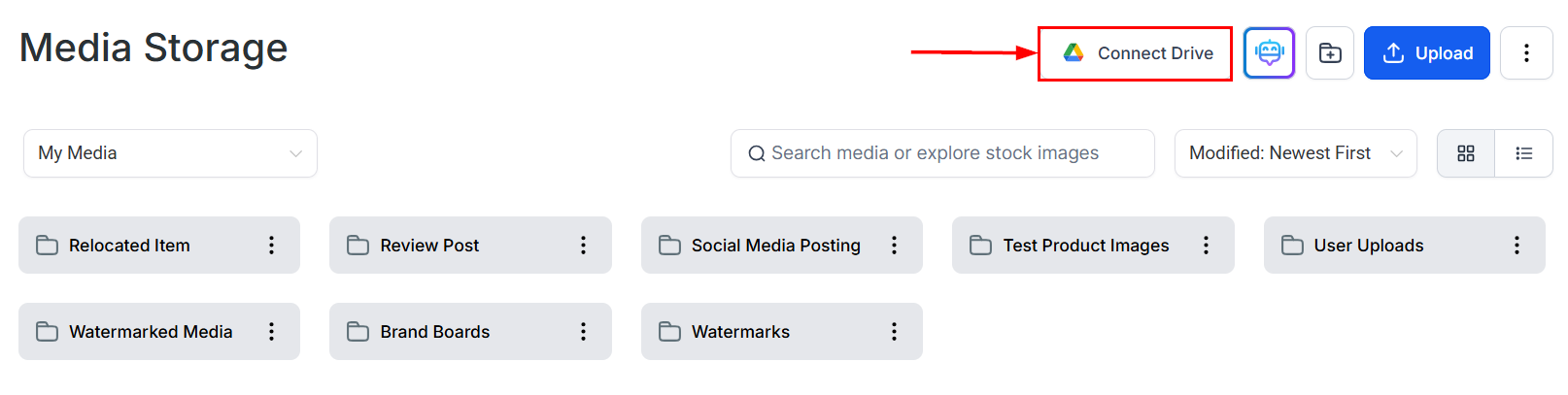
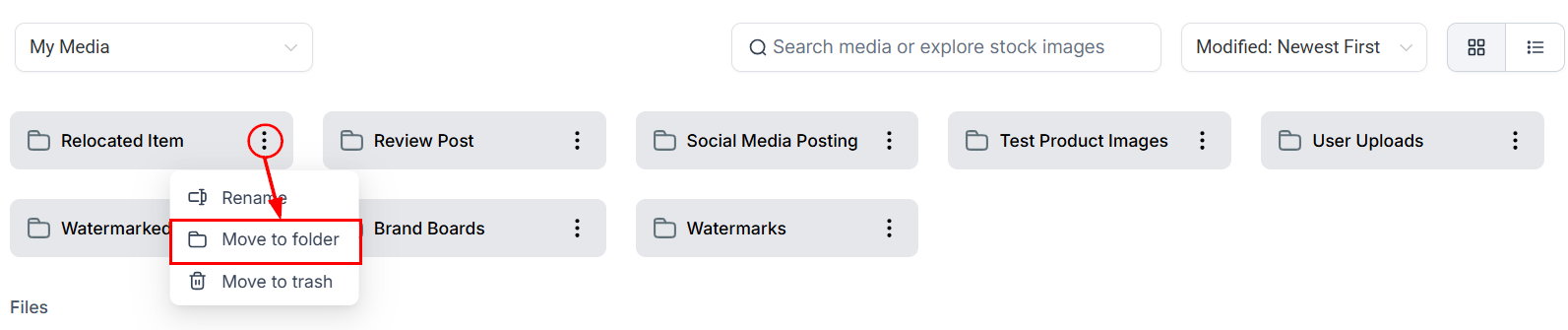
The HoopAI platform includes native video hosting, so you can upload video files directly to Media Storage and embed them in funnels, websites, and course lessons without relying on YouTube, Vimeo, or any other external video platform. Hosted videos are transcoded for adaptive streaming, served via CDN, and played through a built-in video player with full playback controls.
## How video hosting works
When you upload a video to Media Storage, the platform processes it through a transcoding pipeline:
1. The raw video file is uploaded to your media library
2. The platform transcodes the file into multiple quality levels (480p, 720p, 1080p)
3. The encoded versions are stored on CDN infrastructure for global delivery
4. When a viewer plays the video, the player automatically selects the appropriate quality based on the viewer's connection speed (adaptive streaming)
Transcoding runs in the background after the upload completes. A video may appear in your library immediately after upload but will not be playable until transcoding finishes. For large files, this can take several minutes.
 ## Supported video formats and size limits
The following video formats are accepted for upload:
| Format | Extension |
| ------------------- | ------------- |
| MP4 | `.mp4` |
| QuickTime | `.mov`, `.qt` |
| AVI | `.avi` |
| WebM | `.webm` |
| Windows Media Video | `.wmv` |
| Ogg | `.ogv` |
The maximum upload size for video files is **4 GB**. Course lesson videos support up to **5 GB**, though standard uploads through the Media Library are capped at 4 GB.
## Using videos in funnels and websites
To add a hosted video to a funnel or website page:
Navigate to your funnel or website, open the page, and click **Edit**.
Drag a **Video** element onto the canvas from the elements panel on the left.
In the element settings panel on the right, find the **Video Type** dropdown and select **Hosted Video**.
Click **Select Video** to open the media library picker. Select the video file you uploaded.
Adjust the player settings (see below) and save the page.
## Supported video formats and size limits
The following video formats are accepted for upload:
| Format | Extension |
| ------------------- | ------------- |
| MP4 | `.mp4` |
| QuickTime | `.mov`, `.qt` |
| AVI | `.avi` |
| WebM | `.webm` |
| Windows Media Video | `.wmv` |
| Ogg | `.ogv` |
The maximum upload size for video files is **4 GB**. Course lesson videos support up to **5 GB**, though standard uploads through the Media Library are capped at 4 GB.
## Using videos in funnels and websites
To add a hosted video to a funnel or website page:
Navigate to your funnel or website, open the page, and click **Edit**.
Drag a **Video** element onto the canvas from the elements panel on the left.
In the element settings panel on the right, find the **Video Type** dropdown and select **Hosted Video**.
Click **Select Video** to open the media library picker. Select the video file you uploaded.
Adjust the player settings (see below) and save the page.
 ## Playback settings
After selecting a hosted video, the following settings are available in the video element's options panel:
| Setting | Description |
| ------------------------------ | ------------------------------------------------------------------------------------------------------------------------------- |
| Autoplay | Starts the video automatically when the page loads. Per browser policy, autoplay videos must begin muted on all major browsers. |
| Allow play/pause | Gives viewers a play/pause button to control playback. |
| Playback speed control | Lets viewers change playback speed (0.5x, 0.75x, 1x, 2x). |
| Show pending time | Displays elapsed time and total video duration in the player. |
| Show full-screen toggle | Adds a full-screen button to the player. |
| Show progress bar | Displays a scrubber bar showing playback position. |
| Redirect unregistered visitors | Sends unidentified visitors to an opt-in form before the video plays, enabling contact tracking. |
Autoplay with sound is blocked by all major browsers (Chrome, Firefox, Safari, Edge) regardless of player settings. Videos set to autoplay will start muted. Viewers must manually unmute the video.
## Quality and adaptive playback
Hosted videos are automatically transcoded into multiple resolutions: **480p**, **720p**, **1080p**, and **Auto**. When a viewer plays a video:
* **Auto** mode (the default) selects the best quality the viewer's connection can handle and adjusts dynamically during playback
* Viewers can manually override the quality level using the player's settings menu
This adaptive behavior ensures smooth playback for viewers on slower connections while delivering full-resolution video to viewers on fast connections.
## Using videos in courses and memberships
Course lesson videos are uploaded directly within the Memberships module (not through Media Storage), but the same underlying video infrastructure handles storage, transcoding, and delivery. The maximum video size for course lessons is **5 GB**.
Within the course editor, you can:
* **Set a custom thumbnail** — upload an image or select a frame from the video to use as the lesson thumbnail displayed on the course dashboard
* **Use the current frame as thumbnail** — pause the video at any frame and set it as the thumbnail with one click
Videos in course lessons do not include the same playback setting toggles as funnel videos. The player renders with standard controls (play, pause, seek, volume, full-screen) by default.
## Embedding videos from external platforms
If you prefer to host a video on YouTube, Vimeo, or another external platform, you can embed it using the Video element in the page builder:
1. Add a **Video** element to your page
2. In the **Video Type** dropdown, select the appropriate external type (YouTube, Vimeo, or Custom URL)
3. Paste the video URL
External embeds do not go through HoopAI's transcoding or CDN — they load from the third-party platform's servers. This approach is useful for videos that exceed the 4 GB upload limit or when you want YouTube's analytics and discoverability.
## Picture-in-picture
The built-in video player supports **picture-in-picture mode** on browsers that allow it (Chrome, Edge, Safari). Viewers can pop the video into a floating overlay while scrolling the rest of the page or switching browser tabs.
## Video download by viewers
Hosted videos are streamed directly and do not present a visible download button to viewers by default. The raw video file URL is not exposed in the player interface, providing a basic level of protection for your video content. For stronger content protection in courses (access control by enrollment, drip scheduling), use the Memberships module rather than a raw media link.
***
## FAQs
Transcoding time depends on file size and platform load. A 100 MB video typically encodes in a few minutes. A 2–4 GB video may take 15–30 minutes or longer. The video will appear in your library immediately after upload, but it won't be playable in the builder or on published pages until encoding finishes.
No. Swapping the video file requires re-selecting the video in the page builder element settings. The hosted video player is linked to the specific file you selected, not to a slot. Select the new file and republish the page.
Yes. The hosted video player is compatible with mobile browsers. Autoplay behavior follows each mobile platform's own browser policies — iOS and Android browsers require a user gesture before a video plays with sound.
Caption support varies by platform feature. For course lesson videos in the Memberships module, closed caption files can be added. For funnel-page hosted videos, built-in caption upload is not currently available — consider burning captions into the video file before upload if captions are required.
Yes. Hosting and streaming video files through Media Storage is available on all paid HoopAI plans. There are no per-video or per-stream fees for standard hosted video playback.
## Playback settings
After selecting a hosted video, the following settings are available in the video element's options panel:
| Setting | Description |
| ------------------------------ | ------------------------------------------------------------------------------------------------------------------------------- |
| Autoplay | Starts the video automatically when the page loads. Per browser policy, autoplay videos must begin muted on all major browsers. |
| Allow play/pause | Gives viewers a play/pause button to control playback. |
| Playback speed control | Lets viewers change playback speed (0.5x, 0.75x, 1x, 2x). |
| Show pending time | Displays elapsed time and total video duration in the player. |
| Show full-screen toggle | Adds a full-screen button to the player. |
| Show progress bar | Displays a scrubber bar showing playback position. |
| Redirect unregistered visitors | Sends unidentified visitors to an opt-in form before the video plays, enabling contact tracking. |
Autoplay with sound is blocked by all major browsers (Chrome, Firefox, Safari, Edge) regardless of player settings. Videos set to autoplay will start muted. Viewers must manually unmute the video.
## Quality and adaptive playback
Hosted videos are automatically transcoded into multiple resolutions: **480p**, **720p**, **1080p**, and **Auto**. When a viewer plays a video:
* **Auto** mode (the default) selects the best quality the viewer's connection can handle and adjusts dynamically during playback
* Viewers can manually override the quality level using the player's settings menu
This adaptive behavior ensures smooth playback for viewers on slower connections while delivering full-resolution video to viewers on fast connections.
## Using videos in courses and memberships
Course lesson videos are uploaded directly within the Memberships module (not through Media Storage), but the same underlying video infrastructure handles storage, transcoding, and delivery. The maximum video size for course lessons is **5 GB**.
Within the course editor, you can:
* **Set a custom thumbnail** — upload an image or select a frame from the video to use as the lesson thumbnail displayed on the course dashboard
* **Use the current frame as thumbnail** — pause the video at any frame and set it as the thumbnail with one click
Videos in course lessons do not include the same playback setting toggles as funnel videos. The player renders with standard controls (play, pause, seek, volume, full-screen) by default.
## Embedding videos from external platforms
If you prefer to host a video on YouTube, Vimeo, or another external platform, you can embed it using the Video element in the page builder:
1. Add a **Video** element to your page
2. In the **Video Type** dropdown, select the appropriate external type (YouTube, Vimeo, or Custom URL)
3. Paste the video URL
External embeds do not go through HoopAI's transcoding or CDN — they load from the third-party platform's servers. This approach is useful for videos that exceed the 4 GB upload limit or when you want YouTube's analytics and discoverability.
## Picture-in-picture
The built-in video player supports **picture-in-picture mode** on browsers that allow it (Chrome, Edge, Safari). Viewers can pop the video into a floating overlay while scrolling the rest of the page or switching browser tabs.
## Video download by viewers
Hosted videos are streamed directly and do not present a visible download button to viewers by default. The raw video file URL is not exposed in the player interface, providing a basic level of protection for your video content. For stronger content protection in courses (access control by enrollment, drip scheduling), use the Memberships module rather than a raw media link.
***
## FAQs
Transcoding time depends on file size and platform load. A 100 MB video typically encodes in a few minutes. A 2–4 GB video may take 15–30 minutes or longer. The video will appear in your library immediately after upload, but it won't be playable in the builder or on published pages until encoding finishes.
No. Swapping the video file requires re-selecting the video in the page builder element settings. The hosted video player is linked to the specific file you selected, not to a slot. Select the new file and republish the page.
Yes. The hosted video player is compatible with mobile browsers. Autoplay behavior follows each mobile platform's own browser policies — iOS and Android browsers require a user gesture before a video plays with sound.
Caption support varies by platform feature. For course lesson videos in the Memberships module, closed caption files can be added. For funnel-page hosted videos, built-in caption upload is not currently available — consider burning captions into the video file before upload if captions are required.
Yes. Hosting and streaming video files through Media Storage is available on all paid HoopAI plans. There are no per-video or per-stream fees for standard hosted video playback.