> ## Documentation Index
> Fetch the complete documentation index at: https://help.hoopai.com/llms.txt
> Use this file to discover all available pages before exploring further.
# Storage limits and file size caps
> Understand per-file size limits, per-feature upload caps, and how storage usage is tracked in the HoopAI platform.
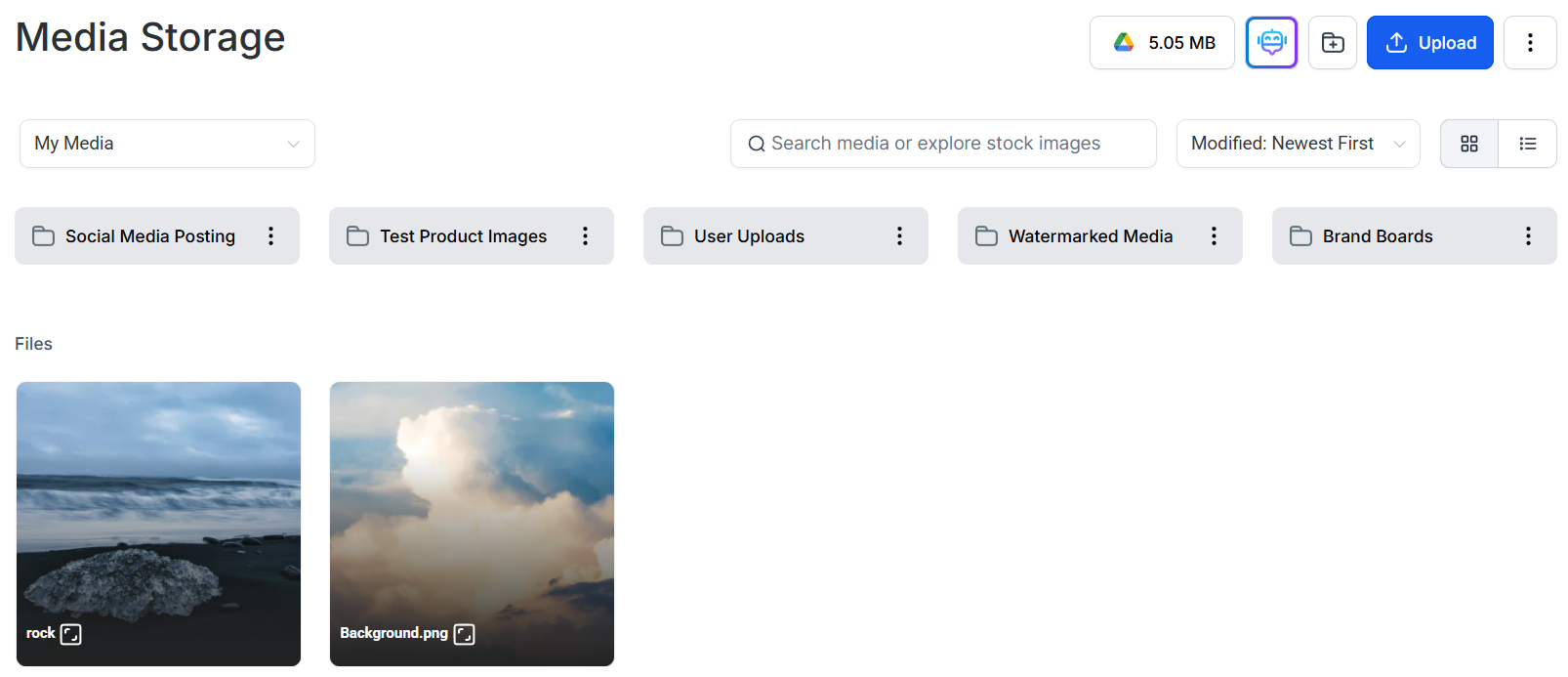
Media Storage in the HoopAI platform has no overall account-level storage quota — you can upload as many files as you need without hitting a ceiling. However, individual file uploads are subject to per-file size limits, and some platform features apply additional, stricter caps based on how files are used in that context.
## Overall account storage
There is no total storage limit for your HoopAI account. You can upload an unlimited number of files across images, videos, audio, documents, and fonts. The only constraints are the per-file size limits described below.
## Per-file upload limits (Media Library)
 These limits apply whenever you upload directly to Media Storage:
| File type | Maximum file size |
| --------- | ----------------- |
| Videos | 4 GB |
| Images | 100 MB |
| Audio | 100 MB |
| Documents | 100 MB |
| Fonts | 100 MB |
Files that exceed these limits will fail to upload and display an error. If a video file is larger than 4 GB, you will need to compress it or split it before uploading. For image and document files over 100 MB, compression or format conversion is usually the fastest remedy.
## Per-feature file size limits
Individual tools within the platform apply their own limits, which may be lower than the base Media Library limits. The file you upload to the library may be within the library limit but still too large for a specific use.
| Feature | Images | Videos | Audio | Documents |
| ----------------------- | ------ | ------ | ------ | --------- |
| Media Library | 100 MB | 4 GB | 100 MB | 100 MB |
| Funnels and websites | 100 MB | 4 GB | 100 MB | 100 MB |
| Courses and memberships | 50 MB | 5 GB | 50 MB | 50 MB |
| Social planner | 10 MB | 1 GB | 100 MB | 100 MB |
| Forms and surveys | 50 MB | 50 MB | 50 MB | 50 MB |
| Email attachments | — | — | — | 20 MB |
Email attachments over 20 MB are automatically converted to a shared link rather than a binary attachment. The file is stored in Media Storage and a download link is inserted into the email in place of the attachment.
These limits apply whenever you upload directly to Media Storage:
| File type | Maximum file size |
| --------- | ----------------- |
| Videos | 4 GB |
| Images | 100 MB |
| Audio | 100 MB |
| Documents | 100 MB |
| Fonts | 100 MB |
Files that exceed these limits will fail to upload and display an error. If a video file is larger than 4 GB, you will need to compress it or split it before uploading. For image and document files over 100 MB, compression or format conversion is usually the fastest remedy.
## Per-feature file size limits
Individual tools within the platform apply their own limits, which may be lower than the base Media Library limits. The file you upload to the library may be within the library limit but still too large for a specific use.
| Feature | Images | Videos | Audio | Documents |
| ----------------------- | ------ | ------ | ------ | --------- |
| Media Library | 100 MB | 4 GB | 100 MB | 100 MB |
| Funnels and websites | 100 MB | 4 GB | 100 MB | 100 MB |
| Courses and memberships | 50 MB | 5 GB | 50 MB | 50 MB |
| Social planner | 10 MB | 1 GB | 100 MB | 100 MB |
| Forms and surveys | 50 MB | 50 MB | 50 MB | 50 MB |
| Email attachments | — | — | — | 20 MB |
Email attachments over 20 MB are automatically converted to a shared link rather than a binary attachment. The file is stored in Media Storage and a download link is inserted into the email in place of the attachment.
 ## Viewing storage usage
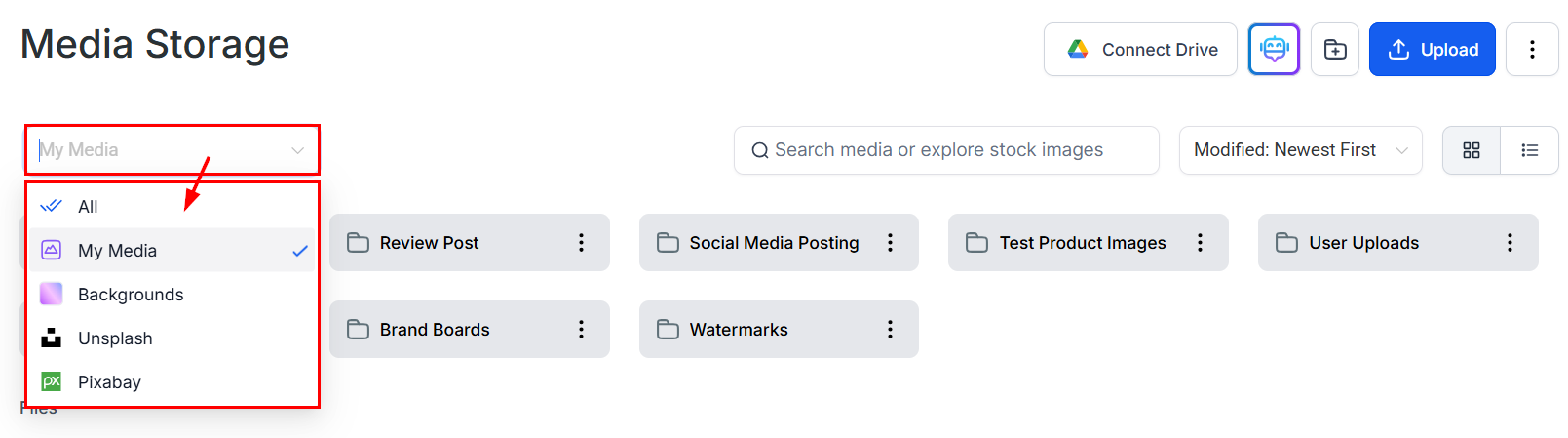
The HoopAI platform provides a storage usage breakdown organized by module. To view it:
1. Open **Media Storage** in the left sidebar
2. Click the **three-dot menu** in the top-right corner of the media library
3. Select **Storage Usage** (or **Deleted Items** to manage trash)
The storage modal shows a color-coded breakdown of how much space is used by each module — Media Library, Conversations, Memberships, Contacts, and Calendar — and further breaks down each module by file type (Images, Videos, Documents, Audio).
## Reducing file sizes before uploading
If a file exceeds a limit, these techniques can help:
### Images
* Convert to **WebP** format — WebP files are 25–35% smaller than equivalent JPEGs at the same visual quality. Tools like Squoosh (squoosh.app) convert images in your browser without software installation.
* Use **TinyPNG** or **Compressor.io** to reduce PNG and JPEG sizes without a noticeable drop in quality.
* Resize images to the actual display dimensions needed. A 6000 × 4000 px photo scaled down to 1200 × 800 px before upload is dramatically smaller.
### Videos
* Use **HandBrake** (free, open-source) to compress video files using H.264 or H.265 encoding while retaining acceptable quality.
* Reduce resolution — if the original footage is 4K but the display context is a funnel page, encoding at 1080p (1920 × 1080) produces a much smaller file.
* Alternatively, host the video on YouTube or Vimeo and embed it using the embed element in the page builder instead of uploading the file directly.
### Documents
* Use **Smallpdf** or **Adobe Acrobat** to compress PDFs. Removing embedded fonts, downsampling images inside the PDF, and flattening layers can significantly reduce file size.
## Multi-download limits
When downloading multiple files at once in bulk mode, you can select up to **100 files** per download operation. Individual files larger than **2 GB** are skipped in bulk downloads and must be downloaded one at a time.
***
## FAQs
No. There are no monthly upload limits, bandwidth caps, or data transfer fees associated with media storage on the HoopAI platform.
The upload will fail and an error message will indicate that the file exceeds the maximum allowed size. The file is not partially uploaded — nothing is saved to your library.
Yes. Files moved to the trash remain in your storage until permanently deleted. Use **Empty Trash** to free up space occupied by deleted files, or remove individual items using **Delete Forever** from the trash view.
Courses and memberships support video files up to 5 GB, which is higher than the base Media Library limit of 4 GB. However, the standard upload path through Media Storage is capped at 4 GB per file. Very large course videos are best compressed to under 4 GB before upload.
Social media platforms (Facebook, Instagram, LinkedIn, Twitter/X) impose their own file size restrictions on posts submitted via API. The 10 MB cap reflects the lowest common denominator across the supported networks to ensure posts publish successfully to all connected accounts.
## Viewing storage usage
The HoopAI platform provides a storage usage breakdown organized by module. To view it:
1. Open **Media Storage** in the left sidebar
2. Click the **three-dot menu** in the top-right corner of the media library
3. Select **Storage Usage** (or **Deleted Items** to manage trash)
The storage modal shows a color-coded breakdown of how much space is used by each module — Media Library, Conversations, Memberships, Contacts, and Calendar — and further breaks down each module by file type (Images, Videos, Documents, Audio).
## Reducing file sizes before uploading
If a file exceeds a limit, these techniques can help:
### Images
* Convert to **WebP** format — WebP files are 25–35% smaller than equivalent JPEGs at the same visual quality. Tools like Squoosh (squoosh.app) convert images in your browser without software installation.
* Use **TinyPNG** or **Compressor.io** to reduce PNG and JPEG sizes without a noticeable drop in quality.
* Resize images to the actual display dimensions needed. A 6000 × 4000 px photo scaled down to 1200 × 800 px before upload is dramatically smaller.
### Videos
* Use **HandBrake** (free, open-source) to compress video files using H.264 or H.265 encoding while retaining acceptable quality.
* Reduce resolution — if the original footage is 4K but the display context is a funnel page, encoding at 1080p (1920 × 1080) produces a much smaller file.
* Alternatively, host the video on YouTube or Vimeo and embed it using the embed element in the page builder instead of uploading the file directly.
### Documents
* Use **Smallpdf** or **Adobe Acrobat** to compress PDFs. Removing embedded fonts, downsampling images inside the PDF, and flattening layers can significantly reduce file size.
## Multi-download limits
When downloading multiple files at once in bulk mode, you can select up to **100 files** per download operation. Individual files larger than **2 GB** are skipped in bulk downloads and must be downloaded one at a time.
***
## FAQs
No. There are no monthly upload limits, bandwidth caps, or data transfer fees associated with media storage on the HoopAI platform.
The upload will fail and an error message will indicate that the file exceeds the maximum allowed size. The file is not partially uploaded — nothing is saved to your library.
Yes. Files moved to the trash remain in your storage until permanently deleted. Use **Empty Trash** to free up space occupied by deleted files, or remove individual items using **Delete Forever** from the trash view.
Courses and memberships support video files up to 5 GB, which is higher than the base Media Library limit of 4 GB. However, the standard upload path through Media Storage is capped at 4 GB per file. Very large course videos are best compressed to under 4 GB before upload.
Social media platforms (Facebook, Instagram, LinkedIn, Twitter/X) impose their own file size restrictions on posts submitted via API. The 10 MB cap reflects the lowest common denominator across the supported networks to ensure posts publish successfully to all connected accounts.