> ## Documentation Index
> Fetch the complete documentation index at: https://help.hoopai.com/llms.txt
> Use this file to discover all available pages before exploring further.
# Pixabay
> Browse and use free royalty-free stock images from Pixabay directly inside the Hoop platform.
Media Storage offers a built-in Pixabay integration, giving you access to a vast library of royalty-free stock media. With just a few clicks, you can browse and use professional images at no extra cost.
## Accessing Pixabay
Click **Media Storage** in the left navigation sidebar.
In the filter dropdown, select **Pixabay**. The library switches to display Pixabay's content catalog.
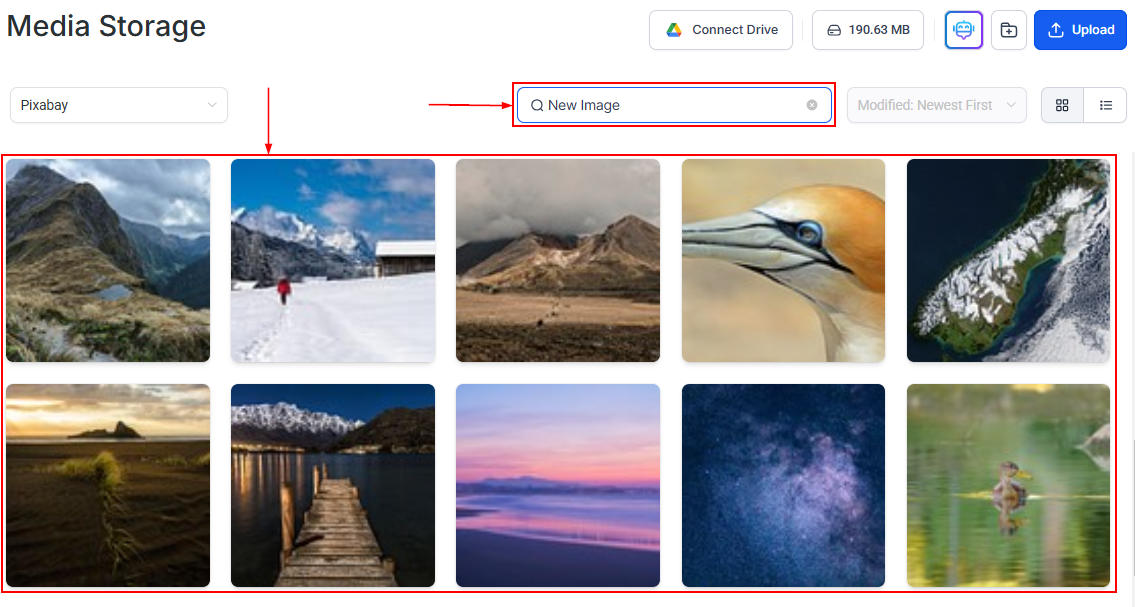
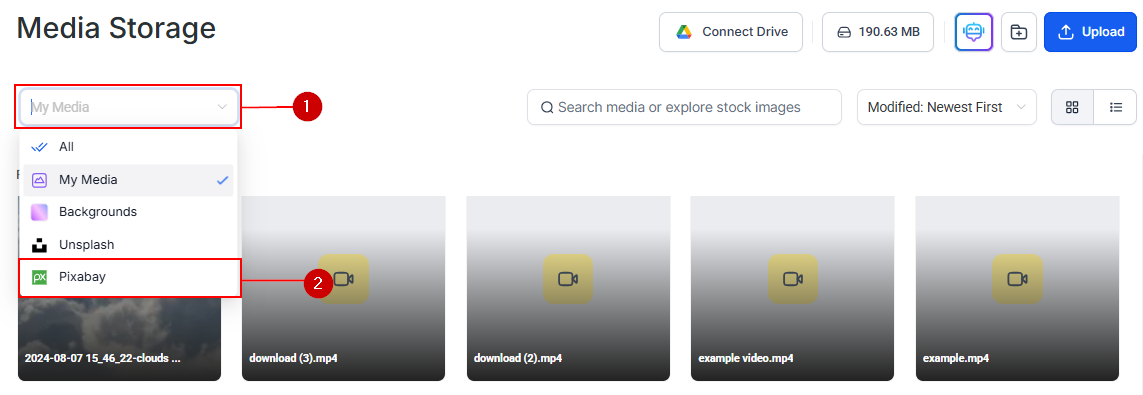 Once the Pixabay option is selected, a search bar appears. Search for imagery that fits your project.
 Click an image to preview it. Use **Add Image to My Media** to save it to your personal media library, or insert it directly into your content.
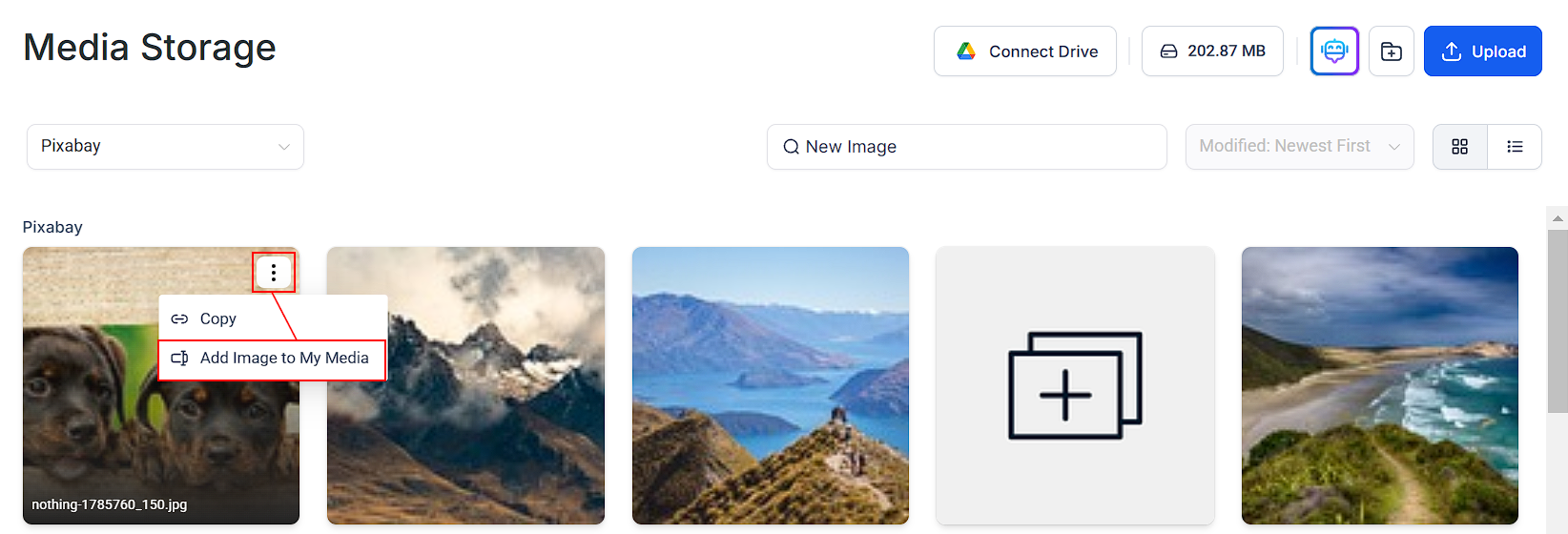 When you select an image from Pixabay, a copy is stored on Hoop's servers to ensure it remains accessible even if the original is removed. Images will only appear in My Media if you manually save them using **Add Image to My Media**; otherwise, they stay hidden to keep your library clutter-free. This ensures your images remain intact across funnels, blogs, and emails without broken links.
## Using Pixabay images
Once added to your media library, Pixabay images are available everywhere in the platform:
* Page builder image elements in funnels and websites
* Email template images
* Blog post featured images
* Social media post graphics
* Course lesson thumbnails
## Pixabay license
All Pixabay content is released under the **Pixabay License**, which permits free commercial use with no attribution required. You may crop, resize, and edit images freely.
Use Pixabay's vector and illustration categories for clean, scalable graphics that look great at any size on your landing pages and social posts. Vectors scale without quality loss, unlike photographs.
When you select an image from Pixabay, a copy is stored on Hoop's servers to ensure it remains accessible even if the original is removed. Images will only appear in My Media if you manually save them using **Add Image to My Media**; otherwise, they stay hidden to keep your library clutter-free. This ensures your images remain intact across funnels, blogs, and emails without broken links.
## Using Pixabay images
Once added to your media library, Pixabay images are available everywhere in the platform:
* Page builder image elements in funnels and websites
* Email template images
* Blog post featured images
* Social media post graphics
* Course lesson thumbnails
## Pixabay license
All Pixabay content is released under the **Pixabay License**, which permits free commercial use with no attribution required. You may crop, resize, and edit images freely.
Use Pixabay's vector and illustration categories for clean, scalable graphics that look great at any size on your landing pages and social posts. Vectors scale without quality loss, unlike photographs.