> ## Documentation Index
> Fetch the complete documentation index at: https://help.hoopai.com/llms.txt
> Use this file to discover all available pages before exploring further.
# Media storage
> File uploads, folder organization, AI image generation, stock photo integrations, video hosting, image editing, CDN delivery, and storage limits.
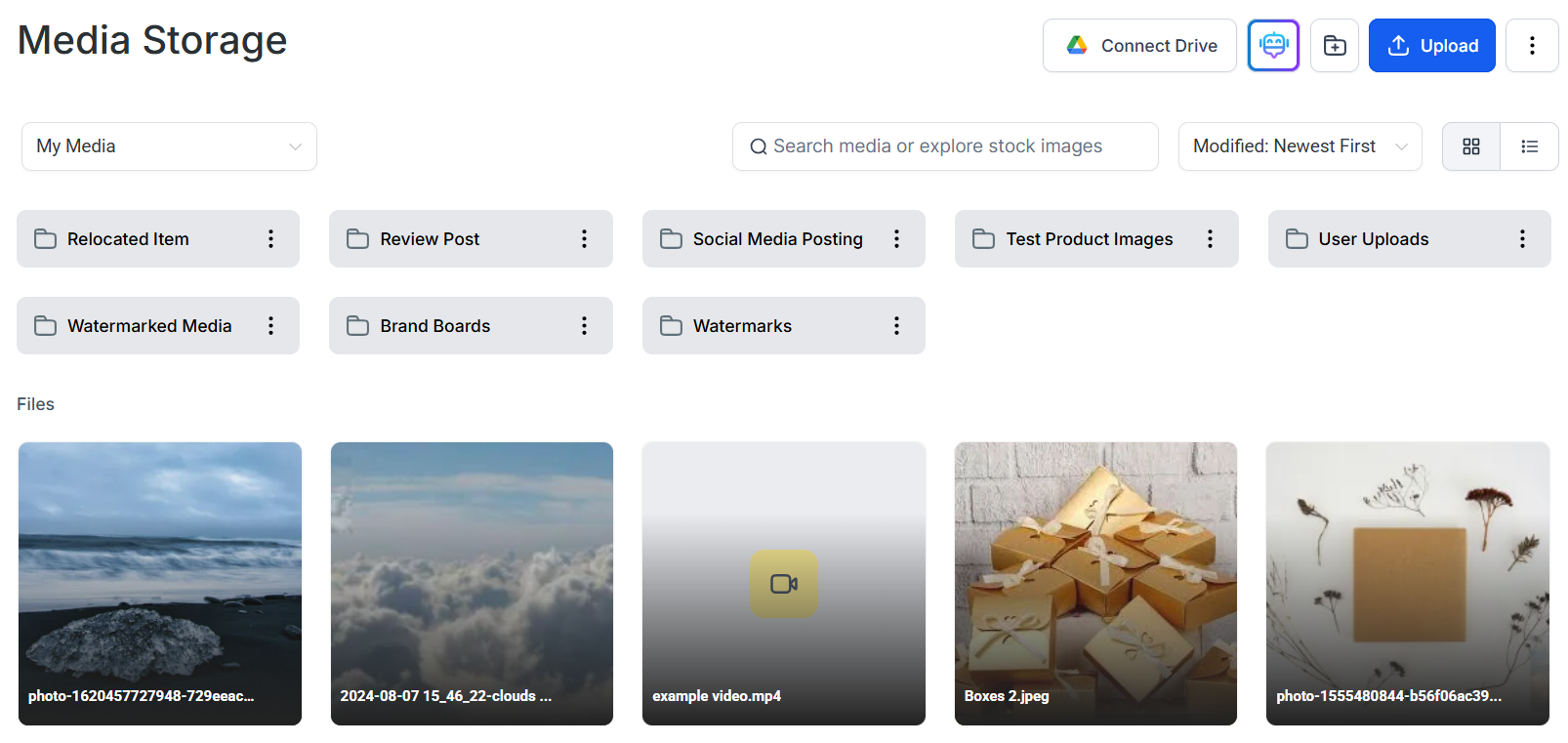
Media Storage is the centralized file library for your Hoop account. Every image, video, audio clip, PDF, and font file you use across your funnels, websites, emails, courses, and social posts is stored and managed here.
 Upload, organize, move, rename, and delete media files
Upload images, video, audio, and documents from your computer
Generate custom images using AI directly in the media library
Crop, resize, and adjust images without leaving the platform
File formats and size limits for all upload types
Per-file size limits and account storage information
Browse and use free stock photos from Pixabay
Browse and use free stock photos from Unsplash
Access a curated library of background images for pages and posts
Upload custom font files for use in the page and email builders
Sync and access files stored in Google Drive
Host and embed videos across funnels, websites, and course lessons
Copy public URLs to share or embed files anywhere
How files are served via CDN for fast global delivery
Serve media files from your own custom domain
## Getting started
Click **Media Storage** in the left navigation sidebar. This opens your Media Library where you can view uploaded content and manage all your files.
Click the **Upload** button to select files from your computer. Images, videos, audio clips, PDFs, and font files are all supported. See the Supported Media Types page for format and size details.
Click **New Folder** and give it a name. Drag files into folders or use the three-dot actions menu to move files. Keep your library organized by campaign, client, or content type.
Click **Connect Drive** to sync your Google Drive. Access free stock images by switching the filter to Pixabay or Unsplash inside the library.
Files stored here are available everywhere you insert media — the page builder, email builder, course editor, social planner, and chat widget all draw from the same media library.
## Frequently asked questions
There is no overall account storage cap. You can upload as many files as needed within the per-file size limits (4 GB for video, 100 MB for other file types). See the Storage Limits page for full details.
Yes. Files stored in Media Storage are accessible from the email builder. Use the image picker inside any email template to browse and insert your media library files directly.
Yes. Use the **Get Link** option on any file to copy its direct CDN URL. That link is publicly accessible and can be shared with anyone or embedded in external content.
Deleted files go to the trash and can be recovered for up to 30 days. Open the trash via the three-dot menu at the top-right of the media library and click **Restore** on any file you want to recover.
Yes. Click **Upload** and select multiple files from your computer in the file picker. All selected files upload simultaneously and appear in your media library once complete.
Yes. Open the Image Editing tool from within the media library or from an image element inside the page builder. You can crop, resize, rotate, and apply basic adjustments without an external editor.
Upload, organize, move, rename, and delete media files
Upload images, video, audio, and documents from your computer
Generate custom images using AI directly in the media library
Crop, resize, and adjust images without leaving the platform
File formats and size limits for all upload types
Per-file size limits and account storage information
Browse and use free stock photos from Pixabay
Browse and use free stock photos from Unsplash
Access a curated library of background images for pages and posts
Upload custom font files for use in the page and email builders
Sync and access files stored in Google Drive
Host and embed videos across funnels, websites, and course lessons
Copy public URLs to share or embed files anywhere
How files are served via CDN for fast global delivery
Serve media files from your own custom domain
## Getting started
Click **Media Storage** in the left navigation sidebar. This opens your Media Library where you can view uploaded content and manage all your files.
Click the **Upload** button to select files from your computer. Images, videos, audio clips, PDFs, and font files are all supported. See the Supported Media Types page for format and size details.
Click **New Folder** and give it a name. Drag files into folders or use the three-dot actions menu to move files. Keep your library organized by campaign, client, or content type.
Click **Connect Drive** to sync your Google Drive. Access free stock images by switching the filter to Pixabay or Unsplash inside the library.
Files stored here are available everywhere you insert media — the page builder, email builder, course editor, social planner, and chat widget all draw from the same media library.
## Frequently asked questions
There is no overall account storage cap. You can upload as many files as needed within the per-file size limits (4 GB for video, 100 MB for other file types). See the Storage Limits page for full details.
Yes. Files stored in Media Storage are accessible from the email builder. Use the image picker inside any email template to browse and insert your media library files directly.
Yes. Use the **Get Link** option on any file to copy its direct CDN URL. That link is publicly accessible and can be shared with anyone or embedded in external content.
Deleted files go to the trash and can be recovered for up to 30 days. Open the trash via the three-dot menu at the top-right of the media library and click **Restore** on any file you want to recover.
Yes. Click **Upload** and select multiple files from your computer in the file picker. All selected files upload simultaneously and appear in your media library once complete.
Yes. Open the Image Editing tool from within the media library or from an image element inside the page builder. You can crop, resize, rotate, and apply basic adjustments without an external editor.