> ## Documentation Index
> Fetch the complete documentation index at: https://help.hoopai.com/llms.txt
> Use this file to discover all available pages before exploring further.
# Managing Media Files and Folders
> Upload, organize, move, rename, download, and delete files in the Hoop platform media library.
The Hoop media library gives you full control over your digital assets. You can upload new files, organize them in folders, search across your library, and perform bulk actions on multiple files at once.
## Folder actions
### Renaming a folder
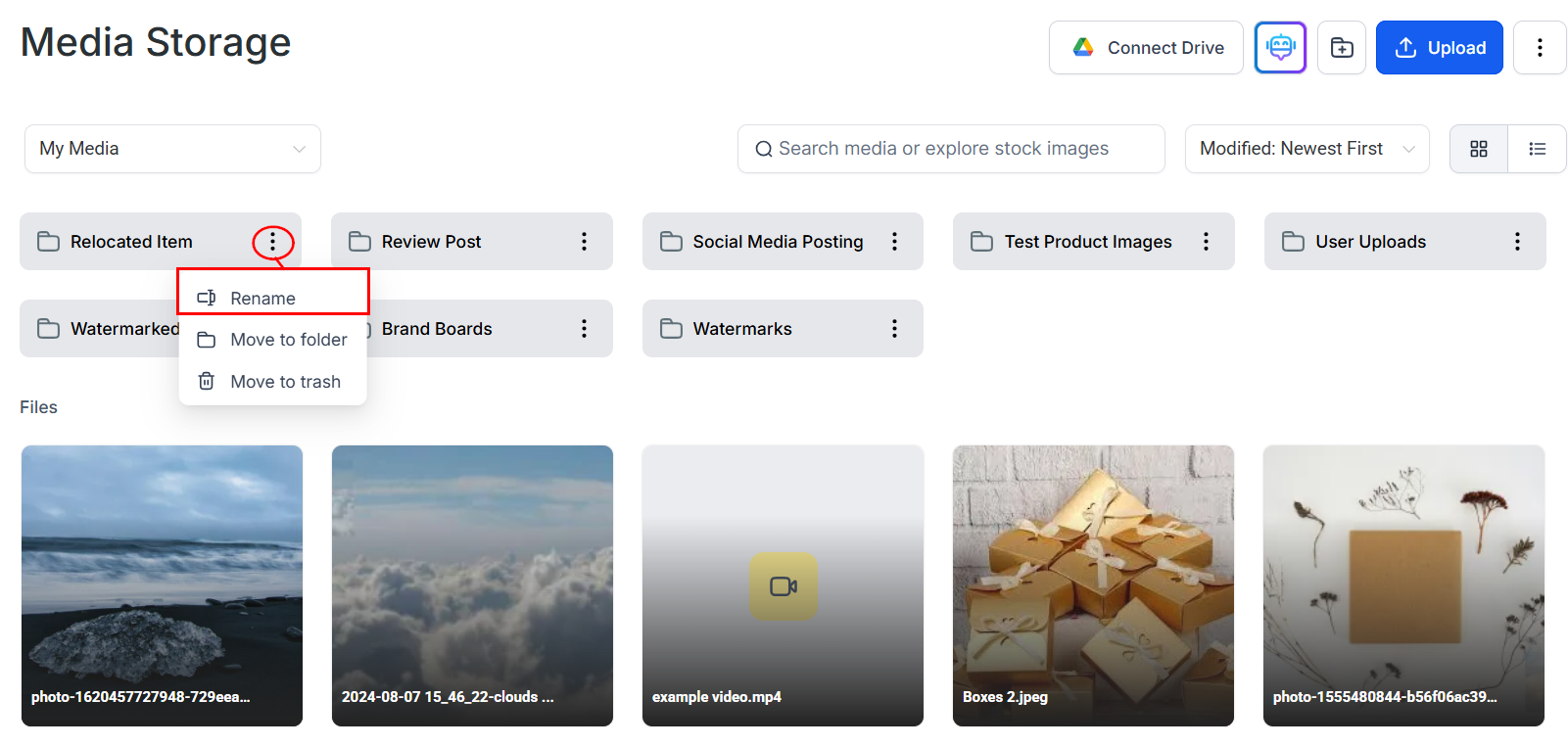
To update the name of a folder, select the **three-dot action dropdown** corresponding to the folder and select **Rename**. Enter the new name and confirm to save.
 ### Moving a folder
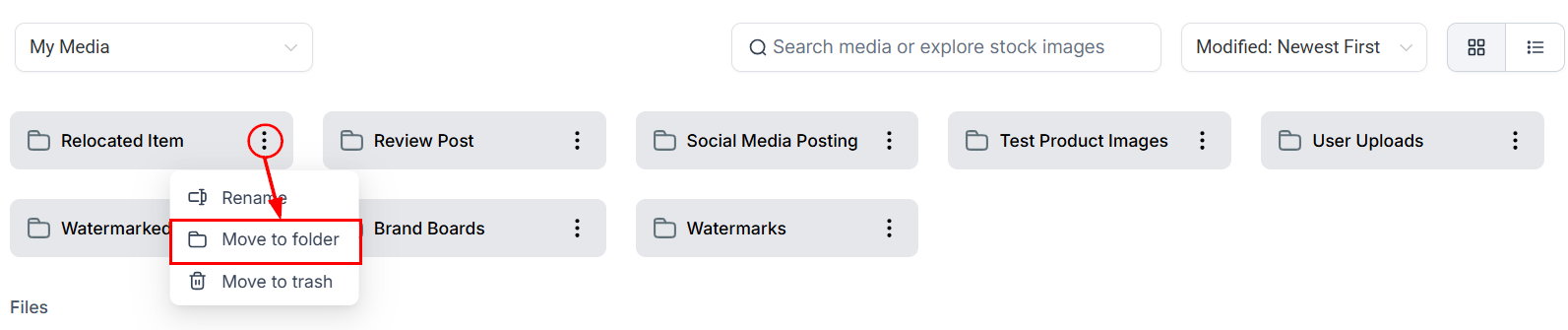
Move folders and their entire contents — including files and subfolders — using the **Move to Folder** option. Choose the destination folder or create a new one. The folder and all its contents move to the new location.
### Moving a folder
Move folders and their entire contents — including files and subfolders — using the **Move to Folder** option. Choose the destination folder or create a new one. The folder and all its contents move to the new location.
 ### Deleting a folder
Delete unused or irrelevant folders to keep your media library organized and free up space. Confirm the deletion when prompted to remove the folder and its contents.
***
## File actions
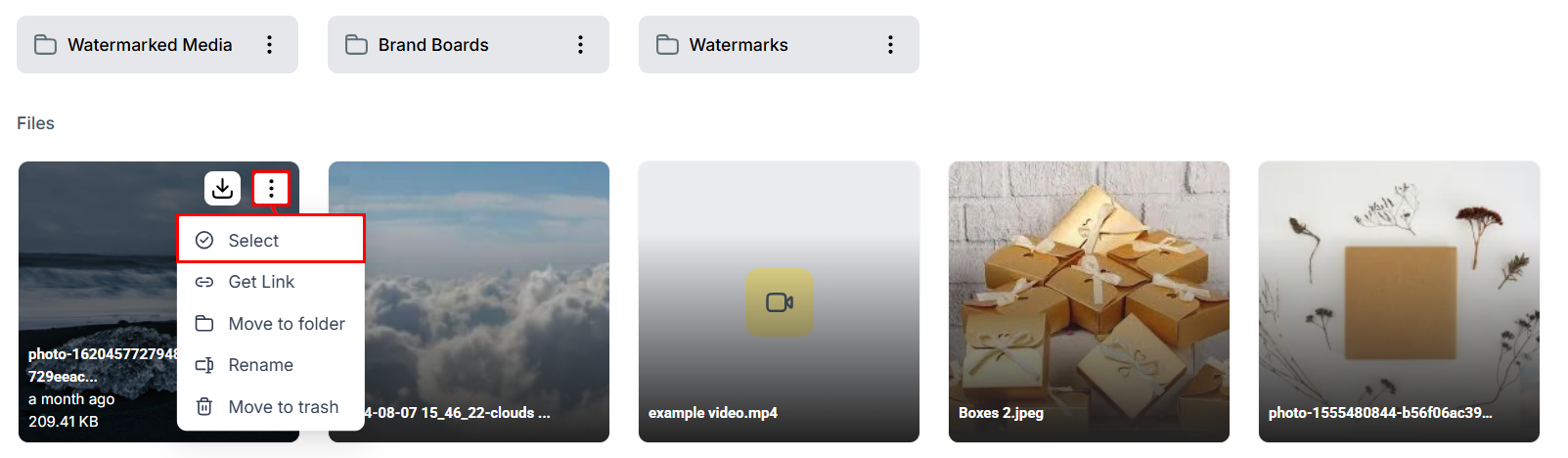
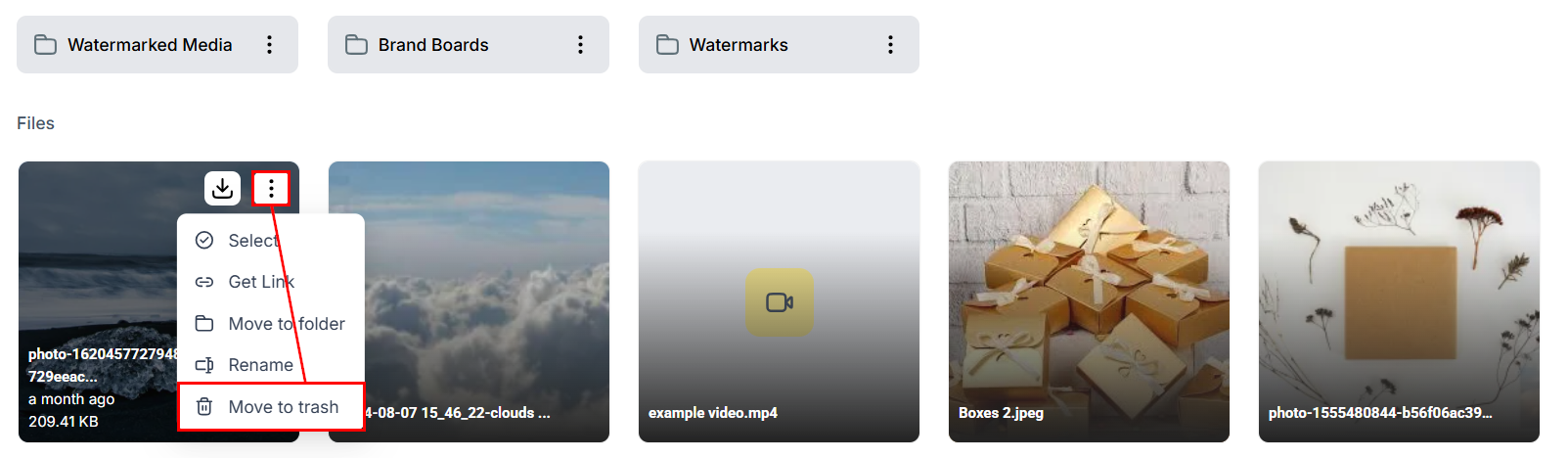
Right-click on any image or file, or click the three-dot icon, to access the file actions menu.
### Select
Click **Select** to execute bulk actions on a single image or multiple images. This allows you to efficiently manage and apply changes to multiple files simultaneously.
### Deleting a folder
Delete unused or irrelevant folders to keep your media library organized and free up space. Confirm the deletion when prompted to remove the folder and its contents.
***
## File actions
Right-click on any image or file, or click the three-dot icon, to access the file actions menu.
### Select
Click **Select** to execute bulk actions on a single image or multiple images. This allows you to efficiently manage and apply changes to multiple files simultaneously.
 ### Get link
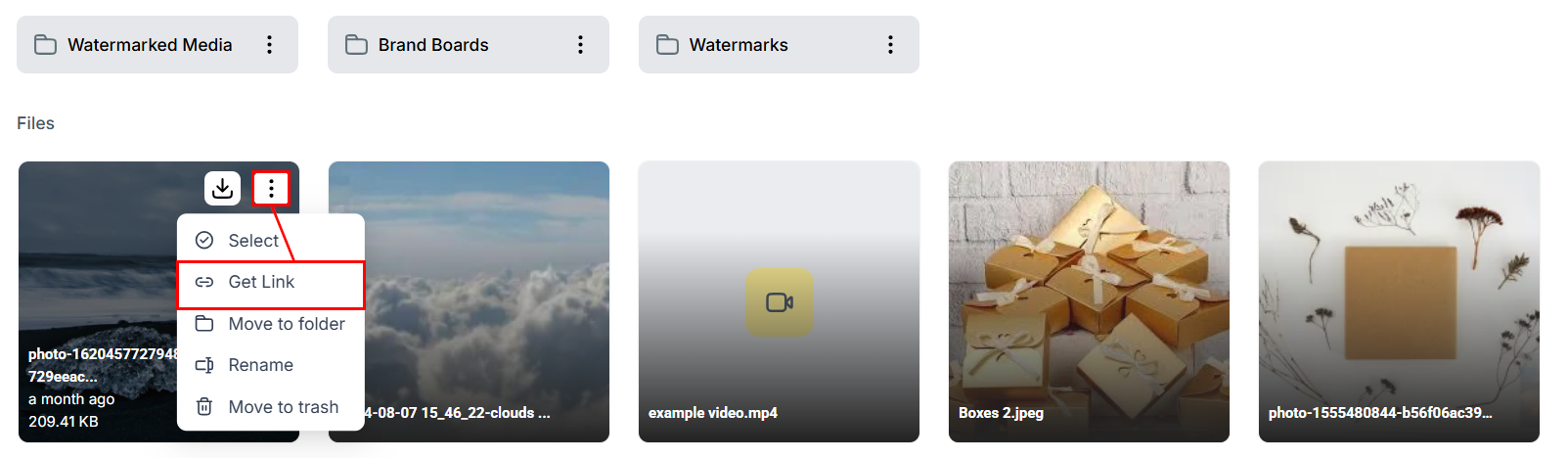
The **Get Link** option generates a unique URL for the file. The link is automatically copied to your clipboard. You can paste this link into the Image field within the Image Options section of your funnel or website builder.
### Get link
The **Get Link** option generates a unique URL for the file. The link is automatically copied to your clipboard. You can paste this link into the Image field within the Image Options section of your funnel or website builder.
 ### Move to folder
Quickly move the selected file to a specific folder within the Media Library using the **Move to Folder** option.
### Rename
Select **Rename** to give your file a new descriptive name.
### Move to trash
Remove a file from your media library by selecting **Move to Trash**.
### Move to folder
Quickly move the selected file to a specific folder within the Media Library using the **Move to Folder** option.
### Rename
Select **Rename** to give your file a new descriptive name.
### Move to trash
Remove a file from your media library by selecting **Move to Trash**.
 ***
## Uploading files
Click **Media Storage** in the left navigation sidebar.
Click the **Upload** button. A file picker opens giving you access to your local storage.
Choose one or more files. Once the upload completes, the files appear in your media library.
***
## Creating folders
Click the **New Folder** button. A dialog appears.
Enter a descriptive name (e.g. "Blog Images," "Client Logos," "Social Media Assets") and confirm.
Click the folder to open it and upload or move files inside.
***
## Multi-select and bulk actions
Select multiple files simultaneously:
1. Use the action dropdown to enter select mode, or click and drag your mouse across the desired items
2. With files selected, you can move them to a folder, download them, or delete them in bulk
***
## Uploading files
Click **Media Storage** in the left navigation sidebar.
Click the **Upload** button. A file picker opens giving you access to your local storage.
Choose one or more files. Once the upload completes, the files appear in your media library.
***
## Creating folders
Click the **New Folder** button. A dialog appears.
Enter a descriptive name (e.g. "Blog Images," "Client Logos," "Social Media Assets") and confirm.
Click the folder to open it and upload or move files inside.
***
## Multi-select and bulk actions
Select multiple files simultaneously:
1. Use the action dropdown to enter select mode, or click and drag your mouse across the desired items
2. With files selected, you can move them to a folder, download them, or delete them in bulk
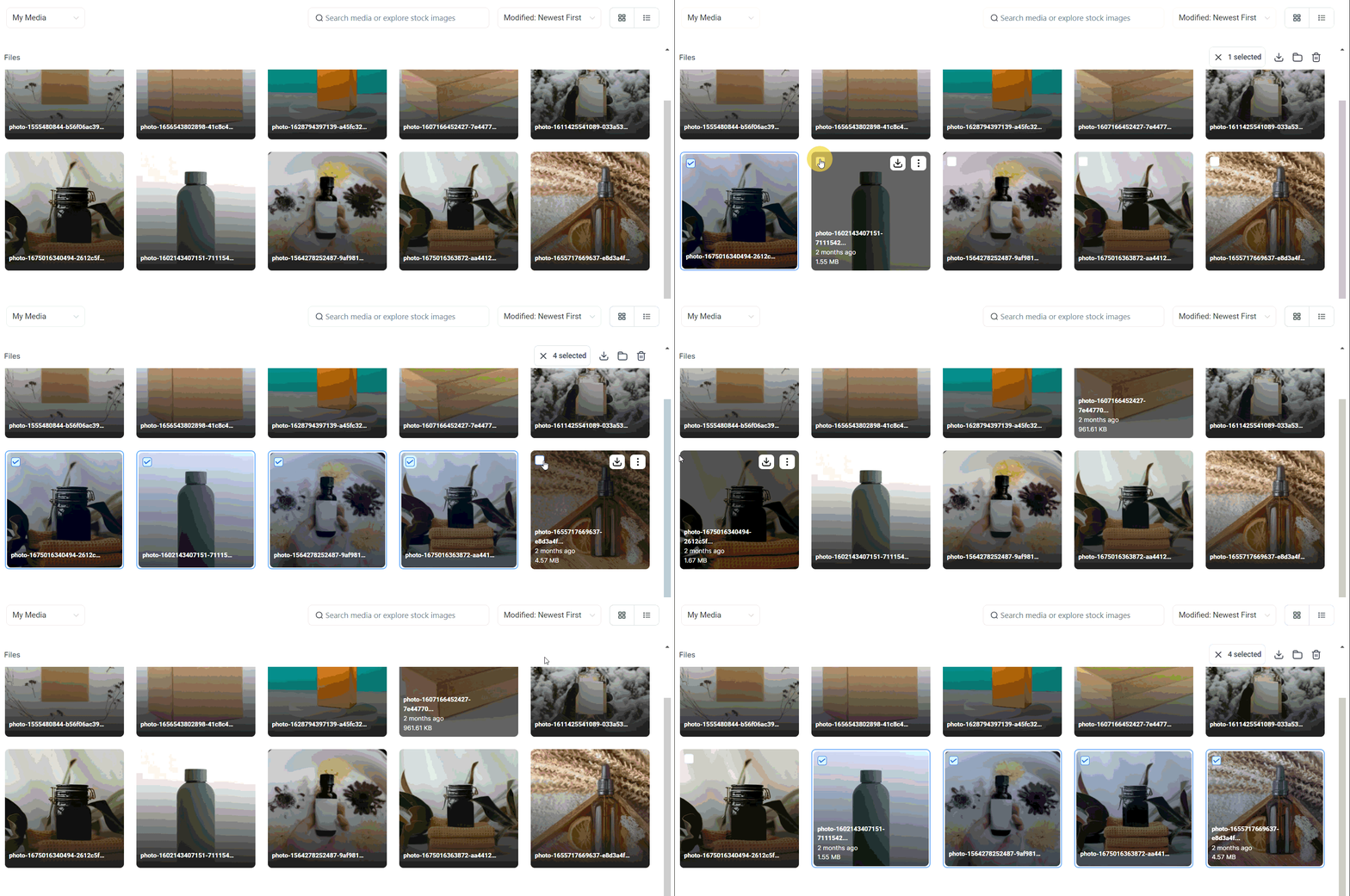 You can select and download up to 100 files at a time. Files larger than 2 GB will be skipped in multi-download and must be downloaded individually. In multi-select mode, the Rename, Get Link, and Preview options are disabled.
***
## Trash and file recovery
Deleted files can be recovered for up to 30 days from the trash.
To access the trash, click the **three-dot menu** at the top-right of the media library and select **Deleted Items**.
From the trash view:
* **Restore** — move a specific file back to the library
* **Delete Forever** — permanently remove a file
* **Restore All** — restore all files currently in the trash
* **Empty Trash** — permanently delete all trashed files
Files removed permanently (via Delete Forever or Empty Trash) cannot be recovered.
***
## File size limits
| File type | Maximum size |
| --------- | ------------ |
| Videos | 4 GB |
| Documents | 100 MB |
| Audio | 100 MB |
| Images | 100 MB |
Create a folder naming convention before uploading large volumes of files — for example: `[Year]-[Month]-[Purpose]`. This makes searching and bulk management much easier as your library grows.
***
## FAQs
Yes. Use the **Move to Folder** action on any file or folder. In the destination picker, you can navigate into existing folders and select or create a subfolder as the destination.
Deleting a folder moves the folder and all its contents — including files and subfolders — to the trash. Files can be individually restored from the trash within 30 days.
Yes. Enter multi-select mode and select the files you want, then use the bulk download option. You can download up to 100 files at a time. Files over 2 GB must be downloaded individually.
These options require acting on a single file. In multi-select mode only bulk actions — move, download, and delete — are available. Deselect all files to use per-file options again.
You can select and download up to 100 files at a time. Files larger than 2 GB will be skipped in multi-download and must be downloaded individually. In multi-select mode, the Rename, Get Link, and Preview options are disabled.
***
## Trash and file recovery
Deleted files can be recovered for up to 30 days from the trash.
To access the trash, click the **three-dot menu** at the top-right of the media library and select **Deleted Items**.
From the trash view:
* **Restore** — move a specific file back to the library
* **Delete Forever** — permanently remove a file
* **Restore All** — restore all files currently in the trash
* **Empty Trash** — permanently delete all trashed files
Files removed permanently (via Delete Forever or Empty Trash) cannot be recovered.
***
## File size limits
| File type | Maximum size |
| --------- | ------------ |
| Videos | 4 GB |
| Documents | 100 MB |
| Audio | 100 MB |
| Images | 100 MB |
Create a folder naming convention before uploading large volumes of files — for example: `[Year]-[Month]-[Purpose]`. This makes searching and bulk management much easier as your library grows.
***
## FAQs
Yes. Use the **Move to Folder** action on any file or folder. In the destination picker, you can navigate into existing folders and select or create a subfolder as the destination.
Deleting a folder moves the folder and all its contents — including files and subfolders — to the trash. Files can be individually restored from the trash within 30 days.
Yes. Enter multi-select mode and select the files you want, then use the bulk download option. You can download up to 100 files at a time. Files over 2 GB must be downloaded individually.
These options require acting on a single file. In multi-select mode only bulk actions — move, download, and delete — are available. Deselect all files to use per-file options again.