> ## Documentation Index
> Fetch the complete documentation index at: https://help.hoopai.com/llms.txt
> Use this file to discover all available pages before exploring further.
# Google Drive Integration
> Connect Google Drive to Hoop to sync and access your files directly from Media Storage.
Keeping track of media files can be time-consuming, but with Google Drive integration you can easily access and organize files without switching between platforms. This seamless connection ensures that your documents, images, and other media stay synced and easily accessible within Hoop.
## Connecting Google Drive
Go to **Media Storage** from the left navigation sidebar.
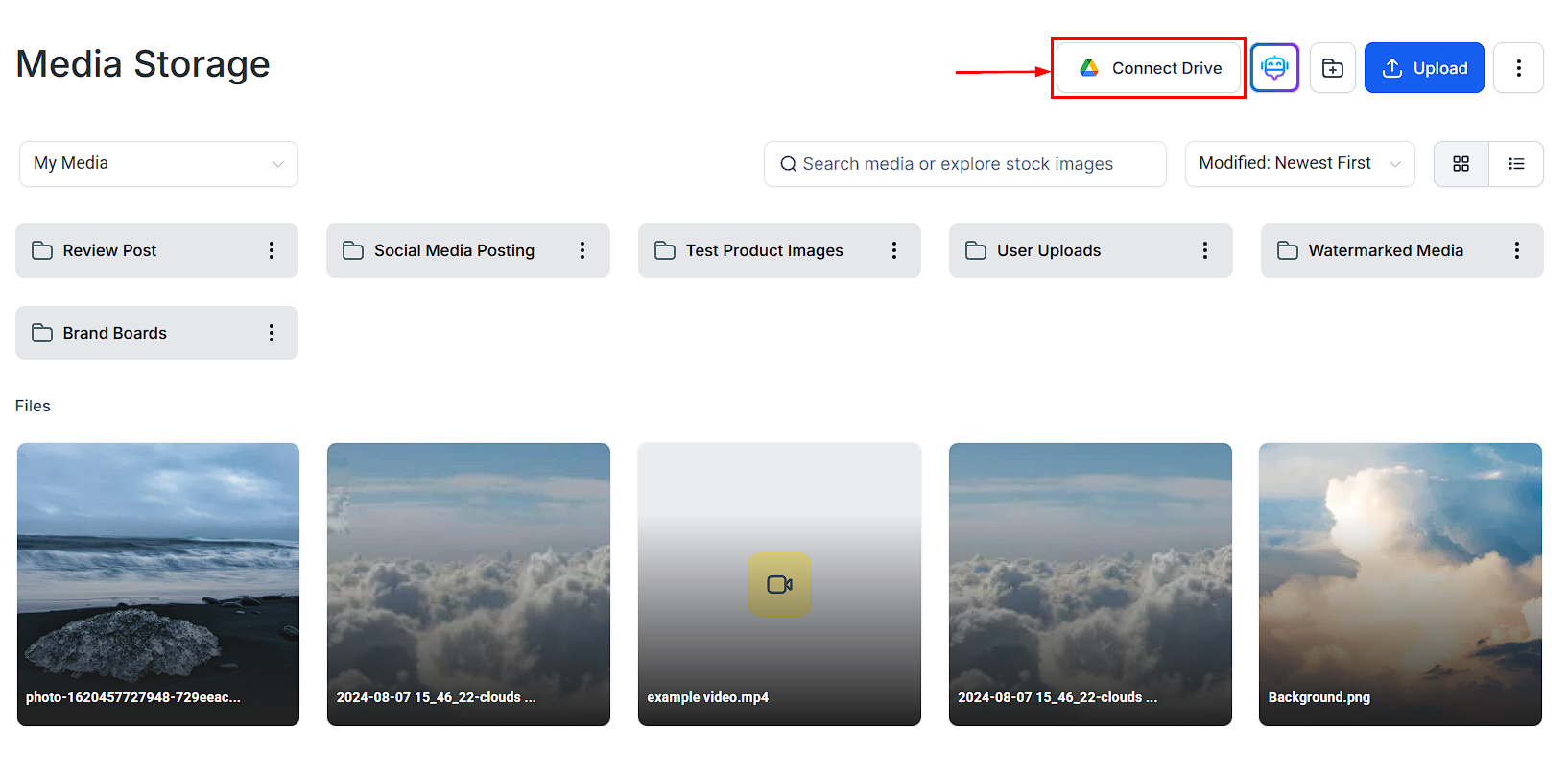
Click the **Connect Drive** button in the Media Storage toolbar.
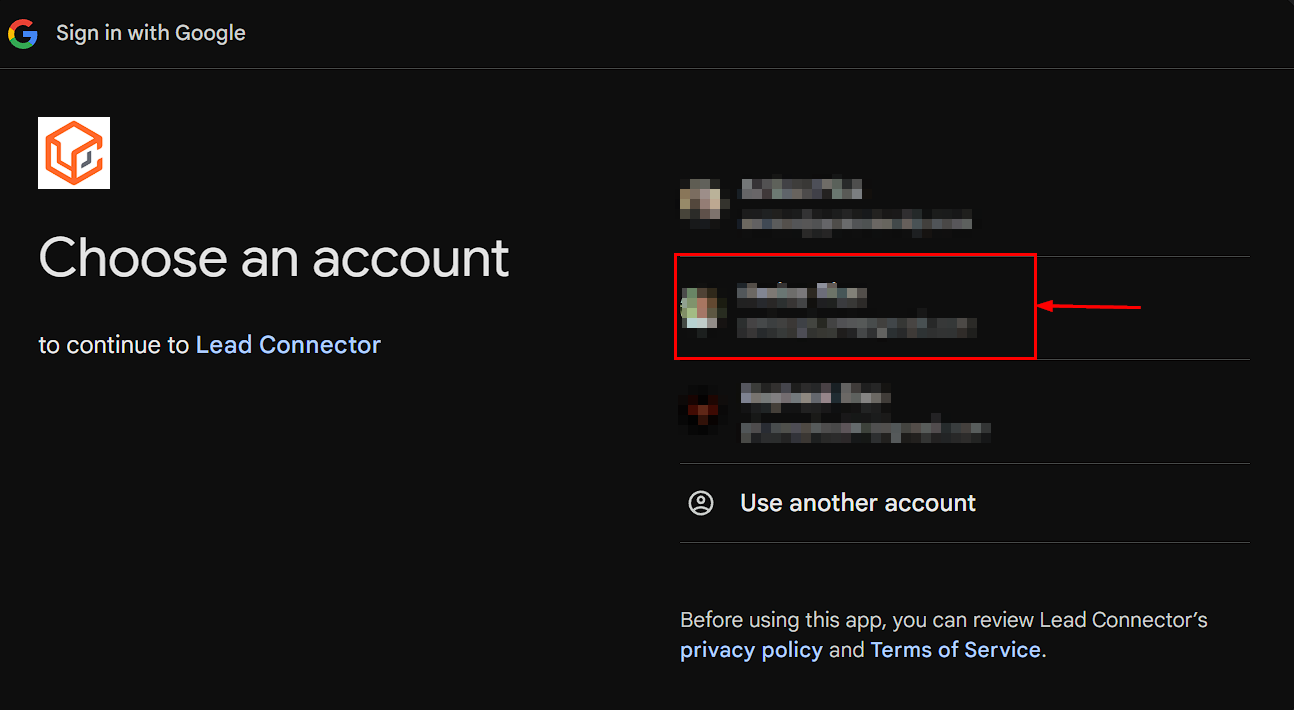
 Select the Google Account you want to integrate.
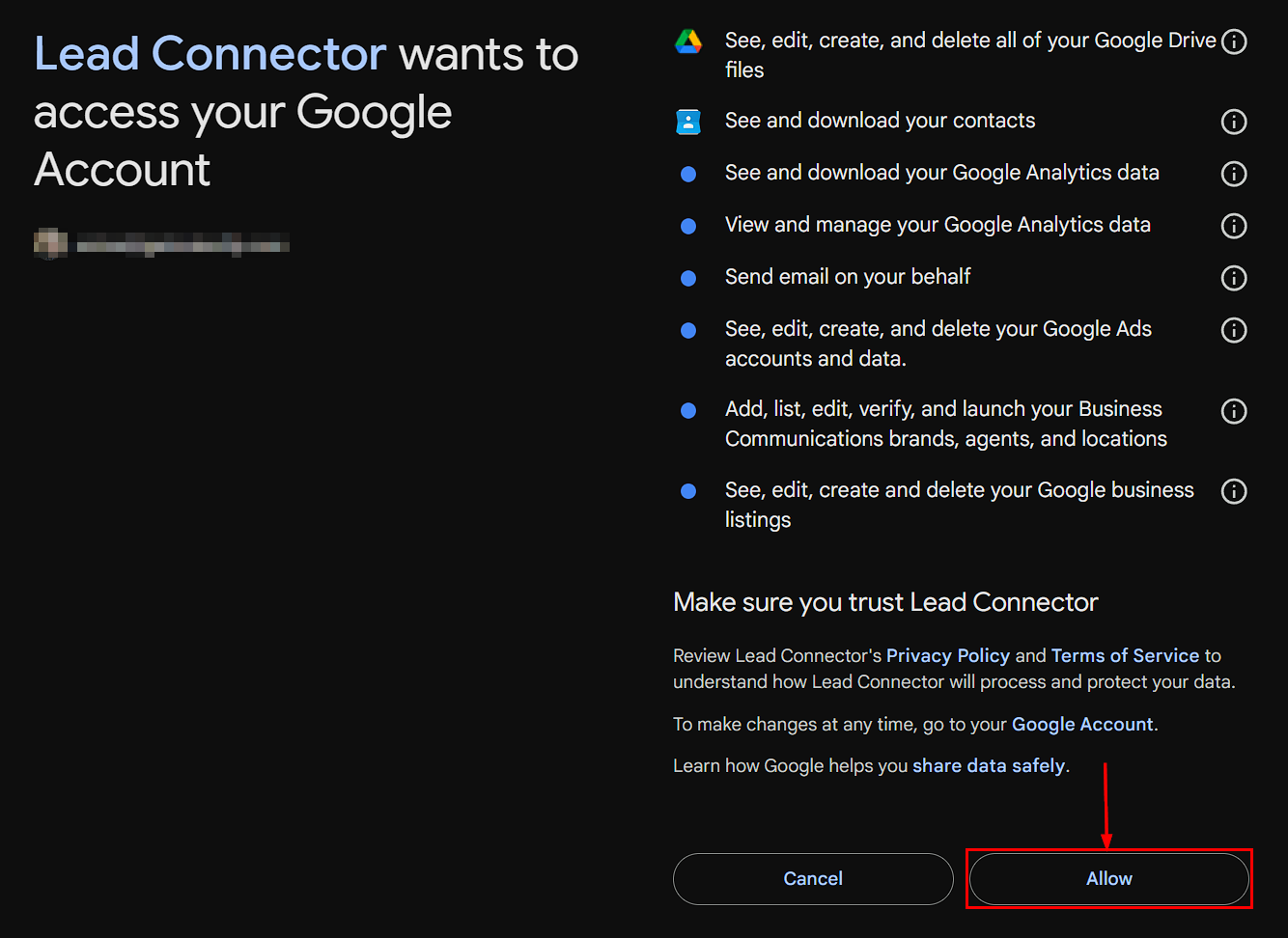
 Follow the remaining prompts and click **Allow** to give Hoop access to your Google Account.
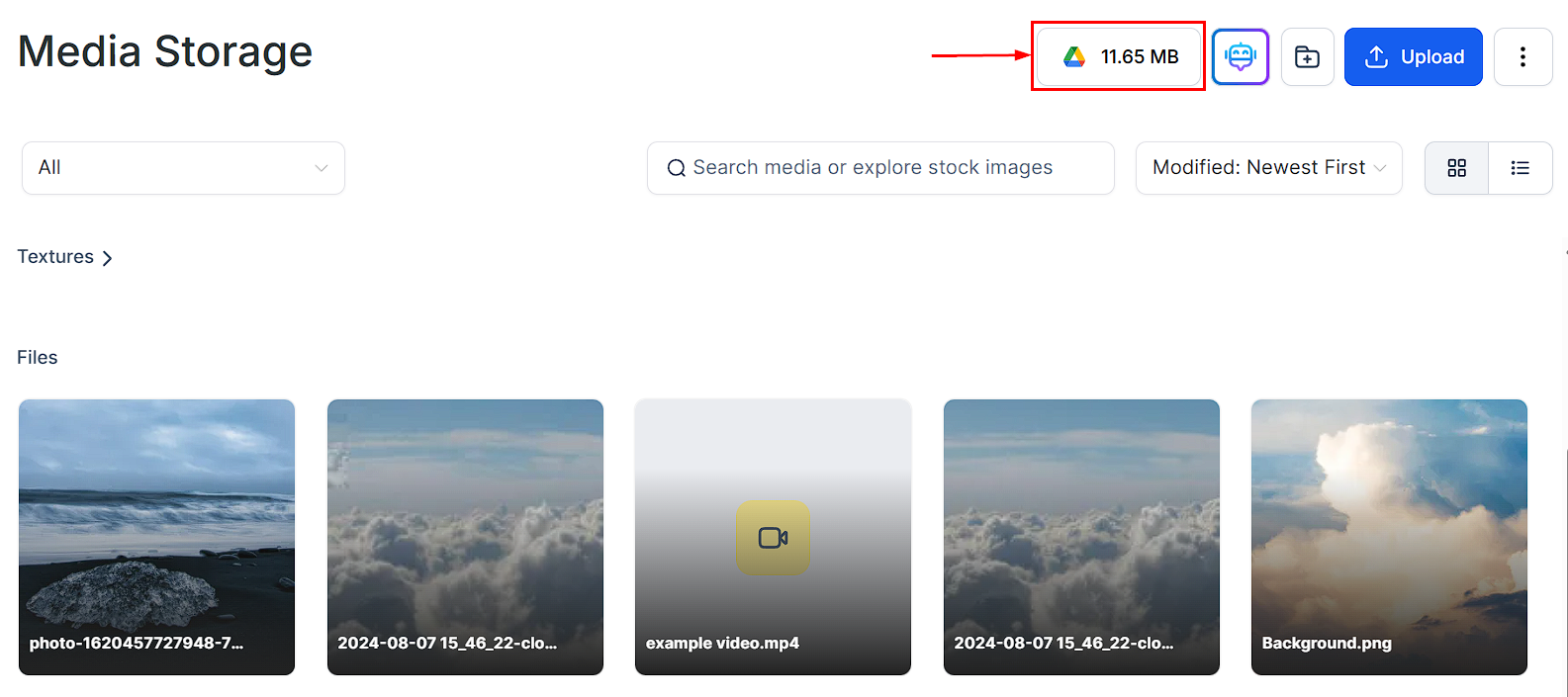
 The Google Drive logo will appear in the top-right corner of Media Storage, confirming that the integration is complete.
 ## Accessing your Google Drive files
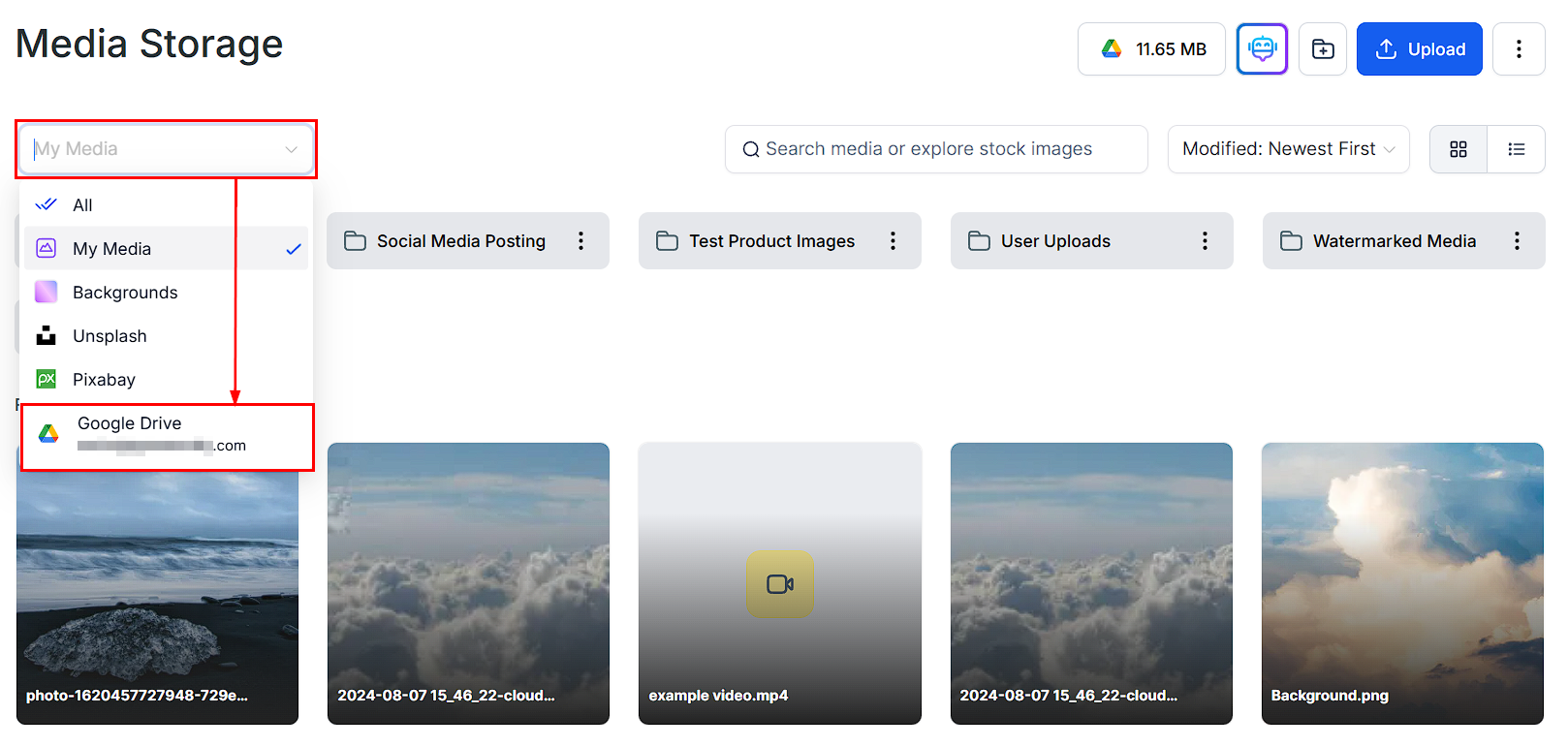
In the filter dropdown on the left side, select **Google Drive** to access your files within Media Storage.
## Accessing your Google Drive files
In the filter dropdown on the left side, select **Google Drive** to access your files within Media Storage.
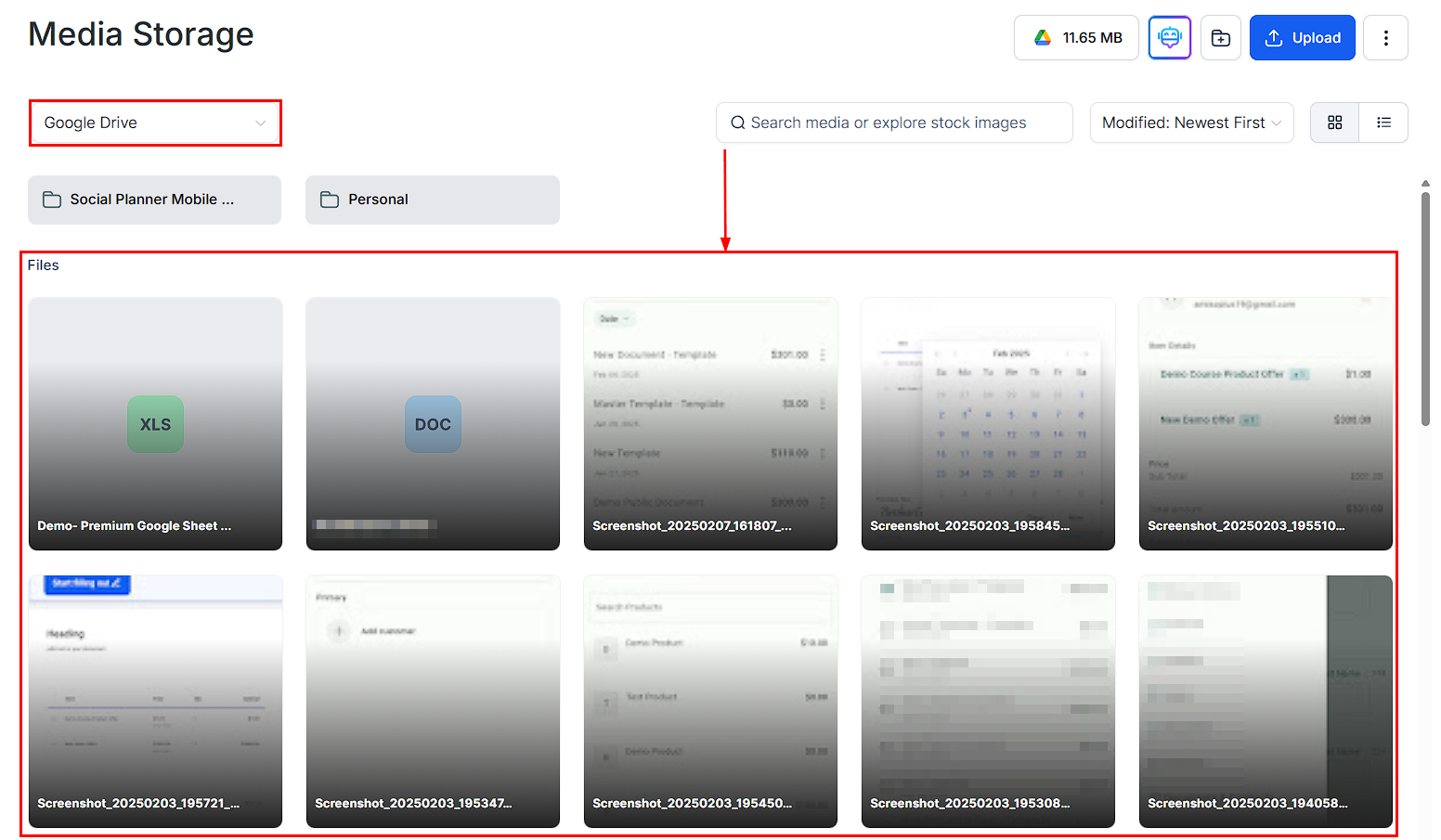
 Any changes made in Google Drive — such as new uploads or deletions — will automatically sync and reflect within Hoop in real time.
 ## Frequently asked questions
No. Renaming or deleting Google Drive files directly from Hoop is disabled to protect file integrity. Make those changes directly in Google Drive.
The sync happens in real time. Any changes made in Google Drive instantly reflect in Hoop's Media Storage.
Yes. You can drag and drop files, create folders, and organize your Google Drive files within Media Storage.
Files remain stored in Google Drive. Hoop provides an interface to access and manage them seamlessly without duplicating your storage.
By integrating Google Drive, you can centralize file management, improve efficiency, and reduce the hassle of switching between platforms. Keep your workflow organized and ensure that your files are always up to date with seamless synchronization.
Use Google Drive as the single source of truth for shared brand assets — logos, style guides, and templates. Keep them updated in Drive and they will automatically reflect in Hoop without re-uploading.
## Frequently asked questions
No. Renaming or deleting Google Drive files directly from Hoop is disabled to protect file integrity. Make those changes directly in Google Drive.
The sync happens in real time. Any changes made in Google Drive instantly reflect in Hoop's Media Storage.
Yes. You can drag and drop files, create folders, and organize your Google Drive files within Media Storage.
Files remain stored in Google Drive. Hoop provides an interface to access and manage them seamlessly without duplicating your storage.
By integrating Google Drive, you can centralize file management, improve efficiency, and reduce the hassle of switching between platforms. Keep your workflow organized and ensure that your files are always up to date with seamless synchronization.
Use Google Drive as the single source of truth for shared brand assets — logos, style guides, and templates. Keep them updated in Drive and they will automatically reflect in Hoop without re-uploading.