> ## Documentation Index
> Fetch the complete documentation index at: https://help.hoopai.com/llms.txt
> Use this file to discover all available pages before exploring further.
# Creating AI images in HoopAI media library
> Generate unique image files with HoopAI's Content AI tool directly inside Media Storage for funnels and campaigns.
Creating visually stunning images using AI can elevate your marketing materials and streamline content creation. With the Content AI feature in Hoop, you can generate unique images tailored to your needs directly inside Media Storage.
This feature is a paid service and will incur charges based on usage. Images created using Content AI can be used across funnels, websites, social media, and more.
## Getting started
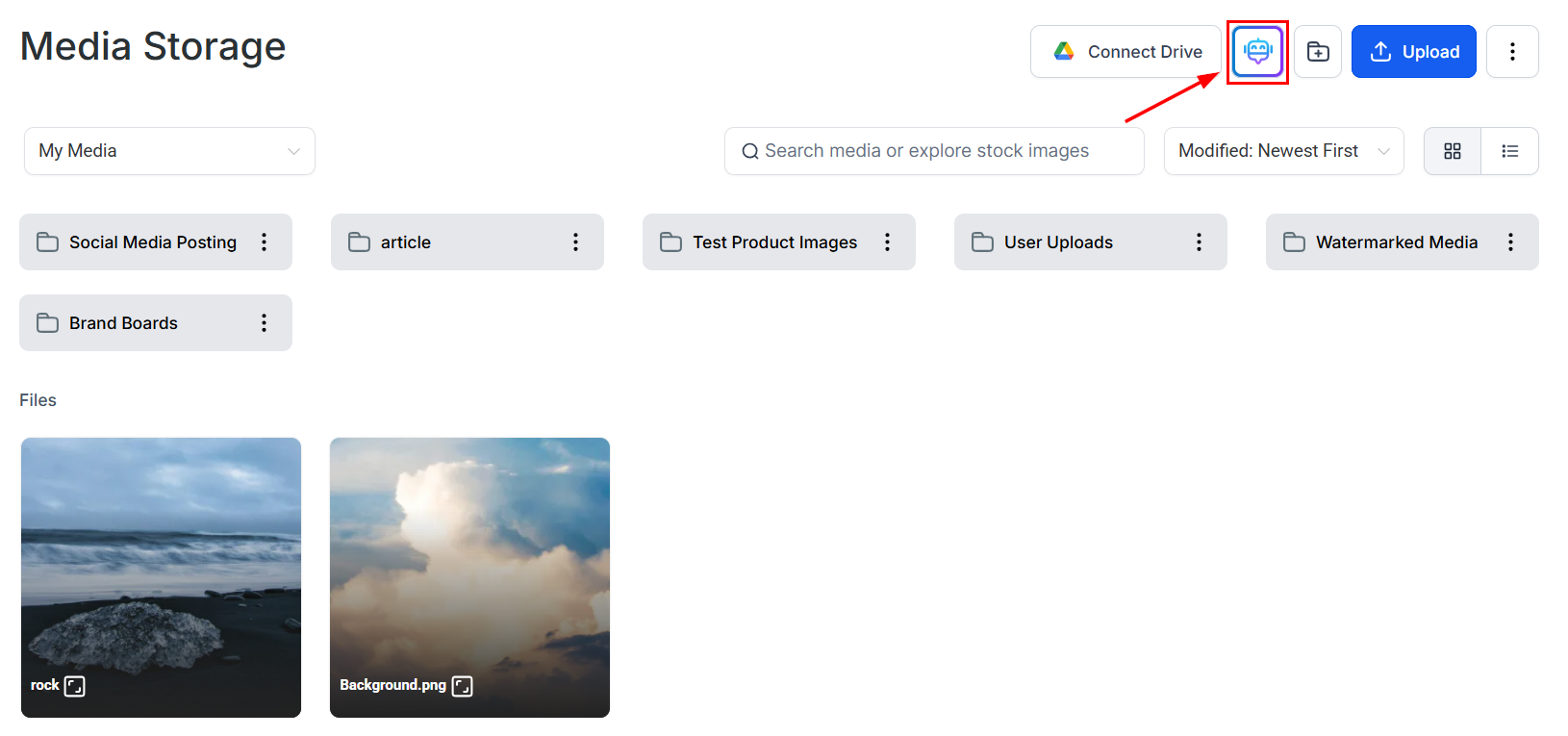
Navigate to **Media Storage** in the left sidebar and click the **AI** button to open the Content AI image generator.
 ## Generating an image
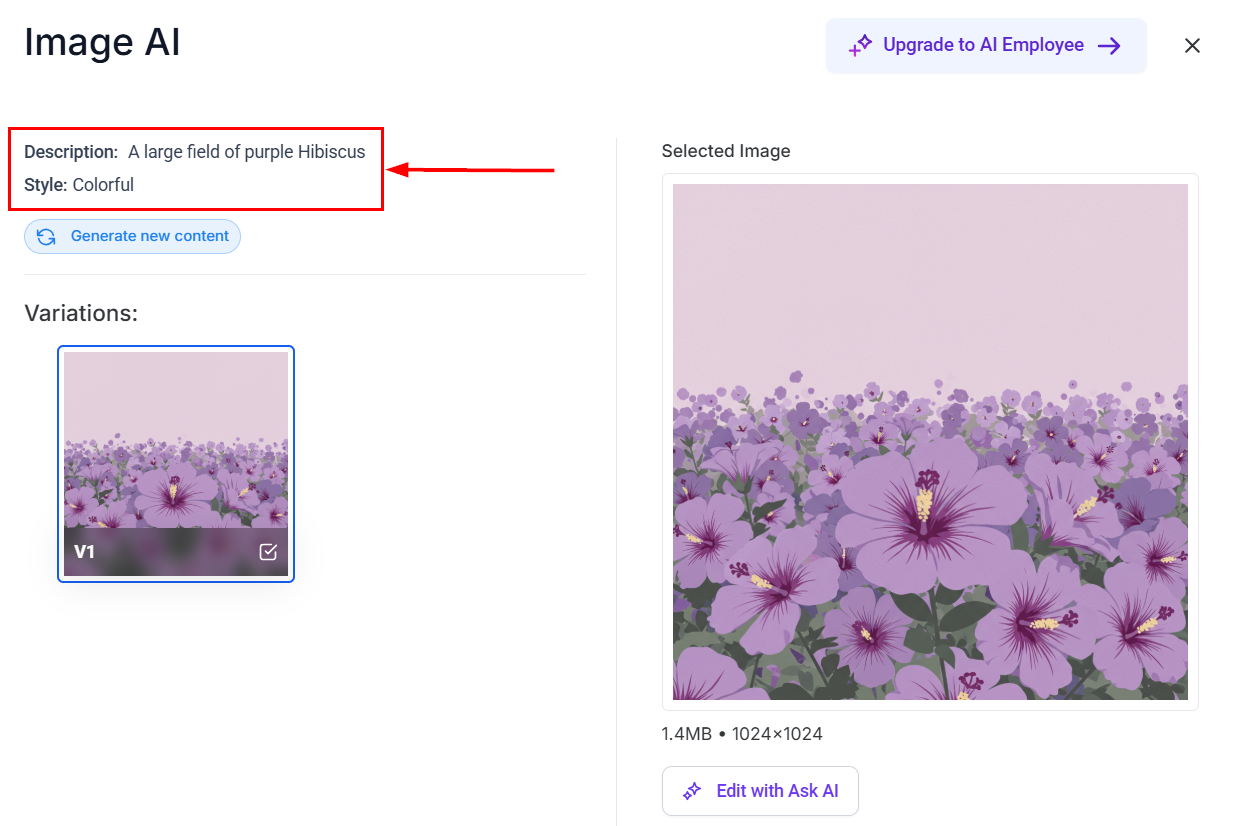
Type a description of the image you want to create. AI will generate samples based on your description. Click **Try an example** to see a generated sample and understand how the AI interprets prompts.
## Generating an image
Type a description of the image you want to create. AI will generate samples based on your description. Click **Try an example** to see a generated sample and understand how the AI interprets prompts.
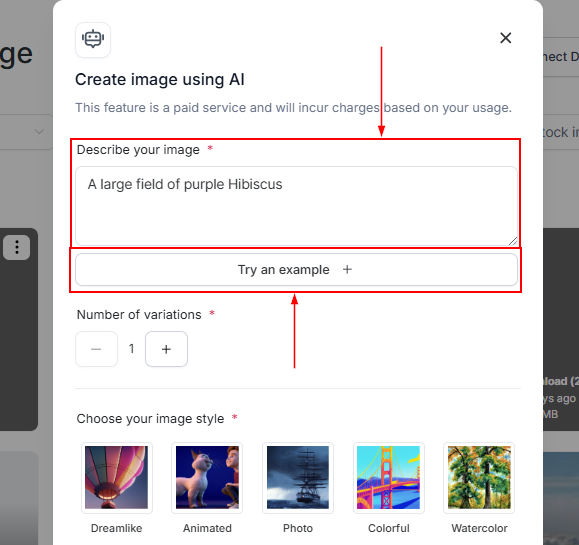
 Select how many variations you want Content AI to generate. The maximum is **four (4)** variations per generation.
 Choose a style for your image. Available styles include:
* **Photography** — realistic photo-style images
* **Digital Art** — illustrated, graphic-style artwork
* **Fine Art** — painterly or artistic renderings
After selecting a style, click **Generate** to create your images.
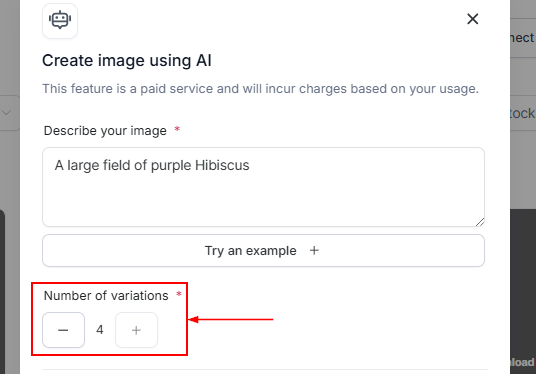
Content AI displays all generated image variations. The description and style you chose appear in the top-left corner of the popup. Click any image to preview it on the right side — especially useful when you have generated multiple variations.
Choose a style for your image. Available styles include:
* **Photography** — realistic photo-style images
* **Digital Art** — illustrated, graphic-style artwork
* **Fine Art** — painterly or artistic renderings
After selecting a style, click **Generate** to create your images.
Content AI displays all generated image variations. The description and style you chose appear in the top-left corner of the popup. Click any image to preview it on the right side — especially useful when you have generated multiple variations.
 Use the **Edit With Ask AI** tool to refine your selected image without starting over. Enter a prompt in conversational style to completely change the image or modify specific elements such as color, composition, or background.
Ask AI preserves your session history for seamless iterative improvements. Click **Use this image** to send the final edited image back to the Content AI modal.
Edits made with Ask AI are tied to the specific image variation you started from.
Provide feedback using the thumbs up or down buttons, and save the image to your media library or copy it to your clipboard using the icons provided.
After selecting your preferred image, rate the content and click **Continue** to save it to Media Storage. The Ask AI image will be clearly tagged among the available variants.
Click **Cancel** to discard your selection.
## Writing effective prompts
The quality of the generated image depends heavily on the prompt. Use these techniques:
Instead of "a photo of a building," write "a modern glass office building in a city downtown, shot from street level, golden hour lighting, photorealistic."
Add the style as a keyword: "flat vector illustration," "oil painting," "3D render," "watercolor," "photorealistic," "corporate stock photo."
Use style references like "in the style of a lifestyle brand," "minimal and clean," "bold and colorful," or "professional and corporate."
## Using AI images in the platform
Once saved to your media library, AI-generated images are available in:
* The page builder (funnel and website image elements)
* Email templates
* Social post scheduler
* Blog post editor
* Course lesson content
Use AI image generation for custom hero images, blog post feature images, social media graphics, and course thumbnails — situations where you need unique visuals but do not have professional photography.
Use the **Edit With Ask AI** tool to refine your selected image without starting over. Enter a prompt in conversational style to completely change the image or modify specific elements such as color, composition, or background.
Ask AI preserves your session history for seamless iterative improvements. Click **Use this image** to send the final edited image back to the Content AI modal.
Edits made with Ask AI are tied to the specific image variation you started from.
Provide feedback using the thumbs up or down buttons, and save the image to your media library or copy it to your clipboard using the icons provided.
After selecting your preferred image, rate the content and click **Continue** to save it to Media Storage. The Ask AI image will be clearly tagged among the available variants.
Click **Cancel** to discard your selection.
## Writing effective prompts
The quality of the generated image depends heavily on the prompt. Use these techniques:
Instead of "a photo of a building," write "a modern glass office building in a city downtown, shot from street level, golden hour lighting, photorealistic."
Add the style as a keyword: "flat vector illustration," "oil painting," "3D render," "watercolor," "photorealistic," "corporate stock photo."
Use style references like "in the style of a lifestyle brand," "minimal and clean," "bold and colorful," or "professional and corporate."
## Using AI images in the platform
Once saved to your media library, AI-generated images are available in:
* The page builder (funnel and website image elements)
* Email templates
* Social post scheduler
* Blog post editor
* Course lesson content
Use AI image generation for custom hero images, blog post feature images, social media graphics, and course thumbnails — situations where you need unique visuals but do not have professional photography.