> ## Documentation Index
> Fetch the complete documentation index at: https://help.hoopai.com/llms.txt
> Use this file to discover all available pages before exploring further.
# Backgrounds: image files for funnels and websites
> Browse HoopAI's curated background image library to apply professional illustrations to your funnels and websites.
With the Backgrounds feature in Media Storage, you can explore and apply professionally designed background illustrations to elevate your site's design and reflect your brand's identity.
## Accessing backgrounds
Click **Media Storage** in the left navigation sidebar.
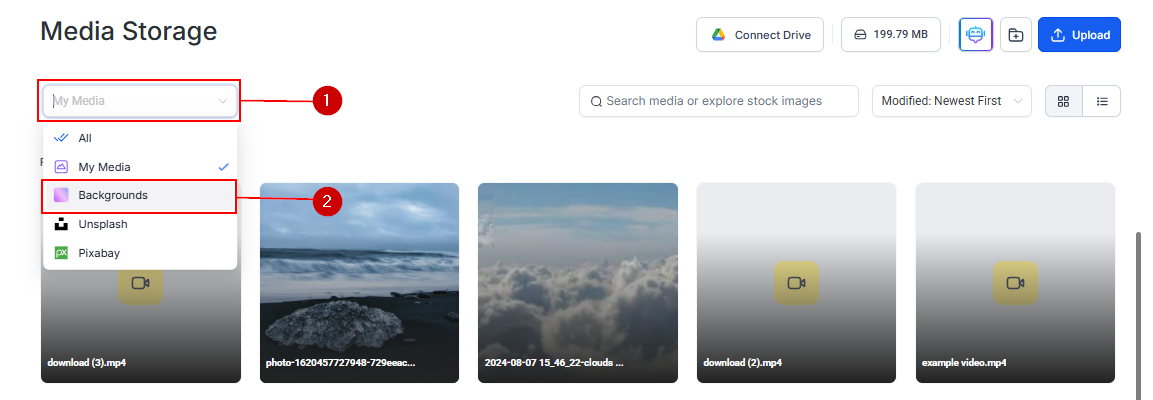
In the filter dropdown menu, select **Backgrounds** to open the gallery of background options.
 Use the search bar to find specific styles or scroll through the extensive collection of designs — ranging from soft pastels to vibrant, bold hues.
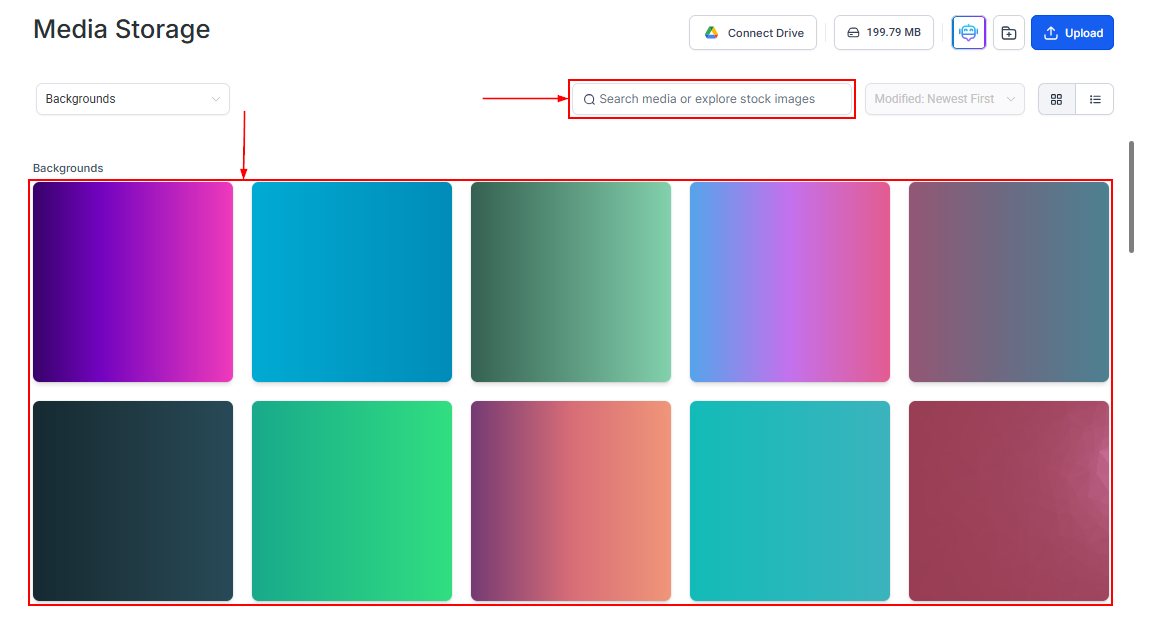 Click a background to add it to your media library or insert it directly into your page builder.
## Using backgrounds in the page builder
After selecting a background, you can apply it to any section in the funnel or website builder:
1. Click on the **section** where you want to apply the background
2. Open the section **Settings** and go to the **Background** tab
3. Choose **Image** as the background type
4. Select your background image from the media library
5. Adjust position, size, and repeat settings as needed
Click a background to add it to your media library or insert it directly into your page builder.
## Using backgrounds in the page builder
After selecting a background, you can apply it to any section in the funnel or website builder:
1. Click on the **section** where you want to apply the background
2. Open the section **Settings** and go to the **Background** tab
3. Choose **Image** as the background type
4. Select your background image from the media library
5. Adjust position, size, and repeat settings as needed
 ## Best practices
When placing text over a background image, add a semi-transparent overlay to ensure sufficient contrast. Most page builder sections support a background color overlay with adjustable opacity.
Reserve background images for hero sections and key call-to-action areas. Using busy backgrounds on every section creates visual fatigue. Plain color backgrounds work better for content-heavy sections.
Background images behave differently on mobile screens. Preview your pages in mobile view after applying a background to ensure the focal point remains visible and text stays readable.
Gradient and abstract backgrounds are the most versatile choices for section backgrounds. They add depth and visual interest without competing with text or images placed on top of them.
## Best practices
When placing text over a background image, add a semi-transparent overlay to ensure sufficient contrast. Most page builder sections support a background color overlay with adjustable opacity.
Reserve background images for hero sections and key call-to-action areas. Using busy backgrounds on every section creates visual fatigue. Plain color backgrounds work better for content-heavy sections.
Background images behave differently on mobile screens. Preview your pages in mobile view after applying a background to ensure the focal point remains visible and text stays readable.
Gradient and abstract backgrounds are the most versatile choices for section backgrounds. They add depth and visual interest without competing with text or images placed on top of them.