> ## Documentation Index
> Fetch the complete documentation index at: https://help.hoopai.com/llms.txt
> Use this file to discover all available pages before exploring further.
# Trigger links
> Create trigger links that automatically fire workflows, tag contacts, or move them through pipelines when clicked in emails or SMS.
Trigger links are special URLs that, when clicked by a contact, automatically fire a workflow action in the HoopAI Platform. They are most powerful when embedded in email and SMS campaigns to track engagement and trigger automated follow-ups based on contact behavior.
 ## How trigger links work
1. A contact receives an email or SMS containing a trigger link
2. When the contact clicks the link, the HoopAI Platform records the click event
3. Any workflow with a **"Trigger Link Clicked"** trigger activates automatically
4. The workflow can tag the contact, send follow-ups, update a pipeline stage, and more
## How trigger links work
1. A contact receives an email or SMS containing a trigger link
2. When the contact clicks the link, the HoopAI Platform records the click event
3. Any workflow with a **"Trigger Link Clicked"** trigger activates automatically
4. The workflow can tag the contact, send follow-ups, update a pipeline stage, and more
 ***
## Using trigger links in email campaigns
Go to **Marketing > Trigger Links** (or the **Conversations > Trigger Links** section) and create a new trigger link with a name and destination URL.
In the email builder (Templates or Campaigns), drag a **Button** element into your layout.
In the button settings, click the **Link URL** field. Click the tag icon, then select **Trigger Links** from the dropdown. Choose your desired trigger link from the list.
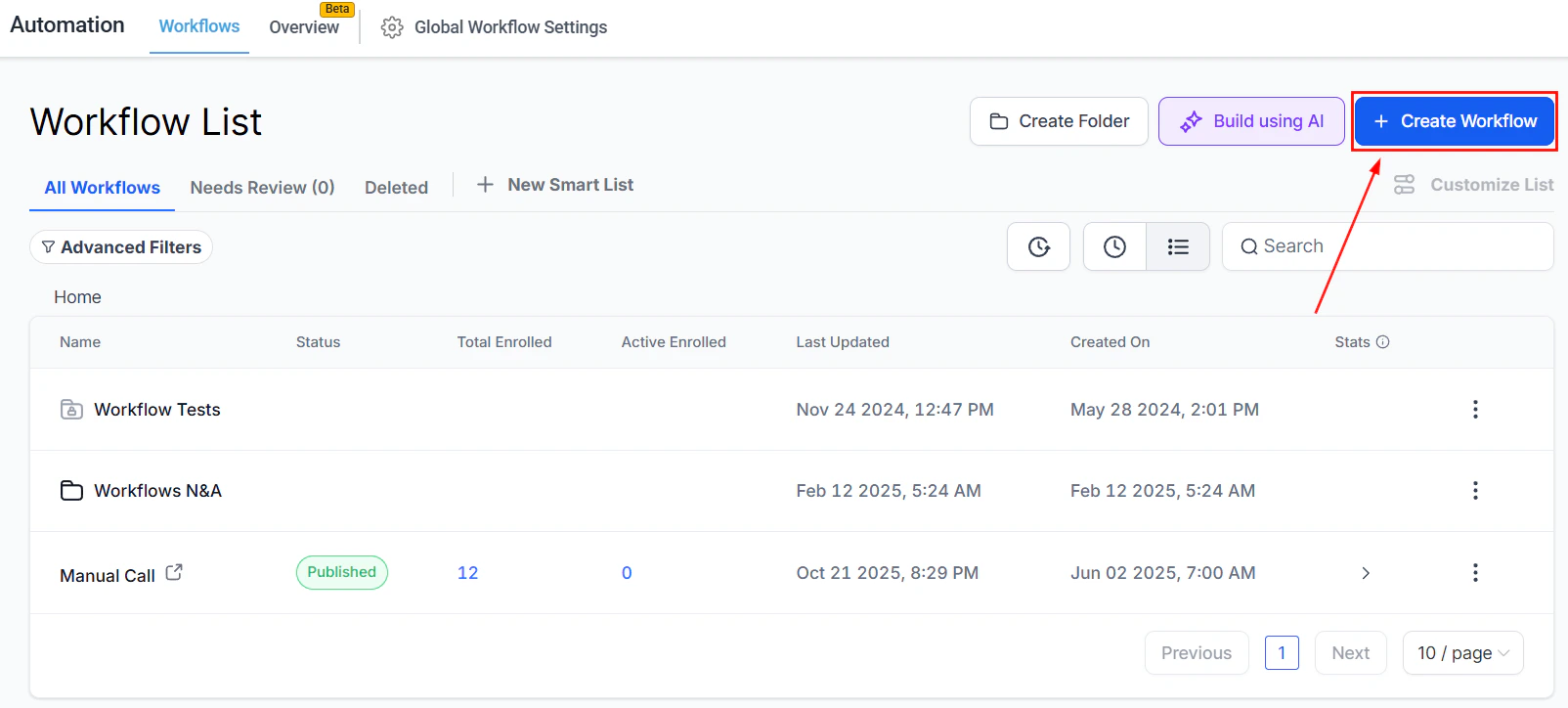
Go to **Automation > Workflows** and create a new workflow:
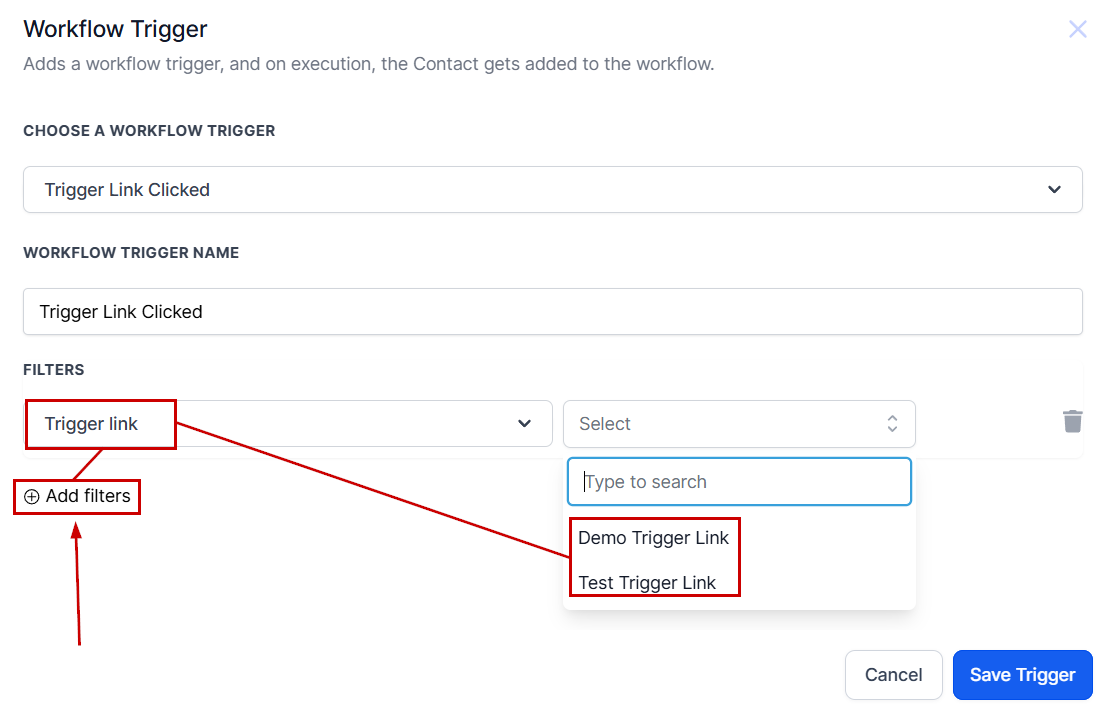
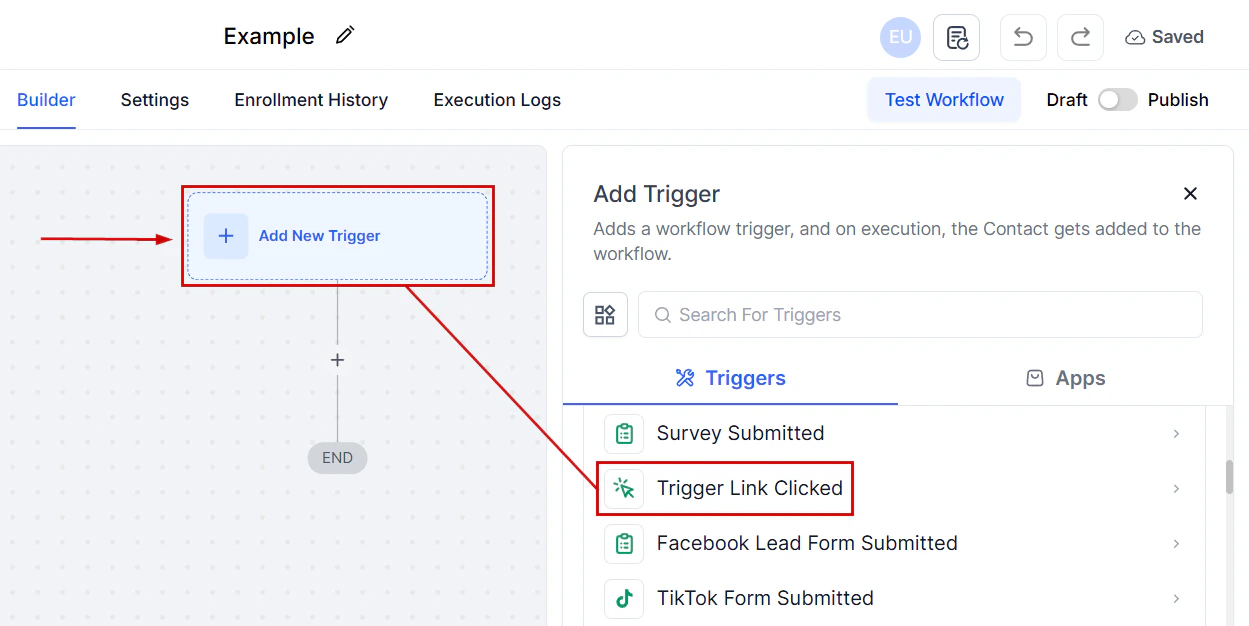
* Add the trigger **"Trigger Link Clicked"**
* Click **Add Filter**, set the filter to **Trigger Link**, and select your link
* Click **Save Trigger**
* Add the workflow actions (tag contact, send follow-up, update opportunity, etc.)
The trigger link is now active. When contacts click the button, the workflow fires automatically.
***
## Using trigger links in email campaigns
Go to **Marketing > Trigger Links** (or the **Conversations > Trigger Links** section) and create a new trigger link with a name and destination URL.
In the email builder (Templates or Campaigns), drag a **Button** element into your layout.
In the button settings, click the **Link URL** field. Click the tag icon, then select **Trigger Links** from the dropdown. Choose your desired trigger link from the list.
Go to **Automation > Workflows** and create a new workflow:
* Add the trigger **"Trigger Link Clicked"**
* Click **Add Filter**, set the filter to **Trigger Link**, and select your link
* Click **Save Trigger**
* Add the workflow actions (tag contact, send follow-up, update opportunity, etc.)
The trigger link is now active. When contacts click the button, the workflow fires automatically.
 ***
## Example: Follow-up automation with a trigger link
A common pattern is to send an email with a trigger link and follow up with contacts who click it but do not complete a desired action (such as booking a call or filling out a form).
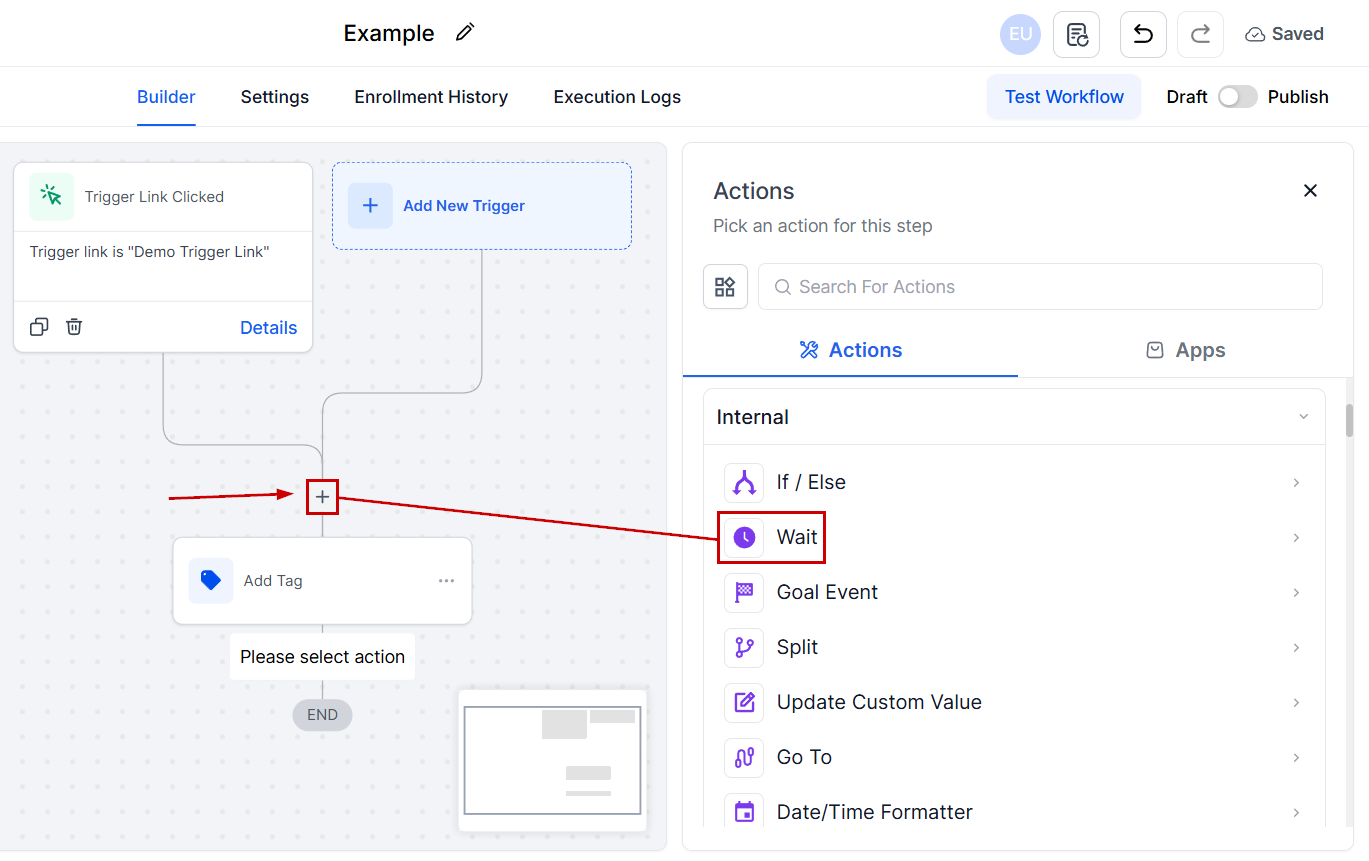
Create a workflow with the **Trigger Link Clicked** trigger.
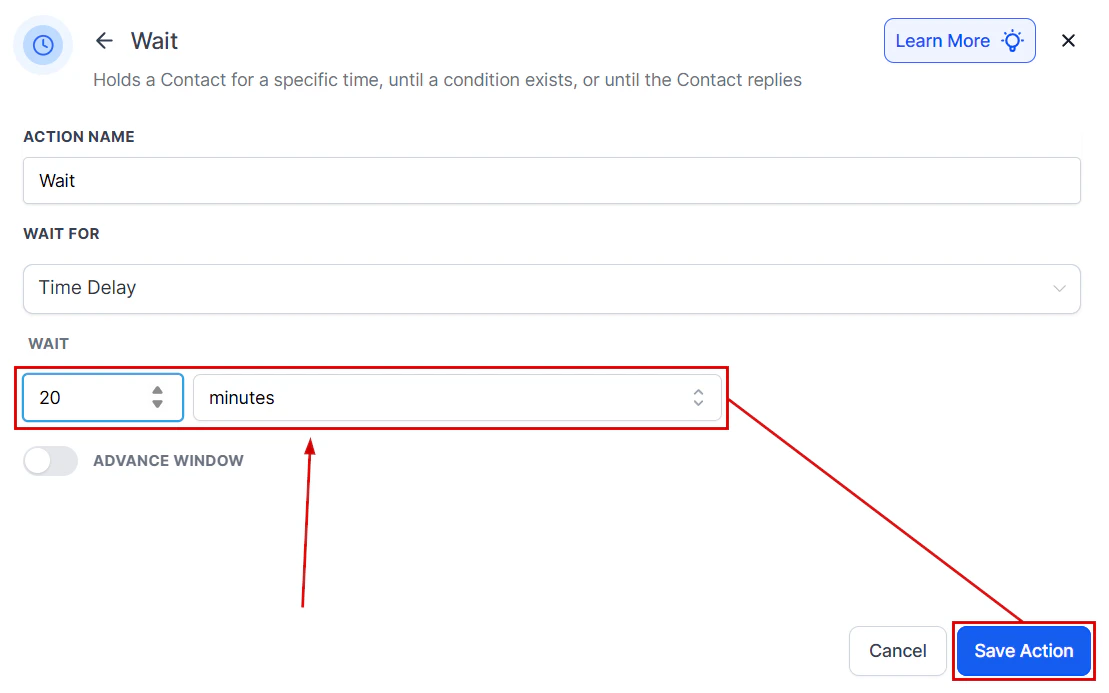
Add a **Wait** action for a set period (e.g., 20 minutes) to give the contact time to complete the action.
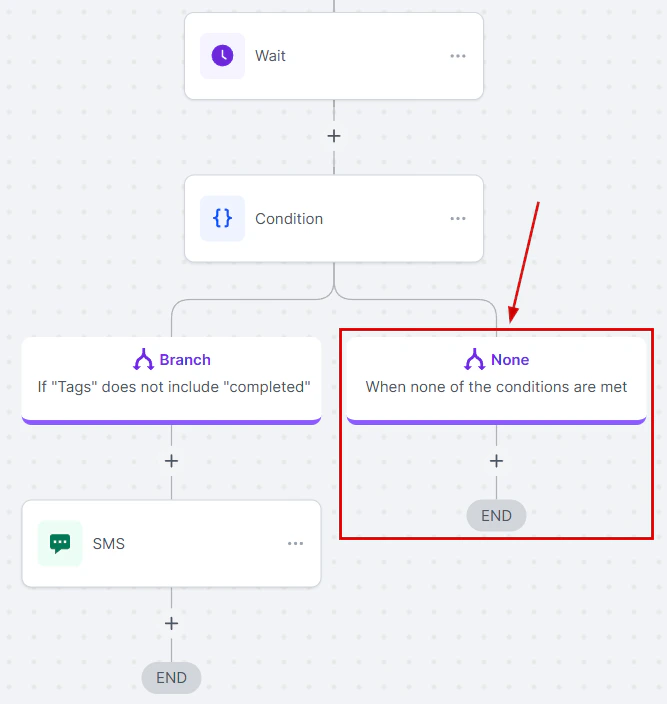
After the wait, add an **If/Else** condition checking whether the contact has a specific completion tag (assigned when they finish the action).
* **Yes (has tag)** → Remove from workflow (no follow-up needed)
* **No (no tag)** → Proceed to follow-up messages
For contacts without the completion tag, add automated follow-ups (email, SMS, internal notification) reminding them to take action.
Create a separate, simple workflow that:
* Triggers when the desired action is completed (e.g., **Form Submitted**)
* Adds the completion tag to the contact
***
## Example: Follow-up automation with a trigger link
A common pattern is to send an email with a trigger link and follow up with contacts who click it but do not complete a desired action (such as booking a call or filling out a form).
Create a workflow with the **Trigger Link Clicked** trigger.
Add a **Wait** action for a set period (e.g., 20 minutes) to give the contact time to complete the action.
After the wait, add an **If/Else** condition checking whether the contact has a specific completion tag (assigned when they finish the action).
* **Yes (has tag)** → Remove from workflow (no follow-up needed)
* **No (no tag)** → Proceed to follow-up messages
For contacts without the completion tag, add automated follow-ups (email, SMS, internal notification) reminding them to take action.
Create a separate, simple workflow that:
* Triggers when the desired action is completed (e.g., **Form Submitted**)
* Adds the completion tag to the contact
 ***
## Workflow automation with trigger links
***
## Workflow automation with trigger links
 ***
## Best practices
Make automated follow-up messages as personal as possible using the contact's name and referencing what they clicked. This significantly improves engagement.
Name trigger links clearly (e.g., "Email-BlogLink-March2026") so they are easy to identify in the workflow filter dropdown.
Limit the number of automated follow-ups to avoid overwhelming contacts. A sequence of 2–3 follow-ups spaced 24–48 hours apart is a good starting point.
Regularly review trigger link click rates and workflow outcomes. Adjust timing, messaging, and frequency based on performance data.
***
## Frequently asked questions
Yes. Trigger links can be embedded in SMS messages as well as email campaigns. The workflow trigger works the same way regardless of channel.
A 20–30 minute wait is a reasonable starting point, giving contacts time to complete the action without feeling rushed. Adjust based on the complexity of the action you are requesting.
Use the If/Else conditional action to check for a completion tag. If the tag is absent after the wait period, send a follow-up. Consider offering additional assistance or clarifying what you are asking the contact to do.
Yes. One trigger link can be used in multiple emails or SMS messages. The workflow fires whenever any of those links are clicked, regardless of which campaign the contact interacted with.
Trigger links are especially effective for content upgrades (e.g., "Click to download your free guide") — the click itself confirms interest, and the workflow can immediately deliver the content and tag the contact as a hot lead.
***
## Best practices
Make automated follow-up messages as personal as possible using the contact's name and referencing what they clicked. This significantly improves engagement.
Name trigger links clearly (e.g., "Email-BlogLink-March2026") so they are easy to identify in the workflow filter dropdown.
Limit the number of automated follow-ups to avoid overwhelming contacts. A sequence of 2–3 follow-ups spaced 24–48 hours apart is a good starting point.
Regularly review trigger link click rates and workflow outcomes. Adjust timing, messaging, and frequency based on performance data.
***
## Frequently asked questions
Yes. Trigger links can be embedded in SMS messages as well as email campaigns. The workflow trigger works the same way regardless of channel.
A 20–30 minute wait is a reasonable starting point, giving contacts time to complete the action without feeling rushed. Adjust based on the complexity of the action you are requesting.
Use the If/Else conditional action to check for a completion tag. If the tag is absent after the wait period, send a follow-up. Consider offering additional assistance or clarifying what you are asking the contact to do.
Yes. One trigger link can be used in multiple emails or SMS messages. The workflow fires whenever any of those links are clicked, regardless of which campaign the contact interacted with.
Trigger links are especially effective for content upgrades (e.g., "Click to download your free guide") — the click itself confirms interest, and the workflow can immediately deliver the content and tag the contact as a hot lead.