> ## Documentation Index
> Fetch the complete documentation index at: https://help.hoopai.com/llms.txt
> Use this file to discover all available pages before exploring further.
# Social planner
> Schedule and publish posts across all major social platforms from a single calendar — with AI content, bulk scheduling, recurring posts, and social listening.
The Social Planner is your central hub for managing all social media activity. Create, preview, and schedule posts to Facebook, Instagram, LinkedIn, TikTok, YouTube, Pinterest, Google My Business, and more — all without leaving the HoopAI Platform.
 ## Getting started
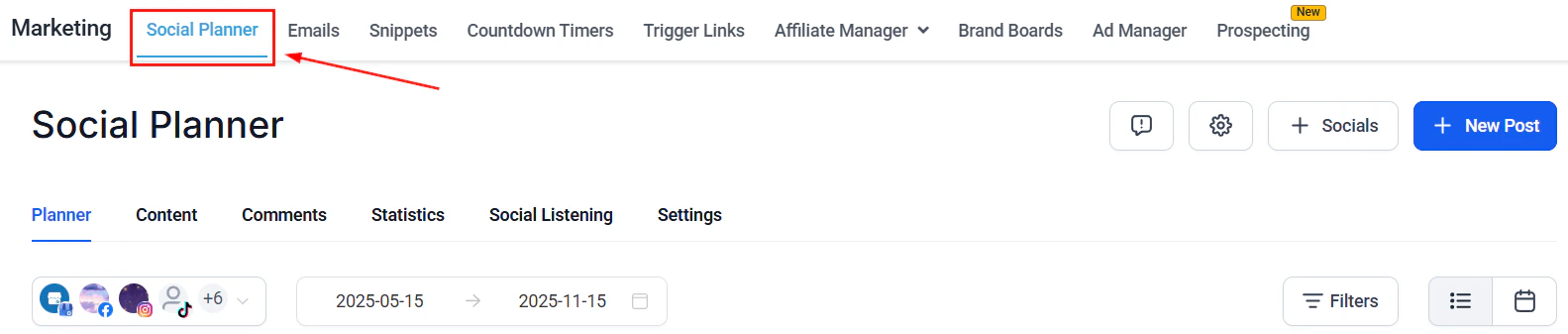
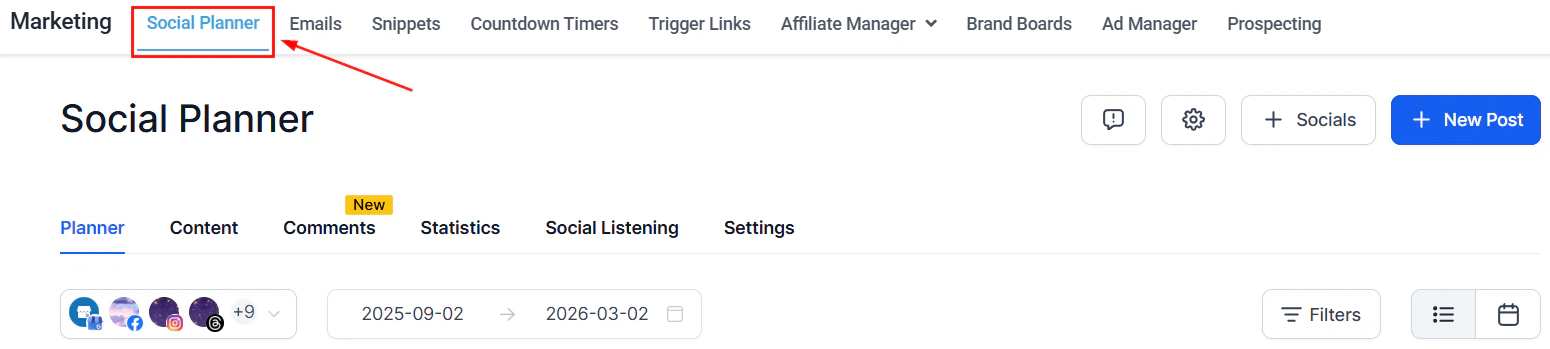
To use the Social Planner, first connect your social accounts. Navigate to **Marketing > Social Planner** and follow the integration guides for each platform.
**Supported platforms:**
* Facebook Pages and Groups
* Instagram (Business or Creator accounts)
* LinkedIn
* TikTok
* YouTube
* Pinterest
* Google My Business
* WhatsApp (ad creation)
Connect multiple accounts for the same platform to manage all your brands or locations from one place.
***
## Creating posts
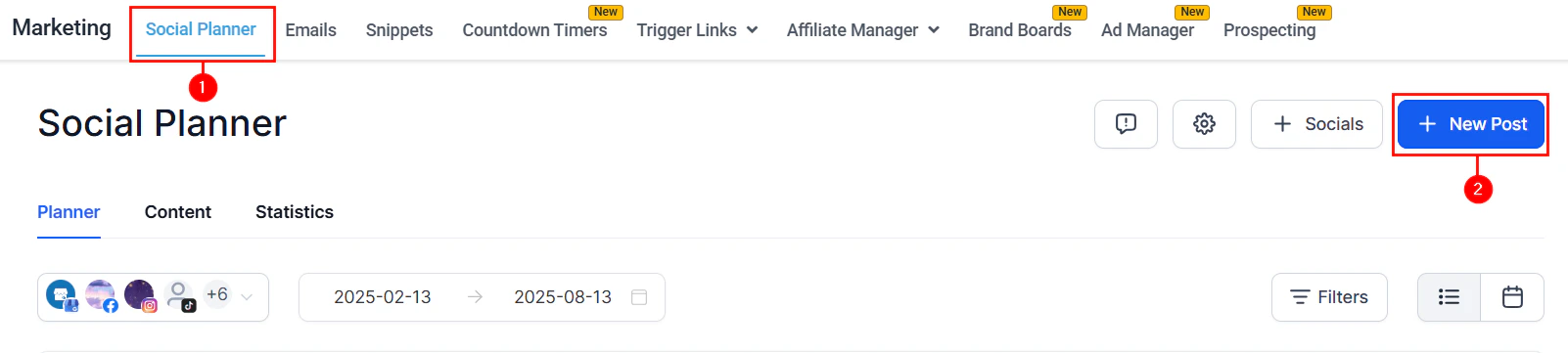
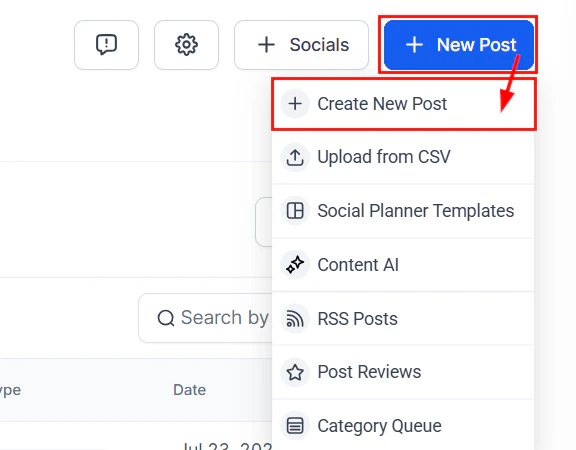
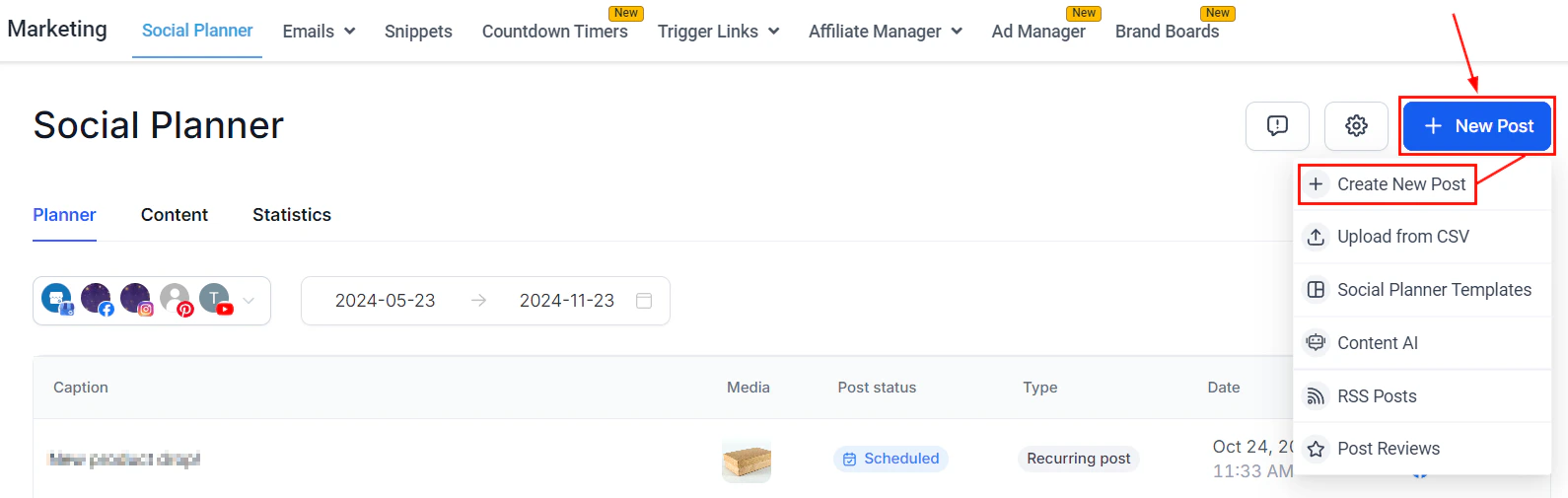
Go to **Marketing > Social Planner** and click **New Post > Create New Post**.
Choose one or more social media accounts from the account selector. You can post to multiple platforms simultaneously.
## Getting started
To use the Social Planner, first connect your social accounts. Navigate to **Marketing > Social Planner** and follow the integration guides for each platform.
**Supported platforms:**
* Facebook Pages and Groups
* Instagram (Business or Creator accounts)
* LinkedIn
* TikTok
* YouTube
* Pinterest
* Google My Business
* WhatsApp (ad creation)
Connect multiple accounts for the same platform to manage all your brands or locations from one place.
***
## Creating posts
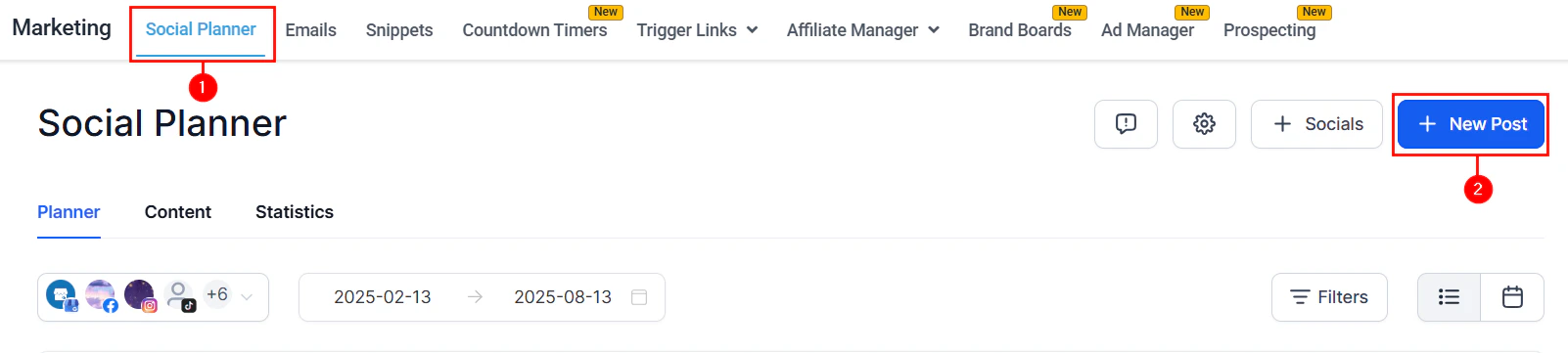
Go to **Marketing > Social Planner** and click **New Post > Create New Post**.
Choose one or more social media accounts from the account selector. You can post to multiple platforms simultaneously.
 Write your post content in the composer. Use **Edit with Ask AI** to refine content with natural language instructions — rewrite, simplify, expand, or adjust tone while keeping your brand voice.
Create and save groups of up to 30 hashtags for reuse. Select from your saved hashtag groups and optionally randomize them to keep posts varied.
Attach images or videos. You can include both in a single post for simultaneous scheduling across Instagram, YouTube, and TikTok.
The right-hand panel shows a live preview of how your post will appear. Toggle between platform previews if posting to multiple platforms.
Write your post content in the composer. Use **Edit with Ask AI** to refine content with natural language instructions — rewrite, simplify, expand, or adjust tone while keeping your brand voice.
Create and save groups of up to 30 hashtags for reuse. Select from your saved hashtag groups and optionally randomize them to keep posts varied.
Attach images or videos. You can include both in a single post for simultaneous scheduling across Instagram, YouTube, and TikTok.
The right-hand panel shows a live preview of how your post will appear. Toggle between platform previews if posting to multiple platforms.
 Click **Post** and choose from:
* **Post Now** — publish immediately
* **Schedule Post** — choose a date and time (the platform suggests best times based on audience engagement)
* **Send Post For Approval** — route the post through your approval workflow
* **Schedule Recurring Posts** — set up a recurring posting schedule
***
## Scheduling features
Click **Post** and choose from:
* **Post Now** — publish immediately
* **Schedule Post** — choose a date and time (the platform suggests best times based on audience engagement)
* **Send Post For Approval** — route the post through your approval workflow
* **Schedule Recurring Posts** — set up a recurring posting schedule
***
## Scheduling features
 ### Best time to post
When scheduling, the platform suggests optimal posting times based on audience engagement patterns to maximize reach and engagement.
### Bulk scheduling via CSV
Upload a CSV file to schedule dozens of posts at once. Download the sample file from the Social Planner to see the required format.
### Recurring posts
Use the **Recurring Scheduling Post** feature to set posts to repeat daily, weekly, or monthly.
### Category queues
Organize posts into categories (e.g., "Educational", "Promotional", "Client Stories") and assign each category a posting schedule. The queue automatically selects and publishes the next post in each category on schedule.
### Post approval workflow
Route posts through an approval process before they go live. Team members can submit posts for review, and approvers receive a notification to accept or reject them.
### Best time to post
When scheduling, the platform suggests optimal posting times based on audience engagement patterns to maximize reach and engagement.
### Bulk scheduling via CSV
Upload a CSV file to schedule dozens of posts at once. Download the sample file from the Social Planner to see the required format.
### Recurring posts
Use the **Recurring Scheduling Post** feature to set posts to repeat daily, weekly, or monthly.
### Category queues
Organize posts into categories (e.g., "Educational", "Promotional", "Client Stories") and assign each category a posting schedule. The queue automatically selects and publishes the next post in each category on schedule.
### Post approval workflow
Route posts through an approval process before they go live. Team members can submit posts for review, and approvers receive a notification to accept or reject them.
 ***
## Platform-specific features
Post to Pages and Groups. Use the image editor for formatting and add watermarks. Supports Reels, Stories, and standard posts.
Connect via Facebook-linked integration or direct Instagram integration. Supports feed posts, Reels, and Stories (via push notification for mobile). Schedule Reels directly from the planner.
Connect individual or company profiles. Share PDFs as images in LinkedIn Carousel posts. Clear link preview cache if needed.
Connect and schedule TikTok videos directly from the Social Planner.
Connect your YouTube account and schedule video uploads.
Connect multiple Pinterest accounts and schedule pins.
Schedule GBP posts including updates, offers, and events. Published posts appear in your GBP Optimization panel.
***
## Additional features
### Social listening
Monitor brand mentions, keywords, and hashtags across social platforms to stay informed about conversations relevant to your business.
### Social media insights
View engagement metrics, reach, impressions, and follower growth for all connected accounts in one dashboard.
***
## Platform-specific features
Post to Pages and Groups. Use the image editor for formatting and add watermarks. Supports Reels, Stories, and standard posts.
Connect via Facebook-linked integration or direct Instagram integration. Supports feed posts, Reels, and Stories (via push notification for mobile). Schedule Reels directly from the planner.
Connect individual or company profiles. Share PDFs as images in LinkedIn Carousel posts. Clear link preview cache if needed.
Connect and schedule TikTok videos directly from the Social Planner.
Connect your YouTube account and schedule video uploads.
Connect multiple Pinterest accounts and schedule pins.
Schedule GBP posts including updates, offers, and events. Published posts appear in your GBP Optimization panel.
***
## Additional features
### Social listening
Monitor brand mentions, keywords, and hashtags across social platforms to stay informed about conversations relevant to your business.
### Social media insights
View engagement metrics, reach, impressions, and follower growth for all connected accounts in one dashboard.
 ### Link shortener
Shorten URLs in your posts and track clicks to measure link performance.
### Image editor
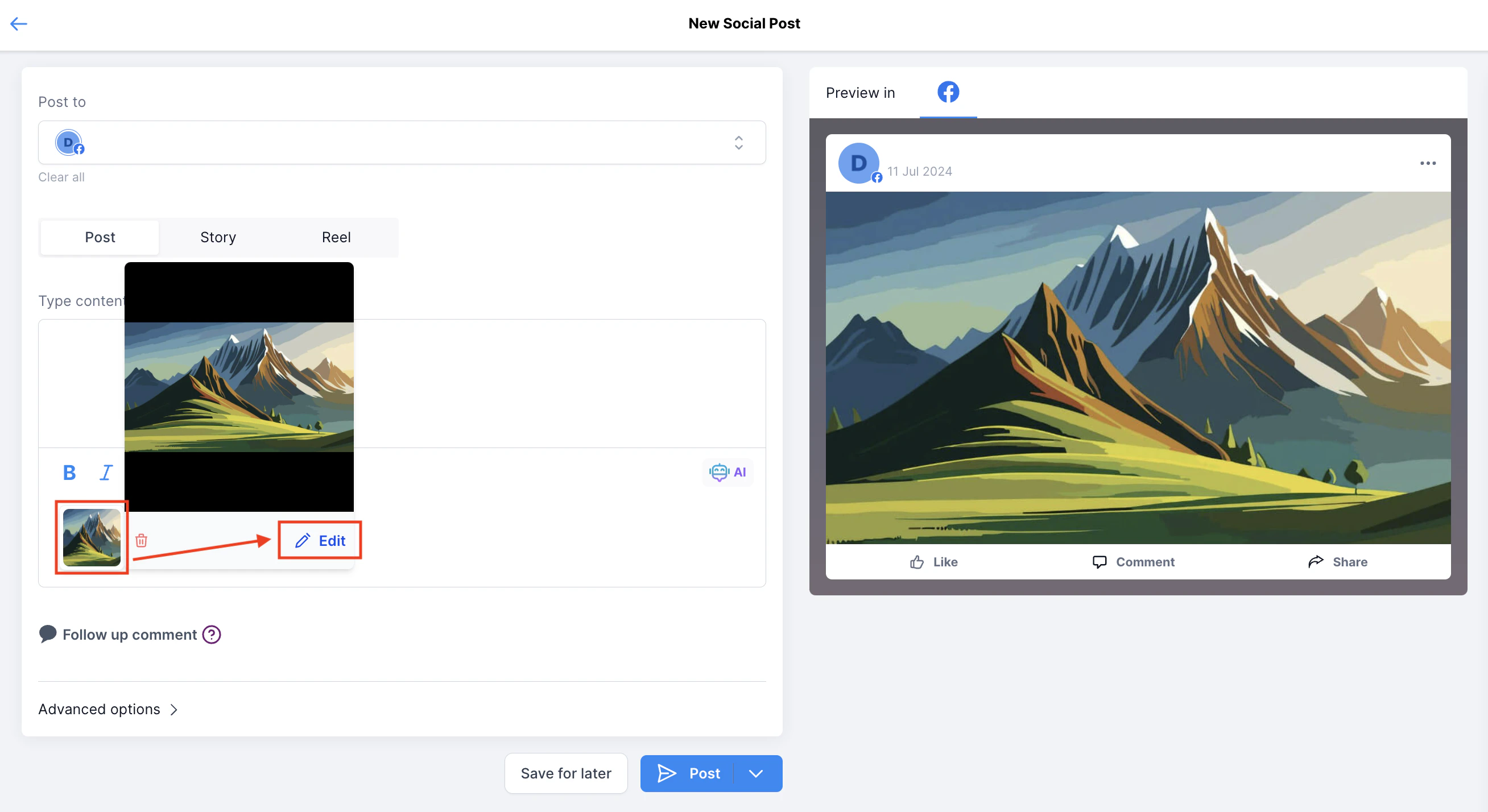
Edit images directly in the Social Planner — crop, resize, add text, and apply filters without leaving the platform.
### Link shortener
Shorten URLs in your posts and track clicks to measure link performance.
### Image editor
Edit images directly in the Social Planner — crop, resize, add text, and apply filters without leaving the platform.
 ### Watermark posts
Automatically add a watermark or branding overlay to posts as they are scheduled.
### AI image and content generation
Use the built-in AI tools to generate images and copy for your posts directly from the composer.
***
## Troubleshooting
If a post fails to publish, the Social Planner shows a color-coded error message. Click the error to scroll directly to the issue for quick correction. Common causes include expired account connections, media format issues, or platform-specific restrictions.
Set up email notifications to be alerted when a connected social account's token expires so you can reconnect before scheduled posts fail.
Verify your domain with Facebook to enable link previews and certain ad features. Follow the Facebook Domain Verification guide in the Social Planner help articles.
***
## Recommended image and video specs
| Platform | Image size | Video |
| -------------- | -------------------------------------------- | ------------------- |
| Facebook feed | 1200×630px | Up to 4GB, MP4 |
| Instagram feed | 1080×1080px (square), 1080×1350px (portrait) | Up to 650MB, MP4 |
| Instagram Reel | 1080×1920px | Up to 650MB, MP4 |
| LinkedIn | 1200×627px | Up to 5GB, MP4 |
| TikTok | 1080×1920px | Up to 287.6MB, MP4 |
| Pinterest | 1000×1500px | Up to 2GB, MP4 |
| YouTube | 1280×720px minimum | Any standard format |
Always check the latest platform guidelines, as size limits and format requirements may change. The Social Planner will display a warning if your media does not meet the current requirements for a selected platform.
***
## Frequently asked questions
Yes. When creating a post, select multiple social accounts from the account selector. The post will be scheduled or published to all selected platforms simultaneously. Use the platform preview panel to see how the post will look on each platform before sending.
When scheduling a post, the Social Planner suggests optimal posting times based on historical audience engagement patterns for your connected accounts. These suggestions help maximize reach and engagement, but you can override them with any date and time you choose.
Upload a CSV or XLSX file with your post content, dates, and platform options to schedule up to 90 posts at once. Download the sample file from the Social Planner to see the required format. Advanced format supports Stories, Reels, watermarks, and platform-specific settings.
Category queues let you organize posts into themed buckets (like "Educational" or "Promotional") and assign a posting schedule to each category. The queue automatically selects and publishes the next post in each category on schedule, keeping your profiles active without constant manual effort.
Yes. Social media platforms periodically expire access tokens for security. Enable email notifications in Social Planner settings to be alerted when a reconnection is needed before any scheduled posts fail.
Yes. Find the scheduled post in the List or Calendar view, click the three-dot menu, and select Edit. For recurring posts, you can choose to edit only one instance or all future instances in the series.
The approval workflow routes posts through a review process before publishing. When creating a post, check the Submit for Approval option and select a reviewer. The reviewer receives a notification and can approve (schedules the post) or reject it (returns for edits). This is ideal for teams that require review and sign-off before publishing.
### Watermark posts
Automatically add a watermark or branding overlay to posts as they are scheduled.
### AI image and content generation
Use the built-in AI tools to generate images and copy for your posts directly from the composer.
***
## Troubleshooting
If a post fails to publish, the Social Planner shows a color-coded error message. Click the error to scroll directly to the issue for quick correction. Common causes include expired account connections, media format issues, or platform-specific restrictions.
Set up email notifications to be alerted when a connected social account's token expires so you can reconnect before scheduled posts fail.
Verify your domain with Facebook to enable link previews and certain ad features. Follow the Facebook Domain Verification guide in the Social Planner help articles.
***
## Recommended image and video specs
| Platform | Image size | Video |
| -------------- | -------------------------------------------- | ------------------- |
| Facebook feed | 1200×630px | Up to 4GB, MP4 |
| Instagram feed | 1080×1080px (square), 1080×1350px (portrait) | Up to 650MB, MP4 |
| Instagram Reel | 1080×1920px | Up to 650MB, MP4 |
| LinkedIn | 1200×627px | Up to 5GB, MP4 |
| TikTok | 1080×1920px | Up to 287.6MB, MP4 |
| Pinterest | 1000×1500px | Up to 2GB, MP4 |
| YouTube | 1280×720px minimum | Any standard format |
Always check the latest platform guidelines, as size limits and format requirements may change. The Social Planner will display a warning if your media does not meet the current requirements for a selected platform.
***
## Frequently asked questions
Yes. When creating a post, select multiple social accounts from the account selector. The post will be scheduled or published to all selected platforms simultaneously. Use the platform preview panel to see how the post will look on each platform before sending.
When scheduling a post, the Social Planner suggests optimal posting times based on historical audience engagement patterns for your connected accounts. These suggestions help maximize reach and engagement, but you can override them with any date and time you choose.
Upload a CSV or XLSX file with your post content, dates, and platform options to schedule up to 90 posts at once. Download the sample file from the Social Planner to see the required format. Advanced format supports Stories, Reels, watermarks, and platform-specific settings.
Category queues let you organize posts into themed buckets (like "Educational" or "Promotional") and assign a posting schedule to each category. The queue automatically selects and publishes the next post in each category on schedule, keeping your profiles active without constant manual effort.
Yes. Social media platforms periodically expire access tokens for security. Enable email notifications in Social Planner settings to be alerted when a reconnection is needed before any scheduled posts fail.
Yes. Find the scheduled post in the List or Calendar view, click the three-dot menu, and select Edit. For recurring posts, you can choose to edit only one instance or all future instances in the series.
The approval workflow routes posts through a review process before publishing. When creating a post, check the Submit for Approval option and select a reviewer. The reviewer receives a notification and can approve (schedules the post) or reject it (returns for edits). This is ideal for teams that require review and sign-off before publishing.