> ## Documentation Index
> Fetch the complete documentation index at: https://help.hoopai.com/llms.txt
> Use this file to discover all available pages before exploring further.
# Connecting social platforms
> Connect Facebook, Instagram, LinkedIn, TikTok, Twitter/X, Bluesky, Threads, and Google My Business to the Social Planner for unified scheduling.
The Social Planner supports connections to all major social media platforms. Connect your accounts once, then create and schedule content across all of them from a single calendar. Navigate to **Marketing > Social Planner** to get started.
## First-time setup
When you open the Social Planner without any connected accounts, a setup wizard displays icons for each supported platform. Click any icon to begin connecting that platform.
If you already have accounts connected, click **+ Socials** to add more platforms.
Access to the Social Planner and the ability to connect social accounts depends on your user permissions. Contact your account administrator if the option is not visible.
***
## Facebook
Connect Facebook Business Pages to schedule posts, Reels, Stories, and updates.
**Requirements:**
* A personal Facebook profile with admin rights to the Business Page you want to connect
* You cannot connect personal profiles — only Business Pages and Groups
In the Social Planner, click **+ Socials** and select **Facebook**.
Log in to your personal Facebook account and grant the required permissions. This account must have admin rights to the Business Page.
Choose the Facebook Business Page(s) you want to connect by clicking **Add**. Pages from different personal profiles can all be added to the same Social Planner.
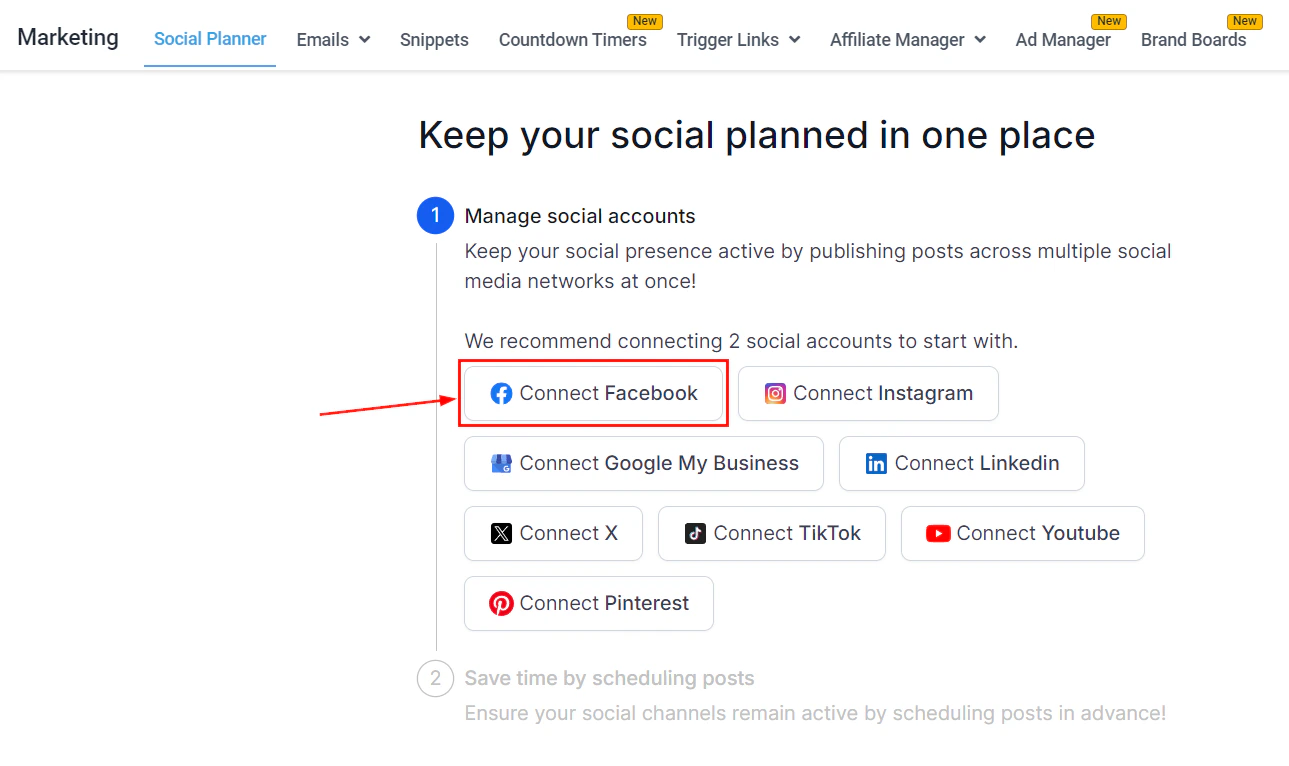 You can connect pages from multiple different personal Facebook profiles — useful for businesses managing multiple brands or locations.
***
## Instagram
Connect Instagram Business or Creator accounts to schedule feed posts, Reels, and Stories.
**Requirements:**
* Your Instagram account must be a Business or Creator account (not a personal account)
* For the Facebook-linked method, your Instagram account must be connected to a Facebook Page
**Converting to a Business account:**
1. Open your Instagram app settings
2. Switch from a personal account to a Business account
3. Connect your Instagram Business account to your Facebook account
In the Social Planner, click **+ Socials** and select **Instagram Account**.
Select either **Instagram with Facebook** (recommended) or **Direct Instagram Integration**.
* **Via Facebook**: Log in with the Facebook account linked to your Instagram Business account and grant permissions
* **Direct**: Enter your Instagram credentials and allow the required permissions
Click **Add** next to the Instagram profile(s) you want to connect.
You can connect pages from multiple different personal Facebook profiles — useful for businesses managing multiple brands or locations.
***
## Instagram
Connect Instagram Business or Creator accounts to schedule feed posts, Reels, and Stories.
**Requirements:**
* Your Instagram account must be a Business or Creator account (not a personal account)
* For the Facebook-linked method, your Instagram account must be connected to a Facebook Page
**Converting to a Business account:**
1. Open your Instagram app settings
2. Switch from a personal account to a Business account
3. Connect your Instagram Business account to your Facebook account
In the Social Planner, click **+ Socials** and select **Instagram Account**.
Select either **Instagram with Facebook** (recommended) or **Direct Instagram Integration**.
* **Via Facebook**: Log in with the Facebook account linked to your Instagram Business account and grant permissions
* **Direct**: Enter your Instagram credentials and allow the required permissions
Click **Add** next to the Instagram profile(s) you want to connect.
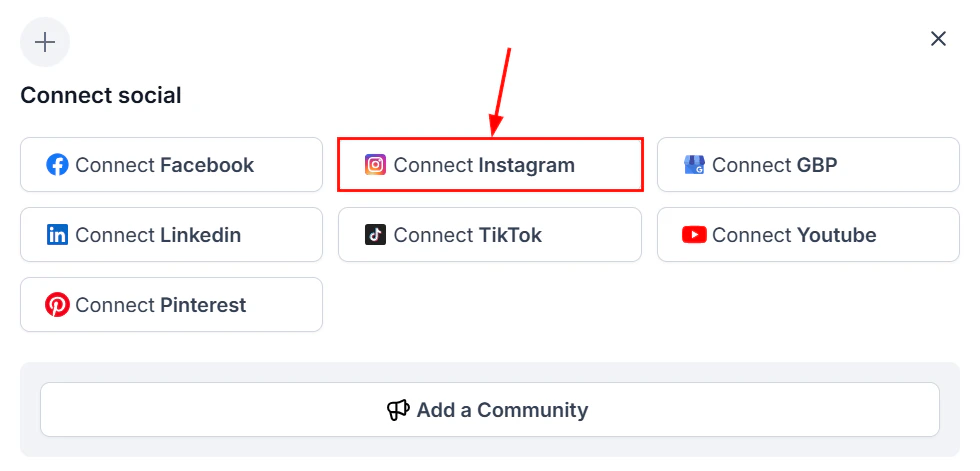 If your Instagram Business Profile shows as unverified, it means the account is not yet connected to a Facebook Page — a requirement from Facebook for posting. Complete that connection in the Instagram app first.
***
## LinkedIn
Connect your personal LinkedIn profile or a LinkedIn Company Page to schedule professional content.
**Requirements:**
* For Company Pages: your LinkedIn account must be a super admin of the page
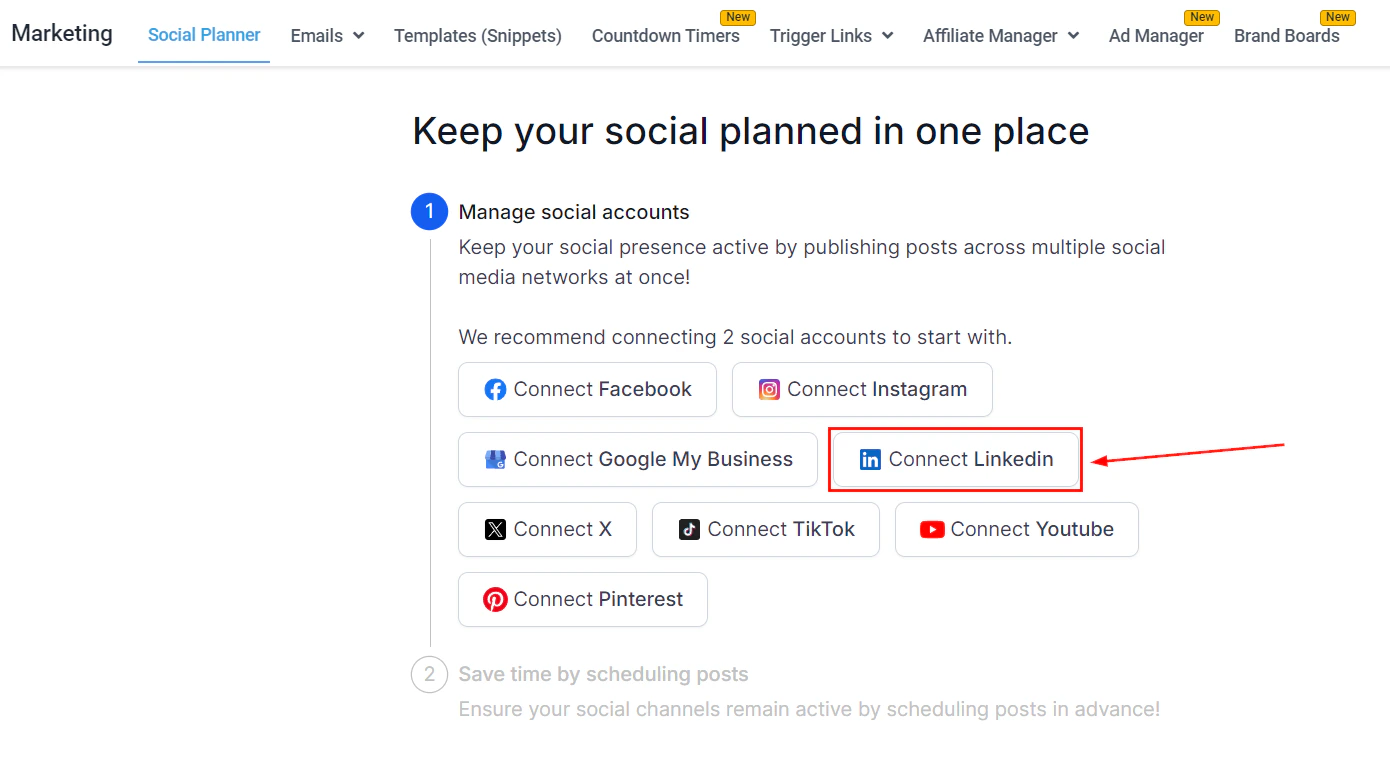
In the Social Planner, click **+ Socials** and select **LinkedIn Personal** or **LinkedIn Business Account**.
You will be prompted to allow the platform to connect to your LinkedIn account. Click the blue **Allow** button to grant permission.
Choose the LinkedIn profile or Company Page to connect and confirm.
If your Instagram Business Profile shows as unverified, it means the account is not yet connected to a Facebook Page — a requirement from Facebook for posting. Complete that connection in the Instagram app first.
***
## LinkedIn
Connect your personal LinkedIn profile or a LinkedIn Company Page to schedule professional content.
**Requirements:**
* For Company Pages: your LinkedIn account must be a super admin of the page
In the Social Planner, click **+ Socials** and select **LinkedIn Personal** or **LinkedIn Business Account**.
You will be prompted to allow the platform to connect to your LinkedIn account. Click the blue **Allow** button to grant permission.
Choose the LinkedIn profile or Company Page to connect and confirm.
 ***
## TikTok
Connect a TikTok Personal or Business account to schedule video content directly from the Social Planner.
**Account types:**
* **Personal account** — for individual creators sharing entertainment and personal expression
* **Business account** — for brands and businesses promoting products, services, or professional content
In the Social Planner, click **+ Socials** and select **TikTok Personal** or **TikTok Business Account**.
You will be redirected to TikTok's authentication page. Log in and grant the required permissions.
Once authenticated, your TikTok account will be available in the Social Planner account selector.
***
## TikTok
Connect a TikTok Personal or Business account to schedule video content directly from the Social Planner.
**Account types:**
* **Personal account** — for individual creators sharing entertainment and personal expression
* **Business account** — for brands and businesses promoting products, services, or professional content
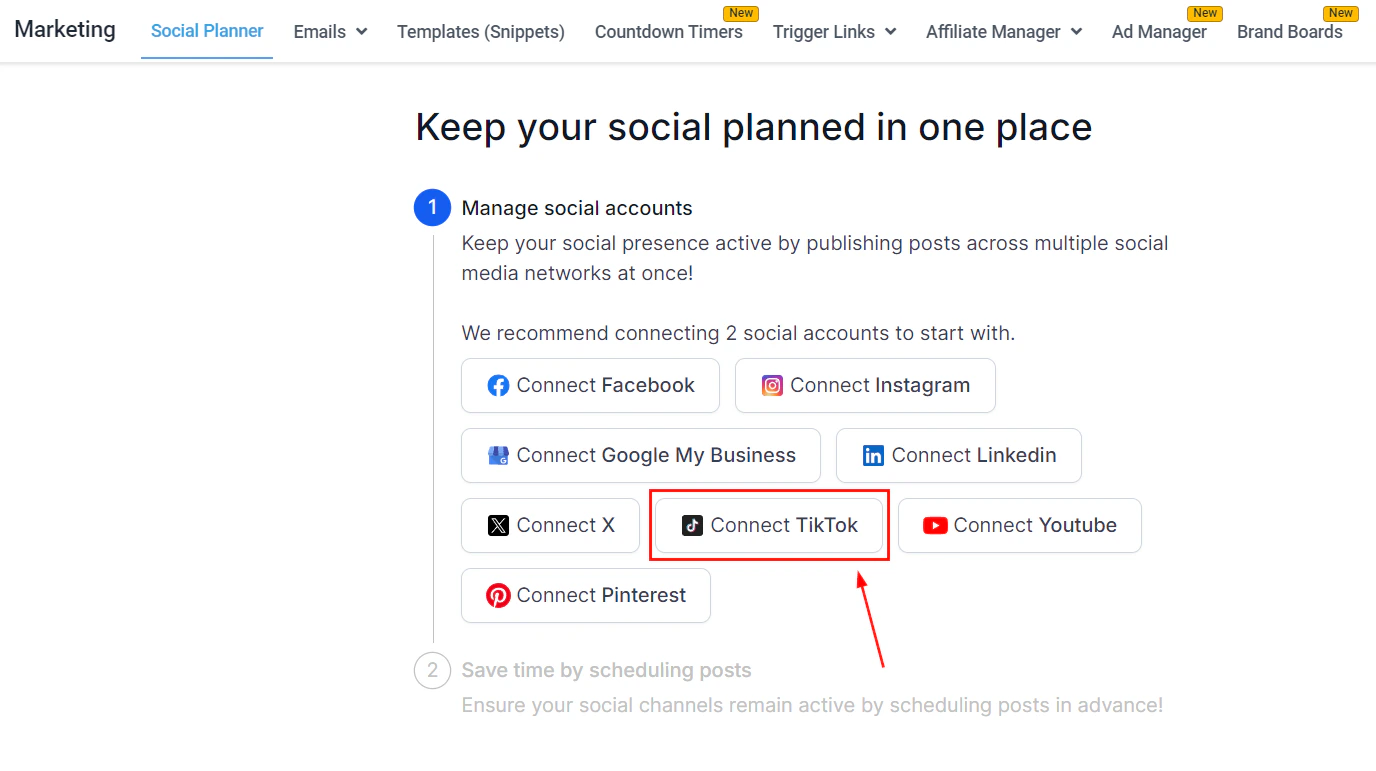
In the Social Planner, click **+ Socials** and select **TikTok Personal** or **TikTok Business Account**.
You will be redirected to TikTok's authentication page. Log in and grant the required permissions.
Once authenticated, your TikTok account will be available in the Social Planner account selector.
 ***
## Twitter / X
Connect your Twitter / X account to schedule text posts and media content directly from the Social Planner.
**Requirements:**
* A Twitter / X account (personal or professional)
* You must authorize the HoopAI Platform to post on your behalf during the OAuth flow
In the Social Planner, click **+ Socials** and select **Twitter / X**.
You will be redirected to the Twitter / X authorization page. Log in and click **Authorize app** to grant posting permissions.
Once authorized, your Twitter / X account will appear in the Social Planner account selector and is ready for scheduling.
### Twitter / X publishing specifications
| Category | Details |
| ------------------ | ------------------------------------------------------------------------------------- |
| Text limit | 280 characters (standard accounts); up to 25,000 characters for X Premium subscribers |
| Images | Up to 4 images per post (JPEG, PNG, GIF, WEBP) |
| Max image size | 5 MB per image |
| Video | 1 video per post (MP4 or MOV) |
| Max video size | 512 MB |
| Max video duration | Up to 2 minutes 20 seconds |
| Video resolution | Minimum 32x32, maximum 1920x1200 or 1200x1900 |
**Posting notes:**
* **Mentions**: Use the `@username` format
* **Hashtags**: Use standard `#hashtag` format
* **Threads**: Posting as a thread (chained tweets) is not currently supported — each scheduled post publishes as a standalone tweet
* **Quote tweets**: Not supported via Social Planner scheduling
***
## Bluesky
Connect your Bluesky account using an app password for secure authentication. Bluesky is a decentralized social network supporting text, images, and video.
**You will need:**
* Your Bluesky username (e.g., `username.bsky.social`)
* An app password generated from your Bluesky account settings
### Generate an app password
Log in to Bluesky and go to **Settings > Privacy & Security > App Passwords**.
Click **+ Add App Password**, give it a name, and click **Next**.
Copy the app password now — it is only shown once. If you miss it, delete it and generate a new one.
***
## Twitter / X
Connect your Twitter / X account to schedule text posts and media content directly from the Social Planner.
**Requirements:**
* A Twitter / X account (personal or professional)
* You must authorize the HoopAI Platform to post on your behalf during the OAuth flow
In the Social Planner, click **+ Socials** and select **Twitter / X**.
You will be redirected to the Twitter / X authorization page. Log in and click **Authorize app** to grant posting permissions.
Once authorized, your Twitter / X account will appear in the Social Planner account selector and is ready for scheduling.
### Twitter / X publishing specifications
| Category | Details |
| ------------------ | ------------------------------------------------------------------------------------- |
| Text limit | 280 characters (standard accounts); up to 25,000 characters for X Premium subscribers |
| Images | Up to 4 images per post (JPEG, PNG, GIF, WEBP) |
| Max image size | 5 MB per image |
| Video | 1 video per post (MP4 or MOV) |
| Max video size | 512 MB |
| Max video duration | Up to 2 minutes 20 seconds |
| Video resolution | Minimum 32x32, maximum 1920x1200 or 1200x1900 |
**Posting notes:**
* **Mentions**: Use the `@username` format
* **Hashtags**: Use standard `#hashtag` format
* **Threads**: Posting as a thread (chained tweets) is not currently supported — each scheduled post publishes as a standalone tweet
* **Quote tweets**: Not supported via Social Planner scheduling
***
## Bluesky
Connect your Bluesky account using an app password for secure authentication. Bluesky is a decentralized social network supporting text, images, and video.
**You will need:**
* Your Bluesky username (e.g., `username.bsky.social`)
* An app password generated from your Bluesky account settings
### Generate an app password
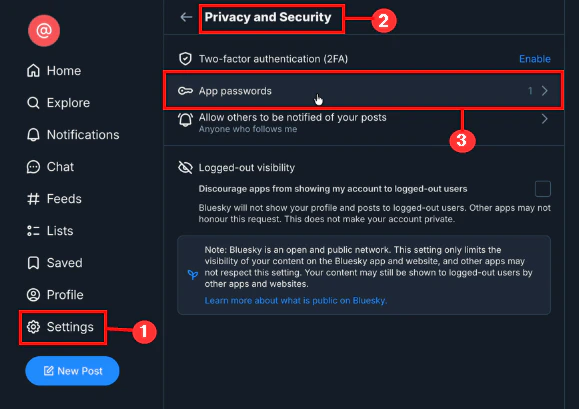
Log in to Bluesky and go to **Settings > Privacy & Security > App Passwords**.
Click **+ Add App Password**, give it a name, and click **Next**.
Copy the app password now — it is only shown once. If you miss it, delete it and generate a new one.
 ### Connect Bluesky to Social Planner
In the Social Planner, click **+ Socials** and select **Connect Bluesky**.
Enter your Bluesky username (without the `@` symbol, e.g., `username.bsky.social`) and paste your app password.
Click **Connect**, then click **Add** next to your profile to complete the integration.
### Connect Bluesky to Social Planner
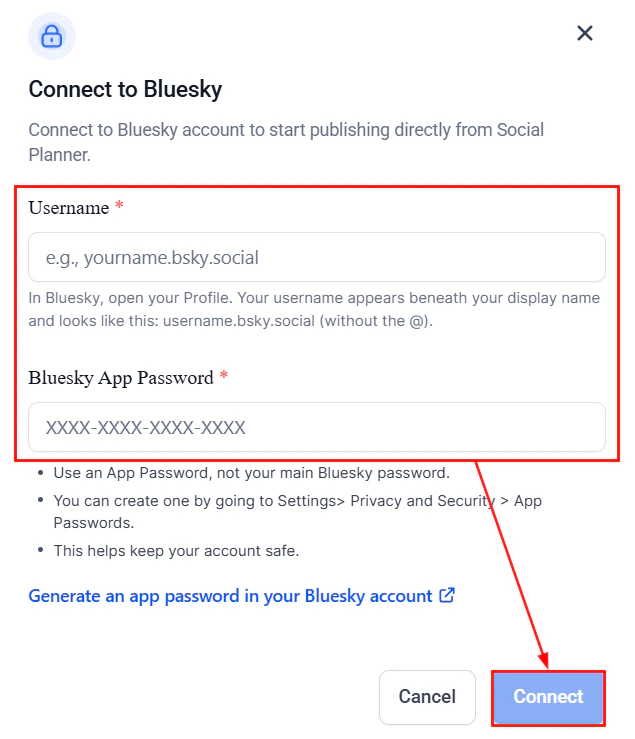
In the Social Planner, click **+ Socials** and select **Connect Bluesky**.
Enter your Bluesky username (without the `@` symbol, e.g., `username.bsky.social`) and paste your app password.
Click **Connect**, then click **Add** next to your profile to complete the integration.
 ### Bluesky publishing specifications
| Category | Images | Video |
| -------------------- | -------------- | -------------------------------- |
| File types | JPEG, PNG | MP4, MOV |
| Max file size | 1 MB | 50 MB |
| Max uploads per post | Up to 4 images | 1 video (cannot mix with images) |
| Aspect ratio | — | 16:9 or 1:1 |
| Duration | — | Up to 3 minutes |
| Frame rate | — | 30–60 FPS |
| Codecs | — | H.264 video, AAC audio |
**Posting notes:**
* **Mentions**: Use the full handle (e.g., `@name.bsky.social`) — type carefully or paste
* **Hashtags**: Use standard `#hashtag` format; letters, numbers, and underscores are allowed
* **Custom thumbnails**: Not supported
***
## Threads
Connect Threads (Meta's text-focused platform) using your Instagram credentials, since Threads authentication is managed via Instagram.
**Requirements:**
* Your Threads account must be linked to your Instagram profile
* Your Threads account must be public (private accounts cannot post via Social Planner)
In the Social Planner, click **+ Socials** and select **Connect Threads**.
Authenticate using your Instagram credentials and authorize access.
Click **Add** next to the Threads profile you want to connect.
### Bluesky publishing specifications
| Category | Images | Video |
| -------------------- | -------------- | -------------------------------- |
| File types | JPEG, PNG | MP4, MOV |
| Max file size | 1 MB | 50 MB |
| Max uploads per post | Up to 4 images | 1 video (cannot mix with images) |
| Aspect ratio | — | 16:9 or 1:1 |
| Duration | — | Up to 3 minutes |
| Frame rate | — | 30–60 FPS |
| Codecs | — | H.264 video, AAC audio |
**Posting notes:**
* **Mentions**: Use the full handle (e.g., `@name.bsky.social`) — type carefully or paste
* **Hashtags**: Use standard `#hashtag` format; letters, numbers, and underscores are allowed
* **Custom thumbnails**: Not supported
***
## Threads
Connect Threads (Meta's text-focused platform) using your Instagram credentials, since Threads authentication is managed via Instagram.
**Requirements:**
* Your Threads account must be linked to your Instagram profile
* Your Threads account must be public (private accounts cannot post via Social Planner)
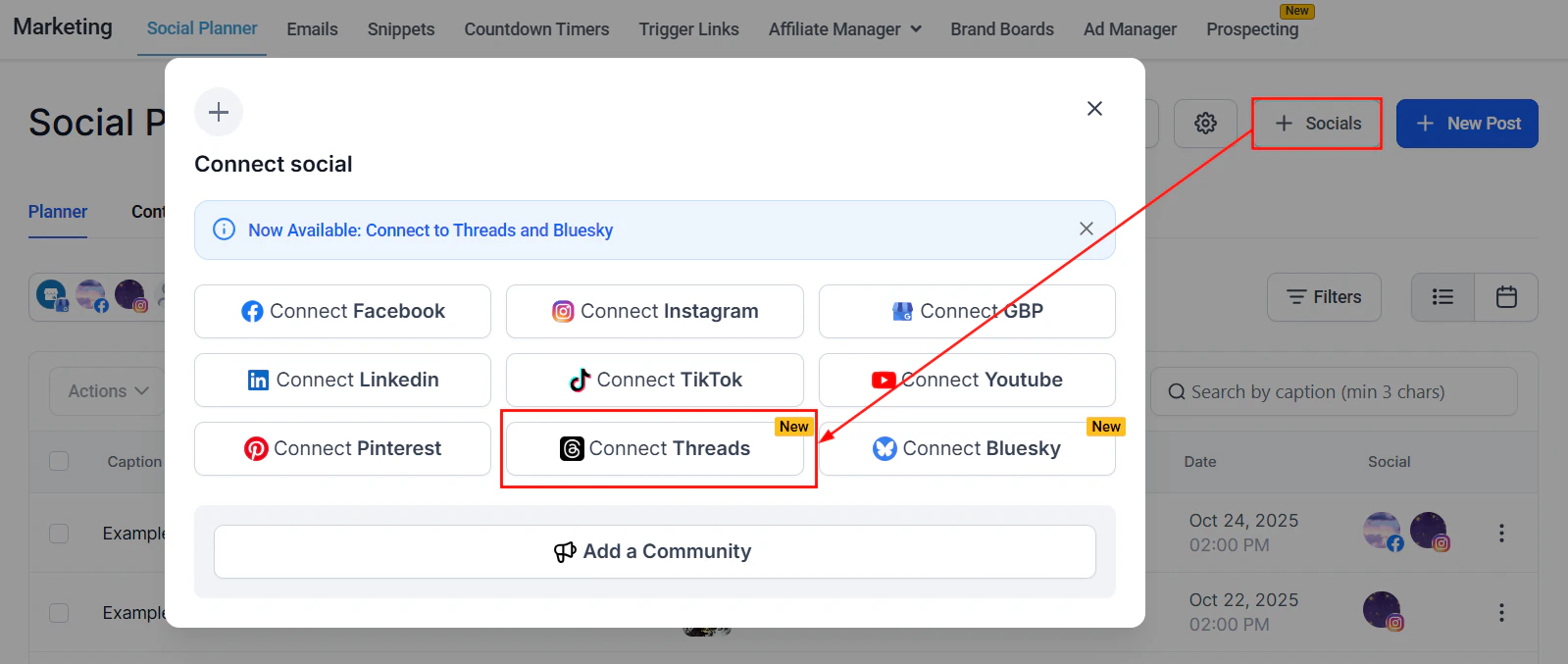
In the Social Planner, click **+ Socials** and select **Connect Threads**.
Authenticate using your Instagram credentials and authorize access.
Click **Add** next to the Threads profile you want to connect.
 ### Threads publishing specifications
| Category | Images | Video |
| ------------- | --------------------- | ------------------------------------- |
| File types | JPEG, PNG | MP4, MOV |
| Max file size | 8 MB per image | 1 GB per video |
| Max uploads | Up to 20 images | Up to 20 videos (can mix with images) |
| Resolution | Min 320px, Max 1440px | Valid width up to 1920px |
| Aspect ratio | 0.01:1 to 10:1 | 0.01:1 to 10:1 |
| Duration | — | Up to 5 minutes |
| Frame rate | — | 23–60 FPS |
| Codecs | — | H.264 or HEVC video, AAC audio |
Yes. Only public Threads accounts are eligible for publishing through Social Planner.
No. Location tagging is currently not supported by the Threads API.
Not at this time. Statistics and comment moderation for Threads are not yet supported in Social Planner.
Editing and deletion support for Threads posts is limited. Check the Social Planner for current options after connecting.
***
## Google My Business
Connect your Google My Business (GBP) locations to schedule business updates, offers, and events that appear directly in Google Search and Maps.
In the Social Planner, click **+ Socials** and select the **Google My Business** option.
Choose the Gmail account associated with your GMB locations and grant the required permissions by clicking **Allow**.
Choose the GMB locations you want to add to the Social Planner and click **Add** next to each.
After setup, click the gear icon to open Settings. Your connected GMB locations will appear in the Social Accounts list.
### Threads publishing specifications
| Category | Images | Video |
| ------------- | --------------------- | ------------------------------------- |
| File types | JPEG, PNG | MP4, MOV |
| Max file size | 8 MB per image | 1 GB per video |
| Max uploads | Up to 20 images | Up to 20 videos (can mix with images) |
| Resolution | Min 320px, Max 1440px | Valid width up to 1920px |
| Aspect ratio | 0.01:1 to 10:1 | 0.01:1 to 10:1 |
| Duration | — | Up to 5 minutes |
| Frame rate | — | 23–60 FPS |
| Codecs | — | H.264 or HEVC video, AAC audio |
Yes. Only public Threads accounts are eligible for publishing through Social Planner.
No. Location tagging is currently not supported by the Threads API.
Not at this time. Statistics and comment moderation for Threads are not yet supported in Social Planner.
Editing and deletion support for Threads posts is limited. Check the Social Planner for current options after connecting.
***
## Google My Business
Connect your Google My Business (GBP) locations to schedule business updates, offers, and events that appear directly in Google Search and Maps.
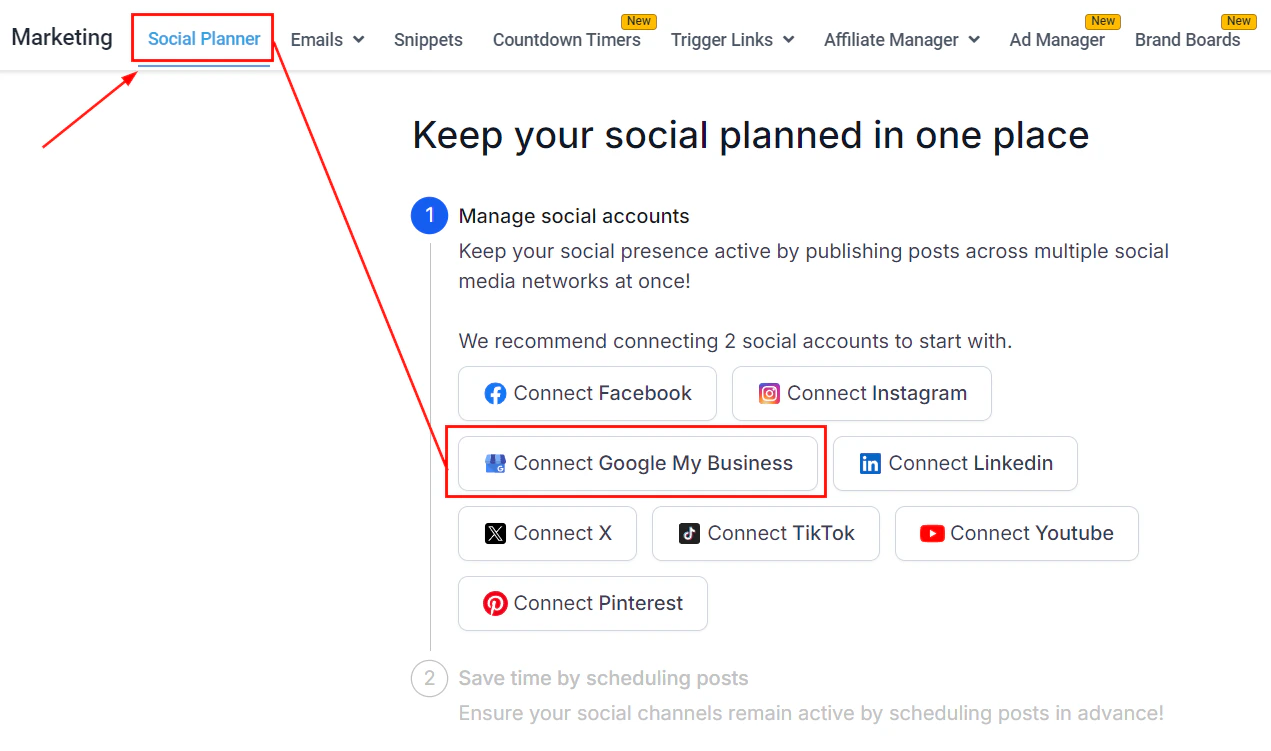
In the Social Planner, click **+ Socials** and select the **Google My Business** option.
Choose the Gmail account associated with your GMB locations and grant the required permissions by clicking **Allow**.
Choose the GMB locations you want to add to the Social Planner and click **Add** next to each.
After setup, click the gear icon to open Settings. Your connected GMB locations will appear in the Social Accounts list.
 If a GMB location shows the message "This location belongs to a chain. The Local Post API is disabled for this location," that location cannot be connected due to a Google restriction on chain locations. If the location is already added, you will see a message indicating it is already connected.
### Full GMB integration
For complete GMB management (beyond social posting), also connect via Integrations:
1. Go to **Settings > Integrations** and click **Connect** next to Google My Business
2. In the pop-up, check the box next to your desired locations
3. Click **Connect**
This provides access to review management and GBP optimization features alongside social posting.
***
## Managing connected accounts
After connecting platforms, manage all accounts from the Social Planner settings:
1. Click the **gear icon** in the Social Planner
2. The **Settings** page lists all connected social accounts
3. From here you can reconnect expired accounts, remove accounts, or add new ones
Social account tokens expire periodically. Enable email notifications in Social Planner settings to be alerted when a reconnection is needed before scheduled posts fail.
***
## Frequently asked questions
Yes. You can connect Facebook Business Pages from multiple personal Facebook profiles in the same Social Planner. This is useful for businesses managing multiple brands or locations from one account.
An unverified Instagram Business Profile means the account is not yet connected to a Facebook Page — a requirement from Meta for third-party publishing. Complete the Instagram-to-Facebook Page connection in the Instagram app first, then reconnect in the Social Planner.
For social posting through the Social Planner, a personal or business TikTok account works. For TikTok Ads in the Ad Manager, you need a TikTok for Business account created at business.tiktok.com.
Log in to Bluesky, go to Settings > Privacy & Security > App Passwords, click Add App Password, give it a name, and copy the password immediately — it is only shown once. Use this app password (not your Bluesky login password) when connecting in the Social Planner.
No. Only public Threads accounts are supported for publishing through the Social Planner. Private Threads accounts do not support third-party API posting.
Chain locations (locations that belong to a larger chain) have the Google Local Post API disabled by Google. This is a Google restriction and cannot be bypassed. Individual business locations that are not part of a chain can be connected normally.
Click the gear icon in the Social Planner to open Settings. Find the expired account in the Social Accounts list and click Reconnect. You will be prompted to re-authenticate with the platform. Once reconnected, all scheduled posts for that account will resume.
No. Posting as a thread (chained tweets) is not currently supported. Each scheduled post publishes as a standalone tweet. Quote tweets are also not supported via the Social Planner.
If a GMB location shows the message "This location belongs to a chain. The Local Post API is disabled for this location," that location cannot be connected due to a Google restriction on chain locations. If the location is already added, you will see a message indicating it is already connected.
### Full GMB integration
For complete GMB management (beyond social posting), also connect via Integrations:
1. Go to **Settings > Integrations** and click **Connect** next to Google My Business
2. In the pop-up, check the box next to your desired locations
3. Click **Connect**
This provides access to review management and GBP optimization features alongside social posting.
***
## Managing connected accounts
After connecting platforms, manage all accounts from the Social Planner settings:
1. Click the **gear icon** in the Social Planner
2. The **Settings** page lists all connected social accounts
3. From here you can reconnect expired accounts, remove accounts, or add new ones
Social account tokens expire periodically. Enable email notifications in Social Planner settings to be alerted when a reconnection is needed before scheduled posts fail.
***
## Frequently asked questions
Yes. You can connect Facebook Business Pages from multiple personal Facebook profiles in the same Social Planner. This is useful for businesses managing multiple brands or locations from one account.
An unverified Instagram Business Profile means the account is not yet connected to a Facebook Page — a requirement from Meta for third-party publishing. Complete the Instagram-to-Facebook Page connection in the Instagram app first, then reconnect in the Social Planner.
For social posting through the Social Planner, a personal or business TikTok account works. For TikTok Ads in the Ad Manager, you need a TikTok for Business account created at business.tiktok.com.
Log in to Bluesky, go to Settings > Privacy & Security > App Passwords, click Add App Password, give it a name, and copy the password immediately — it is only shown once. Use this app password (not your Bluesky login password) when connecting in the Social Planner.
No. Only public Threads accounts are supported for publishing through the Social Planner. Private Threads accounts do not support third-party API posting.
Chain locations (locations that belong to a larger chain) have the Google Local Post API disabled by Google. This is a Google restriction and cannot be bypassed. Individual business locations that are not part of a chain can be connected normally.
Click the gear icon in the Social Planner to open Settings. Find the expired account in the Social Accounts list and click Reconnect. You will be prompted to re-authenticate with the platform. Once reconnected, all scheduled posts for that account will resume.
No. Posting as a thread (chained tweets) is not currently supported. Each scheduled post publishes as a standalone tweet. Quote tweets are also not supported via the Social Planner.