> ## Documentation Index
> Fetch the complete documentation index at: https://help.hoopai.com/llms.txt
> Use this file to discover all available pages before exploring further.
# Social media
> Platform-specific guides for connecting and managing social accounts in the HoopAI Platform Social Planner.
The HoopAI Platform Social Planner connects to all major social media platforms. This page covers platform-specific setup and features. For the full Social Planner overview, see [Social planner](/marketing/social-planner).
 ## Connecting social accounts
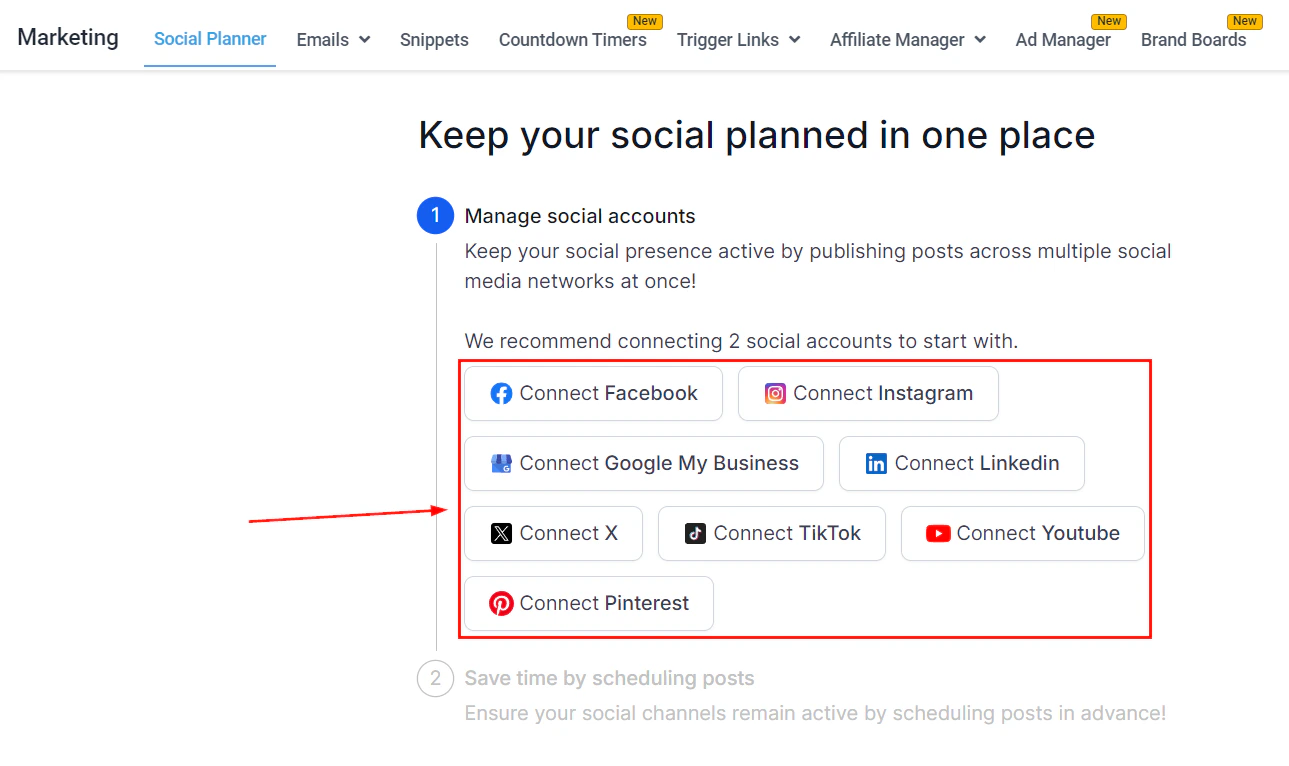
Navigate to **Marketing > Social Planner** and select **Connect Account** to add a new social account. Each platform has its own authentication flow.
Connect a Facebook Page to schedule posts, Reels, and Stories. Requires admin access to the Page.
Connect a Facebook Group to post directly to group members. Requires admin or moderator access.
Connect via Facebook (recommended) or direct Instagram integration. Must be a Business or Creator account linked to a Facebook Page.
Connect personal profiles or company pages. Supports standard posts and LinkedIn Carousel (PDF as images).
Connect your TikTok account to schedule video posts directly from the Social Planner.
Connect your YouTube channel to schedule video uploads and shorts.
Connect one or multiple Pinterest accounts to schedule pins.
Connect your GBP to schedule posts, offers, and events that appear on Google Search and Maps.
***
## Instagram setup
Instagram requires your account to be a **Business** or **Creator** account connected to a Facebook Page.
## Connecting social accounts
Navigate to **Marketing > Social Planner** and select **Connect Account** to add a new social account. Each platform has its own authentication flow.
Connect a Facebook Page to schedule posts, Reels, and Stories. Requires admin access to the Page.
Connect a Facebook Group to post directly to group members. Requires admin or moderator access.
Connect via Facebook (recommended) or direct Instagram integration. Must be a Business or Creator account linked to a Facebook Page.
Connect personal profiles or company pages. Supports standard posts and LinkedIn Carousel (PDF as images).
Connect your TikTok account to schedule video posts directly from the Social Planner.
Connect your YouTube channel to schedule video uploads and shorts.
Connect one or multiple Pinterest accounts to schedule pins.
Connect your GBP to schedule posts, offers, and events that appear on Google Search and Maps.
***
## Instagram setup
Instagram requires your account to be a **Business** or **Creator** account connected to a Facebook Page.
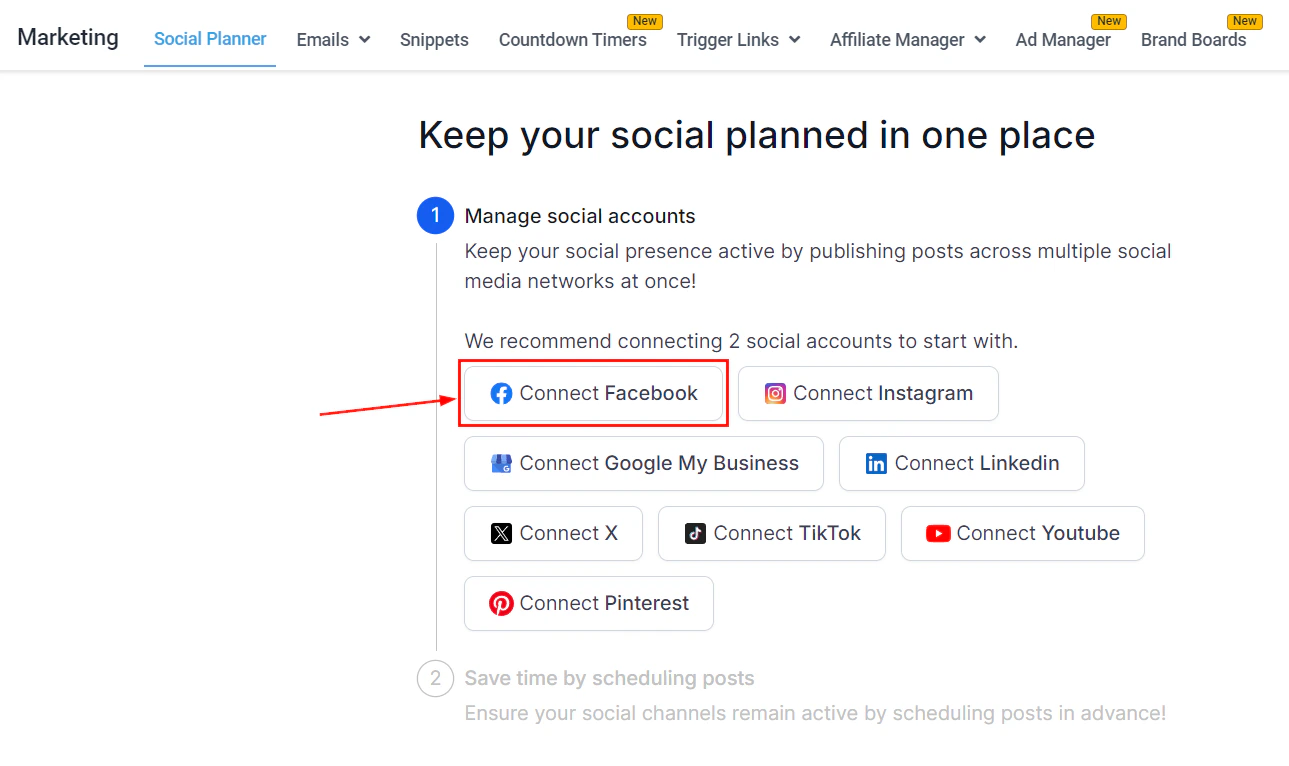 In the Instagram app, go to **Settings > Account > Switch to Professional Account** and choose Business or Creator.
In Instagram settings, connect your account to a Facebook Page you manage.
In the Social Planner, choose **Facebook-linked Instagram** for the most reliable connection, or **Direct Instagram** if you prefer not to use the Facebook flow.
### Instagram content types
| Type | Notes |
| ---------- | ------------------------------------------ |
| Feed posts | Images and videos up to 60 seconds |
| Reels | Videos up to 15 minutes, 9:16 aspect ratio |
| Stories | Via push notification on mobile |
***
## Facebook troubleshooting
Common causes: expired access token (reconnect the account), unsupported media format, or a policy violation. Check the error message in the Social Planner for details.
Some Facebook features (including certain ad capabilities) require domain verification. Go to **Facebook Business Manager > Brand Safety > Domains** and follow the verification steps.
Facebook caches link previews. Use the Facebook Sharing Debugger to clear the cache and refresh the preview.
***
## LinkedIn tips
* **LinkedIn Carousel posts** — upload a PDF to create a swipeable carousel post. The platform converts PDF pages to images automatically.
* **Link preview cache** — if LinkedIn shows an outdated preview for a shared link, use the LinkedIn Post Inspector tool to refresh the cache.
* **Character limits** — LinkedIn posts have a 3,000-character limit for personal profiles and 700 characters for company pages.
***
## Social listening
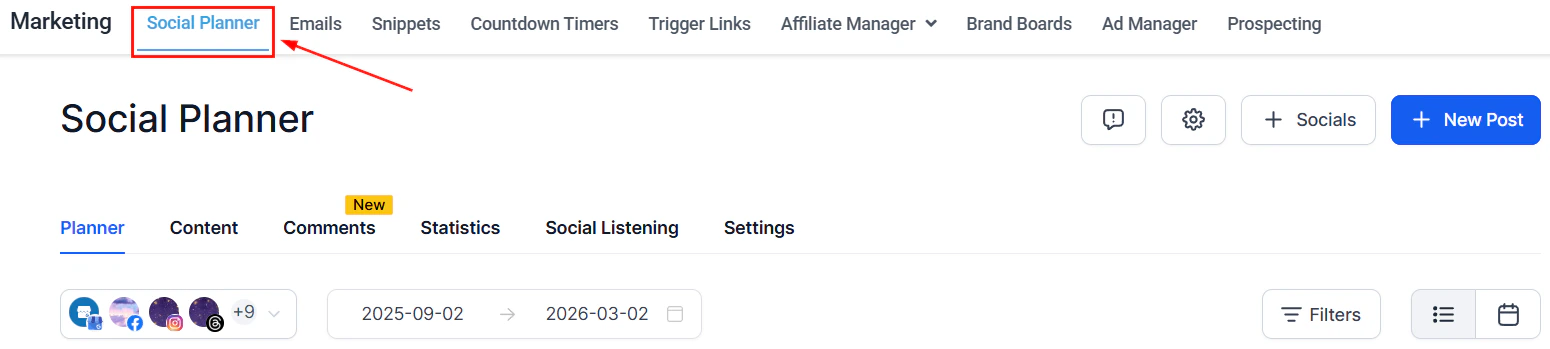
Use **Social Listening** in the Social Planner to monitor brand mentions, competitor names, and keywords across social platforms. Set up listening topics and receive alerts when your keywords are mentioned.
Social listening availability and supported platforms may vary. Check the Social Planner for the latest supported sources.
In the Instagram app, go to **Settings > Account > Switch to Professional Account** and choose Business or Creator.
In Instagram settings, connect your account to a Facebook Page you manage.
In the Social Planner, choose **Facebook-linked Instagram** for the most reliable connection, or **Direct Instagram** if you prefer not to use the Facebook flow.
### Instagram content types
| Type | Notes |
| ---------- | ------------------------------------------ |
| Feed posts | Images and videos up to 60 seconds |
| Reels | Videos up to 15 minutes, 9:16 aspect ratio |
| Stories | Via push notification on mobile |
***
## Facebook troubleshooting
Common causes: expired access token (reconnect the account), unsupported media format, or a policy violation. Check the error message in the Social Planner for details.
Some Facebook features (including certain ad capabilities) require domain verification. Go to **Facebook Business Manager > Brand Safety > Domains** and follow the verification steps.
Facebook caches link previews. Use the Facebook Sharing Debugger to clear the cache and refresh the preview.
***
## LinkedIn tips
* **LinkedIn Carousel posts** — upload a PDF to create a swipeable carousel post. The platform converts PDF pages to images automatically.
* **Link preview cache** — if LinkedIn shows an outdated preview for a shared link, use the LinkedIn Post Inspector tool to refresh the cache.
* **Character limits** — LinkedIn posts have a 3,000-character limit for personal profiles and 700 characters for company pages.
***
## Social listening
Use **Social Listening** in the Social Planner to monitor brand mentions, competitor names, and keywords across social platforms. Set up listening topics and receive alerts when your keywords are mentioned.
Social listening availability and supported platforms may vary. Check the Social Planner for the latest supported sources.
 ***
## Social media insights
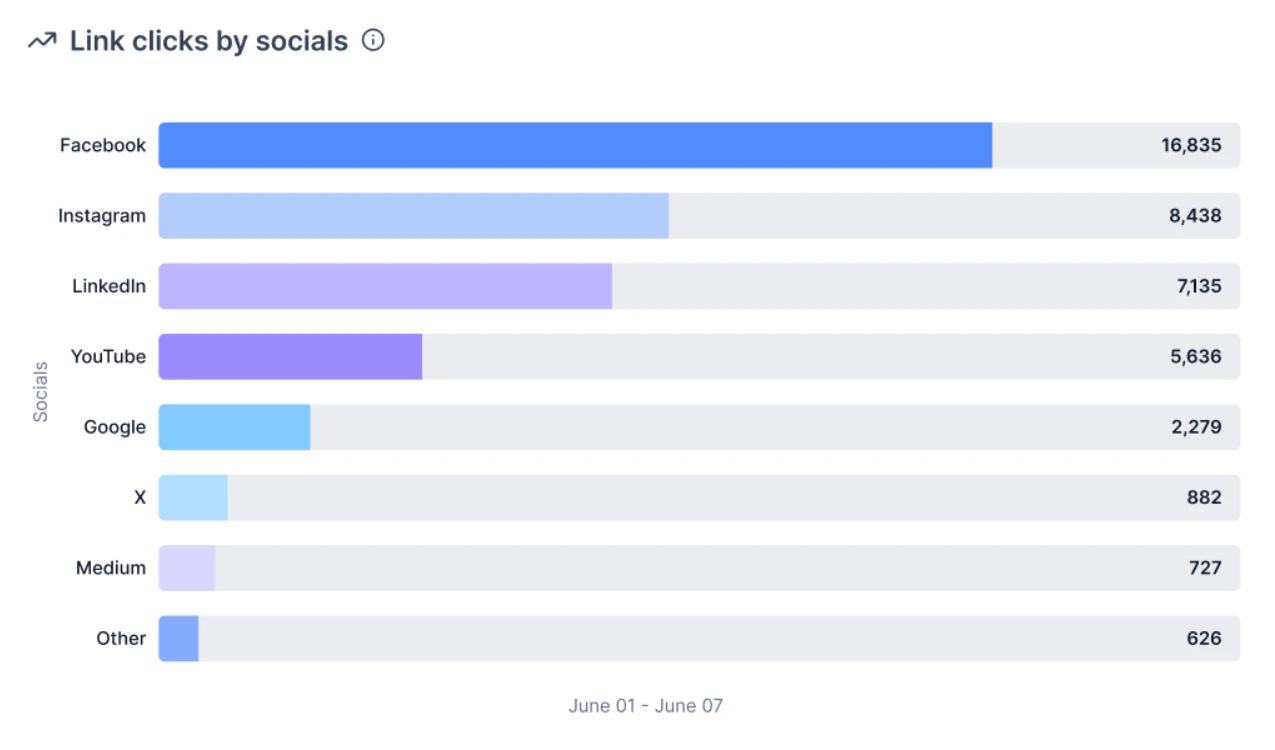
Navigate to **Marketing > Social Planner > Insights** to view:
* Follower growth over time
* Post reach and impressions
* Engagement rate per post
* Best-performing content
***
## Social media insights
Navigate to **Marketing > Social Planner > Insights** to view:
* Follower growth over time
* Post reach and impressions
* Engagement rate per post
* Best-performing content
 ***
## Comment management
Reply to Instagram comments directly from the Social Planner's comment management section, without switching between apps.
***
## Account groups
Create groups of social media accounts to quickly select multiple accounts when creating a post. For example, group all accounts for a specific brand or campaign type.
***
## Frequently asked questions
Yes. You can connect multiple Facebook Pages, Instagram accounts, LinkedIn profiles, and other platforms. This is especially useful for businesses managing multiple brands or locations from one dashboard.
Instagram requires your account to be a Business or Creator account linked to a Facebook Page. Personal Instagram accounts cannot be connected. Make sure you have switched to a Professional account in Instagram settings and linked it to a Facebook Page before connecting in the Social Planner.
You can schedule feed posts (images and videos up to 60 seconds), Reels (up to 15 minutes at 9:16 aspect ratio), and Stories. Stories are delivered via push notification on your mobile device rather than published directly.
Common causes include an expired access token (reconnect the account in Social Planner settings), an unsupported media format, or a Facebook policy violation. Check the error message displayed in the Social Planner for specific details.
LinkedIn personal profiles allow up to 3,000 characters per post. LinkedIn Company Pages are limited to 700 characters. The Social Planner will warn you if your post exceeds the limit for the selected account type.
Use the Social Listening feature in the Social Planner to track brand mentions, competitor names, and keywords. Reply to Instagram comments directly from the comment management section without switching to the Instagram app.
Yes. Navigate to Marketing > Social Planner > Insights to view follower growth, post reach, impressions, and engagement rates across all connected accounts in a unified dashboard.
***
## Comment management
Reply to Instagram comments directly from the Social Planner's comment management section, without switching between apps.
***
## Account groups
Create groups of social media accounts to quickly select multiple accounts when creating a post. For example, group all accounts for a specific brand or campaign type.
***
## Frequently asked questions
Yes. You can connect multiple Facebook Pages, Instagram accounts, LinkedIn profiles, and other platforms. This is especially useful for businesses managing multiple brands or locations from one dashboard.
Instagram requires your account to be a Business or Creator account linked to a Facebook Page. Personal Instagram accounts cannot be connected. Make sure you have switched to a Professional account in Instagram settings and linked it to a Facebook Page before connecting in the Social Planner.
You can schedule feed posts (images and videos up to 60 seconds), Reels (up to 15 minutes at 9:16 aspect ratio), and Stories. Stories are delivered via push notification on your mobile device rather than published directly.
Common causes include an expired access token (reconnect the account in Social Planner settings), an unsupported media format, or a Facebook policy violation. Check the error message displayed in the Social Planner for specific details.
LinkedIn personal profiles allow up to 3,000 characters per post. LinkedIn Company Pages are limited to 700 characters. The Social Planner will warn you if your post exceeds the limit for the selected account type.
Use the Social Listening feature in the Social Planner to track brand mentions, competitor names, and keywords. Reply to Instagram comments directly from the comment management section without switching to the Instagram app.
Yes. Navigate to Marketing > Social Planner > Insights to view follower growth, post reach, impressions, and engagement rates across all connected accounts in a unified dashboard.