> ## Documentation Index
> Fetch the complete documentation index at: https://help.hoopai.com/llms.txt
> Use this file to discover all available pages before exploring further.
# AI caption writer
> Generate, rewrite, and refine social media captions using built-in AI. Adjust tone, length, and platform voice — or let AI create a complete post from scratch.
The Social Planner includes a built-in AI writing assistant that helps you create on-brand social media captions faster. Whether you are starting from a blank page or refining a rough draft, the AI writer can generate, rewrite, expand, or shorten content in seconds — adapting tone and style to match your brand voice and the platform you are posting to.
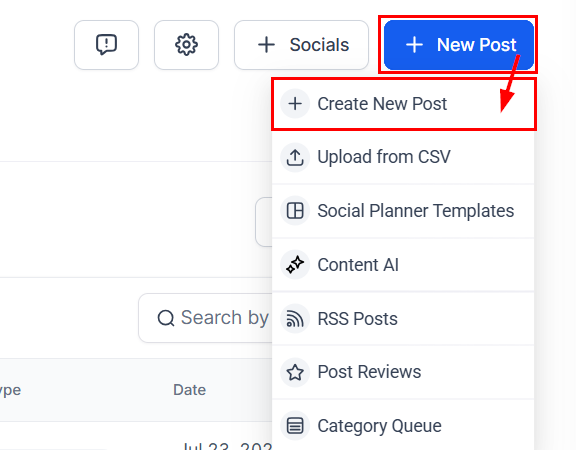
Access the AI writer from within the post composer: **Marketing > Social Planner > New Post**, then look for the **Ask AI** or **Content AI** button in the composer toolbar.
***
## What the AI writer can do
Describe what you want to post — the topic, goal, tone, and platform — and the AI writes a complete caption ready for review and scheduling.
Paste in existing copy or a rough draft and ask the AI to rewrite it for clarity, engagement, or a different tone.
Shift copy from professional to casual, from formal to friendly, or from informative to persuasive with a single click.
Expand a short caption into a longer, detailed post — or condense a lengthy paragraph into a concise, punchy statement.
***
## Generating a post from scratch
In the post composer, click **Ask AI** or the AI writing icon in the toolbar. This opens the Content AI panel alongside the composer.
The AI panel asks a series of targeted questions to understand what you want to post. Questions adapt based on the platform you are posting to and the content type — a Facebook feed post, a LinkedIn article teaser, and a TikTok caption each have different best practices baked in.
Typical questions include:
* What is this post about?
* What action do you want your audience to take?
* What tone should the post use? (Professional, casual, humorous, inspirational, etc.)
* Are there specific keywords, hashtags, or phrases to include or avoid?
Click **Generate**. The AI produces a caption based on your inputs. The result appears in the composer where you can review it immediately.
Use the editing options to adjust the output:
* **Rewrite** — generate a new version with a different angle
* **Improve** — enhance clarity, readability, and engagement without changing the core message
* **Change tone** — switch between professional, casual, persuasive, or other tones
* **Make shorter** or **Make longer** — adjust length to fit platform best practices
* **Translate** — convert the caption into another language
When satisfied with the result, click **Use This** to insert the caption into the composer. Continue adding media, hashtags, and scheduling details as usual.
***
## Editing existing content with AI
If you have already written a caption and want help improving it:
1. Write your draft in the composer
2. Select the text you want to improve
3. Click the **Edit with Ask AI** button that appears in the toolbar
4. Choose an action: **Improve**, **Rewrite**, **Change Tone**, **Make Shorter**, **Make Longer**, or **Translate**
5. Review the result and accept or discard it
This inline editing approach works well when you are happy with the overall structure of a post but want to sharpen specific sentences or adjust the voice.
***
## AI image generation
The AI writer also includes an image generation tool for creating unique visuals directly in the composer.
In the post composer, click the **Generate Image** option in the media section.
Write a text prompt describing the visual you want — for example, "A bright, airy coffee shop with morning light coming through the window, no people, photorealistic style."
The AI generates one or more image options. Select the one that best fits your post.
Click **Use Image** to add it directly to your post, or adjust your prompt and regenerate for a different result.
AI-generated images are added to your post media alongside any uploaded images or videos. You can further edit them using the built-in image editor (crop, filter, text overlays, watermarks) before scheduling.
***
 ## Platform-aware content
The AI writer adapts its output based on the platforms selected for the post. When you are posting to LinkedIn, the AI generates more professional, longer-form content appropriate for a business audience. For TikTok or Instagram Reels, it produces shorter, punchy captions with relevant hashtag suggestions. For Google My Business, it focuses on local SEO-friendly language.
If you are posting to multiple platforms simultaneously, the AI generates a single caption optimized for the primary platform. You can then use the per-platform customization options to adjust the caption for each platform individually.
***
## Hashtag suggestions
After generating or editing a caption, click **Suggest Hashtags** to have the AI recommend relevant hashtags based on the post content. Suggested hashtags can be added to your saved hashtag groups for reuse in future posts.
Save your best AI-generated captions as templates using the Social Planner's template library. This lets you quickly create consistent, on-brand posts for recurring content types — like weekly tips, product features, or client testimonials — without starting from scratch each time.
***
## Frequently asked questions
The AI writer uses the context you provide in each session — including tone preferences, keywords, and the guided questions — to generate content. For consistent brand voice across all posts, provide detailed tone instructions each time, or use saved templates as a baseline and refine with AI from there.
Yes. The AI writer is available in the composer for all connected platforms. The prompts and guided questions adapt based on the selected platform to ensure the generated content suits the format and audience expectations of that network.
AI usage is included in your HoopAI plan. Some plans may apply usage credits or monthly limits for Content AI features. Check your plan details under **Settings > Plan** for specifics.
Yes. Use the **Translate** option to convert a generated caption into another language, or include the target language as an instruction in your initial prompt (for example, "Write this post in Spanish").
The AI generates content based on your prompts and general language patterns — it does not have access to your specific business data unless you include it in your prompt. Always review AI-generated content before scheduling to verify factual accuracy, especially for posts that include statistics, prices, dates, or specific product details.
## Platform-aware content
The AI writer adapts its output based on the platforms selected for the post. When you are posting to LinkedIn, the AI generates more professional, longer-form content appropriate for a business audience. For TikTok or Instagram Reels, it produces shorter, punchy captions with relevant hashtag suggestions. For Google My Business, it focuses on local SEO-friendly language.
If you are posting to multiple platforms simultaneously, the AI generates a single caption optimized for the primary platform. You can then use the per-platform customization options to adjust the caption for each platform individually.
***
## Hashtag suggestions
After generating or editing a caption, click **Suggest Hashtags** to have the AI recommend relevant hashtags based on the post content. Suggested hashtags can be added to your saved hashtag groups for reuse in future posts.
Save your best AI-generated captions as templates using the Social Planner's template library. This lets you quickly create consistent, on-brand posts for recurring content types — like weekly tips, product features, or client testimonials — without starting from scratch each time.
***
## Frequently asked questions
The AI writer uses the context you provide in each session — including tone preferences, keywords, and the guided questions — to generate content. For consistent brand voice across all posts, provide detailed tone instructions each time, or use saved templates as a baseline and refine with AI from there.
Yes. The AI writer is available in the composer for all connected platforms. The prompts and guided questions adapt based on the selected platform to ensure the generated content suits the format and audience expectations of that network.
AI usage is included in your HoopAI plan. Some plans may apply usage credits or monthly limits for Content AI features. Check your plan details under **Settings > Plan** for specifics.
Yes. Use the **Translate** option to convert a generated caption into another language, or include the target language as an instruction in your initial prompt (for example, "Write this post in Spanish").
The AI generates content based on your prompts and general language patterns — it does not have access to your specific business data unless you include it in your prompt. Always review AI-generated content before scheduling to verify factual accuracy, especially for posts that include statistics, prices, dates, or specific product details.