> ## Documentation Index
> Fetch the complete documentation index at: https://help.hoopai.com/llms.txt
> Use this file to discover all available pages before exploring further.
# Reputation management
> Manage customer reviews, review requests, listings, and your Google Business Profile from within the HoopAI Platform marketing workflow.
Reputation management is an integral part of your marketing strategy. The HoopAI Platform brings reviews, listings, and reputation tools directly into your workflow so you can build social proof and respond to customer feedback without switching between tools.
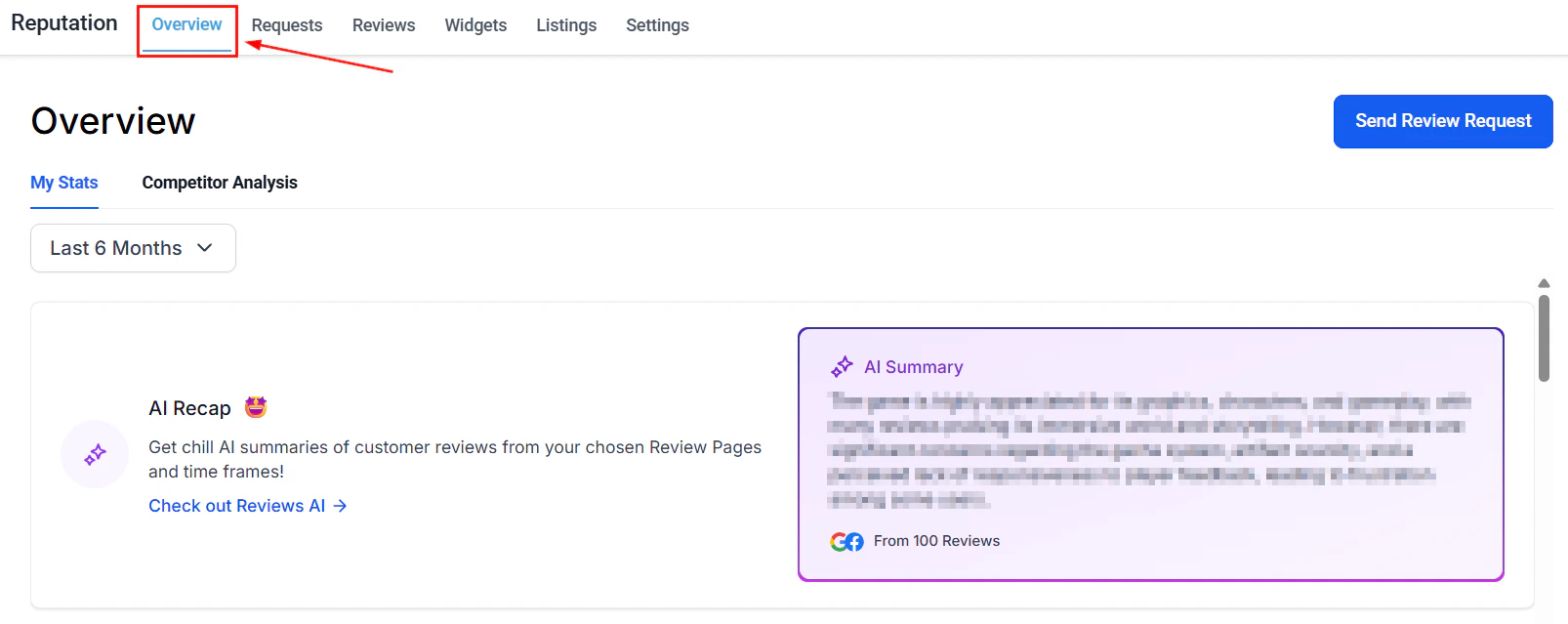 For detailed documentation on all reputation features, see the [Reputation section](/reputation/overview).
## Review requests from marketing workflows
You can trigger review requests directly from automations and workflows. For example, automatically send a review request SMS or email a set number of days after a service appointment is completed.
This integrates with:
* **Automation workflows** — add a "Send Review Request" action to any workflow
* **Pipelines** — trigger a review request when an opportunity moves to "Won"
* **Calendars** — send review requests after appointments are completed
***
## Sharing reviews on social media
Share positive reviews directly to your connected social platforms from the Reputation section. This lets you turn your best reviews into social proof content quickly.
Navigate to **Reputation > Reviews**.
For detailed documentation on all reputation features, see the [Reputation section](/reputation/overview).
## Review requests from marketing workflows
You can trigger review requests directly from automations and workflows. For example, automatically send a review request SMS or email a set number of days after a service appointment is completed.
This integrates with:
* **Automation workflows** — add a "Send Review Request" action to any workflow
* **Pipelines** — trigger a review request when an opportunity moves to "Won"
* **Calendars** — send review requests after appointments are completed
***
## Sharing reviews on social media
Share positive reviews directly to your connected social platforms from the Reputation section. This lets you turn your best reviews into social proof content quickly.
Navigate to **Reputation > Reviews**.
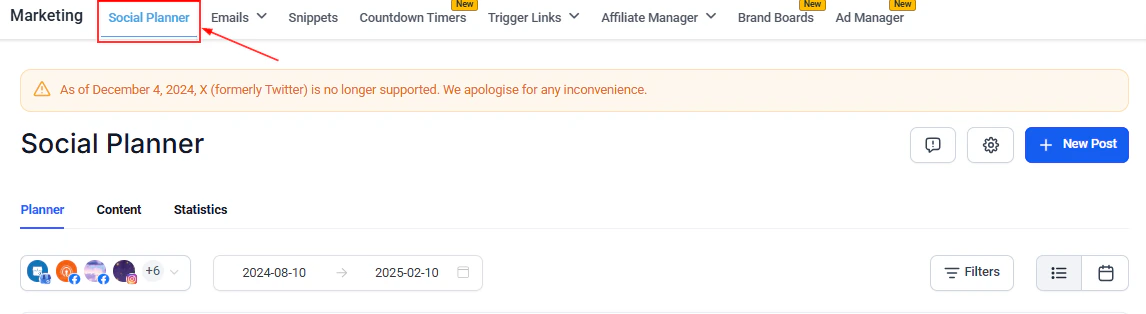 Browse your reviews and find one you want to share.
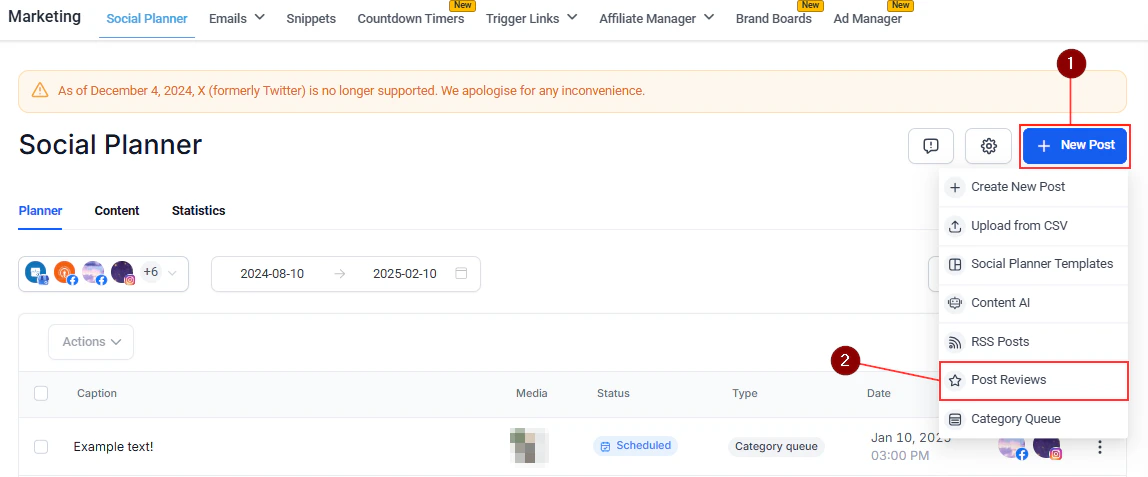
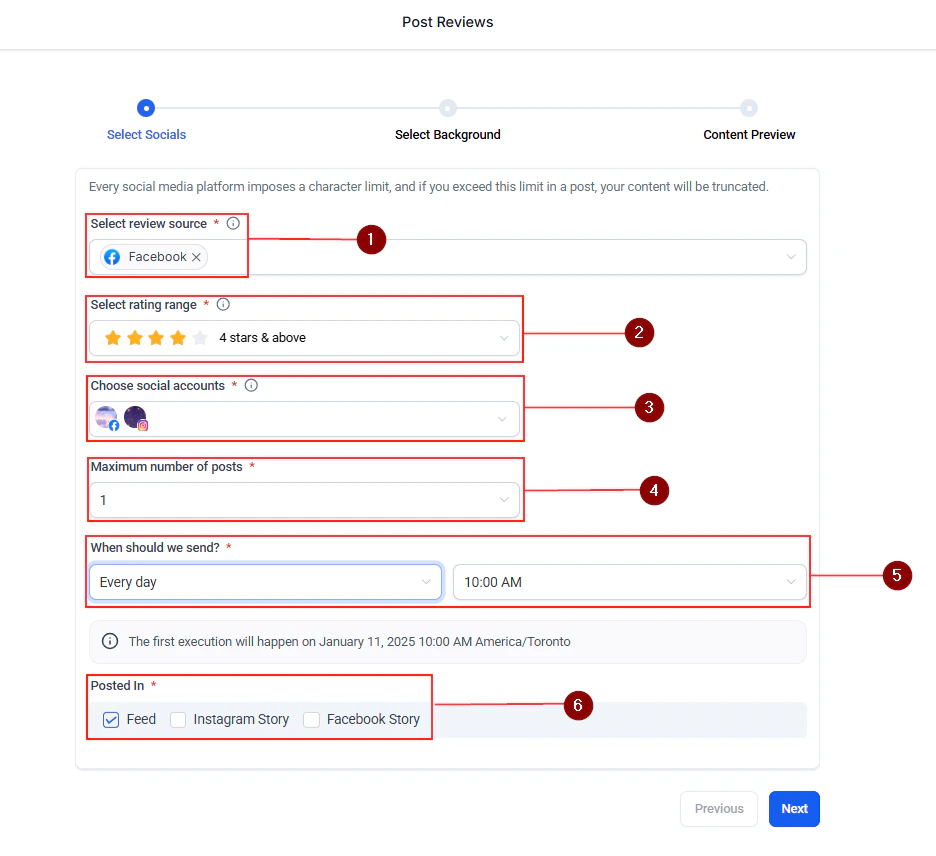
Click the share icon and select which connected social accounts to post to. The platform generates a post with the review text and rating.
Browse your reviews and find one you want to share.
Click the share icon and select which connected social accounts to post to. The platform generates a post with the review text and rating.
 ***
## Multiple review platform integration
Connect reviews from multiple platforms simultaneously:
* Google Business Profile
* Facebook
* Yelp
* TrustPilot
* TripAdvisor
* Airbnb
* Amazon
* And more
Configure platform connections in **Reputation > Settings > Integrations**.
***
## Multiple Facebook page integration
If you manage multiple Facebook Pages (for example, for different locations or clients), you can connect them all and view their reviews in a unified dashboard.
Navigate to **Reputation > Settings** to add additional Facebook Pages.
***
## Review setup wizard
New to reputation management? The **Review Setup Wizard** walks you through connecting your review platforms, configuring your review request templates, and setting up your first review link — step by step.
Navigate to **Reputation > Settings > Setup Wizard** to get started.
***
## WhatsApp & text message contact on GBP
Add WhatsApp or text message as a contact method on your Google Business Profile. When customers tap the contact button on Google, they can message you directly.
Configure this in **Reputation > GBP Optimization > Overview**.
Combining review requests, social sharing, and GBP optimization creates a compounding effect — more reviews lead to higher local search rankings, which drives more customers, which generates more reviews.
***
## Frequently asked questions
Add a Send Review Request action to any automation workflow. For example, create a workflow that triggers when an appointment is marked as completed and sends a review request email or SMS a set number of days later. You can also trigger review requests when an opportunity moves to a Won stage in your pipeline.
The platform integrates with Google Business Profile, Facebook, Yelp, TrustPilot, TripAdvisor, Airbnb, Amazon, and more. Configure connections in Reputation > Settings > Integrations.
Yes. Connect multiple Google Business Profile locations and Facebook Pages in the Reputation settings. Reviews from all locations appear in a unified dashboard so you can respond without switching between platforms.
Navigate to Reputation > Reviews, find the review you want to share, and click the share icon. Select which connected social accounts to post to. The platform generates a branded post with the review text and star rating.
The Review Setup Wizard is a guided walkthrough that helps you connect your review platforms, configure review request templates, and set up your first review link — step by step. Find it at Reputation > Settings > Setup Wizard.
Yes. Add WhatsApp or text message as a contact method on your GBP through Reputation > GBP Optimization > Overview. When customers tap the contact button on Google Search or Maps, they can message you directly.
***
## Multiple review platform integration
Connect reviews from multiple platforms simultaneously:
* Google Business Profile
* Facebook
* Yelp
* TrustPilot
* TripAdvisor
* Airbnb
* Amazon
* And more
Configure platform connections in **Reputation > Settings > Integrations**.
***
## Multiple Facebook page integration
If you manage multiple Facebook Pages (for example, for different locations or clients), you can connect them all and view their reviews in a unified dashboard.
Navigate to **Reputation > Settings** to add additional Facebook Pages.
***
## Review setup wizard
New to reputation management? The **Review Setup Wizard** walks you through connecting your review platforms, configuring your review request templates, and setting up your first review link — step by step.
Navigate to **Reputation > Settings > Setup Wizard** to get started.
***
## WhatsApp & text message contact on GBP
Add WhatsApp or text message as a contact method on your Google Business Profile. When customers tap the contact button on Google, they can message you directly.
Configure this in **Reputation > GBP Optimization > Overview**.
Combining review requests, social sharing, and GBP optimization creates a compounding effect — more reviews lead to higher local search rankings, which drives more customers, which generates more reviews.
***
## Frequently asked questions
Add a Send Review Request action to any automation workflow. For example, create a workflow that triggers when an appointment is marked as completed and sends a review request email or SMS a set number of days later. You can also trigger review requests when an opportunity moves to a Won stage in your pipeline.
The platform integrates with Google Business Profile, Facebook, Yelp, TrustPilot, TripAdvisor, Airbnb, Amazon, and more. Configure connections in Reputation > Settings > Integrations.
Yes. Connect multiple Google Business Profile locations and Facebook Pages in the Reputation settings. Reviews from all locations appear in a unified dashboard so you can respond without switching between platforms.
Navigate to Reputation > Reviews, find the review you want to share, and click the share icon. Select which connected social accounts to post to. The platform generates a branded post with the review text and star rating.
The Review Setup Wizard is a guided walkthrough that helps you connect your review platforms, configure review request templates, and set up your first review link — step by step. Find it at Reputation > Settings > Setup Wizard.
Yes. Add WhatsApp or text message as a contact method on your GBP through Reputation > GBP Optimization > Overview. When customers tap the contact button on Google Search or Maps, they can message you directly.