> ## Documentation Index
> Fetch the complete documentation index at: https://help.hoopai.com/llms.txt
> Use this file to discover all available pages before exploring further.
# Prospecting tool
> Search for local businesses, generate marketing audit reports, and convert prospects into CRM contacts — all from within HoopAI's built-in prospecting workflow.
The Prospecting Tool allows you to search for and analyze potential clients based on their online presence and digital needs. It is particularly useful for identifying local businesses that could benefit from the services your business offers and understanding what improvements you can make to enhance their digital footprint.
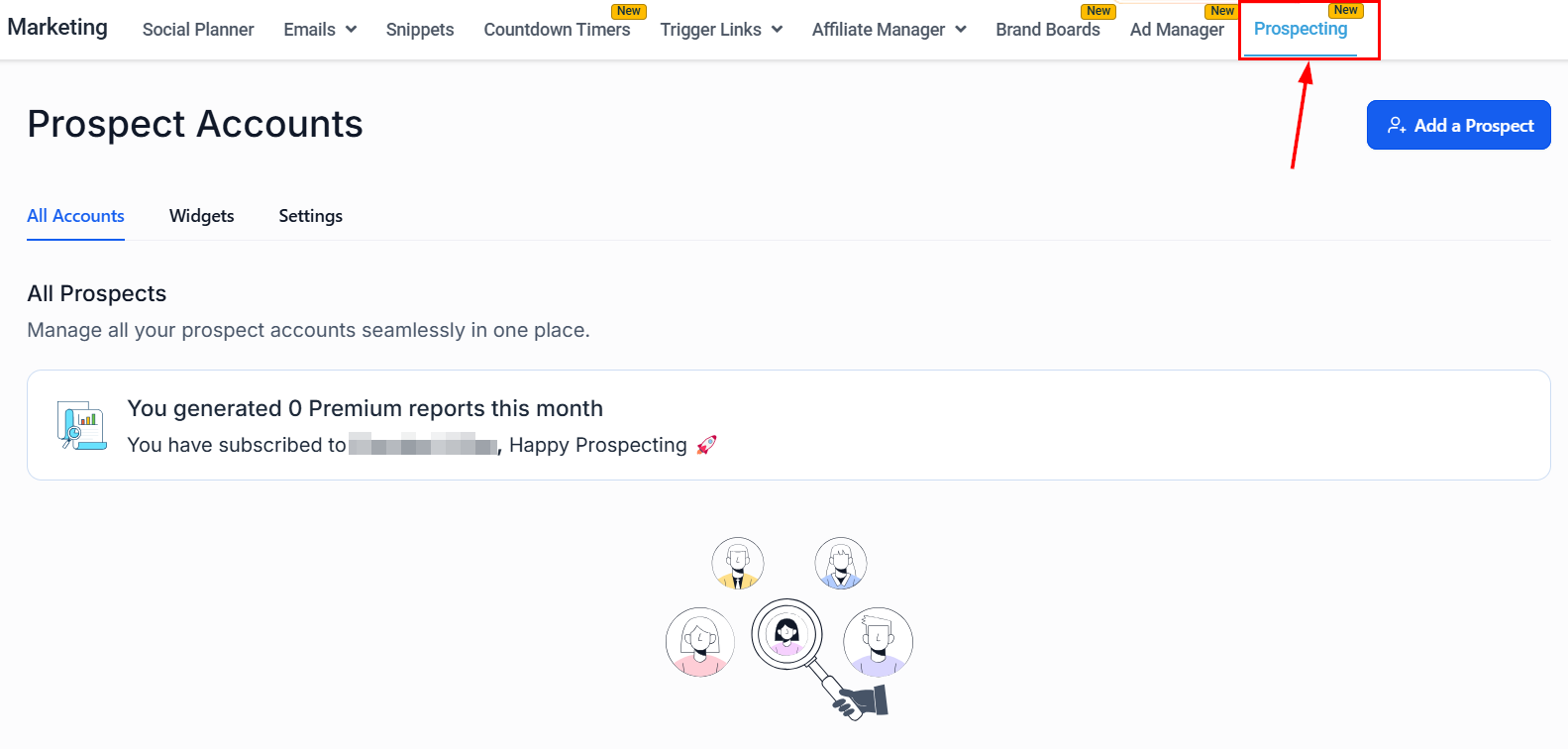 ## Accessing the prospecting tool
Navigate to the **Marketing** section in your account, then locate and click on **Prospecting**.
## Running your first search
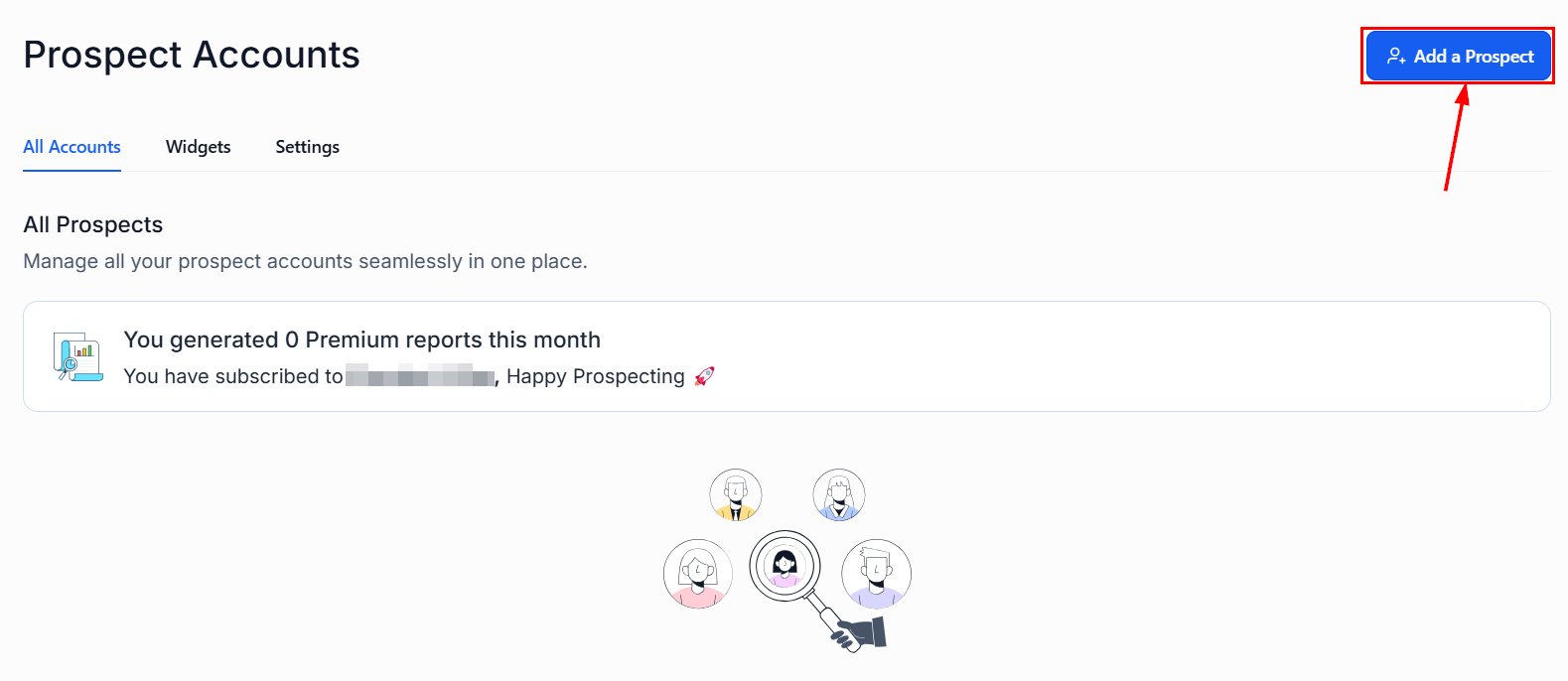
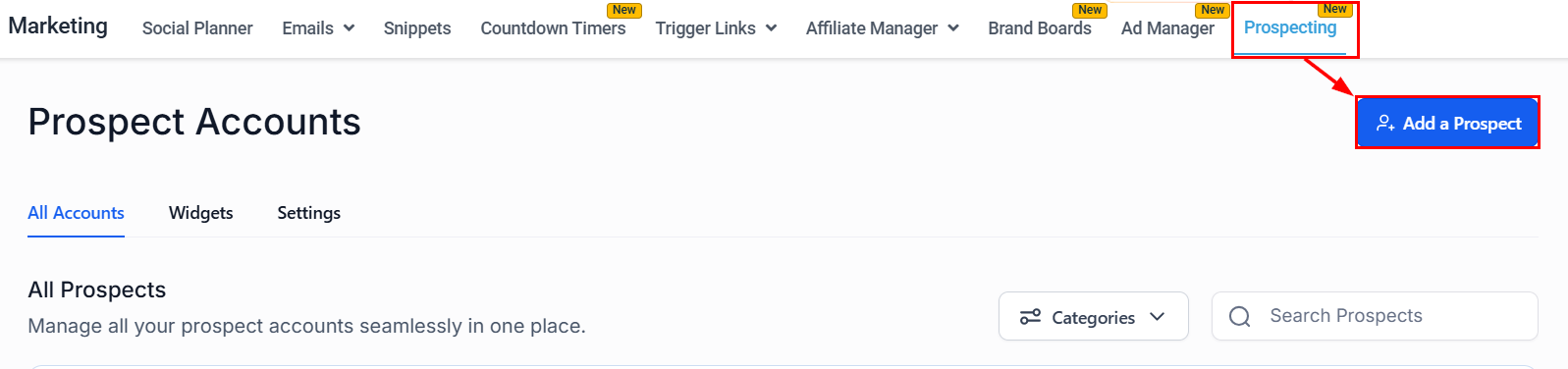
Click the **Add a Prospect** button to begin.
## Accessing the prospecting tool
Navigate to the **Marketing** section in your account, then locate and click on **Prospecting**.
## Running your first search
Click the **Add a Prospect** button to begin.
 Enter a search term related to the type of businesses or the location you are targeting. The tool displays a map and various company details matching the criteria.
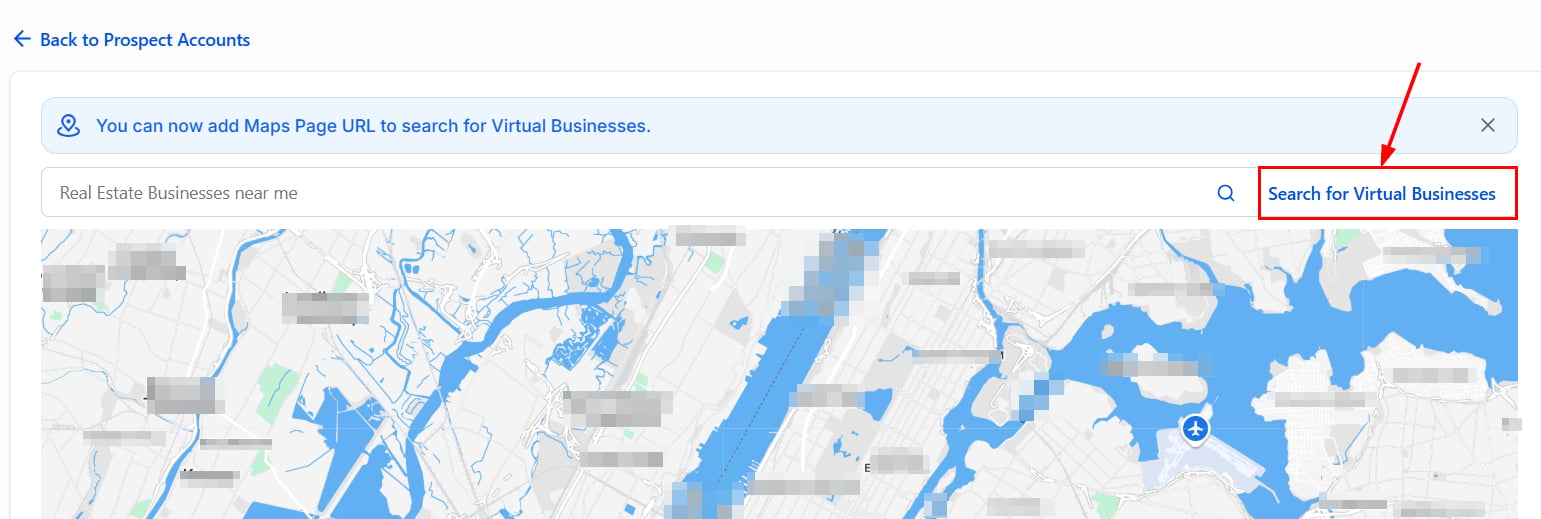
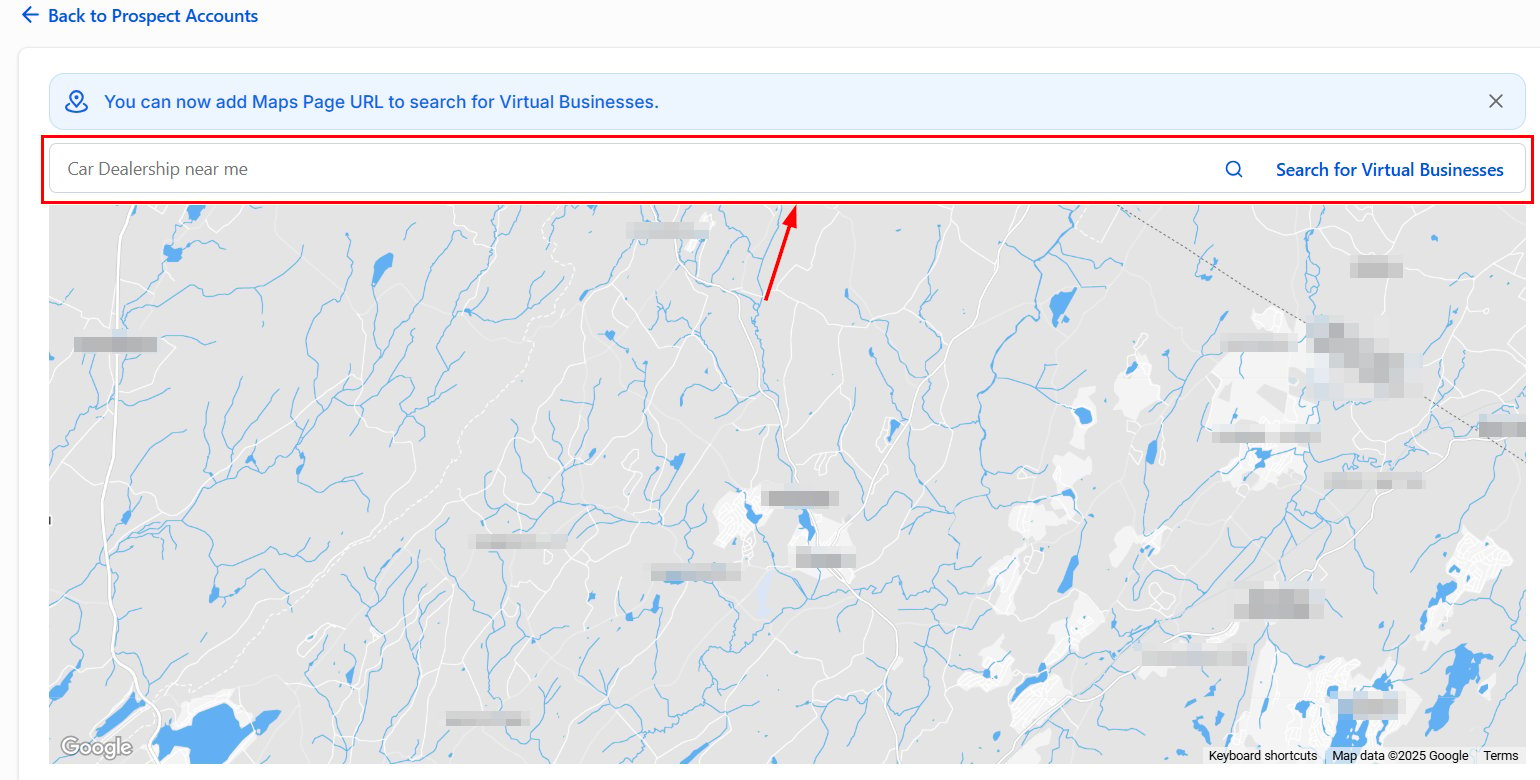 Alternatively, use a virtual business's Google Maps URL to generate accurate prospecting reports by clicking **Search for Virtual Businesses**.
 The results show whether the business has claimed its Google Business Profile, whether its website is built on WordPress, and its conversion rate — data useful for identifying how you can assist these businesses.
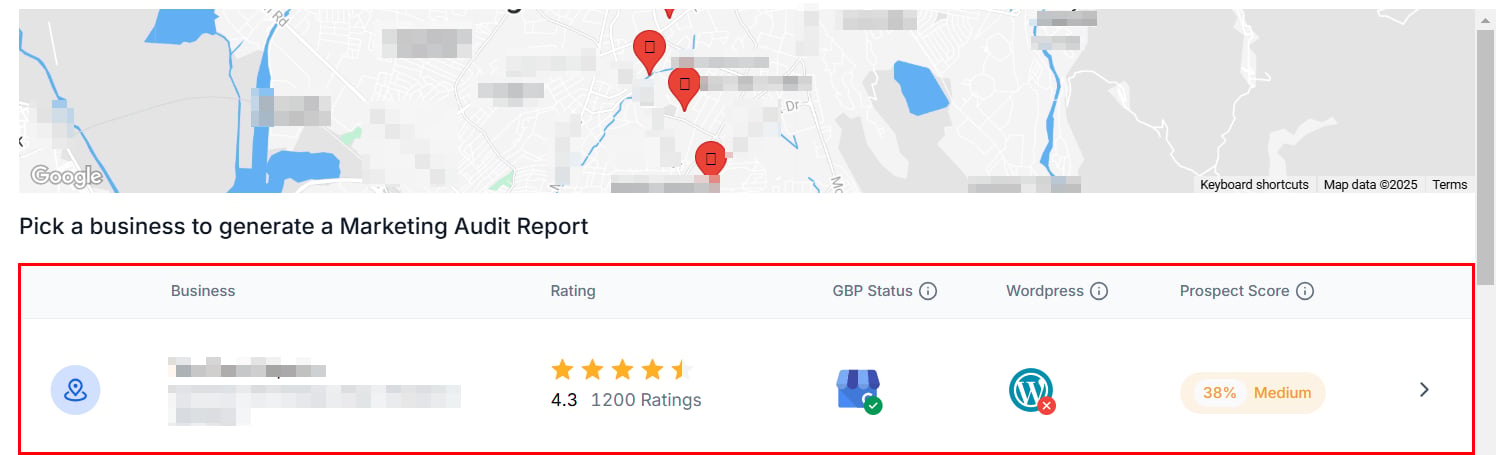 Click **Save** on a promising prospect to add them to your account.
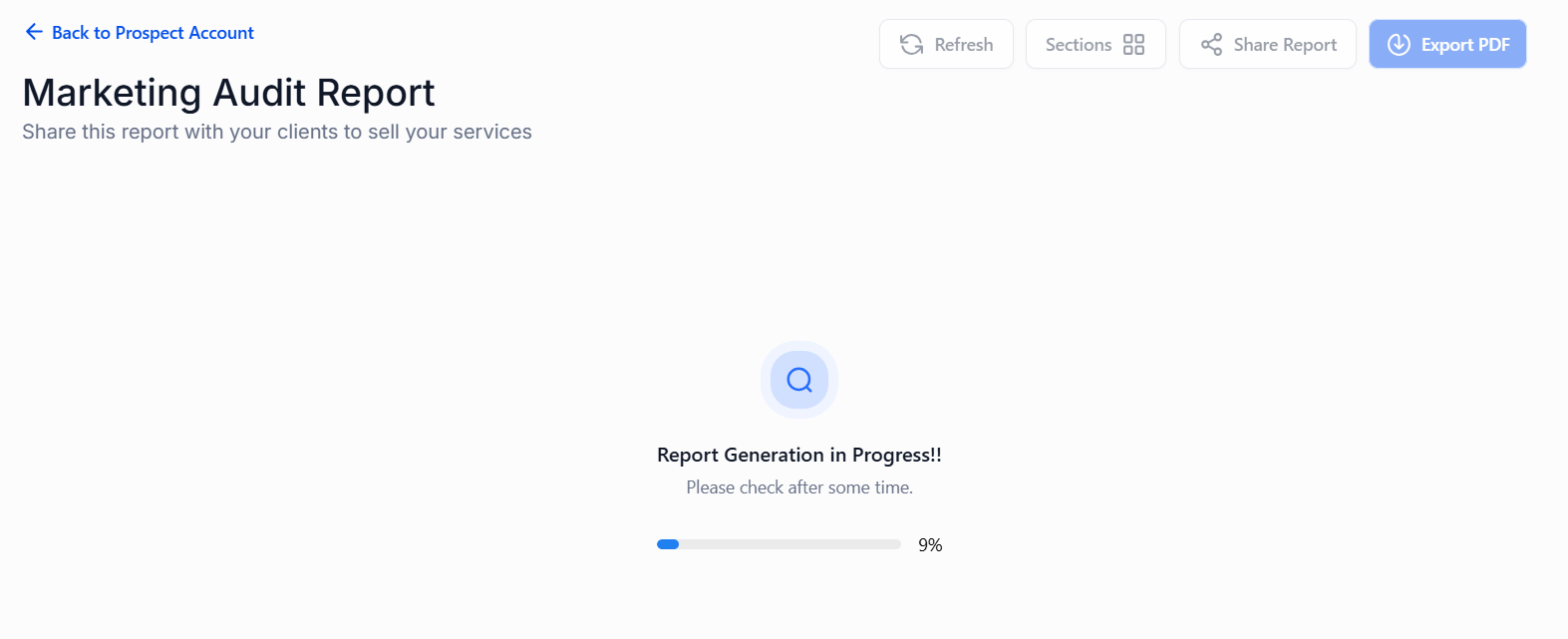
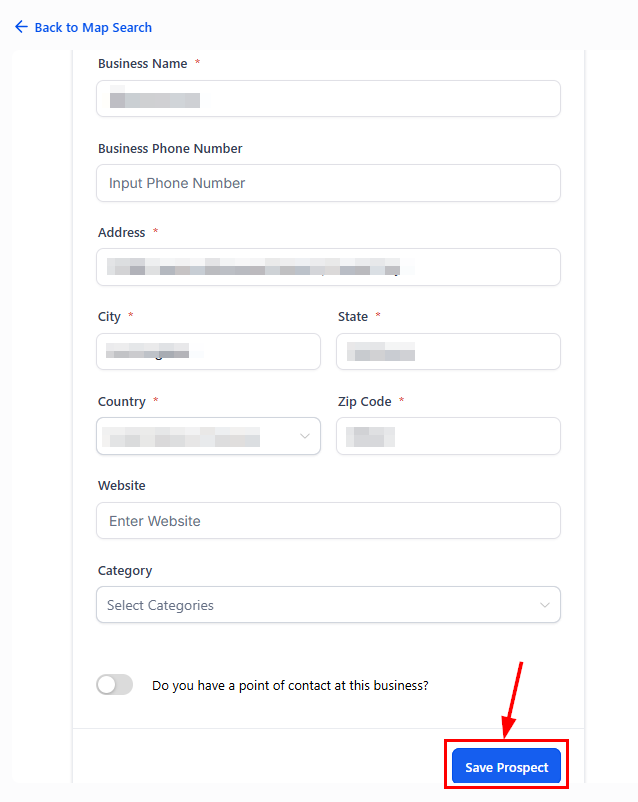 The first time you save a prospect, the platform automatically generates a marketing audit report — a detailed analysis of the business's digital health.
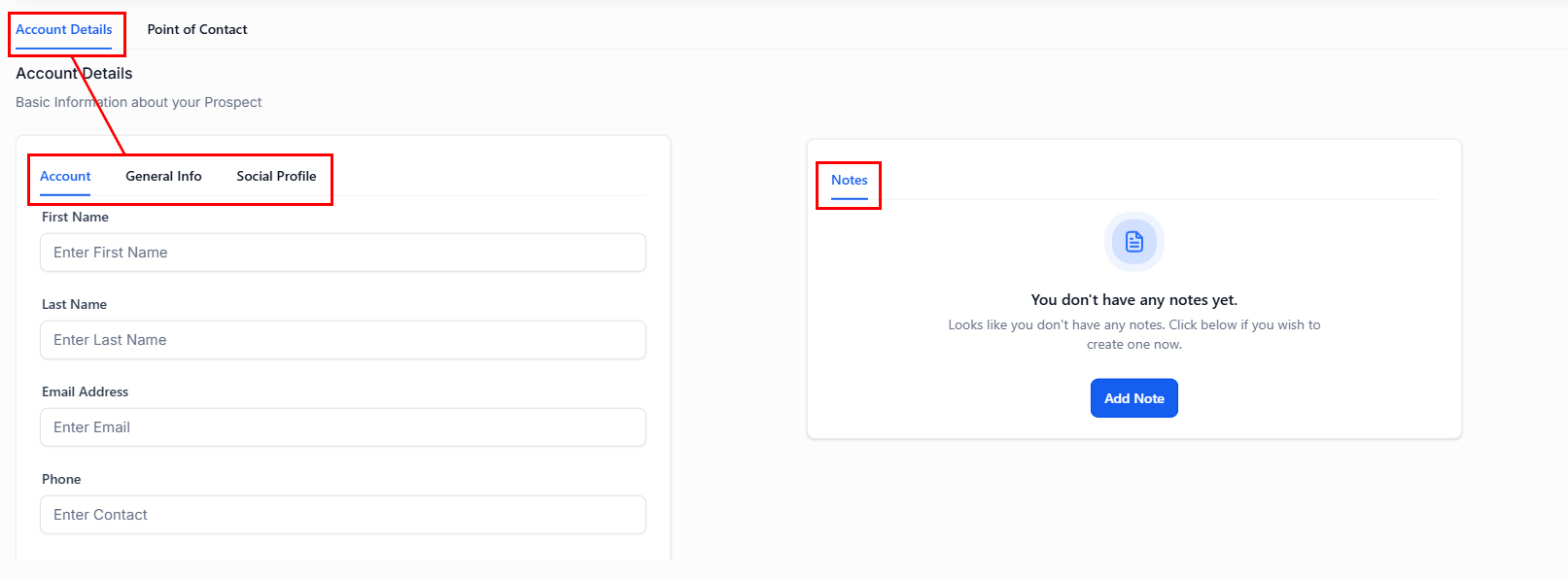
 Head back to the Prospect Account to see information about their account, notes, and business details.
 The **Account Details** section includes an overview of the business, social profiles, and general information. You can also add notes on the prospect here.
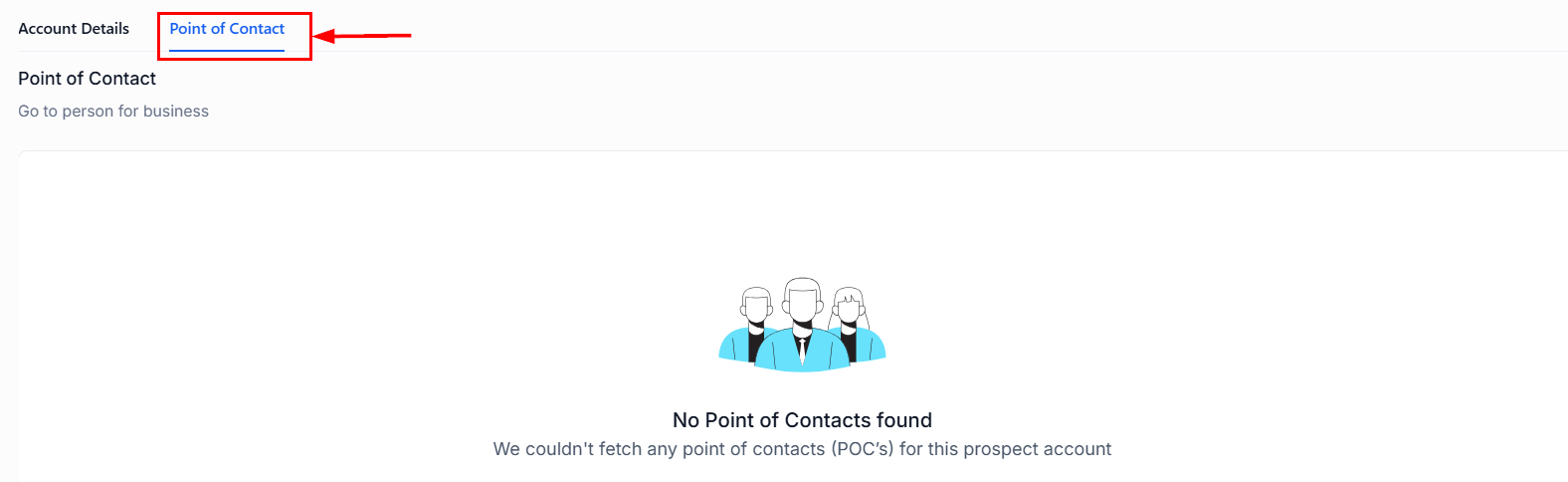
 The **Point of Contacts** tab displays leads associated with the business.
 ***
## Marketing audit report
The marketing audit report assigns a score to each prospect based on listings, SEO, and key metrics, facilitating informed outreach. Visual ratings highlight strengths and areas for improvement.
### Viewing and refreshing the report
Select a prospect from the Prospecting Tool, then click the **Show Report** button.
***
## Marketing audit report
The marketing audit report assigns a score to each prospect based on listings, SEO, and key metrics, facilitating informed outreach. Visual ratings highlight strengths and areas for improvement.
### Viewing and refreshing the report
Select a prospect from the Prospecting Tool, then click the **Show Report** button.
 Click the **Refresh** button in the upper-right corner to update the report. The time of the last update is displayed below.
 Updates can be made 7 days after the initial report generation.
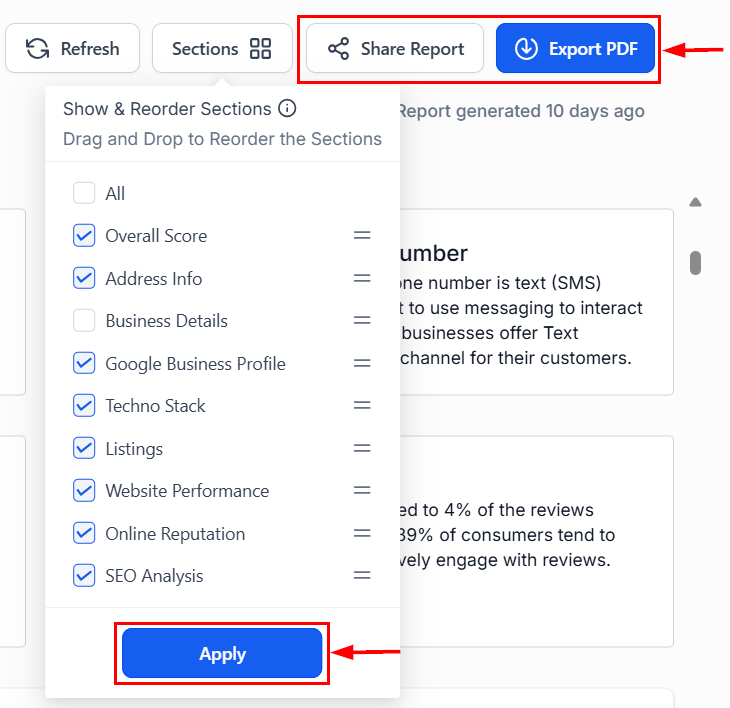
Click the **Sections** button to select which tabs to display and adjust their order in the report. Click **Apply** to confirm.
Updates can be made 7 days after the initial report generation.
Click the **Sections** button to select which tabs to display and adjust their order in the report. Click **Apply** to confirm.
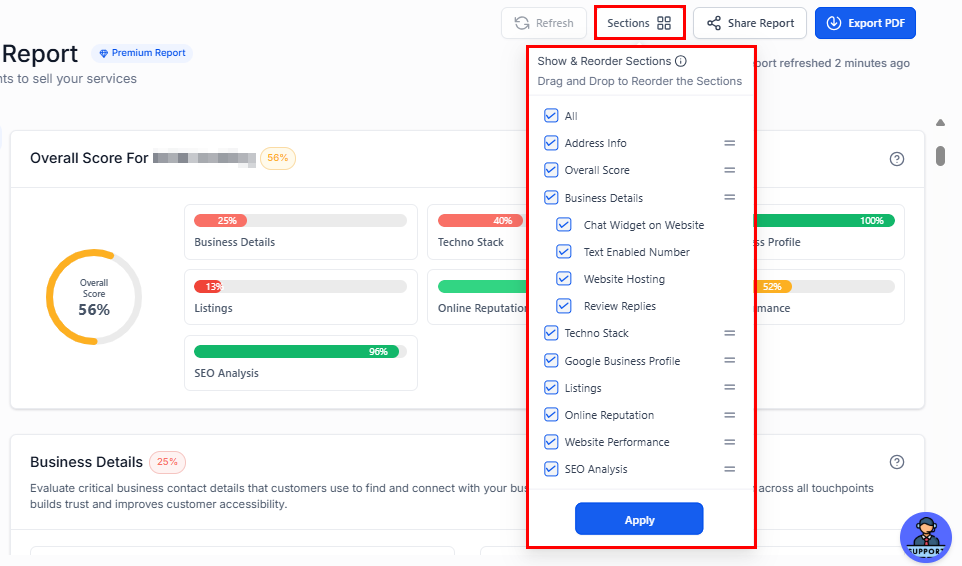 The report can be shared with prospects via a link — acting as a lead magnet with a call to action for your company. It can also be downloaded as a PDF for offline use.
 ### Understanding the overall score
The overall score provides a comprehensive evaluation of the prospect's digital presence across seven equally weighted sections. Each section contributes 1/7 to the total score.
### Understanding the overall score
The overall score provides a comprehensive evaluation of the prospect's digital presence across seven equally weighted sections. Each section contributes 1/7 to the total score.
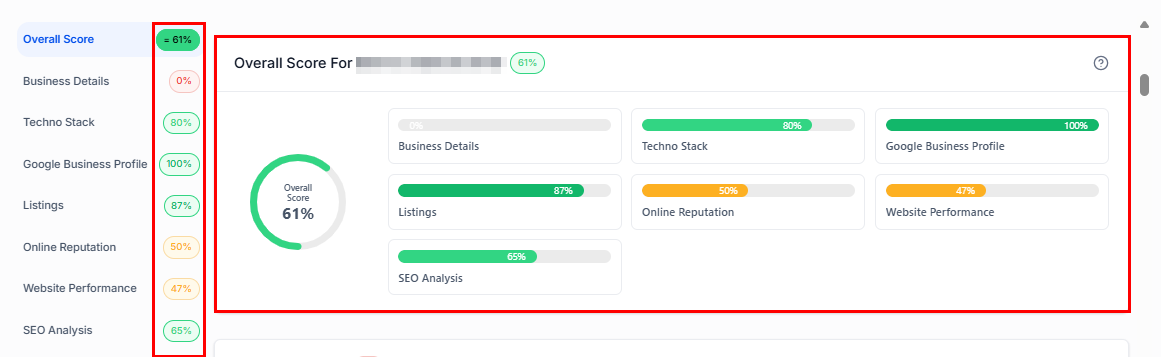 **Color-coded score representation:**
| Color | Range | Rating |
| ---------- | ------- | ----------- |
| Dark red | 0–20% | Bad |
| Red | 21–40% | Poor |
| Orange | 41–60% | Average |
| Green | 61–80% | Good |
| Dark green | 81–100% | Exceptional |
### Score components
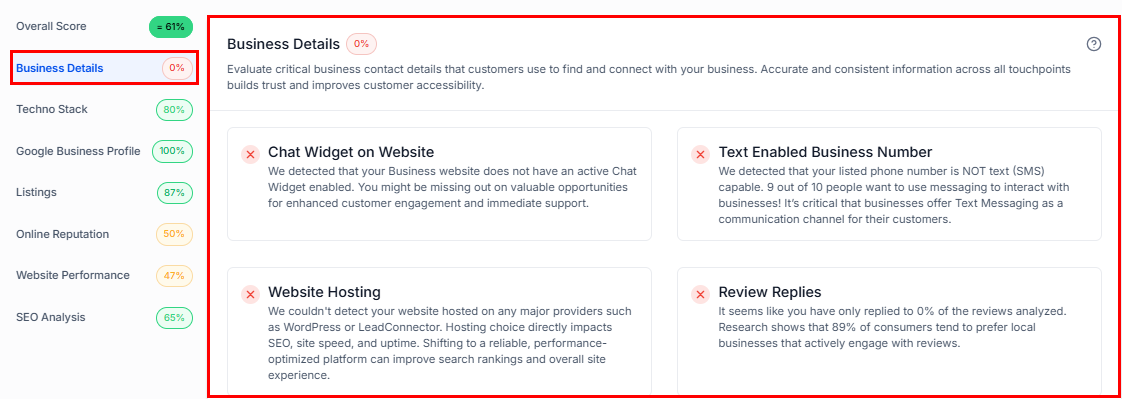
Provides insight into key aspects of the prospect's business profile, including:
* Chat Widget
* Text-Enabled Business Number
* Website Hosting
* Review Reply Percentage (Bad: 0–10%, Poor: 11–49%, Average: 50–89%, Good: 90–100%)
**Color-coded score representation:**
| Color | Range | Rating |
| ---------- | ------- | ----------- |
| Dark red | 0–20% | Bad |
| Red | 21–40% | Poor |
| Orange | 41–60% | Average |
| Green | 61–80% | Good |
| Dark green | 81–100% | Exceptional |
### Score components
Provides insight into key aspects of the prospect's business profile, including:
* Chat Widget
* Text-Enabled Business Number
* Website Hosting
* Review Reply Percentage (Bad: 0–10%, Poor: 11–49%, Average: 50–89%, Good: 90–100%)
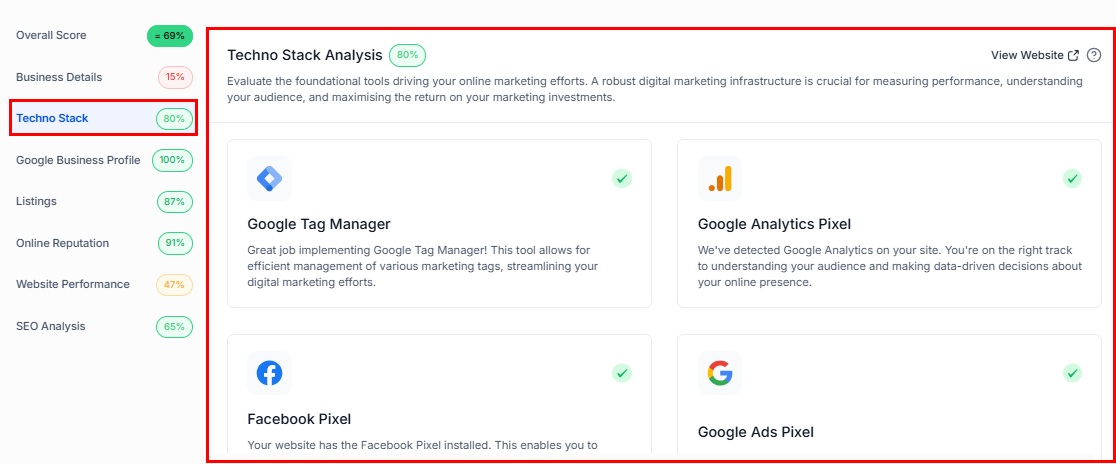
 Reviews the essential tools behind the prospect's online marketing efforts:
* Google Tag Manager (20%)
* Google Analytics Pixel (20%)
* Facebook Pixel (20%)
* Google Ads Pixel (20%)
* Google Ads (20%)
Reviews the essential tools behind the prospect's online marketing efforts:
* Google Tag Manager (20%)
* Google Analytics Pixel (20%)
* Facebook Pixel (20%)
* Google Ads Pixel (20%)
* Google Ads (20%)
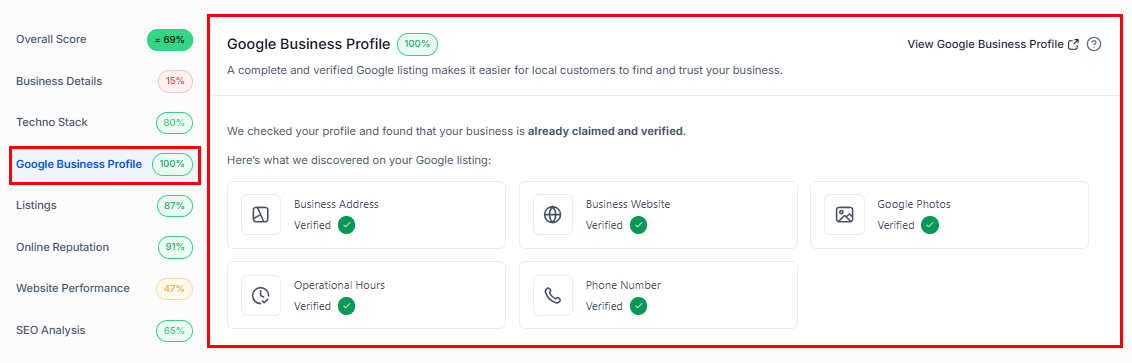
 Verifies whether the Google Business Profile has been claimed and that all relevant information is complete:
* Business Address (20%)
* Business Website (20%)
* Google Photos (20%)
* Operational Hours (20%)
* Phone Number (20%)
Verifies whether the Google Business Profile has been claimed and that all relevant information is complete:
* Business Address (20%)
* Business Website (20%)
* Google Photos (20%)
* Operational Hours (20%)
* Phone Number (20%)
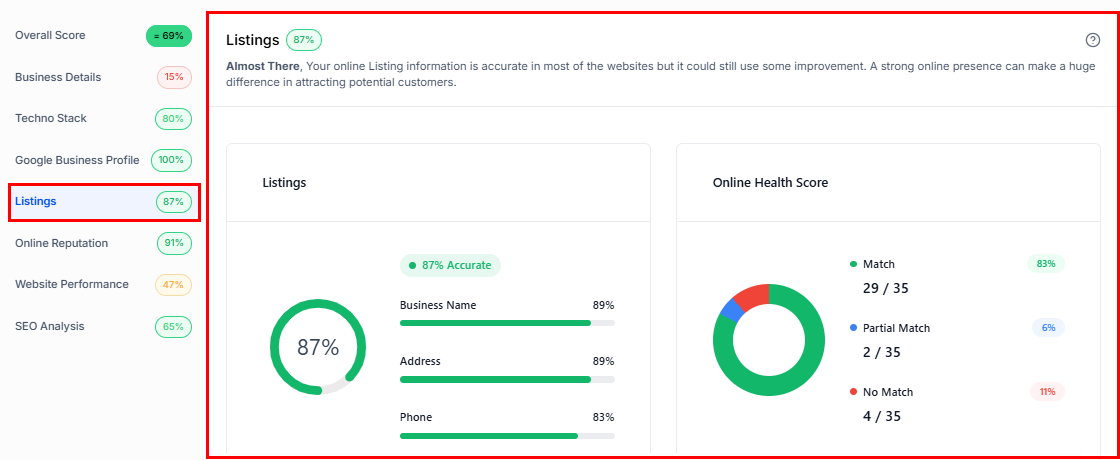
 Measures the prospect's digital footprint by assessing listing accuracy, source weighting (major platforms like Google), and overall visibility across relevant directories.
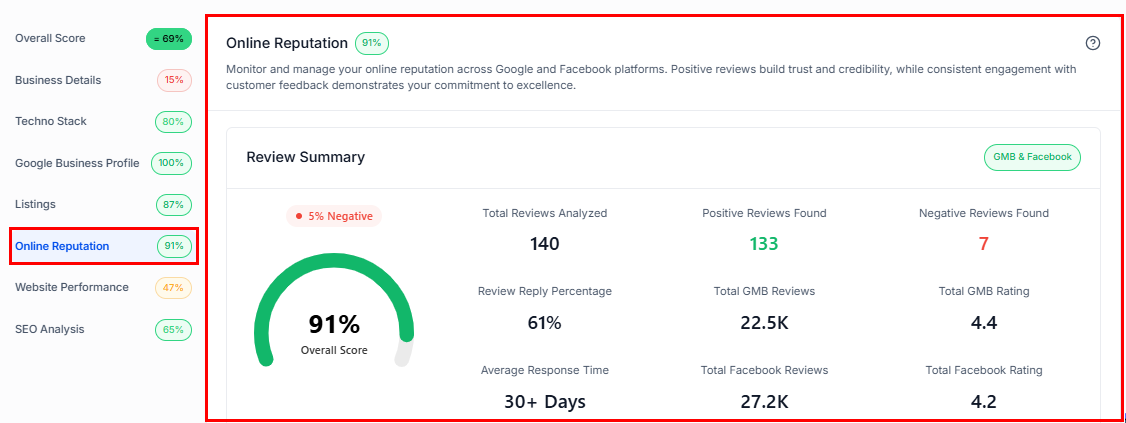
 Grades review performance across Google (75% weight) and Facebook (25% weight), factoring in the positive review ratio and review volume:
* 50+ reviews: 100% reliability
* 20–49 reviews: 85% reliability
* 10–19 reviews: 70% reliability
* 5–9 reviews: 50% reliability
* Fewer than 5 reviews: 30% reliability
Grades review performance across Google (75% weight) and Facebook (25% weight), factoring in the positive review ratio and review volume:
* 50+ reviews: 100% reliability
* 20–49 reviews: 85% reliability
* 10–19 reviews: 70% reliability
* 5–9 reviews: 50% reliability
* Fewer than 5 reviews: 30% reliability
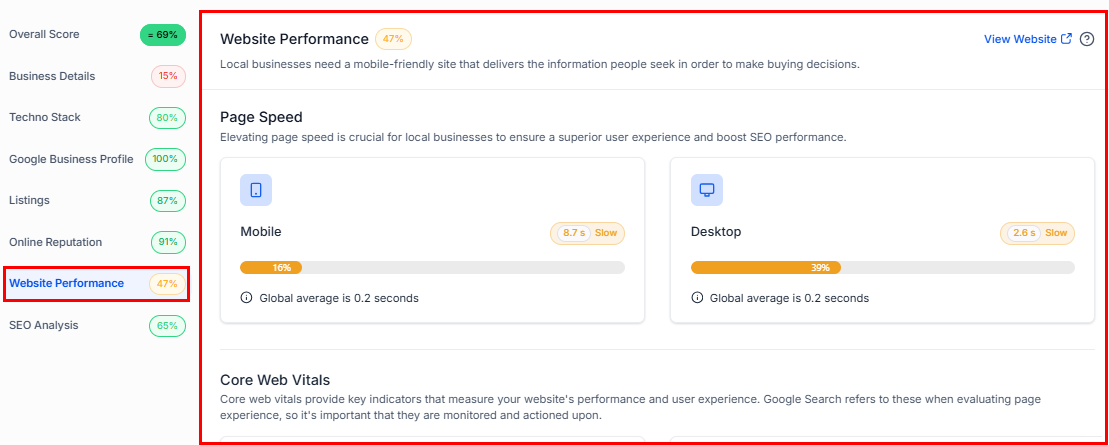
 Evaluates key metrics that influence site performance:
* Page Speed Mobile (25%)
* Page Speed Desktop (25%)
* Overall SEO (30%)
* Interactivity (10%)
* Large Content Elements (10%)
Evaluates key metrics that influence site performance:
* Page Speed Mobile (25%)
* Page Speed Desktop (25%)
* Overall SEO (30%)
* Interactivity (10%)
* Large Content Elements (10%)
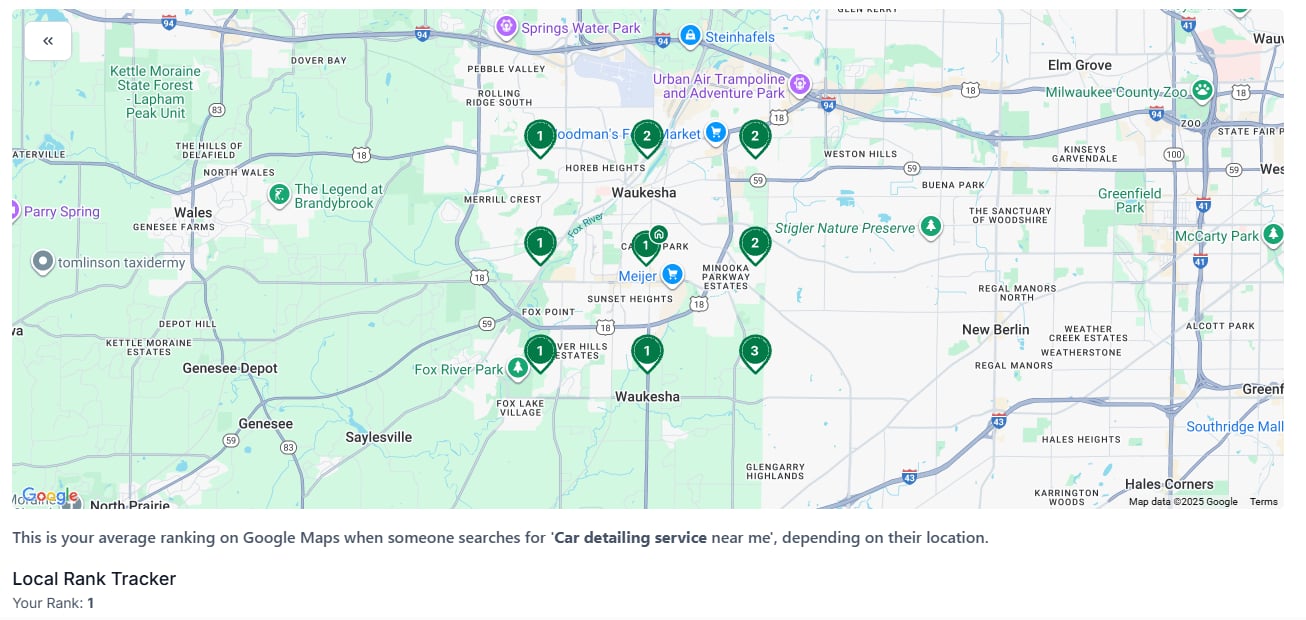
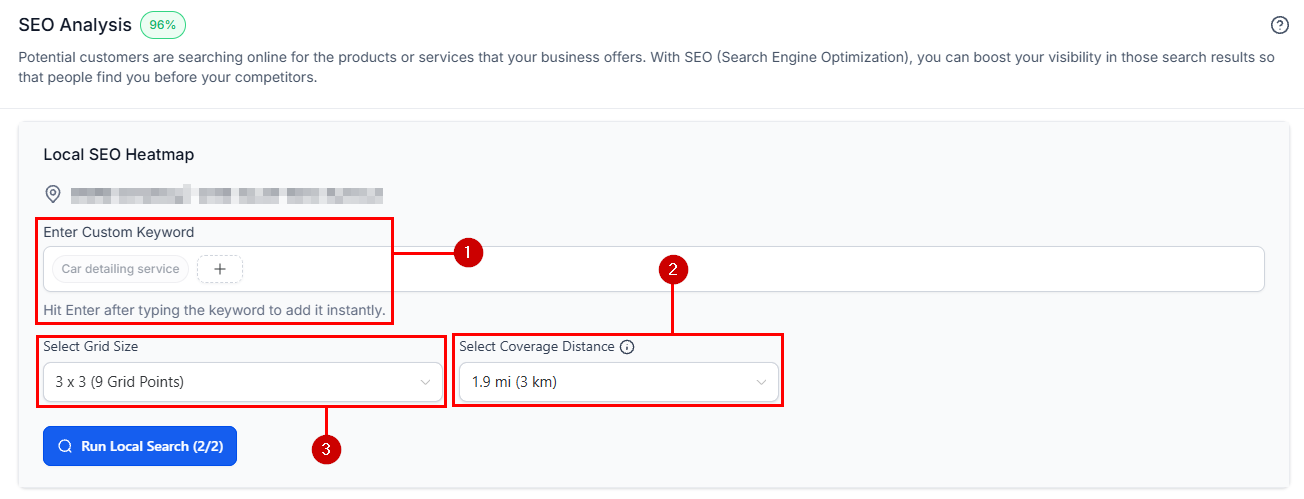
 Provides a heat map analysis broken down by ranking position across central and outer map points. You can type any keyword, configure radius sizes from 1 to 10 miles, and set grid sizes to rerun the grid instantly.
 ***
## Customizing the report layout
You can control which sections appear in the report and their order, both globally and per individual report.
### Global report layout
Global layout settings apply to all newly created and existing reports after saving.
Navigate to the **Prospecting** section within the Marketing tab and click the **Settings** menu.
***
## Customizing the report layout
You can control which sections appear in the report and their order, both globally and per individual report.
### Global report layout
Global layout settings apply to all newly created and existing reports after saving.
Navigate to the **Prospecting** section within the Marketing tab and click the **Settings** menu.
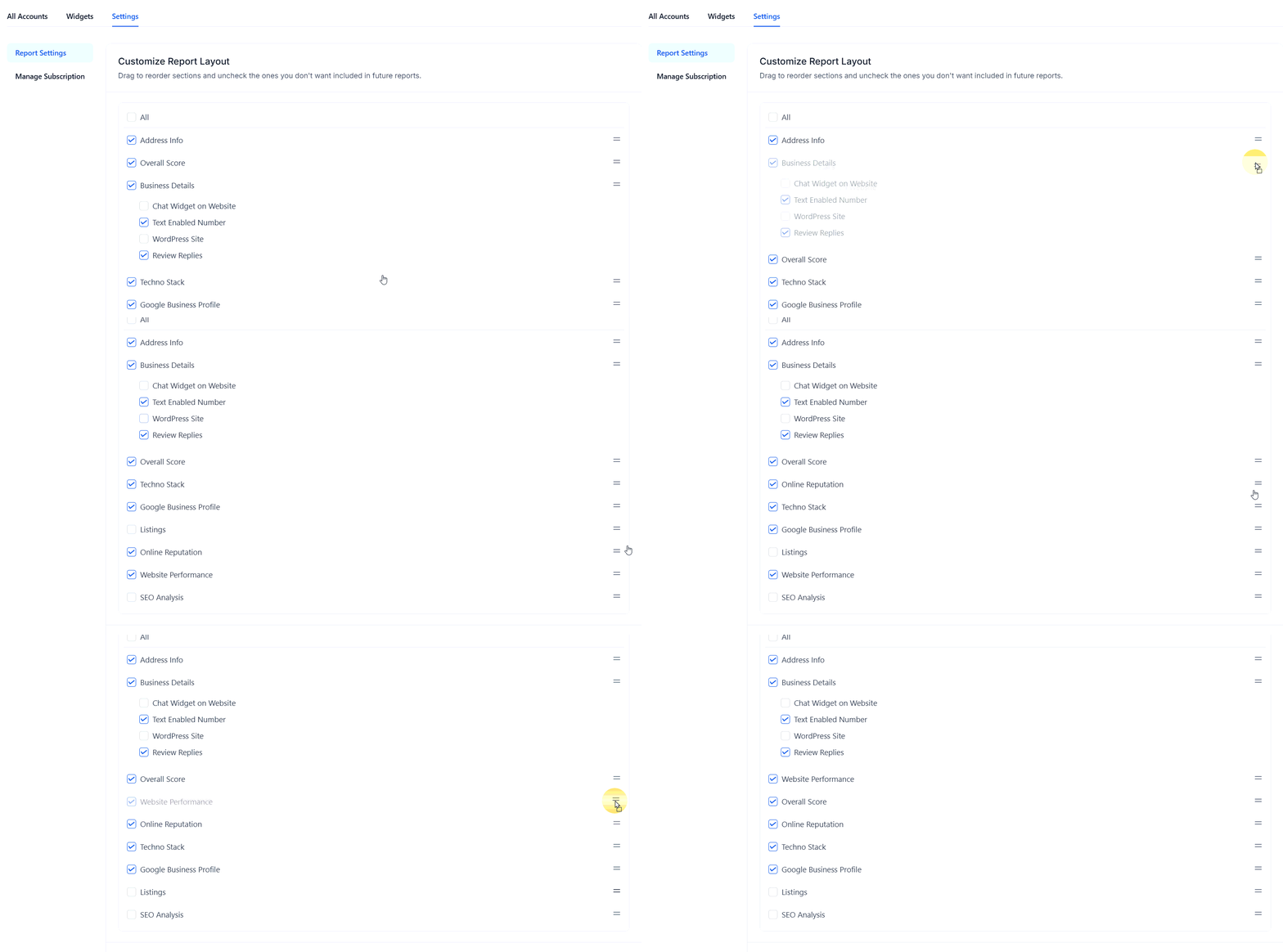
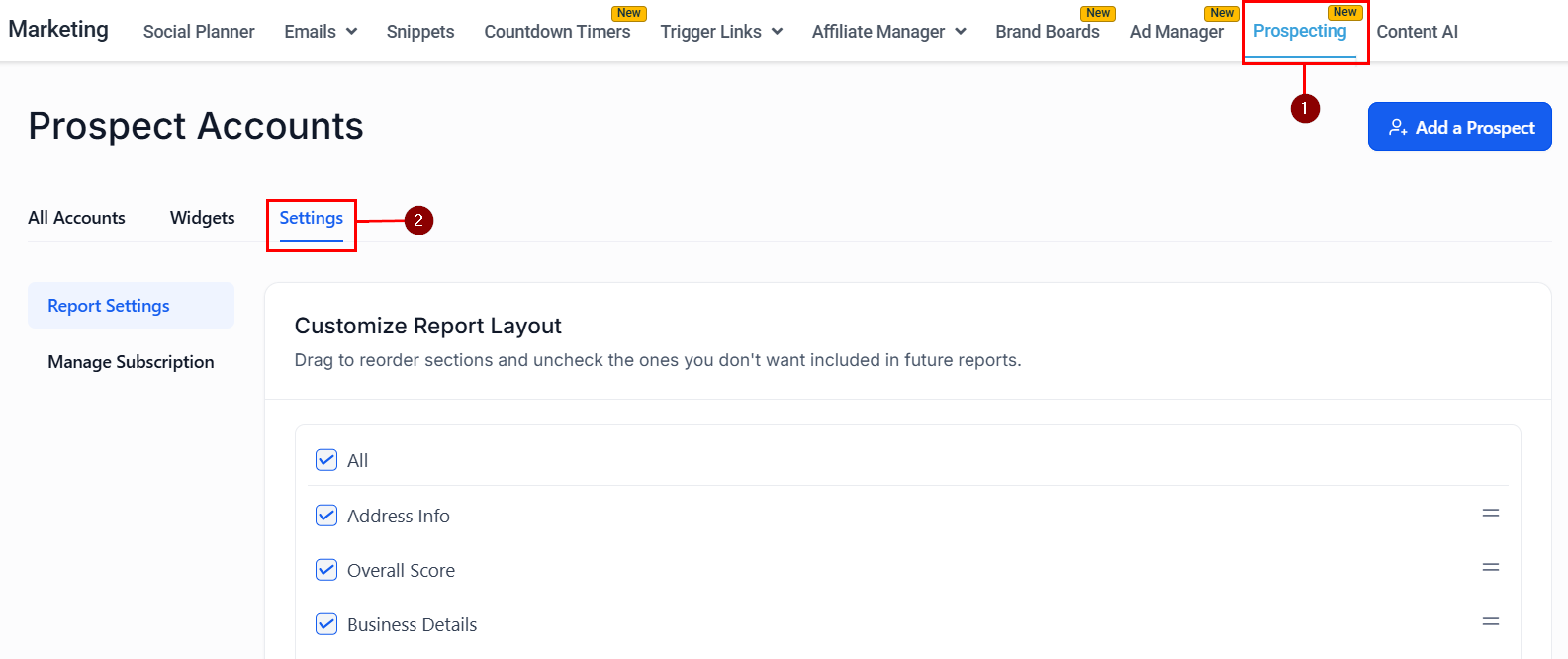 Uncheck any sections you wish to exclude from reports.
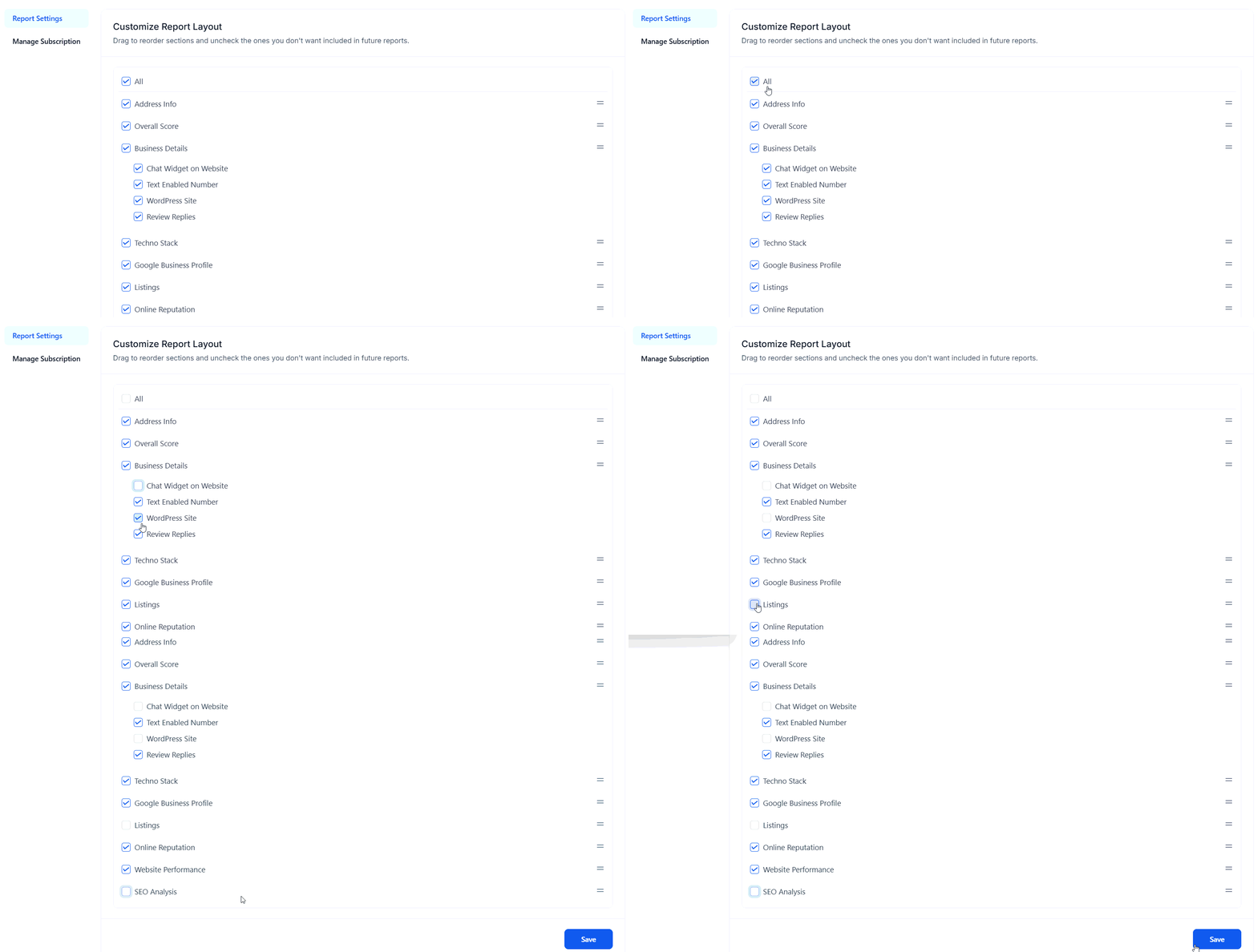 Use drag-and-drop to organize sections in your preferred order.
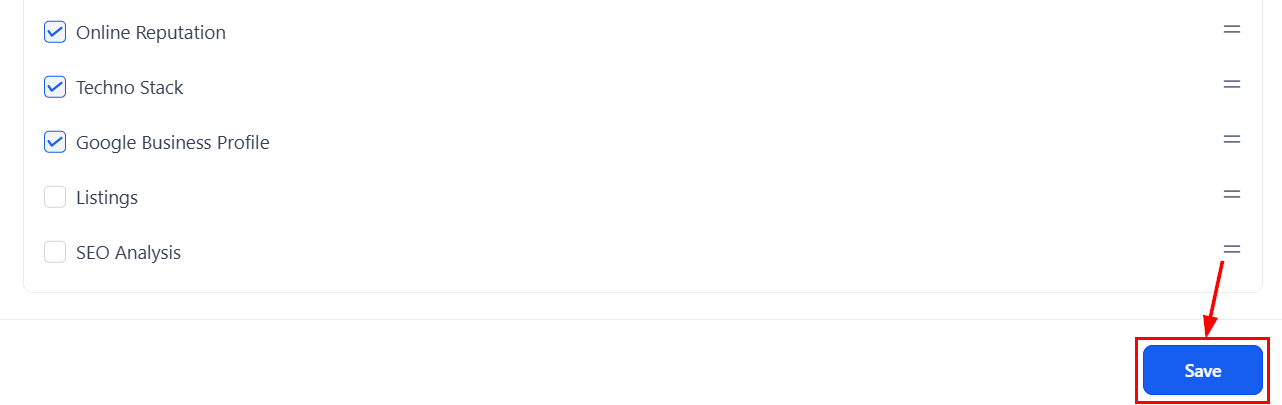
 Click **Save** to apply your changes to all current and future reports.
 ### Single report layout
Adjust the layout of an individual report without altering your global settings.
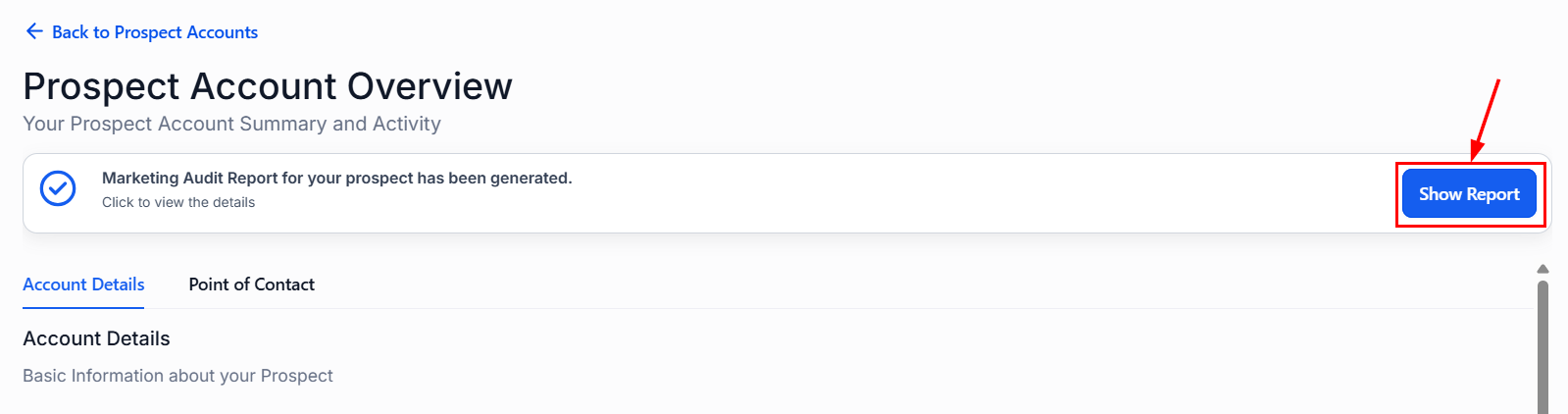
Navigate to the specific Prospect Report you want to modify and click **Show Report**.
### Single report layout
Adjust the layout of an individual report without altering your global settings.
Navigate to the specific Prospect Report you want to modify and click **Show Report**.
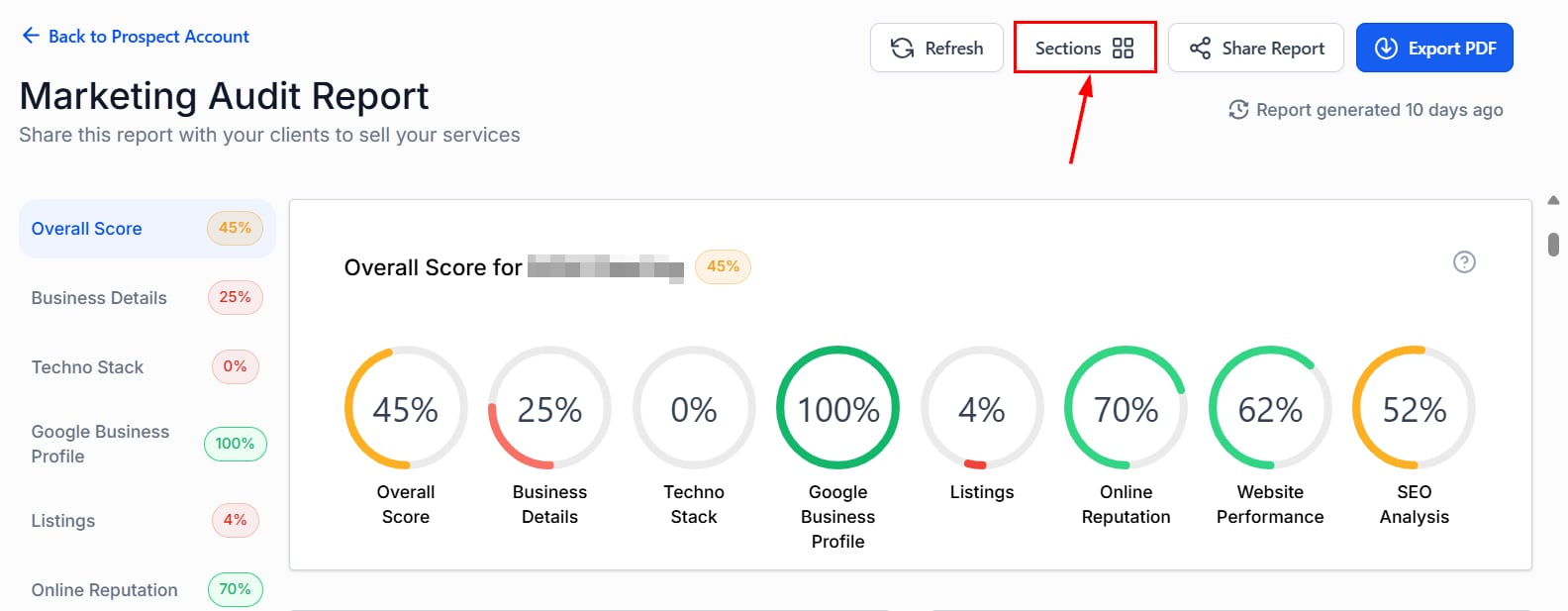
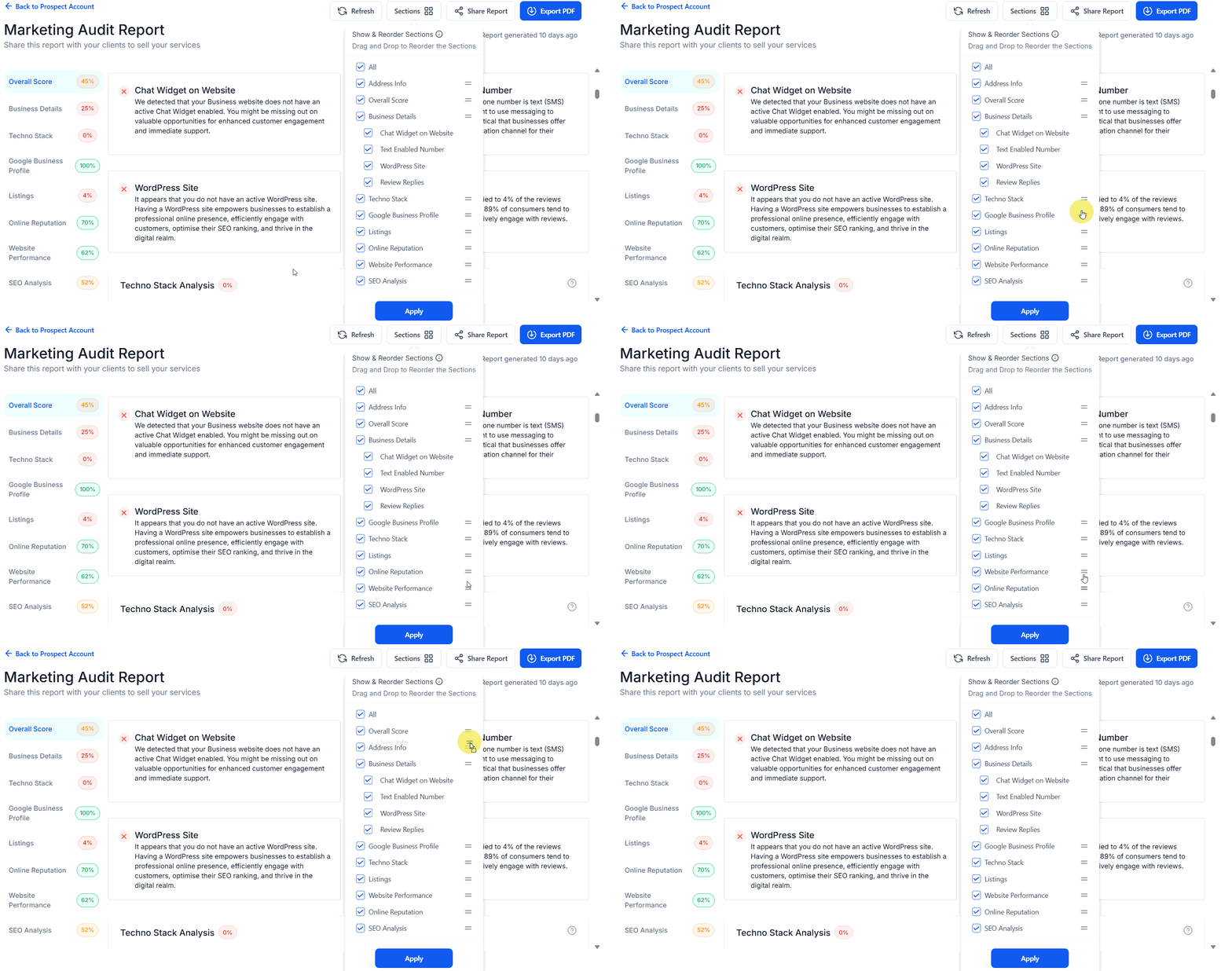
 Click the **Sections** button in the top-right corner.
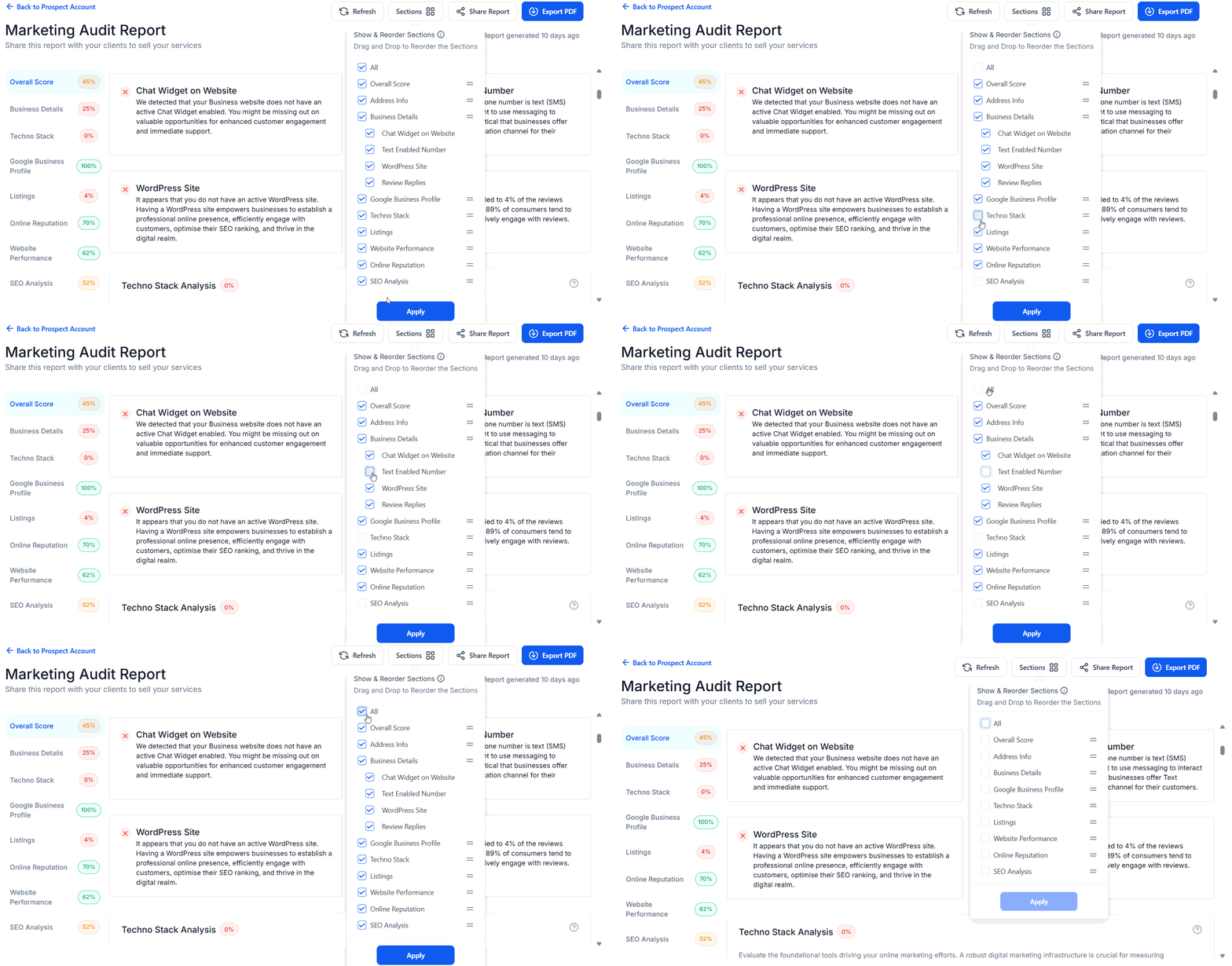
 Drag and drop to reorder, and check or uncheck sections for this report only.
 Click **Apply** to retain your changes. These apply only to the selected report.
 ***
## Sharing reports
Send audit reports directly to prospects via Email, SMS, or a shareable link.
Navigate to the **Prospecting** tab inside the Marketing section and find the prospect you want to contact.
***
## Sharing reports
Send audit reports directly to prospects via Email, SMS, or a shareable link.
Navigate to the **Prospecting** tab inside the Marketing section and find the prospect you want to contact.
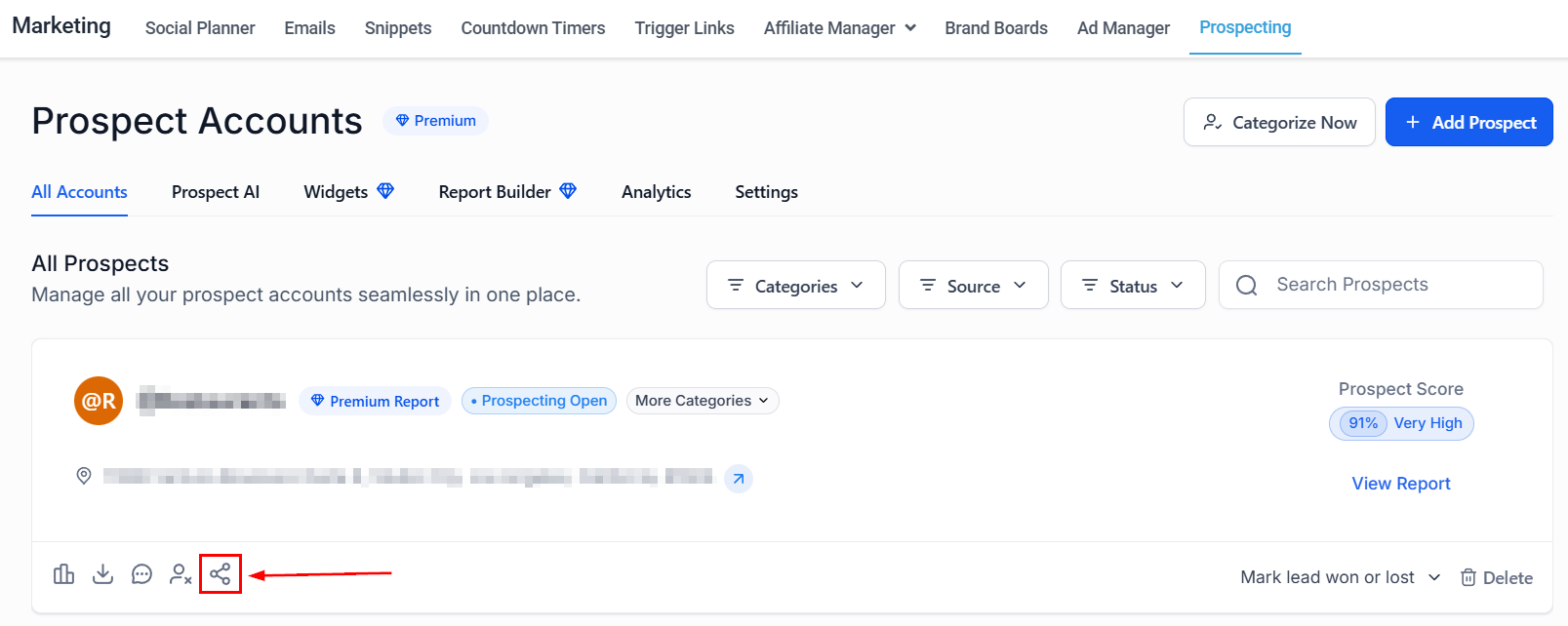
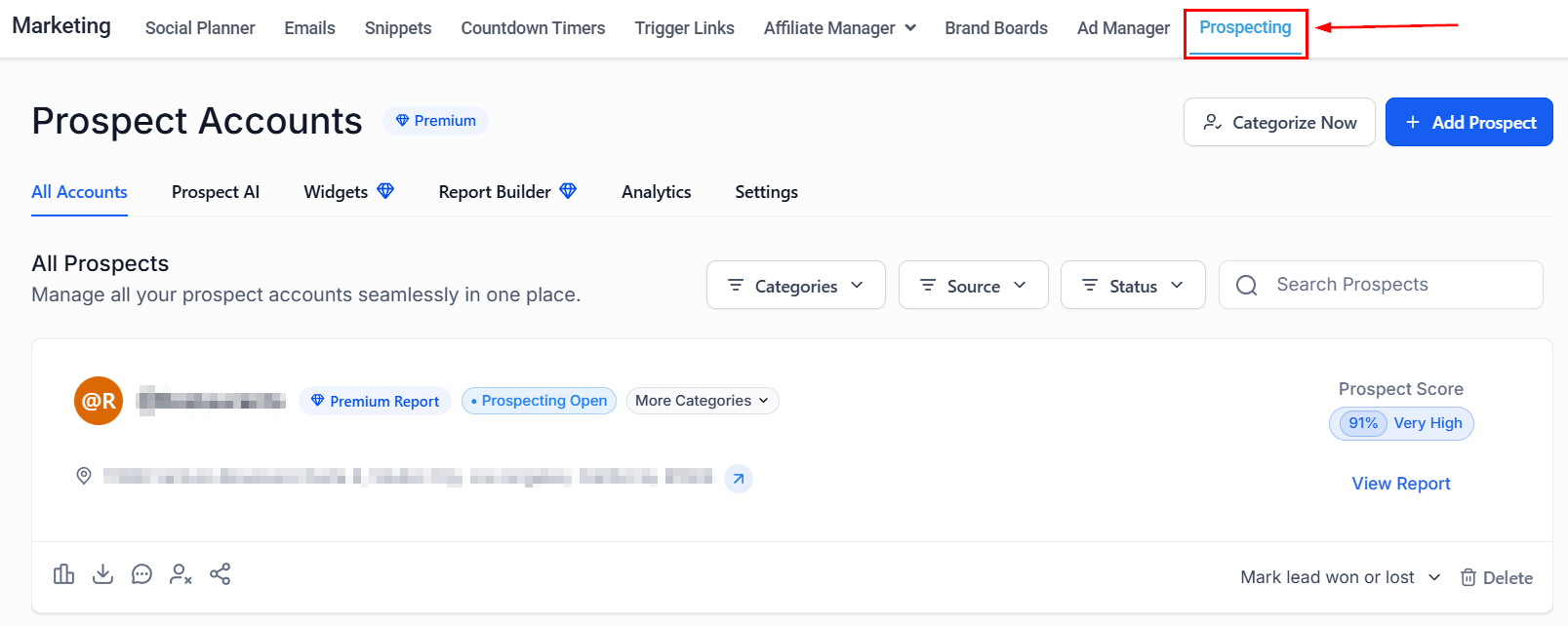 Click the **Share** button next to the prospect.
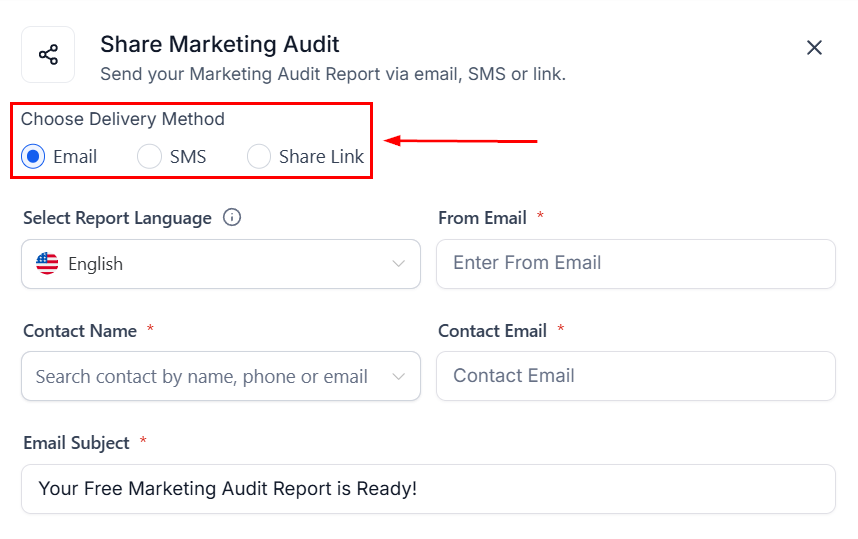
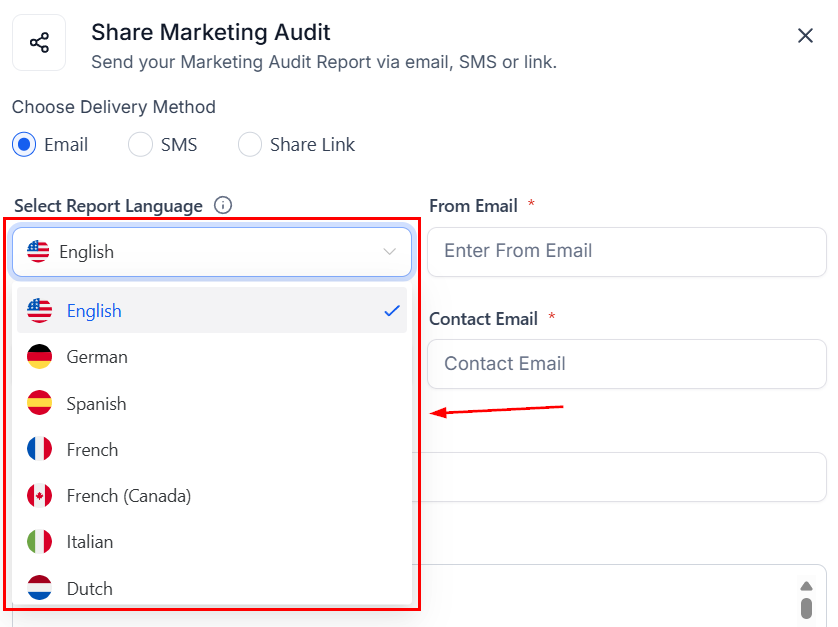
 In the pop-up, choose **Email**, **SMS**, or **Share Link**, and select the report language.
 Search for the recipient by name, phone, email, or business name. Use the predefined templates or modify the subject and message body, then share the report. A confirmation notification appears once sent.
 ***
## Virtual business listings
Even if a prospect's business has no physical location, you can use their Google Maps URL to generate accurate prospecting reports.
The business must be verified on Google My Business as a service-area business before proceeding.
Open Google Maps and enter the business name in the search bar. Click on the listing to open it.
***
## Virtual business listings
Even if a prospect's business has no physical location, you can use their Google Maps URL to generate accurate prospecting reports.
The business must be verified on Google My Business as a service-area business before proceeding.
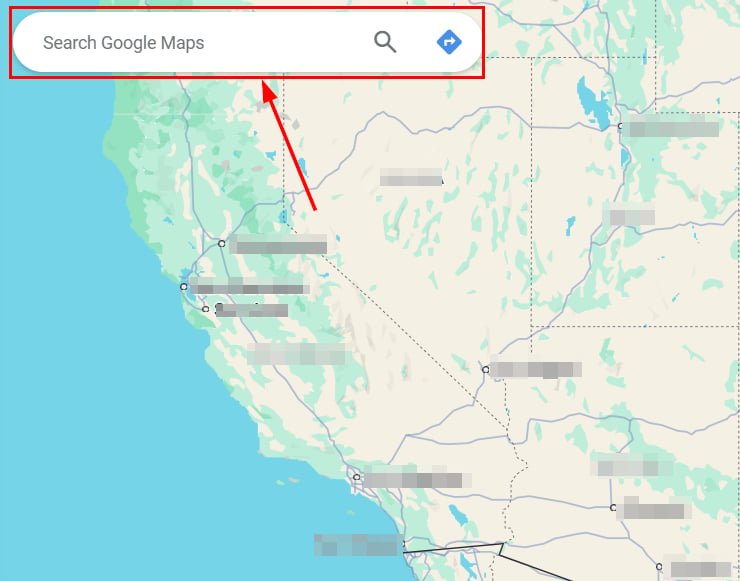
Open Google Maps and enter the business name in the search bar. Click on the listing to open it.
 Use one of two methods:
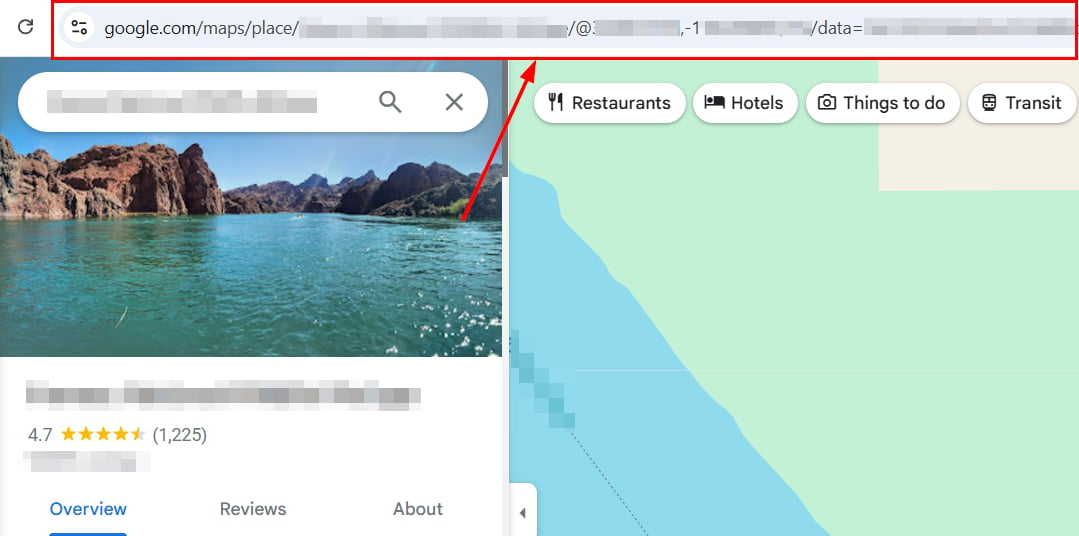
**Method A — from the address bar:** Copy the URL directly from the browser address bar when the listing is open.
Use one of two methods:
**Method A — from the address bar:** Copy the URL directly from the browser address bar when the listing is open.
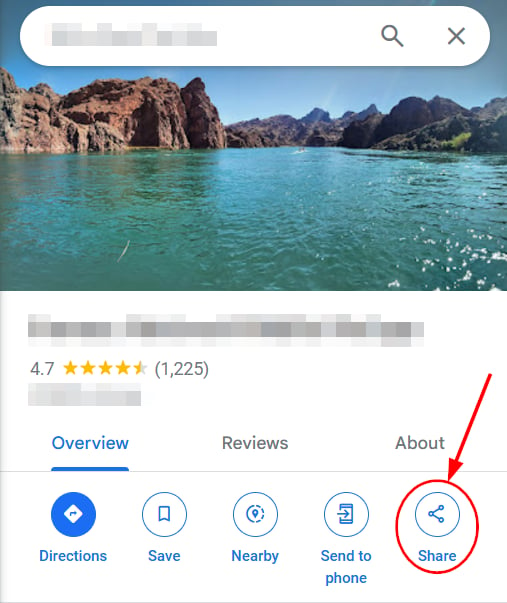
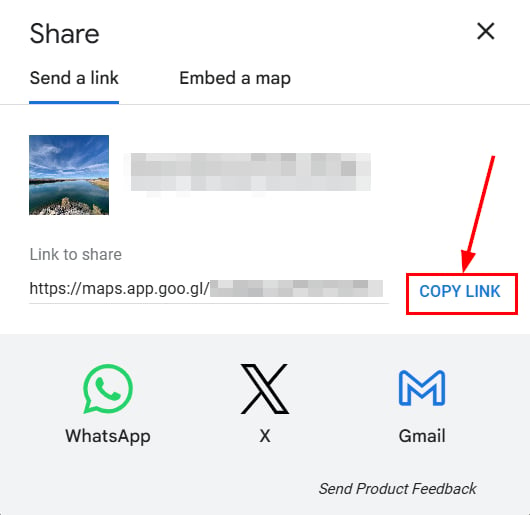
 **Method B — using the Share feature:** Click **Share** in the listing and then **Copy link**.
 Open the Prospecting Tool and click **Add a Prospect**, then select **Search for Virtual Businesses**.
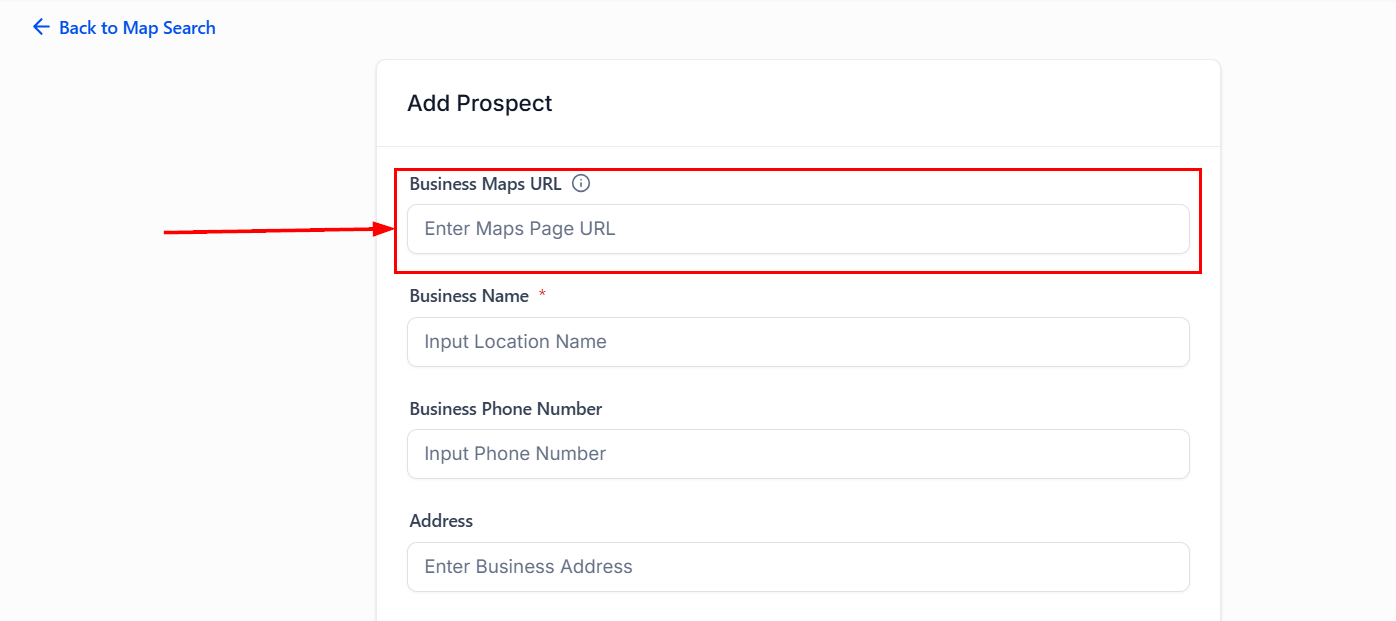
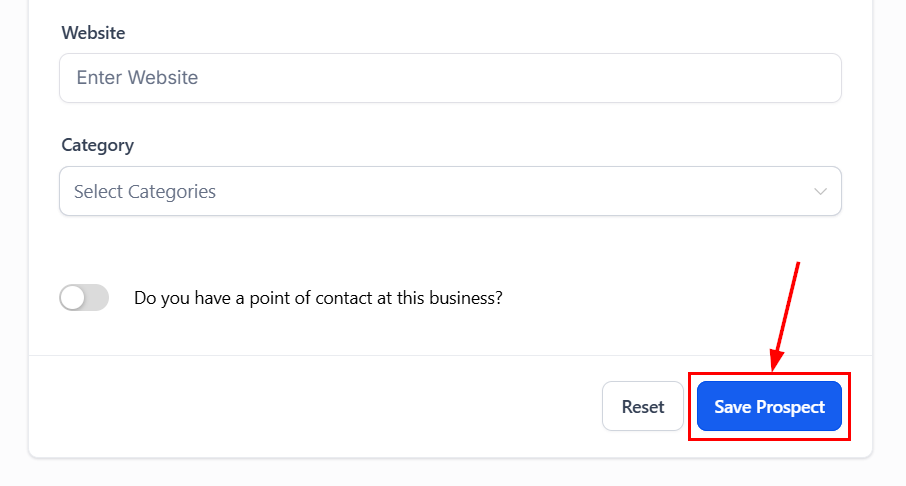
 In the **Business Maps URL** field, paste the URL you obtained and complete the rest of the form.
 ***
## Report builder (premium)
The Prospect Report Builder gives you complete control over the design, structure, and messaging of your prospect reports.
The Report Builder is accessible to users with a Premium Prospecting Subscription. Preview mode is available for all users.
**Key benefits:**
* **Branded reports:** Customize design elements to maintain a cohesive, on-brand presentation.
* **Conversion-ready layouts:** Structure reports to highlight CTAs and key information.
* **Personalized messaging:** Tailor messages for niche audiences.
* **Live preview:** View updates instantly before publishing.
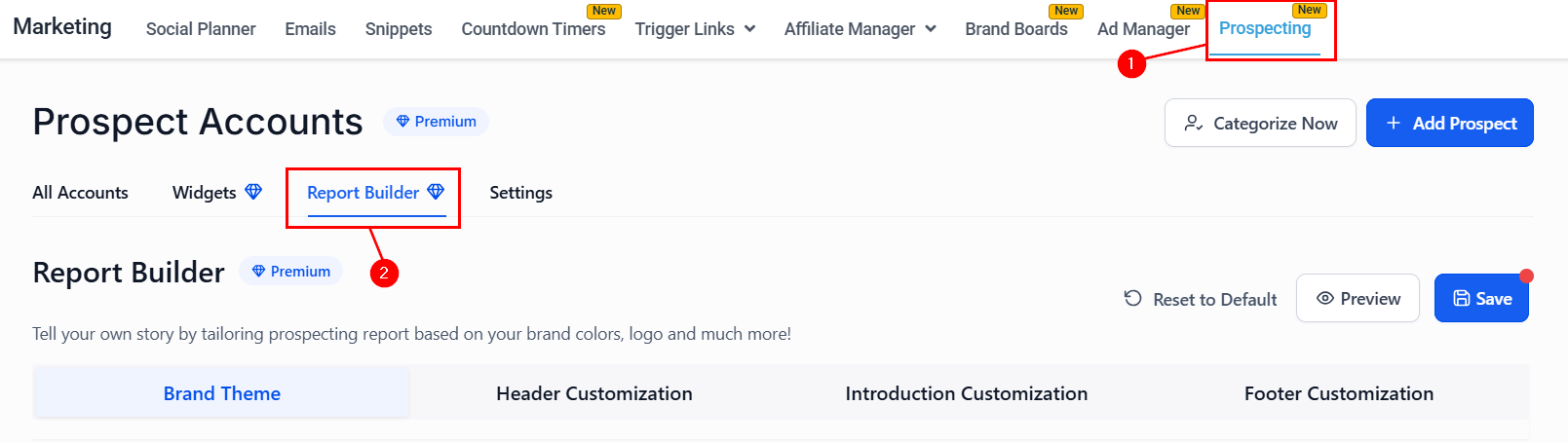
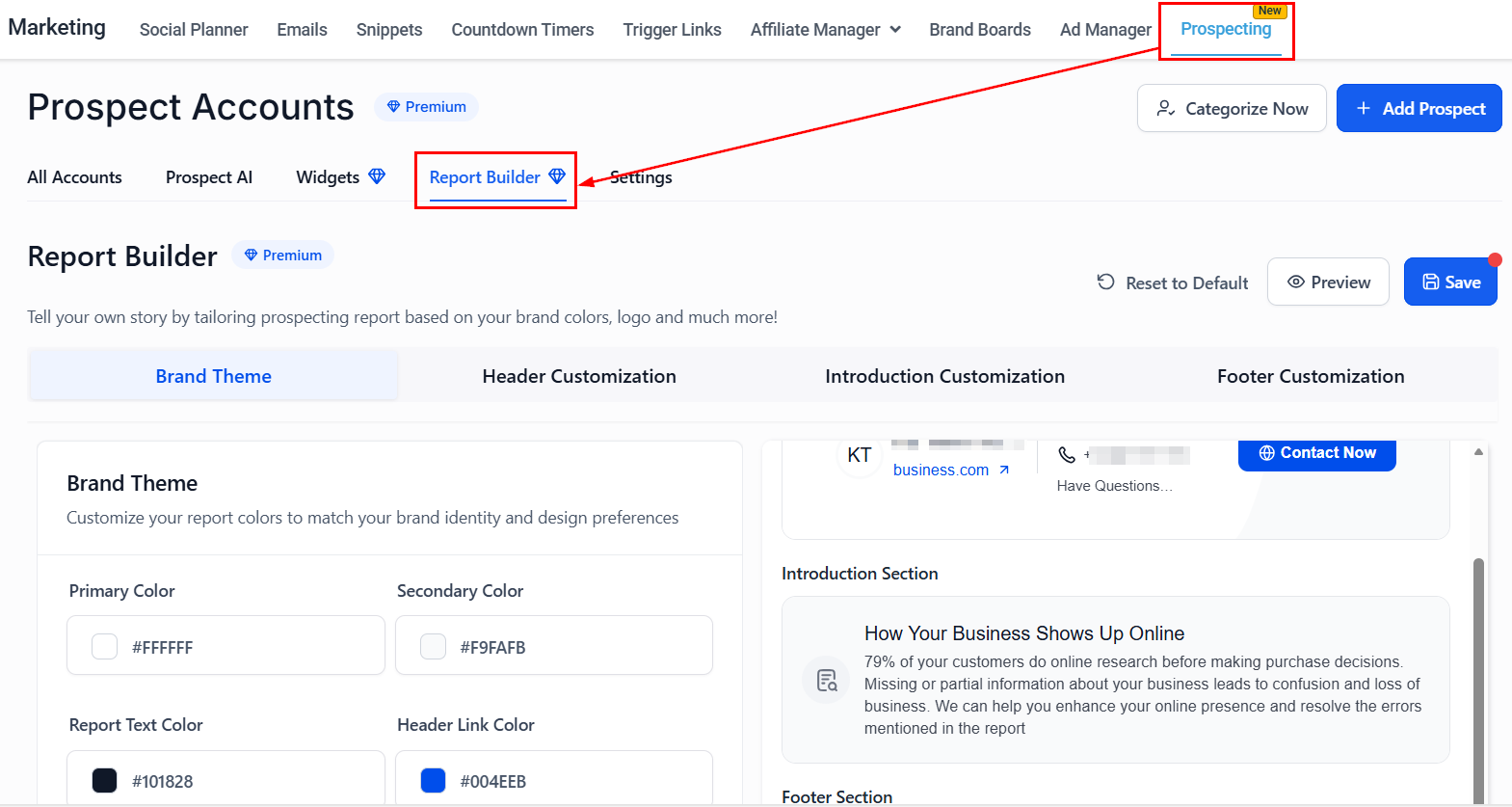
Navigate to the **Marketing** tab, then open the **Report Builder** tab within the Prospecting tool.
***
## Report builder (premium)
The Prospect Report Builder gives you complete control over the design, structure, and messaging of your prospect reports.
The Report Builder is accessible to users with a Premium Prospecting Subscription. Preview mode is available for all users.
**Key benefits:**
* **Branded reports:** Customize design elements to maintain a cohesive, on-brand presentation.
* **Conversion-ready layouts:** Structure reports to highlight CTAs and key information.
* **Personalized messaging:** Tailor messages for niche audiences.
* **Live preview:** View updates instantly before publishing.
Navigate to the **Marketing** tab, then open the **Report Builder** tab within the Prospecting tool.
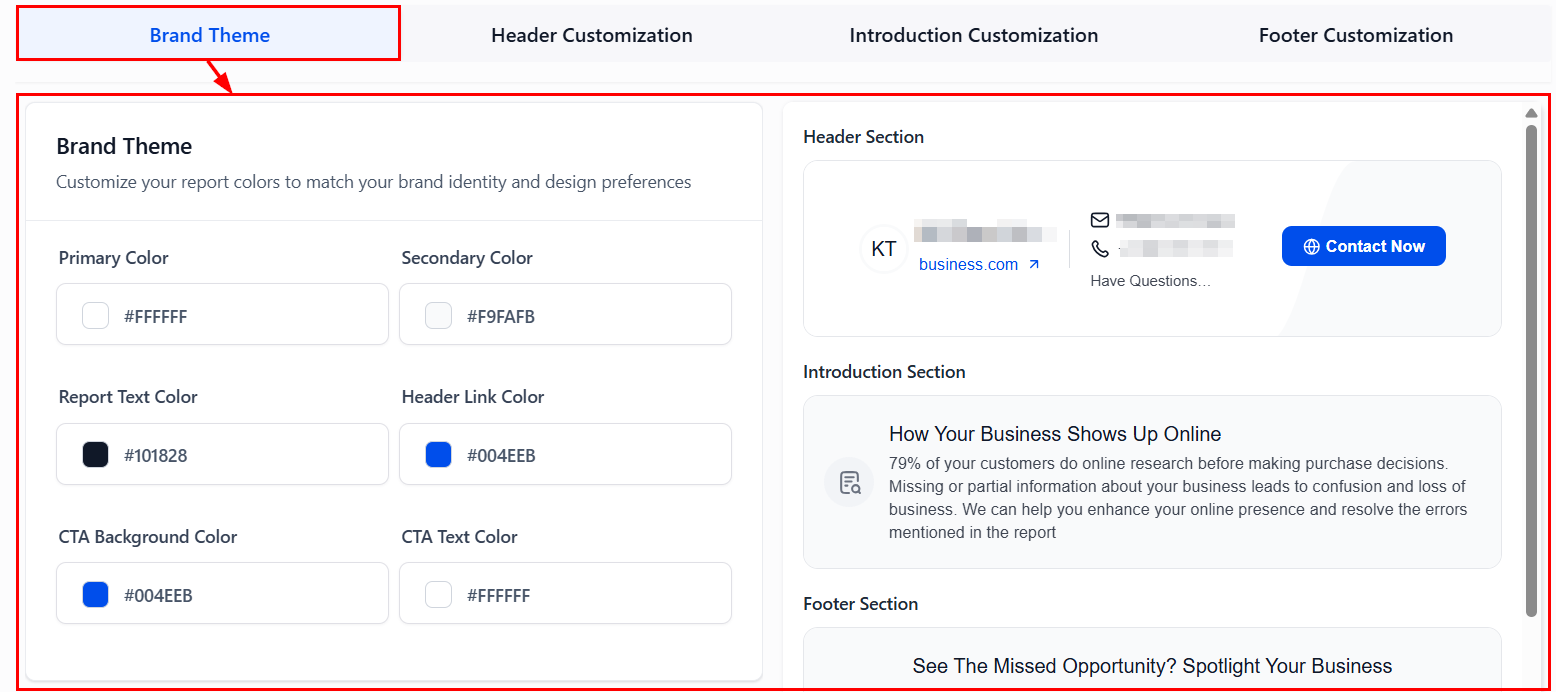
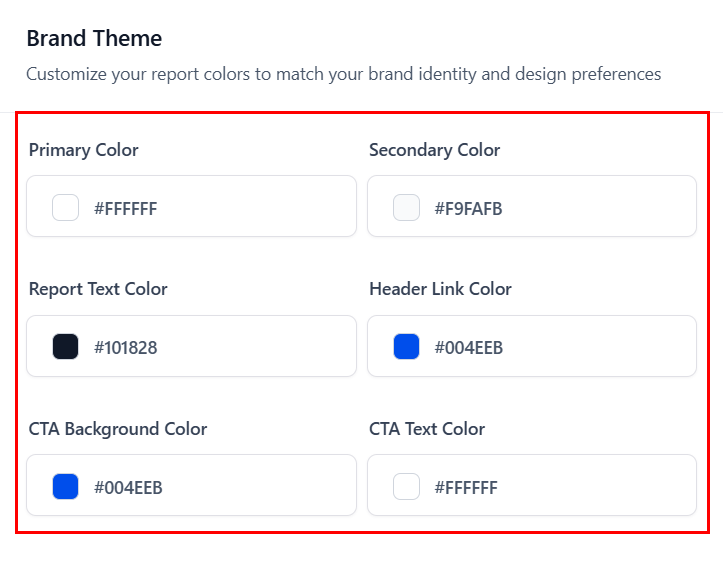
 Edit the report's primary and secondary colors, text color, header link color, and CTA background and text colors.
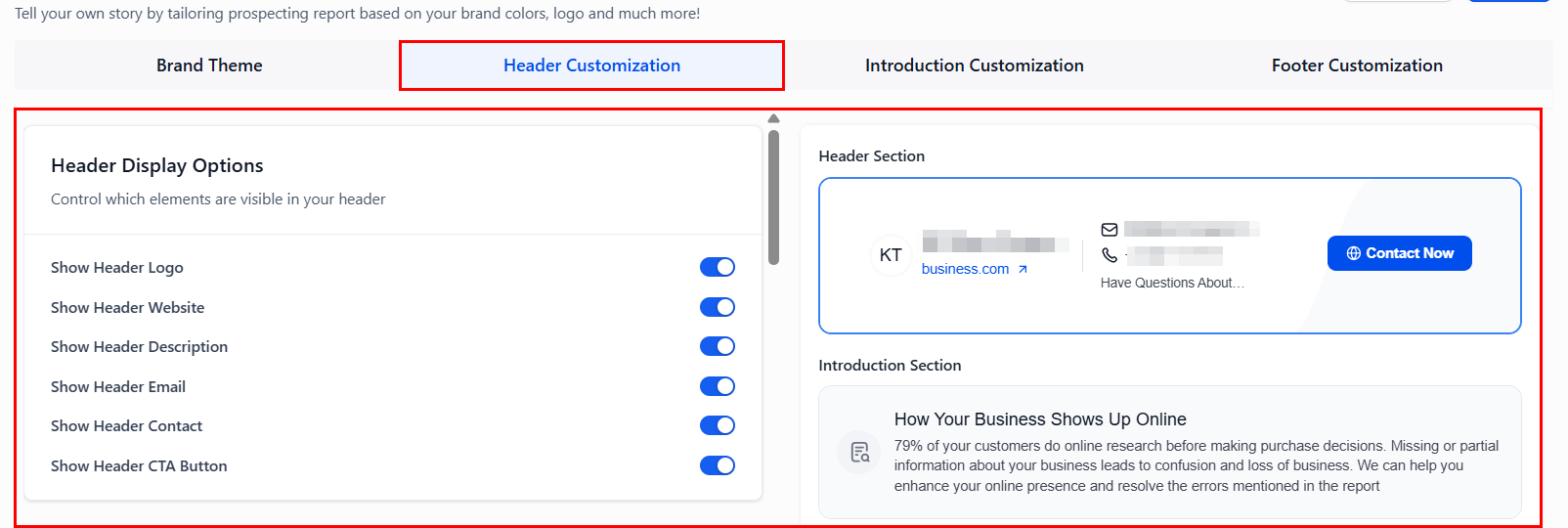
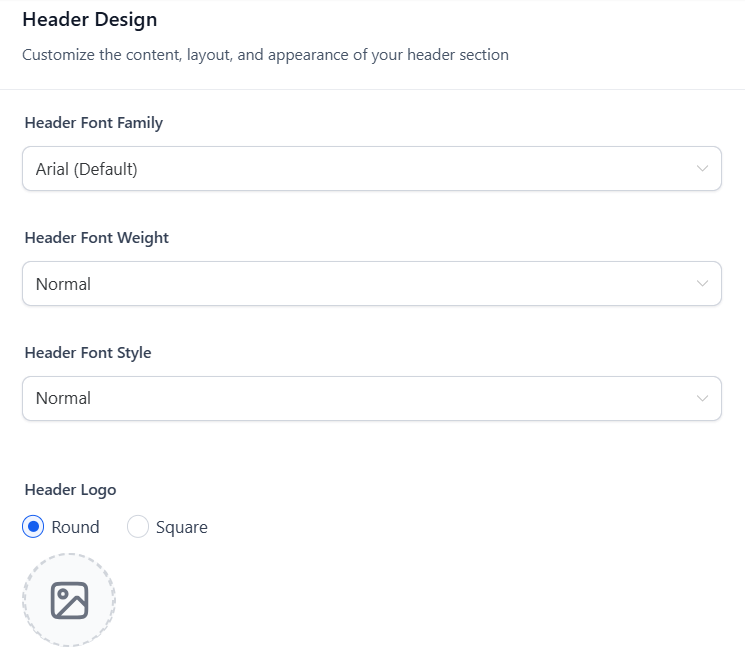
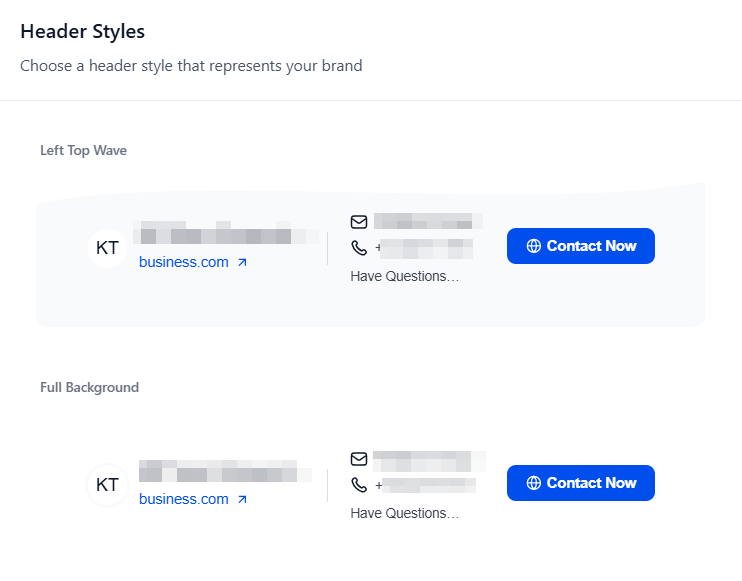
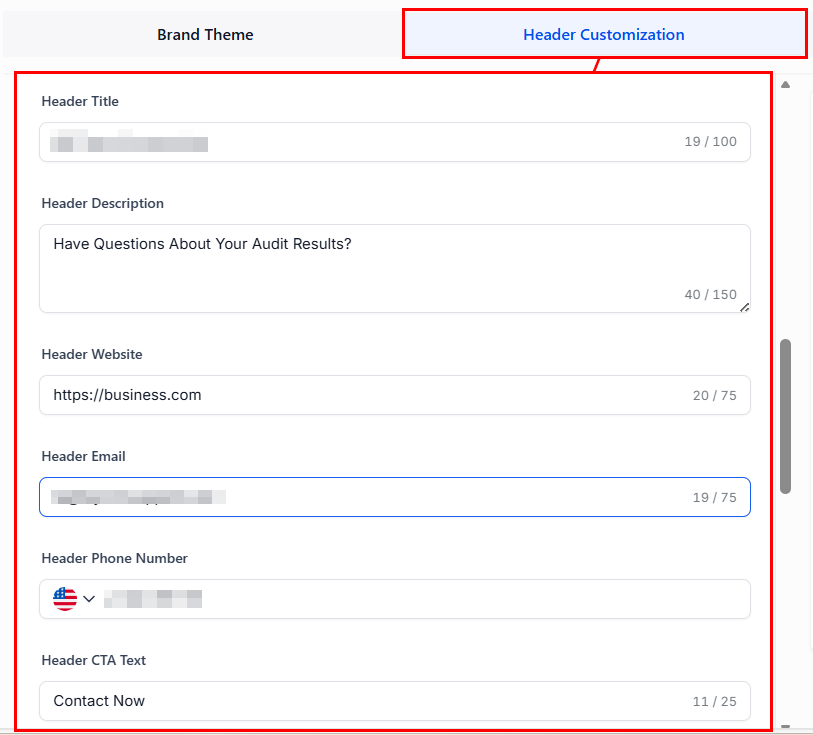
 Toggle display options for logo, website link, tagline, contact info, and CTA button. Adjust font type, weight, and style, and choose from left top wave, full background, or double wave left header styles.
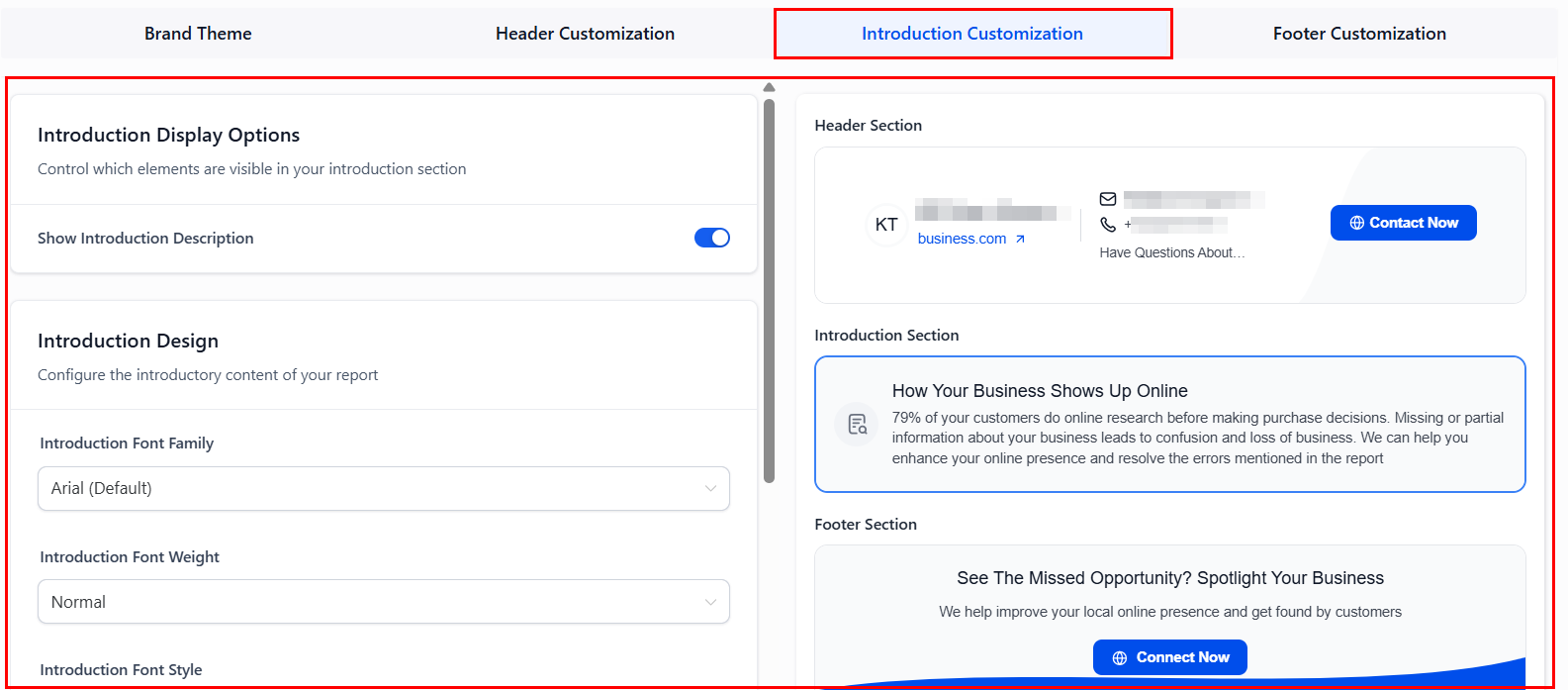
 Toggle visibility, customize fonts, and enter a custom title and description explaining the report's value.
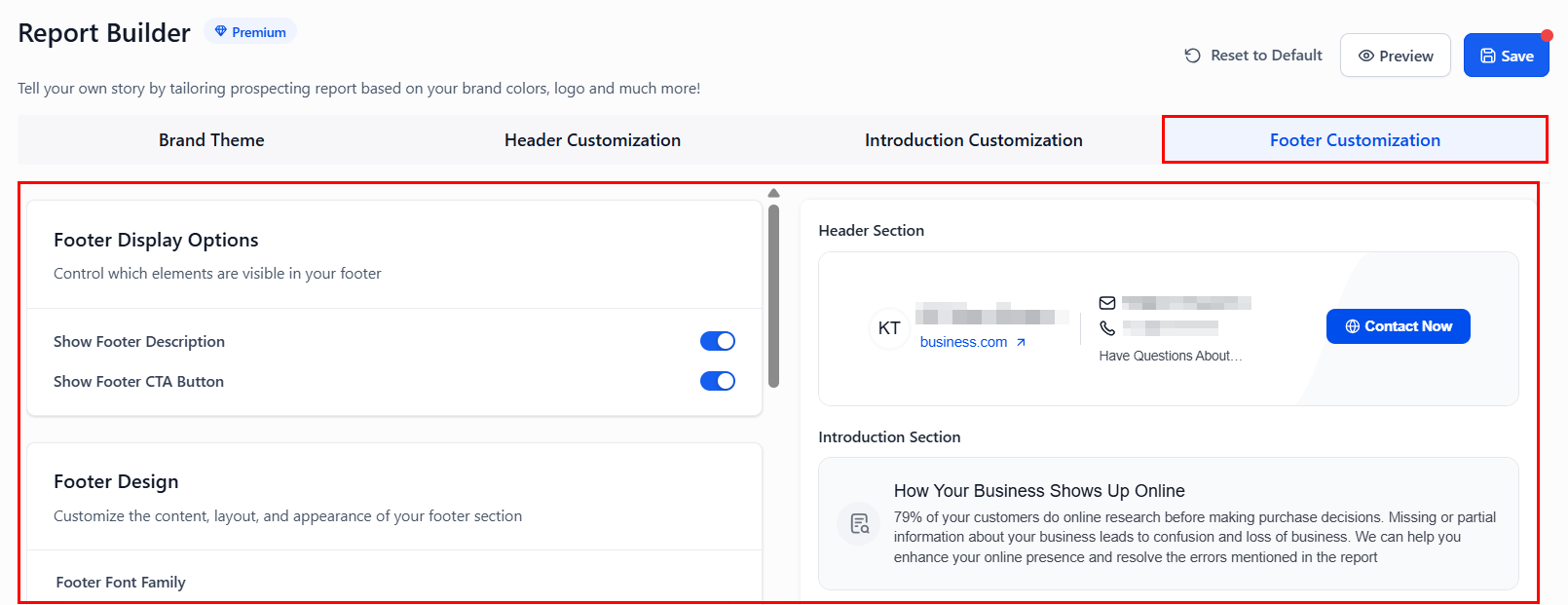
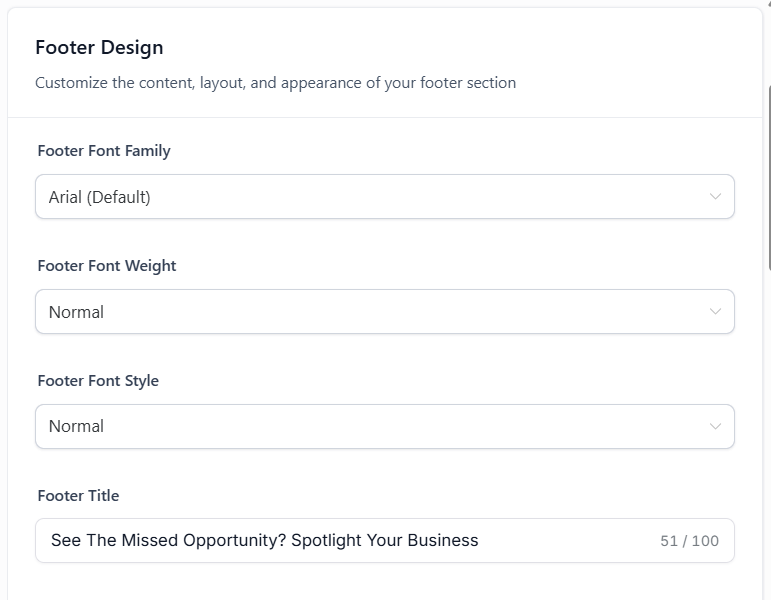
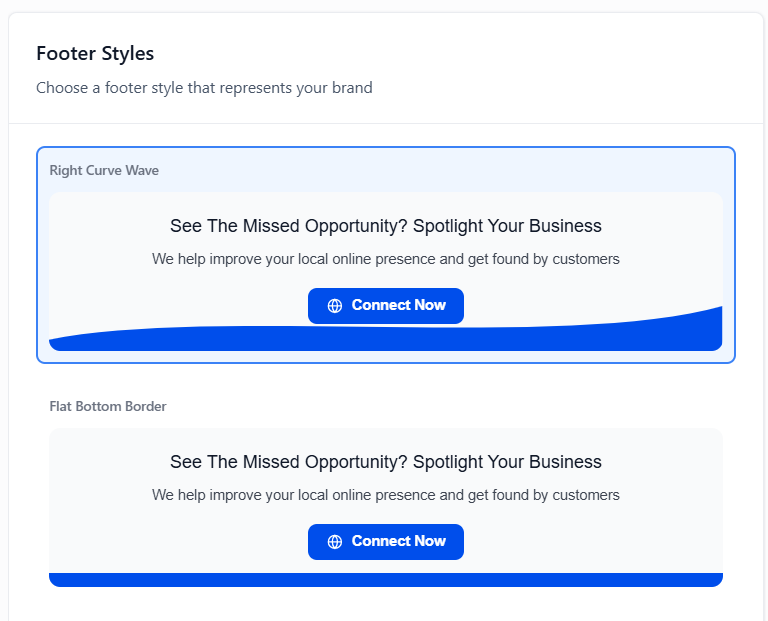
 Control which elements are visible in the footer, customize layout and appearance, and choose from right curve wave, full background, or flat bottom border footer styles.
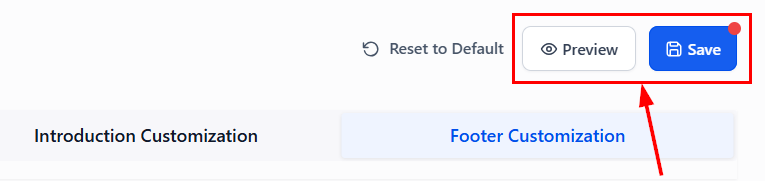
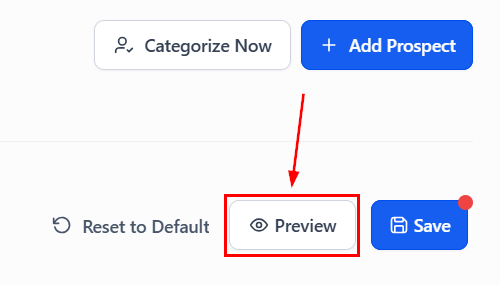
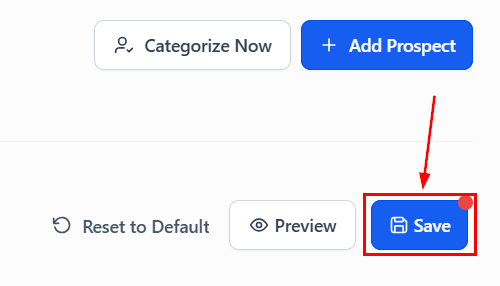
 Click **Preview** to view your design in a new tab, then click **Save** to apply changes across all past and future reports.
 ***
## Customizing the PDF report
PDF Customization applies your brand theme, header, and footer settings from the Report Builder directly to exported audit PDFs.
This functionality requires a Premium Prospecting subscription. Preview mode is available at no cost.
Open the Report Builder (see above). Customize border colors in the **Brand Theme** section, and add your business name, phone, email, and website in the **Header Customization** area.
***
## Customizing the PDF report
PDF Customization applies your brand theme, header, and footer settings from the Report Builder directly to exported audit PDFs.
This functionality requires a Premium Prospecting subscription. Preview mode is available at no cost.
Open the Report Builder (see above). Customize border colors in the **Brand Theme** section, and add your business name, phone, email, and website in the **Header Customization** area.
 Click **Preview** to generate a live view, review all details, then click **Save**.
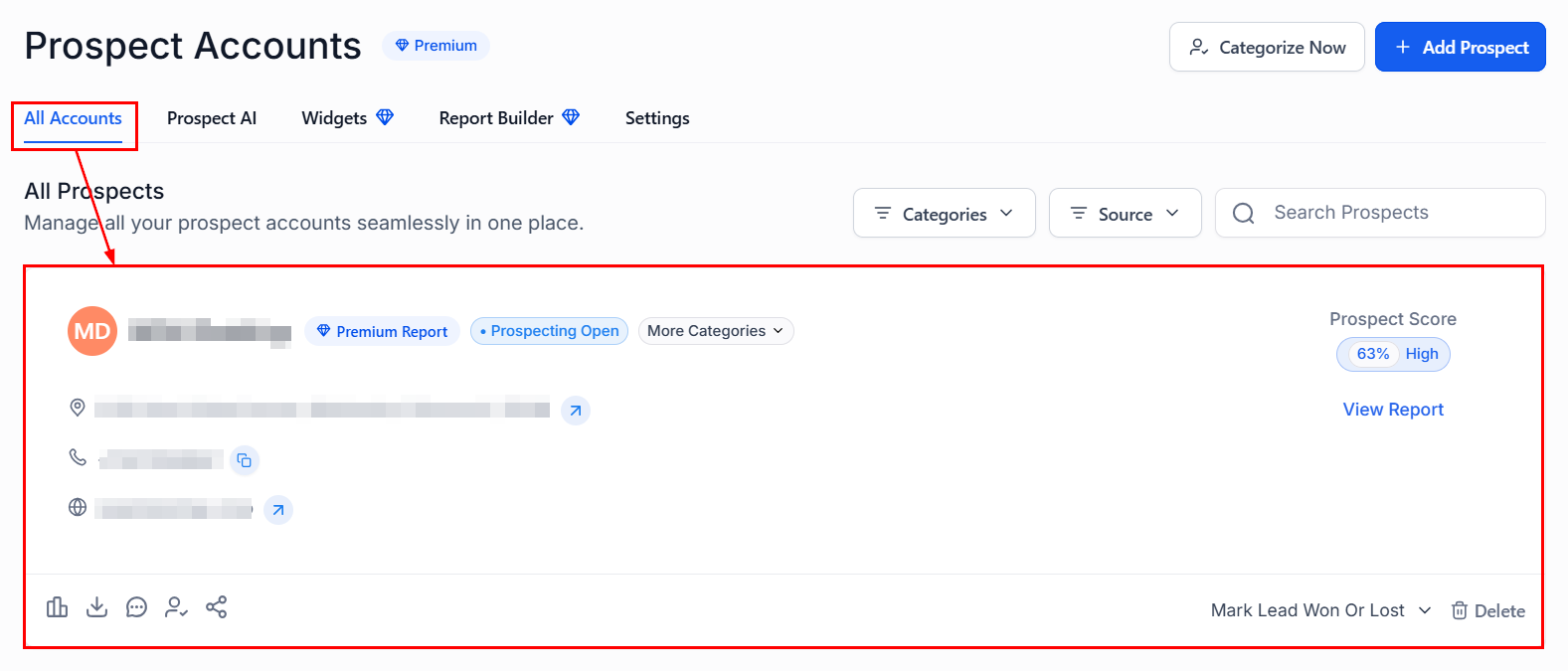
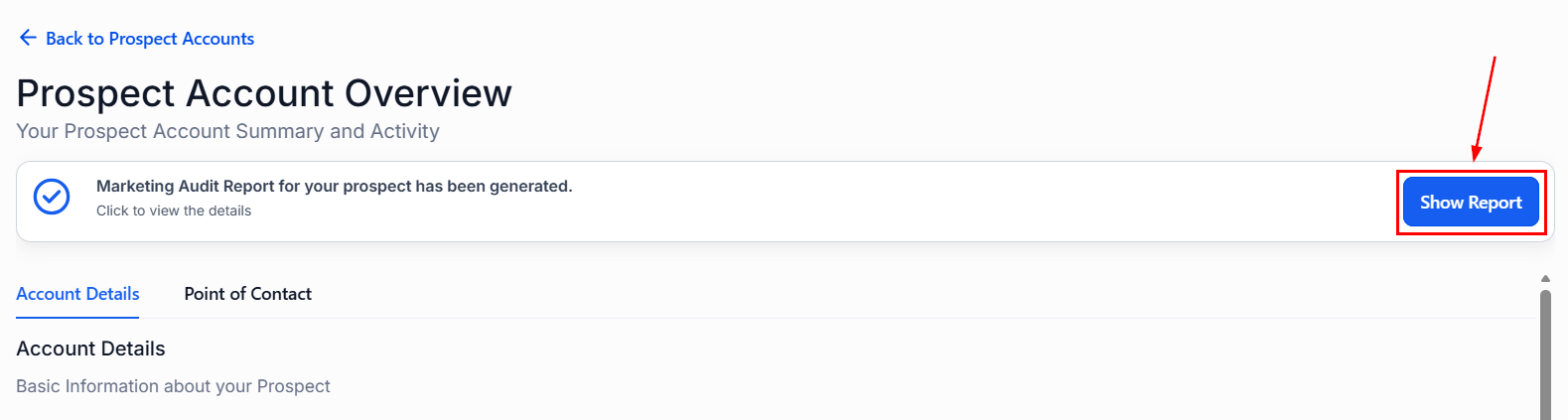
 Switch to the **All Accounts** menu, choose a prospect, and click **Show Report**.
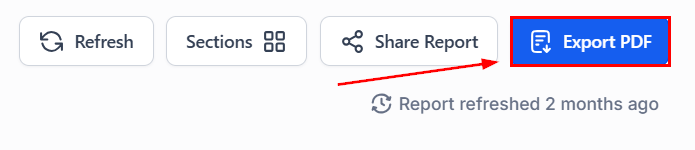
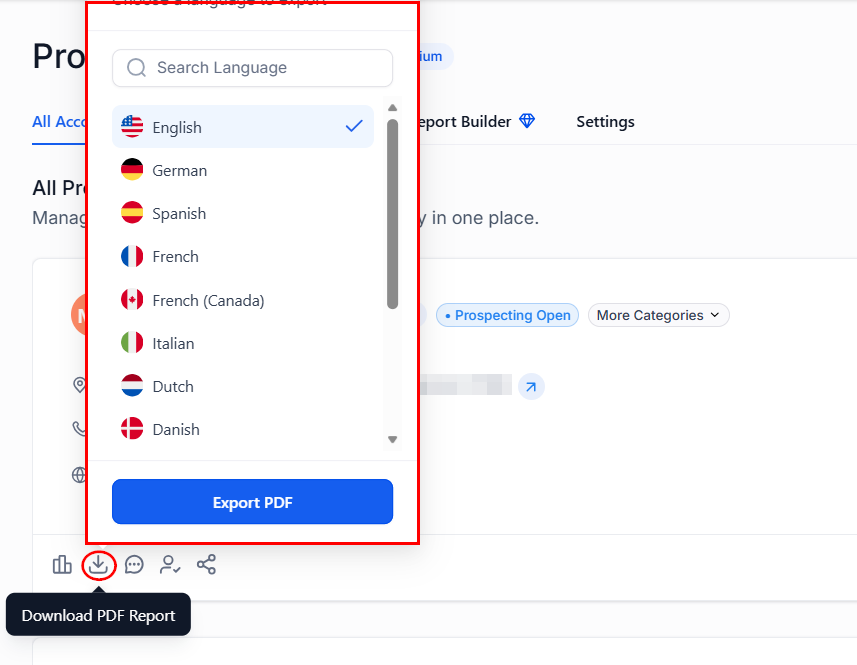
 Click **Export PDF**, or select **Download PDF Report** directly from the list and choose your language.
 ***
## Prospecting lead widget
Prospecting widgets are fully customizable lead capture forms that can be embedded on your website to generate instant Marketing Audit Reports.
This functionality is available exclusively with the paid version of the Prospecting tool. You can create up to nine distinct widgets.
### Creating a widget
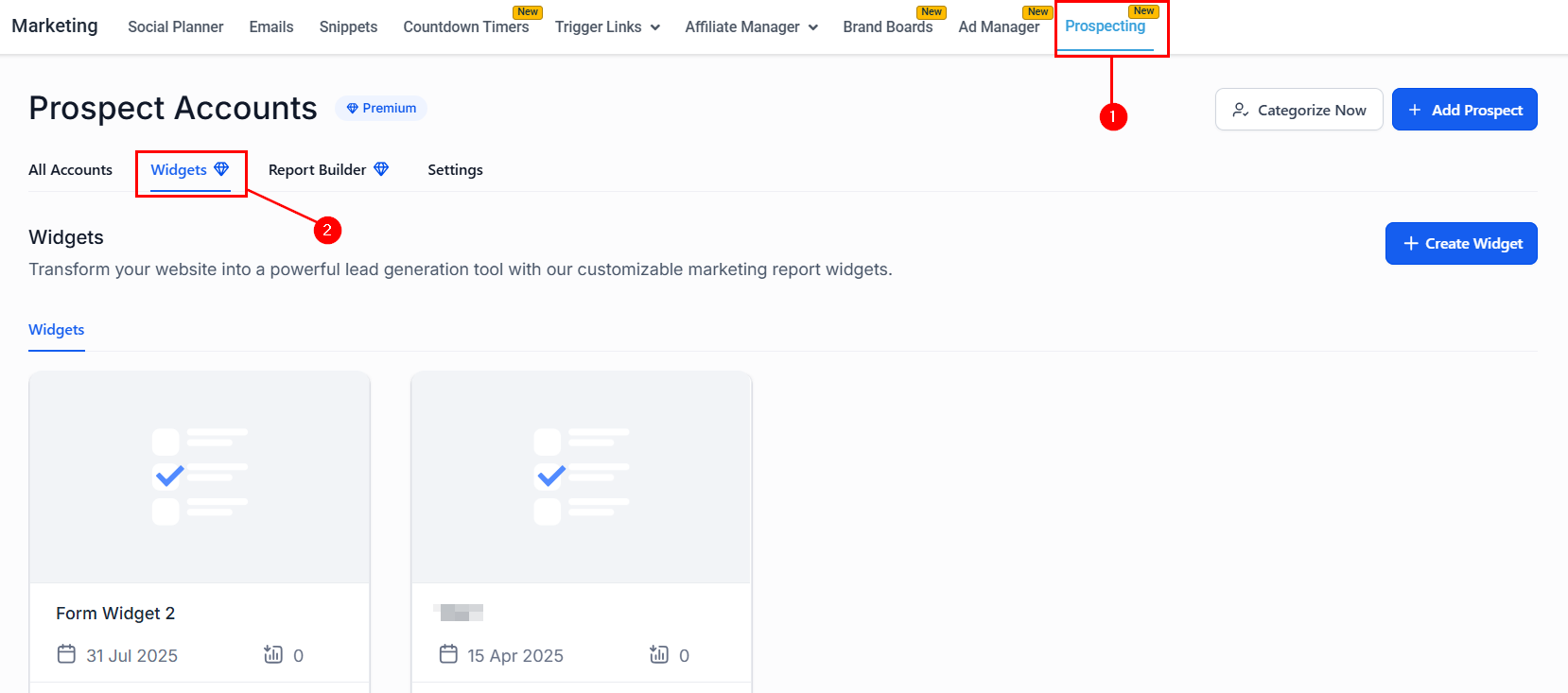
Navigate to the **Prospecting** section of your account, then open the **Widgets** tab.
***
## Prospecting lead widget
Prospecting widgets are fully customizable lead capture forms that can be embedded on your website to generate instant Marketing Audit Reports.
This functionality is available exclusively with the paid version of the Prospecting tool. You can create up to nine distinct widgets.
### Creating a widget
Navigate to the **Prospecting** section of your account, then open the **Widgets** tab.
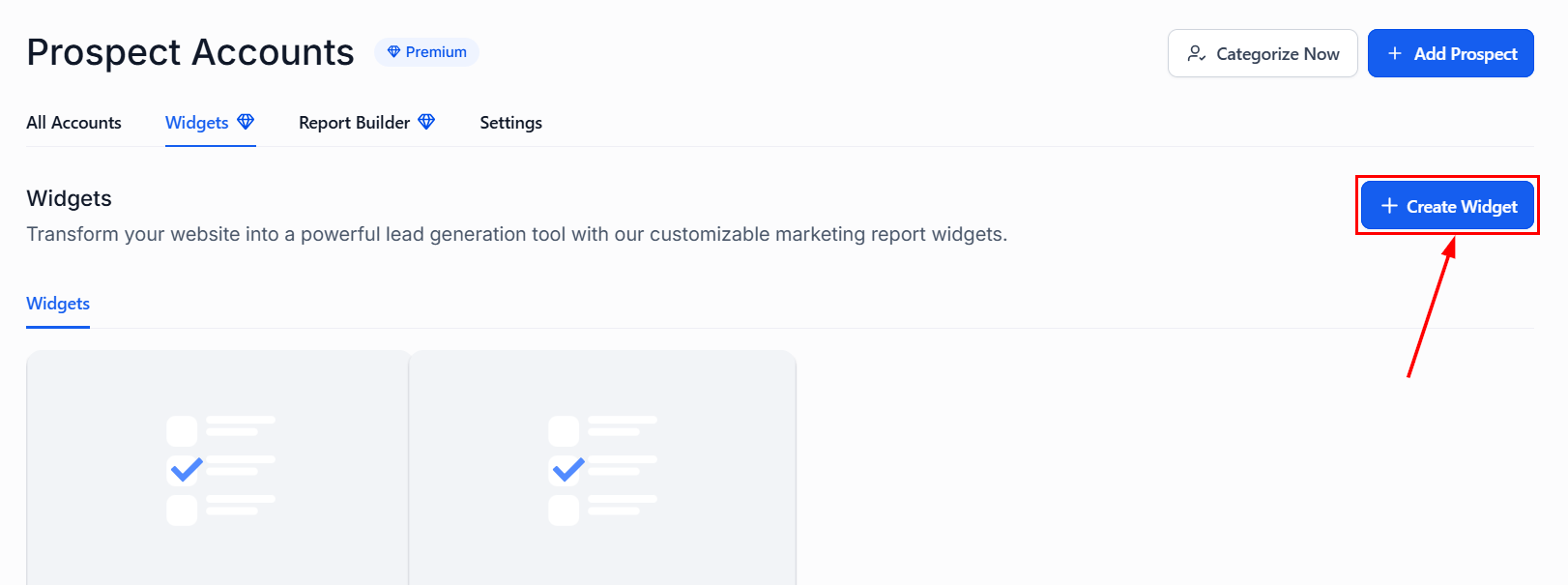
 Click the **Create Widget** button.
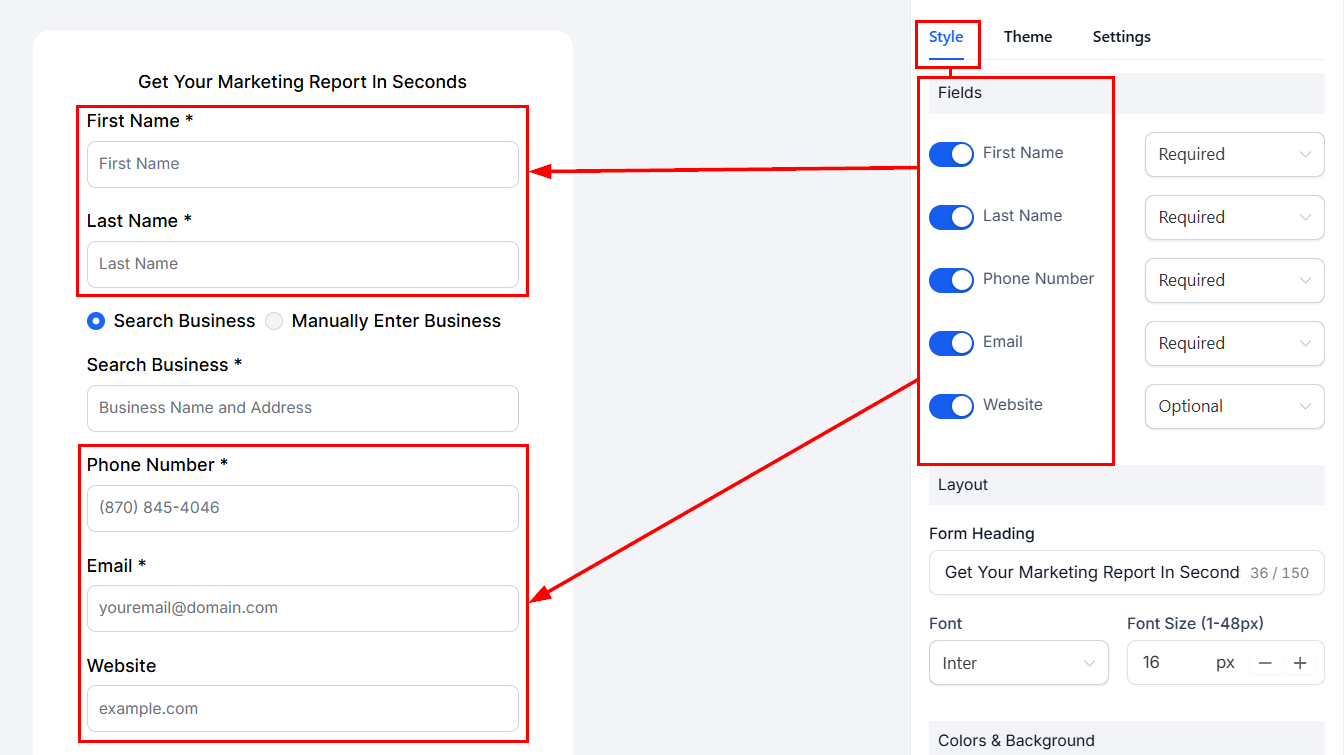
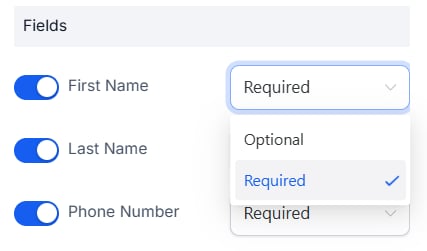
 In the **Styles** view, enable or disable available fields to collect the data you need. Designate each field as required or optional.
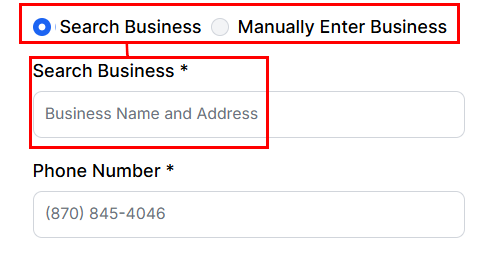
 Businesses with an active Google listing can use the search functionality; businesses without one can select **Manually Enter Business**.
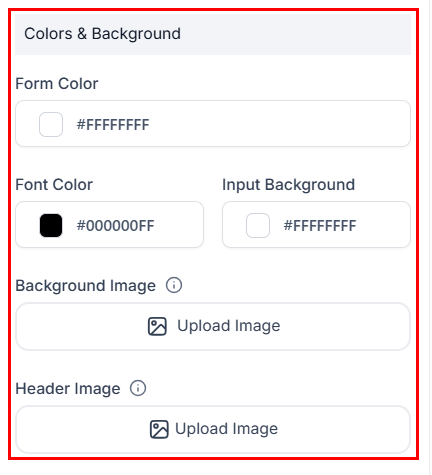
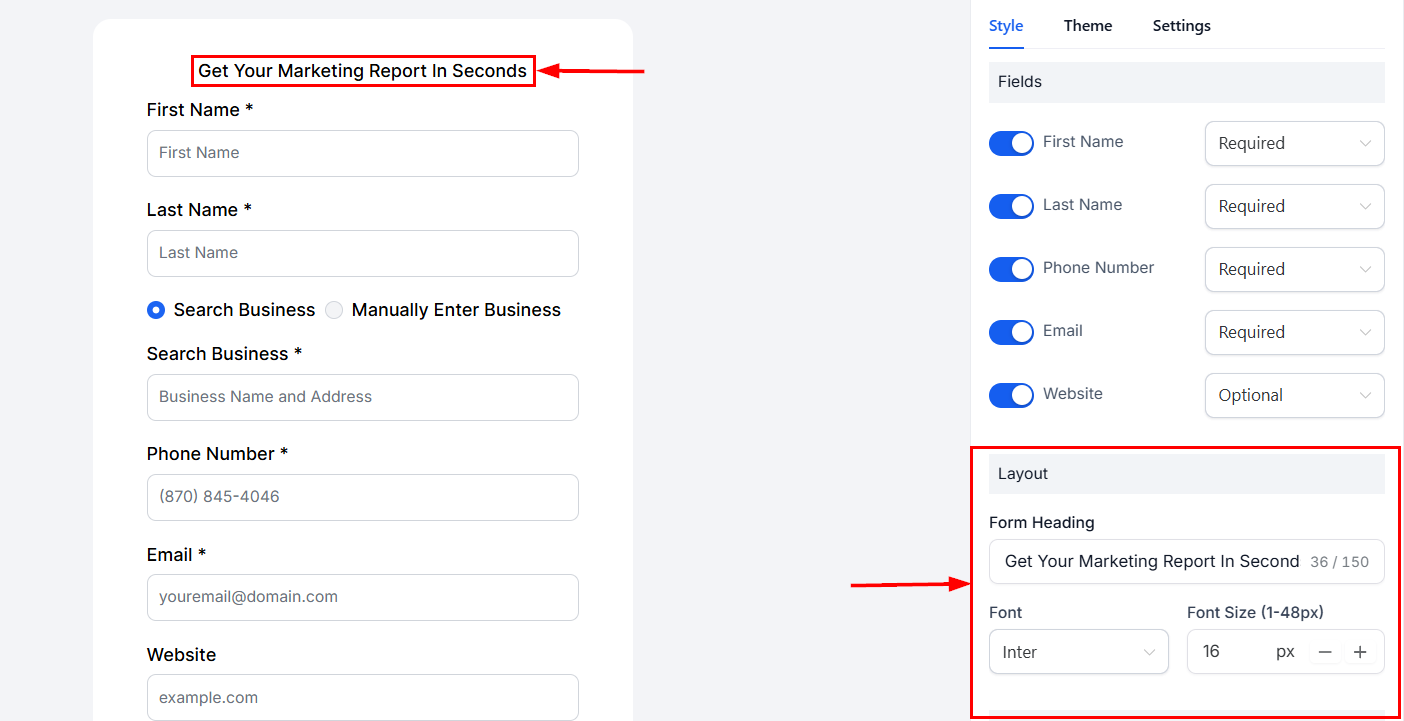 Adjust form and font colors, upload a header image and background image, and customize the heading text, font, and size.
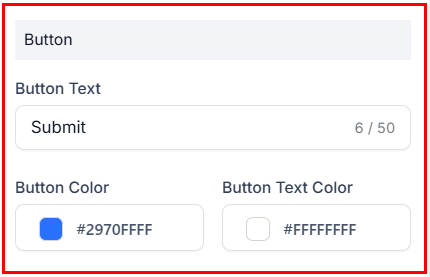
 Style the submit button to match your brand.
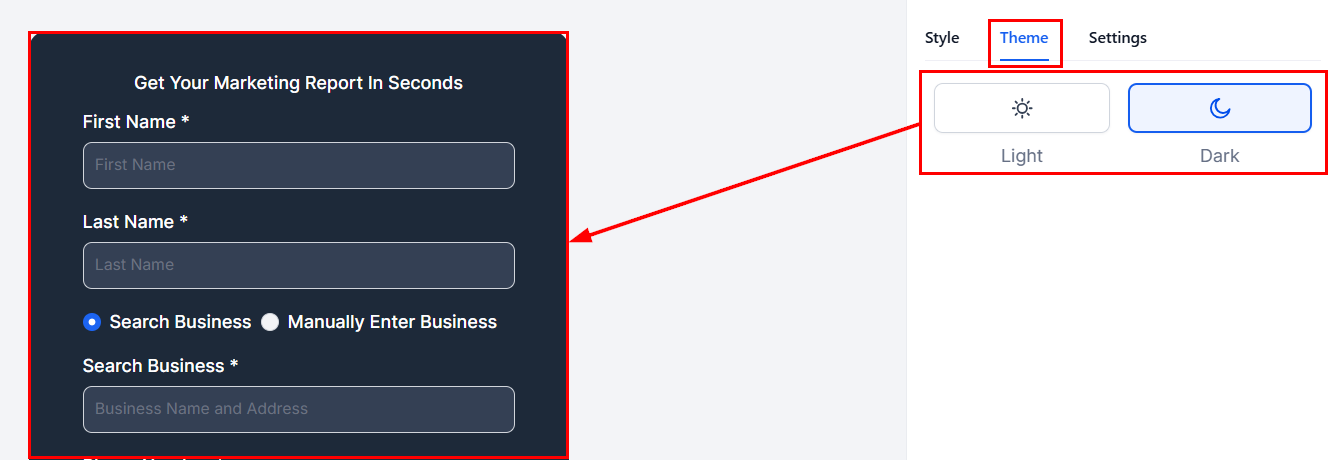
 Switch to the **Theme** tab to select light or dark mode.
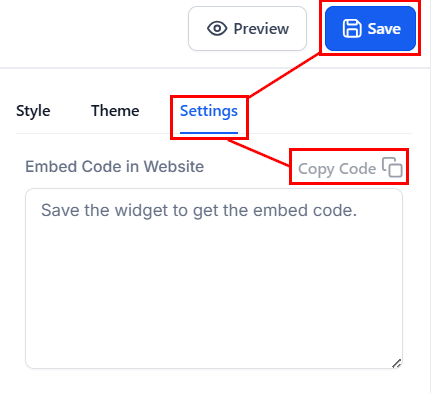
 Save the widget, then head to the **Settings** tab to copy the embed code for use in your funnel or website.
 ### Widget overview
From the Widgets tab you can manage all created widgets:
### Widget overview
From the Widgets tab you can manage all created widgets:
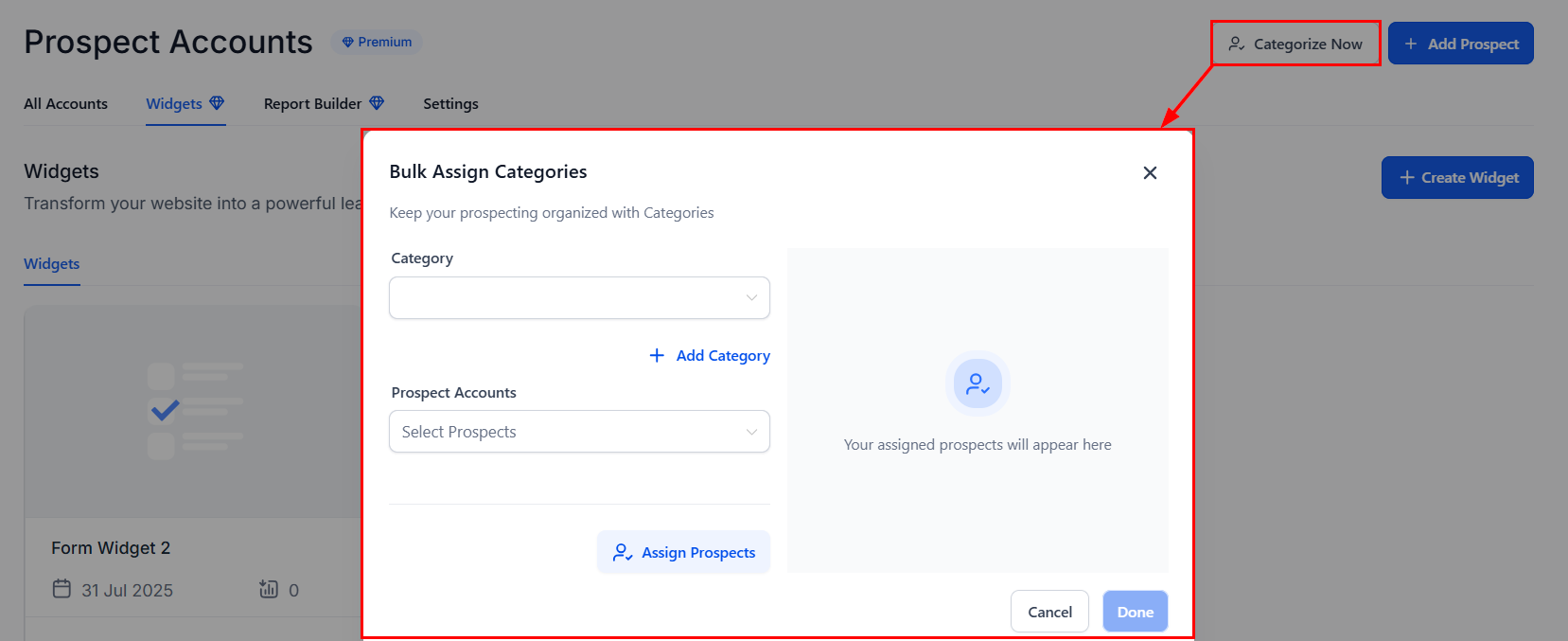
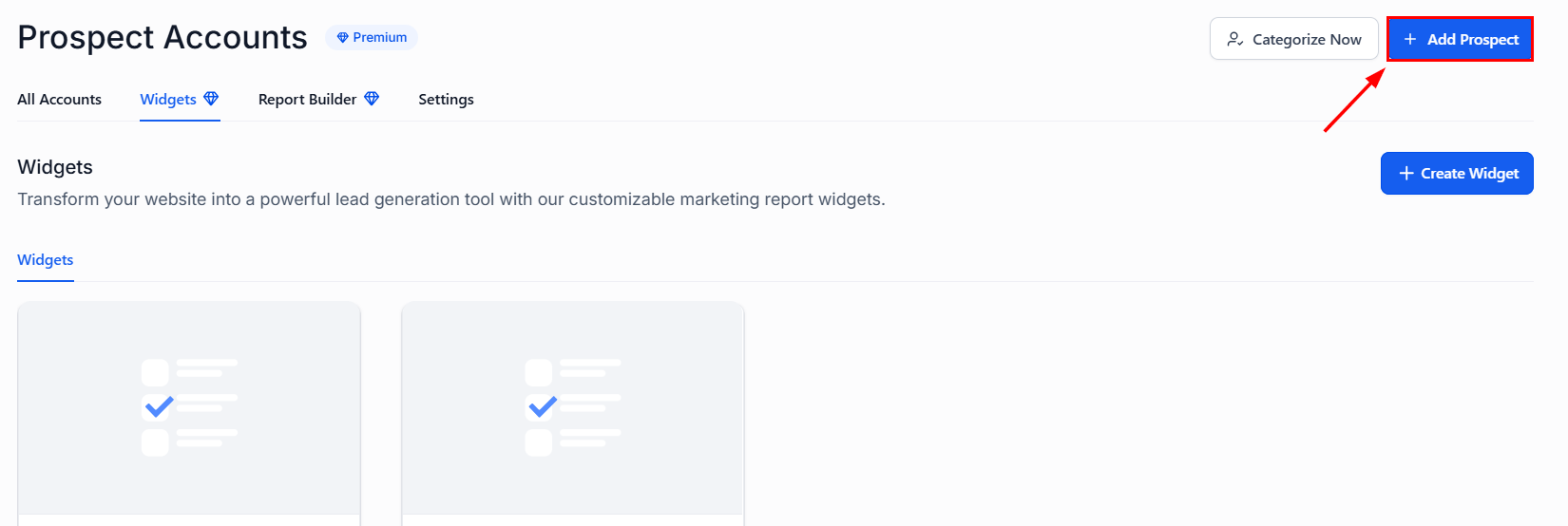
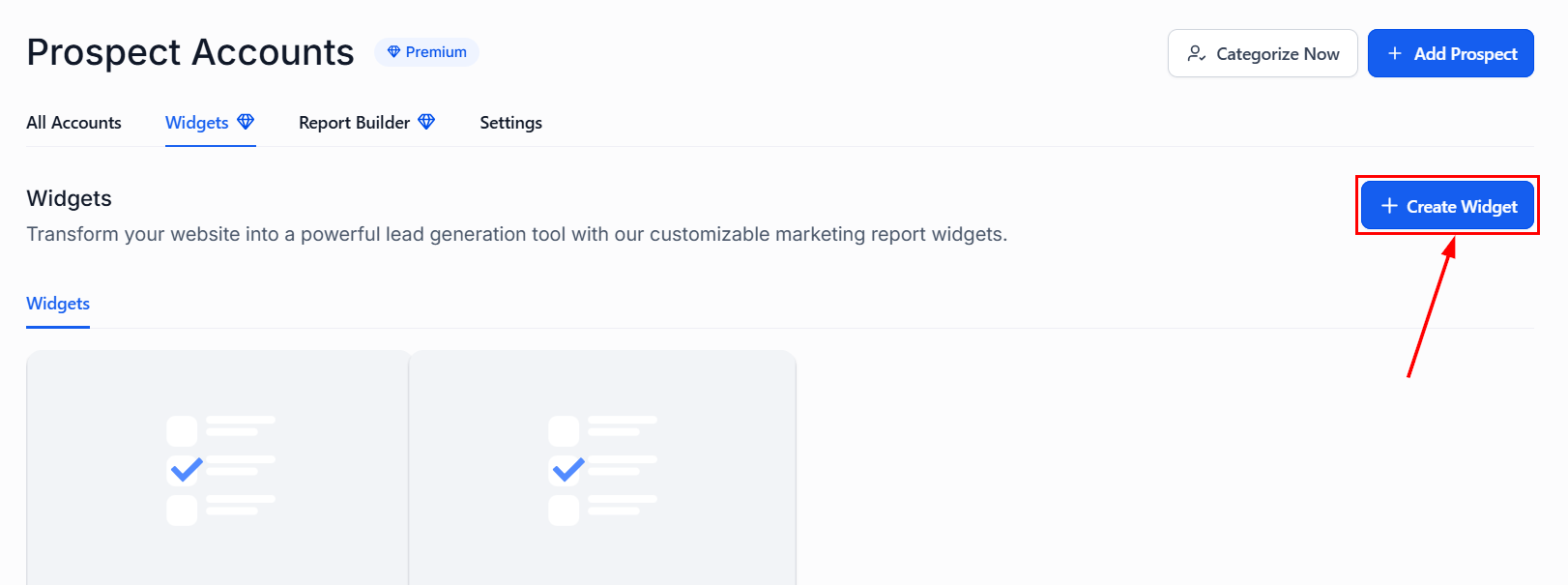
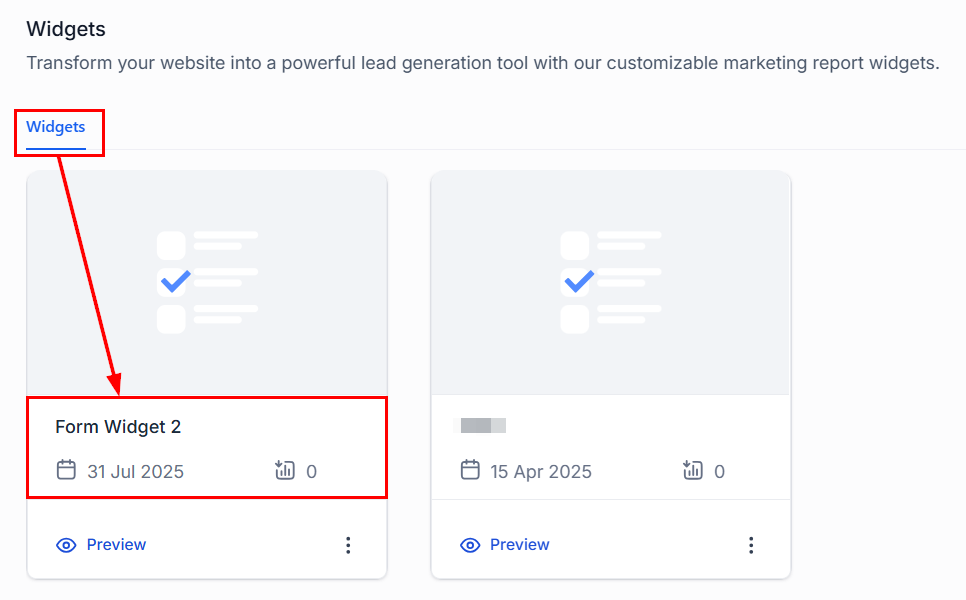
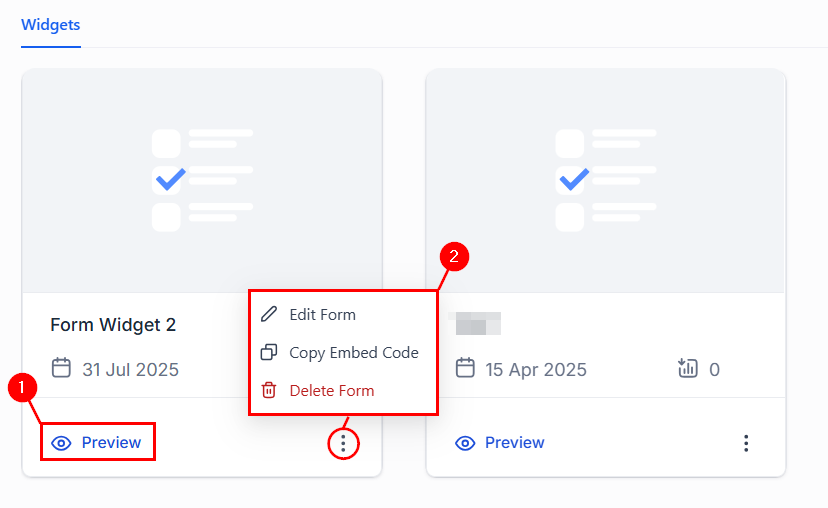 Each widget tile shows its name, creation date, and the number of prospects obtained. Expand the actions menu to edit the form, copy its embed code, or delete it.
***
## Automating prospect workflows
When a new prospect is generated, workflows can be triggered automatically to send welcome emails, assign leads to pipelines, and more.
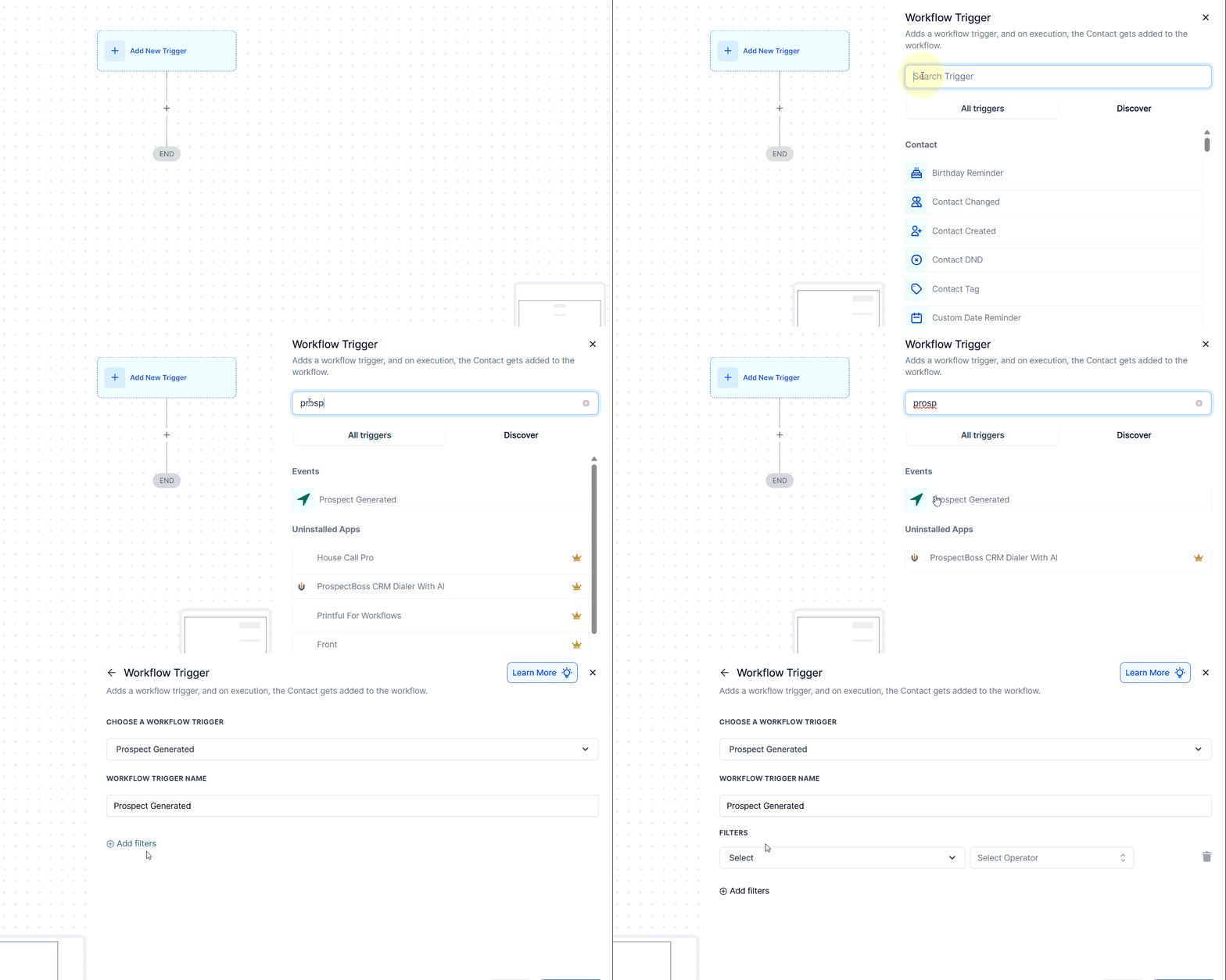
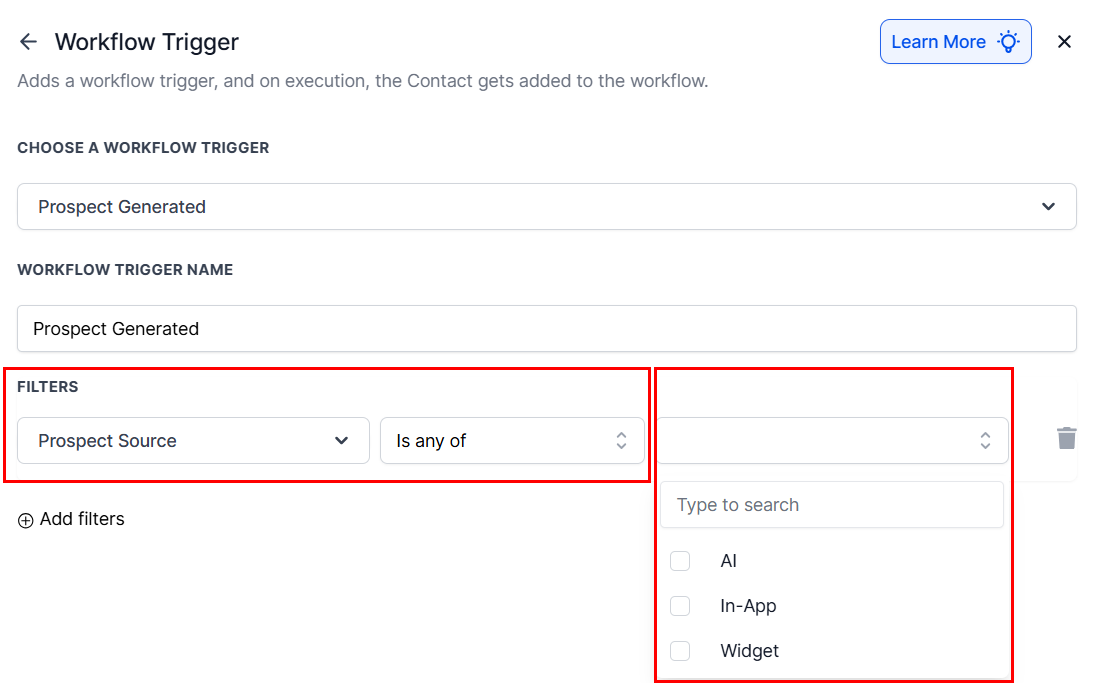
In your workflow builder, add the **Prospect Generated** trigger. Choose to capture leads from AI-based prospecting, in-app engagement, or embedded Prospecting Widgets.
Each widget tile shows its name, creation date, and the number of prospects obtained. Expand the actions menu to edit the form, copy its embed code, or delete it.
***
## Automating prospect workflows
When a new prospect is generated, workflows can be triggered automatically to send welcome emails, assign leads to pipelines, and more.
In your workflow builder, add the **Prospect Generated** trigger. Choose to capture leads from AI-based prospecting, in-app engagement, or embedded Prospecting Widgets.
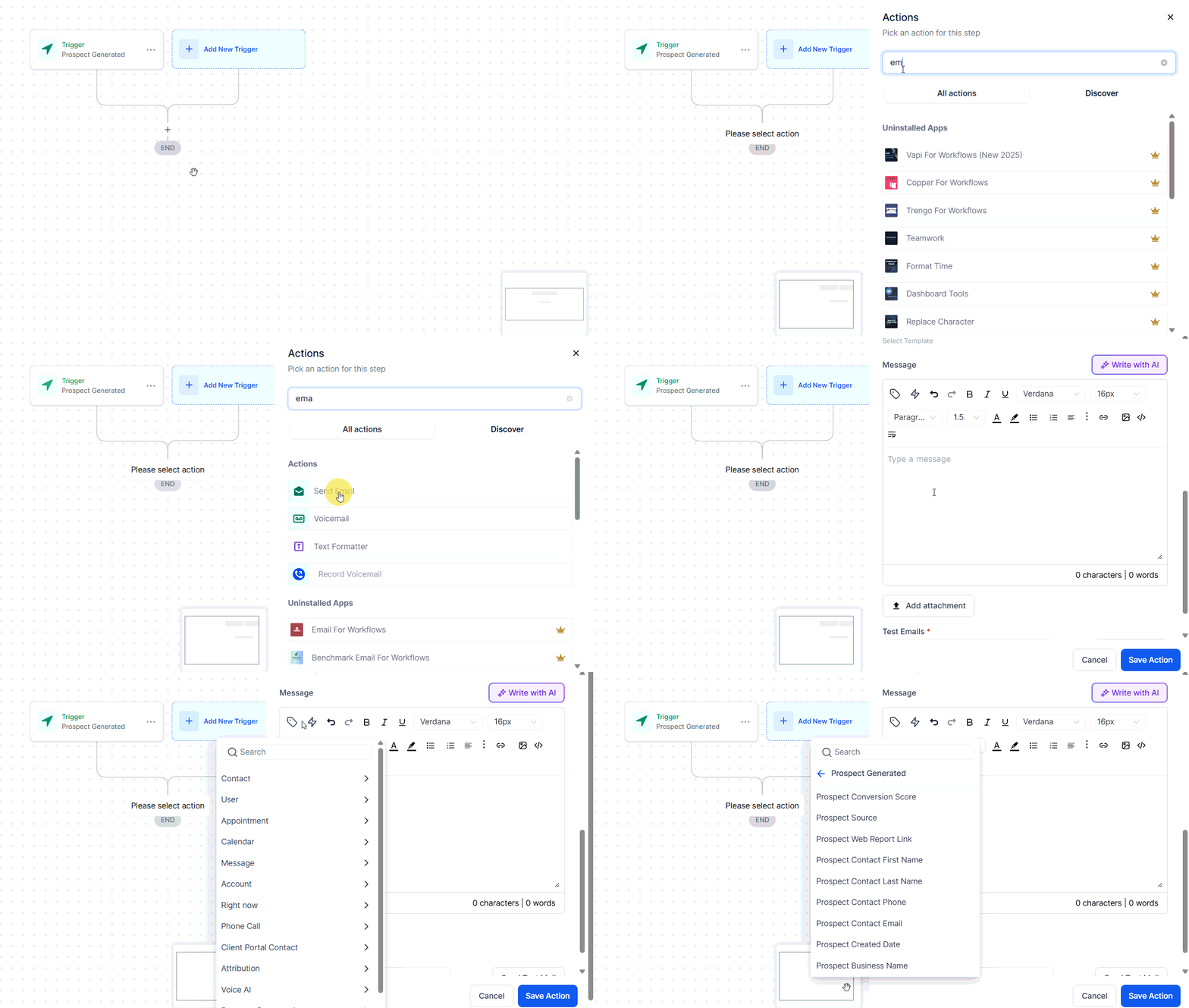
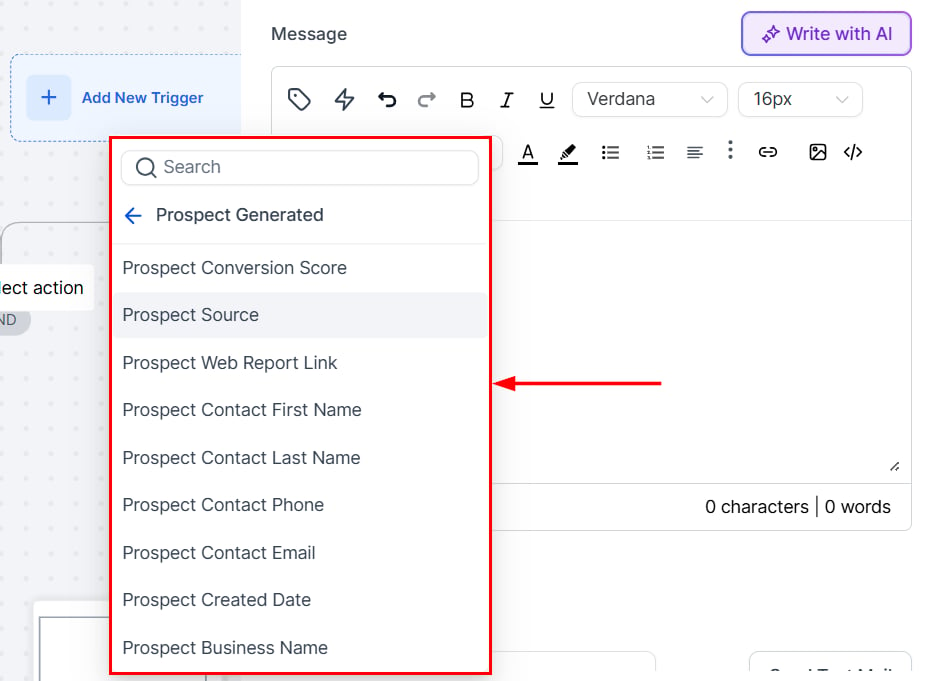
 Deliver Prospecting Audit Reports to clients via email. Use prospect-related custom values to personalize the outreach.
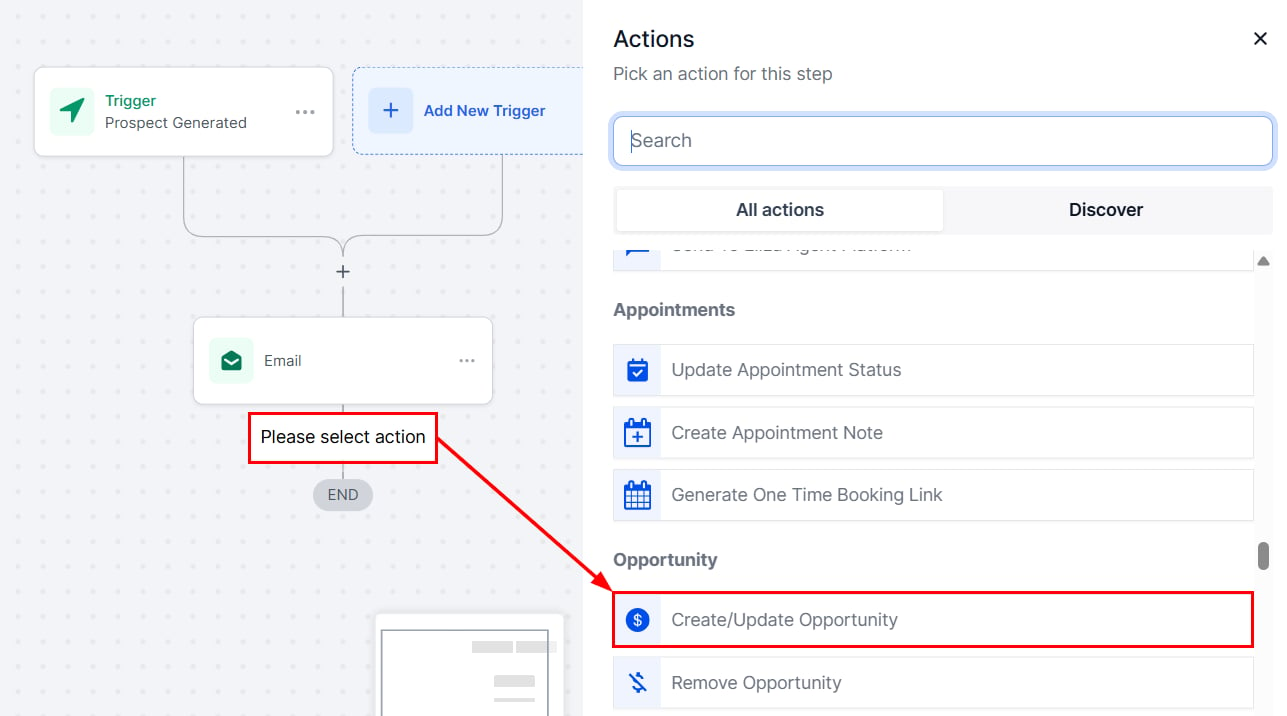
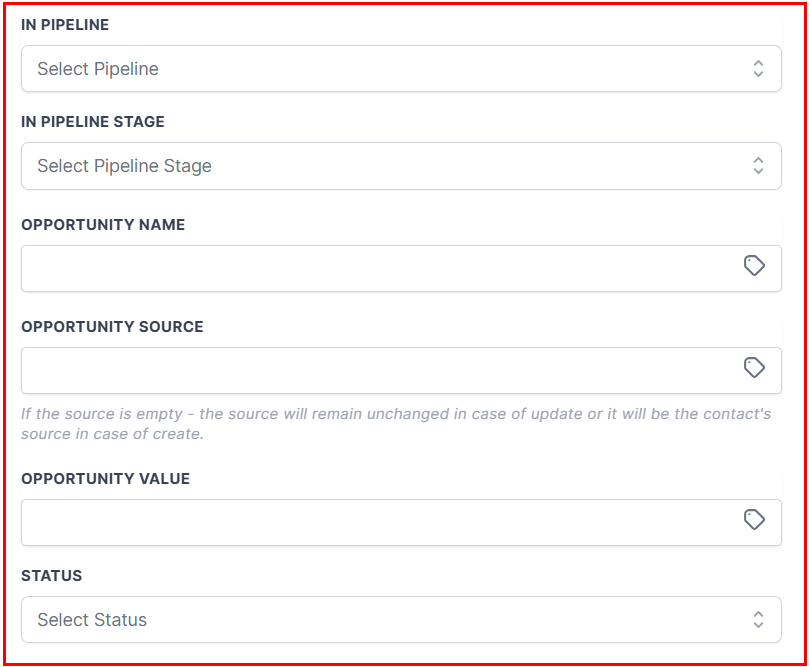
 Add an action to automatically create an Opportunity in your pipeline when a prospect enters the system.
 Leads submitted through Prospecting Widgets are automatically saved to Contacts, tagged for segmentation, and can trigger workflows — sending welcome messages, creating tasks, and adding leads to Opportunities and Pipelines.
***
## Bulk prospecting
Bulk Prospecting provides a faster way to discover, evaluate, and capture multiple local leads directly from Google Maps — with higher-volume results, duplicate detection, and batch saving.
**Key benefits:**
* **Smarter search controls:** Use keywords, specific business names, locations, and radius targeting to refine your search.
* **Higher result volume:** Access up to 60 leads per search — triple the legacy limit.
* **Batch saving:** Select and save up to 15 prospects at a time, with selection preserved across result pages.
* **Duplicate detection:** Instantly identify prospects already saved or in progress.
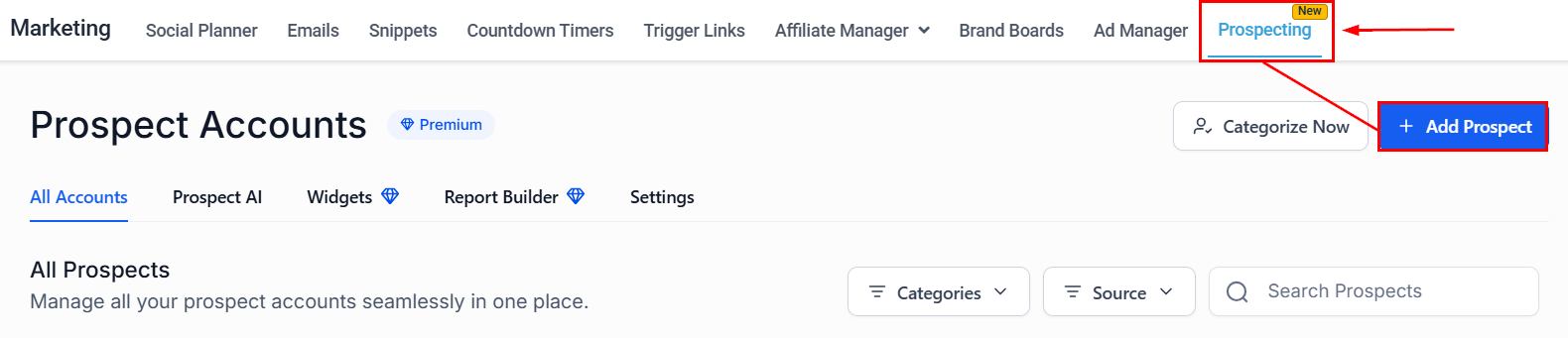
Navigate to **Marketing** > **Prospecting**, then click **Add Prospect**. Enter a search keyword or business name, define the location, set the radius (up to approximately 30 miles / 49 km), and click **Search**.
Leads submitted through Prospecting Widgets are automatically saved to Contacts, tagged for segmentation, and can trigger workflows — sending welcome messages, creating tasks, and adding leads to Opportunities and Pipelines.
***
## Bulk prospecting
Bulk Prospecting provides a faster way to discover, evaluate, and capture multiple local leads directly from Google Maps — with higher-volume results, duplicate detection, and batch saving.
**Key benefits:**
* **Smarter search controls:** Use keywords, specific business names, locations, and radius targeting to refine your search.
* **Higher result volume:** Access up to 60 leads per search — triple the legacy limit.
* **Batch saving:** Select and save up to 15 prospects at a time, with selection preserved across result pages.
* **Duplicate detection:** Instantly identify prospects already saved or in progress.
Navigate to **Marketing** > **Prospecting**, then click **Add Prospect**. Enter a search keyword or business name, define the location, set the radius (up to approximately 30 miles / 49 km), and click **Search**.
 Sort fields such as Prospect Score, Website, or Rating in ascending or descending order.
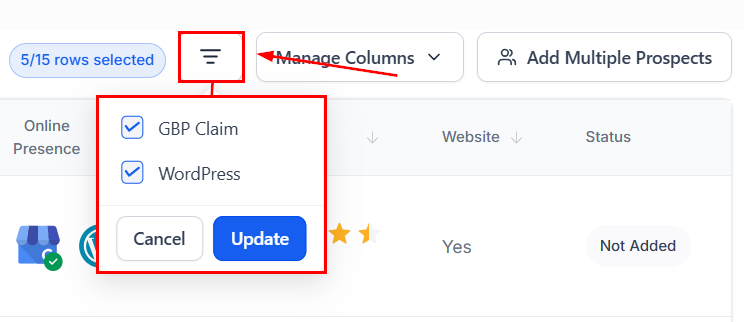
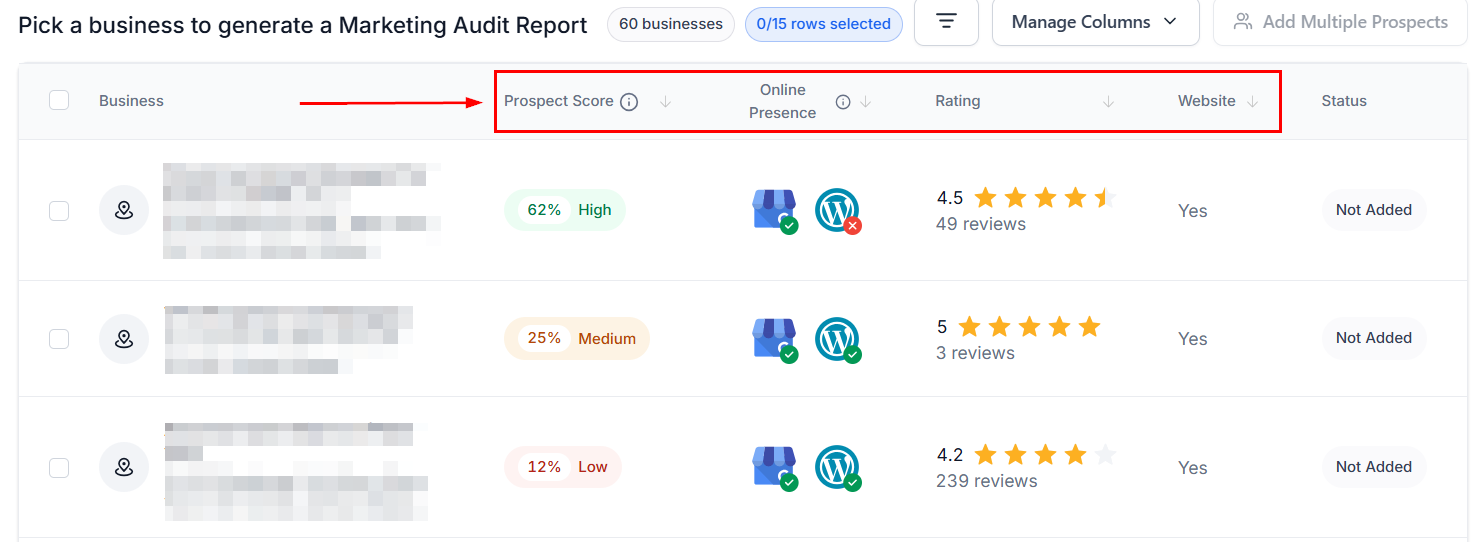 Use the **Filter** tool to refine results based on your ideal criteria.
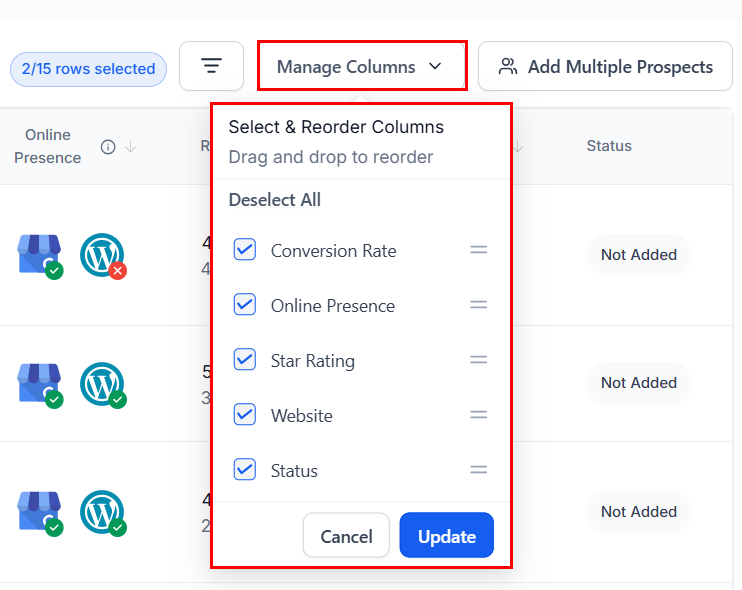
 Click **Manage Columns** to show, hide, or reorder fields such as Prospect Score, Online Presence, Website, and Status.
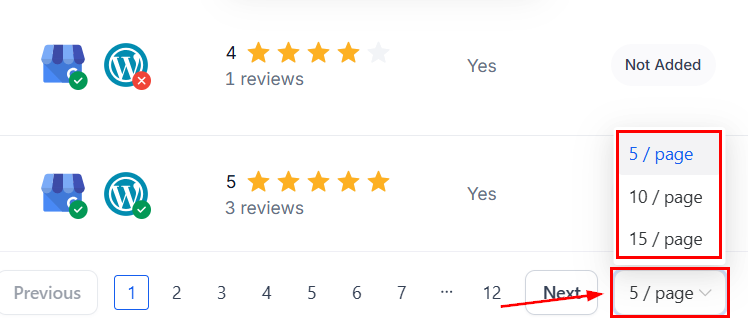
 Select 5, 10, or 15 rows per page for faster processing during high-volume searches.
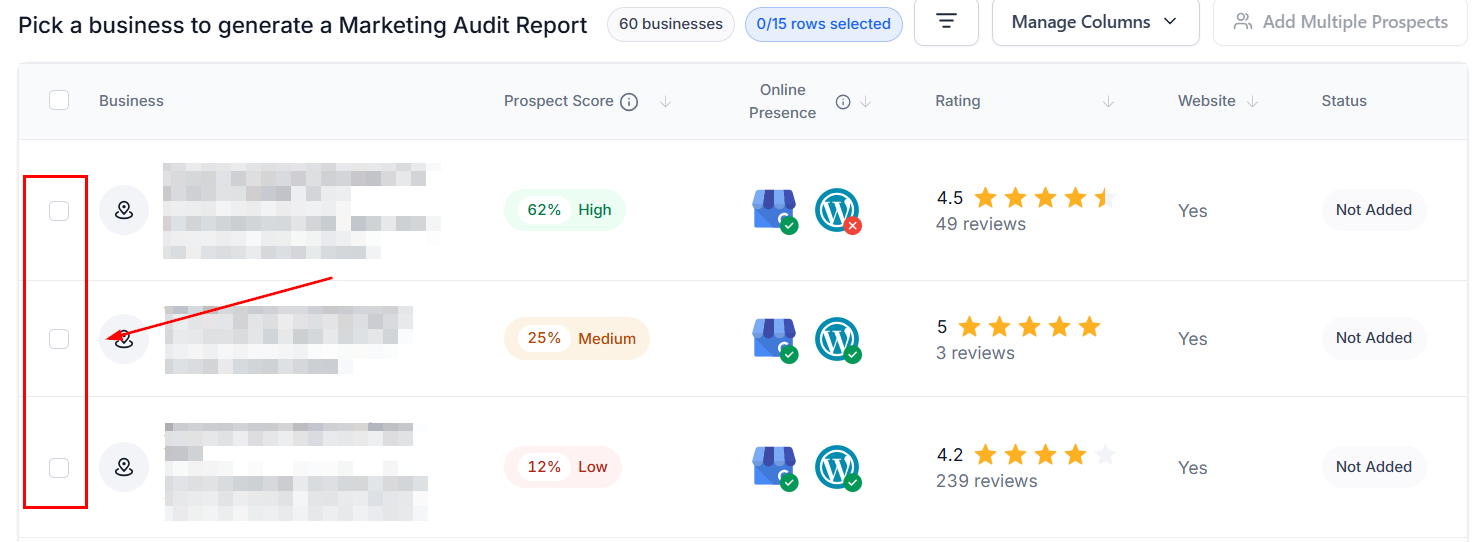
 Select up to 15 leads per batch — selection carries across pages.
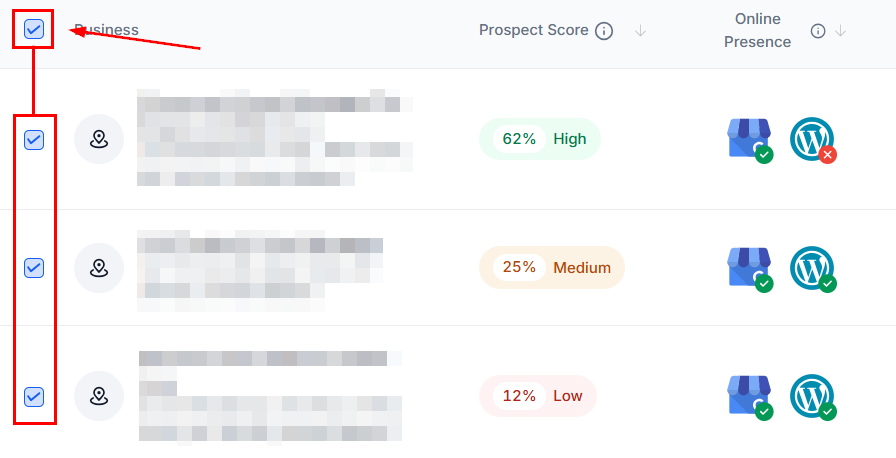
 Use **Select All** / **Unselect All** on the current page for quick adjustments.
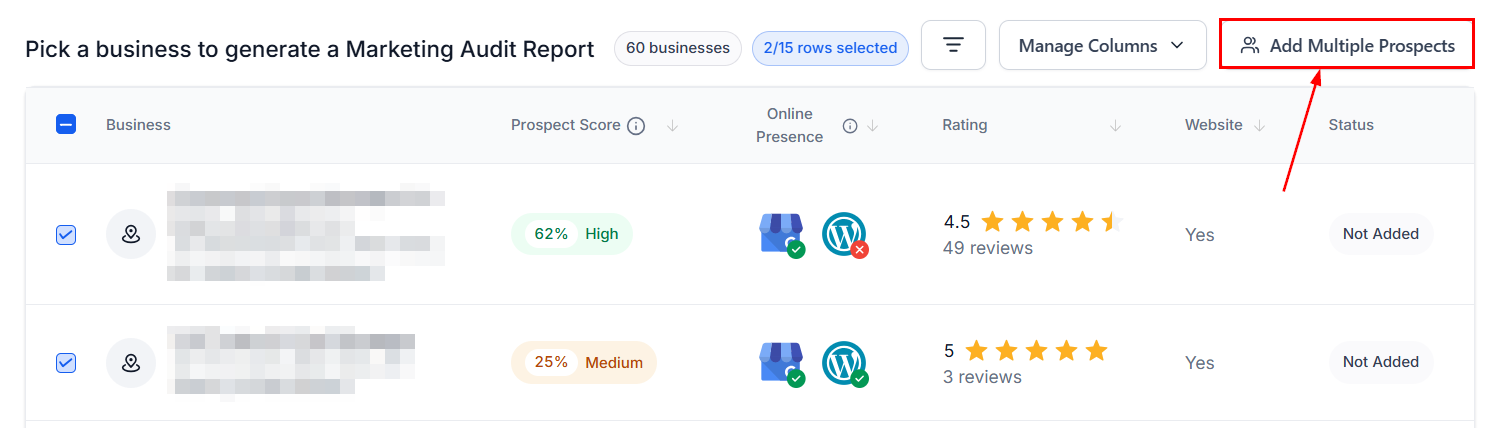
 Click **Add Multiple Prospects** to save the selected batch.
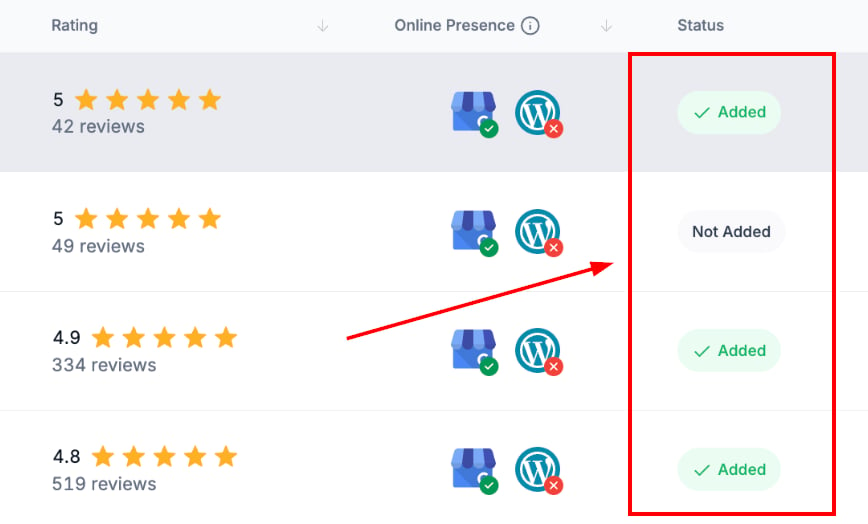
 Watch the **Status** column as entries progress through the following states:
* **Not Added:** The prospect has not yet been saved.
* **Added:** The prospect already exists in your system.
* **Generating Prospect (xx%):** The system is creating the record and running its Marketing Audit.
Watch the **Status** column as entries progress through the following states:
* **Not Added:** The prospect has not yet been saved.
* **Added:** The prospect already exists in your system.
* **Generating Prospect (xx%):** The system is creating the record and running its Marketing Audit.
 **Tips for better searches:**
* If you hit the 60-lead limit, expand the radius, vary keywords, or shift the search location.
* If "near me" gives unexpected results, verify your VPN or location settings.
***
## Prospecting tool settings
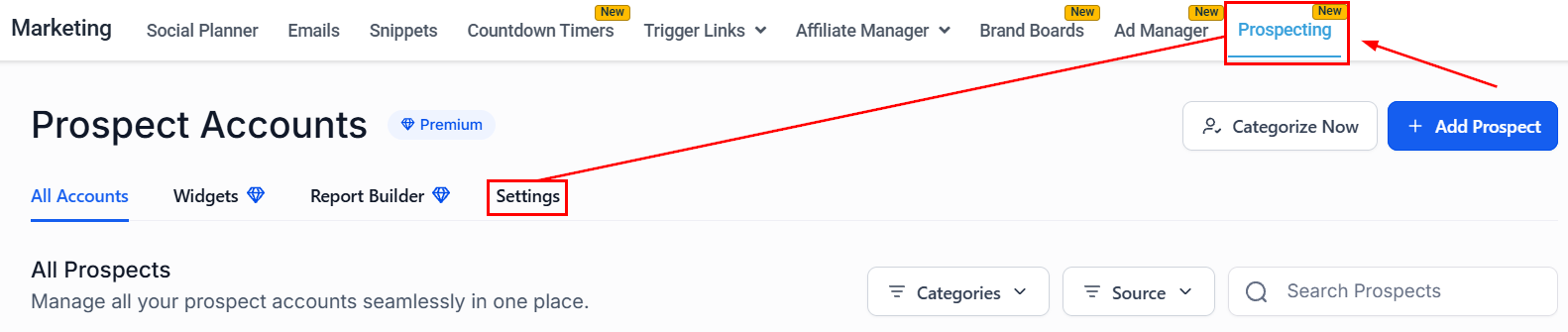
Navigate to the **Prospecting** tab inside the Marketing section and switch to the **Settings** option.
**Tips for better searches:**
* If you hit the 60-lead limit, expand the radius, vary keywords, or shift the search location.
* If "near me" gives unexpected results, verify your VPN or location settings.
***
## Prospecting tool settings
Navigate to the **Prospecting** tab inside the Marketing section and switch to the **Settings** option.
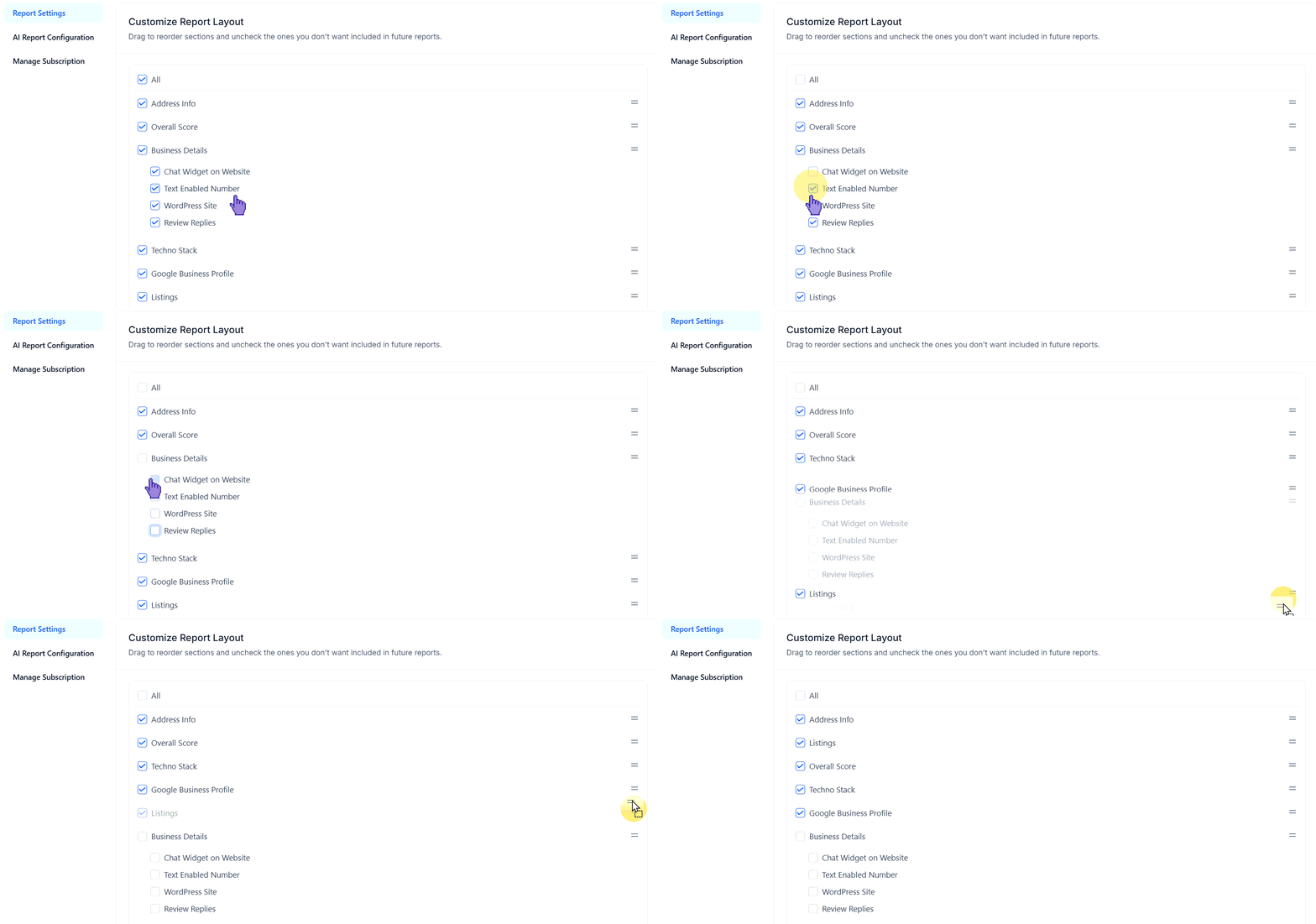
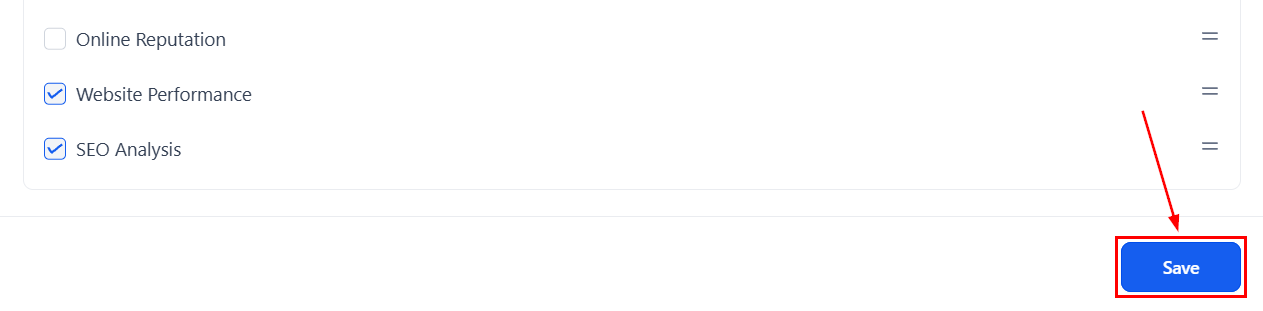
 In **Report Settings**, unselect and reorder the sections included in future reports, then click **Save**.
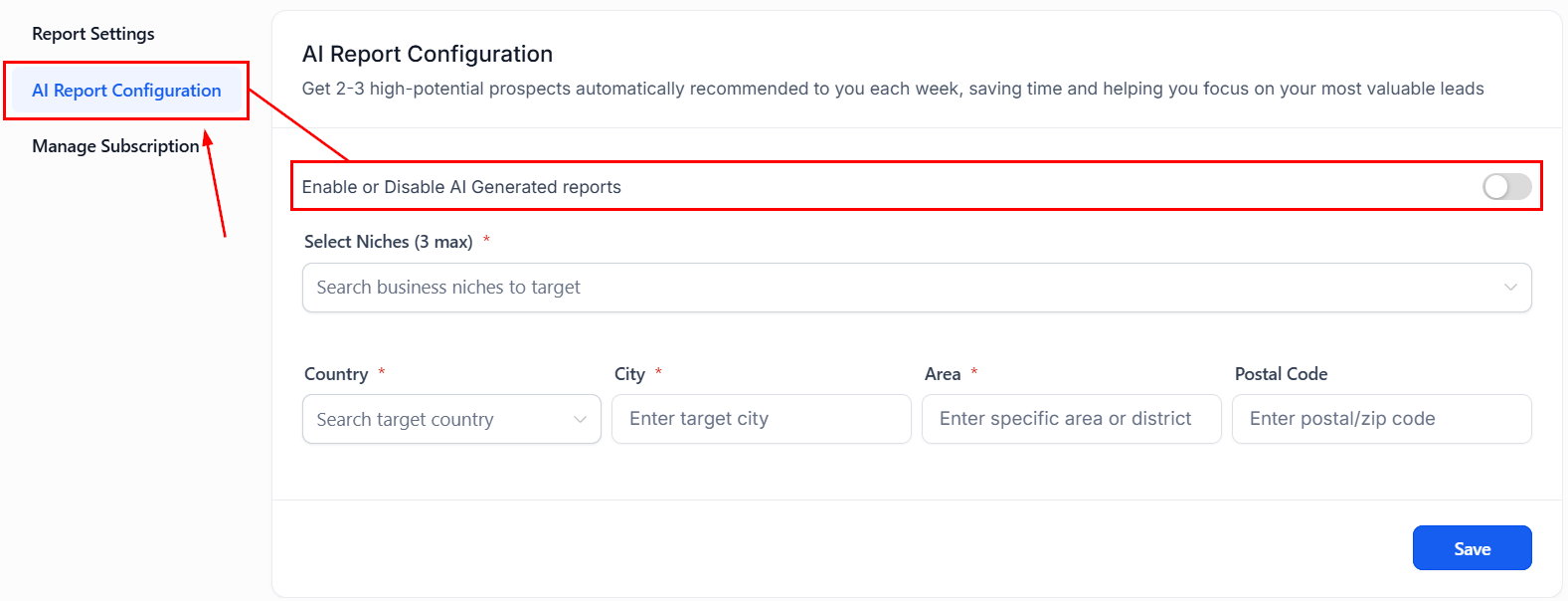
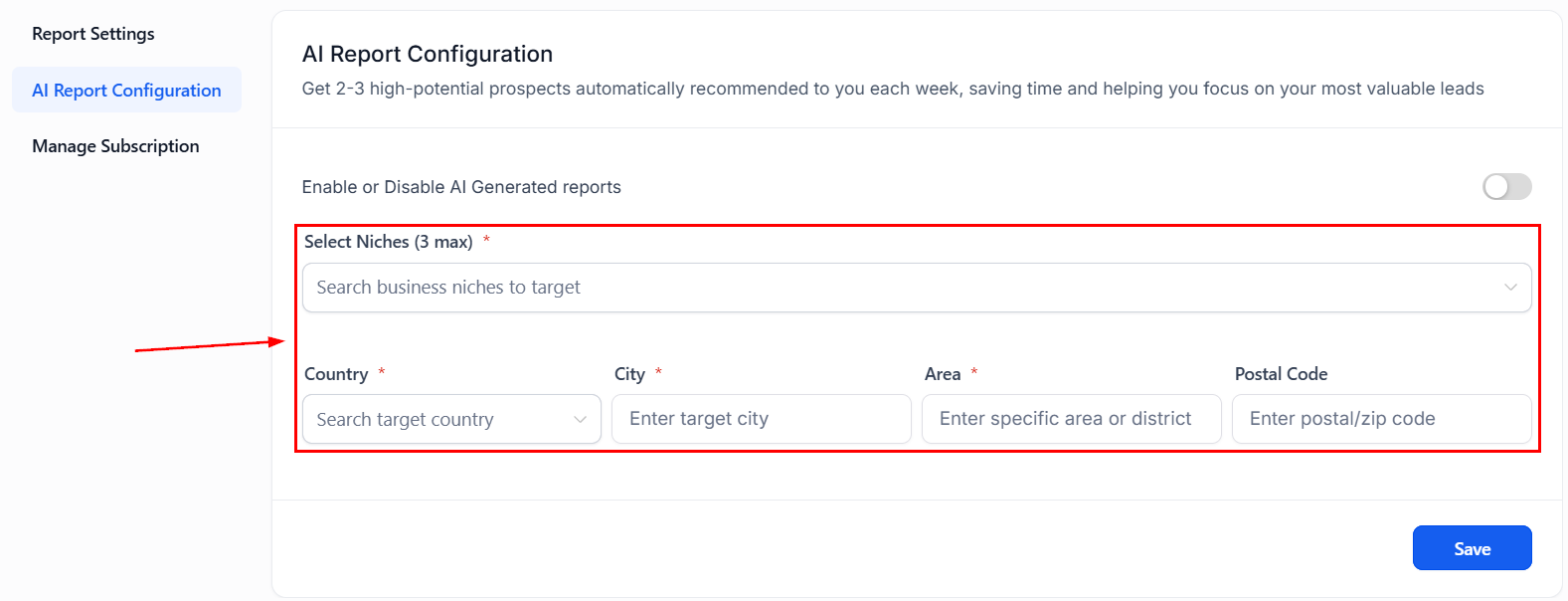
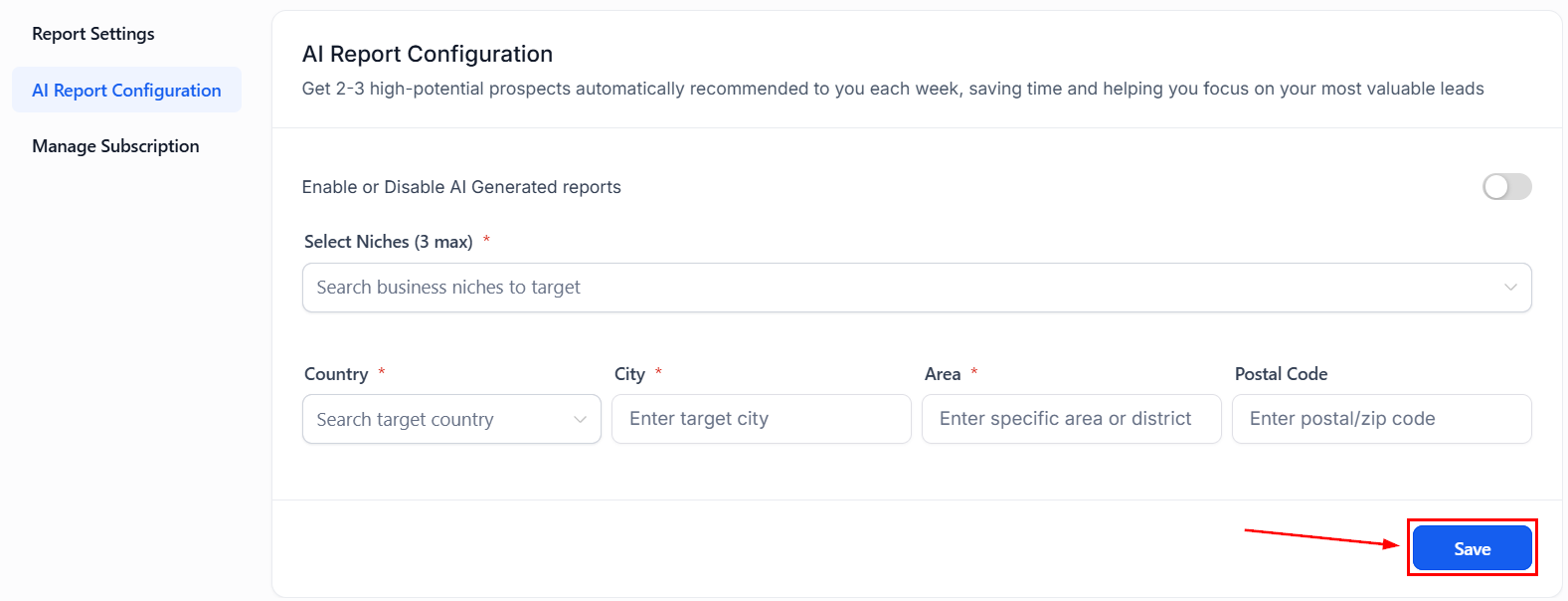
 Enable or disable AI-generated reports in **AI Report Configuration**. If enabled, fill out the information required to select which prospects to notify your business about, then click **Save**.
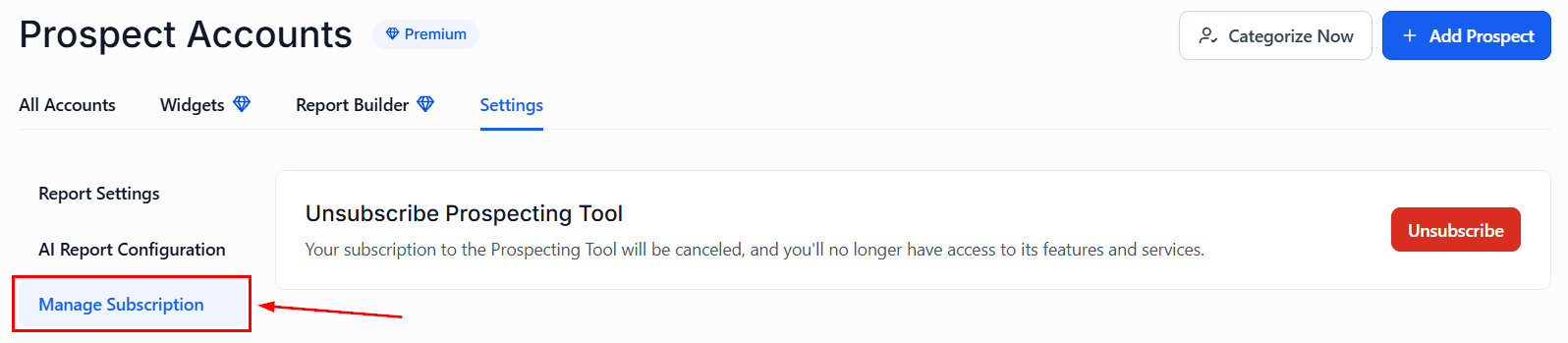
 Use the **Manage Subscription** option to cancel your subscription to the Prospecting Tool.
 ***
## Frequently asked questions
Use the Google Maps URL method. Search for the business on Google Maps, copy the URL from the address bar or via the Share button, then paste it into the Prospecting Tool's "Search for Virtual Businesses" field.
Reports can be refreshed 7 days after the initial generation. The timestamp of the last update is displayed below the Refresh button.
Accounts with a Premium Prospecting Subscription have full access. Preview mode is available for all users at no cost.
Yes. The live preview feature updates immediately as you make edits, so you can confirm design changes before saving.
Yes. You can select your preferred language when exporting a PDF report.
Yes. Logo fields automatically scale up to 300 px wide for optimal print quality.
You can create up to nine distinct widgets to support different websites, brands, or campaigns.
Their information is automatically added to your CRM, tagged for segmentation, and can trigger workflows to send welcome messages, assign pipeline stages, and initiate nurture sequences.
Bulk Prospecting returns up to 60 leads per search. If you hit this limit, try expanding the radius, varying keywords, or shifting the search location.
You can select and save up to 15 prospects per batch. Selection is preserved across result pages so you can build your batch from multiple pages.
***
## Frequently asked questions
Use the Google Maps URL method. Search for the business on Google Maps, copy the URL from the address bar or via the Share button, then paste it into the Prospecting Tool's "Search for Virtual Businesses" field.
Reports can be refreshed 7 days after the initial generation. The timestamp of the last update is displayed below the Refresh button.
Accounts with a Premium Prospecting Subscription have full access. Preview mode is available for all users at no cost.
Yes. The live preview feature updates immediately as you make edits, so you can confirm design changes before saving.
Yes. You can select your preferred language when exporting a PDF report.
Yes. Logo fields automatically scale up to 300 px wide for optimal print quality.
You can create up to nine distinct widgets to support different websites, brands, or campaigns.
Their information is automatically added to your CRM, tagged for segmentation, and can trigger workflows to send welcome messages, assign pipeline stages, and initiate nurture sequences.
Bulk Prospecting returns up to 60 leads per search. If you hit this limit, try expanding the radius, varying keywords, or shifting the search location.
You can select and save up to 15 prospects per batch. Selection is preserved across result pages so you can build your batch from multiple pages.