> ## Documentation Index
> Fetch the complete documentation index at: https://help.hoopai.com/llms.txt
> Use this file to discover all available pages before exploring further.
# Mailgun setup
> Connect Mailgun to the HoopAI Platform for reliable email delivery — including DNS configuration, reply routing, unsubscribe settings, and error code reference.
Mailgun is a transactional email service that integrates with the HoopAI Platform for high-deliverability email sending. This guide covers connecting Mailgun, configuring DNS, setting up reply routing, and understanding error codes.
 ## Connecting Mailgun to your DNS manager
Sign up at [mailgun.com](https://mailgun.com) and create a sending domain (e.g., `mail.yourdomain.com`).
In your Mailgun dashboard, navigate to **Sending > Domains** and select your domain. Mailgun will show you the DNS records to add.
Log in to your DNS manager (e.g., GoDaddy, Cloudflare, Namecheap) and add the following records:
| Type | Name | Value |
| ----- | ----------------------------------- | ------------------------------- |
| TXT | `mail.yourdomain.com` | Mailgun SPF record |
| TXT | `k1._domainkey.mail.yourdomain.com` | Mailgun DKIM record |
| CNAME | `email.mail.yourdomain.com` | `mailgun.org` |
| MX | `mail.yourdomain.com` | `mxa.mailgun.org` (priority 10) |
| MX | `mail.yourdomain.com` | `mxb.mailgun.org` (priority 10) |
Return to your Mailgun domain settings and click **Verify DNS Settings**. DNS propagation may take up to 48 hours.
Go to **Settings > Email Services**, select **Mailgun**, and enter your Mailgun API key and domain.
## Connecting Mailgun to your DNS manager
Sign up at [mailgun.com](https://mailgun.com) and create a sending domain (e.g., `mail.yourdomain.com`).
In your Mailgun dashboard, navigate to **Sending > Domains** and select your domain. Mailgun will show you the DNS records to add.
Log in to your DNS manager (e.g., GoDaddy, Cloudflare, Namecheap) and add the following records:
| Type | Name | Value |
| ----- | ----------------------------------- | ------------------------------- |
| TXT | `mail.yourdomain.com` | Mailgun SPF record |
| TXT | `k1._domainkey.mail.yourdomain.com` | Mailgun DKIM record |
| CNAME | `email.mail.yourdomain.com` | `mailgun.org` |
| MX | `mail.yourdomain.com` | `mxa.mailgun.org` (priority 10) |
| MX | `mail.yourdomain.com` | `mxb.mailgun.org` (priority 10) |
Return to your Mailgun domain settings and click **Verify DNS Settings**. DNS propagation may take up to 48 hours.
Go to **Settings > Email Services**, select **Mailgun**, and enter your Mailgun API key and domain.
 ***
## Setting up replies in Mailgun
When contacts reply to emails sent through Mailgun, you need to configure **routes** in Mailgun so those replies are delivered back into the platform.
***
## Setting up replies in Mailgun
When contacts reply to emails sent through Mailgun, you need to configure **routes** in Mailgun so those replies are delivered back into the platform.
 In your Mailgun dashboard, navigate to **Receive > Routes**.
Click **Create Route** and set up a filter expression to match inbound emails to your sending domain.
Set the action to **Forward** and enter the inbound webhook URL provided by the HoopAI Platform.
Save and test the route by sending a test reply to an email sent through Mailgun.
The inbound webhook URL for Mailgun routes is available in **Settings > Email Services > Mailgun** in the HoopAI Platform.
***
## Unsubscribe settings in Mailgun
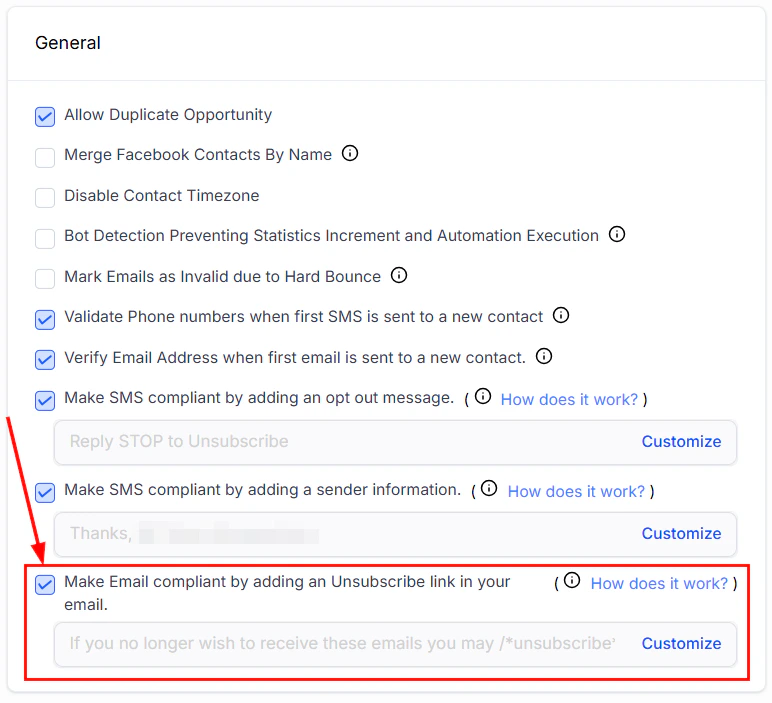
Mailgun automatically adds an unsubscribe link to emails when the feature is enabled. You can customize unsubscribe behavior in both Mailgun and the HoopAI Platform.
### To change unsubscribe settings in Mailgun
In your Mailgun dashboard, navigate to **Sending > Domain Settings** and select your domain.
Find the **Unsubscribe Tracking** section and toggle it on or off.
Optionally customize the unsubscribe page URL to redirect contacts to your own branded page after unsubscribing.
Disabling Mailgun's unsubscribe tracking does not disable the unsubscribe link added by the HoopAI Platform. Both are required for CAN-SPAM and GDPR compliance.
***
## Mailgun suppressions and DND
When a contact unsubscribes, bounces, or marks an email as spam through Mailgun, the HoopAI Platform automatically updates the contact's Do Not Disturb (DND) settings for email:
In your Mailgun dashboard, navigate to **Receive > Routes**.
Click **Create Route** and set up a filter expression to match inbound emails to your sending domain.
Set the action to **Forward** and enter the inbound webhook URL provided by the HoopAI Platform.
Save and test the route by sending a test reply to an email sent through Mailgun.
The inbound webhook URL for Mailgun routes is available in **Settings > Email Services > Mailgun** in the HoopAI Platform.
***
## Unsubscribe settings in Mailgun
Mailgun automatically adds an unsubscribe link to emails when the feature is enabled. You can customize unsubscribe behavior in both Mailgun and the HoopAI Platform.
### To change unsubscribe settings in Mailgun
In your Mailgun dashboard, navigate to **Sending > Domain Settings** and select your domain.
Find the **Unsubscribe Tracking** section and toggle it on or off.
Optionally customize the unsubscribe page URL to redirect contacts to your own branded page after unsubscribing.
Disabling Mailgun's unsubscribe tracking does not disable the unsubscribe link added by the HoopAI Platform. Both are required for CAN-SPAM and GDPR compliance.
***
## Mailgun suppressions and DND
When a contact unsubscribes, bounces, or marks an email as spam through Mailgun, the HoopAI Platform automatically updates the contact's Do Not Disturb (DND) settings for email:
 | Mailgun event | DND behavior |
| --------------------------------- | --------------------------------------------- |
| Permanent bounce | Email DND enabled automatically |
| Spam complaint | Email DND enabled — cannot be removed by user |
| Unsubscribe | Email DND enabled |
| Soft bounce (30003, 30005, 30006) | Temporary DND |
To remove a contact from Mailgun's suppression list: delete the address from the Mailgun suppressions list, validate the email, and then re-enable it in the contact record.
***
## Error codes library — Mailgun
These are soft bounces that Mailgun will retry automatically. Common codes include 421 (service temporarily unavailable) and 450 (mailbox unavailable).
These are hard bounces. The address is invalid or the receiving server has permanently rejected the message. Remove these addresses from your list. Common codes include 550 (user unknown), 551 (user not local), and 552 (mailbox full — permanent).
These codes indicate the receiving carrier is temporarily unable to deliver the message (SMS context, but also seen in email relay failures). These result in temporary DND.
Permanent delivery failure — the message was blocked by the carrier or recipient. Results in permanent DND.
Regularly export and review your Mailgun suppression list to identify problematic addresses and keep your sending reputation healthy.
***
## Frequently asked questions
No. Mailgun is one of several supported sending options. You can also use Gmail, Outlook, SendGrid, a custom SMTP provider, or the built-in dedicated sending domain feature. Choose the option that best fits your sending volume and technical preferences.
DNS changes typically propagate within a few minutes to a few hours, but can take up to 48 hours. If Mailgun's verification check fails immediately after adding records, wait a few hours and click Verify DNS Settings again.
Replies are routed via Mailgun's route system. You need to create a Mailgun route that forwards inbound email to the platform's inbound webhook URL. This URL is found in Settings > Email Services > Mailgun in the HoopAI Platform. If replies are not appearing, confirm the route is active and the webhook URL is correct.
The platform automatically marks the contact's email as Do Not Disturb (DND), preventing future emails from being sent to that address. To remove the DND, you must first delete the address from Mailgun's suppression list, then re-enable email for the contact.
Yes. Mailgun supports both use cases. For marketing sends, ensure you have domain verification, unsubscribe tracking, and list management configured properly. Mailgun's suppression list is shared across both email types, so a bounce or spam complaint from one will affect the other.
4xx errors are temporary failures that Mailgun retries automatically (for example, the receiving server was temporarily unavailable). 5xx errors are permanent failures — the email address does not exist or the receiving server has permanently rejected the message. Addresses causing 5xx errors should be removed from your list.
| Mailgun event | DND behavior |
| --------------------------------- | --------------------------------------------- |
| Permanent bounce | Email DND enabled automatically |
| Spam complaint | Email DND enabled — cannot be removed by user |
| Unsubscribe | Email DND enabled |
| Soft bounce (30003, 30005, 30006) | Temporary DND |
To remove a contact from Mailgun's suppression list: delete the address from the Mailgun suppressions list, validate the email, and then re-enable it in the contact record.
***
## Error codes library — Mailgun
These are soft bounces that Mailgun will retry automatically. Common codes include 421 (service temporarily unavailable) and 450 (mailbox unavailable).
These are hard bounces. The address is invalid or the receiving server has permanently rejected the message. Remove these addresses from your list. Common codes include 550 (user unknown), 551 (user not local), and 552 (mailbox full — permanent).
These codes indicate the receiving carrier is temporarily unable to deliver the message (SMS context, but also seen in email relay failures). These result in temporary DND.
Permanent delivery failure — the message was blocked by the carrier or recipient. Results in permanent DND.
Regularly export and review your Mailgun suppression list to identify problematic addresses and keep your sending reputation healthy.
***
## Frequently asked questions
No. Mailgun is one of several supported sending options. You can also use Gmail, Outlook, SendGrid, a custom SMTP provider, or the built-in dedicated sending domain feature. Choose the option that best fits your sending volume and technical preferences.
DNS changes typically propagate within a few minutes to a few hours, but can take up to 48 hours. If Mailgun's verification check fails immediately after adding records, wait a few hours and click Verify DNS Settings again.
Replies are routed via Mailgun's route system. You need to create a Mailgun route that forwards inbound email to the platform's inbound webhook URL. This URL is found in Settings > Email Services > Mailgun in the HoopAI Platform. If replies are not appearing, confirm the route is active and the webhook URL is correct.
The platform automatically marks the contact's email as Do Not Disturb (DND), preventing future emails from being sent to that address. To remove the DND, you must first delete the address from Mailgun's suppression list, then re-enable email for the contact.
Yes. Mailgun supports both use cases. For marketing sends, ensure you have domain verification, unsubscribe tracking, and list management configured properly. Mailgun's suppression list is shared across both email types, so a bounce or spam complaint from one will affect the other.
4xx errors are temporary failures that Mailgun retries automatically (for example, the receiving server was temporarily unavailable). 5xx errors are permanent failures — the email address does not exist or the receiving server has permanently rejected the message. Addresses causing 5xx errors should be removed from your list.