> ## Documentation Index
> Fetch the complete documentation index at: https://help.hoopai.com/llms.txt
> Use this file to discover all available pages before exploring further.
# Email & SMTP setup
> Connect your own SMTP provider, set up a dedicated sending domain, configure authentication records, and troubleshoot email delivery issues.
The HoopAI Platform lets you send emails through your own SMTP provider or a dedicated sending domain for full control over deliverability, sender reputation, and branding.
 ## Connecting an email service
### Supported integrations
Connect Gmail for two-way email sync and sending. Supports OAuth authentication.
Two-way email sync for Outlook with Microsoft 365 accounts.
Connect SendGrid as your SMTP service for reliable bulk sending.
Connect Mailgun for transactional and marketing email delivery. See the [Mailgun setup guide](/marketing/mailgun-setup).
Connect any third-party SMTP service with your server credentials.
Set up a subdomain dedicated to sending email from the HoopAI Platform.
### Adding a third-party SMTP account
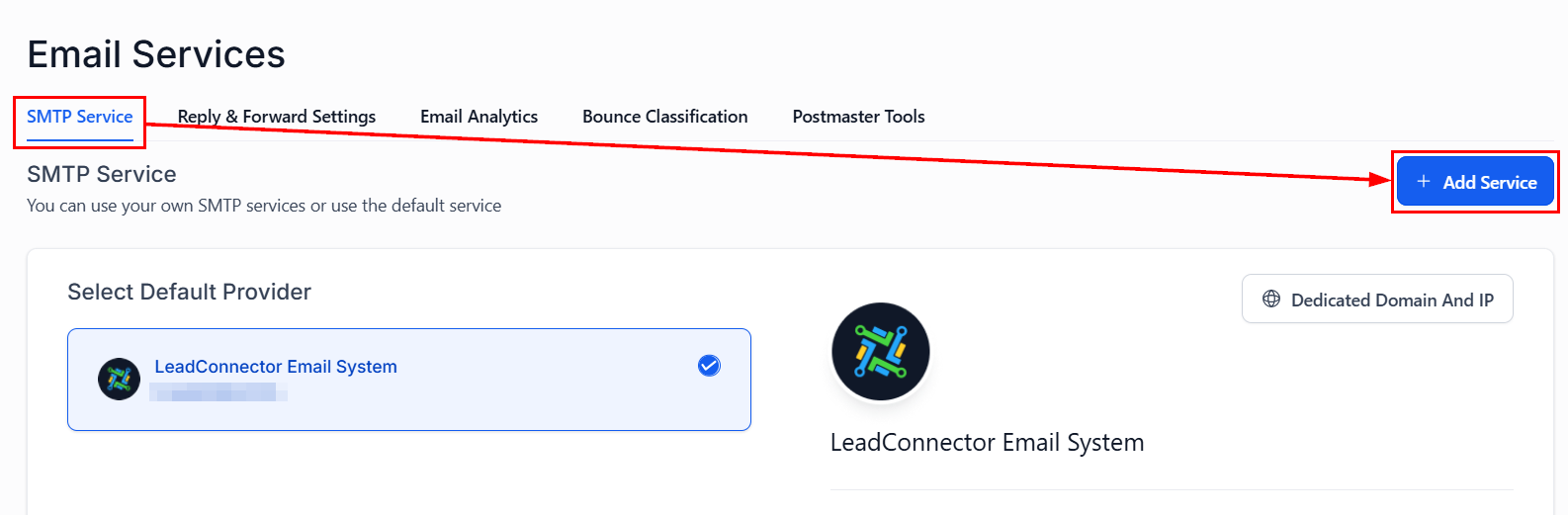
Navigate to **Settings > Email Services** and click **Add Service**.
Choose Gmail, Outlook, SendGrid, Mailgun, or Custom SMTP.
Provide the SMTP host, port, username, and password (or OAuth for Gmail/Outlook).
Use the **Test Email** button to verify the connection is working correctly.
***
## Dedicated sending domain
A dedicated sending domain (e.g., `mail.yourdomain.com`) gives your emails their own sending reputation, separate from shared infrastructure.
## Connecting an email service
### Supported integrations
Connect Gmail for two-way email sync and sending. Supports OAuth authentication.
Two-way email sync for Outlook with Microsoft 365 accounts.
Connect SendGrid as your SMTP service for reliable bulk sending.
Connect Mailgun for transactional and marketing email delivery. See the [Mailgun setup guide](/marketing/mailgun-setup).
Connect any third-party SMTP service with your server credentials.
Set up a subdomain dedicated to sending email from the HoopAI Platform.
### Adding a third-party SMTP account
Navigate to **Settings > Email Services** and click **Add Service**.
Choose Gmail, Outlook, SendGrid, Mailgun, or Custom SMTP.
Provide the SMTP host, port, username, and password (or OAuth for Gmail/Outlook).
Use the **Test Email** button to verify the connection is working correctly.
***
## Dedicated sending domain
A dedicated sending domain (e.g., `mail.yourdomain.com`) gives your emails their own sending reputation, separate from shared infrastructure.
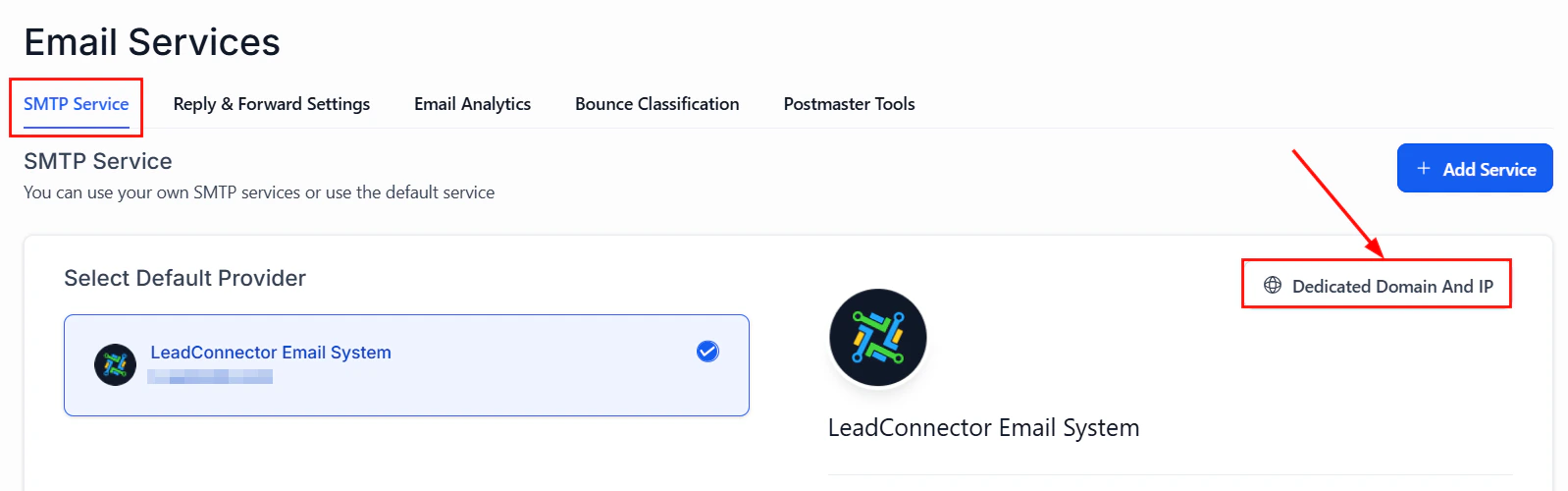 Navigate to **Settings > Email Services > Dedicated Domain** and enter the subdomain you want to use.
The platform will display the DNS records you need to add to your domain registrar:
* **MX record** — for receiving bounces and replies
* **SPF record** — authenticates your sending domain
* **DKIM record** — adds a cryptographic signature to your emails
* **DMARC record** — sets policy for failed authentication
After adding DNS records, click **Verify** in the platform. DNS propagation can take up to 48 hours.
Once verified, set the dedicated domain as your default sending service.
***
## Email authentication
Proper authentication is essential for inbox delivery.
Navigate to **Settings > Email Services > Dedicated Domain** and enter the subdomain you want to use.
The platform will display the DNS records you need to add to your domain registrar:
* **MX record** — for receiving bounces and replies
* **SPF record** — authenticates your sending domain
* **DKIM record** — adds a cryptographic signature to your emails
* **DMARC record** — sets policy for failed authentication
After adding DNS records, click **Verify** in the platform. DNS propagation can take up to 48 hours.
Once verified, set the dedicated domain as your default sending service.
***
## Email authentication
Proper authentication is essential for inbox delivery.
 ### SPF (Sender Policy Framework)
Tells receiving mail servers which IP addresses are authorized to send email for your domain. Add an SPF record to your DNS.
### DKIM (DomainKeys Identified Mail)
Adds a cryptographic signature to outgoing emails so recipients can verify they haven't been tampered with. The platform generates your DKIM keys.
### DMARC (Domain-based Message Authentication)
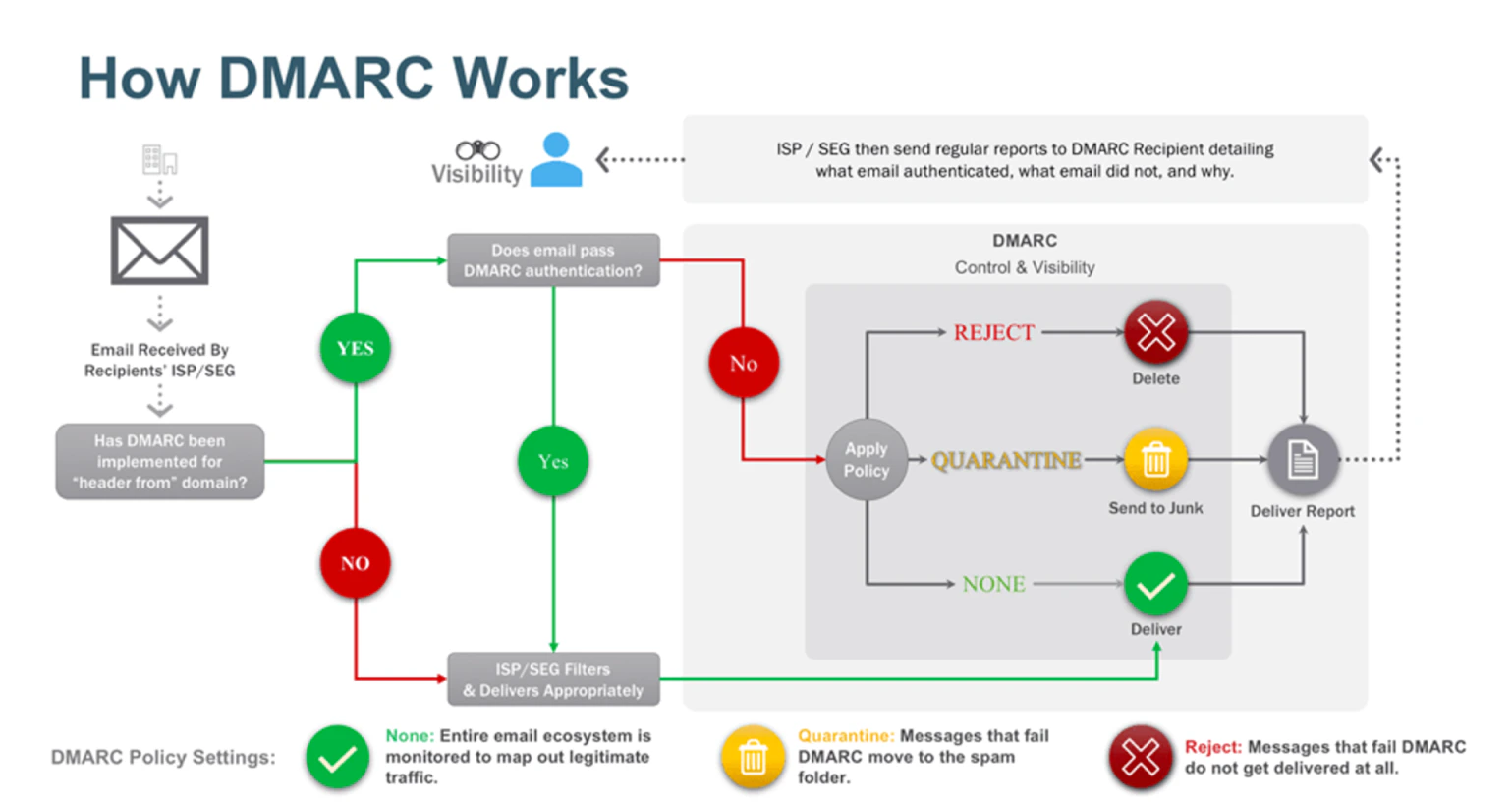
Sets a policy for what happens when emails fail SPF or DKIM checks. Recommended minimum policy: `p=none` (monitoring mode) to start, then tighten to `p=quarantine` or `p=reject`.
Meeting Google and Yahoo's email sender requirements (2024) requires SPF, DKIM, and DMARC to be configured for domains sending more than 5,000 emails per day.
***
## SSL certificate for dedicated domains
Once your dedicated sending domain is verified, an SSL certificate is automatically provisioned to enable secure email transmission.
***
## Forwarding address and BCC
* **Forwarding address** — set a forwarding address to receive a copy of all inbound replies
* **BCC** — automatically BCC a specific address on all outgoing emails for audit or compliance purposes
***
## Custom reply address
Set a custom **Reply-To** address so that when recipients reply to your emails, their replies go to a different address than the From address.
***
## Masking sender emails
Configure a **From Name** and **From Address** that differs from your actual sending account — useful for sending on behalf of team members or client brands.
***
## Two-way email sync
Connects your Gmail inbox so that emails sent and received through Gmail also appear in your CRM conversation threads.
Same as Gmail sync but for Microsoft Outlook / 365 accounts.
***
## Troubleshooting
If your test email fails, check that your SMTP credentials are correct and that your provider allows SMTP authentication. Some providers require an app password rather than your regular login password.
Common Gmail delivery errors include authentication failures (550-5.7.26) and rate limits. Refer to the Error Codes Library for Gmail in the platform help articles.
Outlook blocks emails from IPs with poor reputations. Check your sending IP's reputation and ensure SPF/DKIM are correctly configured.
Check SPF, DKIM, and DMARC records. Ensure you are sending to opted-in contacts, include an unsubscribe link, and avoid spam trigger words in subject lines.
The platform logs bounce events from your sending service. Hard bounces (permanent failures) should be removed from your list. Soft bounces (temporary failures) are retried automatically.
If your RSS feed block is rendering HTML tags as literal text, ensure your RSS feed outputs plain text or properly encoded HTML.
***
## Microsoft SNDS integration
Connect Microsoft SNDS (Smart Network Data Services) to monitor your sending IP's reputation as seen by Microsoft/Outlook. This helps you identify delivery issues before they affect your campaigns.
***
## Google Postmaster Tools integration
Link your Google Postmaster Tools account to see your domain reputation, spam rate, and feedback loop data as seen by Gmail directly in the HoopAI Platform dashboard.
***
## Dedicated IP guide
For high-volume senders, a dedicated IP address gives you exclusive control over your sending reputation. Contact support to set up a dedicated IP for your account.
***
## Understanding email verification
Email verification checks whether an address is valid and likely to receive email before you send to it. Use the verification tool to clean your list and reduce bounce rates.
***
## Frequently asked questions
For most users, setting up a dedicated sending domain is the recommended option because it gives your emails their own reputation, separate from shared infrastructure. Mailgun and SendGrid are good choices for high-volume sending. Gmail and Outlook are best suited for low-volume, conversational email sync.
DNS changes can take anywhere from a few minutes to 48 hours to propagate globally. If verification fails immediately after adding records, wait a few hours and try again before contacting support.
Yes. You can connect multiple SMTP services and choose the default sender for each type of outbound email. This is useful for separating transactional and marketing emails across different services.
A Forwarding address routes all inbound replies to a specified inbox — useful for logging all email activity. A Reply-To address tells the recipient's email client where to send replies, which may differ from the actual sending address.
Masking lets you configure a different From Name and From Address than your actual sending account. This is useful for sending on behalf of team members or presenting a branded sender identity to recipients.
Most businesses do not need a dedicated IP. Dedicated IPs are recommended for high-volume senders (100,000+ emails per month) who want exclusive control over their sending reputation. Contact support if you believe a dedicated IP is appropriate for your volume.
***
## SMTP provider setup guides
### Google / Gmail / Google Workspace setup
If your Google account has 2-factor authentication enabled (required for Google Workspace):
Go to your Google Account > **Security > App Passwords**. Select "Mail" as the app and "Other" as the device, then generate a password.
In **Settings > Email Services > Add Service > Custom SMTP**, enter:
* **Host**: `smtp.gmail.com`
* **Port**: `587` (TLS) or `465` (SSL)
* **Username**: your full Gmail/Workspace email address
* **Password**: the app password you generated (not your Google login password)
Click **Test Email** to verify the connection.
Never use your regular Google password for SMTP authentication. Google requires app-specific passwords for third-party SMTP connections.
For two-way sync with Gmail (reading and sending from your Gmail inbox):
1. Go to **Settings > Email Services > Add Service > Gmail**
2. Click **Connect** and sign in with your Google account
3. Grant the requested permissions
4. Gmail emails will sync bidirectionally with your CRM conversations
OAuth connections are recommended for conversational email (one-to-one), while SMTP is better for bulk sending.
### SendGrid setup
In your SendGrid dashboard, go to **Settings > API Keys** and create a new key with "Mail Send" permissions.
In **Settings > Email Services > Add Service > SendGrid** (or Custom SMTP), enter:
* **Host**: `smtp.sendgrid.net`
* **Port**: `587`
* **Username**: `apikey` (literally the word "apikey")
* **Password**: your SendGrid API key
Ensure your sending email address is verified in SendGrid under **Settings > Sender Authentication**.
### Zoho setup
In Zoho Mail, go to **Settings > Mail Accounts > IMAP/POP/SMTP** and enable SMTP access.
* **Host**: `smtp.zoho.com` (or `smtp.zoho.eu` for EU accounts)
* **Port**: `587` (TLS)
* **Username**: your full Zoho email address
* **Password**: your Zoho password (or app-specific password if 2FA is enabled)
### Why free email addresses cannot be used as SMTP senders
Free email addresses (gmail.com, yahoo.com, hotmail.com, outlook.com) cannot be used as the "From" address for bulk email sending because:
* These providers enforce strict DMARC policies (`p=reject`) that cause emails sent from third-party SMTP servers to be rejected
* Using a free email as a sender triggers spam filters and authentication failures
* It violates the terms of service of most free email providers
**Solution:** Use a custom domain email address ([you@yourdomain.com](mailto:you@yourdomain.com)) as your sender. Set up a dedicated sending domain or connect a business email service.
### SMTP limitations — when emails will not send
Emails may fail to send through SMTP in these situations:
| Scenario | Cause | Solution |
| --------------------------- | --------------------------------------------------------------- | -------------------------------------------------------------------- |
| Daily sending limit reached | Gmail limits to \~500/day (personal) or \~2,000/day (Workspace) | Use a dedicated sending domain or Mailgun/SendGrid for higher volume |
| Authentication failure | Wrong password or app password expired | Regenerate app password and update credentials |
| TLS/SSL mismatch | Port and encryption type do not match | Use port 587 with TLS or port 465 with SSL |
| Sender not verified | From address not verified with the SMTP provider | Verify the sender address in your provider's settings |
| Rate limiting | Sending too many emails too quickly | Reduce sending speed or switch to a bulk-sending provider |
### SPF (Sender Policy Framework)
Tells receiving mail servers which IP addresses are authorized to send email for your domain. Add an SPF record to your DNS.
### DKIM (DomainKeys Identified Mail)
Adds a cryptographic signature to outgoing emails so recipients can verify they haven't been tampered with. The platform generates your DKIM keys.
### DMARC (Domain-based Message Authentication)
Sets a policy for what happens when emails fail SPF or DKIM checks. Recommended minimum policy: `p=none` (monitoring mode) to start, then tighten to `p=quarantine` or `p=reject`.
Meeting Google and Yahoo's email sender requirements (2024) requires SPF, DKIM, and DMARC to be configured for domains sending more than 5,000 emails per day.
***
## SSL certificate for dedicated domains
Once your dedicated sending domain is verified, an SSL certificate is automatically provisioned to enable secure email transmission.
***
## Forwarding address and BCC
* **Forwarding address** — set a forwarding address to receive a copy of all inbound replies
* **BCC** — automatically BCC a specific address on all outgoing emails for audit or compliance purposes
***
## Custom reply address
Set a custom **Reply-To** address so that when recipients reply to your emails, their replies go to a different address than the From address.
***
## Masking sender emails
Configure a **From Name** and **From Address** that differs from your actual sending account — useful for sending on behalf of team members or client brands.
***
## Two-way email sync
Connects your Gmail inbox so that emails sent and received through Gmail also appear in your CRM conversation threads.
Same as Gmail sync but for Microsoft Outlook / 365 accounts.
***
## Troubleshooting
If your test email fails, check that your SMTP credentials are correct and that your provider allows SMTP authentication. Some providers require an app password rather than your regular login password.
Common Gmail delivery errors include authentication failures (550-5.7.26) and rate limits. Refer to the Error Codes Library for Gmail in the platform help articles.
Outlook blocks emails from IPs with poor reputations. Check your sending IP's reputation and ensure SPF/DKIM are correctly configured.
Check SPF, DKIM, and DMARC records. Ensure you are sending to opted-in contacts, include an unsubscribe link, and avoid spam trigger words in subject lines.
The platform logs bounce events from your sending service. Hard bounces (permanent failures) should be removed from your list. Soft bounces (temporary failures) are retried automatically.
If your RSS feed block is rendering HTML tags as literal text, ensure your RSS feed outputs plain text or properly encoded HTML.
***
## Microsoft SNDS integration
Connect Microsoft SNDS (Smart Network Data Services) to monitor your sending IP's reputation as seen by Microsoft/Outlook. This helps you identify delivery issues before they affect your campaigns.
***
## Google Postmaster Tools integration
Link your Google Postmaster Tools account to see your domain reputation, spam rate, and feedback loop data as seen by Gmail directly in the HoopAI Platform dashboard.
***
## Dedicated IP guide
For high-volume senders, a dedicated IP address gives you exclusive control over your sending reputation. Contact support to set up a dedicated IP for your account.
***
## Understanding email verification
Email verification checks whether an address is valid and likely to receive email before you send to it. Use the verification tool to clean your list and reduce bounce rates.
***
## Frequently asked questions
For most users, setting up a dedicated sending domain is the recommended option because it gives your emails their own reputation, separate from shared infrastructure. Mailgun and SendGrid are good choices for high-volume sending. Gmail and Outlook are best suited for low-volume, conversational email sync.
DNS changes can take anywhere from a few minutes to 48 hours to propagate globally. If verification fails immediately after adding records, wait a few hours and try again before contacting support.
Yes. You can connect multiple SMTP services and choose the default sender for each type of outbound email. This is useful for separating transactional and marketing emails across different services.
A Forwarding address routes all inbound replies to a specified inbox — useful for logging all email activity. A Reply-To address tells the recipient's email client where to send replies, which may differ from the actual sending address.
Masking lets you configure a different From Name and From Address than your actual sending account. This is useful for sending on behalf of team members or presenting a branded sender identity to recipients.
Most businesses do not need a dedicated IP. Dedicated IPs are recommended for high-volume senders (100,000+ emails per month) who want exclusive control over their sending reputation. Contact support if you believe a dedicated IP is appropriate for your volume.
***
## SMTP provider setup guides
### Google / Gmail / Google Workspace setup
If your Google account has 2-factor authentication enabled (required for Google Workspace):
Go to your Google Account > **Security > App Passwords**. Select "Mail" as the app and "Other" as the device, then generate a password.
In **Settings > Email Services > Add Service > Custom SMTP**, enter:
* **Host**: `smtp.gmail.com`
* **Port**: `587` (TLS) or `465` (SSL)
* **Username**: your full Gmail/Workspace email address
* **Password**: the app password you generated (not your Google login password)
Click **Test Email** to verify the connection.
Never use your regular Google password for SMTP authentication. Google requires app-specific passwords for third-party SMTP connections.
For two-way sync with Gmail (reading and sending from your Gmail inbox):
1. Go to **Settings > Email Services > Add Service > Gmail**
2. Click **Connect** and sign in with your Google account
3. Grant the requested permissions
4. Gmail emails will sync bidirectionally with your CRM conversations
OAuth connections are recommended for conversational email (one-to-one), while SMTP is better for bulk sending.
### SendGrid setup
In your SendGrid dashboard, go to **Settings > API Keys** and create a new key with "Mail Send" permissions.
In **Settings > Email Services > Add Service > SendGrid** (or Custom SMTP), enter:
* **Host**: `smtp.sendgrid.net`
* **Port**: `587`
* **Username**: `apikey` (literally the word "apikey")
* **Password**: your SendGrid API key
Ensure your sending email address is verified in SendGrid under **Settings > Sender Authentication**.
### Zoho setup
In Zoho Mail, go to **Settings > Mail Accounts > IMAP/POP/SMTP** and enable SMTP access.
* **Host**: `smtp.zoho.com` (or `smtp.zoho.eu` for EU accounts)
* **Port**: `587` (TLS)
* **Username**: your full Zoho email address
* **Password**: your Zoho password (or app-specific password if 2FA is enabled)
### Why free email addresses cannot be used as SMTP senders
Free email addresses (gmail.com, yahoo.com, hotmail.com, outlook.com) cannot be used as the "From" address for bulk email sending because:
* These providers enforce strict DMARC policies (`p=reject`) that cause emails sent from third-party SMTP servers to be rejected
* Using a free email as a sender triggers spam filters and authentication failures
* It violates the terms of service of most free email providers
**Solution:** Use a custom domain email address ([you@yourdomain.com](mailto:you@yourdomain.com)) as your sender. Set up a dedicated sending domain or connect a business email service.
### SMTP limitations — when emails will not send
Emails may fail to send through SMTP in these situations:
| Scenario | Cause | Solution |
| --------------------------- | --------------------------------------------------------------- | -------------------------------------------------------------------- |
| Daily sending limit reached | Gmail limits to \~500/day (personal) or \~2,000/day (Workspace) | Use a dedicated sending domain or Mailgun/SendGrid for higher volume |
| Authentication failure | Wrong password or app password expired | Regenerate app password and update credentials |
| TLS/SSL mismatch | Port and encryption type do not match | Use port 587 with TLS or port 465 with SSL |
| Sender not verified | From address not verified with the SMTP provider | Verify the sender address in your provider's settings |
| Rate limiting | Sending too many emails too quickly | Reduce sending speed or switch to a bulk-sending provider |