> ## Documentation Index
> Fetch the complete documentation index at: https://help.hoopai.com/llms.txt
> Use this file to discover all available pages before exploring further.
# RSS email campaigns
> Automatically send email newsletters from your blog or content feed using RSS-to-email campaigns in the HoopAI platform.
RSS-to-email campaigns let you send automated email newsletters that pull content directly from an RSS feed. Every time the campaign runs, it checks the feed for new items and populates the email with the latest content — no manual writing or scheduling required. This is ideal for bloggers, publishers, and any business that publishes content on a regular cadence.
## How RSS email campaigns work
1. You configure a campaign with an RSS Feed URL and a send schedule (daily, weekly, or monthly)
2. At the scheduled time, the platform fetches the feed and populates the RSS blocks in your email with the latest content
3. The email is delivered to your recipient list with dynamically generated content
4. If no new feed items are found since the last send, the campaign does not send (optional behavior depending on your settings)
***
## Generating an RSS feed from your blog
If your website is built on the HoopAI platform's blog feature, you can generate a feed URL for use in RSS campaigns:
Navigate to **Sites > Blogs** and select the blog you want to create a feed from.
Look for the RSS Feed option in the blog settings. Configure:
* Feed name
* Number of posts to include
* Content type (full content or summary)
Copy the generated RSS URL. You will use this when setting up your email campaign.
If your blog is hosted on a platform like WordPress, Squarespace, or Ghost, the RSS feed URL is usually available at `/feed` or `/rss` on your domain (e.g., `https://yourdomain.com/feed`).
***
## Creating an RSS email campaign
Go to **Marketing > Emails > Campaigns** and click **+ New**. Select a template or start from blank.
In the email builder, drag in an **RSS Header** block and one or more **RSS Items** blocks from the Add Elements panel. These blocks will dynamically populate with feed content at send time.
The RSS Header block shows feed-level information. Choose between:
* **Basic mode** — displays feed title and description automatically
* **Custom mode** — editable layout with variables for title, description, URL, and date
The RSS Items block displays individual feed entries. Choose between:
* **Basic mode** — shows title (linked), summary, and a "Read more" link
* **Custom mode** — includes author, publication date, full article content, and thumbnail image
Add your header, logo, footer, and any static content sections above or below the RSS blocks. Static content stays the same every send; RSS blocks update automatically.
On the Send or Schedule screen, select **RSS Schedule** as the delivery method. Enter your RSS Feed URL and set the frequency (daily, weekly, or monthly) and delivery time.
Choose a smart list, tag, or segment as your recipient audience. This remains the same for all future sends of this campaign.
***
## RSS block variables
The following merge tags are available inside RSS block templates and the email subject line:
### RSS Header variables
| Variable | Output |
| -------------------------- | --------------------------- |
| `{{rss_feed.title}}` | Feed channel title |
| `{{rss_feed.description}}` | Feed channel description |
| `{{rss_feed.url}}` | Feed channel link |
| `{{rss_feed.date}}` | Last build date of the feed |
### RSS Items variables
| Variable | Output |
| ------------------------ | -------------------------------------------------- |
| `{{rss_item.title}}` | Article headline |
| `{{rss_item.content}}` | Article summary (HTML-escaped by default) |
| `{{{rss_item.content}}}` | Article summary with HTML rendered (triple braces) |
| `{{rss_item.url}}` | Link to the full article |
| `{{rss_item.author}}` | Article author name |
| `{{rss_item.date}}` | Publication date (MMM DD, YYYY) |
| `{{rss_item.imageUrl}}` | URL of the article's featured image |
Use triple braces `{{{rss_item.content}}}` only when your feed outputs properly encoded HTML. Double braces `{{rss_item.content}}` are safer for feeds that may contain raw or inconsistent markup, as they prevent unescaped HTML from breaking the email layout.
***
## Sending schedule options
| Frequency | Use case |
| ----------- | ---------------------------------------- |
| **Daily** | High-volume news sites, daily deal blogs |
| **Weekly** | Weekly roundups, blog summaries |
| **Monthly** | Monthly newsletters, content digests |
You can also restrict sends to specific days of the week. For example, set a weekly send to go out only on Tuesday and Thursday.
***
## Subject line for RSS campaigns
Your campaign subject line can include RSS variables to make each send feel unique:
* `New post: {{rss_item.title}}` — uses the first post's title as the subject
* `{{rss_feed.title}} — {{rss_feed.date}}` — uses the feed name and date
Test your subject line with the Send Test Email feature, which requires an RSS Feed URL to render the variables correctly. Static text in the subject appears without a feed URL, but variables require a live feed to preview.
***
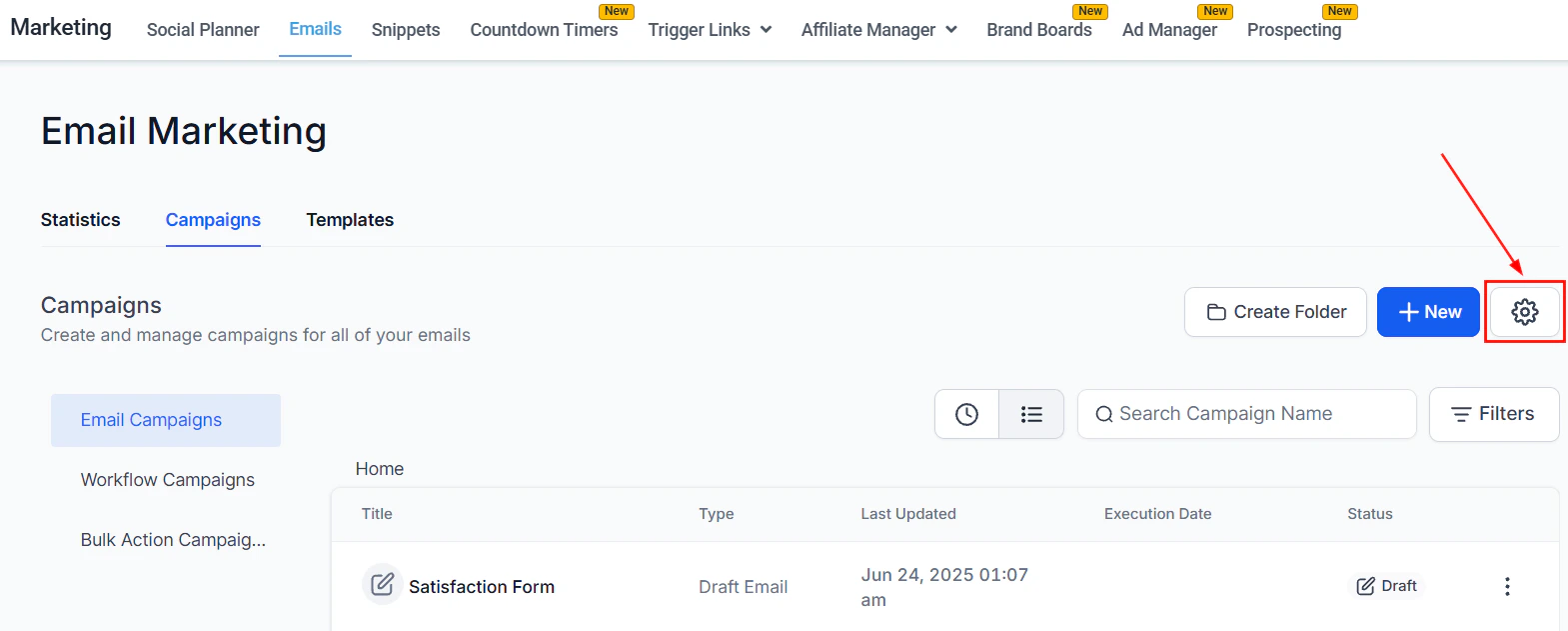 ## Managing active RSS campaigns
Active RSS campaigns appear in the Campaigns list with the type designation **RSS**. From the three-dot menu you can:
* **Pause** — temporarily stops future sends
* **Cancel** — permanently stops the campaign
* **Update Email Content** — edit the email template used by the RSS campaign without changing the feed URL or schedule
***
## Frequently asked questions
If no new items have been published since the last send, the campaign does not send. This prevents your audience from receiving duplicate content or empty emails. Check your feed publishing cadence to ensure it aligns with your email schedule.
Yes. Add any static elements (header image, introductory text, footer CTA, unsubscribe link) above and below the RSS blocks. Static content is the same in every send; only the RSS blocks update dynamically.
This happens when your RSS feed outputs HTML-encoded text and you are using double-brace syntax. Switch the RSS Items block to custom mode and use triple braces `{{{rss_item.content}}}` to render the HTML directly. Verify your feed source outputs clean HTML before doing this.
Yes. Use the Send Test Email feature and enter your RSS Feed URL in the provided field. The test email will pull in the latest feed items and render them in the email so you can verify the layout before the first scheduled send.
The number of items displayed depends on how many RSS Items blocks you add to the template. Add one block per article you want to show. For a weekly roundup with five articles, add five RSS Items blocks.
Yes. Any valid RSS or Atom feed works, including podcast feeds and YouTube channel feeds. Use the `{{rss_item.imageUrl}}` variable to pull in episode artwork or video thumbnails, and `{{rss_item.url}}` to link to the episode or video.
## Managing active RSS campaigns
Active RSS campaigns appear in the Campaigns list with the type designation **RSS**. From the three-dot menu you can:
* **Pause** — temporarily stops future sends
* **Cancel** — permanently stops the campaign
* **Update Email Content** — edit the email template used by the RSS campaign without changing the feed URL or schedule
***
## Frequently asked questions
If no new items have been published since the last send, the campaign does not send. This prevents your audience from receiving duplicate content or empty emails. Check your feed publishing cadence to ensure it aligns with your email schedule.
Yes. Add any static elements (header image, introductory text, footer CTA, unsubscribe link) above and below the RSS blocks. Static content is the same in every send; only the RSS blocks update dynamically.
This happens when your RSS feed outputs HTML-encoded text and you are using double-brace syntax. Switch the RSS Items block to custom mode and use triple braces `{{{rss_item.content}}}` to render the HTML directly. Verify your feed source outputs clean HTML before doing this.
Yes. Use the Send Test Email feature and enter your RSS Feed URL in the provided field. The test email will pull in the latest feed items and render them in the email so you can verify the layout before the first scheduled send.
The number of items displayed depends on how many RSS Items blocks you add to the template. Add one block per article you want to show. For a weekly roundup with five articles, add five RSS Items blocks.
Yes. Any valid RSS or Atom feed works, including podcast feeds and YouTube channel feeds. Use the `{{rss_item.imageUrl}}` variable to pull in episode artwork or video thumbnails, and `{{rss_item.url}}` to link to the episode or video.