> ## Documentation Index
> Fetch the complete documentation index at: https://help.hoopai.com/llms.txt
> Use this file to discover all available pages before exploring further.
# Email deliverability
> Avoid spam folders, understand bounces, set up unsubscribe links, and maintain a healthy sender reputation with the HoopAI Platform.
Ensuring your emails reach the inbox rather than the spam folder is critical to effective email marketing. This guide covers the key factors affecting deliverability, how to set up compliance features, and best practices for a healthy sender reputation.
## Ways to avoid the spam folder
### Send from a custom domain
Using free domains like `gmail.com` or `yahoo.com` to send emails dramatically increases the chance of landing in spam. Always send from a custom domain that aligns with your brand.
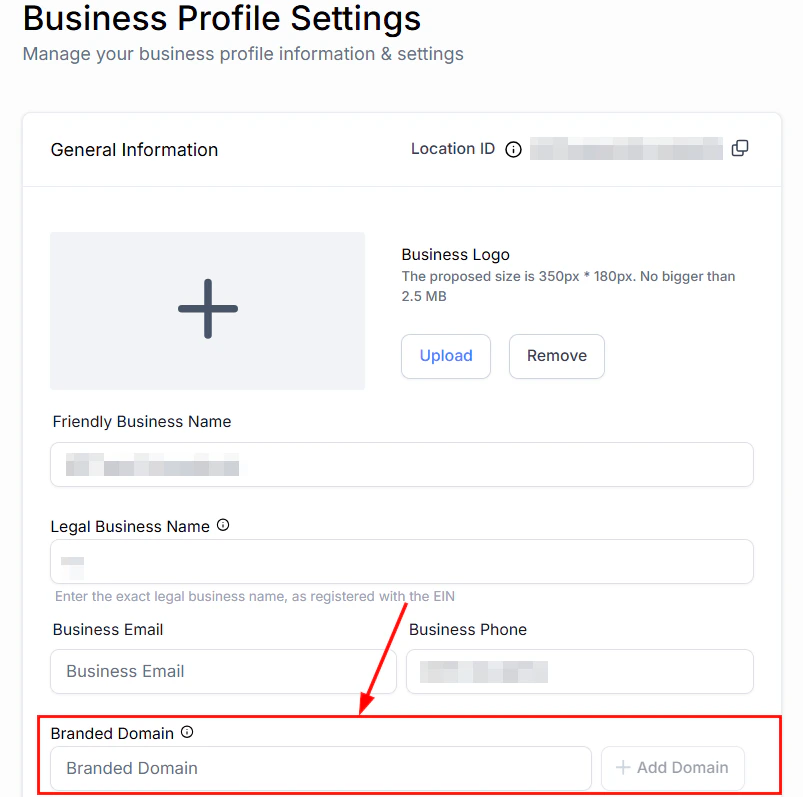
In **Settings > Business Profile > General**, configure a Branded Domain so that system notifications are sent from your own domain.
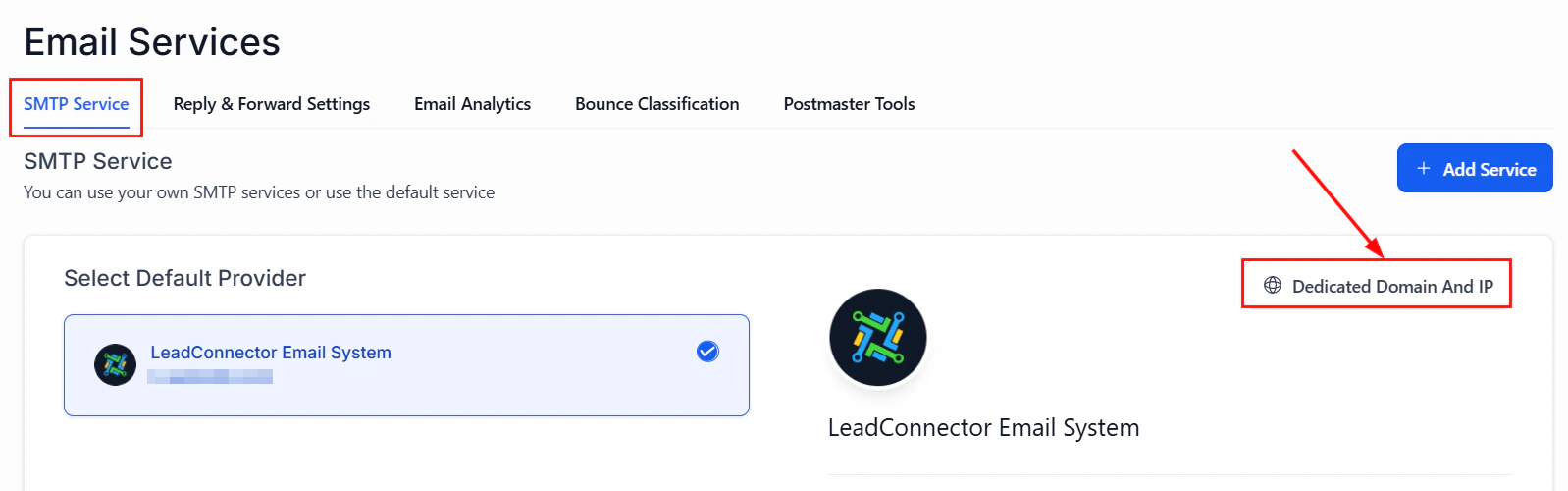
 In **Settings > Email Services**, add a dedicated domain for all outbound emails. A dedicated domain provides better reputation isolation and improved deliverability.
 ### DMARC compliance
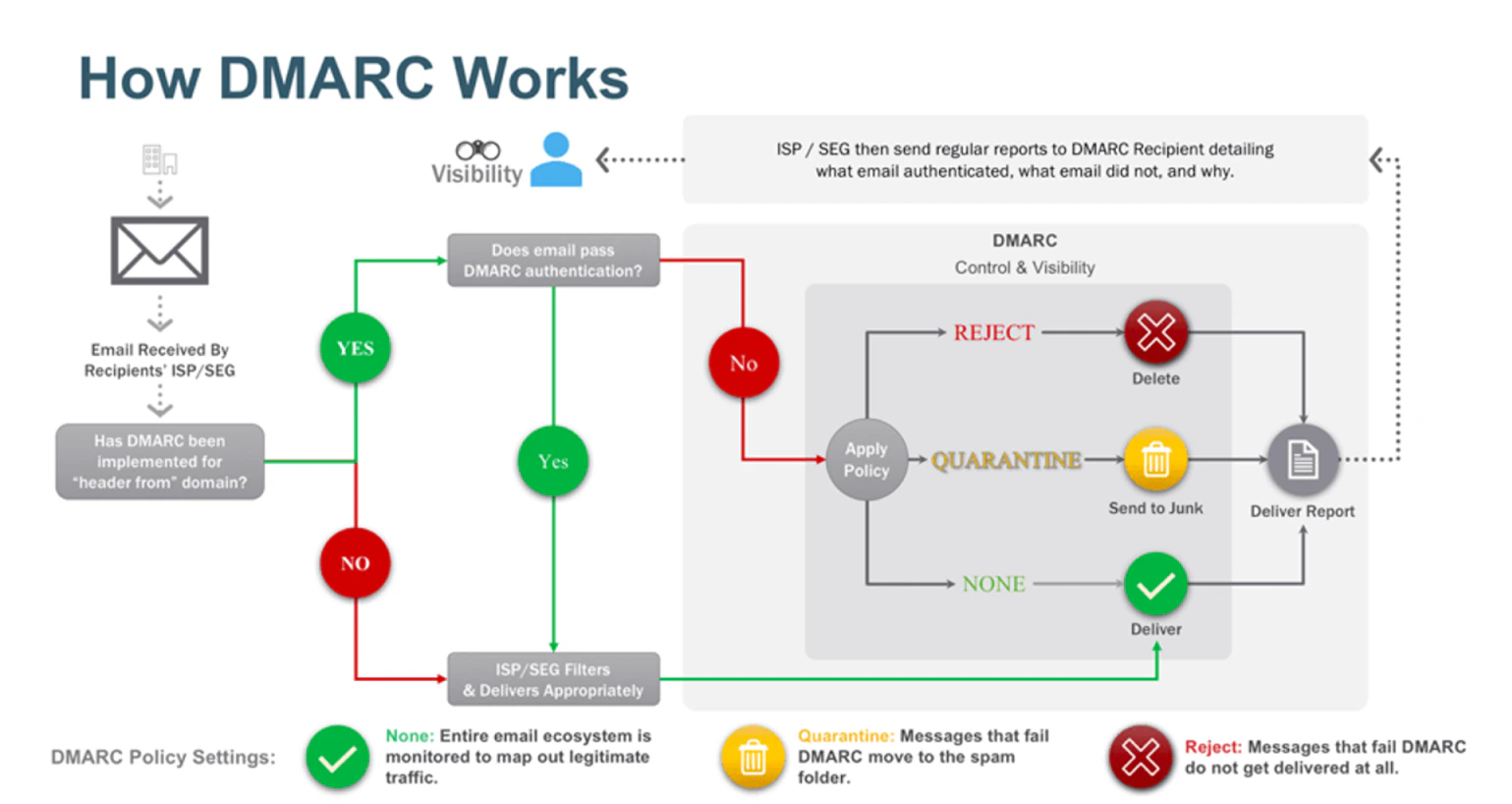
If the domain you use to send email has a DMARC policy, but you have not verified the domain with your SMTP provider, messages will likely go to spam. Verify your domain with your SMTP provider to ensure emails pass DMARC.
### DMARC compliance
If the domain you use to send email has a DMARC policy, but you have not verified the domain with your SMTP provider, messages will likely go to spam. Verify your domain with your SMTP provider to ensure emails pass DMARC.
 ### Internal mail routing
If you send messages within the same domain from which they originate, your mailbox may treat them as spoofed and route them to spam. To avoid this:
* Use a different email address (e.g., a Gmail account) to test your campaigns
* Or have your domain administrator whitelist the IP address of your SMTP provider for internal mail
***
## List health and collection
Everyone on your list must have given explicit consent to receive email marketing from you. Never purchase or import lists without verified opt-in.
Double opt-in confirms subscriber intent and prevents bot sign-ups, resulting in a cleaner list with higher engagement rates.
Remove unengaged subscribers every 3–6 months to maintain a healthy sender reputation and reduce bounce rates.
Avoid sudden large changes in sending volume. Keep a consistent cadence and use recognizable domains to build trust with inbox providers.
***
## Setting up unsubscribe links
Unsubscribe links are legally required in most jurisdictions under laws such as CAN-SPAM and GDPR. Including them also reduces spam complaints and protects your sender reputation.
### Enable the default unsubscribe link
Navigate to **Settings > Business Profile** and scroll down to the **General** section.
### Internal mail routing
If you send messages within the same domain from which they originate, your mailbox may treat them as spoofed and route them to spam. To avoid this:
* Use a different email address (e.g., a Gmail account) to test your campaigns
* Or have your domain administrator whitelist the IP address of your SMTP provider for internal mail
***
## List health and collection
Everyone on your list must have given explicit consent to receive email marketing from you. Never purchase or import lists without verified opt-in.
Double opt-in confirms subscriber intent and prevents bot sign-ups, resulting in a cleaner list with higher engagement rates.
Remove unengaged subscribers every 3–6 months to maintain a healthy sender reputation and reduce bounce rates.
Avoid sudden large changes in sending volume. Keep a consistent cadence and use recognizable domains to build trust with inbox providers.
***
## Setting up unsubscribe links
Unsubscribe links are legally required in most jurisdictions under laws such as CAN-SPAM and GDPR. Including them also reduces spam complaints and protects your sender reputation.
### Enable the default unsubscribe link
Navigate to **Settings > Business Profile** and scroll down to the **General** section.
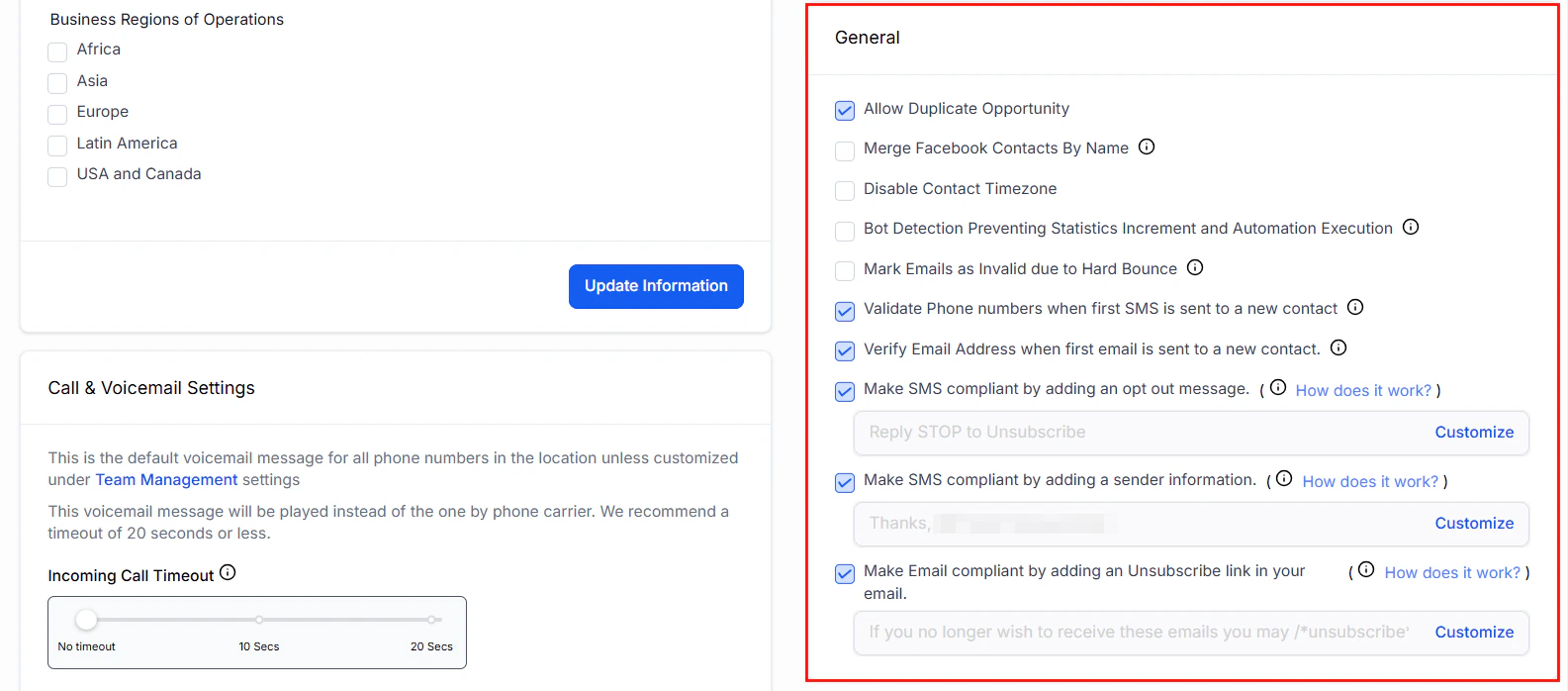 Locate **"Make email compliant by adding an unsubscribe link in your email"** and toggle it on.
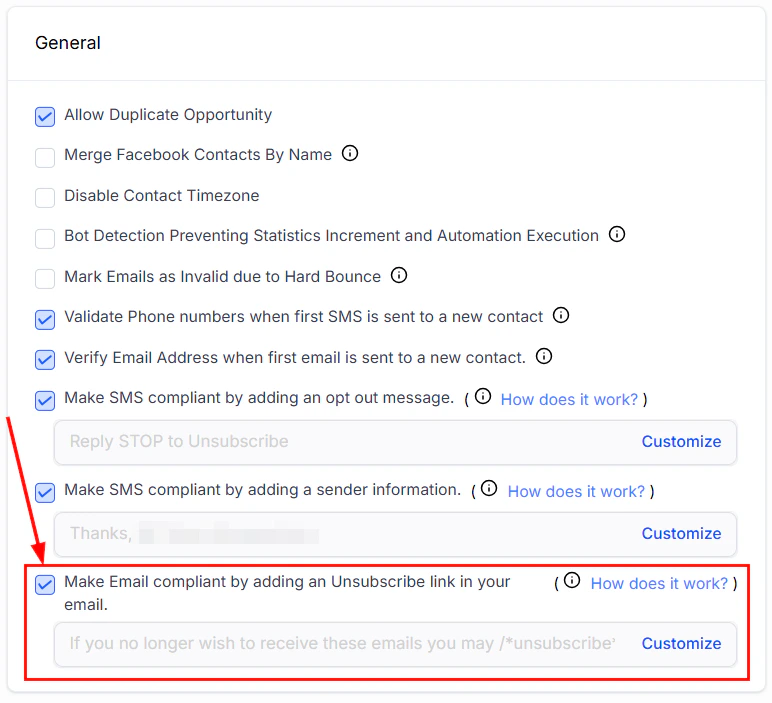 If your account receives a high volume of spam complaints, email-sending capabilities may be temporarily suspended. Always include an unsubscribe link in every marketing email.
### Customize your unsubscribe link
To create custom unsubscribe links tailored to specific campaigns:
1. Select **Customize** within the unsubscribe link settings
2. Enter your custom content in the provided field
3. Add the unsubscribe tag where the link should appear
4. In the email builder, insert the unsubscribe tag directly into the footer of your template
Custom unsubscribe links let you collect more specific opt-out preferences, improving your segmentation and list targeting over time.
### List-unsubscribe header
The HoopAI Platform automatically adds a `list-unsubscribe` header to all outbound emails. This header is used by major email clients (Gmail, Outlook) to display a prominent unsubscribe button at the top of the message.
**Benefits of the list-unsubscribe header:**
* Reduces spam complaints by making it easy for recipients to opt out
* Protects your sending reputation
* Preferred by inbox providers for trusted senders
The list-unsubscribe header cannot be disabled — it adheres to RFC/industry standards and is a best practice for email deliverability. It is only displayed prominently for senders who have established a good reputation.
***
## Understanding email bounce suspension
Email bounces occur when messages are not successfully delivered.
| Bounce type | Cause |
| --------------- | -------------------------------------------------------- |
| **Hard bounce** | Email address is invalid or does not exist |
| **Soft bounce** | Temporary delivery failure (full mailbox, server issues) |
### When accounts get suspended
If your bounce rate exceeds the industry standard (typically above 5%), your account may be suspended. The optimal bounce rate is 0–3%.
### Fixing a suspension
If your account is suspended due to a high bounce rate:
Inspect recent campaigns, workflows, and bulk messages for problems.
Temporarily stop all workflows, campaigns, and bulk messages.
Ensure all emails are directed to verified, active addresses. Use the email verification feature in campaigns.
Provide proof of opt-in including examples of unsubscribe links in your messages. The support team will assist with reactivation.
### Preventing future suspensions
* Use a dedicated sending domain with proper email authentication (SPF, DKIM, DMARC)
* Send emails in smaller batches using the batch scheduling feature
* Require double opt-in from all new contacts
* Always include clear unsubscribe options
* Regularly validate and clean your contact list
***
## Frequently asked questions
Common causes include missing SPF, DKIM, or DMARC records, sending from a free domain (gmail.com, yahoo.com), low sender reputation, spam trigger words in subject lines, or sending to contacts who have not opted in. Start by verifying your authentication records and ensuring your list is opt-in only.
A hard bounce means the email address is invalid or does not exist — the delivery failure is permanent and the address should be removed from your list. A soft bounce is a temporary failure (such as a full mailbox or a server issue) and will be retried automatically.
If your bounce rate exceeds approximately 5%, your account may be suspended. The optimal bounce rate is 0–3%. Use the email verification feature and double opt-in to keep your list clean.
You need both. SPF authorizes which servers can send from your domain; DKIM adds a cryptographic signature to each email. Together they satisfy most inbox providers' authentication requirements. DMARC builds on top of both and sets the policy for failed checks.
The list-unsubscribe header tells email clients (Gmail, Outlook) to show a prominent unsubscribe button at the top of the message. It cannot be disabled — it follows RFC/industry standards and helps protect your sender reputation by reducing spam complaints.
A good practice is to remove unengaged subscribers every 3–6 months. This means contacts who have not opened any of your emails over that period. A smaller, engaged list consistently outperforms a large, unengaged one for both deliverability and conversions.
If your account receives a high volume of spam complaints, email-sending capabilities may be temporarily suspended. Always include an unsubscribe link in every marketing email.
### Customize your unsubscribe link
To create custom unsubscribe links tailored to specific campaigns:
1. Select **Customize** within the unsubscribe link settings
2. Enter your custom content in the provided field
3. Add the unsubscribe tag where the link should appear
4. In the email builder, insert the unsubscribe tag directly into the footer of your template
Custom unsubscribe links let you collect more specific opt-out preferences, improving your segmentation and list targeting over time.
### List-unsubscribe header
The HoopAI Platform automatically adds a `list-unsubscribe` header to all outbound emails. This header is used by major email clients (Gmail, Outlook) to display a prominent unsubscribe button at the top of the message.
**Benefits of the list-unsubscribe header:**
* Reduces spam complaints by making it easy for recipients to opt out
* Protects your sending reputation
* Preferred by inbox providers for trusted senders
The list-unsubscribe header cannot be disabled — it adheres to RFC/industry standards and is a best practice for email deliverability. It is only displayed prominently for senders who have established a good reputation.
***
## Understanding email bounce suspension
Email bounces occur when messages are not successfully delivered.
| Bounce type | Cause |
| --------------- | -------------------------------------------------------- |
| **Hard bounce** | Email address is invalid or does not exist |
| **Soft bounce** | Temporary delivery failure (full mailbox, server issues) |
### When accounts get suspended
If your bounce rate exceeds the industry standard (typically above 5%), your account may be suspended. The optimal bounce rate is 0–3%.
### Fixing a suspension
If your account is suspended due to a high bounce rate:
Inspect recent campaigns, workflows, and bulk messages for problems.
Temporarily stop all workflows, campaigns, and bulk messages.
Ensure all emails are directed to verified, active addresses. Use the email verification feature in campaigns.
Provide proof of opt-in including examples of unsubscribe links in your messages. The support team will assist with reactivation.
### Preventing future suspensions
* Use a dedicated sending domain with proper email authentication (SPF, DKIM, DMARC)
* Send emails in smaller batches using the batch scheduling feature
* Require double opt-in from all new contacts
* Always include clear unsubscribe options
* Regularly validate and clean your contact list
***
## Frequently asked questions
Common causes include missing SPF, DKIM, or DMARC records, sending from a free domain (gmail.com, yahoo.com), low sender reputation, spam trigger words in subject lines, or sending to contacts who have not opted in. Start by verifying your authentication records and ensuring your list is opt-in only.
A hard bounce means the email address is invalid or does not exist — the delivery failure is permanent and the address should be removed from your list. A soft bounce is a temporary failure (such as a full mailbox or a server issue) and will be retried automatically.
If your bounce rate exceeds approximately 5%, your account may be suspended. The optimal bounce rate is 0–3%. Use the email verification feature and double opt-in to keep your list clean.
You need both. SPF authorizes which servers can send from your domain; DKIM adds a cryptographic signature to each email. Together they satisfy most inbox providers' authentication requirements. DMARC builds on top of both and sets the policy for failed checks.
The list-unsubscribe header tells email clients (Gmail, Outlook) to show a prominent unsubscribe button at the top of the message. It cannot be disabled — it follows RFC/industry standards and helps protect your sender reputation by reducing spam complaints.
A good practice is to remove unengaged subscribers every 3–6 months. This means contacts who have not opened any of your emails over that period. A smaller, engaged list consistently outperforms a large, unengaged one for both deliverability and conversions.