> ## Documentation Index
> Fetch the complete documentation index at: https://help.hoopai.com/llms.txt
> Use this file to discover all available pages before exploring further.
# Brand boards
> Create and manage reusable brand assets — logos, colors, fonts, and brand voices — that keep your emails, funnels, and AI-generated content consistently on-brand.
Brand boards are a central repository for your visual identity and communication style. Once configured, your colors, fonts, and logos appear automatically in email and funnel editors, and your brand voice guides every piece of AI-generated content across HoopAI.
## Creating a brand board
A brand board defines the design elements — colors, typography, and logos — that represent your brand across all marketing materials.
**Why you need a brand board**
* **Brand consistency:** Consolidates all visual elements so logos, colors, and fonts are applied uniformly across emails, websites, and social media.
* **Time efficiency:** Eliminates the need to search for files or recall hex codes when creating new materials.
* **Simplified management:** Provides a single place to locate and update logos, colors, and fonts.
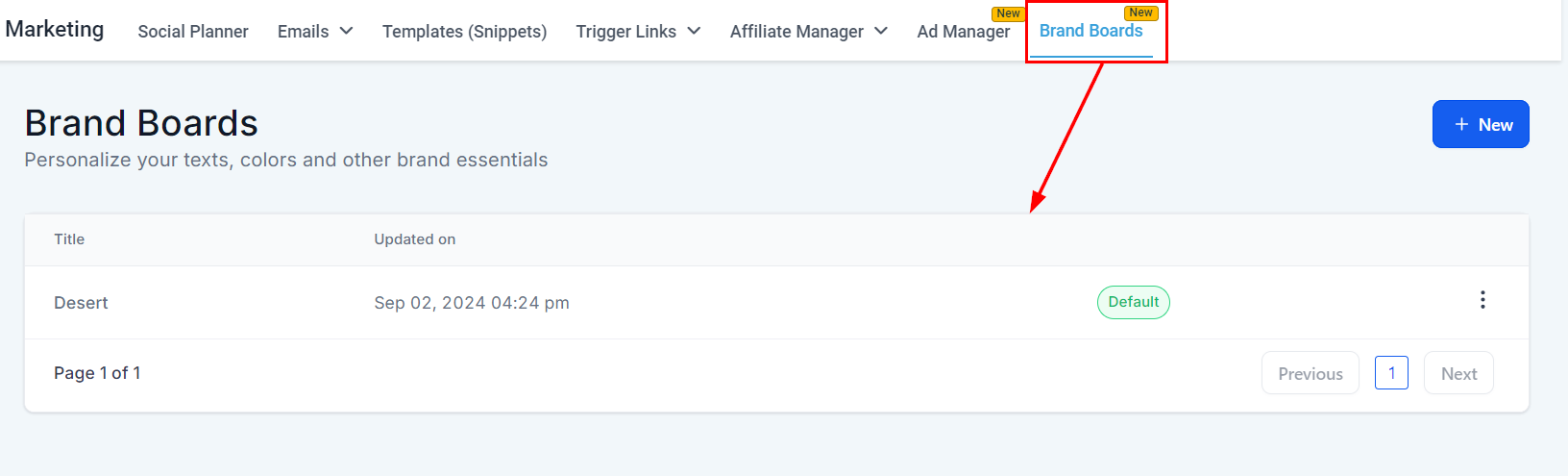
Go to the **Marketing** tab and select **Brand Boards**.
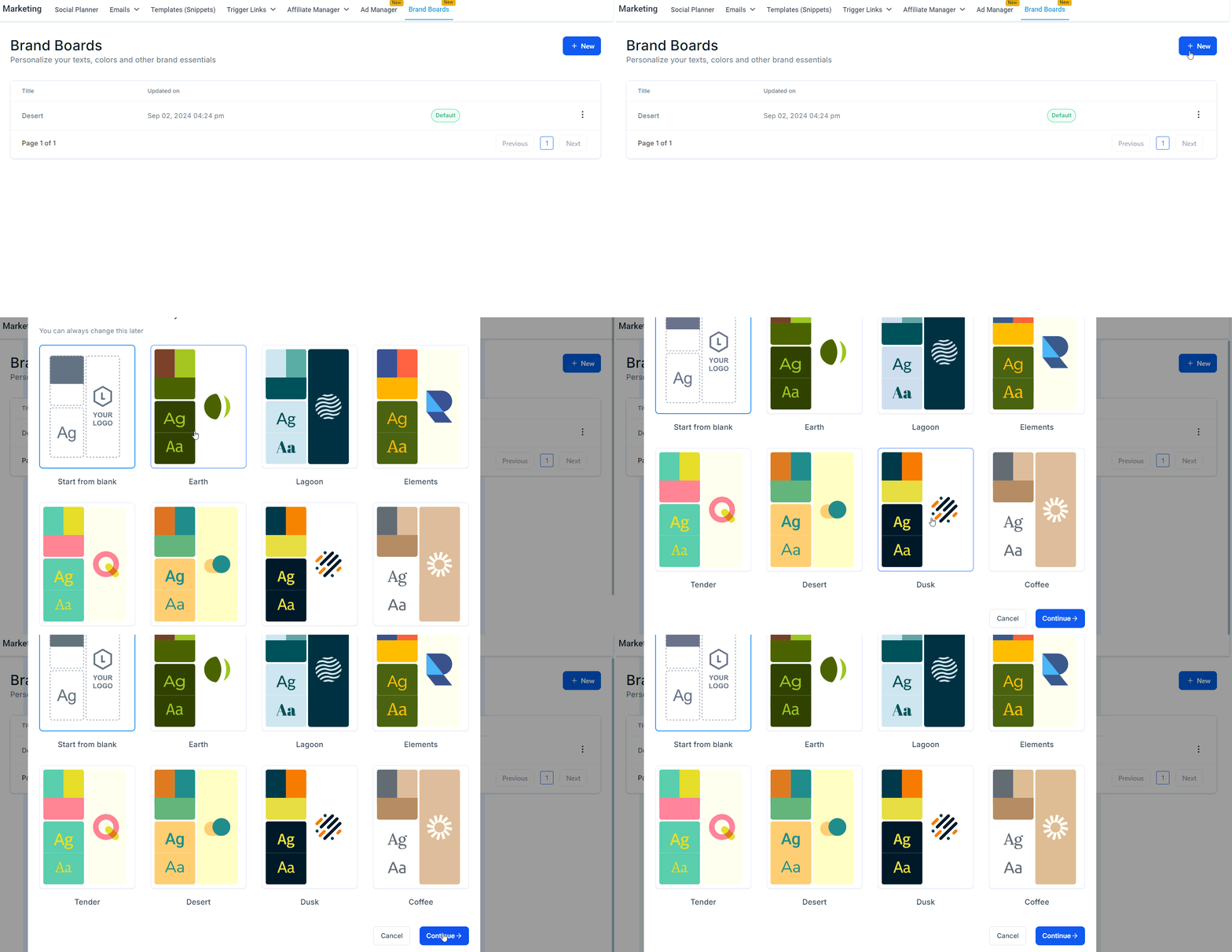
 Click the **New** button, then choose a template or click **Continue** to start with a blank board.
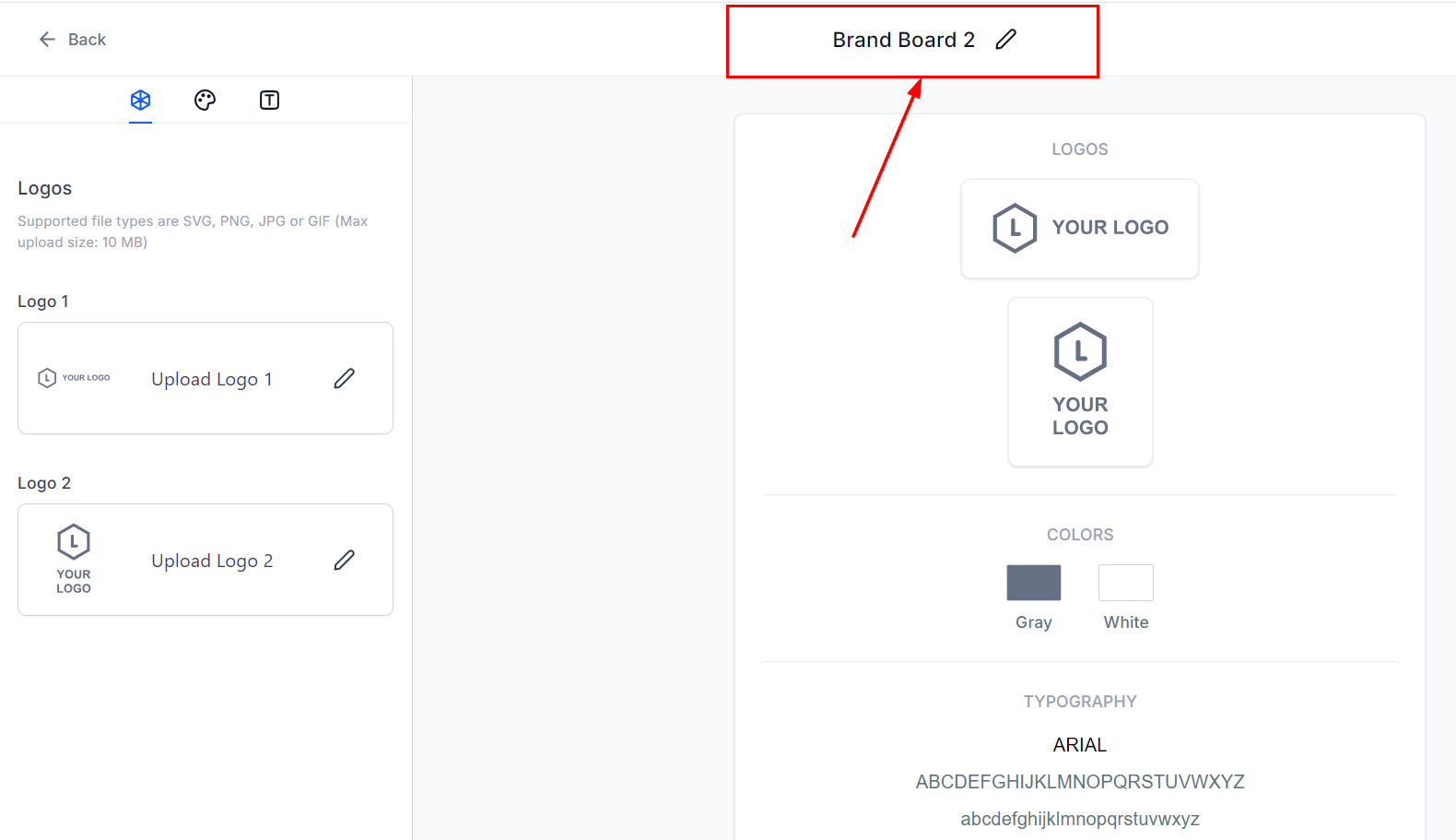
 Update the board name to accurately represent the brand identity it defines.
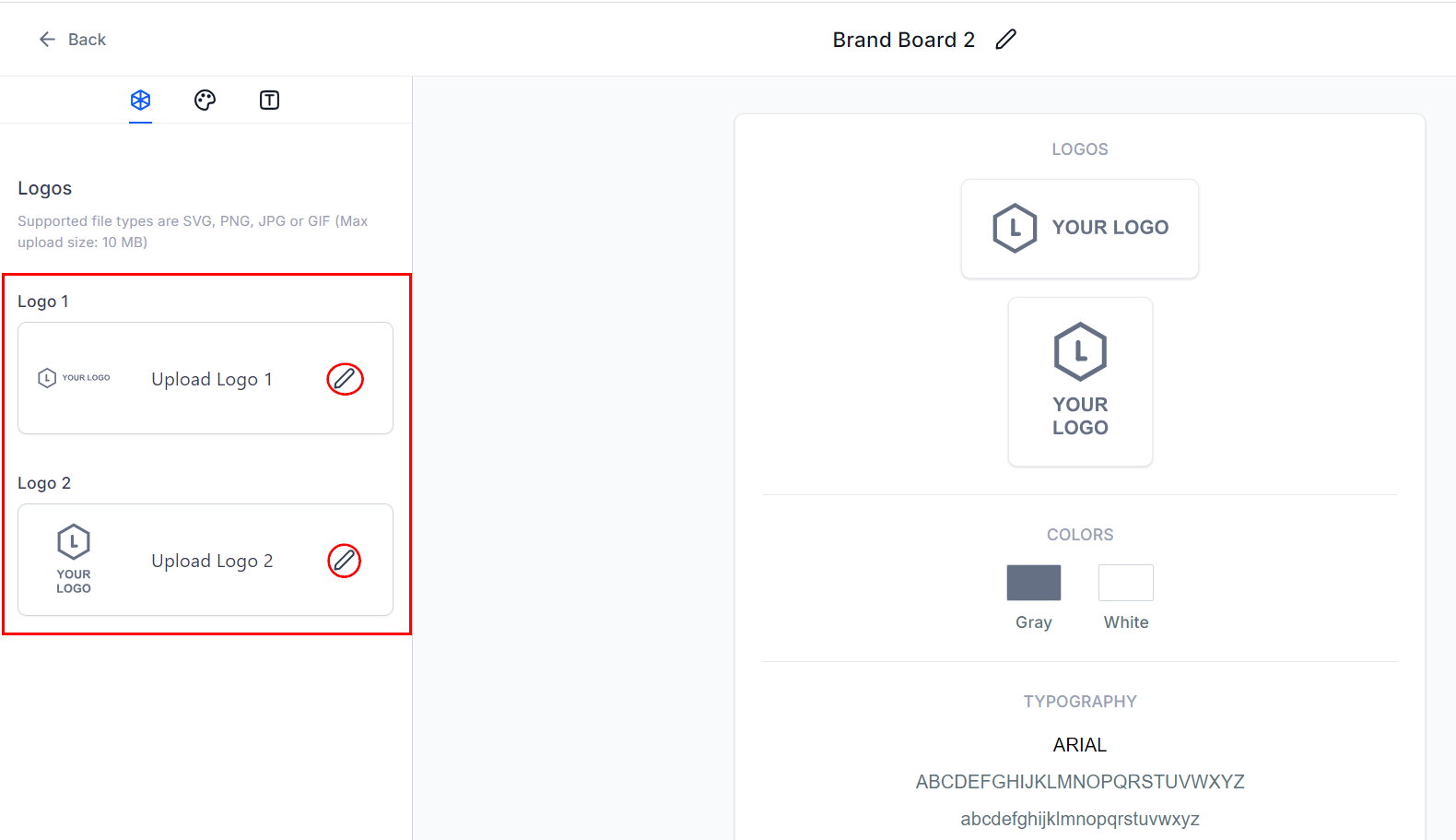
 Click the edit icon in the logo section to select logos from your media library. You can upload up to two logos.
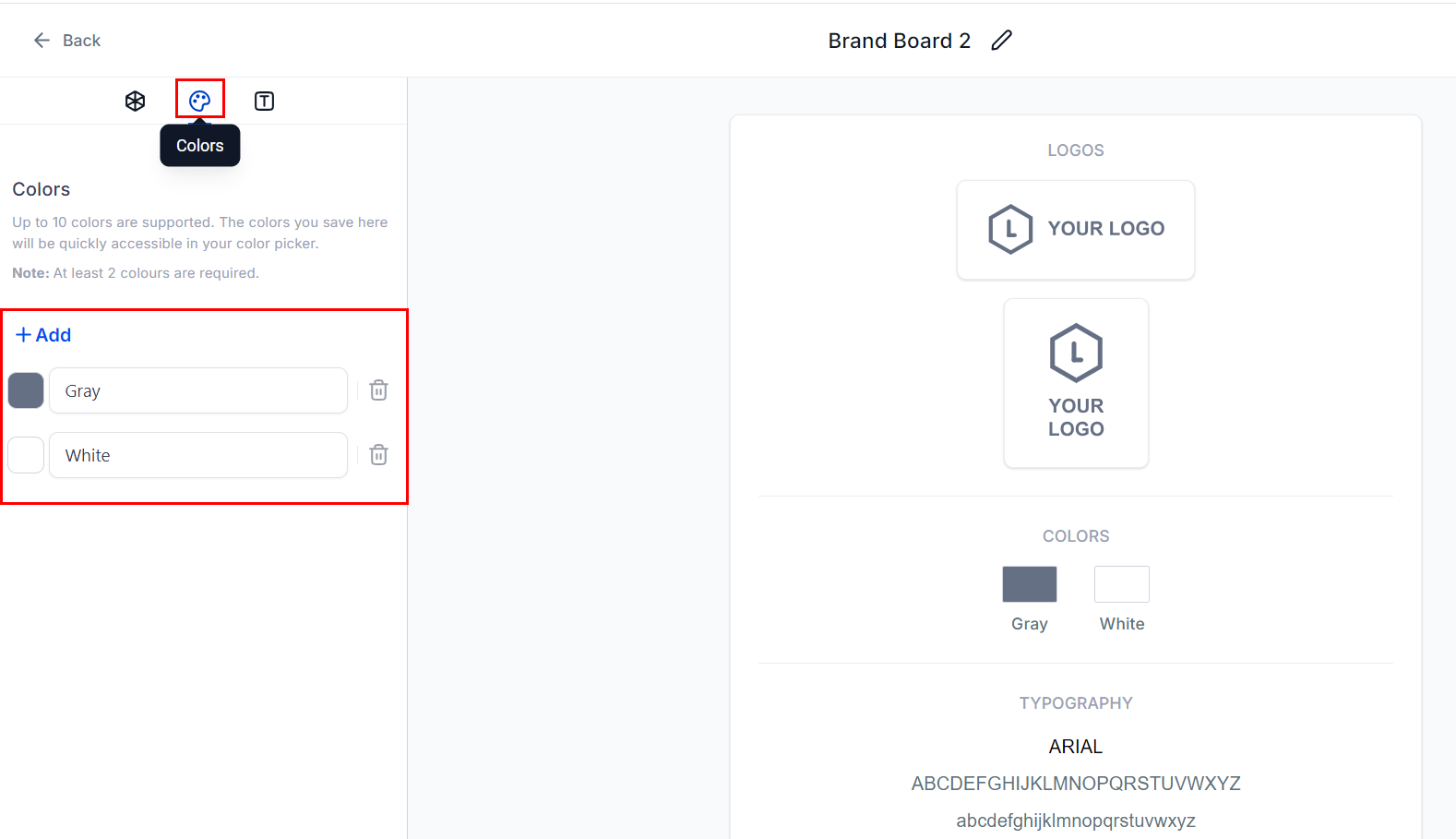
 Go to the **Colors** section and click **Add** to include your brand colors. You can add up to 10 colors. Click any color to edit or rename it.
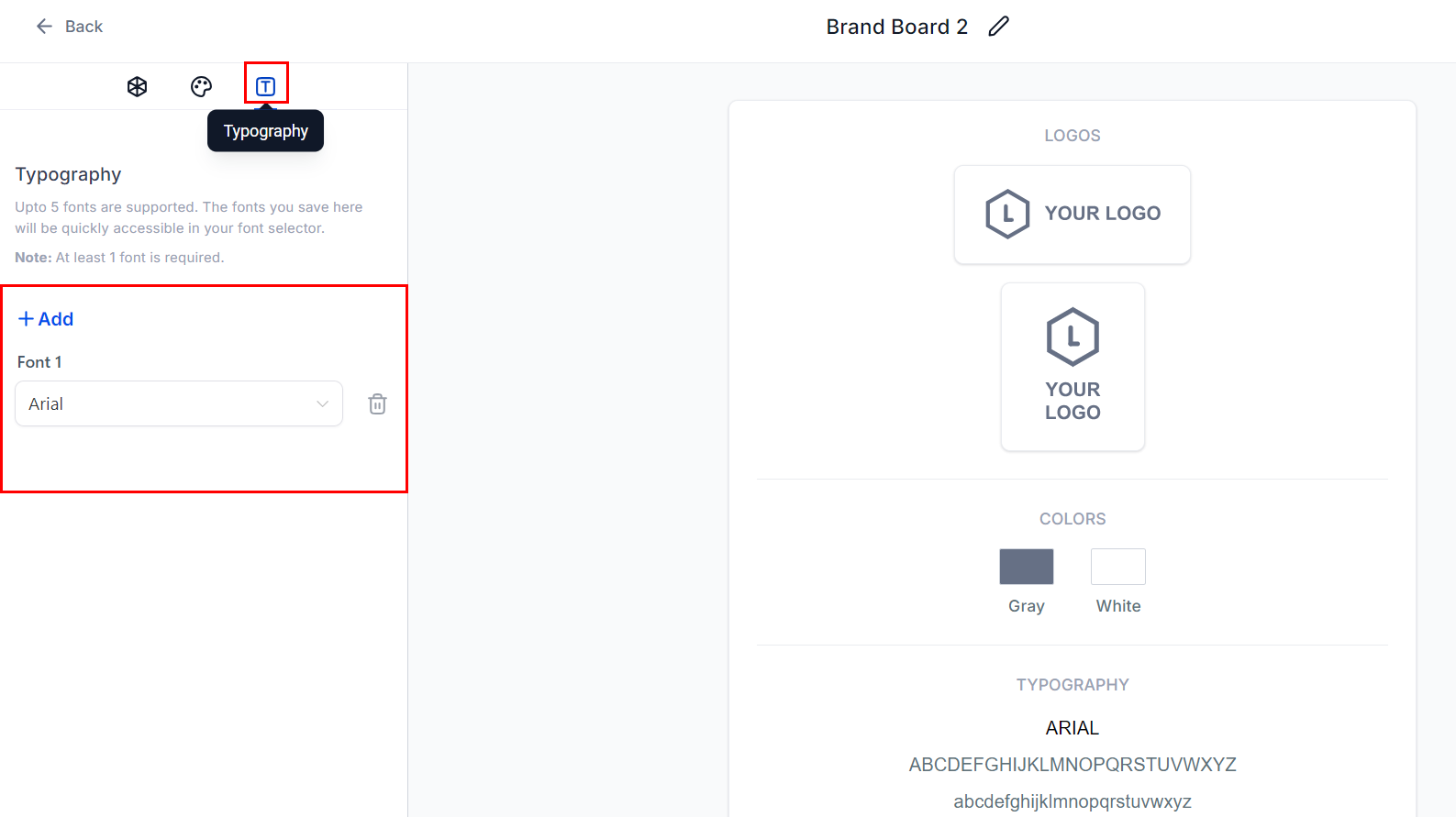
 Navigate to the **Typography** section and click **Add** to choose brand fonts. You can include up to five fonts using the dropdown menu.
 Click **Save Board** in the upper-right corner to preserve your changes.
***
## Editing a brand board
As your brand evolves, you can update the board to reflect new logos, colors, or fonts.
**Why you should edit your board**
* **Logo updates:** A redesigned logo needs to be updated in the board so it flows consistently to all platforms.
* **New colors or fonts:** Any rebranding changes must be reflected in the board to maintain visual consistency.
* **Ongoing consistency:** Even minor adjustments should be kept current to reinforce brand recognition.
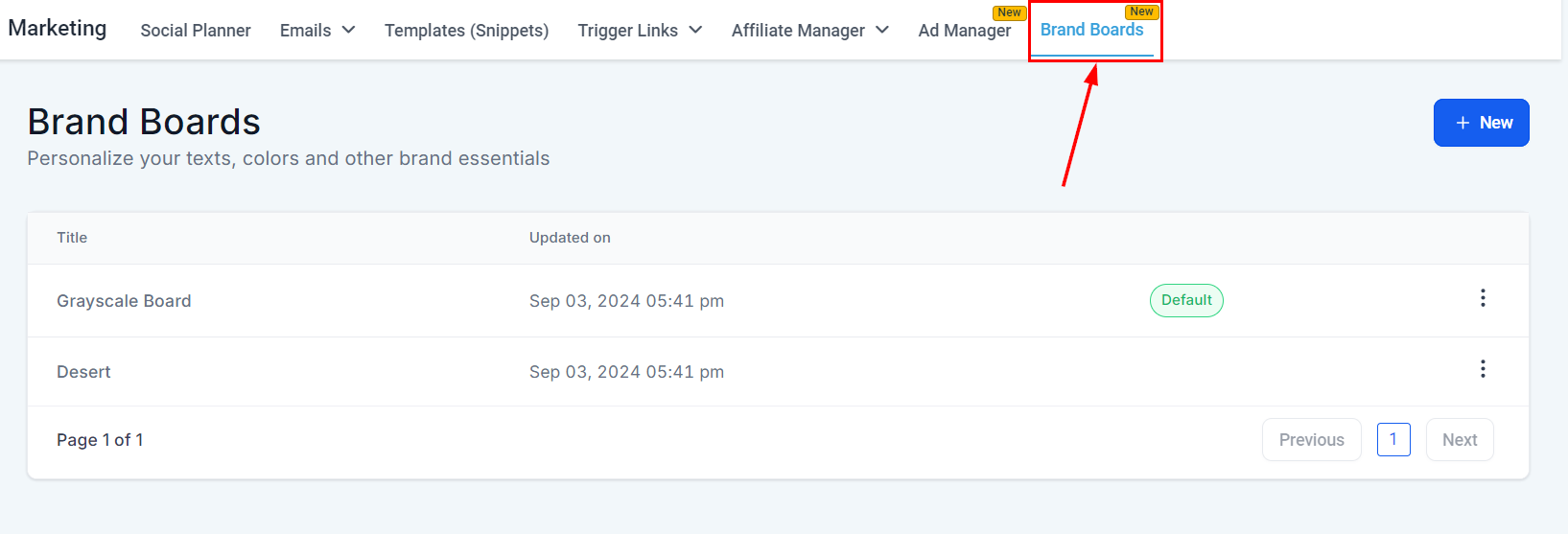
Go to **Marketing** > **Brand Boards**, or navigate to **Settings** > **Brand Board**.
Click **Save Board** in the upper-right corner to preserve your changes.
***
## Editing a brand board
As your brand evolves, you can update the board to reflect new logos, colors, or fonts.
**Why you should edit your board**
* **Logo updates:** A redesigned logo needs to be updated in the board so it flows consistently to all platforms.
* **New colors or fonts:** Any rebranding changes must be reflected in the board to maintain visual consistency.
* **Ongoing consistency:** Even minor adjustments should be kept current to reinforce brand recognition.
Go to **Marketing** > **Brand Boards**, or navigate to **Settings** > **Brand Board**.
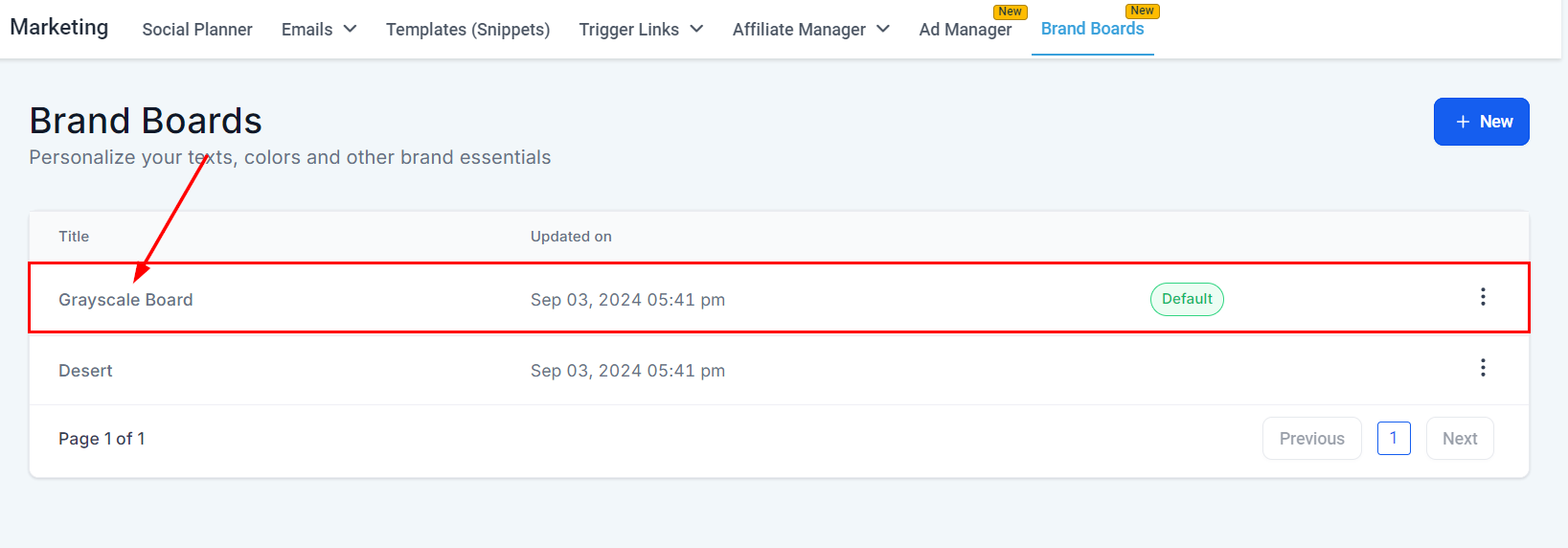
 Click the board's title to open it in the editor.
 Upload a new logo or adjust its positioning.
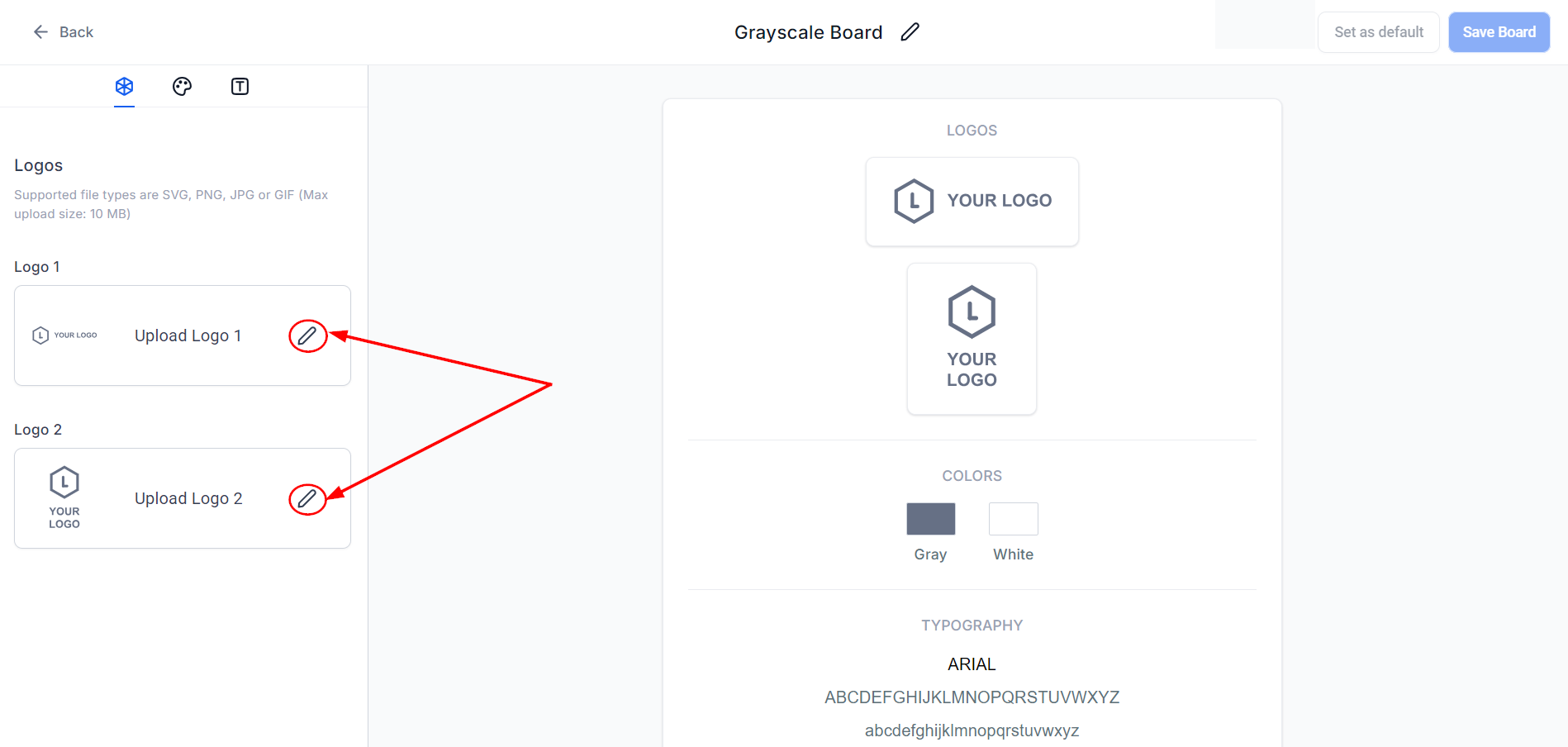 To delete previous logos, do so directly within the media library.
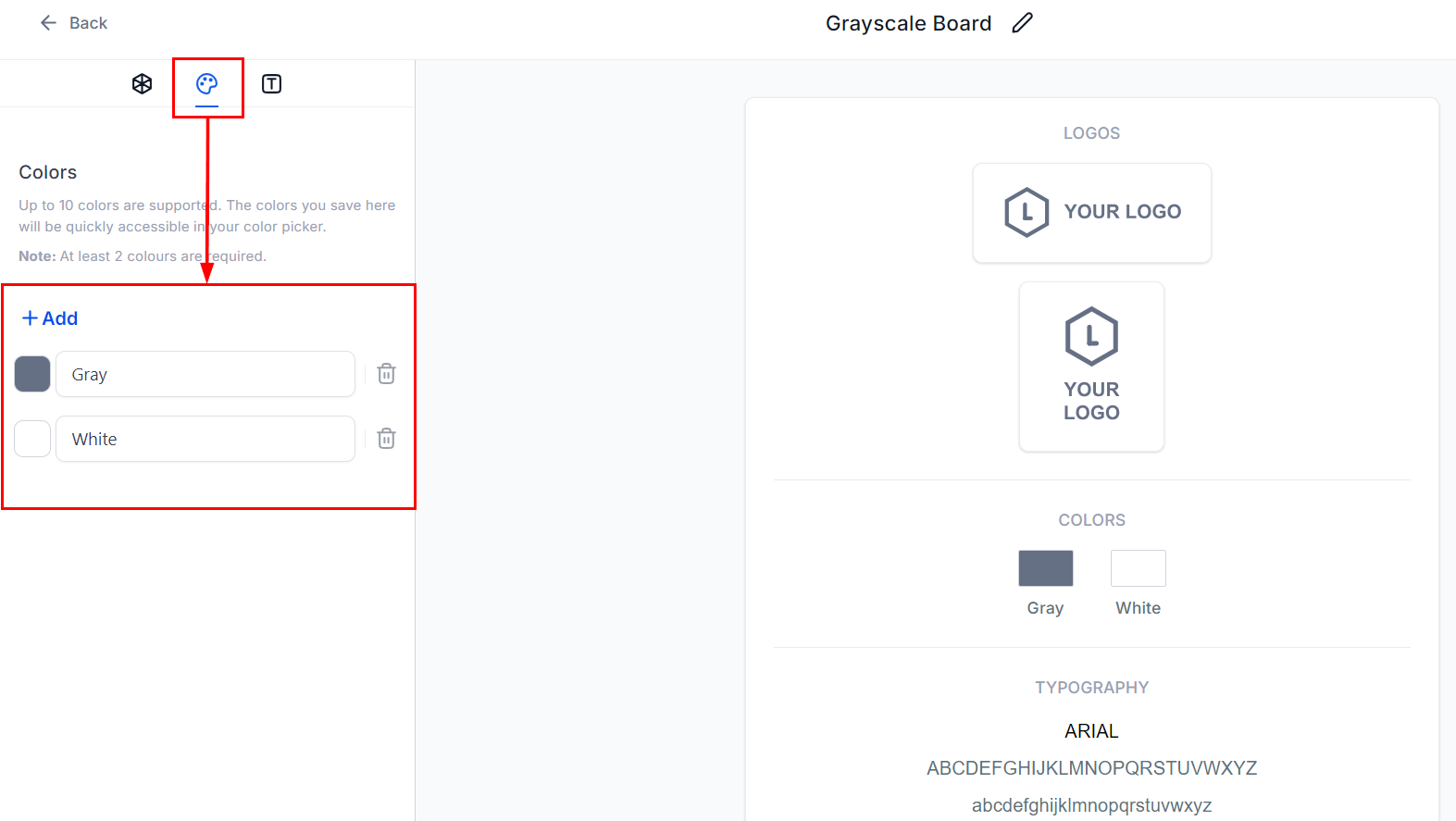
Update the color palette to reflect your new brand colors. Each board must have between 2 and 10 colors.
To delete previous logos, do so directly within the media library.
Update the color palette to reflect your new brand colors. Each board must have between 2 and 10 colors.
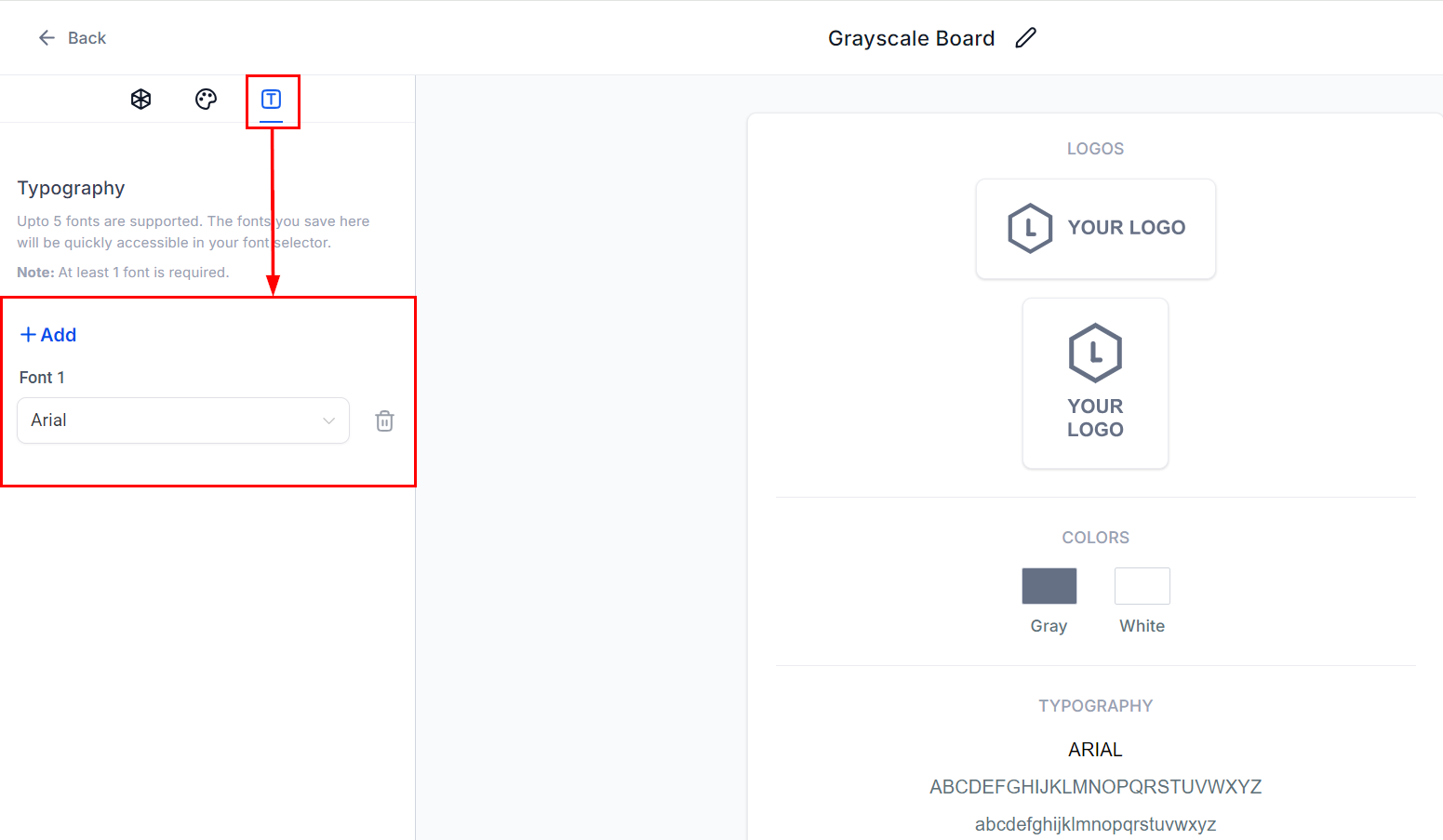
 Adjust the typography settings to add new fonts or alter existing ones. Each board must have between 1 and 5 fonts.
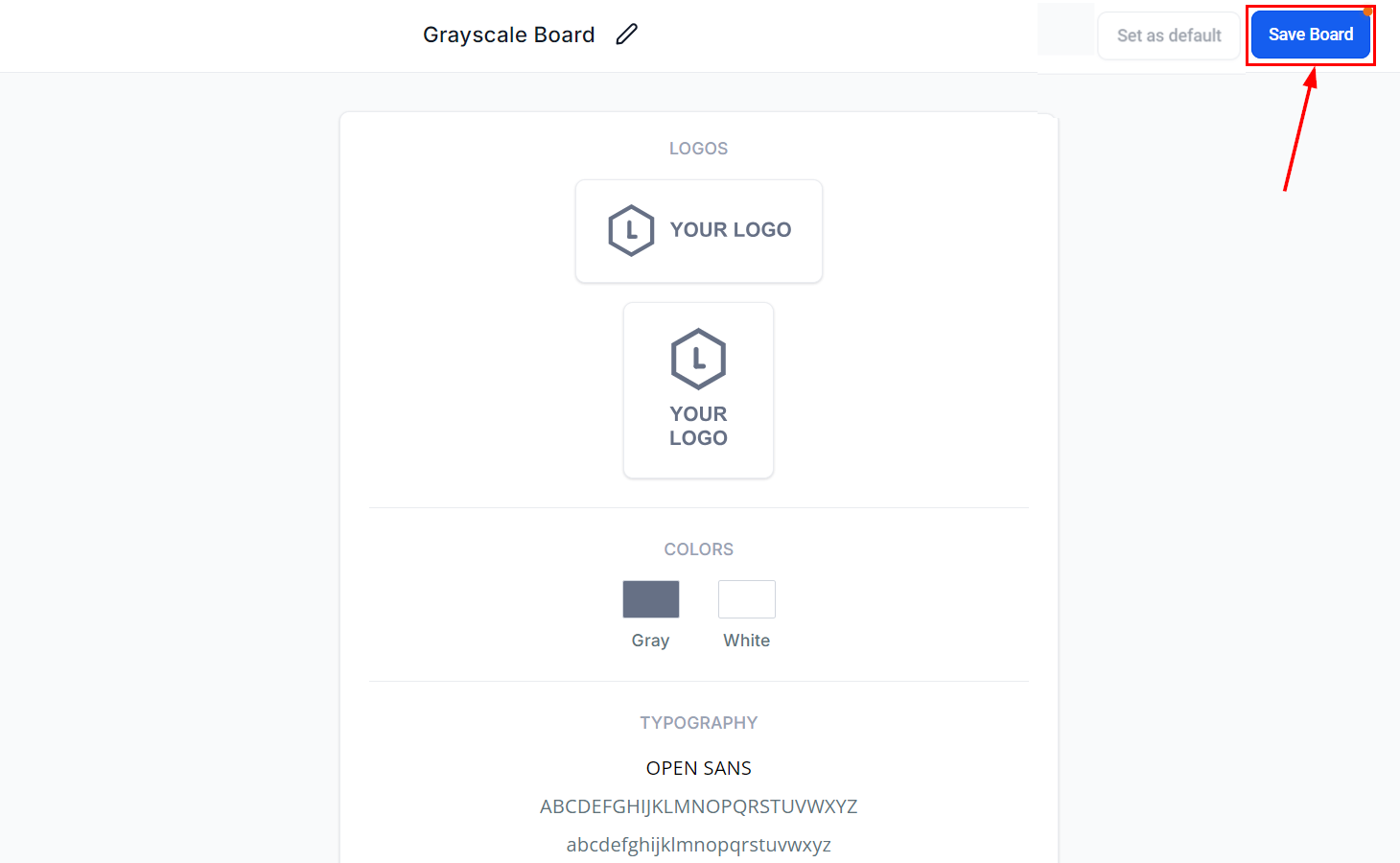
 Click **Save Board** to apply updates across all relevant materials.
 ***
## Changing the default brand board
The default brand board determines which colors and fonts appear first in the color and font pickers across your email and funnel editors. The first board you create is automatically set as the default.
**When to change the default board**
* **Updated guidelines:** When brand colors, logos, or other key elements change significantly.
* **Special occasions:** For seasonal campaigns, though creating a separate themed template is usually more practical.
Navigate to **Marketing** > **Brand Boards**. The current default is marked with a **Default** label.
***
## Changing the default brand board
The default brand board determines which colors and fonts appear first in the color and font pickers across your email and funnel editors. The first board you create is automatically set as the default.
**When to change the default board**
* **Updated guidelines:** When brand colors, logos, or other key elements change significantly.
* **Special occasions:** For seasonal campaigns, though creating a separate themed template is usually more practical.
Navigate to **Marketing** > **Brand Boards**. The current default is marked with a **Default** label.
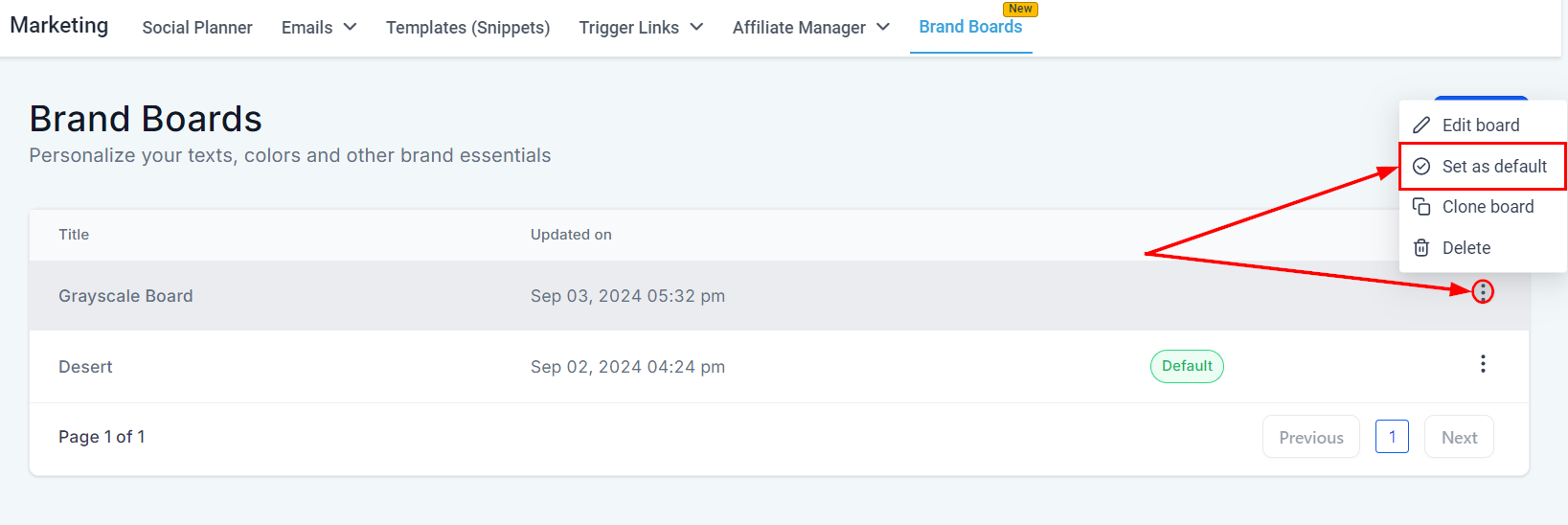
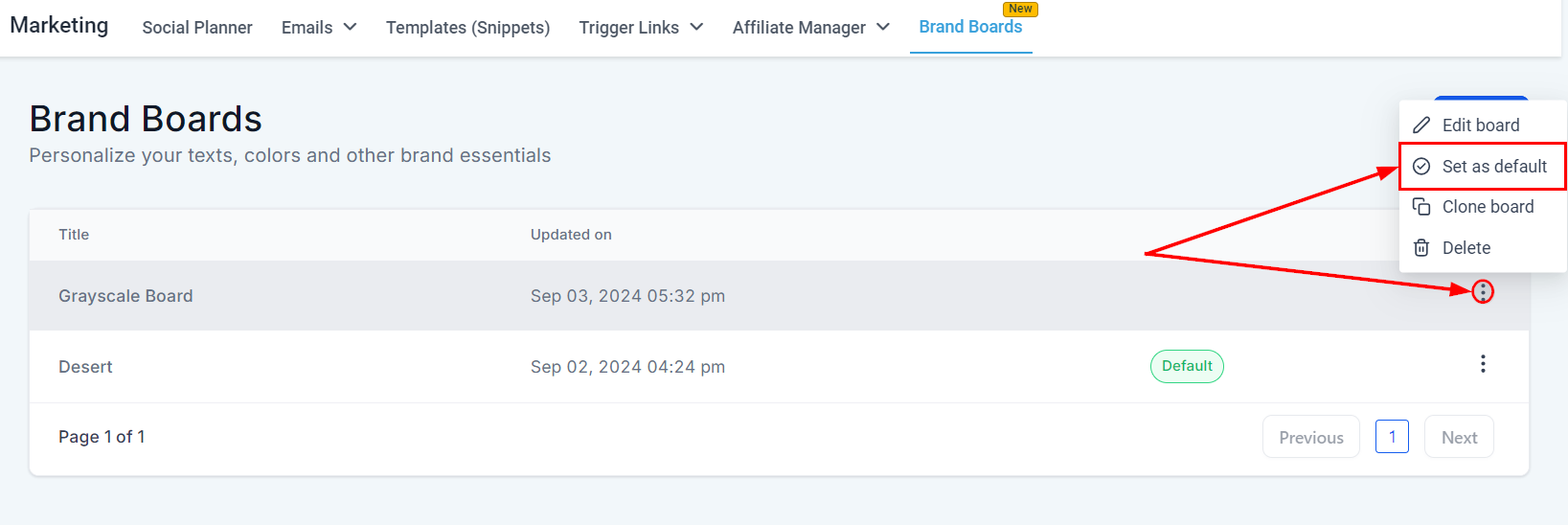 Click the three-dot menu next to the board you want to designate, then choose **Set as Default**.
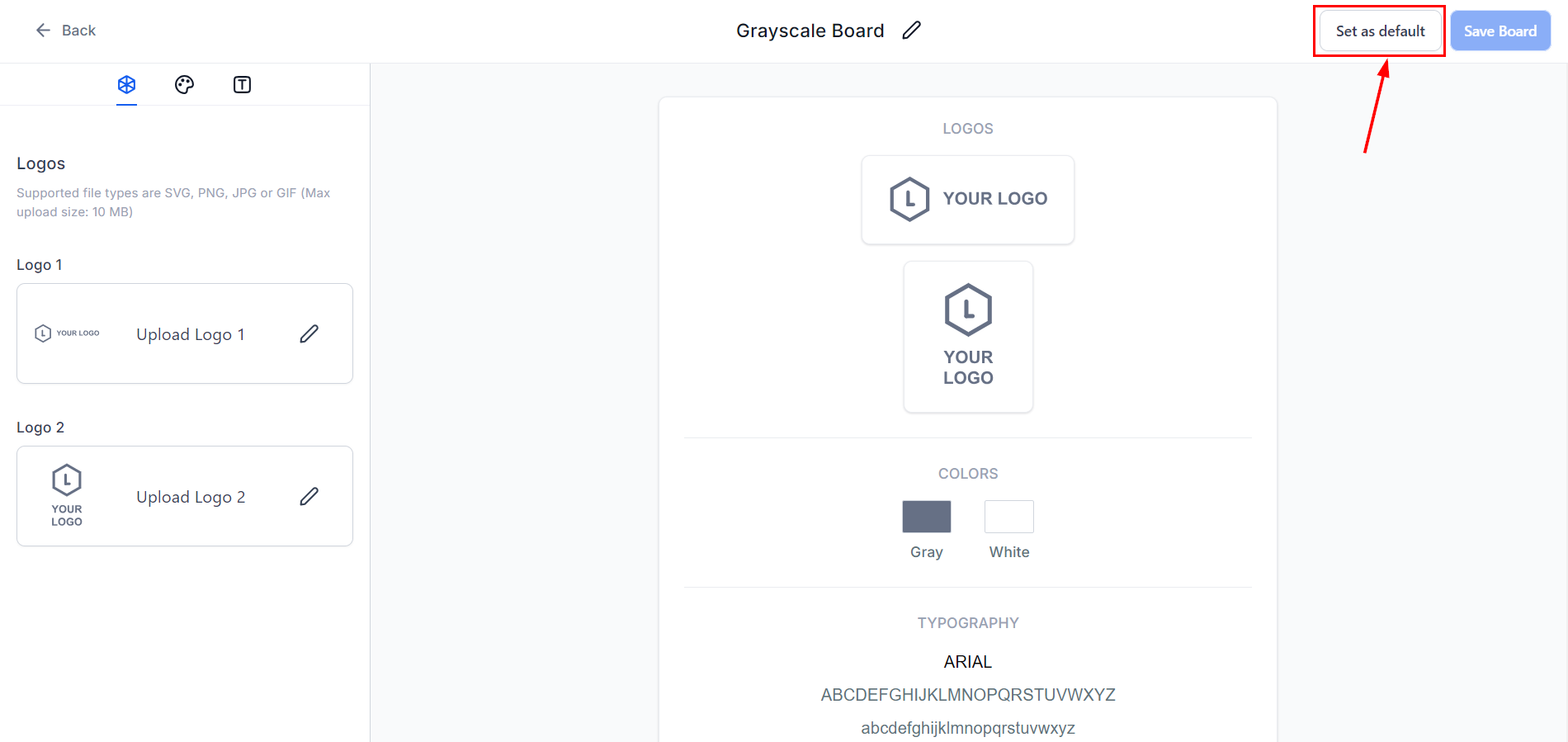 Alternatively, open the board in edit mode and click **Set as Default** in the upper-right corner.
The **Default** label moves automatically to the newly selected board.
Alternatively, open the board in edit mode and click **Set as Default** in the upper-right corner.
The **Default** label moves automatically to the newly selected board.
 ***
## Using brand boards in emails
Brand boards give you quick, organized access to your brand's fonts and colors within the email editor. Only the **default** brand board's fonts and colors appear in the color and font pickers. Logos from all brand boards are accessible through the media library.
Go to **Marketing** > **Email Marketing** and select a campaign or template to edit.
***
## Using brand boards in emails
Brand boards give you quick, organized access to your brand's fonts and colors within the email editor. Only the **default** brand board's fonts and colors appear in the color and font pickers. Logos from all brand boards are accessible through the media library.
Go to **Marketing** > **Email Marketing** and select a campaign or template to edit.
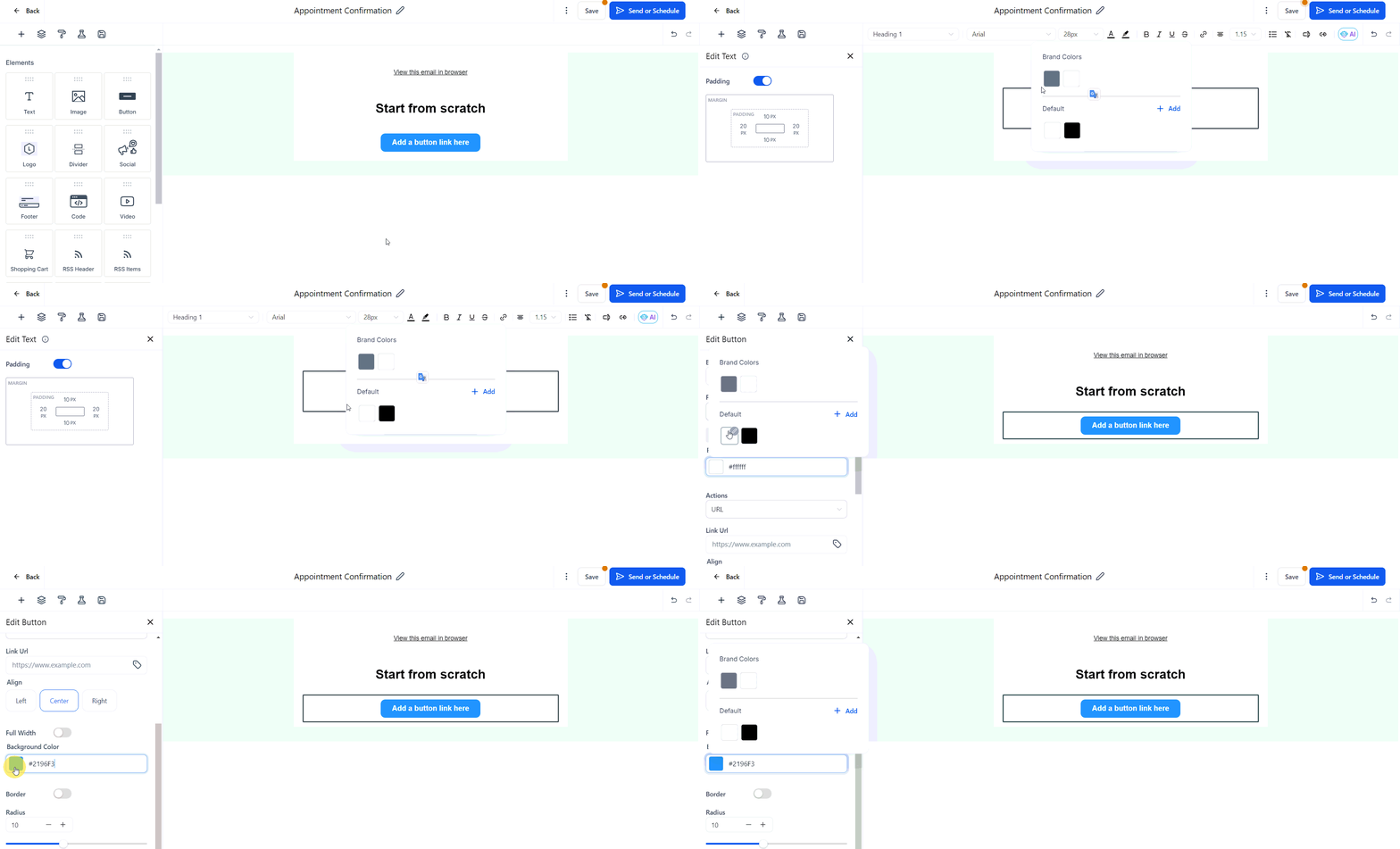
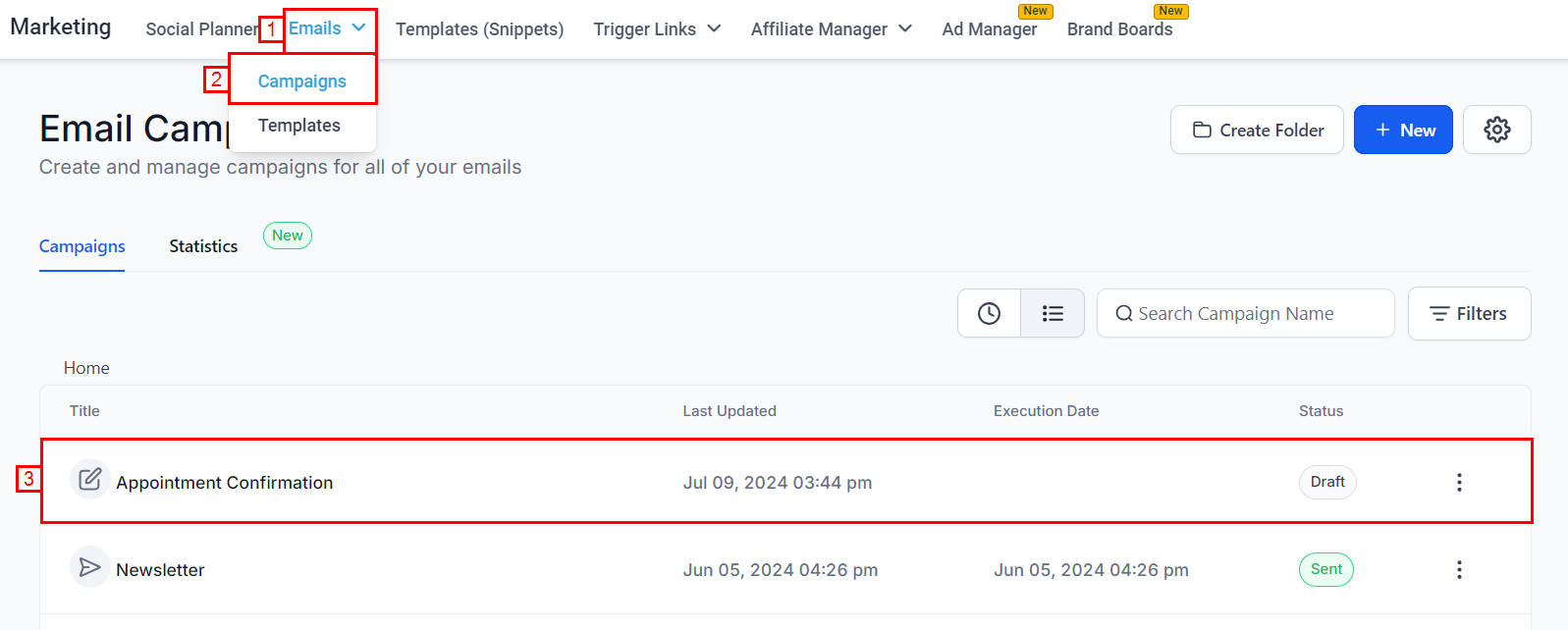 Edit a text block, adjust appearance settings, or modify button colors to open the color picker. Brand colors appear at the top of the palette, labeled with the names set in the brand board.
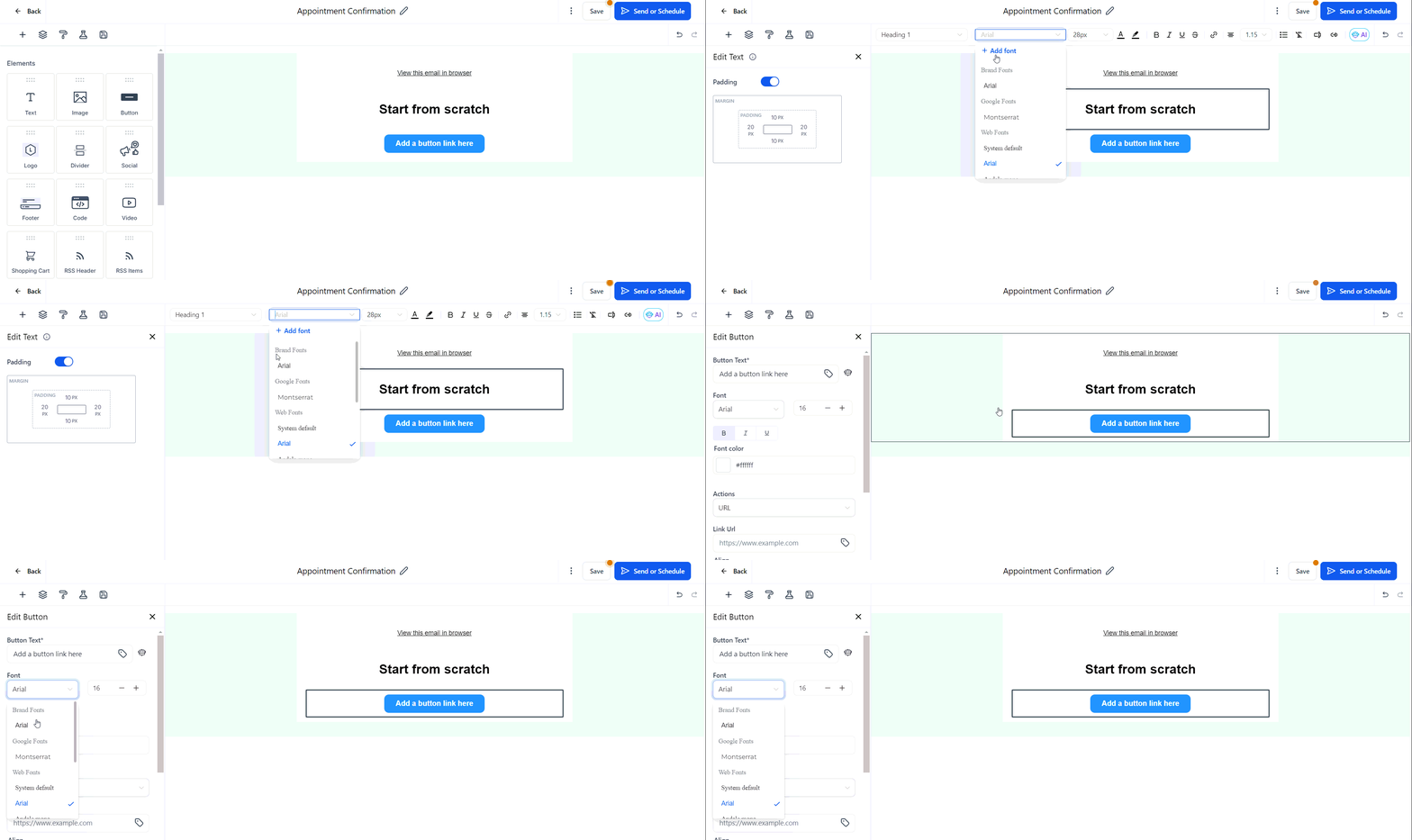
 Open the font picker — brand fonts appear at the top of the list for easy selection.
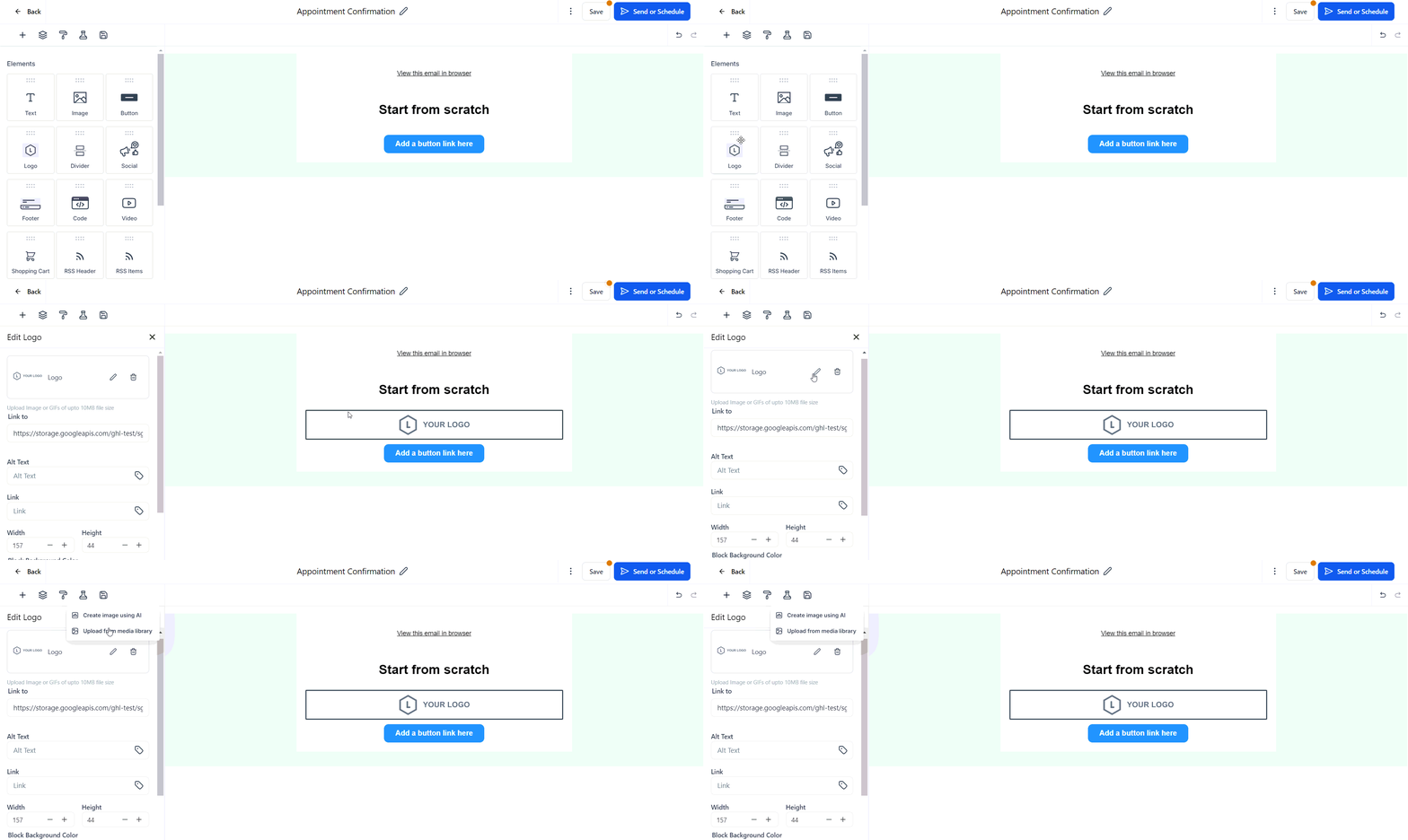
 Open the media library when inserting an image or logo. All logos from your brand boards are available there.
 ***
## Global settings
Global Settings allow you to store and manage custom colors and fonts that sync automatically across all your site builders — funnels, websites, and forms — ensuring cohesion at scale.
Go to **Marketing** > **Brand Boards**, then click the **Global Settings** button.
***
## Global settings
Global Settings allow you to store and manage custom colors and fonts that sync automatically across all your site builders — funnels, websites, and forms — ensuring cohesion at scale.
Go to **Marketing** > **Brand Boards**, then click the **Global Settings** button.
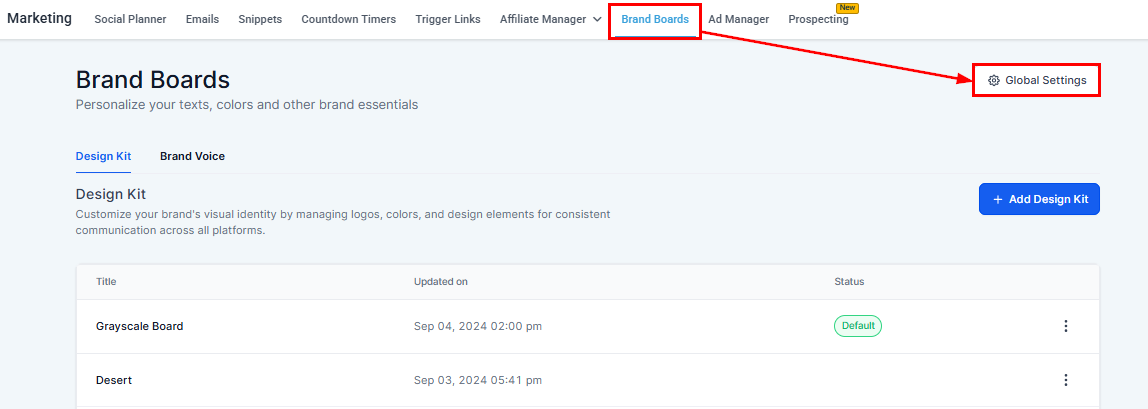 You will see two tabs: **Custom Fonts** and **Custom Colors**. Custom Fonts is not yet available; this guide covers Custom Colors.
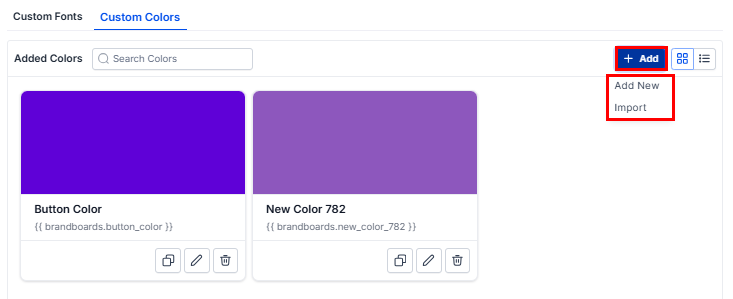
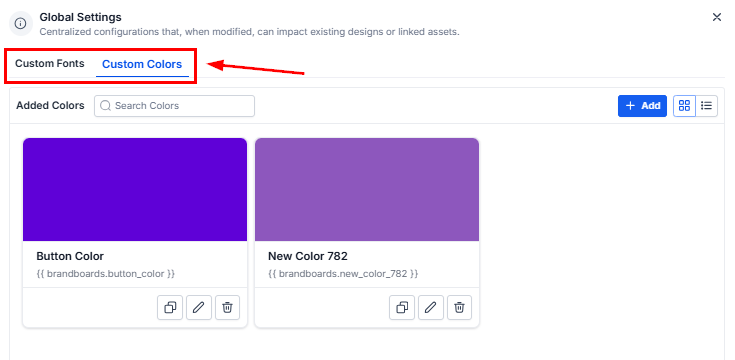 Click **Add**, choose a color from the color picker, or enter its hex code. Use the **Import** button to bring in colors from existing custom values.
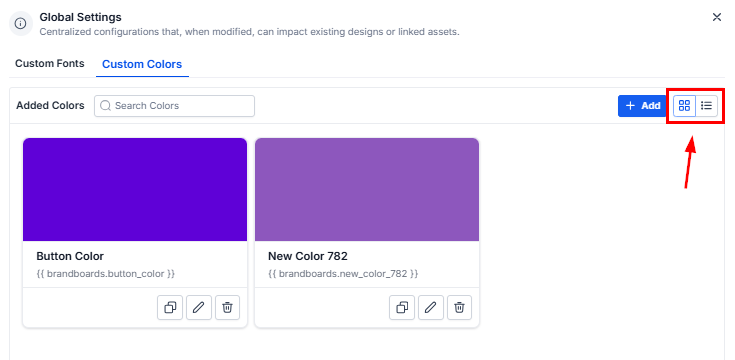
 Use the icons on the right to toggle between tile view and list view.
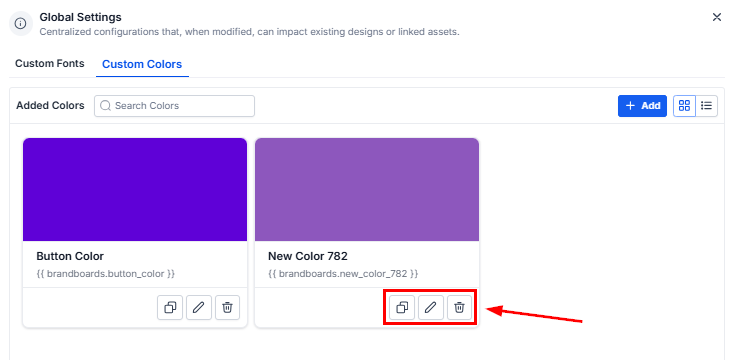
 Use the three icons next to each color to copy, edit, or delete it.
 Deleting a color removes it from all pickers. Designs that previously used this color may automatically update to reflect its removal, depending on how each builder manages color swatches.
Colors sync everywhere they are used. Editing a color updates all existing designs that reference it.
**How Global Colors differ from Design Kit colors:** Design Kit colors provide quick, local access within a specific project and do not sync automatically. Global Custom Colors are shared across all assets, ensuring consistency throughout your designs.
***
## Brand voice
Brand Voice lets you define and document your brand's unique communication style and apply it automatically across all AI-generated content in HoopAI — from campaigns and emails to landing pages.
### Adding a brand voice from scratch
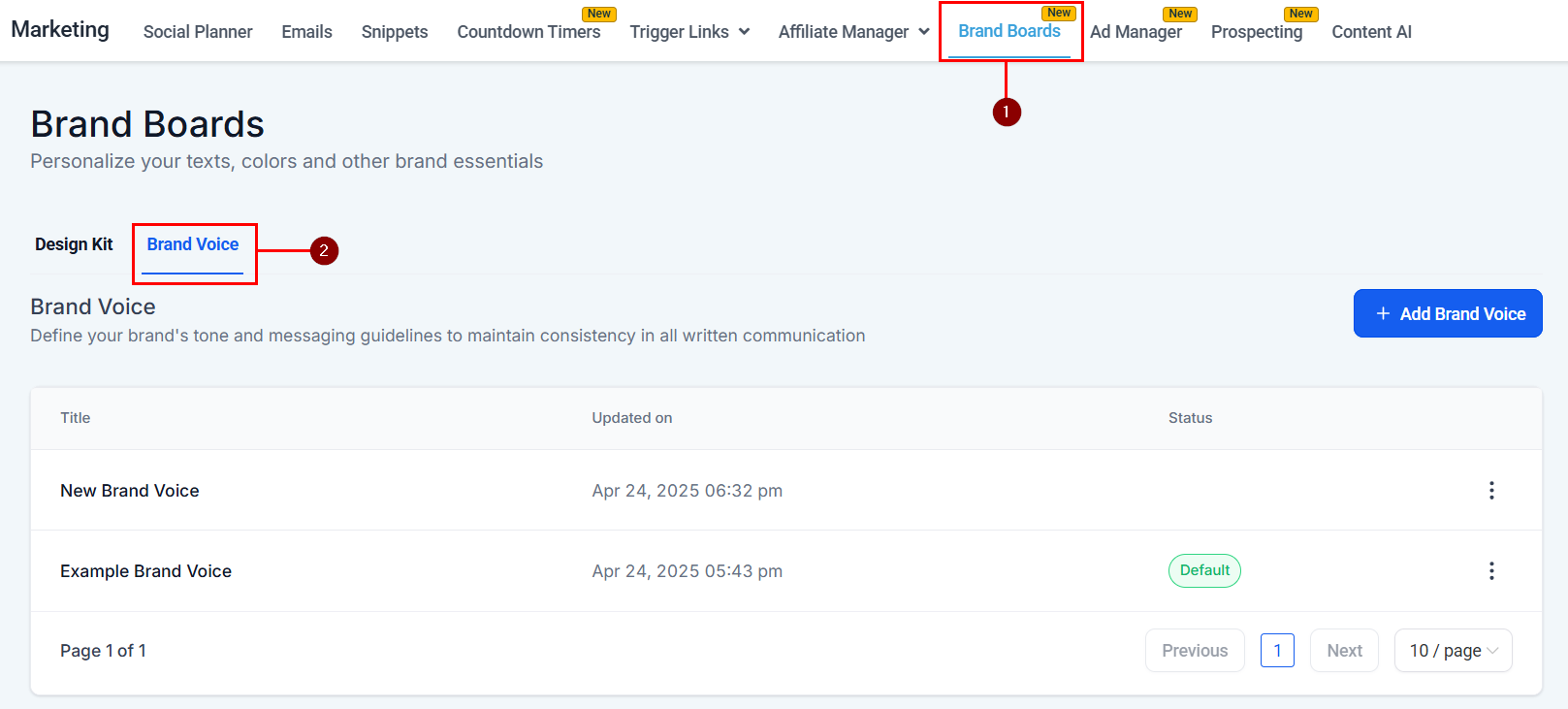
Go to **Marketing** > **Brand Boards**, then select the **Brand Voice** tab.
Deleting a color removes it from all pickers. Designs that previously used this color may automatically update to reflect its removal, depending on how each builder manages color swatches.
Colors sync everywhere they are used. Editing a color updates all existing designs that reference it.
**How Global Colors differ from Design Kit colors:** Design Kit colors provide quick, local access within a specific project and do not sync automatically. Global Custom Colors are shared across all assets, ensuring consistency throughout your designs.
***
## Brand voice
Brand Voice lets you define and document your brand's unique communication style and apply it automatically across all AI-generated content in HoopAI — from campaigns and emails to landing pages.
### Adding a brand voice from scratch
Go to **Marketing** > **Brand Boards**, then select the **Brand Voice** tab.
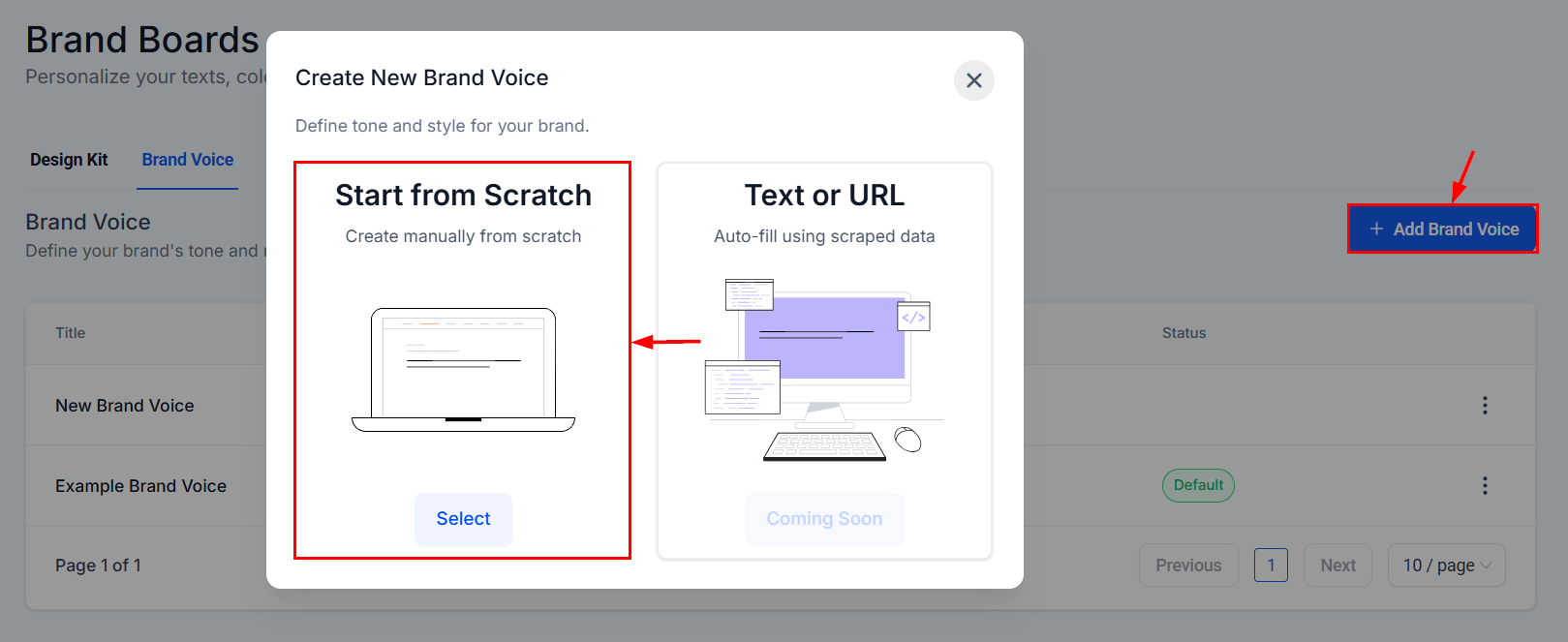
 Click **Add Brand Voice**, then choose **Start from Scratch**.
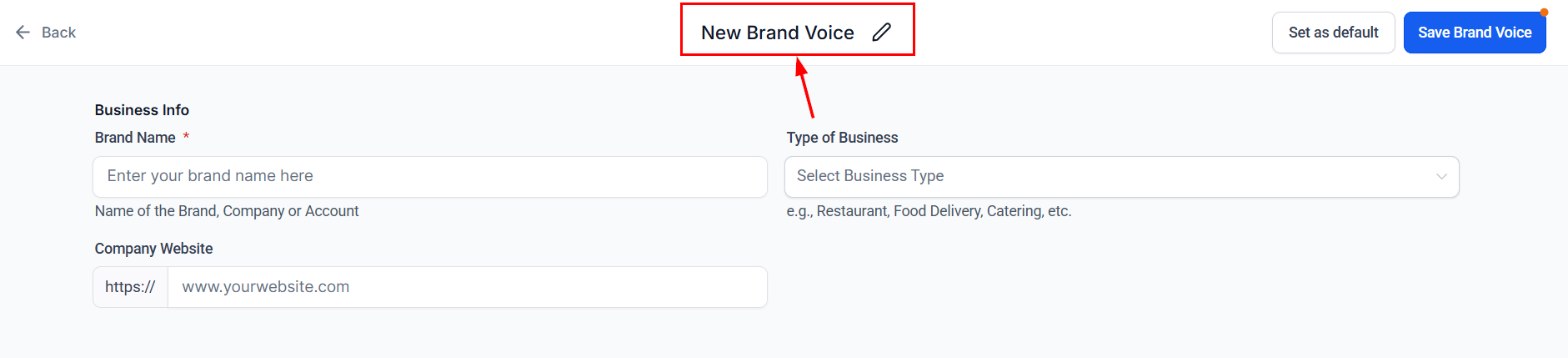
 Assign a clear, identifiable name for easy reference.
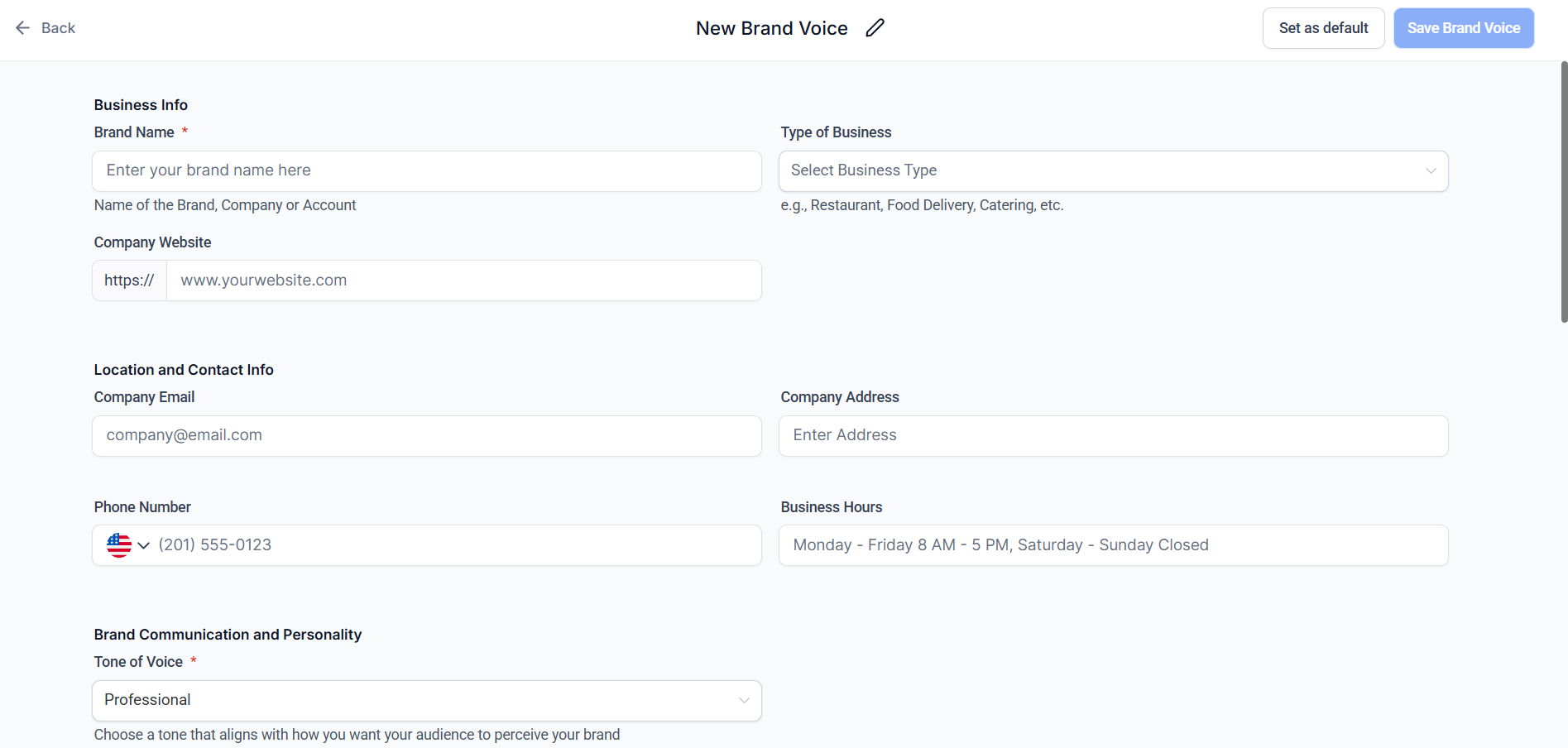
 Fill in each section of the form:
* **Business information:** Key details about what your brand does.
* **Brand values:** Core beliefs and principles that define your identity.
* **Tone and style:** Guidelines for how to communicate with clarity, personality, and professionalism.
* **Intended CTAs:** The actions you want your audience to take.
Fill in each section of the form:
* **Business information:** Key details about what your brand does.
* **Brand values:** Core beliefs and principles that define your identity.
* **Tone and style:** Guidelines for how to communicate with clarity, personality, and professionalism.
* **Intended CTAs:** The actions you want your audience to take.
 Click **Save** to store your brand voice.
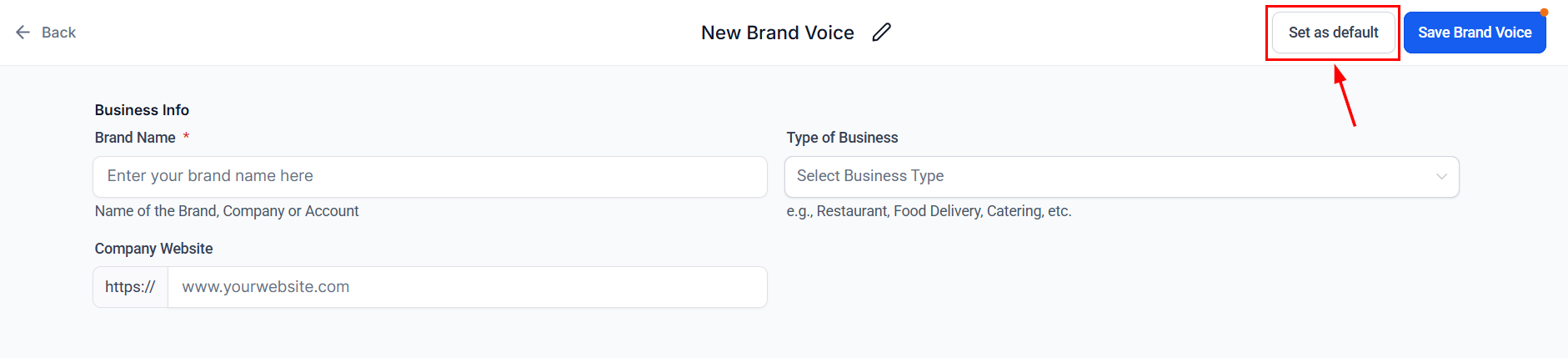
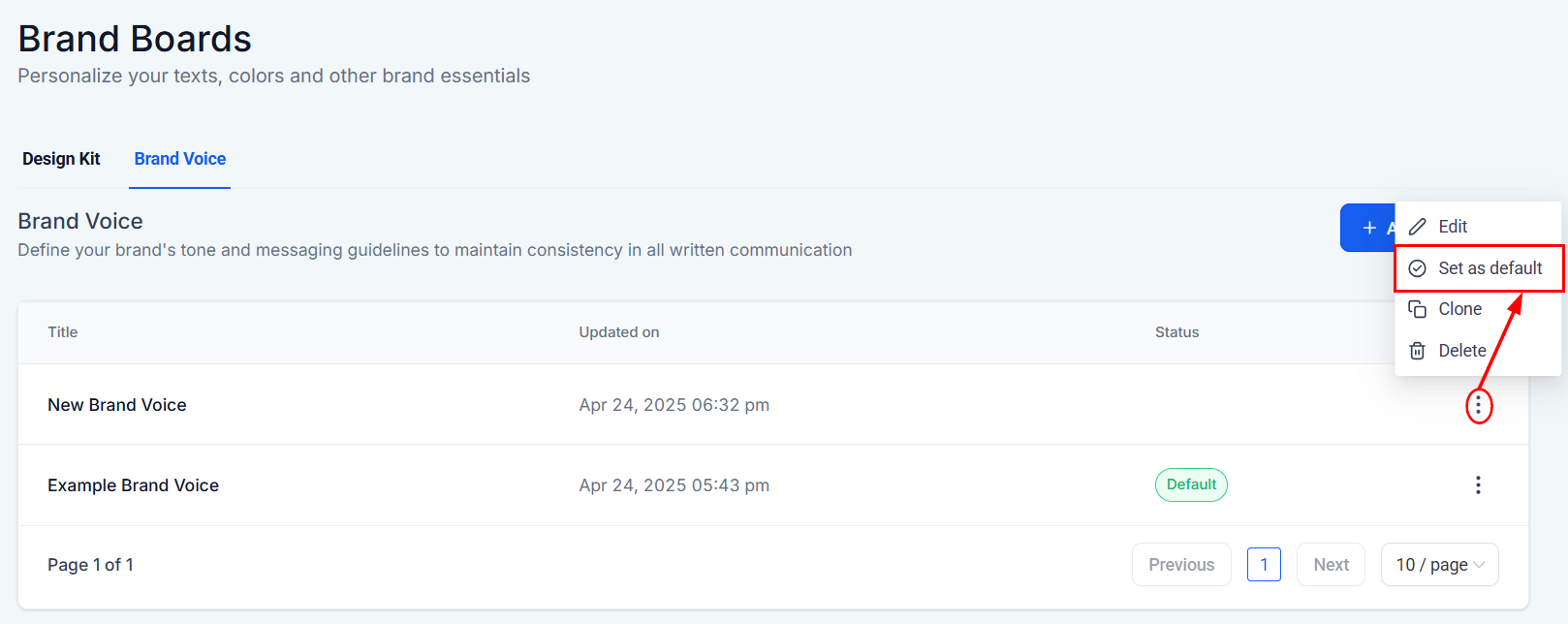
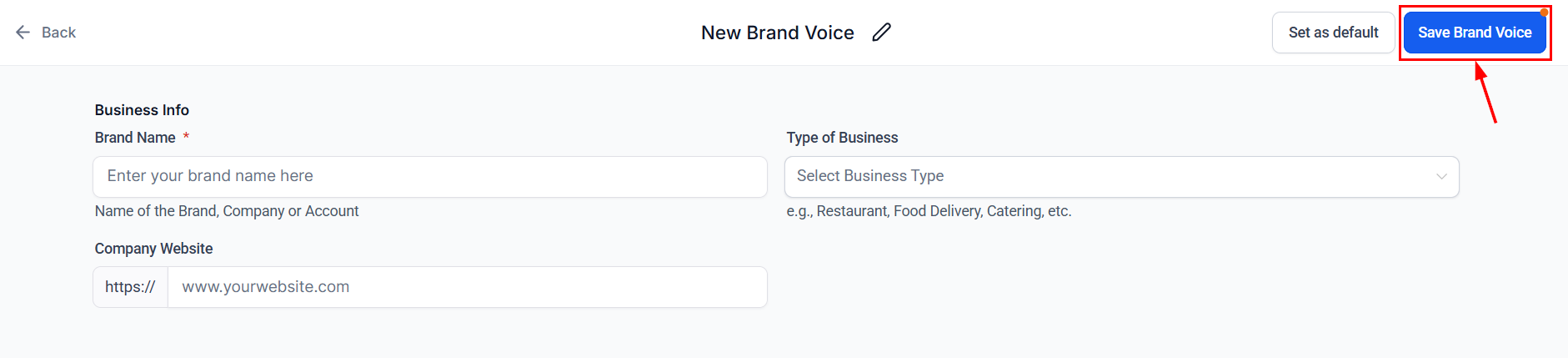 If you have multiple voices, use the window or the three-dot menu next to each voice to set your preferred default.
 ### Creating a brand voice from text or URL
Skip manual setup by letting AI generate a brand voice profile from your website or brand content.
**Key benefits**
* **Faster setup:** No need to build a voice from scratch.
* **Flexible and editable:** The generated voice is fully customizable.
* **User-friendly:** Requires only a single URL or block of text.
Go to **Marketing** > **Brand Boards** > **Brand Voice** tab and click **Add Brand Voice**.
### Creating a brand voice from text or URL
Skip manual setup by letting AI generate a brand voice profile from your website or brand content.
**Key benefits**
* **Faster setup:** No need to build a voice from scratch.
* **Flexible and editable:** The generated voice is fully customizable.
* **User-friendly:** Requires only a single URL or block of text.
Go to **Marketing** > **Brand Boards** > **Brand Voice** tab and click **Add Brand Voice**.
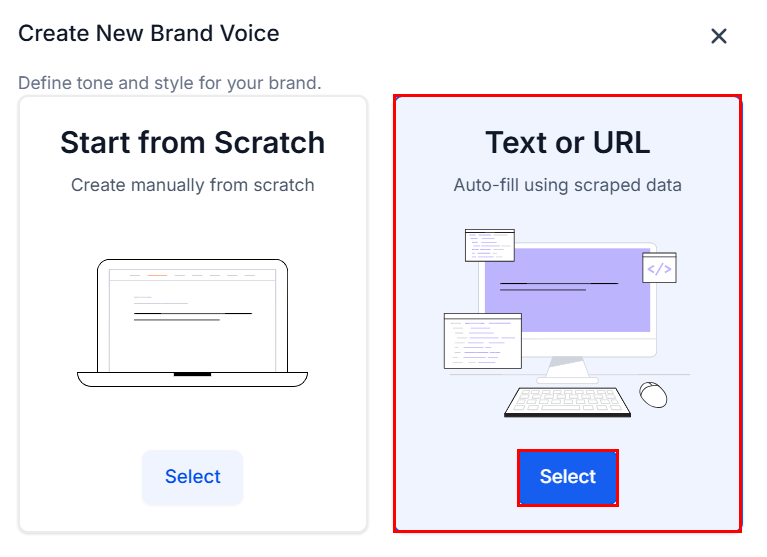
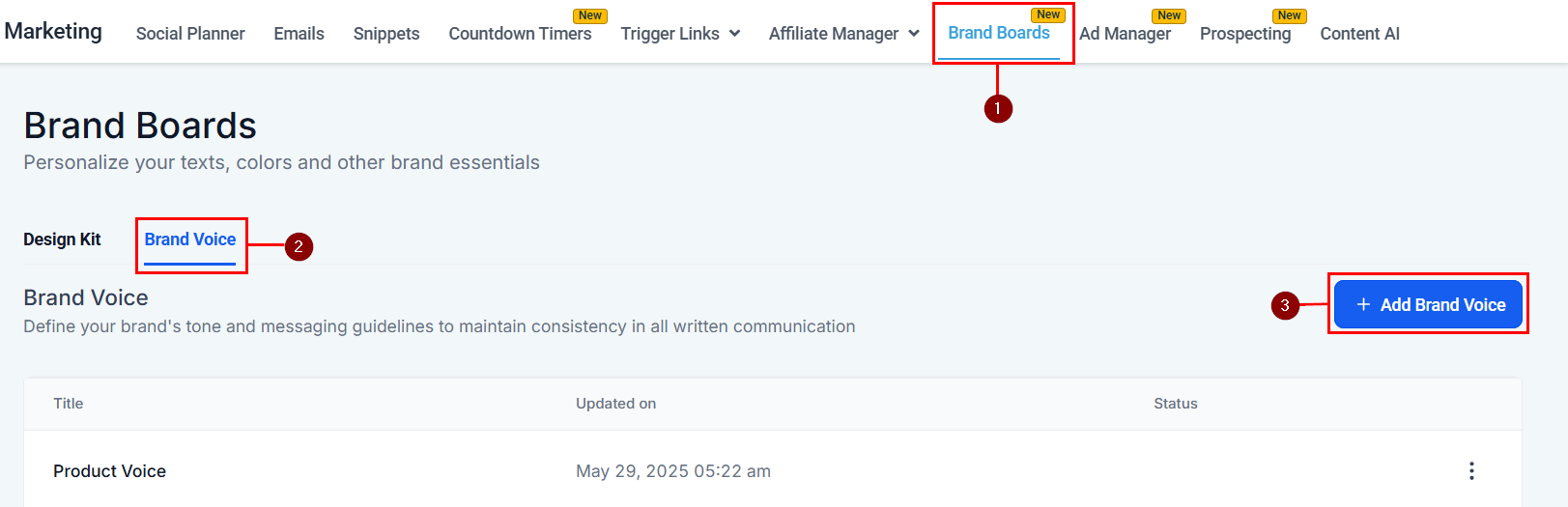 Choose the **Create with Text or URL** option instead of starting from scratch.
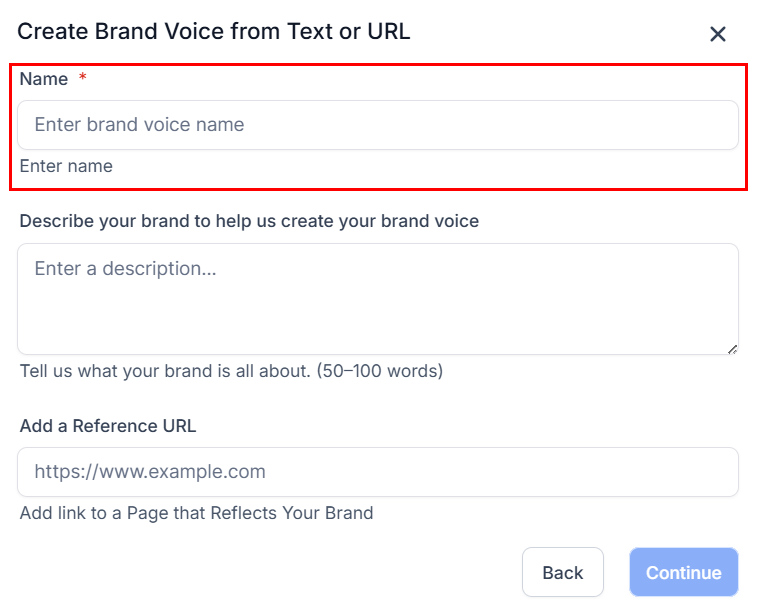
 Assign a name to identify this brand voice.
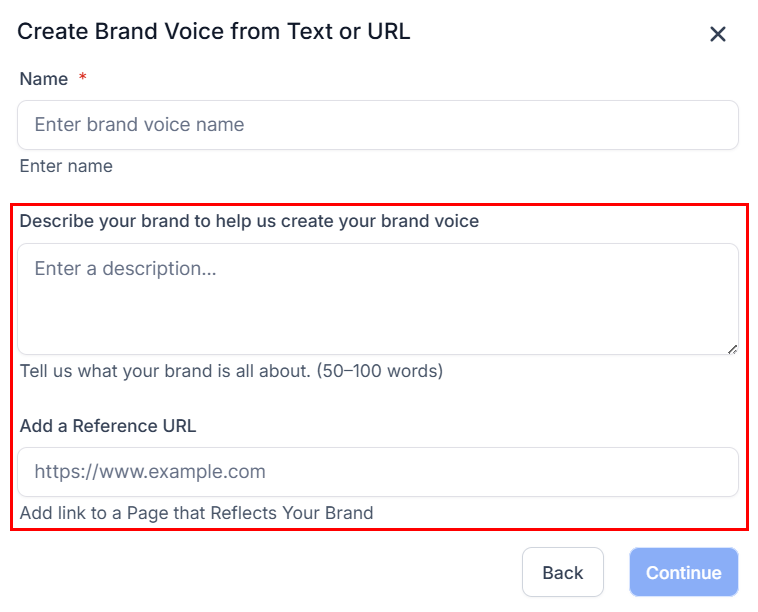
 Choose your input method:
* **Brand text:** Paste text from an "About Us" section, mission statement, product descriptions, or marketing copy.
* **Website URL:** Enter your homepage or a representative page. The system extracts relevant messaging to understand your tone.
Choose your input method:
* **Brand text:** Paste text from an "About Us" section, mission statement, product descriptions, or marketing copy.
* **Website URL:** Enter your homepage or a representative page. The system extracts relevant messaging to understand your tone.
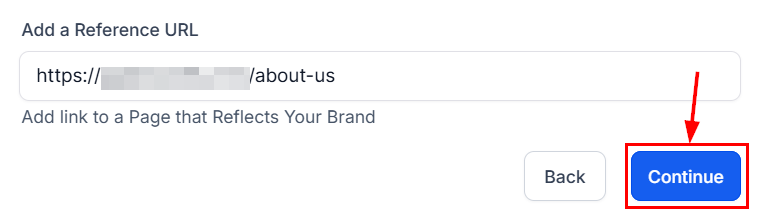
 Click **Continue**. Your brand voice is automatically generated and ready for editing.
 ### Changing the default brand voice
Navigate to **Marketing** > **Brand Boards** > **Brand Voice** tab.
### Changing the default brand voice
Navigate to **Marketing** > **Brand Boards** > **Brand Voice** tab.
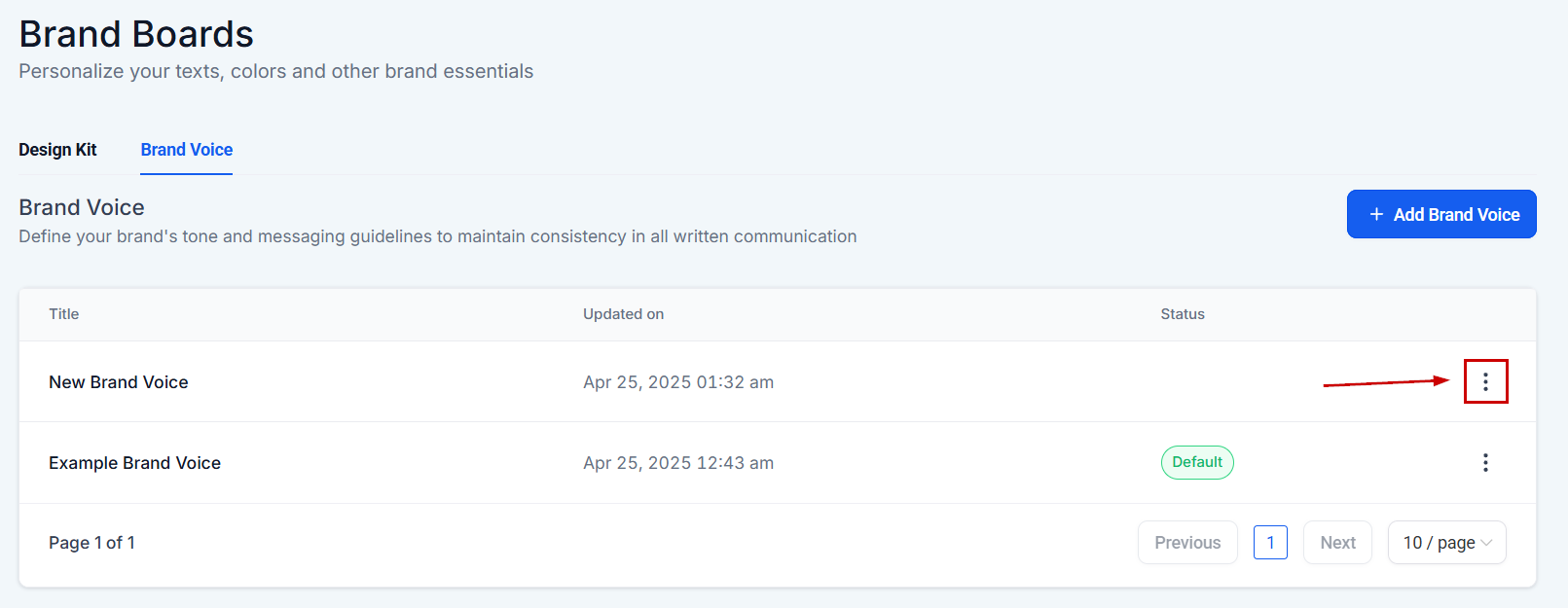
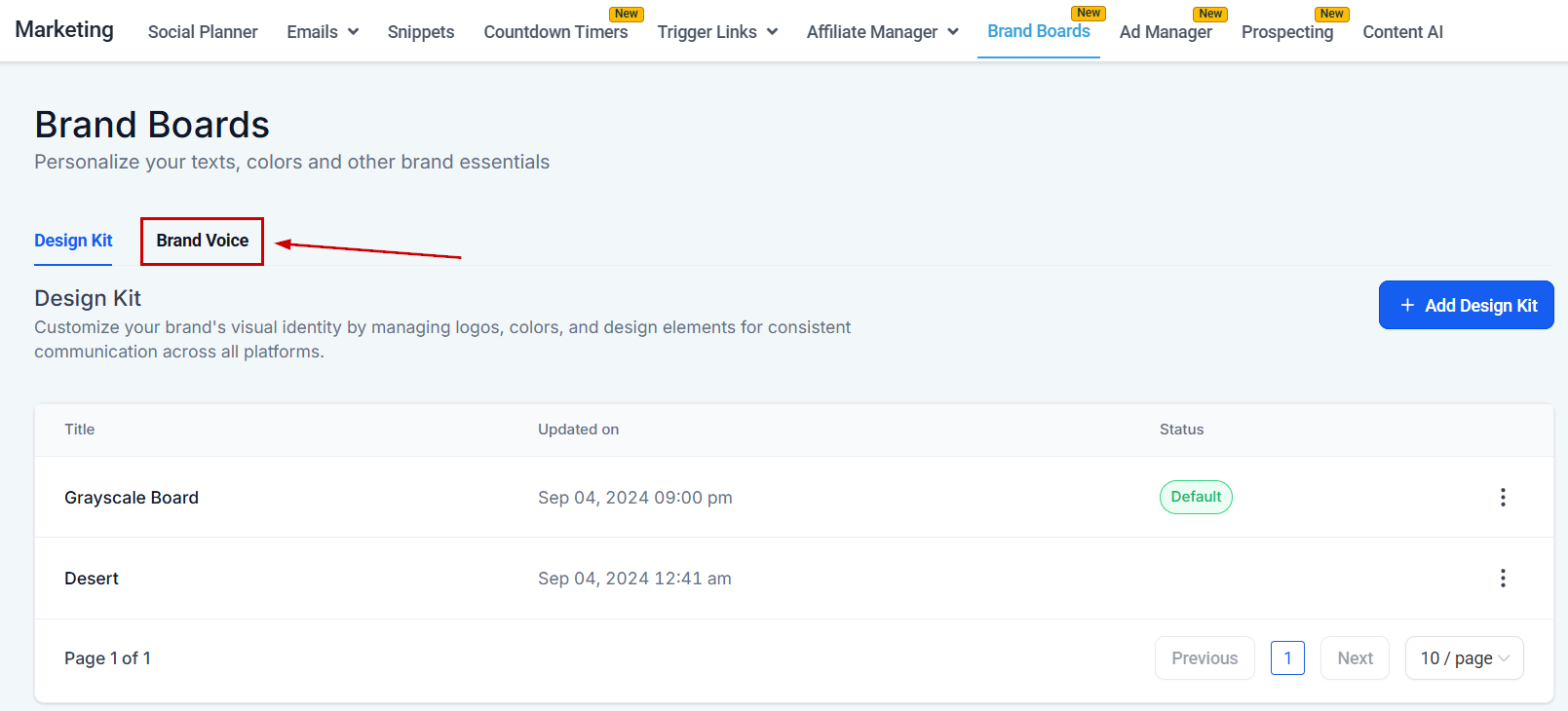 Click the three-dot icon next to the voice you want to set as default.
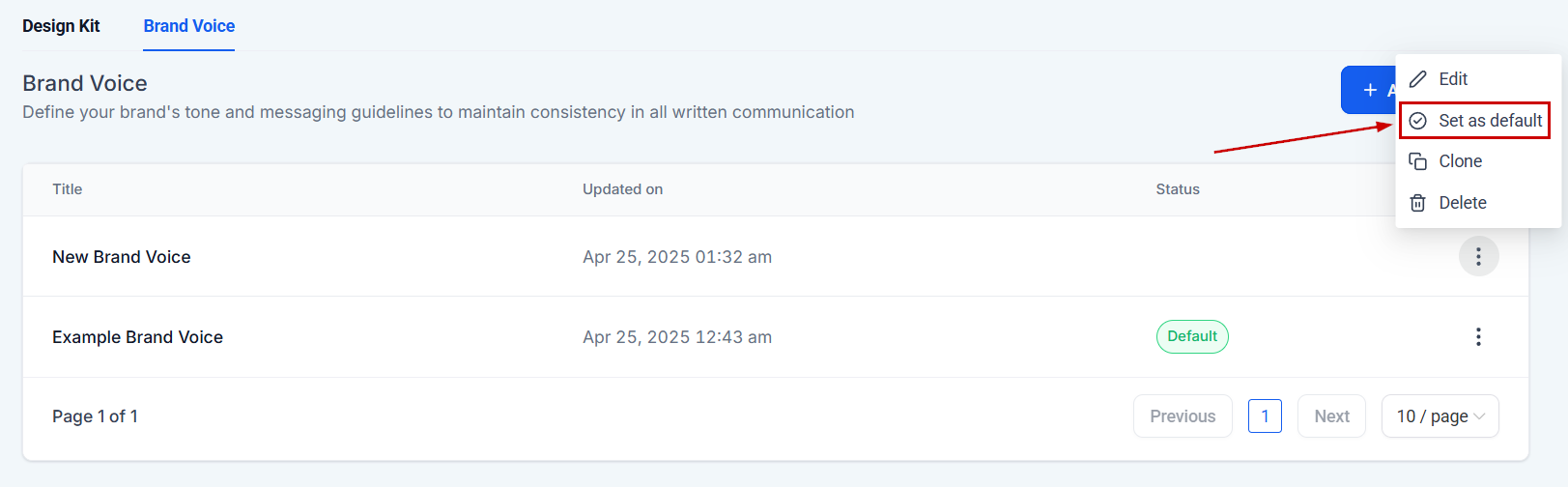
 Click **Set as Default** to apply this voice immediately.
 Click **Edit** to make changes first. The following fields are required:
* Brand name
* Tone of voice
* Target audience
* Customer pain points
Click **Edit** to make changes first. The following fields are required:
* Brand name
* Tone of voice
* Target audience
* Customer pain points
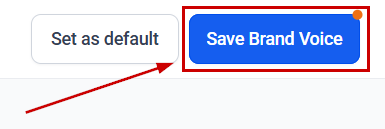
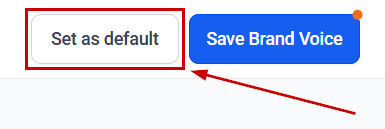
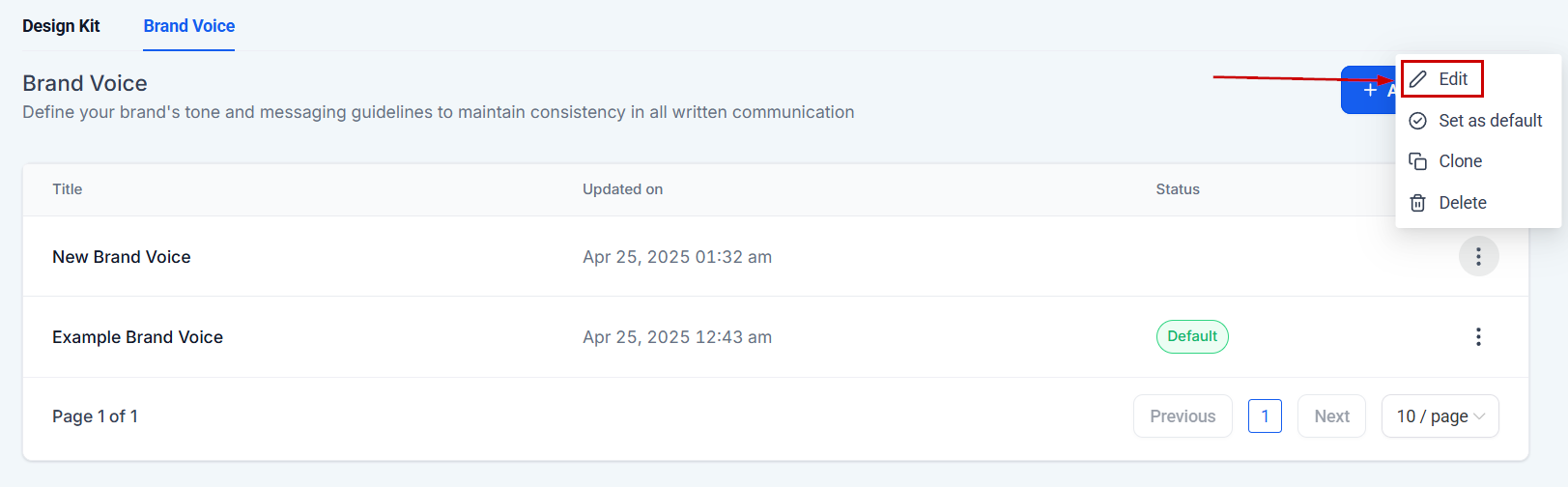 Click **Save Brand Voice** to update the settings, then click **Set as Default**.
 ***
## Frequently asked questions
No. Changes to brand board colors do not retroactively update existing emails or funnels. The updated colors will only appear in the color picker for future designs.
Each brand board supports up to 10 colors, up to 5 fonts, and up to 2 logos. You must have at least 2 colors and at least 1 font.
A folder named after the brand board is created in your media library for quick access. You can delete old logos directly within the media library.
No. For funnels, custom colors must be applied manually. Brand colors are available for quick access and will show updated values in the color picker for new designs only.
Yes. You can create and manage multiple brand voices within a single account to accommodate different campaigns, audiences, or clients.
Design Kit colors provide quick, local access within a specific project and do not sync automatically. Global Custom Colors are shared across all assets and sync everywhere they are used.
The color is removed from all pickers. Designs that previously used this color may automatically update to reflect its removal, depending on how each builder manages color swatches.
***
## Frequently asked questions
No. Changes to brand board colors do not retroactively update existing emails or funnels. The updated colors will only appear in the color picker for future designs.
Each brand board supports up to 10 colors, up to 5 fonts, and up to 2 logos. You must have at least 2 colors and at least 1 font.
A folder named after the brand board is created in your media library for quick access. You can delete old logos directly within the media library.
No. For funnels, custom colors must be applied manually. Brand colors are available for quick access and will show updated values in the color picker for new designs only.
Yes. You can create and manage multiple brand voices within a single account to accommodate different campaigns, audiences, or clients.
Design Kit colors provide quick, local access within a specific project and do not sync automatically. Global Custom Colors are shared across all assets and sync everywhere they are used.
The color is removed from all pickers. Designs that previously used this color may automatically update to reflect its removal, depending on how each builder manages color swatches.