> ## Documentation Index
> Fetch the complete documentation index at: https://help.hoopai.com/llms.txt
> Use this file to discover all available pages before exploring further.
# Affiliate manager
> Build and manage a full affiliate program — campaigns, commissions, tracking links, coupon codes, multi-tier referrals, and automated payouts from the HoopAI Platform.
The Affiliate Manager lets you run a complete affiliate program without third-party software. Affiliates promote your products via unique tracking links and earn commissions on the sales they drive. Track referrals, automate commission calculations, manage payouts, and communicate with affiliates — all from your CRM.
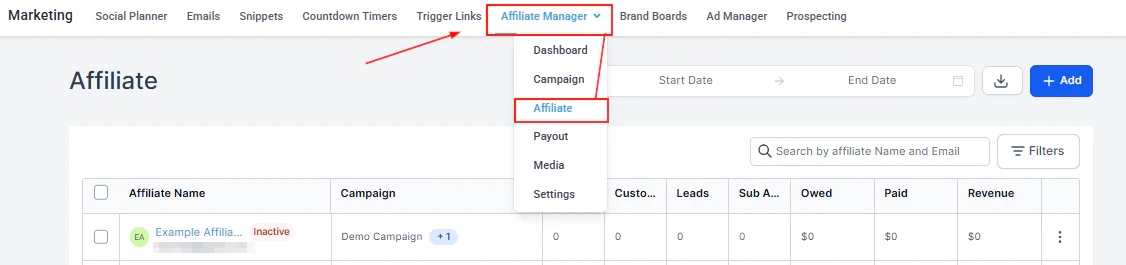
Navigate to **Marketing > Affiliate Manager** to get started. The Affiliate Manager has three main sections: **Campaigns**, **Affiliates**, and **Payouts**.
## Dashboard
The Affiliate Manager Dashboard provides a high-level view of your entire affiliate program.
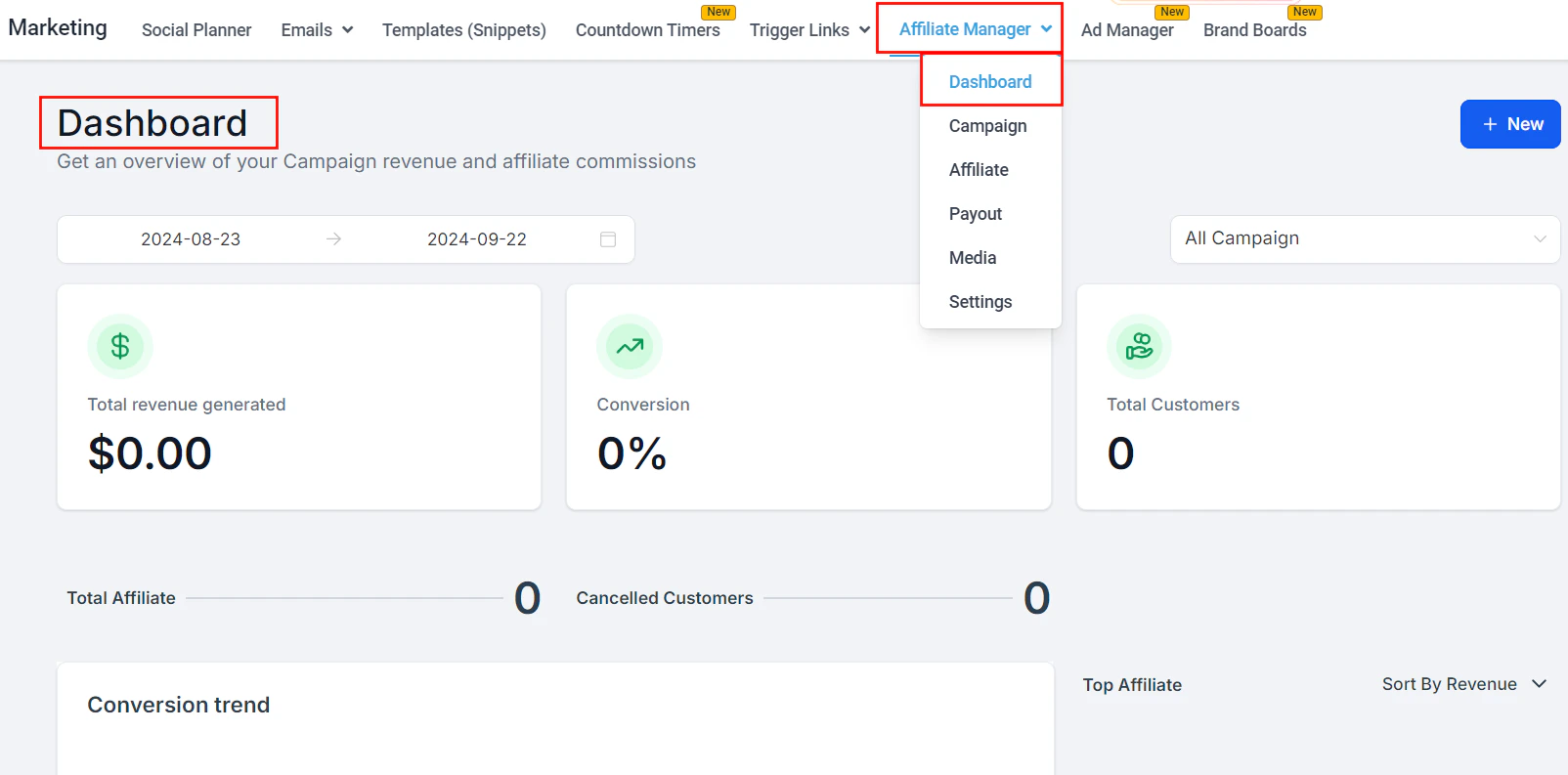 **Dashboard components:**
* **Core Metrics** — total revenue generated, conversion rate, and total customers
* **Conversion Trend** — line graph showing lead and customer trends over the selected date range
* **Affiliate Leaderboard** — top 10 affiliates ranked by revenue, commissions, leads, or customers
* **Pending Actions** — pending payouts and commissions requiring your attention; click to navigate directly to Payouts
* **Latest Commissions and Affiliates** — recent activity with approve/deny actions inline
**Filters:** Use the **Date Range** calendar dropdown and the **Campaign** dropdown ("All Campaigns" or a specific campaign) to focus your view.
To export your affiliates' sales data, click the export button in the top-right corner of the dashboard.
***
## Setting up a campaign
An affiliate campaign defines the source of leads, the products with commissionable sales, and the commission structure.
**Dashboard components:**
* **Core Metrics** — total revenue generated, conversion rate, and total customers
* **Conversion Trend** — line graph showing lead and customer trends over the selected date range
* **Affiliate Leaderboard** — top 10 affiliates ranked by revenue, commissions, leads, or customers
* **Pending Actions** — pending payouts and commissions requiring your attention; click to navigate directly to Payouts
* **Latest Commissions and Affiliates** — recent activity with approve/deny actions inline
**Filters:** Use the **Date Range** calendar dropdown and the **Campaign** dropdown ("All Campaigns" or a specific campaign) to focus your view.
To export your affiliates' sales data, click the export button in the top-right corner of the dashboard.
***
## Setting up a campaign
An affiliate campaign defines the source of leads, the products with commissionable sales, and the commission structure.
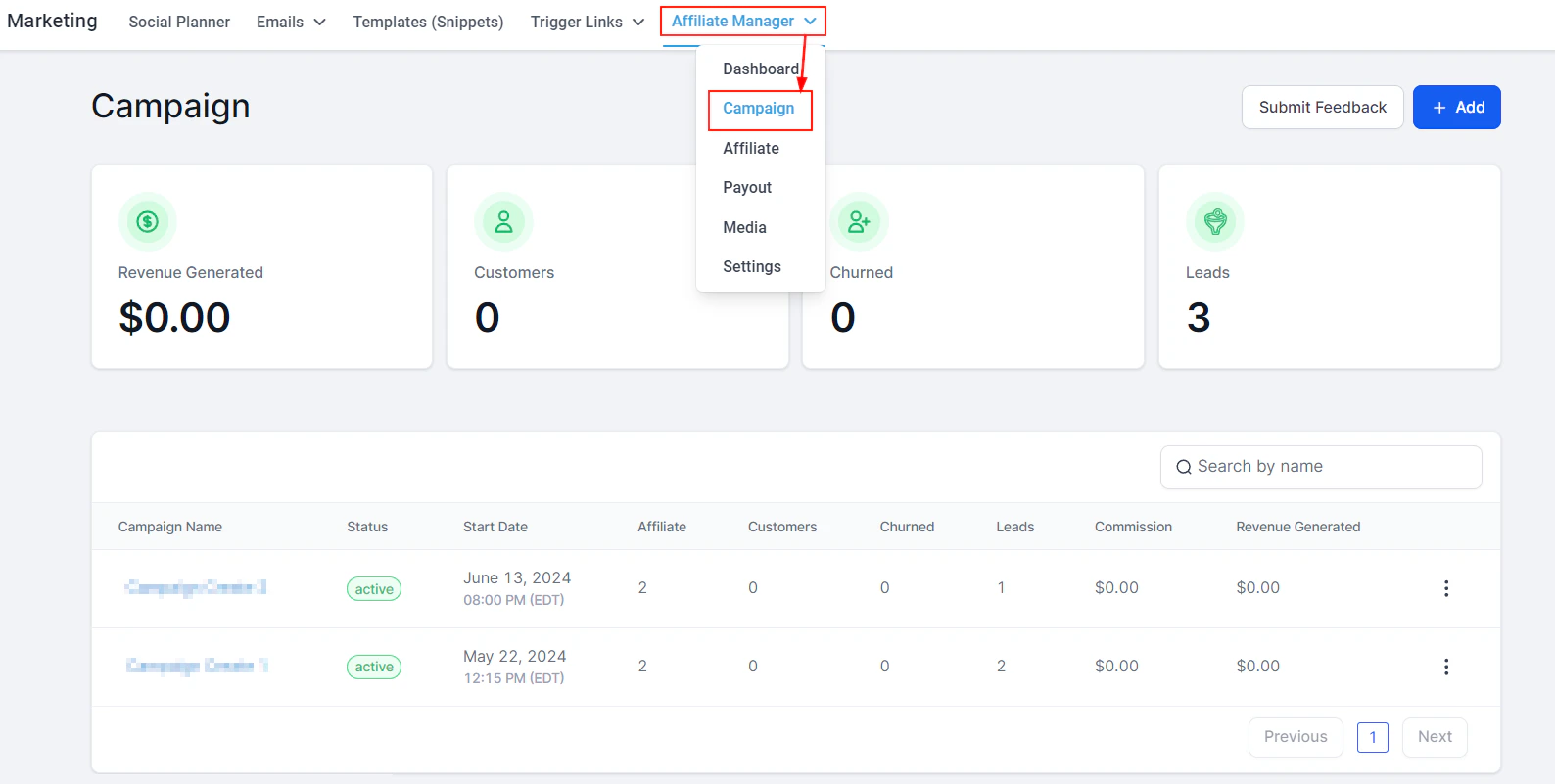 In the Affiliate Manager, click **+ Add** in the upper-right corner.
* **Campaign Name**: Enter a unique, recognizable name
* **Source**: Select where affiliate leads will originate — a funnel, website, form, survey, or calendar. Funnels and websites must be linked to a domain.
* **Products**: Choose the products for which affiliate commissions apply
Define the commission structure:
* **Percentage**: A fixed % of each sale paid to the affiliate
* **Per-product commissions**: Set different commission rates for each product using the two-toggle icon
* **Commission Length**: Set how long after the initial referral an affiliate earns commissions
* **Variable commissions**: Optionally increase commission rates for early sales to incentivize performance
Save the campaign at any time. The campaign can only be activated once at least one product and one affiliate have been assigned.
You can save a campaign without affiliates or products and return to complete it later. The campaign will remain inactive until both are added.
### Multi-tier commissions
Set up a two-tier commission structure to reward affiliates for recruiting sub-affiliates.
1. In the campaign settings, open **Multi-Tier Commission** options
2. Define the tier-1 commission (paid on direct sales) and the tier-2 commission (paid when a recruited sub-affiliate makes a sale)
3. Enable **Sub-Affiliate Sign Ups** to allow affiliates to recruit others using a sign-up link
***
## Adding affiliates
In the Affiliate Manager, select the **Affiliates** tab.
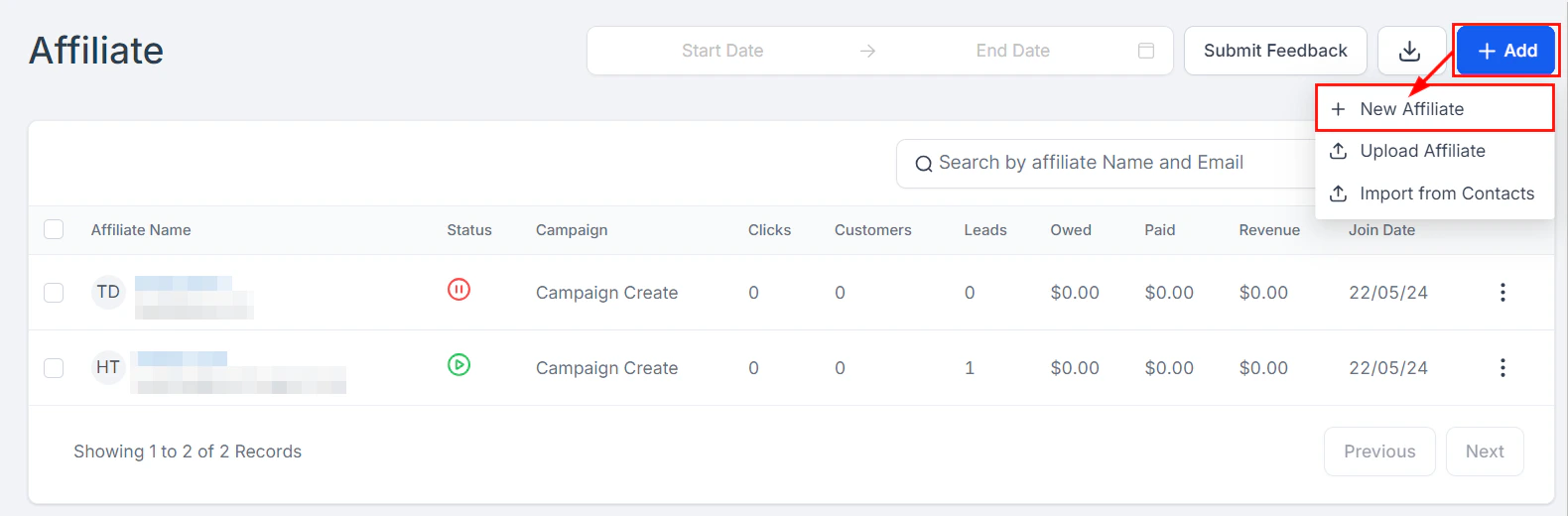
Click **Add > + New Affiliate** and fill in:
* Email (the unique referral link will be sent here)
* First and last name
* Company name (optional)
* Campaign assignment
Click **Done** to add, or **Save and Continue** to add phone, address, VAT ID, social media links, a custom referral link slug, or a coupon code.
Click **Add > Upload Affiliate**. Prepare a CSV file with First Name, Last Name, and Email columns (max 50 MB). Upload the file, map the columns, name the import, and confirm.
In the Affiliate Manager, click **+ Add** in the upper-right corner.
* **Campaign Name**: Enter a unique, recognizable name
* **Source**: Select where affiliate leads will originate — a funnel, website, form, survey, or calendar. Funnels and websites must be linked to a domain.
* **Products**: Choose the products for which affiliate commissions apply
Define the commission structure:
* **Percentage**: A fixed % of each sale paid to the affiliate
* **Per-product commissions**: Set different commission rates for each product using the two-toggle icon
* **Commission Length**: Set how long after the initial referral an affiliate earns commissions
* **Variable commissions**: Optionally increase commission rates for early sales to incentivize performance
Save the campaign at any time. The campaign can only be activated once at least one product and one affiliate have been assigned.
You can save a campaign without affiliates or products and return to complete it later. The campaign will remain inactive until both are added.
### Multi-tier commissions
Set up a two-tier commission structure to reward affiliates for recruiting sub-affiliates.
1. In the campaign settings, open **Multi-Tier Commission** options
2. Define the tier-1 commission (paid on direct sales) and the tier-2 commission (paid when a recruited sub-affiliate makes a sale)
3. Enable **Sub-Affiliate Sign Ups** to allow affiliates to recruit others using a sign-up link
***
## Adding affiliates
In the Affiliate Manager, select the **Affiliates** tab.
Click **Add > + New Affiliate** and fill in:
* Email (the unique referral link will be sent here)
* First and last name
* Company name (optional)
* Campaign assignment
Click **Done** to add, or **Save and Continue** to add phone, address, VAT ID, social media links, a custom referral link slug, or a coupon code.
Click **Add > Upload Affiliate**. Prepare a CSV file with First Name, Last Name, and Email columns (max 50 MB). Upload the file, map the columns, name the import, and confirm.
 ### Affiliate coupon codes
Assign unique coupon codes to affiliates as an alternative or supplement to tracking links. When a customer uses the code at checkout, the sale is attributed to that affiliate.
Go to the affiliate's record and add a coupon code in the **Coupon Code** field. The code can be used alongside or instead of the referral link.
### Magic links
Generate a **Magic Link** for any affiliate to give them one-click access to their affiliate portal without requiring a password. Navigate to the affiliate's record and click **Generate Magic Link**.
### Sub-affiliates
Affiliates can recruit sub-affiliates under them for a multi-tier commission structure:
* To add a sub-affiliate manually, go to the affiliate's record and click **Add Sub-Affiliate**
* To allow affiliates to self-recruit, enable **Sub-Affiliate Sign Ups** in campaign settings
***
## Affiliate portal
Each affiliate has access to a self-service portal where they can:
* View their unique referral link
* Track their referrals, conversions, and commissions
* Download promotional materials from the Media section
* View their payout history
To give an affiliate portal access, send them their portal login link or generate a Magic Link for one-click access.
### Affiliate coupon codes
Assign unique coupon codes to affiliates as an alternative or supplement to tracking links. When a customer uses the code at checkout, the sale is attributed to that affiliate.
Go to the affiliate's record and add a coupon code in the **Coupon Code** field. The code can be used alongside or instead of the referral link.
### Magic links
Generate a **Magic Link** for any affiliate to give them one-click access to their affiliate portal without requiring a password. Navigate to the affiliate's record and click **Generate Magic Link**.
### Sub-affiliates
Affiliates can recruit sub-affiliates under them for a multi-tier commission structure:
* To add a sub-affiliate manually, go to the affiliate's record and click **Add Sub-Affiliate**
* To allow affiliates to self-recruit, enable **Sub-Affiliate Sign Ups** in campaign settings
***
## Affiliate portal
Each affiliate has access to a self-service portal where they can:
* View their unique referral link
* Track their referrals, conversions, and commissions
* Download promotional materials from the Media section
* View their payout history
To give an affiliate portal access, send them their portal login link or generate a Magic Link for one-click access.
 ***
## Payouts
The **Payouts** section displays all commission payouts organized by status.
***
## Payouts
The **Payouts** section displays all commission payouts organized by status.
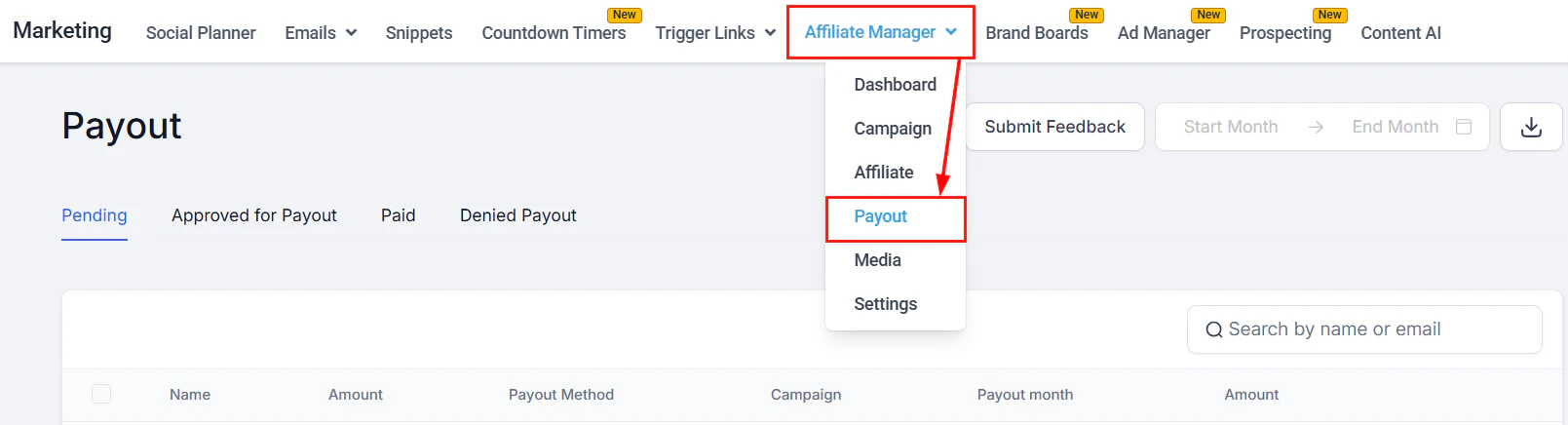 ### Payout workflow
1. When a customer completes a purchase through an affiliate link, the commission is automatically recorded
2. On the 1st of the following month (or per your custom schedule), pending payouts appear under the **Pending** tab
3. Review each affiliate's commission amount and click **Approve for Payout** for eligible affiliates
4. Approved payouts move to the **Approved for Payout** tab
5. Export the approved payouts as a CSV and upload to your payment gateway to complete payment
**Payout table columns:**
* Affiliate Name and Email
* Campaign
* Payout Month
* Amount (pending commission)
From the three-dot action menu, you can view an affiliate's past commissions or deny their current payout.
### Automated PayPal payouts
Connect PayPal to automate the payout process:
1. Go to **Affiliate Manager > Settings** and connect your PayPal Business account
2. Once connected, approved payouts can be disbursed automatically through PayPal without manual CSV uploads
### Pay-per-lead
Configure campaigns to pay affiliates for lead generation rather than completed sales:
1. In the campaign commission settings, enable **Pay-Per-Lead**
2. Set the flat fee paid per qualified lead submitted through the affiliate's link
### Manual sales
Add a sale to an affiliate's record manually (e.g., for offline conversions or phone orders):
1. Go to the affiliate's record
2. Click **Add Manual Sale** and enter the sale amount and date
***
## Affiliate media
The **Media** section in Affiliate Manager lets you upload promotional assets (images, PDFs, videos, ad copy) that affiliates can download from their portal to use when promoting your products.
Go to **Affiliate Manager > Media** and upload the assets you want to make available.
***
## Settings
Access **Affiliate Manager > Settings** to configure:
* Default commission rates
* Payout schedule and minimum threshold
* Email notifications for affiliates
* Portal branding and custom labels
* PayPal integration for automated payouts
### Customizing labels
Rename default labels throughout the affiliate portal and manager (e.g., rename "Affiliate" to "Partner" or "Commission" to "Reward") to match your brand language.
Go to **Settings > Labels** and update the text for each field.
***
## Lead tracking
The **Lead Tracking** section shows which leads came through affiliate links, including:
* The affiliate who referred the lead
* The lead's contact record in the CRM
* The status of the lead (converted or not)
* Attribution timestamps
Use this data to calculate pay-per-lead commissions or to identify which affiliates are driving the highest-quality prospects.
***
## Workflow automation
The Affiliate Manager integrates with the workflow automation system. Available triggers and actions:
**Triggers:**
* Affiliate Created
* Affiliate Enrolled in Campaign
* New Affiliate Sale
**Actions:**
* Add to Affiliate Manager
* Add to Affiliate Campaign
* Remove from Affiliate Campaign
* Update Affiliate
* Add Manual Sale for an Affiliate
* Add Leads Under an Affiliate
Use these to automate onboarding sequences, commission notifications, and tier promotions.
Use CRM tags and workflows to segment your top-performing affiliates and automatically trigger bonuses, exclusive offers, or personal outreach when they hit commission milestones.
***
## Frequently asked questions
When you add an affiliate and assign them to a campaign, the platform automatically generates a unique referral link and sends it to their email. Affiliates can also log in to their self-service portal to view and copy their link at any time.
Yes. You can assign a unique coupon code to each affiliate in addition to (or instead of) a tracking link. When a customer uses the code at checkout, the sale is attributed to that affiliate.
Multi-tier commission lets you reward affiliates for recruiting sub-affiliates. You set a tier-1 commission rate (paid on the affiliate's own direct sales) and a tier-2 rate (paid when one of their recruited sub-affiliates makes a sale). Enable Sub-Affiliate Sign Ups in campaign settings to let affiliates recruit on their own.
Payouts accumulate in the Pending tab on the 1st of the following month. You review and approve them individually, then either export a CSV to upload to your payment gateway or use the PayPal integration for automatic disbursement.
Yes. Each campaign can have different products, commission structures, and commission lengths. Affiliates can be assigned to one or more campaigns, and their stats are tracked separately per campaign.
A Magic Link gives an affiliate one-click access to their portal without needing a password. Generate one from the affiliate's record in the Affiliates section. This is useful for onboarding new affiliates quickly.
Yes. Enable Pay-Per-Lead in the campaign commission settings and set a flat fee per qualified lead. The Lead Tracking section shows which leads came through affiliate links and whether they converted.
Go to Affiliate Manager > Media and upload images, PDFs, videos, or ad copy. These assets become available for affiliates to download from their portal to use when promoting your products.
### Payout workflow
1. When a customer completes a purchase through an affiliate link, the commission is automatically recorded
2. On the 1st of the following month (or per your custom schedule), pending payouts appear under the **Pending** tab
3. Review each affiliate's commission amount and click **Approve for Payout** for eligible affiliates
4. Approved payouts move to the **Approved for Payout** tab
5. Export the approved payouts as a CSV and upload to your payment gateway to complete payment
**Payout table columns:**
* Affiliate Name and Email
* Campaign
* Payout Month
* Amount (pending commission)
From the three-dot action menu, you can view an affiliate's past commissions or deny their current payout.
### Automated PayPal payouts
Connect PayPal to automate the payout process:
1. Go to **Affiliate Manager > Settings** and connect your PayPal Business account
2. Once connected, approved payouts can be disbursed automatically through PayPal without manual CSV uploads
### Pay-per-lead
Configure campaigns to pay affiliates for lead generation rather than completed sales:
1. In the campaign commission settings, enable **Pay-Per-Lead**
2. Set the flat fee paid per qualified lead submitted through the affiliate's link
### Manual sales
Add a sale to an affiliate's record manually (e.g., for offline conversions or phone orders):
1. Go to the affiliate's record
2. Click **Add Manual Sale** and enter the sale amount and date
***
## Affiliate media
The **Media** section in Affiliate Manager lets you upload promotional assets (images, PDFs, videos, ad copy) that affiliates can download from their portal to use when promoting your products.
Go to **Affiliate Manager > Media** and upload the assets you want to make available.
***
## Settings
Access **Affiliate Manager > Settings** to configure:
* Default commission rates
* Payout schedule and minimum threshold
* Email notifications for affiliates
* Portal branding and custom labels
* PayPal integration for automated payouts
### Customizing labels
Rename default labels throughout the affiliate portal and manager (e.g., rename "Affiliate" to "Partner" or "Commission" to "Reward") to match your brand language.
Go to **Settings > Labels** and update the text for each field.
***
## Lead tracking
The **Lead Tracking** section shows which leads came through affiliate links, including:
* The affiliate who referred the lead
* The lead's contact record in the CRM
* The status of the lead (converted or not)
* Attribution timestamps
Use this data to calculate pay-per-lead commissions or to identify which affiliates are driving the highest-quality prospects.
***
## Workflow automation
The Affiliate Manager integrates with the workflow automation system. Available triggers and actions:
**Triggers:**
* Affiliate Created
* Affiliate Enrolled in Campaign
* New Affiliate Sale
**Actions:**
* Add to Affiliate Manager
* Add to Affiliate Campaign
* Remove from Affiliate Campaign
* Update Affiliate
* Add Manual Sale for an Affiliate
* Add Leads Under an Affiliate
Use these to automate onboarding sequences, commission notifications, and tier promotions.
Use CRM tags and workflows to segment your top-performing affiliates and automatically trigger bonuses, exclusive offers, or personal outreach when they hit commission milestones.
***
## Frequently asked questions
When you add an affiliate and assign them to a campaign, the platform automatically generates a unique referral link and sends it to their email. Affiliates can also log in to their self-service portal to view and copy their link at any time.
Yes. You can assign a unique coupon code to each affiliate in addition to (or instead of) a tracking link. When a customer uses the code at checkout, the sale is attributed to that affiliate.
Multi-tier commission lets you reward affiliates for recruiting sub-affiliates. You set a tier-1 commission rate (paid on the affiliate's own direct sales) and a tier-2 rate (paid when one of their recruited sub-affiliates makes a sale). Enable Sub-Affiliate Sign Ups in campaign settings to let affiliates recruit on their own.
Payouts accumulate in the Pending tab on the 1st of the following month. You review and approve them individually, then either export a CSV to upload to your payment gateway or use the PayPal integration for automatic disbursement.
Yes. Each campaign can have different products, commission structures, and commission lengths. Affiliates can be assigned to one or more campaigns, and their stats are tracked separately per campaign.
A Magic Link gives an affiliate one-click access to their portal without needing a password. Generate one from the affiliate's record in the Affiliates section. This is useful for onboarding new affiliates quickly.
Yes. Enable Pay-Per-Lead in the campaign commission settings and set a flat fee per qualified lead. The Lead Tracking section shows which leads came through affiliate links and whether they converted.
Go to Affiliate Manager > Media and upload images, PDFs, videos, or ad copy. These assets become available for affiliates to download from their portal to use when promoting your products.