> ## Documentation Index
> Fetch the complete documentation index at: https://help.hoopai.com/llms.txt
> Use this file to discover all available pages before exploring further.
# Custom values
> Use merge tags to automatically personalize messages, emails, and automations with contact, appointment, account, and other dynamic data.
Custom values (also called merge tags or variables) let you insert dynamic data into messages, email templates, automation workflows, and more. Instead of writing each message manually, you reference a variable like `{{contact.first_name}}` and the platform fills it in automatically with the correct value for each recipient.
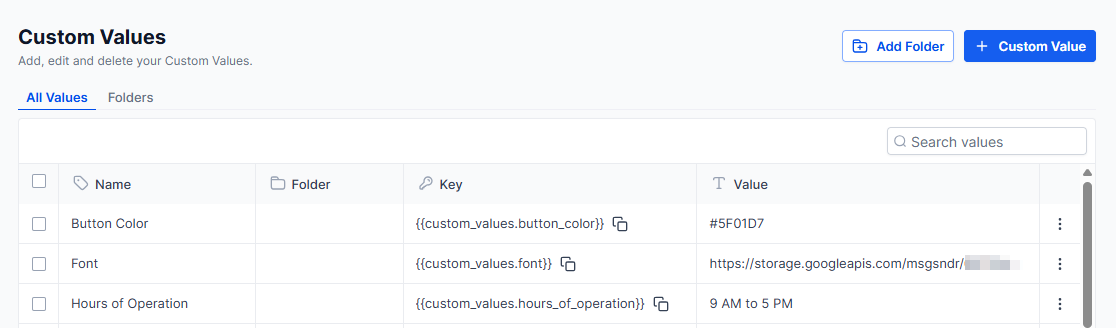 There are eleven categories of custom values available across the platform.
Pulls information stored on the contact record.
| Variable | Description |
| --------------------------- | -------------------------- |
| `{{contact.name}}` | Full name |
| `{{contact.first_name}}` | First name |
| `{{contact.last_name}}` | Last name |
| `{{contact.email}}` | Email address |
| `{{contact.phone}}` | Phone number (formatted) |
| `{{contact.phone_raw}}` | Phone number (digits only) |
| `{{contact.company_name}}` | Company name |
| `{{contact.full_address}}` | Full mailing address |
| `{{contact.city}}` | City |
| `{{contact.state}}` | State or region |
| `{{contact.country}}` | Country |
| `{{contact.postal_code}}` | Postal / ZIP code |
| `{{contact.date_of_birth}}` | Date of birth |
| `{{contact.source}}` | Lead source |
| `{{contact.website}}` | Website URL |
| `{{contact.id}}` | Internal contact ID |
Pulls information about the team member assigned to the contact, useful for personalizing outreach with a rep's details.
| Variable | Description |
| -------------------------- | ------------------------------- |
| `{{user.name}}` | Full name |
| `{{user.first_name}}` | First name |
| `{{user.last_name}}` | Last name |
| `{{user.email}}` | Email address |
| `{{user.phone}}` | Phone number |
| `{{user.email_signature}}` | Email signature |
| `{{user.calendar_link}}` | Booking link for their calendar |
Pulls details about a scheduled appointment — useful in confirmation and reminder messages.
* Start and end date/time
* Timezone
* Cancellation link
* Reschedule link
* Meeting location
* Notes
* Google Calendar and iCal/Outlook add-to-calendar links
| Variable | Description |
| ------------------- | -------------------- |
| `{{calendar.name}}` | Name of the calendar |
Provides event date and time variables associated with a campaign.
| Variable | Description |
| ------------------ | ------------------------------------ |
| `{{message.body}}` | The body text of the current message |
Pulls your business's location and contact details — useful for footers, signatures, and general communications.
* Business name
* Full address (street, city, state, country, postal code)
* Phone number
* Email
* Website URL
* Logo URL
Inserts the current date and time at the moment the message is sent. Available in multiple formats — seconds, minutes, hours, full dates — useful for time-sensitive automation messages.
Pulls data about how the contact originally found you.
* First and last session source
* Landing page URL
* Campaign name
* UTM parameters (source, medium, campaign, term, content)
* Referrer URL
* Ad click IDs (Google, Facebook)
Pulls billing details for invoice-related messages — customer name, invoice number, amounts due, line items, due date, and payment links.
Pulls information about a specific payment link including product details, amounts, and customer information.
There are eleven categories of custom values available across the platform.
Pulls information stored on the contact record.
| Variable | Description |
| --------------------------- | -------------------------- |
| `{{contact.name}}` | Full name |
| `{{contact.first_name}}` | First name |
| `{{contact.last_name}}` | Last name |
| `{{contact.email}}` | Email address |
| `{{contact.phone}}` | Phone number (formatted) |
| `{{contact.phone_raw}}` | Phone number (digits only) |
| `{{contact.company_name}}` | Company name |
| `{{contact.full_address}}` | Full mailing address |
| `{{contact.city}}` | City |
| `{{contact.state}}` | State or region |
| `{{contact.country}}` | Country |
| `{{contact.postal_code}}` | Postal / ZIP code |
| `{{contact.date_of_birth}}` | Date of birth |
| `{{contact.source}}` | Lead source |
| `{{contact.website}}` | Website URL |
| `{{contact.id}}` | Internal contact ID |
Pulls information about the team member assigned to the contact, useful for personalizing outreach with a rep's details.
| Variable | Description |
| -------------------------- | ------------------------------- |
| `{{user.name}}` | Full name |
| `{{user.first_name}}` | First name |
| `{{user.last_name}}` | Last name |
| `{{user.email}}` | Email address |
| `{{user.phone}}` | Phone number |
| `{{user.email_signature}}` | Email signature |
| `{{user.calendar_link}}` | Booking link for their calendar |
Pulls details about a scheduled appointment — useful in confirmation and reminder messages.
* Start and end date/time
* Timezone
* Cancellation link
* Reschedule link
* Meeting location
* Notes
* Google Calendar and iCal/Outlook add-to-calendar links
| Variable | Description |
| ------------------- | -------------------- |
| `{{calendar.name}}` | Name of the calendar |
Provides event date and time variables associated with a campaign.
| Variable | Description |
| ------------------ | ------------------------------------ |
| `{{message.body}}` | The body text of the current message |
Pulls your business's location and contact details — useful for footers, signatures, and general communications.
* Business name
* Full address (street, city, state, country, postal code)
* Phone number
* Email
* Website URL
* Logo URL
Inserts the current date and time at the moment the message is sent. Available in multiple formats — seconds, minutes, hours, full dates — useful for time-sensitive automation messages.
Pulls data about how the contact originally found you.
* First and last session source
* Landing page URL
* Campaign name
* UTM parameters (source, medium, campaign, term, content)
* Referrer URL
* Ad click IDs (Google, Facebook)
Pulls billing details for invoice-related messages — customer name, invoice number, amounts due, line items, due date, and payment links.
Pulls information about a specific payment link including product details, amounts, and customer information.
 ## How to use custom values
Custom values can be inserted anywhere you compose a message or template — in conversations, email campaigns, SMS, automation workflows, and more.
Navigate to a conversation, email campaign, SMS template, or automation workflow where you want to insert dynamic content.
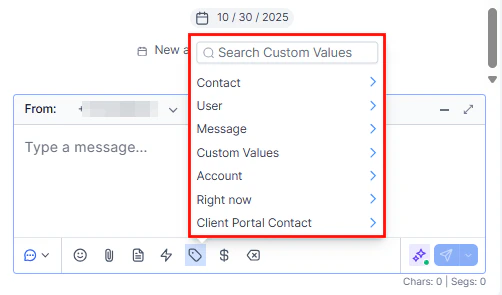
Look for the merge tag or variable icon in the message toolbar (often represented by `{}` or a person icon). Click it to open the custom values picker.
Browse the eleven categories and select the variable you want to insert. The tag is added to your message at the cursor position.
Use the preview feature to verify that variables resolve correctly before sending or activating an automation.
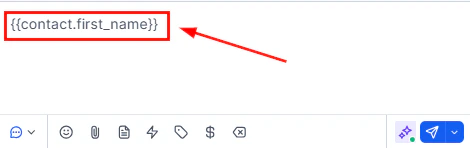
You can also type the variable directly — for example `{{contact.first_name}}` — if you already know the tag syntax. The platform will resolve it automatically at send time.
If a contact record is missing the data for a variable (for example, no company name is stored), the variable will render as blank in the message. Always check that your contact records are complete for the fields you intend to use.
## How to use custom values
Custom values can be inserted anywhere you compose a message or template — in conversations, email campaigns, SMS, automation workflows, and more.
Navigate to a conversation, email campaign, SMS template, or automation workflow where you want to insert dynamic content.
Look for the merge tag or variable icon in the message toolbar (often represented by `{}` or a person icon). Click it to open the custom values picker.
Browse the eleven categories and select the variable you want to insert. The tag is added to your message at the cursor position.
Use the preview feature to verify that variables resolve correctly before sending or activating an automation.
You can also type the variable directly — for example `{{contact.first_name}}` — if you already know the tag syntax. The platform will resolve it automatically at send time.
If a contact record is missing the data for a variable (for example, no company name is stored), the variable will render as blank in the message. Always check that your contact records are complete for the fields you intend to use.