> ## Documentation Index
> Fetch the complete documentation index at: https://help.hoopai.com/llms.txt
> Use this file to discover all available pages before exploring further.
# Connecting your domain
> Connect a custom domain to HoopAI for your funnels, websites, client portal, and booking pages.
Connecting a custom domain lets your funnels, websites, booking pages, and client portal use your own branded URL (e.g., `go.yourbusiness.com`) instead of a generic HoopAI subdomain. This improves trust with contacts and supports brand consistency.
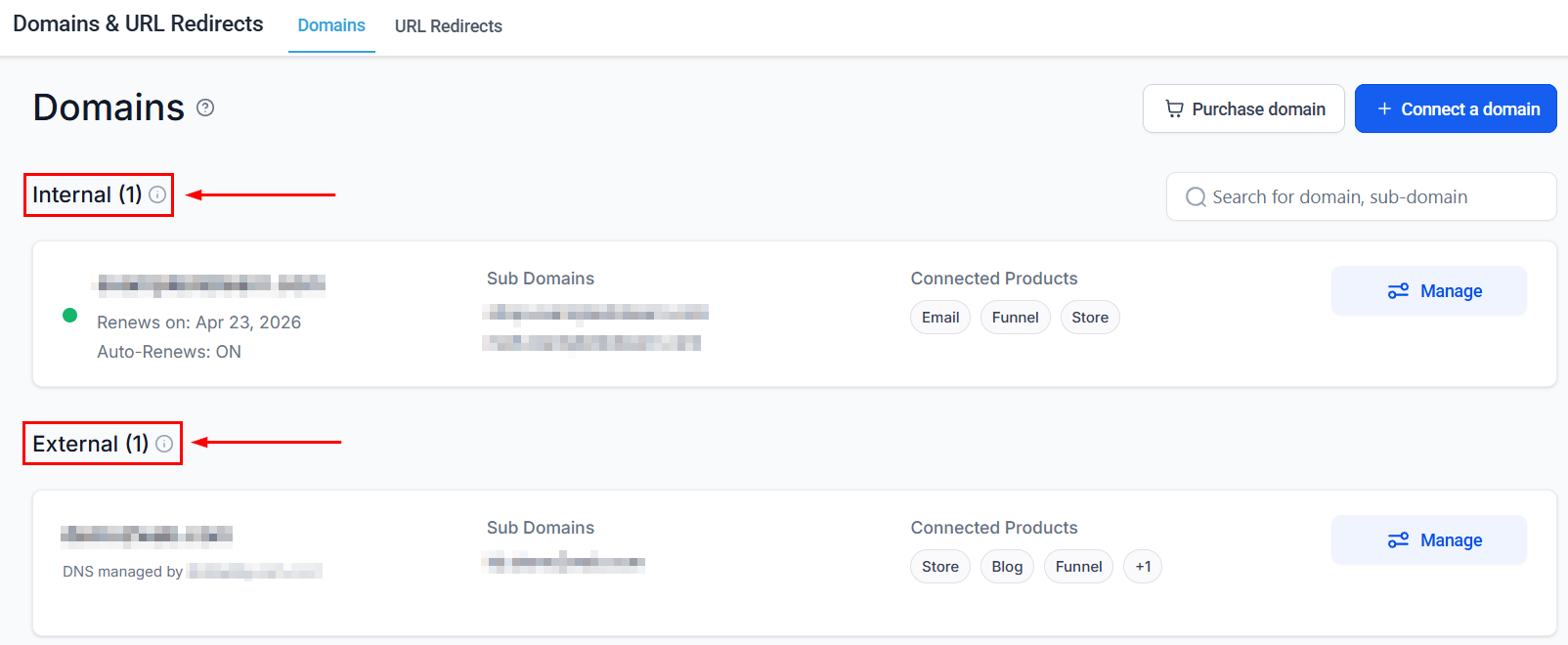 ## Types of domains you can connect
* **Custom domain** — a domain you already own (e.g., `yourbusiness.com`)
* **Subdomain** — a prefix on your existing domain (e.g., `go.yourbusiness.com` or `booking.yourbusiness.com`)
* **New domain** — purchase a domain directly inside HoopAI
Using a subdomain is recommended when your main domain is already hosting a website (WordPress, Squarespace, etc.) — it keeps your existing site untouched while giving HoopAI its own URL.
***
## How to connect an existing domain or subdomain
In the left sidebar click **Settings**, then select **Domains**.
Click **Add Domain** or **Connect Domain** and enter the domain or subdomain you want to use (e.g., `go.yourbusiness.com`).
HoopAI will display a CNAME record you need to add at your domain registrar (GoDaddy, Namecheap, Cloudflare, etc.). Copy the **Name** and **Value** fields shown.
The exact steps to add a CNAME vary by registrar. Search for "\[your registrar] add CNAME record" if you are unsure where to find this in your registrar's dashboard.
Log in to your domain registrar, navigate to DNS settings for your domain, and add a new CNAME record using the Name and Value copied from HoopAI. Leave TTL at the default (usually 3600 or "Automatic").
Return to **Settings > Domains** in HoopAI and click **Verify** or **Check DNS**. DNS propagation can take anywhere from a few minutes to 48 hours — most updates resolve within 30 minutes.
***
## How to purchase a domain inside HoopAI
If you do not yet have a domain, you can purchase one directly:
Click **Settings** in the sidebar, then select **Domains**.
Click **Purchase Domain** and search for your desired domain name.
## Types of domains you can connect
* **Custom domain** — a domain you already own (e.g., `yourbusiness.com`)
* **Subdomain** — a prefix on your existing domain (e.g., `go.yourbusiness.com` or `booking.yourbusiness.com`)
* **New domain** — purchase a domain directly inside HoopAI
Using a subdomain is recommended when your main domain is already hosting a website (WordPress, Squarespace, etc.) — it keeps your existing site untouched while giving HoopAI its own URL.
***
## How to connect an existing domain or subdomain
In the left sidebar click **Settings**, then select **Domains**.
Click **Add Domain** or **Connect Domain** and enter the domain or subdomain you want to use (e.g., `go.yourbusiness.com`).
HoopAI will display a CNAME record you need to add at your domain registrar (GoDaddy, Namecheap, Cloudflare, etc.). Copy the **Name** and **Value** fields shown.
The exact steps to add a CNAME vary by registrar. Search for "\[your registrar] add CNAME record" if you are unsure where to find this in your registrar's dashboard.
Log in to your domain registrar, navigate to DNS settings for your domain, and add a new CNAME record using the Name and Value copied from HoopAI. Leave TTL at the default (usually 3600 or "Automatic").
Return to **Settings > Domains** in HoopAI and click **Verify** or **Check DNS**. DNS propagation can take anywhere from a few minutes to 48 hours — most updates resolve within 30 minutes.
***
## How to purchase a domain inside HoopAI
If you do not yet have a domain, you can purchase one directly:
Click **Settings** in the sidebar, then select **Domains**.
Click **Purchase Domain** and search for your desired domain name.
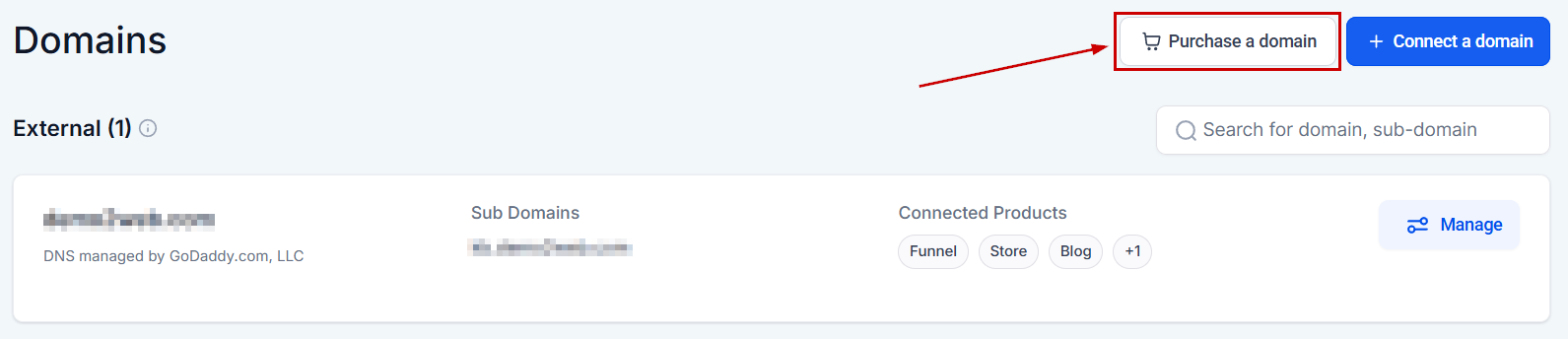 Choose an available domain and complete the purchase. The domain is automatically connected to your HoopAI account — no additional DNS configuration is needed.
***
## URL redirects
Once your domain is connected, you can set up URL redirects — for example, to forward old URLs to new funnel pages, or to redirect your root domain to a specific landing page.
Choose an available domain and complete the purchase. The domain is automatically connected to your HoopAI account — no additional DNS configuration is needed.
***
## URL redirects
Once your domain is connected, you can set up URL redirects — for example, to forward old URLs to new funnel pages, or to redirect your root domain to a specific landing page.
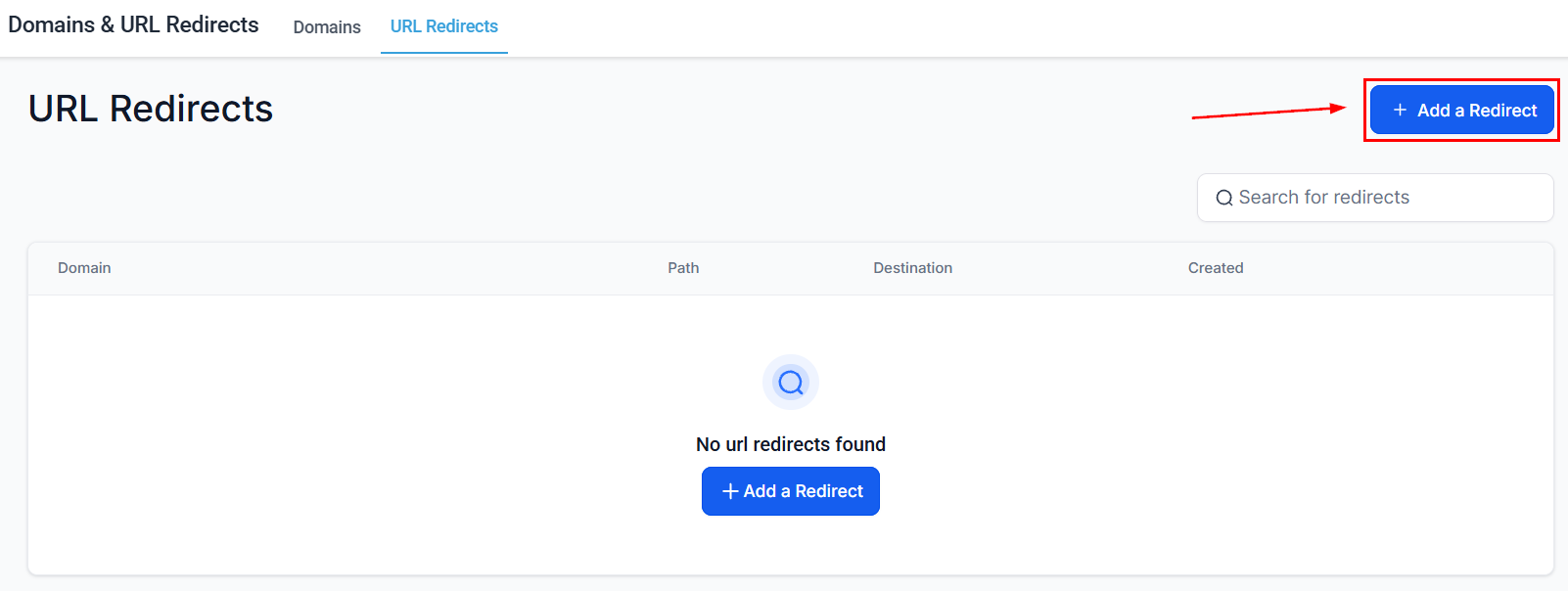 Go to **Settings > Domains**, find your connected domain, and click **URL Redirects** to add redirect rules.
***
## Assigning a domain to a funnel or website
After connecting your domain, assign it when you create or edit a funnel or website:
1. Open your funnel or website in **Sites > Funnels** or **Sites > Websites**
2. Go to **Settings** within the funnel/site editor
3. Select your connected domain from the **Domain** dropdown
4. Save and publish
***
## Frequently asked questions
Most DNS changes propagate within 30 minutes, but it can take up to 48 hours in rare cases. You can check propagation status using a tool like [whatsmydns.net](https://www.whatsmydns.net/) to see whether your CNAME is visible from different global locations.
Yes, but it requires an ANAME or ALIAS record instead of a CNAME. Not all registrars support ANAME/ALIAS records. Subdomains (like `go.yourbusiness.com`) work universally with CNAME records and are the simpler option for most setups.
No. Adding a subdomain (e.g., `go.yourbusiness.com`) creates a separate address and does not affect your main website at `yourbusiness.com` or any of its existing pages.
Yes. You can connect as many domains as your plan allows. Each funnel or website is assigned to one domain, but you can have different funnels on different domains.
Connected domains are used for: funnel and website URLs, booking page URLs, the client portal URL, and short link tracking domains. Email sending uses a separate domain configured under **Settings > Email Services**.
Go to **Settings > Domains**, find your connected domain, and click **URL Redirects** to add redirect rules.
***
## Assigning a domain to a funnel or website
After connecting your domain, assign it when you create or edit a funnel or website:
1. Open your funnel or website in **Sites > Funnels** or **Sites > Websites**
2. Go to **Settings** within the funnel/site editor
3. Select your connected domain from the **Domain** dropdown
4. Save and publish
***
## Frequently asked questions
Most DNS changes propagate within 30 minutes, but it can take up to 48 hours in rare cases. You can check propagation status using a tool like [whatsmydns.net](https://www.whatsmydns.net/) to see whether your CNAME is visible from different global locations.
Yes, but it requires an ANAME or ALIAS record instead of a CNAME. Not all registrars support ANAME/ALIAS records. Subdomains (like `go.yourbusiness.com`) work universally with CNAME records and are the simpler option for most setups.
No. Adding a subdomain (e.g., `go.yourbusiness.com`) creates a separate address and does not affect your main website at `yourbusiness.com` or any of its existing pages.
Yes. You can connect as many domains as your plan allows. Each funnel or website is assigned to one domain, but you can have different funnels on different domains.
Connected domains are used for: funnel and website URLs, booking page URLs, the client portal URL, and short link tracking domains. Email sending uses a separate domain configured under **Settings > Email Services**.