> ## Documentation Index
> Fetch the complete documentation index at: https://help.hoopai.com/llms.txt
> Use this file to discover all available pages before exploring further.
# WhatsApp messaging
> Connect WhatsApp to the HoopAI platform and send messages, templates, voice notes, and media through the conversations inbox.
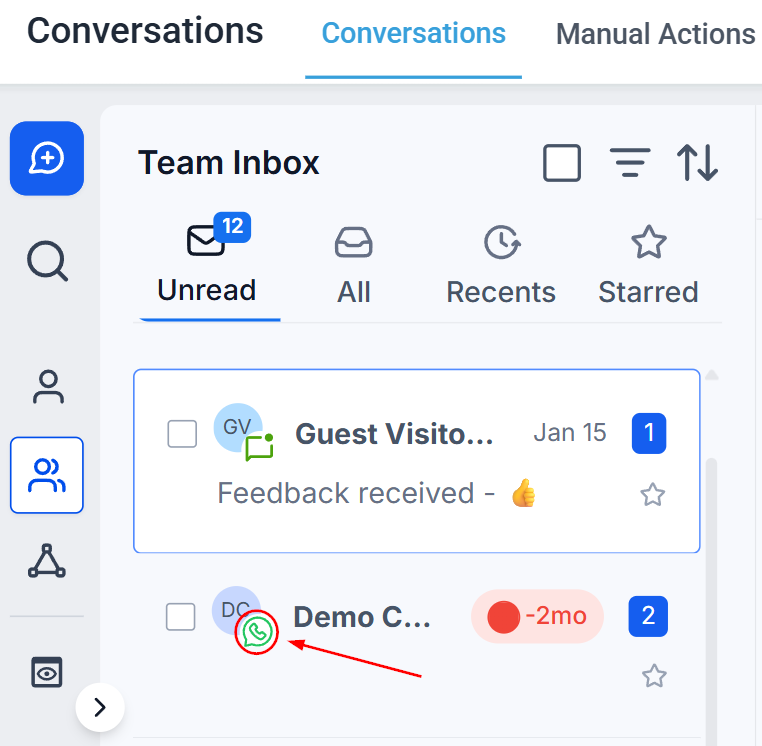
WhatsApp is one of the highest-engagement messaging channels available in the HoopAI platform. Once connected, WhatsApp conversations appear in the same inbox as your SMS, email, and social messages, giving your team a single place to manage every contact interaction.
## Connecting WhatsApp
WhatsApp integration in the HoopAI platform runs through the Meta Business platform. To set it up:
1. Navigate to **Settings → Integrations → WhatsApp**.
2. Click **Connect WhatsApp** and follow the Meta sign-in and verification steps.
3. Select the WhatsApp Business phone number to link.
4. Accept the required permissions and complete the setup wizard.
Once connected, your WhatsApp number appears in the Integrations list and inbound messages begin routing to your Conversations inbox immediately.
A verified Meta Business account and an approved WhatsApp Business profile are required before connecting. Personal WhatsApp accounts cannot be integrated.
 ## The 24-hour messaging window
WhatsApp enforces a **24-hour session window** from the moment a contact sends your business an inbound message. Within that window, you can reply with any content — text, images, documents, or voice notes — freely. Once the 24-hour window closes, you can only re-open the conversation using an approved WhatsApp message template.
| Scenario | What you can send |
| -------------------------------------- | -------------------------------- |
| Within 24 hours of inbound message | Any message, media, or content |
| Outside the 24-hour window | Approved WhatsApp templates only |
| Initiating a new outbound conversation | Approved WhatsApp templates only |
Keep your most important WhatsApp templates approved and ready so your team can re-engage contacts at any time, even after the session window expires.
## Sending a WhatsApp message
Navigate to **Conversations** and open the contact. If this is the first message to a contact via WhatsApp, click the **+** icon and choose **WhatsApp** as the channel.
Click the **WhatsApp** tab in the message composer.
Type your message in the text field. Within the active session window, you can write any content. The standard toolbar options are available:
| Tool | Function |
| -------------- | ------------------------------------------------ |
| Emoji | Insert emoji from the smiley-face picker |
| Paperclip | Attach an image, document, or video |
| Paper icon | Insert a saved SMS snippet |
| Lightning bolt | Insert a trigger link |
| Tag icon | Insert a custom value (e.g., contact first name) |
| Dollar sign | Send a payment link |
| Notebook icon | Select an approved WhatsApp template |
| Microphone | Record and send a voice note |
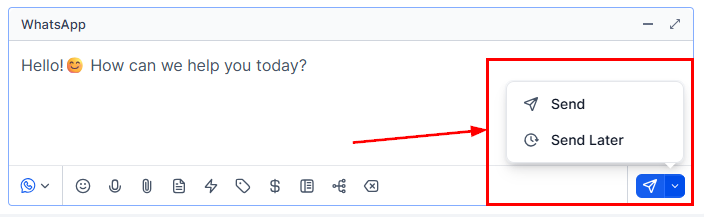
* Click **Send** to deliver immediately.
* Click the dropdown arrow next to Send and choose **Send Later** to schedule the message. Note that scheduled messages must fall within 24 hours of the last inbound message from the contact.
## The 24-hour messaging window
WhatsApp enforces a **24-hour session window** from the moment a contact sends your business an inbound message. Within that window, you can reply with any content — text, images, documents, or voice notes — freely. Once the 24-hour window closes, you can only re-open the conversation using an approved WhatsApp message template.
| Scenario | What you can send |
| -------------------------------------- | -------------------------------- |
| Within 24 hours of inbound message | Any message, media, or content |
| Outside the 24-hour window | Approved WhatsApp templates only |
| Initiating a new outbound conversation | Approved WhatsApp templates only |
Keep your most important WhatsApp templates approved and ready so your team can re-engage contacts at any time, even after the session window expires.
## Sending a WhatsApp message
Navigate to **Conversations** and open the contact. If this is the first message to a contact via WhatsApp, click the **+** icon and choose **WhatsApp** as the channel.
Click the **WhatsApp** tab in the message composer.
Type your message in the text field. Within the active session window, you can write any content. The standard toolbar options are available:
| Tool | Function |
| -------------- | ------------------------------------------------ |
| Emoji | Insert emoji from the smiley-face picker |
| Paperclip | Attach an image, document, or video |
| Paper icon | Insert a saved SMS snippet |
| Lightning bolt | Insert a trigger link |
| Tag icon | Insert a custom value (e.g., contact first name) |
| Dollar sign | Send a payment link |
| Notebook icon | Select an approved WhatsApp template |
| Microphone | Record and send a voice note |
* Click **Send** to deliver immediately.
* Click the dropdown arrow next to Send and choose **Send Later** to schedule the message. Note that scheduled messages must fall within 24 hours of the last inbound message from the contact.
 ## Using WhatsApp templates
WhatsApp templates are pre-approved message formats required for initiating conversations and messaging outside the 24-hour window. Templates must be submitted to and approved by Meta before use.
In the WhatsApp composer, click the **notebook icon** to open the template selector.
Browse or search your approved templates. Each template shows its name, category, and preview text.
Many templates contain dynamic fields (e.g., contact name, appointment time). Fill in each variable before sending.
Review the completed template and click **Send**. The message is delivered even if the session window has expired.
Templates are organized by category:
| Category | Typical use |
| -------------- | --------------------------------------------------- |
| Marketing | Promotions, new offers, announcements |
| Utility | Appointment reminders, order updates, confirmations |
| Authentication | One-time passcodes, verification messages |
## Sending voice notes
WhatsApp voice notes let you send audio messages directly in a conversation — ideal for adding a personal touch or explaining something more naturally than text allows.
The first time you record, the HoopAI platform requests microphone access. Allow it in your browser or device privacy settings.
Click the **microphone icon** in the WhatsApp composer toolbar. Speak clearly into your microphone.
The maximum voice note duration is 10 minutes.
Click **Send** when finished. The audio is delivered to the contact in real time.
Check your browser or OS privacy settings and confirm the HoopAI platform has permission to access your microphone. In Chrome, go to **Settings → Privacy and security → Site settings → Microphone**.
The microphone icon only appears when there is an active WhatsApp conversation. Voice notes cannot be sent to a contact who has never messaged your business via WhatsApp.
Reduce background noise and speak directly into the microphone. A headset with a built-in microphone typically produces better quality than a laptop's built-in mic.
## Sending media and attachments
Within the session window, you can attach images, videos, PDFs, and other documents to WhatsApp messages. Click the **paperclip icon** and select the file from your device.
Media received from contacts is stored in the HoopAI platform for up to one year. Inbound files expire on WhatsApp's servers after 7 days; outbound files after 30 days. To keep media permanently, save it to the contact's Documents folder.
## Using WhatsApp templates
WhatsApp templates are pre-approved message formats required for initiating conversations and messaging outside the 24-hour window. Templates must be submitted to and approved by Meta before use.
In the WhatsApp composer, click the **notebook icon** to open the template selector.
Browse or search your approved templates. Each template shows its name, category, and preview text.
Many templates contain dynamic fields (e.g., contact name, appointment time). Fill in each variable before sending.
Review the completed template and click **Send**. The message is delivered even if the session window has expired.
Templates are organized by category:
| Category | Typical use |
| -------------- | --------------------------------------------------- |
| Marketing | Promotions, new offers, announcements |
| Utility | Appointment reminders, order updates, confirmations |
| Authentication | One-time passcodes, verification messages |
## Sending voice notes
WhatsApp voice notes let you send audio messages directly in a conversation — ideal for adding a personal touch or explaining something more naturally than text allows.
The first time you record, the HoopAI platform requests microphone access. Allow it in your browser or device privacy settings.
Click the **microphone icon** in the WhatsApp composer toolbar. Speak clearly into your microphone.
The maximum voice note duration is 10 minutes.
Click **Send** when finished. The audio is delivered to the contact in real time.
Check your browser or OS privacy settings and confirm the HoopAI platform has permission to access your microphone. In Chrome, go to **Settings → Privacy and security → Site settings → Microphone**.
The microphone icon only appears when there is an active WhatsApp conversation. Voice notes cannot be sent to a contact who has never messaged your business via WhatsApp.
Reduce background noise and speak directly into the microphone. A headset with a built-in microphone typically produces better quality than a laptop's built-in mic.
## Sending media and attachments
Within the session window, you can attach images, videos, PDFs, and other documents to WhatsApp messages. Click the **paperclip icon** and select the file from your device.
Media received from contacts is stored in the HoopAI platform for up to one year. Inbound files expire on WhatsApp's servers after 7 days; outbound files after 30 days. To keep media permanently, save it to the contact's Documents folder.
 ### Saving received media to documents
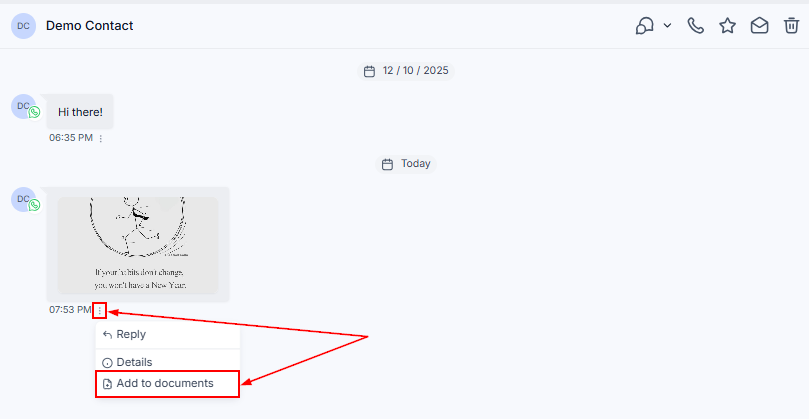
Open the WhatsApp conversation and click the media file.
Select **Add to Documents** from the actions dropdown.
The file is now permanently stored in the contact's **Documents** section. Use the three-dot menu beside the file to download or preview it.
## WhatsApp snippets
Use saved text snippets to respond quickly and consistently inside WhatsApp conversations.
In the WhatsApp composer, click the **paper icon**.
Browse or search your snippet library. Click a snippet to populate the message field automatically.
Edit the snippet text if needed, then click **Send**.
## Managing WhatsApp conversations
WhatsApp conversations support all the standard inbox management actions:
* **Archive** — move inactive conversations out of the main inbox view.
* **Star** — flag high-priority conversations for quick access in the Starred tab.
* **Mark as Read / Unread** — control the notification badge for follow-up tracking.
* **Assign** — route the conversation to a specific team member.
* **Bot toggle** — enable or disable the AI bot for this contact individually.
To filter your inbox for WhatsApp conversations only, open Quick Filters, go to **Last message channel**, and select **WhatsApp**.
### Saving received media to documents
Open the WhatsApp conversation and click the media file.
Select **Add to Documents** from the actions dropdown.
The file is now permanently stored in the contact's **Documents** section. Use the three-dot menu beside the file to download or preview it.
## WhatsApp snippets
Use saved text snippets to respond quickly and consistently inside WhatsApp conversations.
In the WhatsApp composer, click the **paper icon**.
Browse or search your snippet library. Click a snippet to populate the message field automatically.
Edit the snippet text if needed, then click **Send**.
## Managing WhatsApp conversations
WhatsApp conversations support all the standard inbox management actions:
* **Archive** — move inactive conversations out of the main inbox view.
* **Star** — flag high-priority conversations for quick access in the Starred tab.
* **Mark as Read / Unread** — control the notification badge for follow-up tracking.
* **Assign** — route the conversation to a specific team member.
* **Bot toggle** — enable or disable the AI bot for this contact individually.
To filter your inbox for WhatsApp conversations only, open Quick Filters, go to **Last message channel**, and select **WhatsApp**.