> ## Documentation Index
> Fetch the complete documentation index at: https://help.hoopai.com/llms.txt
> Use this file to discover all available pages before exploring further.
# Voicemail
> Access voicemails left by contacts, play and download recordings, and use voicemail drops to leave pre-recorded messages in the HoopAI platform.
The HoopAI platform handles voicemail in two distinct ways: **inbound voicemail** captures messages left by contacts when a call goes unanswered, and **voicemail drops** let your team instantly leave a pre-recorded message in a contact's voicemail box without waiting through a ringing phone.
## Inbound voicemail
When a contact calls your CRM phone number and no one answers, the caller is routed to your voicemail greeting. The recorded message is then automatically stored in the contact's conversation thread.
### Setting up your voicemail greeting
Navigate to **Settings → Phone Numbers**.
Click the **three-dot icon** next to your phone number and select **Edit Configuration**.
Scroll to the **Voicemail** section. You have two options:
* **Text-to-speech** — type your greeting text and choose a voice. The platform converts it to an audio greeting automatically.
* **Upload an audio file** — record a professional greeting externally and upload it in MP3 or WAV format.
Click **Save**. The greeting becomes active immediately.
### Finding voicemails in conversations
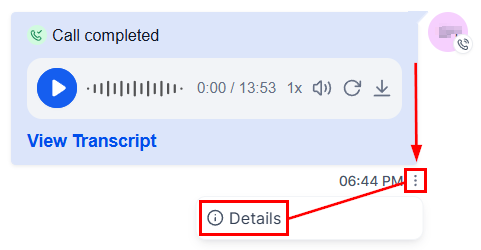
Voicemails appear in the contact's conversation thread as audio player entries, labeled as **Voicemail**.
Navigate to the **Conversations** section.
Use the search bar to find the contact by name or phone number, or scroll your inbox to find conversations with the voicemail indicator.
Click to open the conversation. Voicemail entries are displayed inline in the timeline.
Click the **play button** on the audio player to listen. Use the seek bar to skip forward or back.
### Voicemail player controls
| Control | Action |
| -------------- | ------------------------------------------- |
| Play / Pause | Start or stop playback |
| Playback speed | Adjust replay speed |
| Seek bar | Jump to any point in the recording |
| Download | Save the audio file to your device |
| Transcript | Generate a text transcript of the voicemail |
### Voicemail transcription
Click the **Transcript** button on any voicemail player to automatically generate a text transcript. Transcripts let you read the contact's message at a glance without playing the audio — useful when you are reviewing multiple voicemails in quick succession or in a quiet environment where audio is not practical.
Voicemail transcripts are searchable. If you remember a keyword a contact said, use the conversation search to locate the voicemail quickly.
***
## Voicemail drops
Voicemail drops let you deposit a pre-recorded audio message directly into a contact's voicemail inbox without the phone ringing on their end. This is particularly effective during manual calling campaigns or power dialer sessions — you can move on to the next call immediately while leaving a polished, consistent message every time.
### How voicemail drops work
When you attempt to call a contact and reach their voicemail, rather than waiting through the greeting and recording live, you click the **Voicemail Drop** button. The system instantly delivers your pre-recorded message to their voicemail and the call ends on your side. The contact receives the message as a normal voicemail on their device.
 ### Setting up voicemail drop recordings
Go to **Settings → Phone System → Voicemail** (or via your user profile settings, depending on your account configuration).
Click **Add Voicemail Drop** and give the recording a descriptive name (for example, "Follow-up after missed call" or "Demo offer").
Choose how to create the audio:
* **Record now** — use your browser microphone to record directly.
* **Upload file** — provide a pre-recorded MP3 or WAV file.
* **Text-to-speech** — type the script and the platform generates the audio.
Click **Save**. The recording is now available to all users during calls.
### Using a voicemail drop during a call
Initiate an outbound call from a contact's conversation or from the power dialer.
Listen for the contact's voicemail greeting to begin. Once the beep sounds (or when you hear the greeting), proceed to the next step.
Click the **Voicemail Drop** button in the call controls panel. A list of your pre-recorded messages appears.
Choose the recording that matches the context of the call. The message is sent instantly.
The call ends on your side automatically. The contact receives the voicemail on their device.
Voicemail drops are only available for outbound calls where the contact does not answer. They cannot be used mid-call with a live person.
### Best practices for voicemail drops
* Keep recordings concise — under 30 seconds is ideal. Most people do not listen to long voicemails.
* State your name, company, and a clear reason for calling in the first 10 seconds.
* Include a specific callback number and the best time to return the call.
* Create multiple recordings for different scenarios: initial outreach, follow-up, re-engagement, and last-attempt.
* Use a calm, clear speaking pace and minimize background noise.
Yes. Voicemail drops are available during any manual outbound call from the HoopAI platform, not just power dialer sessions. The Voicemail Drop button appears in the call controls whenever you are on an outbound call.
The contact receives the voicemail exactly as they would a live recorded message. There is no indication it was delivered as a drop rather than recorded in real time.
There is no hard limit on the number of recordings. Create as many as you need for different outreach scenarios and campaigns.
Yes. Navigate back to the voicemail settings, click the recording, and choose **Edit** to re-record or re-upload the audio.
### Setting up voicemail drop recordings
Go to **Settings → Phone System → Voicemail** (or via your user profile settings, depending on your account configuration).
Click **Add Voicemail Drop** and give the recording a descriptive name (for example, "Follow-up after missed call" or "Demo offer").
Choose how to create the audio:
* **Record now** — use your browser microphone to record directly.
* **Upload file** — provide a pre-recorded MP3 or WAV file.
* **Text-to-speech** — type the script and the platform generates the audio.
Click **Save**. The recording is now available to all users during calls.
### Using a voicemail drop during a call
Initiate an outbound call from a contact's conversation or from the power dialer.
Listen for the contact's voicemail greeting to begin. Once the beep sounds (or when you hear the greeting), proceed to the next step.
Click the **Voicemail Drop** button in the call controls panel. A list of your pre-recorded messages appears.
Choose the recording that matches the context of the call. The message is sent instantly.
The call ends on your side automatically. The contact receives the voicemail on their device.
Voicemail drops are only available for outbound calls where the contact does not answer. They cannot be used mid-call with a live person.
### Best practices for voicemail drops
* Keep recordings concise — under 30 seconds is ideal. Most people do not listen to long voicemails.
* State your name, company, and a clear reason for calling in the first 10 seconds.
* Include a specific callback number and the best time to return the call.
* Create multiple recordings for different scenarios: initial outreach, follow-up, re-engagement, and last-attempt.
* Use a calm, clear speaking pace and minimize background noise.
Yes. Voicemail drops are available during any manual outbound call from the HoopAI platform, not just power dialer sessions. The Voicemail Drop button appears in the call controls whenever you are on an outbound call.
The contact receives the voicemail exactly as they would a live recorded message. There is no indication it was delivered as a drop rather than recorded in real time.
There is no hard limit on the number of recordings. Create as many as you need for different outreach scenarios and campaigns.
Yes. Navigate back to the voicemail settings, click the recording, and choose **Edit** to re-record or re-upload the audio.