> ## Documentation Index
> Fetch the complete documentation index at: https://help.hoopai.com/llms.txt
> Use this file to discover all available pages before exploring further.
# Trigger links
> Create trackable links in Hoop that automatically fire workflow actions when a contact clicks them.
Trigger links are special trackable URLs that record when a contact clicks them and can automatically launch workflow automations in response. They are most commonly used in SMS campaigns, email messages, funnels, and websites to track engagement and trigger personalized follow-up sequences.
**Examples of use:**
* A cart-abandonment link that triggers a re-engagement workflow when clicked.
* A product info link that kicks off an automated onboarding sequence for new buyers.
* A confirmation link that records engagement and updates the contact's record.
***
## Viewing your trigger links
Navigate to **Conversations → Trigger Links** to see your full list.
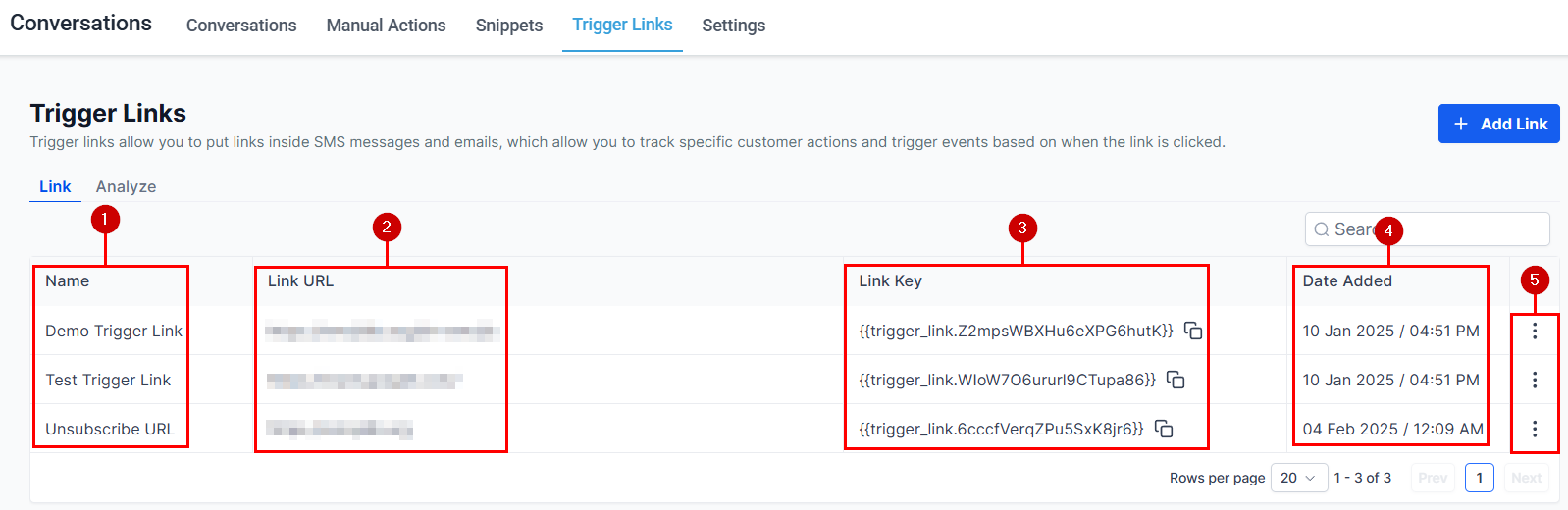
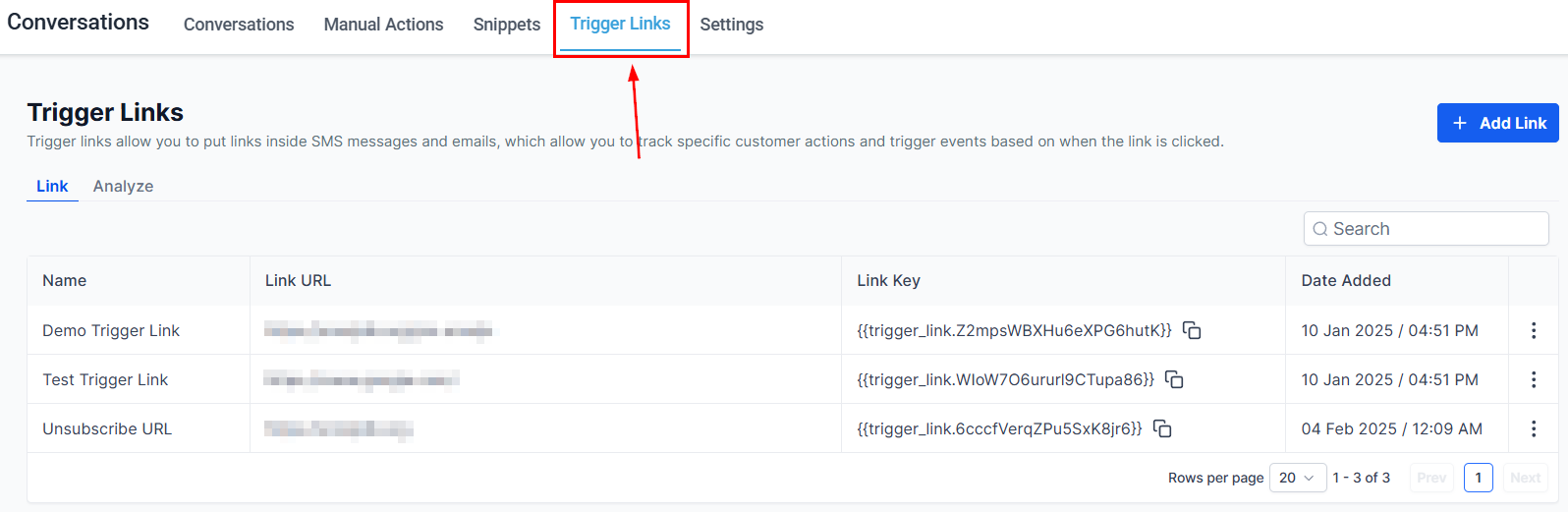 The table shows:
| Column | Description |
| ---------- | -------------------------------------------------------- |
| Name | Alphabetically sorted for easy scanning |
| Link URL | The unique tracking URL (different from the destination) |
| Link Key | Unique identifier for each trigger link |
| Date Added | When the link was created |
| Actions | Edit (pencil) or Delete (trash) |
Use the **search bar** to find a specific trigger link by keyword.
***
## Creating a trigger link
Click the **Add Link** button. A pop-up appears.
The table shows:
| Column | Description |
| ---------- | -------------------------------------------------------- |
| Name | Alphabetically sorted for easy scanning |
| Link URL | The unique tracking URL (different from the destination) |
| Link Key | Unique identifier for each trigger link |
| Date Added | When the link was created |
| Actions | Edit (pencil) or Delete (trash) |
Use the **search bar** to find a specific trigger link by keyword.
***
## Creating a trigger link
Click the **Add Link** button. A pop-up appears.
 Give it a descriptive name that reflects the action it will trigger (e.g., "Pricing Page Click" or "Free Trial CTA"). Use naming conventions if managing many links.
Paste the URL you want the contact to land on after clicking. This is the actual page — Hoop wraps it with a tracking URL automatically.
Click **Save**. The trigger link is now available to insert into messages, emails, and automations.
***
## Using trigger links in messages
Once created, add trigger links to any message in Conversations:
In any conversation, open the message composer for your chosen channel.
This opens the trigger link selector showing all your saved links.
Click the link to insert it. Hoop adds a code placeholder that resolves to the full tracking URL when the message is sent.
Trigger links can also be added to email templates and SMS snippets so they are ready to use in any template-based message.
***
## Analyzing trigger link performance
In the Trigger Links section, click the dropdown arrow next to a link and select **Analyze**.
Give it a descriptive name that reflects the action it will trigger (e.g., "Pricing Page Click" or "Free Trial CTA"). Use naming conventions if managing many links.
Paste the URL you want the contact to land on after clicking. This is the actual page — Hoop wraps it with a tracking URL automatically.
Click **Save**. The trigger link is now available to insert into messages, emails, and automations.
***
## Using trigger links in messages
Once created, add trigger links to any message in Conversations:
In any conversation, open the message composer for your chosen channel.
This opens the trigger link selector showing all your saved links.
Click the link to insert it. Hoop adds a code placeholder that resolves to the full tracking URL when the message is sent.
Trigger links can also be added to email templates and SMS snippets so they are ready to use in any template-based message.
***
## Analyzing trigger link performance
In the Trigger Links section, click the dropdown arrow next to a link and select **Analyze**.
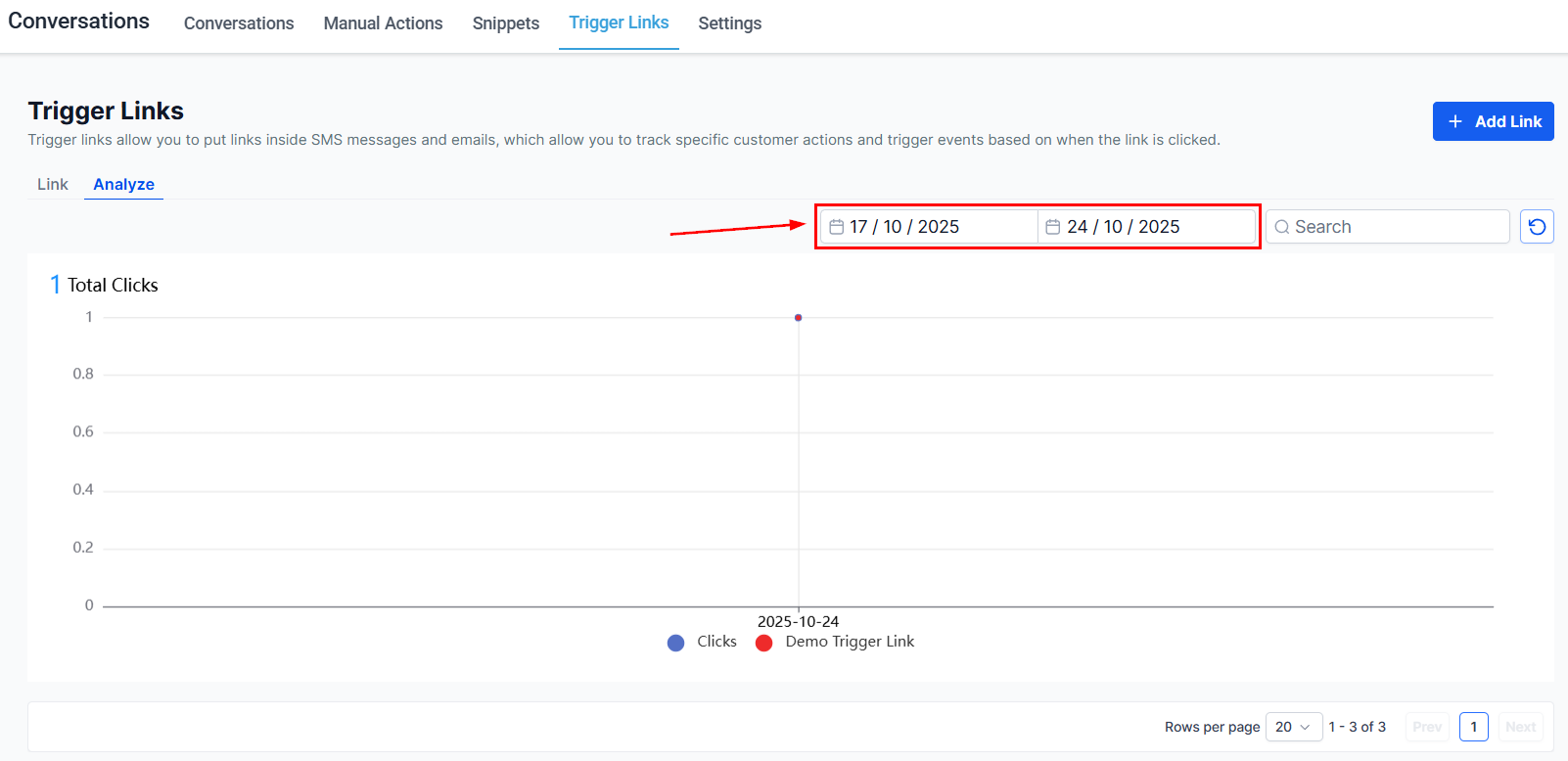 Click the date selector in the top right to choose a custom analysis period.
The bar chart shows click volume over time. The Y-axis represents total clicks within the selected range.
Click the date selector in the top right to choose a custom analysis period.
The bar chart shows click volume over time. The Y-axis represents total clicks within the selected range.
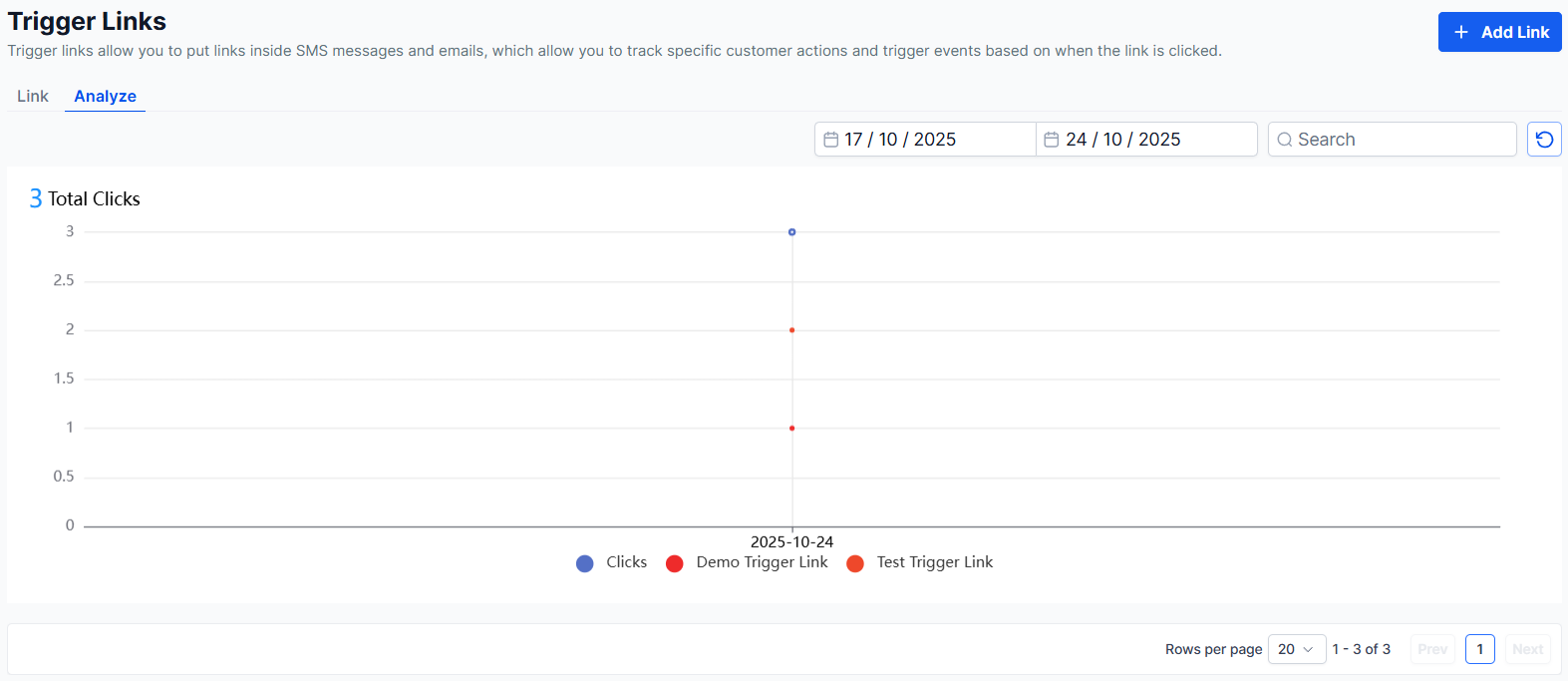 Hover over any bar to see the exact click count for that period — no need to calculate manually.
* **Trends over time** — identify when clicks peak (e.g., after a campaign send).
* **Anomalies** — sudden drops or spikes may indicate list quality issues or campaign effectiveness.
* **Comparison** — run multiple links for A/B testing different CTAs.
Click the **refresh icon** to reload the chart with the most current click data.
Hover over any bar to see the exact click count for that period — no need to calculate manually.
* **Trends over time** — identify when clicks peak (e.g., after a campaign send).
* **Anomalies** — sudden drops or spikes may indicate list quality issues or campaign effectiveness.
* **Comparison** — run multiple links for A/B testing different CTAs.
Click the **refresh icon** to reload the chart with the most current click data.